
Overview
When someone submits a Google Form, Taskade turns that response into work on its own. Connect Google Forms as a trigger. Each new submission can create a task, notify your team, or route the answers into the right project, with no manual data entry.
TL;DR: Google Forms connects to Taskade automations as one trigger and three actions. The New Response trigger pulls each new form submission in, and Get Form, Get Form Response, and List Form Responses read a form back on demand, so your workspace reacts on its own. Use it to create a task from a submission, notify your team, or route survey responses without manual work.
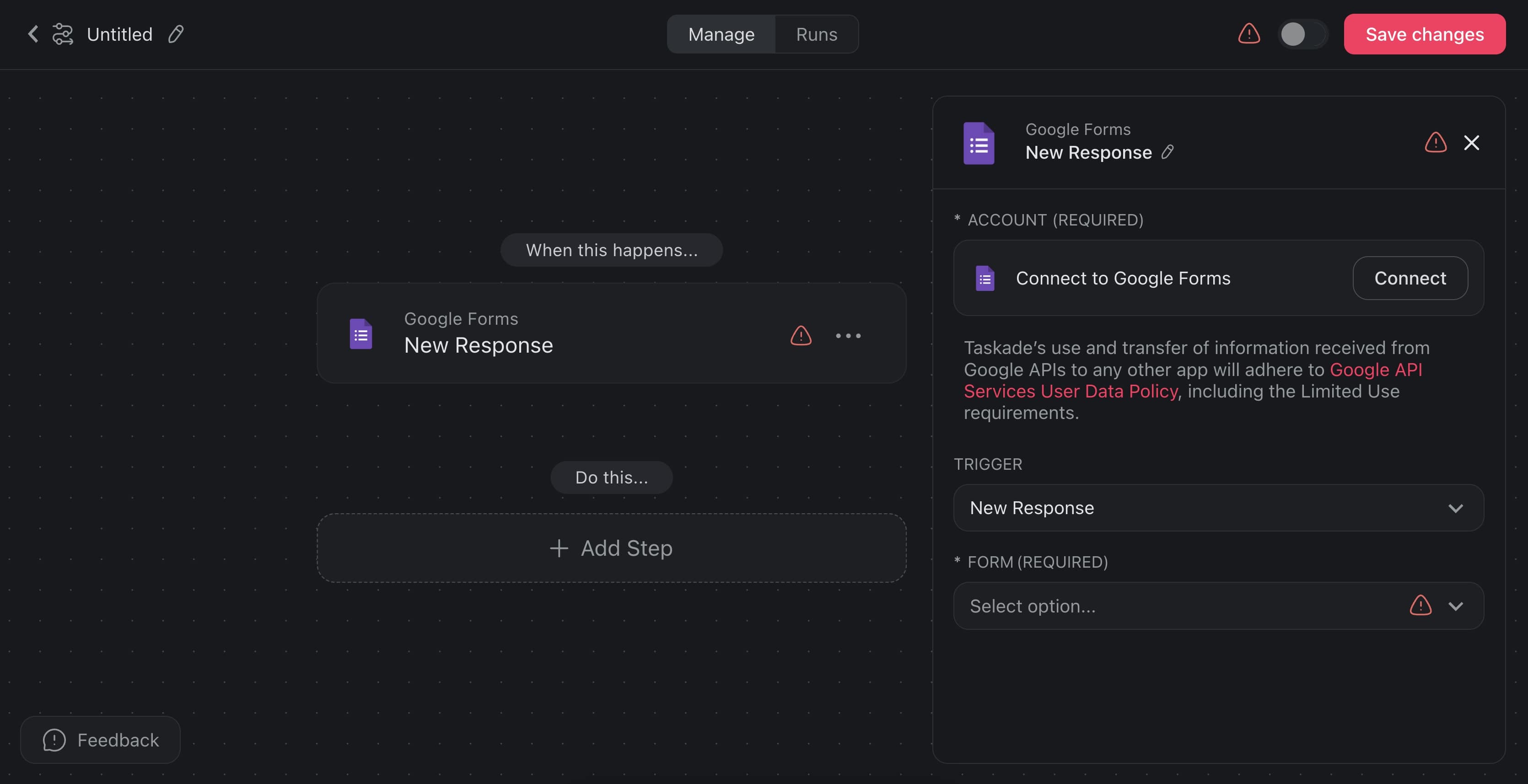
Here is what the automation looks like in the builder, one trigger feeding two actions:
┌────────────────────────────────────────────┐
│  ⚡  Automation: Intake form to task         │
├────────────────────────────────────────────┤
│  TRIGGER                                     │
│   📝 New Response · Google Forms             │
│      Form: Client Intake                     │
├────────────────────────────────────────────┤
│  ACTIONS                                     │
│   ➕ Add Task     →  "New lead: {Name}"      │
│   💬 Send Message →  #sales channel          │
└────────────────────────────────────────────┘
Google Forms Automation
Using Google Forms as a connector in your automation workflows lets you streamline data handling, reduce manual tasks, and keep your team informed in real-time.
Note: Visit Getting Started with Automation to learn how to build automations.
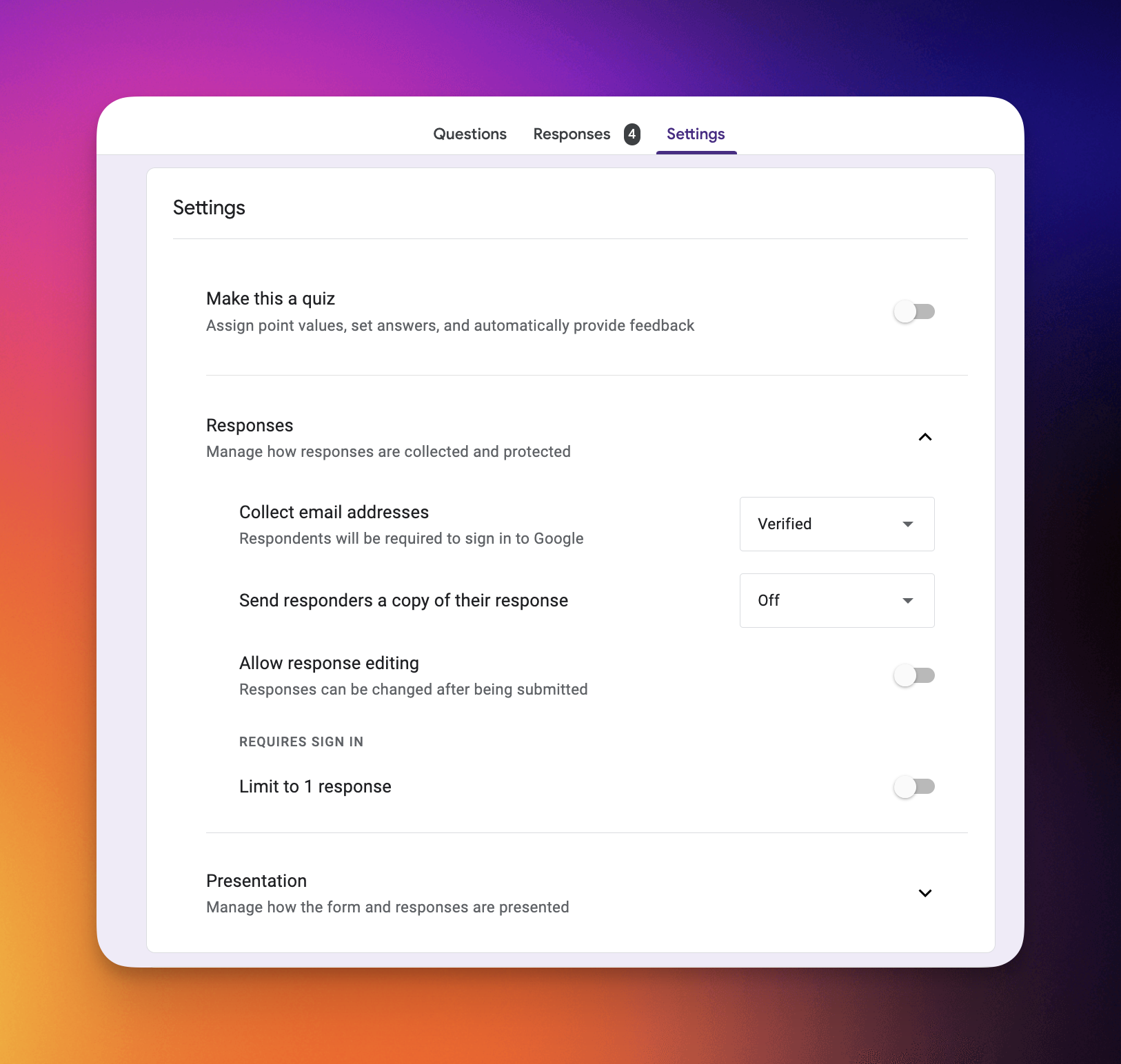
Note that for the Respondent's email to be correctly accessible in other actions of the automation, the setting of the form's Collect email addresses setting must be set to Verified.
Triggers & Actions
Here are the triggers & actions you can use in your workflows:
| Type | Name | Description |
|---|---|---|
| Trigger | New Response | Starts an automation when a new response arrives in Google Forms. |
| Action | Get Form | Reads a form title, description, and question list. |
| Action | Get Form Response | Reads a single response by its response ID. |
| Action | List Form Responses | Lists the responses submitted to a form. |
Automation Settings
Connector options give you full control over the Google Forms automation:
| Field | Description |
|---|---|
| (required) Account | Connect to your Google Forms account. This is a mandatory step to enable the connector to access and trigger actions. |
| (required) Form | Select the specific Google Form you want to monitor for new responses. |
Forms Automation Use Cases
Not sure how to use the Google Forms connector? Here are a few ideas:
| Use Case | Description |
|---|---|
| Create task from form submission | When a new response is submitted in a Google Form, automatically create a new task in Taskade with the form data. |
| Notify team of new form response | Send a notification to a specific Slack channel whenever a new response is received in a Google Form. |
| Generate report from form data | Create a task to generate a report based on data collected from Google Form responses. |
| Update Google Sheets from form response | Automatically insert a new row in Google Sheets for each Google Form submission and create a task in Taskade to review it. |
| Send email alert for form submissions | Send an email via Gmail to notify relevant team members of new responses in Google Forms. |
| Create follow-up tasks for survey responses | When a new response is submitted in a feedback survey form, create follow-up tasks in Taskade to address feedback points. |
Use this integration as an AI agent tool. See Tools for AI Agents.
Available Capabilities
| Type | Capability | Description |
|---|---|---|
| ⚡ Trigger | New Response | Fires when a new response is submitted to a form |
| 🔧 Action | Get Form | Reads a form title, description, and question list |
| 🔧 Action | Get Form Response | Reads a single response by its response ID |
| 🔧 Action | List Form Responses | Lists the responses submitted to a form |
Related guides
- Typeform. Alternative form platform
- Forms Trigger (native). Build forms directly in Taskade
- Google Sheets · Google Drive. Sister Google Workspace integrations
- AI Categorize. Auto-classify form responses