
Overview
Turn Taskade activity into Microsoft Teams messages automatically. When a project starts, a task is assigned, or a status changes, automations you set up can create channels and post messages in Teams. Your team hears about the work without anyone typing an update.
TL;DR: Microsoft Teams plugs into Taskade automations so your workspace pushes updates into Teams on its own. Actions let you Create Channel, Send Channel Message, and Send Chat Message, so new projects, task assignments, and status changes turn into Teams messages automatically. One connection covers it all.
Microsoft Teams Agent Tools
Connecting your Custom AI Agents with the Microsoft Teams tools empowers them to send messages and manage team communication based on agent interactions.
💡 Note: Visit our guide to AI Agent Tools to learn more.
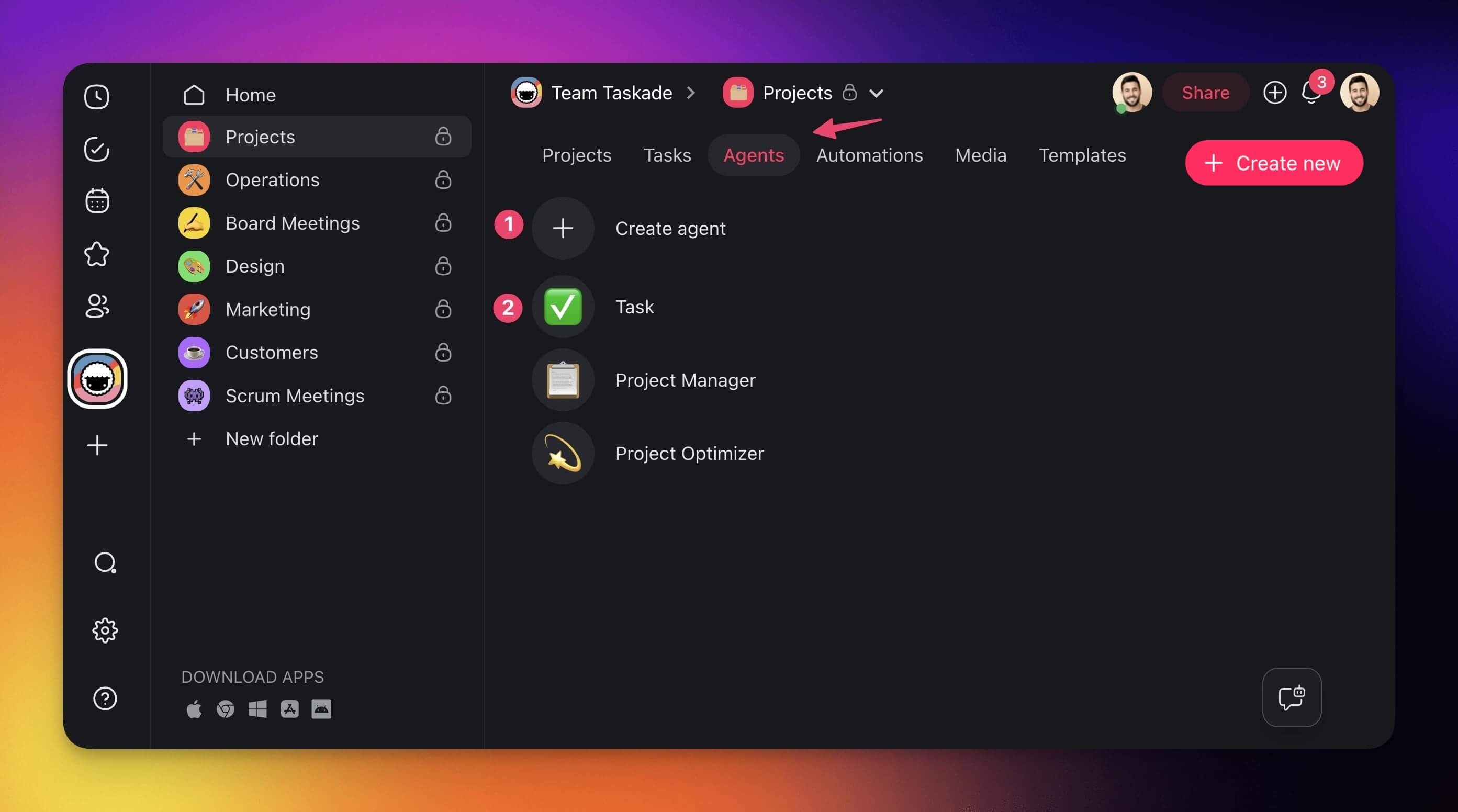
- Go to the Agents tab at the top of your workspace/folder.
- (1) Select an existing agent or (2) create a new one.
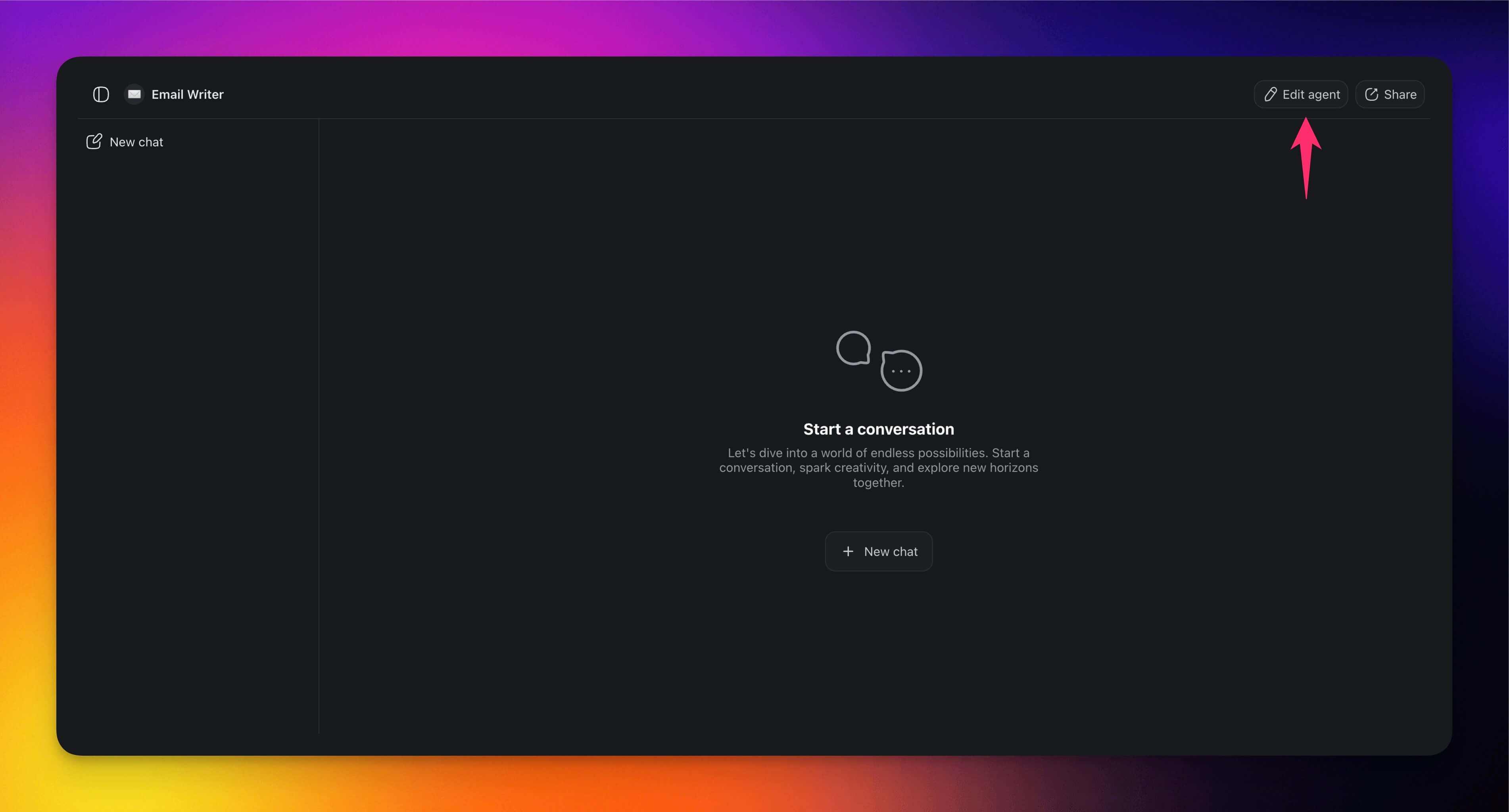
- Click ✏️ Edit agent in the top-right corner.
- Go to the 🔧 Tools tab on the left.
- Click ➕ Add tool and choose a Microsoft Teams tool from the list.
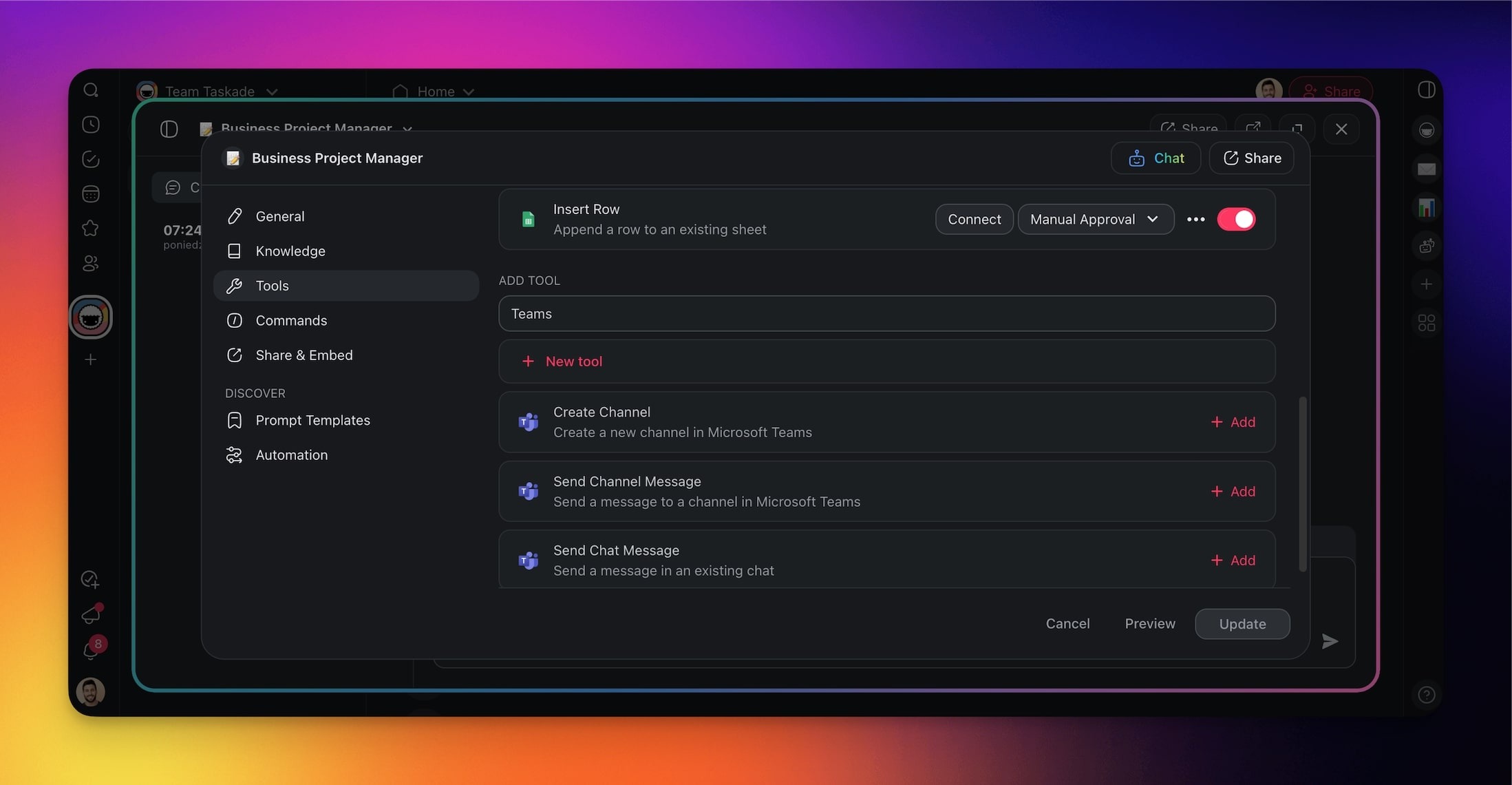
- Click Connect to configure the integration.
- Click Update to save the changes.
Build Teams Automations
Use the Microsoft Teams connector inside your automations to streamline communication and keep your team in the loop as work moves in Taskade.
Note: Visit our Automation Guide to learn more.
Add Teams as an Action
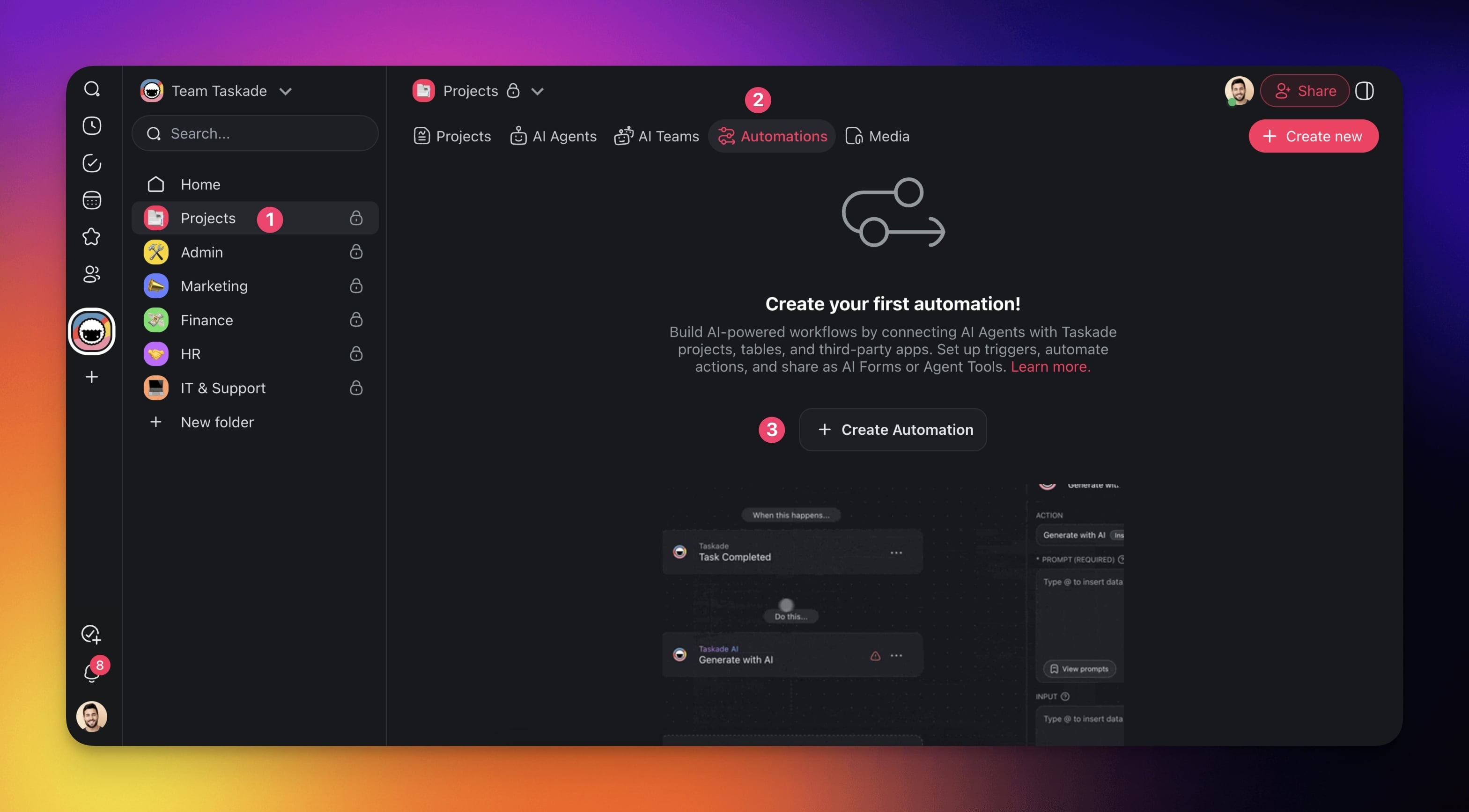
Go to the Automations tab in your workspace or folder.
Click ➕ Create automation.
Select the Add from scratch tile.
Click ➕ Add Step and choose one of the Microsoft Teams actions from the list.
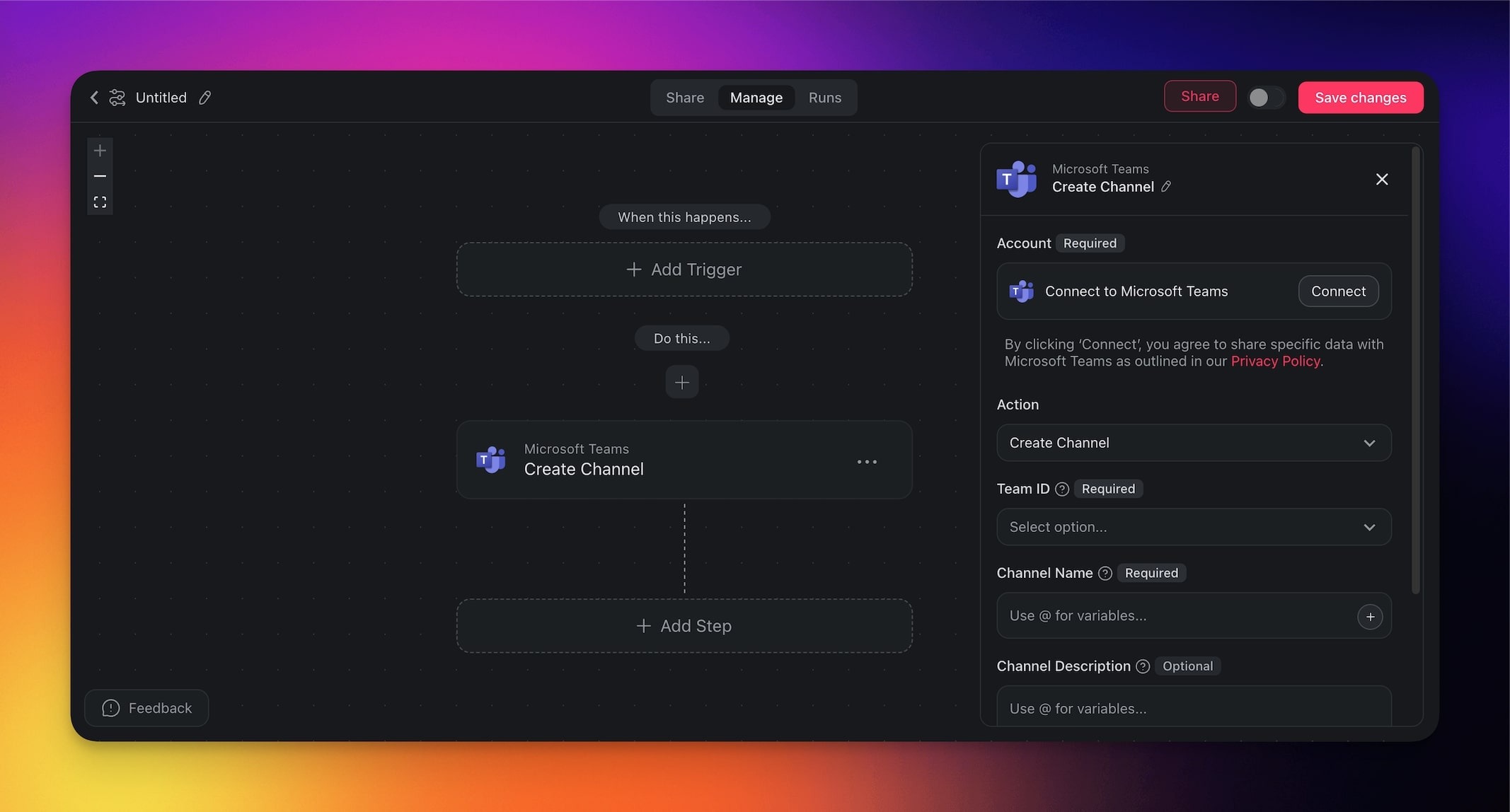
- Click Connect to configure the action (see the first section of this guide).
- Specify the conditions for the action (if applicable).
- (optional) Add more steps to the automation.
- Click Save changes in the top-right corner.
- Toggle the automation on in the top-right corner.
Teams Triggers & Actions
Here are the triggers & actions you can use in your workflows:
| Type | Name | Description |
|---|---|---|
| Trigger | New Channel Message | Fires when a new message is posted in a Microsoft Teams channel. |
| Action | Create Channel | Creates a new channel. |
| Action | Send Channel Message | Sends a message to a channel. |
| Action | Send Chat Message | Sends a message in an existing chat. |
Teams Automation Use Cases
Not sure how to use the Microsoft Teams integration? Here are a few ideas:
| Use Case | Description |
|---|---|
| Automatically create project channel | Create a new Microsoft Teams channel whenever a new project is started in Taskade. |
| Announce new task | Send a message to a specific Teams channel whenever a new task is created in Taskade. |
| Direct task assignment notification | Send a chat message to a team member in Teams when a task is assigned to them in Taskade. |
| Task status updates | Post updates in a Teams channel when the status of a task changes in Taskade. |
| Weekly summary message | Send a weekly summary of completed tasks to a channel in Teams. |
| Reminder for upcoming deadlines | Send a chat message to remind team members of upcoming task deadlines in Taskade. |
Available Capabilities
| Type | Capability | Description |
|---|---|---|
| ⚡ Trigger | New Channel Message | Fires when a new message is posted in a Teams channel |
| 🔧 Action | Create Channel | Creates a new channel |
| 🔧 Action | Send Channel Message | Sends a message to a channel |
| 🔧 Action | Send Chat Message | Sends a message in an existing chat |
Related guides
- Slack · Discord · Telegram Bot · WhatsApp. Other team-chat integrations.
- SAML single sign-on. Single sign-on is available on Business and above.
- SCIM user provisioning. Automatic provisioning, included with Enterprise.
- Custom AI Agents. Agents that post to Teams.
- Automation Actions. All Teams actions.