
Overview
The Taskade Brave Extension replaces your New Tab page. Your projects and ideas stay one tab away. Set Taskade to open in a new browser tab. Use the Web Clipper to capture content from the web.
TL;DR: Install the Taskade Brave extension to open Taskade on every new tab and capture pages with the Web Clipper. Pick what the new tab shows, from your last project to your dashboard or calendar, and right-click any text to send it straight into a project.
💡 Note: All browser extensions support Markdown syntax. Visit Markdown Support to learn about all the other ways you can use Markdown in Taskade.
Add the Extension
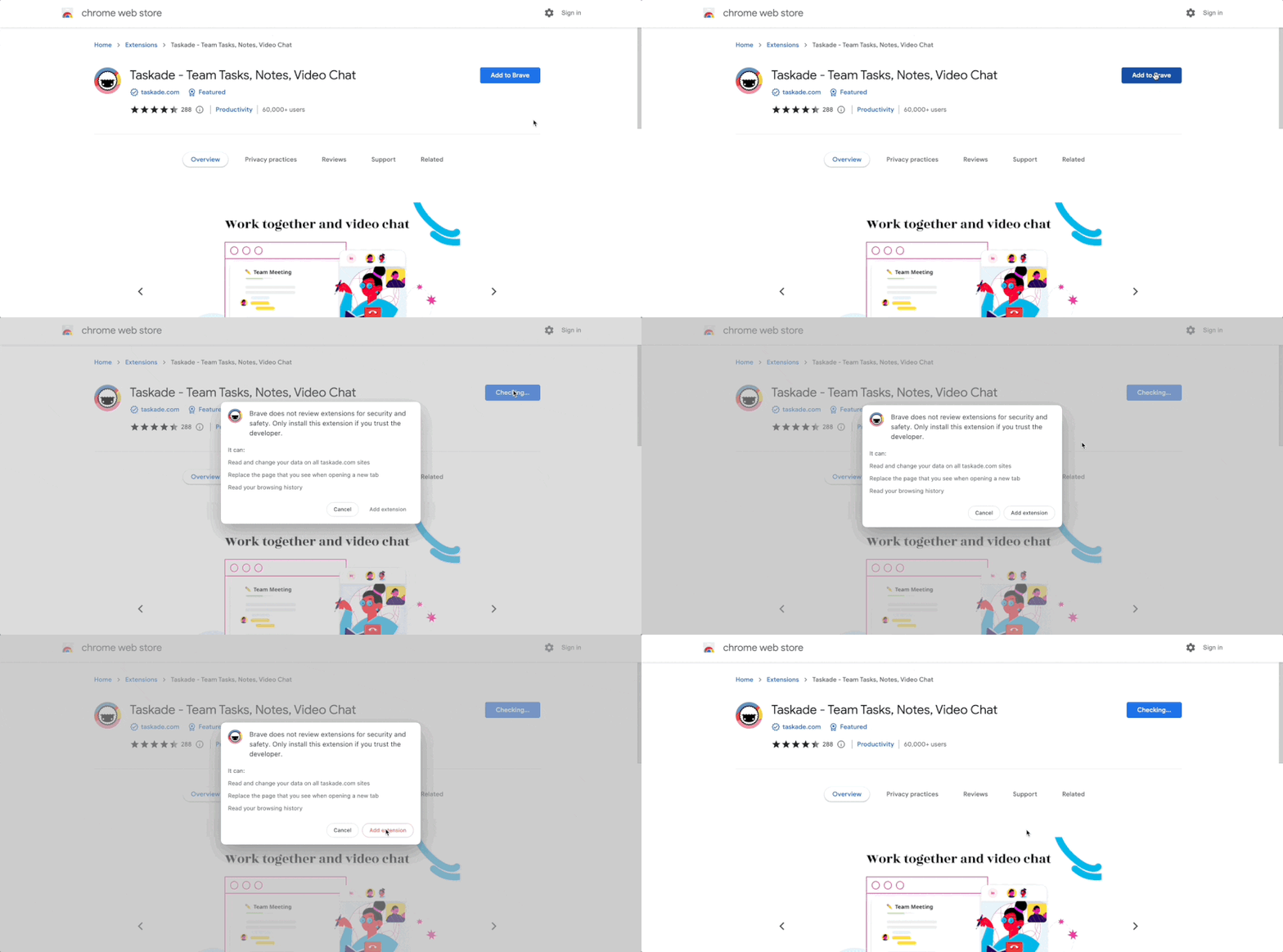
- Go to the Chrome Web Store and click Add to Brave.
- Click Add extension to confirm the installation in the pop-up prompt.
- Set Brave to open Taskade in a new tab.
💡 Note: Brave extensions are the same as Chrome extensions, and can be downloaded from the Chrome Web Store.
Customize Extension Options
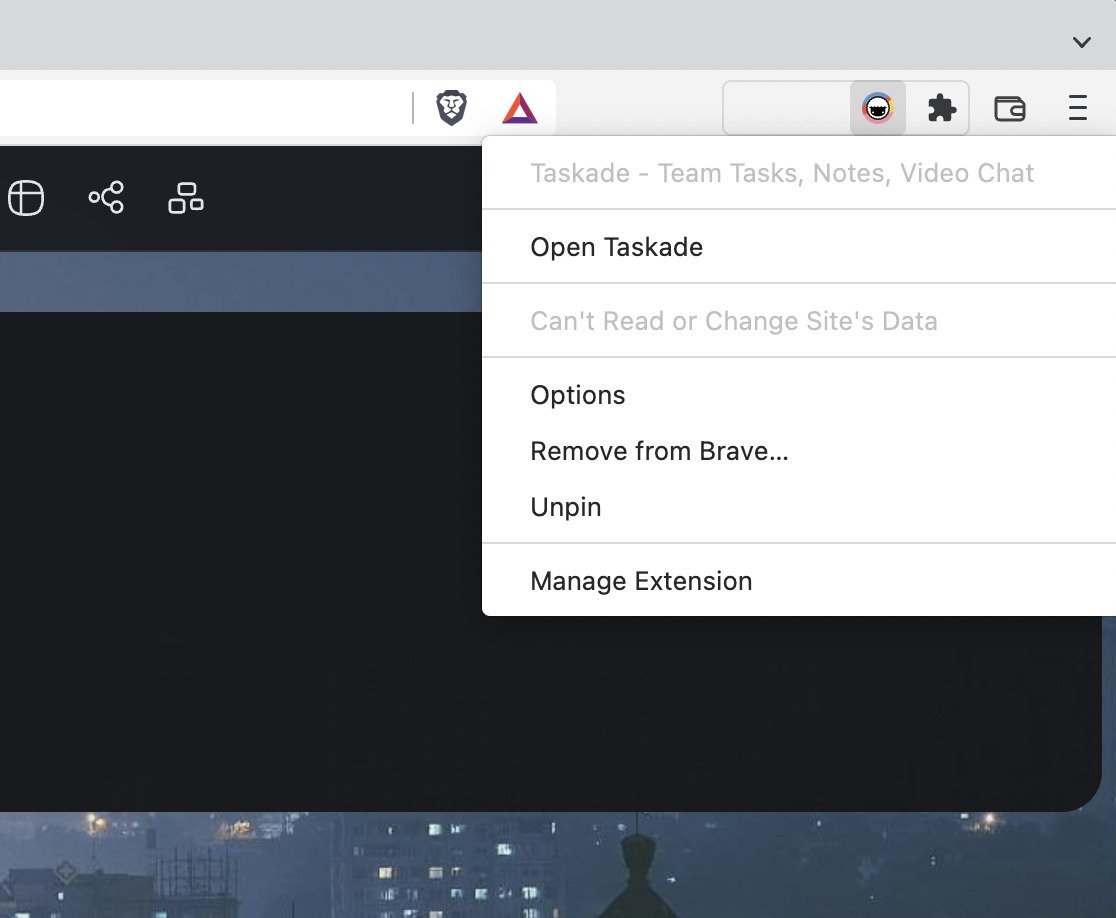
Right-click the Taskade logo in the Brave toolbar.
Click Options to manage the extension.
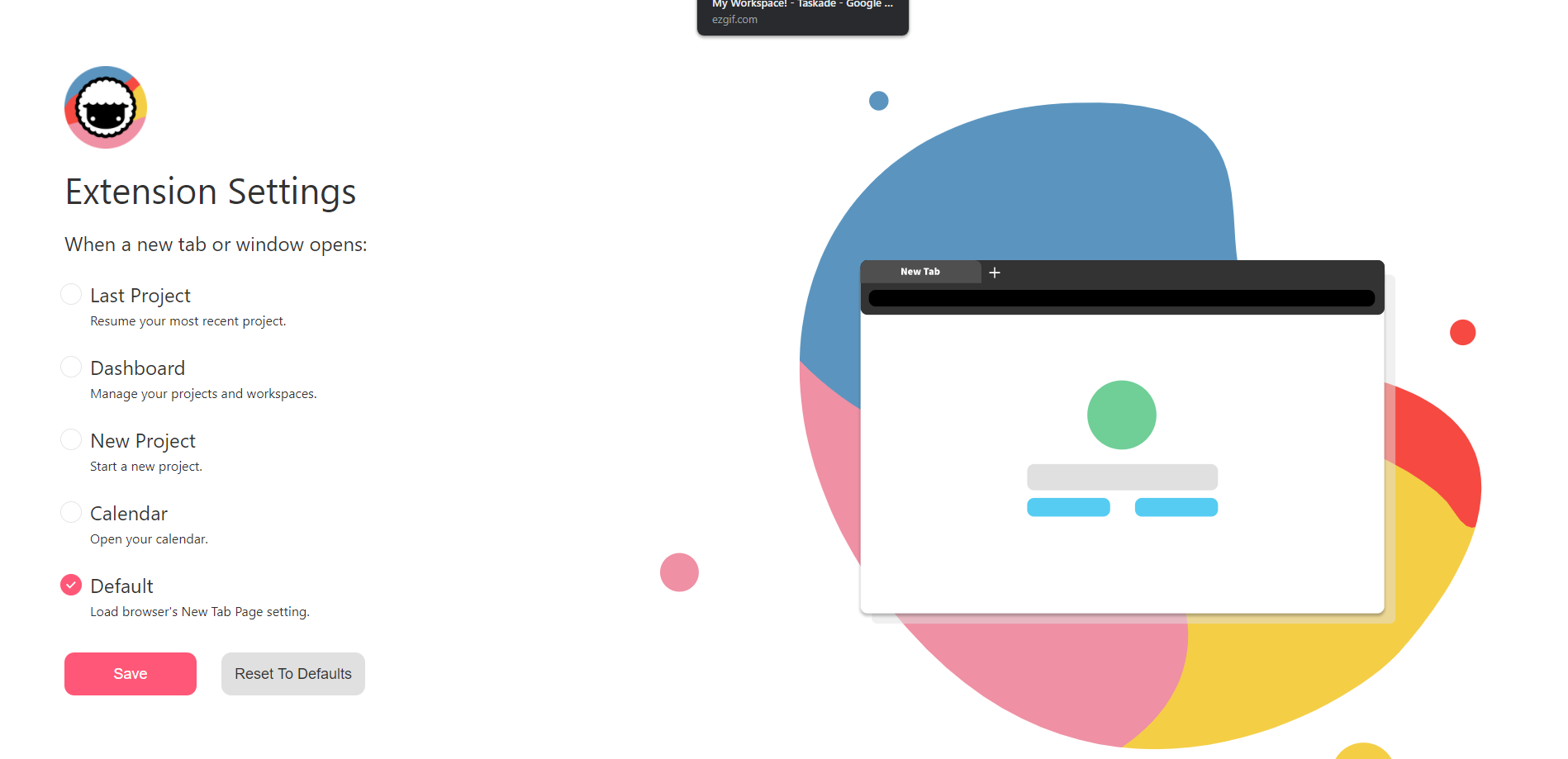
Choose what Taskade opens in a new tab.
- 👈 Last Project (resume your most recent Project)
- 🎛 Dashboard (manage your Projects and Workspaces)
- 🌱 New Project (Start a new Project)
- 🗓 Calendar (Open the Taskade Calendar)
- ⭐️ Default (open a default new tab in your browser)
- Click Save to confirm your choice.
The new-tab picker in Options looks like this:
┌────────────────────────────────────────┐
│  When I open a New Tab, show:           │
├────────────────────────────────────────┤
│  ( ) 👈 Last Project                    │
│  (•) 🎛 Dashboard                       │
│  ( ) 🌱 New Project                     │
│  ( ) 🗓 Calendar                        │
│  ( ) ⭐ Default browser tab             │
├────────────────────────────────────────┤
│                            [ Save ]     │
└────────────────────────────────────────┘
Note: If other extensions change tab behavior, reinstall the Taskade extension in a different order to restore compatibility.
Your browser now opens Taskade on every new tab.
Tips
- Pin the extension. Click the puzzle-piece icon in Brave's toolbar. Then click the pin icon next to Taskade. The extension stays visible, one click away.
- Use the Web Clipper. Right-click any highlighted text or page and select Add to Taskade to clip content directly into a project. Learn more in the Web Clipper guide.
- Brave Shields compatibility. Brave's built-in Shields normally do not interfere with the Taskade extension. If you see a problem, add
taskade.comto your Shields allow list. - Same as Chrome extensions. Brave is Chromium-based, so the Taskade extension is identical to the Chrome extension. Both get the same updates at the same time.
💡 Tip: Use the browser extension alongside Taskade Genesis to capture ideas and build AI-powered workflows from anywhere.
Related guides
- Chrome Extension · Firefox Extension · Edge Extension. Other browser extensions.
- Web Clipper. Save text and links from any page.
- Extension Settings. Configure new tab behavior.
- Quick Add Widget. Capture ideas from your desktop.