# WhatsApp Business Integration
> Connect WhatsApp Business to Taskade to receive customer messages and reply with an AI agent, or send messages, templates, and media from your automations.
- Source: https://www.taskade.com/learn/connect/whatsapp
- Section: Connect
- Updated: 2026-11-09
- Index of all pages: https://www.taskade.com/learn/llms.txt
## Overview
Reach every customer on the app they already check every day. The WhatsApp Business integration works both ways. A customer's message can start a Taskade [automation](https://www.taskade.com/learn/automation/automations-execution), so an AI agent answers in seconds. Your automations can also send order updates, onboarding messages, and announcements the moment something happens in your workspace.
> **TL;DR:** WhatsApp Business connects to Taskade [automations](https://www.taskade.com/learn/automation/automations-execution) in both directions. The **New Message Received** trigger starts an automation when a customer writes to your number, and the **WhatsApp Auto-Reply Agent** starter answers with a [custom AI agent](https://www.taskade.com/learn/agents/custom-agents). Send Message, Send Template Message, and Send Media push messages out.
> 💡 **Note**: WhatsApp Business is a premium integration. An automation that uses it needs a paid plan.
> 💡 **Note**: Only **Meta Business Accounts** with an **existing Business portfolio** can use this integration.
## Inside a WhatsApp Automation
A WhatsApp automation starts one of two ways. A customer sends a message to your WhatsApp number, and the **New Message Received** [trigger](https://www.taskade.com/learn/automation/triggers) fires. Or a trigger from another app fires, such as a new form entry or an updated spreadsheet row. Taskade can shape a reply with an AI step. Then a WhatsApp [action](https://www.taskade.com/learn/automation/actions) delivers it to the customer.
```mermaid
flowchart LR
A["Customer sends a
WhatsApp message"] --> B["New Message Received
(trigger)"]
B --> C["AI agent reads the
message and history"]
C --> D["Send Message
(reply to the sender)"]
D --> E["Reply lands in
customer's WhatsApp"]
class A,E purple
class B blue
class C pink
class D green
classDef blue fill:#0d1b2a,color:#7dd3fc,stroke:#38bdf8,stroke-width:1.5px
classDef pink fill:#2a1225,color:#ff8fa3,stroke:#ff2d60,stroke-width:2px
classDef green fill:#0d1a0e,color:#86efac,stroke:#22c55e,stroke-width:1.5px
classDef purple fill:#1a0d24,color:#ce93d8,stroke:#6a1b9a,stroke-width:1.5px
```
When the event comes from another app instead, WhatsApp carries the message out:
```mermaid
flowchart LR
A["Trigger fires
(form entry, row update,
new file)"] --> B["Taskade automation
runs"]
B --> C["AI step shapes
the message
(optional)"]
C --> D{"Which WhatsApp
action?"}
D -->|Plain text| E["Send Message"]
D -->|Pre-approved| F["Send Template
Message"]
D -->|Image / file / video| G["Send Media"]
E --> H["Message lands in
customer's WhatsApp"]
F --> H
G --> H
class A blue
class B,C pink
class D orange
class E,F,G green
class H purple
classDef blue fill:#0d1b2a,color:#7dd3fc,stroke:#38bdf8,stroke-width:1.5px
classDef pink fill:#2a1225,color:#ff8fa3,stroke:#ff2d60,stroke-width:2px
classDef orange fill:#1a140a,color:#ffb74d,stroke:#e65100,stroke-width:1.5px
classDef green fill:#0d1a0e,color:#86efac,stroke:#22c55e,stroke-width:1.5px
classDef purple fill:#1a0d24,color:#ce93d8,stroke:#6a1b9a,stroke-width:1.5px
```
You are already doing a version of this by hand. Someone fills a form, you copy their number into WhatsApp, you type the same welcome message you typed last week. This integration is that exact routine, running on its own.
---
### Connect & Configure WhatsApp
Before you use WhatsApp in Taskade, configure the integration:
- **Add WhatsApp Business** as an **action** (see the next section).
- Click **Connect** to connect your **WhatsApp Business** account to Taskade.
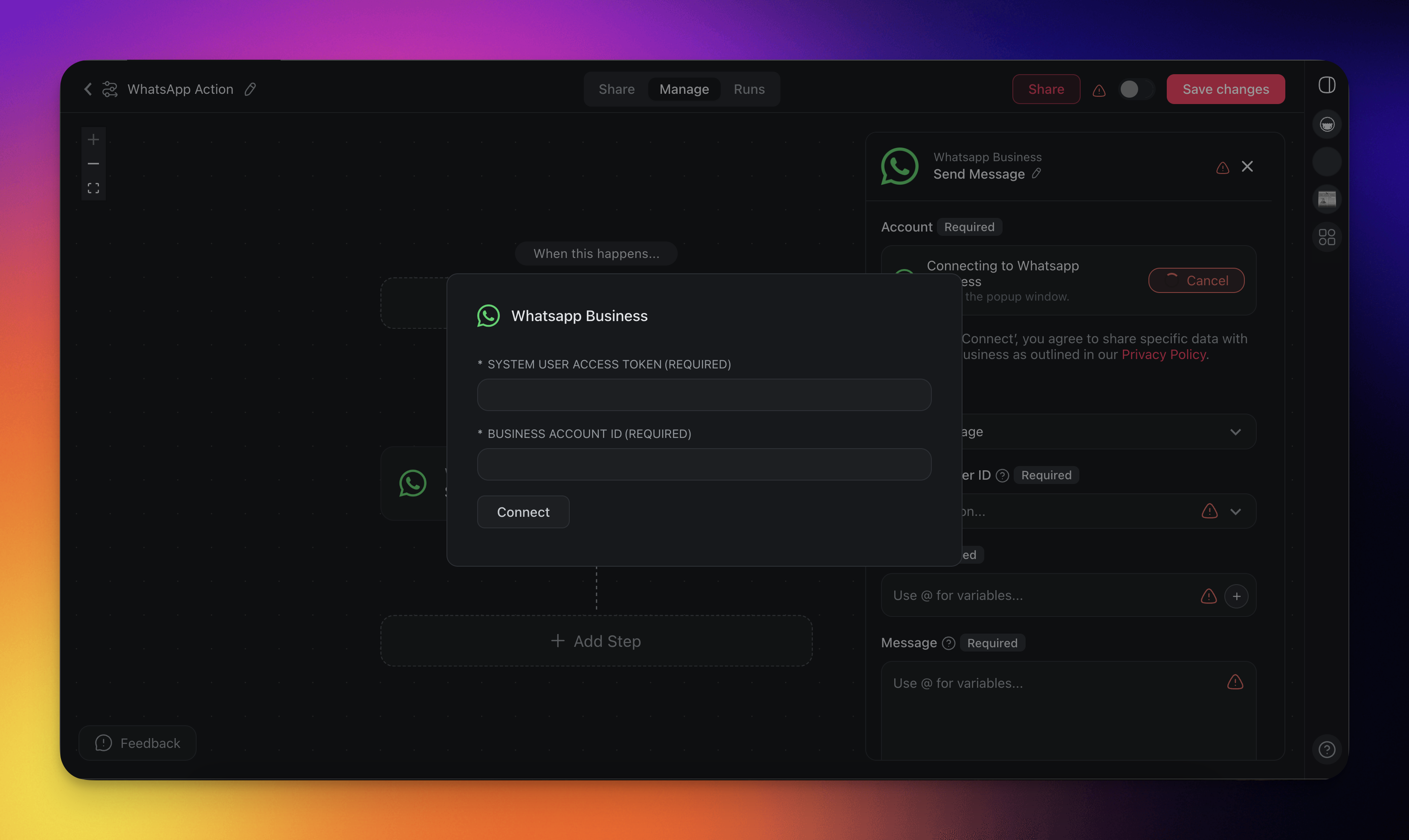
#### Get the Access Token and ID
1. Visit [https://developers.facebook.com/apps/](https://developers.facebook.com/apps/) on your Meta Business Account.
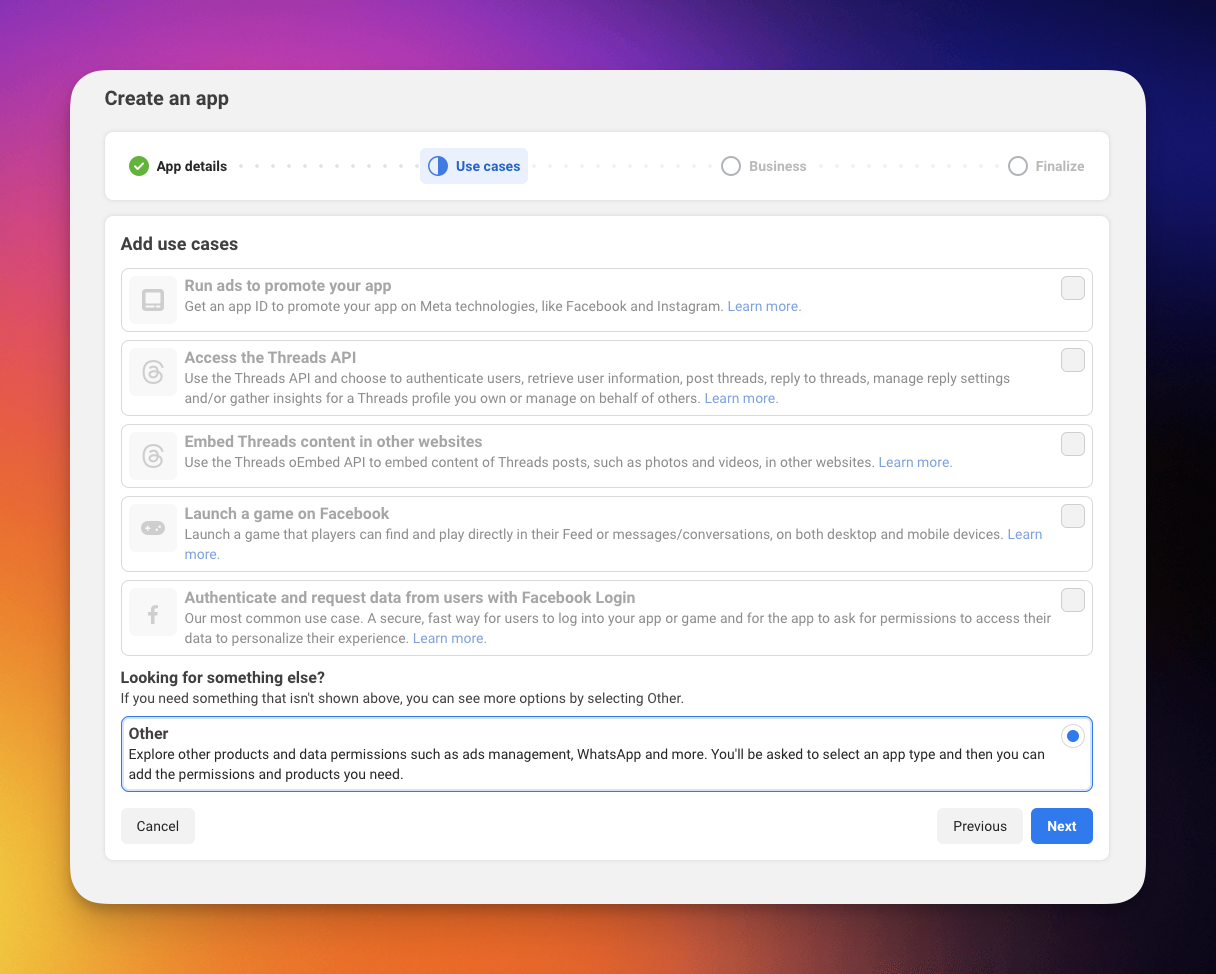
2. Click on **Create an App.**
3. Select **Other.**
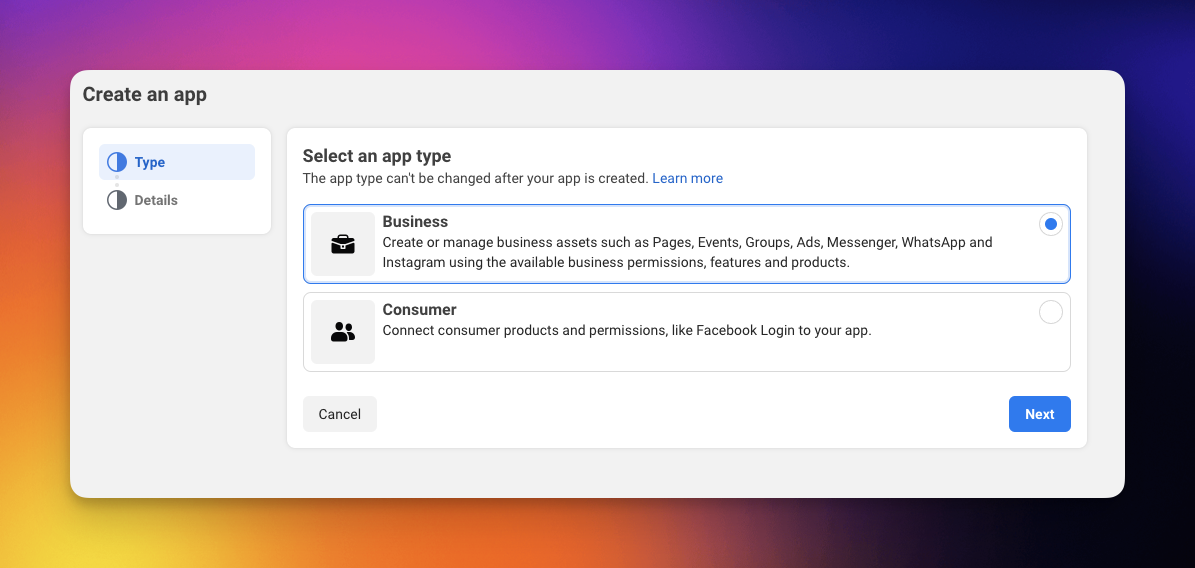
4. Select the **Business App Type.**
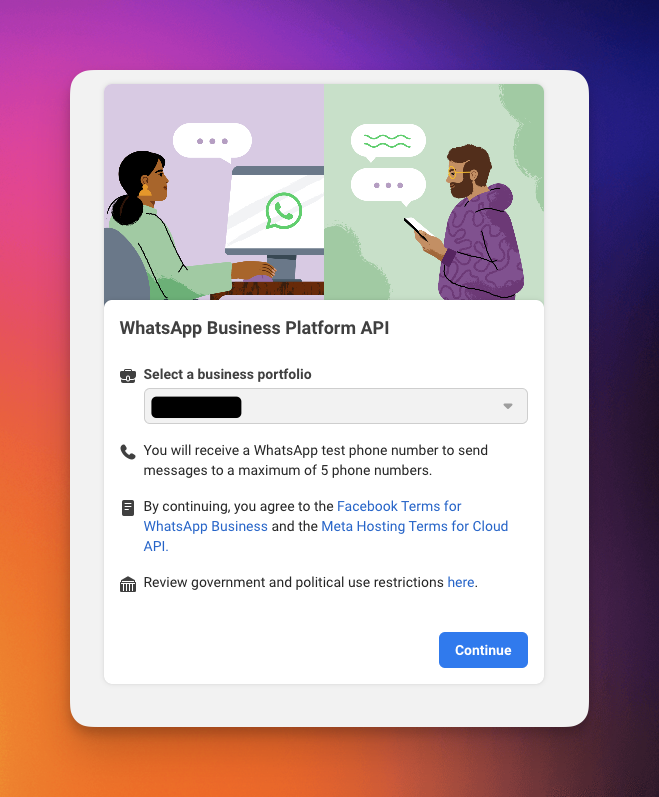
5. In the created app, click **Set Up Whatsapp.**
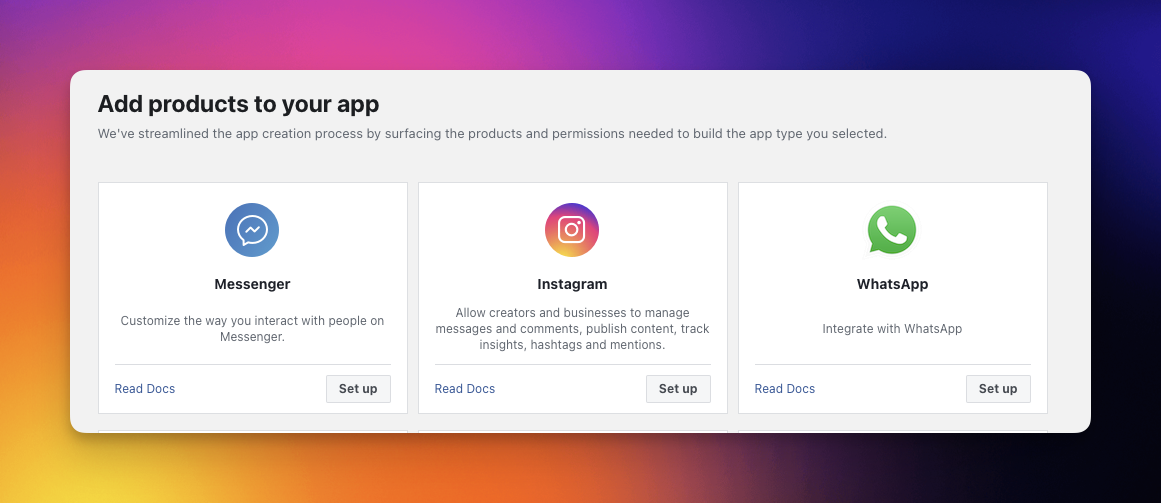
6. Follow the set up instructions and **Link the Business Portfolio.**
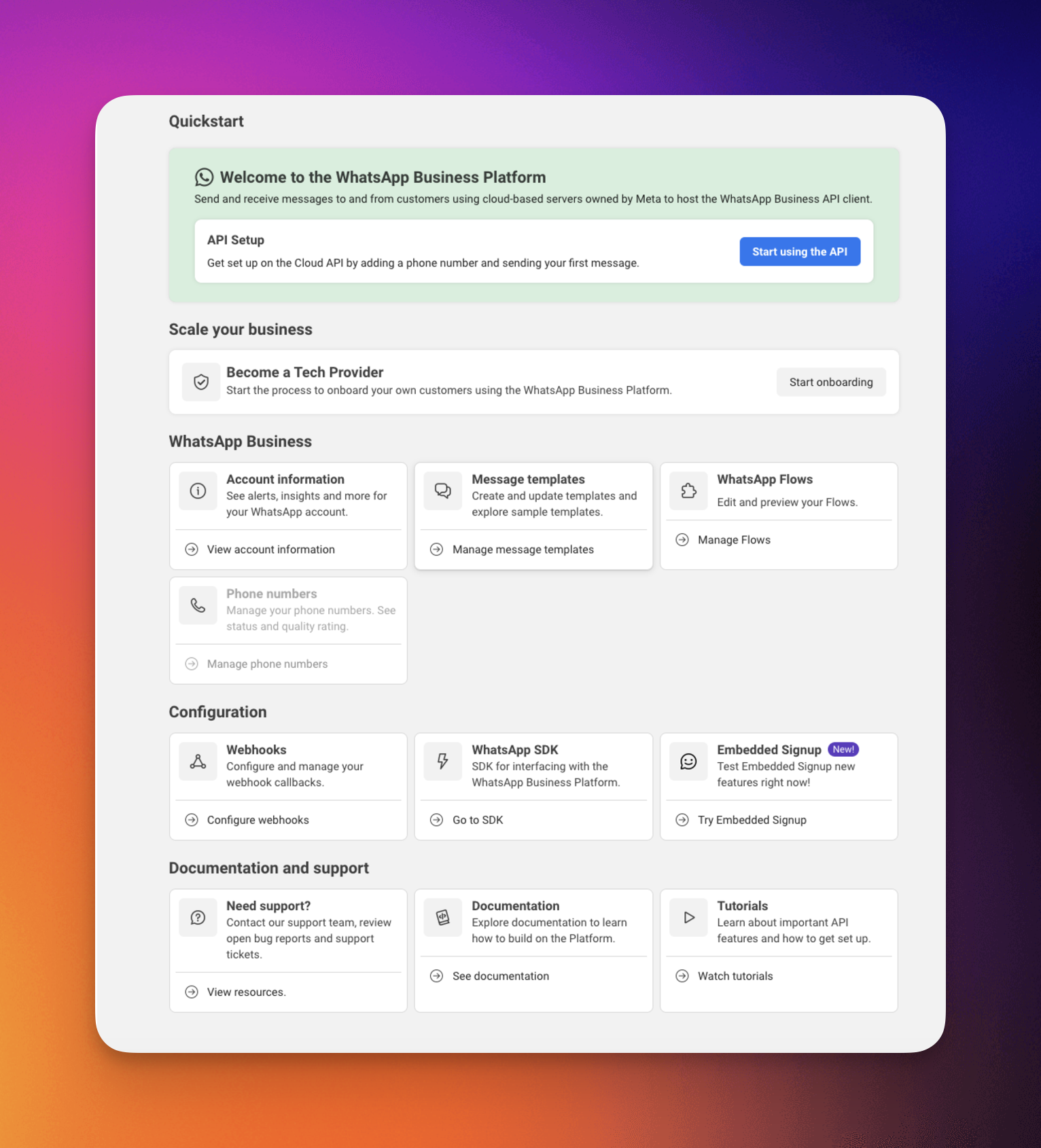
7. Click **Start using API.**
8. Click on the **Generate Access Token button, this is used in the field System User Access Token.**
9. The **WhatsApp Business Account ID** is found here too.
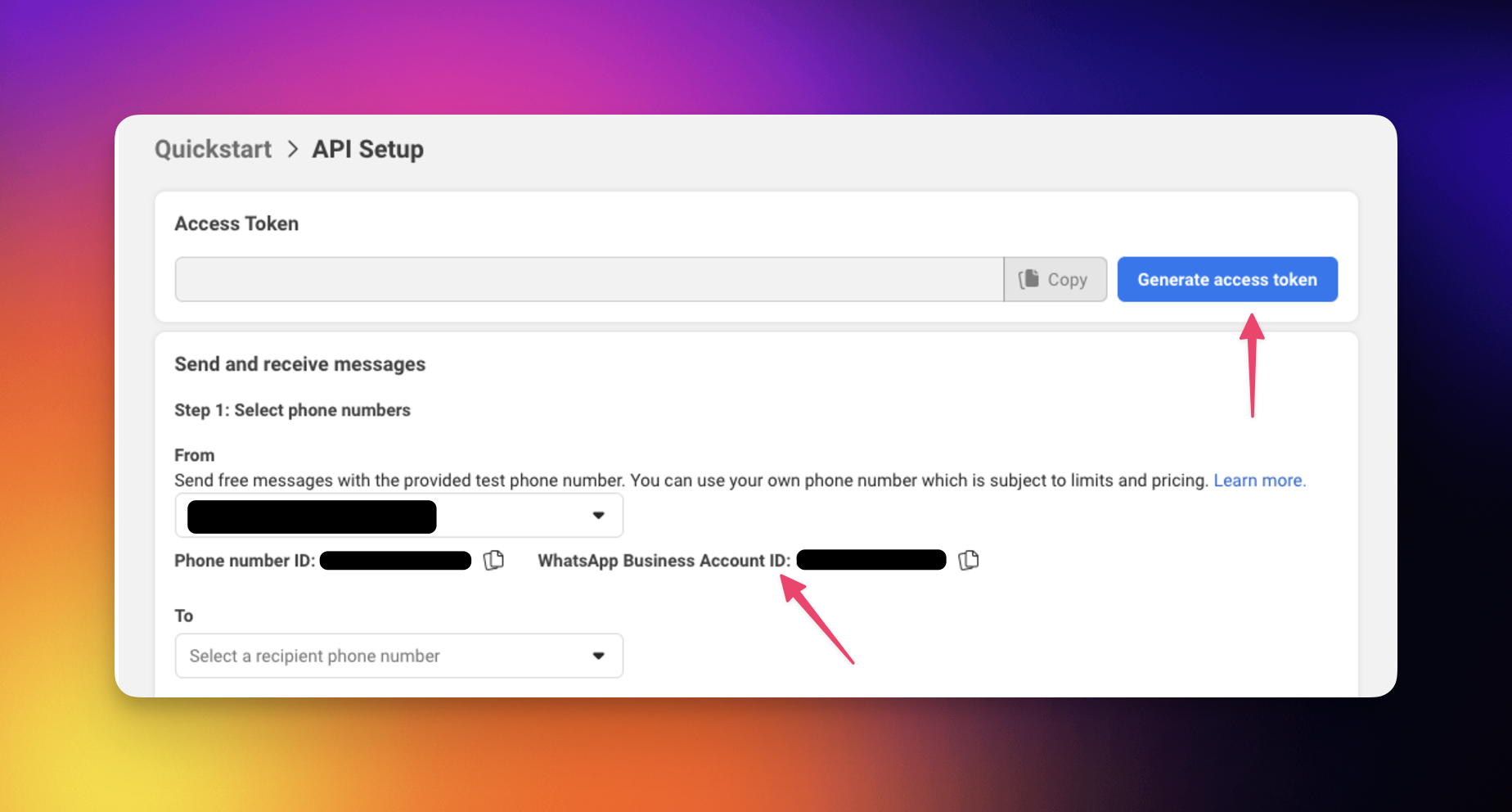
> 💡 **Note**: The token from **Generate Access Token** expires after about an hour. For an automation that keeps running, create a permanent token instead: in **Meta Business Suite**, open **Business settings > Users > System users**, add a system user, assign it your app and WhatsApp account, then click **Generate new token** with the `whatsapp_business_messaging` and `whatsapp_business_management` permissions.
#### Add the App Secret to Receive Messages
Sending needs only the token and the account ID. To receive messages with the **New Message Received** trigger, the connection also needs your **App Secret**. Meta signs every message it forwards with this secret, and Taskade checks the signature before it runs anything.
1. In the [Meta App Dashboard](https://developers.facebook.com/apps/), open your app.
2. Go to **App settings > Basic**.
3. Click **Show** next to **App Secret** and copy it.
4. Paste it into the **App Secret** field when you connect WhatsApp in Taskade.
> 💡 **Note**: An existing connection without an App Secret keeps sending. To receive messages, add a new WhatsApp connection with the App Secret and select it in the trigger.
---
### Build WhatsApp Automations
Use the WhatsApp Business connector in your automation flows to optimize communication management and improve social media engagement.
> 💡 **Note**: Visit our [Automation Guide](https://www.taskade.com/learn/automation/automations-execution) to learn more.
---
### Build an AI Auto-Reply Agent
The fastest way to answer customers on WhatsApp is the **WhatsApp Auto-Reply Agent** starter. It comes wired: the **New Message Received** trigger, a filter that skips messages with no text, an **Ask the agent** step that sees the sender's recent messages, and a **Reply on WhatsApp** step that sends the answer back to the sender.
1. Go to the **Automations** tab in your workspace and click ➕ **Create automation**.
2. Click **Add Trigger** and choose **WhatsApp Business**. Under **Quick Start**, pick **WhatsApp Auto-Reply Agent**.
3. Select your WhatsApp connection (with the App Secret) on the trigger and on **Reply on WhatsApp**.
4. On **Ask the agent**, choose the [custom AI agent](https://www.taskade.com/learn/agents/custom-agents) that answers your customers. Give it your FAQs or product docs as [knowledge](https://www.taskade.com/learn/agents/knowledge).
5. Optional: pick a **Phone Number** on the trigger to answer only one of your numbers.
6. **Toggle the automation on.** Taskade registers itself with Meta to receive your messages.
7. Send a WhatsApp message to your business number and watch the reply arrive.
The first time you turn it on, Meta can require one manual step. If it does, the error message gives you a **Callback URL** and a **Verify token**. Open **App Dashboard > WhatsApp > Configuration > Webhooks**, paste both, click **Verify and save**, and subscribe to the **messages** field. Then turn the automation on again.
#### Trigger Fields
| Field | What it holds |
| --- | --- |
| `from` | The sender's phone number. The starter uses it as **To** to reply. |
| `contactName` | The sender's WhatsApp profile name. |
| `text` | The message text, button title, list choice, or media caption. |
| `type` | text, button, interactive, image, video, audio, document, sticker, location, or contacts. |
| `recentHistory` | The sender's earlier messages to this number, oldest first (up to 10). |
| `mediaId`, `mimeType`, `filename` | Details of an attached file, for media messages. |
| `phoneNumberId`, `displayPhoneNumber` | The business number that received the message. |
---
### Add WhatsApp as an Action
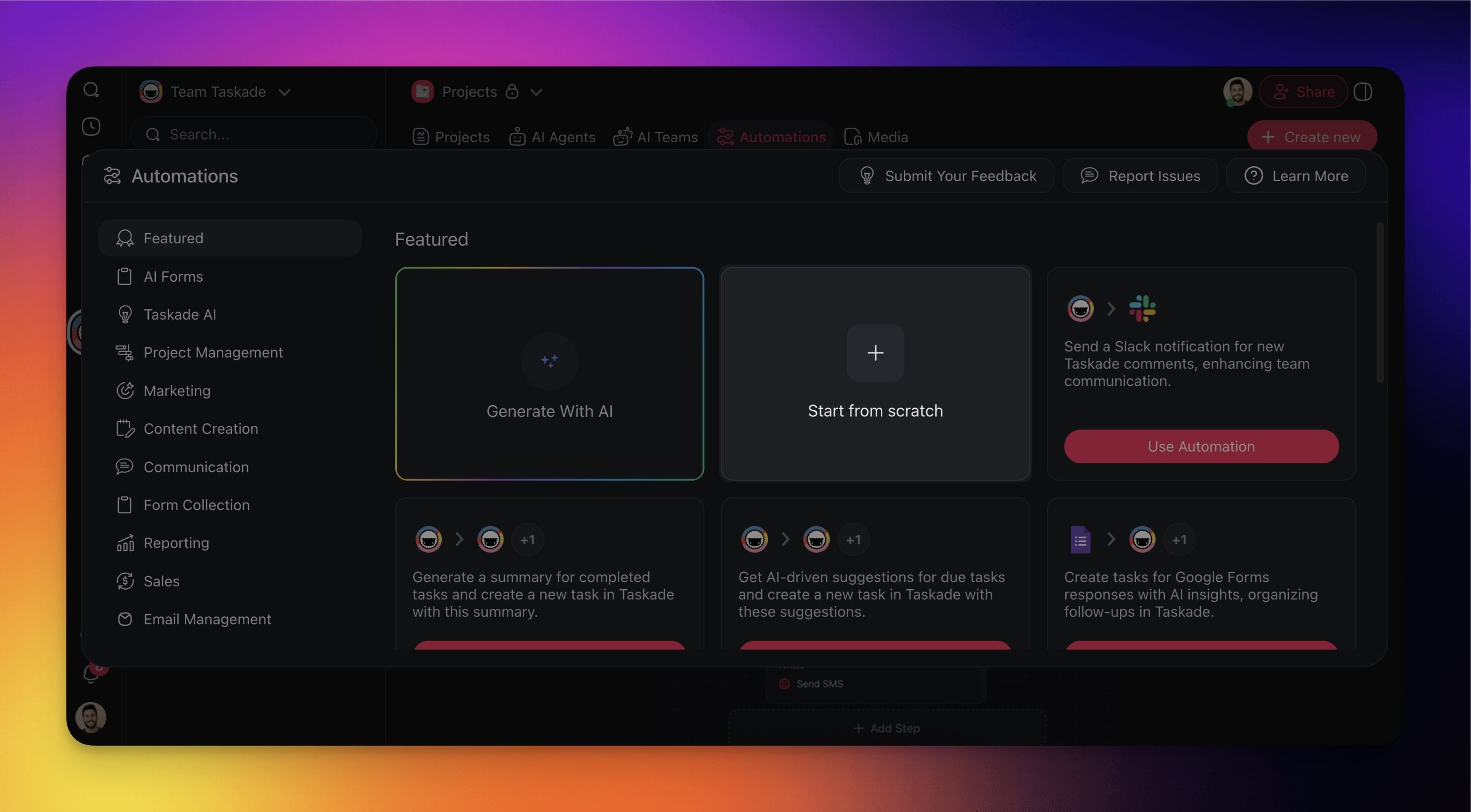
- Go to the **Automations** tab in your workspace or folder.
- Click ➕ **Create automation**.
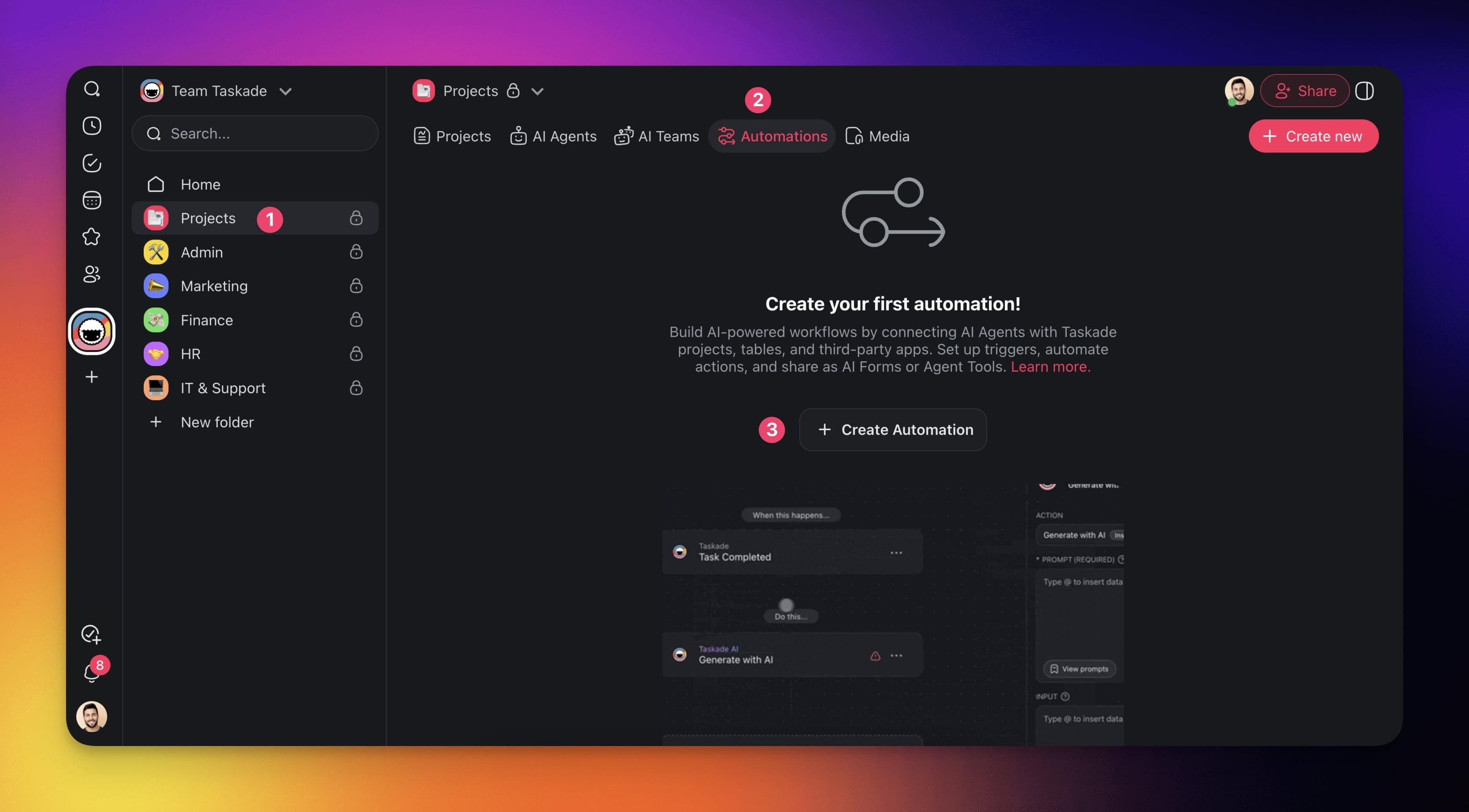
- Select the **Add from scratch** tile.
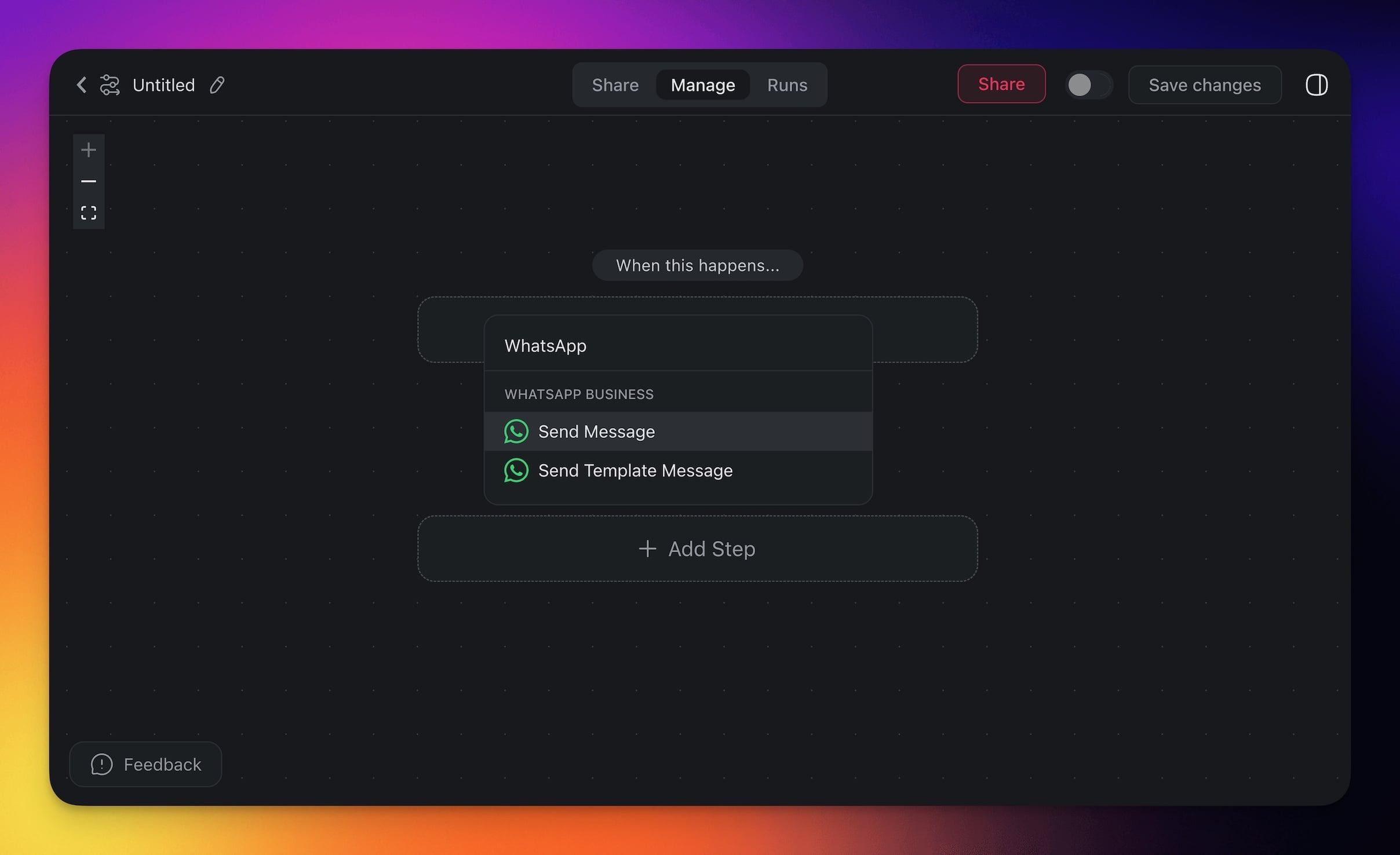
- Click ➕ **Add Action** and **choose** one of the **WhatsApp Business actions** from the list.
- **Connect** your WhatsApp Business account to Taskade (see the first section of this guide).
- **Specify** the **conditions** for the trigger (if applicable).
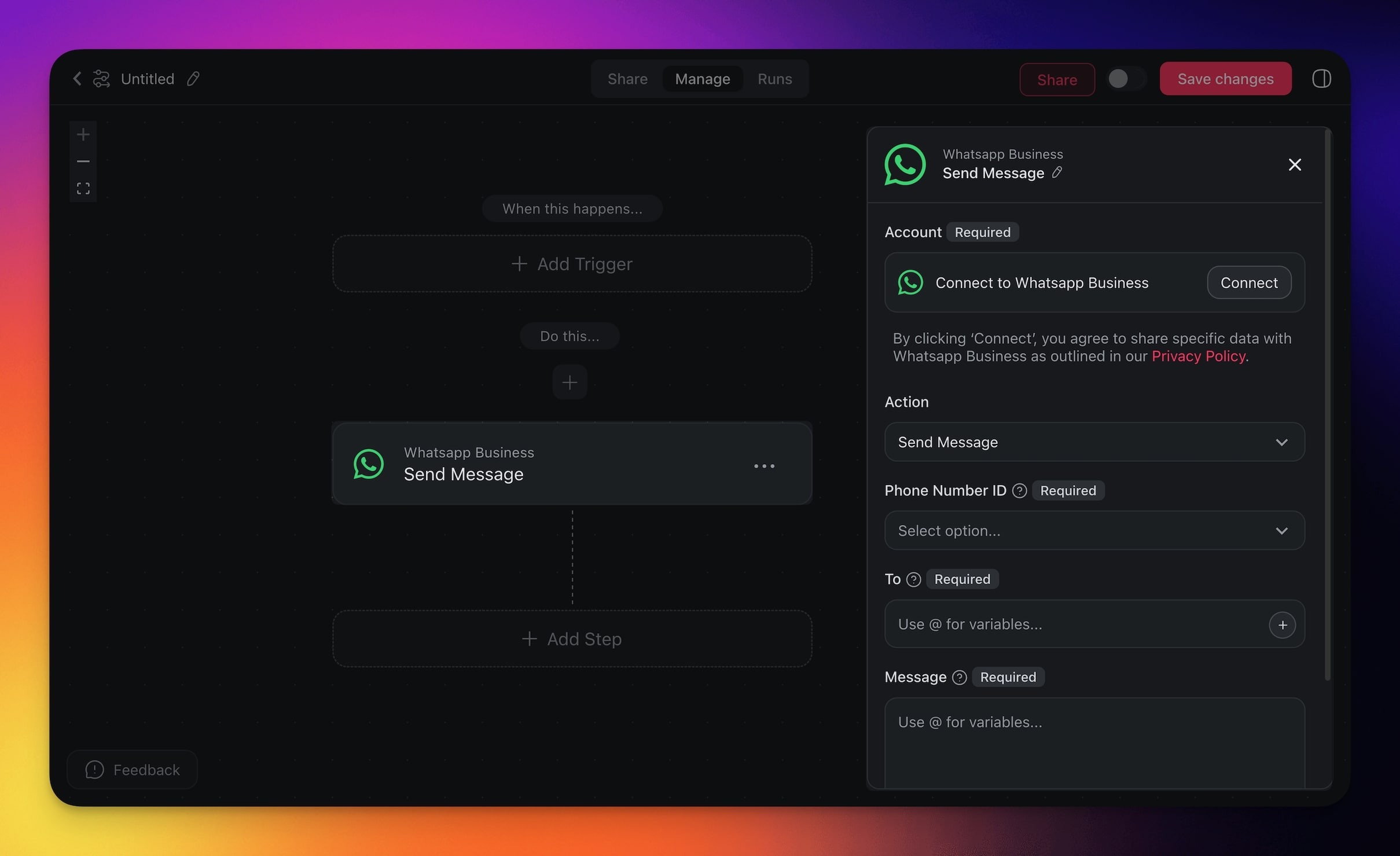
- (optional) Add more steps to the automation.
- Click **Save changes** in the top-right corner.
- **Toggle the automation on** in the top-right corner.
---
## WhatsApp Business Actions
WhatsApp Business gives your automations 3 outbound [actions](https://www.taskade.com/learn/automation/actions): Send Message, Send Template Message, and Send Media. Send Message is for free-form text, Send Template Message is for pre-approved formats like order confirmations, and Send Media carries an image, audio, document, or video. Each one fires the moment your trigger does.
| Action | What it does |
| --- | --- |
| **Send Message** | Sends a text message to a specified contact or group on WhatsApp. |
| **Send Template Message** | Sends a pre-designed template message for consistent communication. |
| **Send Media** | Sends a media file (Image, Audio, Document, Video) to a specified contact or group on WhatsApp. |
> 💡 **Note**: Due to a WhatsApp Business policy, if a customer has not messaged your business account first, you can **only send template messages to them**. Once they reply, free-form Send Message and Send Media open up for 24 hours.
---
### Meta Rules for Receiving and Replying
Meta sets a few rules for every business on WhatsApp. Plan your automation around them.
| Rule | What it means for you |
| --- | --- |
| **Live app** | Your Meta app must be **Live** (published) to receive messages on a real business number. A test number from the API Setup page works while the app is in development, for the recipients you add there. |
| **24-hour window** | A free-form reply works within 24 hours of the customer's last message. After that, use **Send Template Message**. An auto-reply always answers inside the window. |
| **Meta pricing** | Meta bills WhatsApp messages itself, separately from Taskade. Replies to customers are free up to a monthly limit per number, and you need a payment method on your Meta account beyond it. See [Meta's pricing](https://developers.facebook.com/documentation/business-messaging/whatsapp/pricing). |
| **Business purpose** | Meta allows bots that serve your business, such as support, bookings, and order questions. A general-purpose AI assistant is not allowed. See the [WhatsApp Business Messaging Policy](https://business.whatsapp.com/policy). |
---
### WhatsApp Automation Settings
Connector options give you full control over the WhatsApp Business automation:
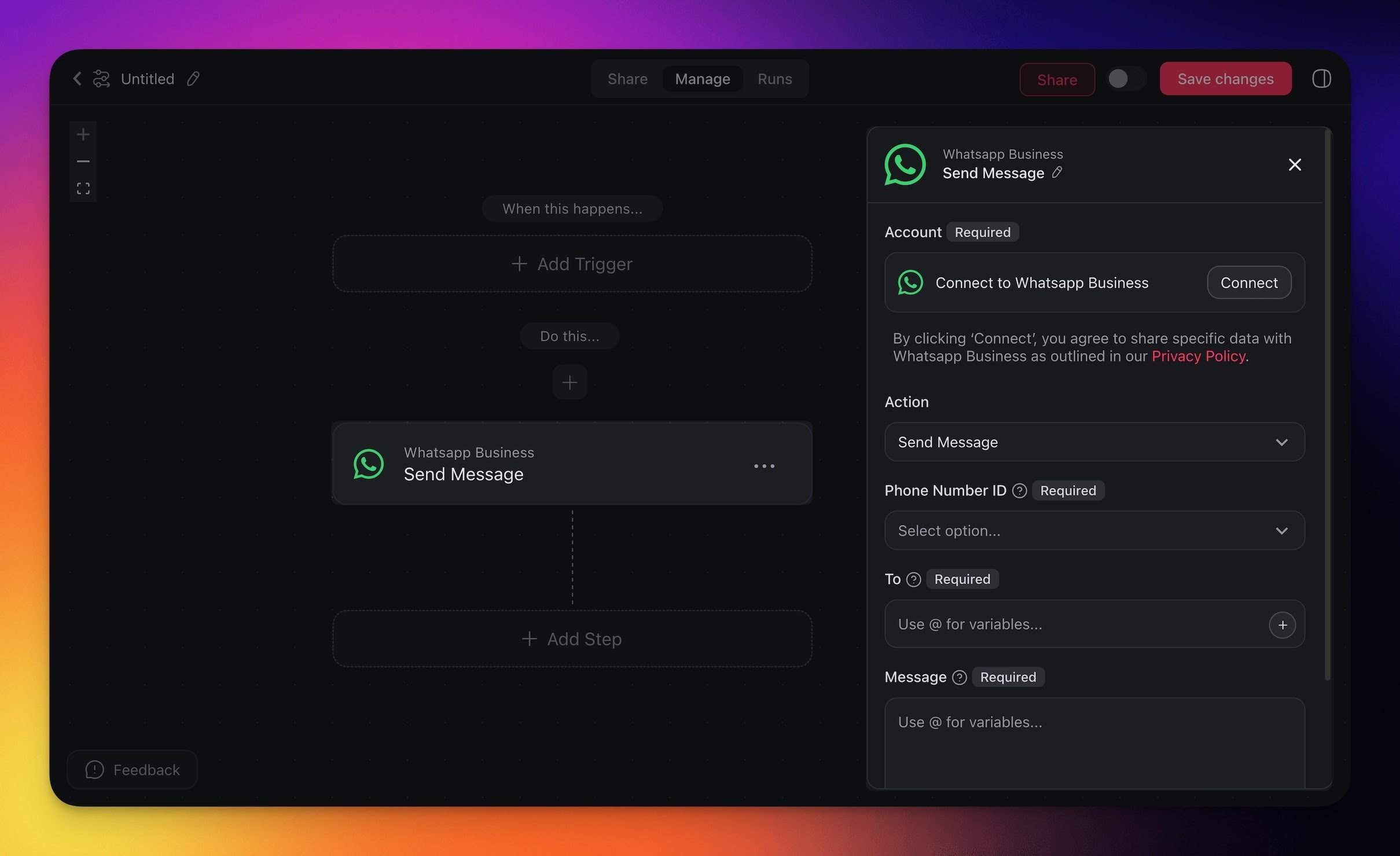
#### Send Message
| Field | Description |
| --- | --- |
| (required) Phone Number ID | Phone number ID that will be used to send the message. |
| (required) To | The recipient of the message. |
| (required) Message | The body of the message. |
#### Send Template Message
| Field | Description |
| --- | --- |
| (required) Phone Number ID | Phone number ID that will be used to send the message. |
| (required) To | The recipient of the message. |
| (required) Message | The body of the message. |
| (required) Message Template | Message template that will be used to send the message. |
#### Send Media
| Field | Description |
| --- | --- |
| (required) Phone Number ID | Phone number ID that will be used to send the message. |
| (required) To | The recipient of the message. |
| (required) Type | The type of media. (Image, Audio, Document, Video) |
| (required) Media URL | The URL of the media. |
| (optional) Caption | The caption for the media. |
| (optional) Filename | The filename for the media. |
---
### WhatsApp Use Cases
Pick the goal that matches your business. Each row is a working automation: a trigger from one app, an optional AI step, and a WhatsApp action that delivers the message. Wire it once, and customers stay updated without you touching your phone.
| Goal | How the automation runs |
| --- | --- |
| Answer customer questions around the clock | ✅ Trigger: New Message Received (WhatsApp)
➡️ Action: Ask an agent with your FAQ knowledge
➡️ Action: Send Message to the sender (WhatsApp) |
| Log every inbound inquiry for your team | ✅ Trigger: New Message Received (WhatsApp)
➡️ Action: Create Task in a Taskade project
➡️ Action: Send Message confirming you got it (WhatsApp) |
| Send order status updates to customers | ✅ Trigger: Row Updated in Google Sheets
➡️ Action: Find Row(s) for order info
➡️ Action: Send Template Message with status (WhatsApp) |
| Onboard new customers automatically | ✅ Trigger: New Entry in Typeform
➡️ Action: Write with AI for welcome message
➡️ Action: Send Template Message to customer (WhatsApp) |
| Announce product launches to your audience | ✅ Trigger: New File (Google Drive)
➡️ Action: Write with AI to summarize
➡️ Action: Send Message (WhatsApp) |
| Coordinate volunteers with shift updates | ✅ Trigger: New Row in Google Sheets (shift assigned)
➡️ Action: Write with AI for shift instructions
➡️ Action: Send Message (WhatsApp) |
A finished onboarding automation reads top to bottom like this:
```text
NEW CUSTOMER ONBOARDING [ ON ]
──────────────────────────────────────────────────
✅ TRIGGER New Entry in Typeform
└─ name, phone number, plan
│
▼
🤖 ACTION Write with AI
└─ writes a warm welcome message
│
▼
💬 ACTION Send Template Message (WhatsApp)
└─ to: {{phone number}}
└─ delivers in seconds
──────────────────────────────────────────────────
```
---
### Troubleshooting
| What you see | Why | Fix |
| --- | --- | --- |
| "This WhatsApp connection has no App Secret" | The connection was made for sending only. | Add a new connection with the App Secret, then select it in the trigger. |
| "One more step in Meta: open App Dashboard > WhatsApp > Configuration > Webhooks" | Meta needs the callback set once in the dashboard. | Paste the Callback URL and Verify token from the message, subscribe to **messages**, then turn the automation on again. |
| "This WhatsApp Business Account already sends its messages to..." | Another system receives this account's messages. | Remove that callback in Meta, or with the WhatsApp API, then turn the automation on again. Taskade never takes over a callback it did not set. |
| "WhatsApp blocked sending from this business account" (Meta error 131005, 131031, 131042, or 368) | Meta paused sending: a payment method, verification, or policy issue. | Check the payment method, business verification, and account status in **Meta Business Suite**. |
| "WhatsApp delivers a free-form message only within 24 hours" (Meta error 131047) | The customer last wrote more than 24 hours ago. | Use **Send Template Message**. |
| "This recipient is not on the allowed list of your test phone number" (Meta error 131030) | Test numbers only reach recipients you add. | Add the number under **WhatsApp > API Setup**, or send from a production number. |
| "WhatsApp could not deliver to this number" (Meta error 131026) | Possible causes: the recipient does not use WhatsApp, or their app is out of date. | Make sure that the number is right and includes the country code. If the number does not use WhatsApp, reach the person another way. |
| "The WhatsApp access token expired or was revoked" (Meta error 190) | A temporary token ran out. | Reconnect with a permanent System User token (see above). |
---
### Disconnect WhatsApp Business
To disconnect the WhatsApp Business integration from your Taskade account:
- **From Automations**:
- Choose the WhatsApp Business action in your automation.
- Click **Change** in the configuration sidebar on the right.
- Click the **trash button** 🗑️ next to the active account.
---
## Use WhatsApp as an Agent Tool
Hand WhatsApp to a [custom AI agent](https://www.taskade.com/learn/agents/custom-agents) and it can message customers as one of its [built-in tools](https://www.taskade.com/learn/agents/agent-tools). A support agent reads a request, drafts a reply, and sends it over WhatsApp on its own. The same 3 actions are available, no extra setup.
| Type | Capability | Description |
| --- | --- | --- |
| 🔧 Action | Send Message | Performs the send message operation |
| 🔧 Action | Send from Template | Performs the send from template operation |
| 🔧 Action | Send Media | Performs the send media operation |
---
## Build a Portal That Talks Back
You already keep customer details in a spreadsheet and chase them one by one in WhatsApp. In [Taskade Genesis](https://www.taskade.com/create), describe that workflow in plain English and you get a live **client portal**: every customer record in one place, with their orders, status, and history attached as [connected projects](https://www.taskade.com/wiki/automation/integration-orchestration).
Picture it running. A new sign-up fills your form, and Taskade EVE files them as a record. The moment their order status changes, a WhatsApp template message goes out automatically. Your team sees the whole customer at a glance. The customer hears from you on the app they check every day, without anyone typing the same update twice.
[Describe your customer workflow to Taskade Genesis →](https://www.taskade.com/create)
---
### Related guides
- How automations fire and run: [Automations Overview](https://www.taskade.com/learn/automation/automations-execution), [Triggers](https://www.taskade.com/learn/automation/triggers), [Actions](https://www.taskade.com/learn/automation/actions)
- Other team-chat integrations: [Slack](https://www.taskade.com/learn/connect/slack-integration), [Discord](https://www.taskade.com/learn/connect/discord-integration), [Telegram Bot](https://www.taskade.com/learn/connect/telegram-bot), [Microsoft Teams](https://www.taskade.com/learn/connect/microsoft-teams)
- SMS counterpart for non-WhatsApp regions: [Twilio](https://www.taskade.com/learn/connect/twilio-integration)
- Let an agent handle customer replies: [Custom AI Agents](https://www.taskade.com/learn/agents/custom-agents), [Tools for AI Agents](https://www.taskade.com/learn/agents/agent-tools)
- More connectors and apps to clone: [All 100+ integrations](https://www.taskade.com/integrations), [Taskade App Factory](https://www.taskade.com/apps)