
What Is SAML?
SAML lets your team sign in to Taskade with the same Okta credentials they already use everywhere else. No second password to remember, no unmanaged accounts. Identity lifecycle (joiners, movers, leavers) stays governed inside Okta. This guide walks through the full Okta and Taskade configuration in roughly 10 minutes.
TL;DR: In Okta, create a SAML 2.0 app integration with Single sign-on URL
https://www.taskade.com/saml/sso/login/callbackand Audience URIhttps://www.taskade.com/saml/sso/metadata. Add anuser.email. Copy Okta's SSO URL, Issuer, and X.509 certificate into Taskade's Settings → Organization → SAML SSO. Available on Business, Max, and Enterprise plans, and pairs with SCIM provisioning.
💡 Note: If your team already uses Taskade, your identity provider takes ownership of those accounts. Tell your team before you enable SAML.
Configure with Okta
Requirements
The main account must be set up with a company email address.
Personal email accounts are not allowed.
Your email must be verified.
This feature is available on Business, Max, and Enterprise plans.
💡 Already on Business? SAML single sign-on is included on Business, Max, and Enterprise, so your Okta directory can govern Taskade sign-in today. Configure it from Settings → Organization → SAML SSO. Business also puts your published Taskade Genesis apps on Custom Domains. Their built-in GenesisAuth sign-in works on every plan.
Okta Setup
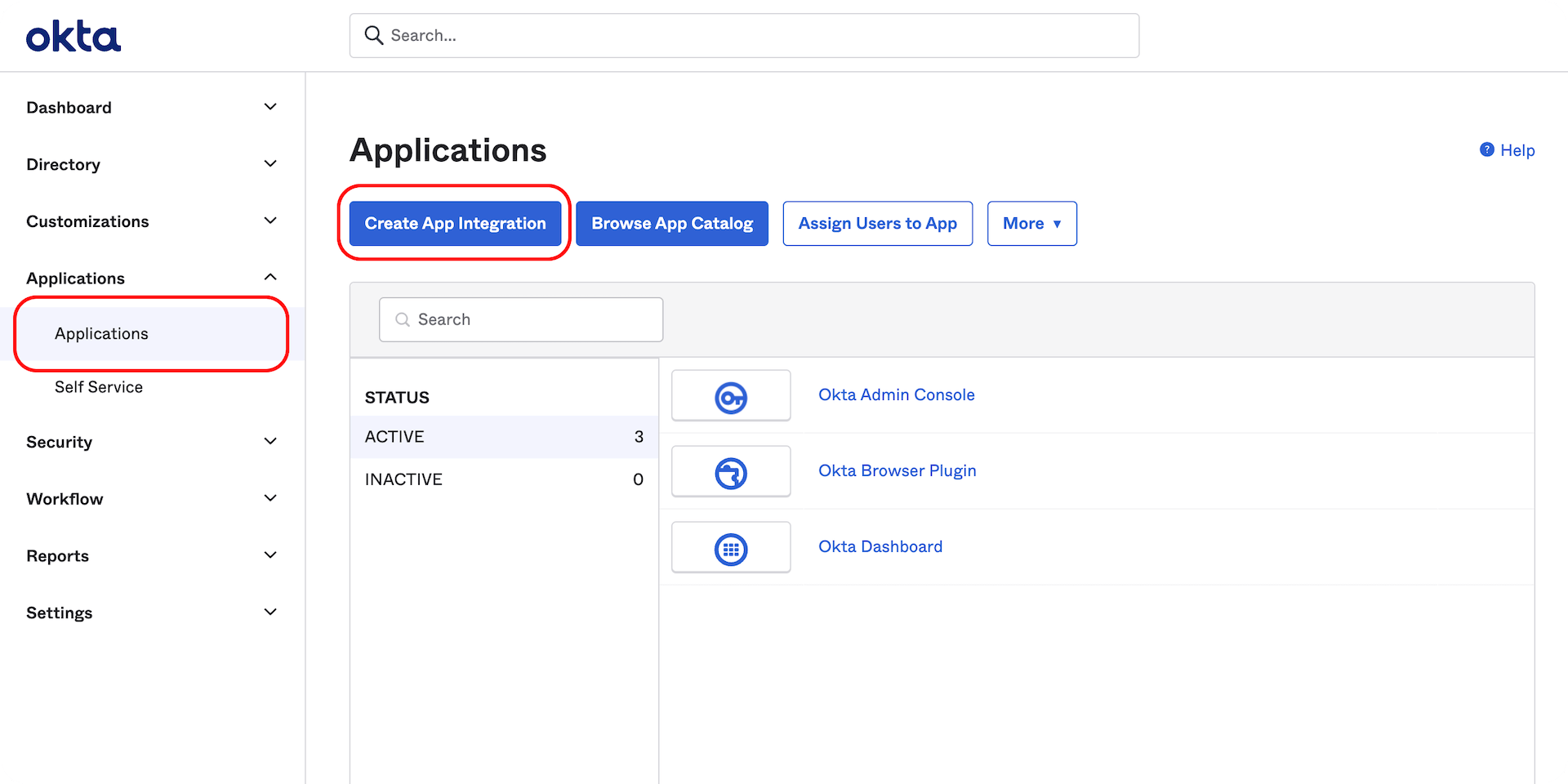
Go to Applications on your Okta dashboard and select "Create App Integration."
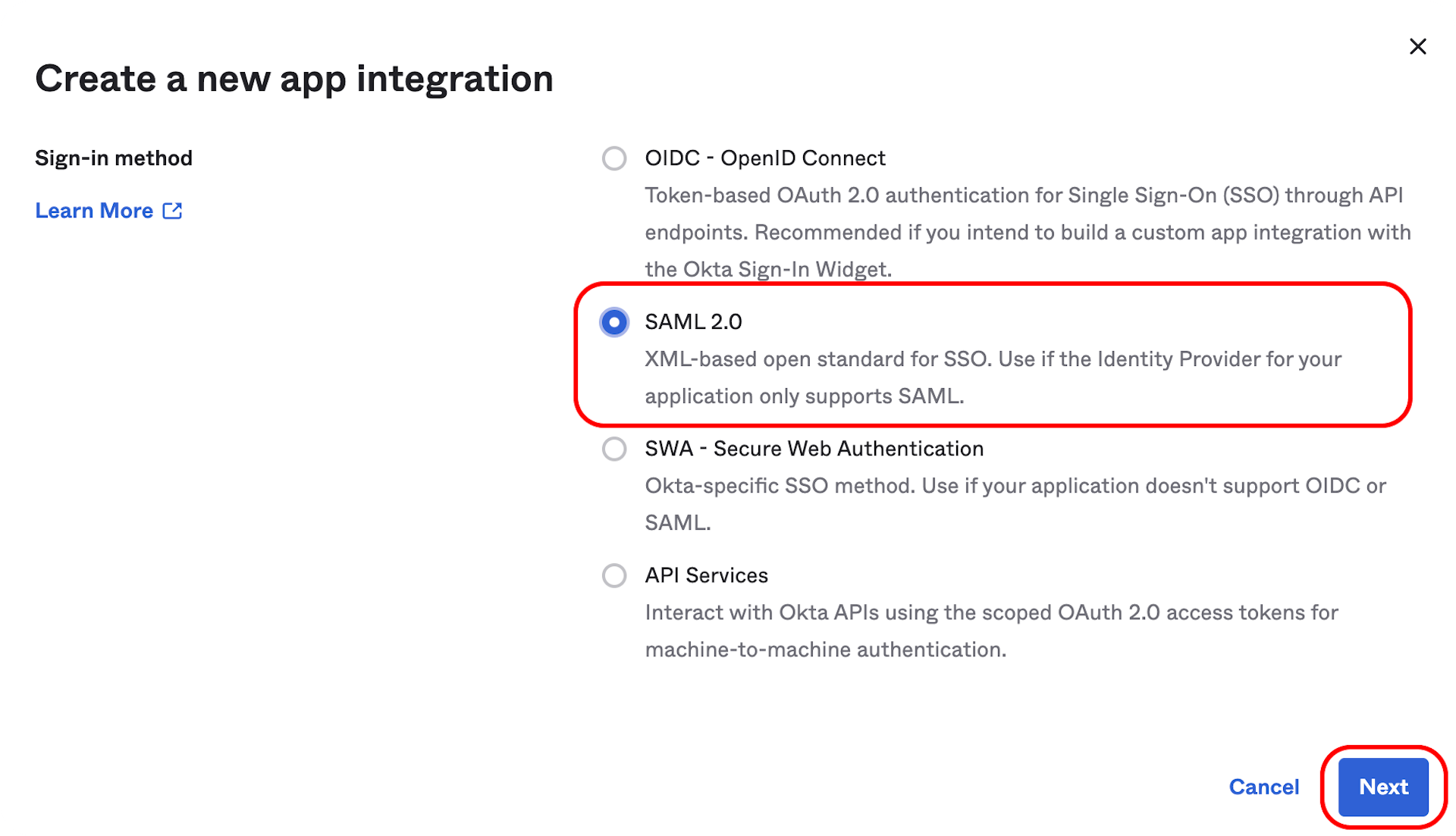
Choose SAML 2.0 and click "Next."
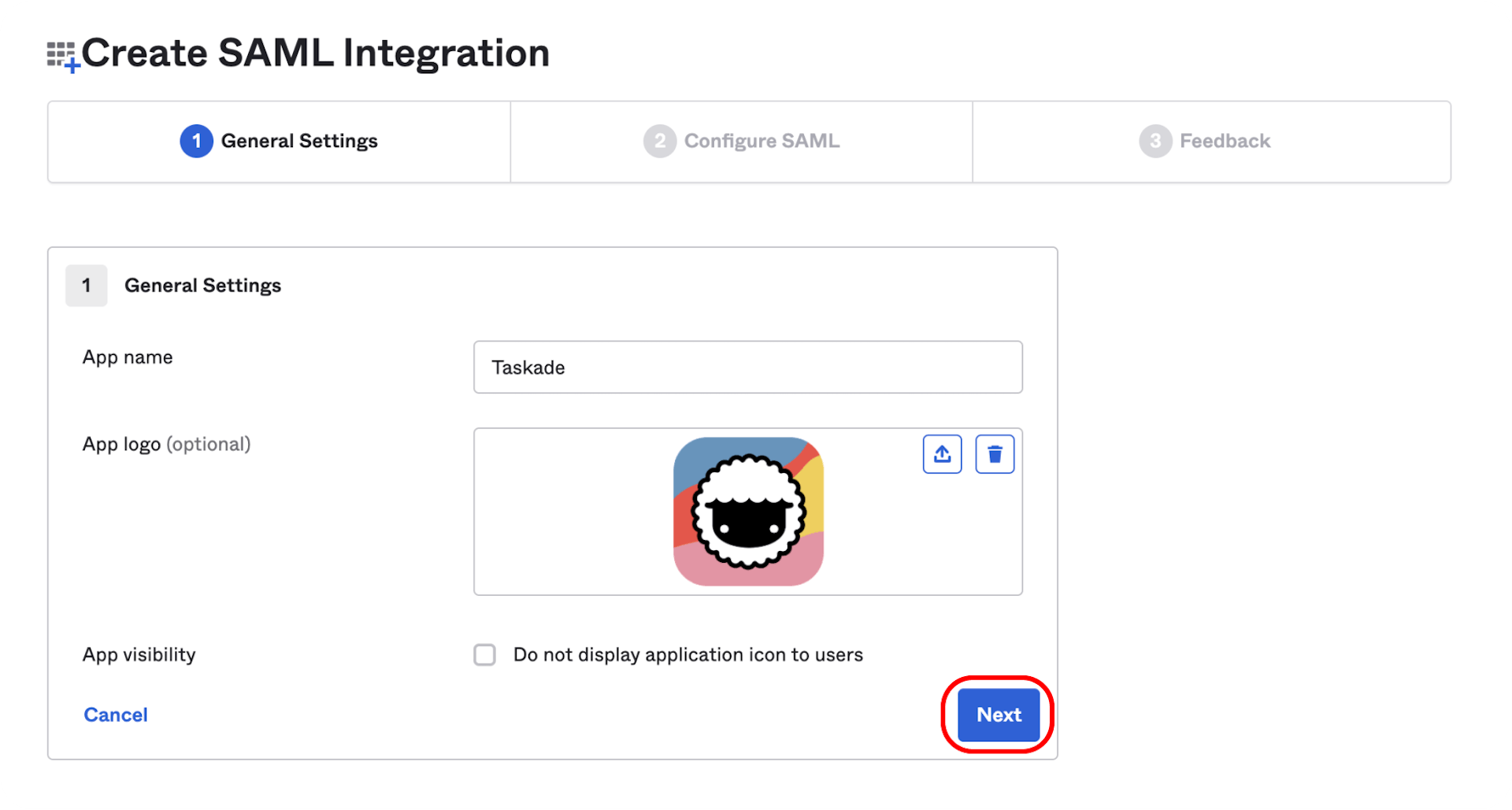
In General Settings, Enter "Taskade" under "App name" and upload a logo (optional).
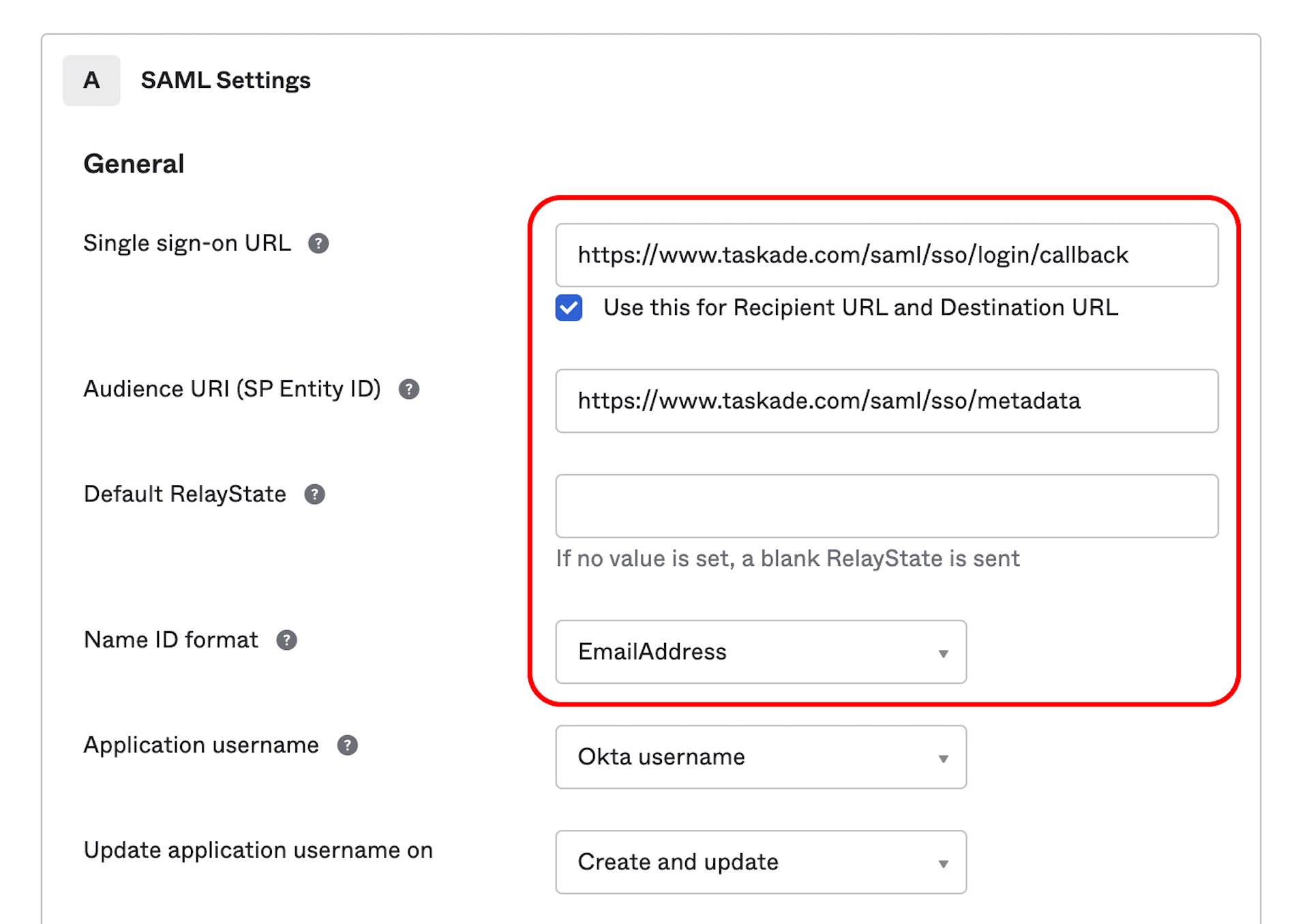
On the "Configure SAML" screen (section A), enter the following information:
Single sign-on URL: https://www.taskade.com/saml/sso/login/callback
Important: Keep "Use this for Recipient URL and Destination URL" checked.
Audience URI (SP Entity ID): https://www.taskade.com/saml/sso/metadata
Name ID format: EmailAddress
Go to "Attribute Statements (optional)" and add the following details:
- Name: email
- Value: user.email
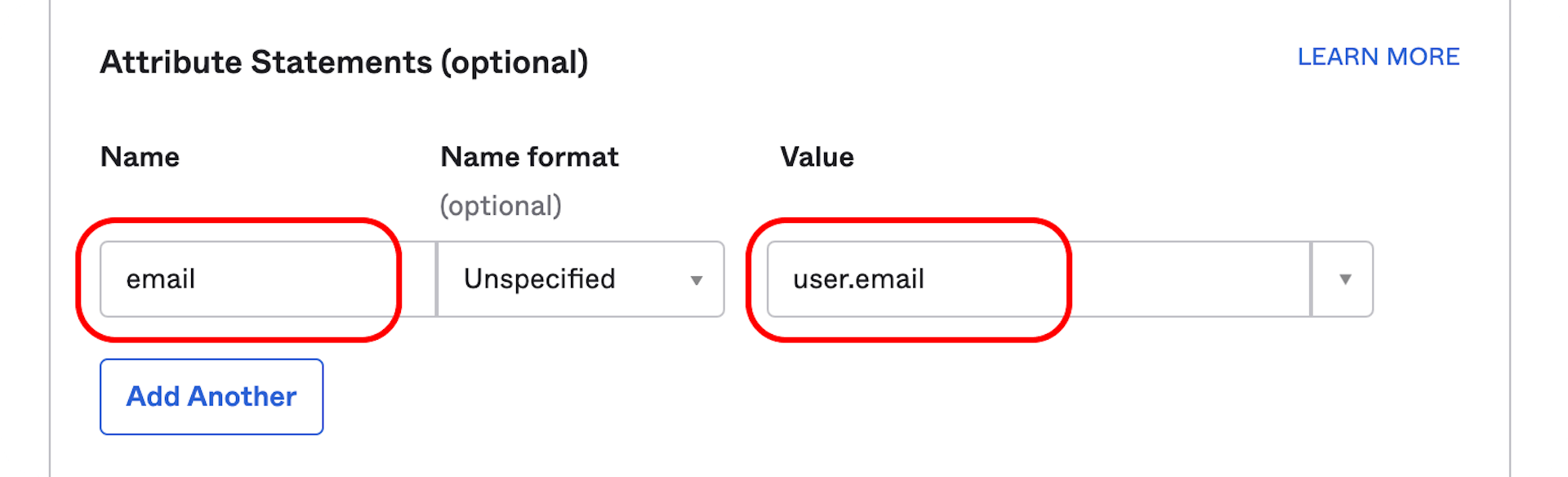
When you are done, scroll down and click "Next." When prompted, select "I'm an Okta customer adding an internal app".
Note: When asked "Which app pages did you consult to configure SAML?", use the following link: /learn/account/saml-okta Repeat the step for "Did you find SAML docs for this app?"
When you are done, scroll down and click "Finish."
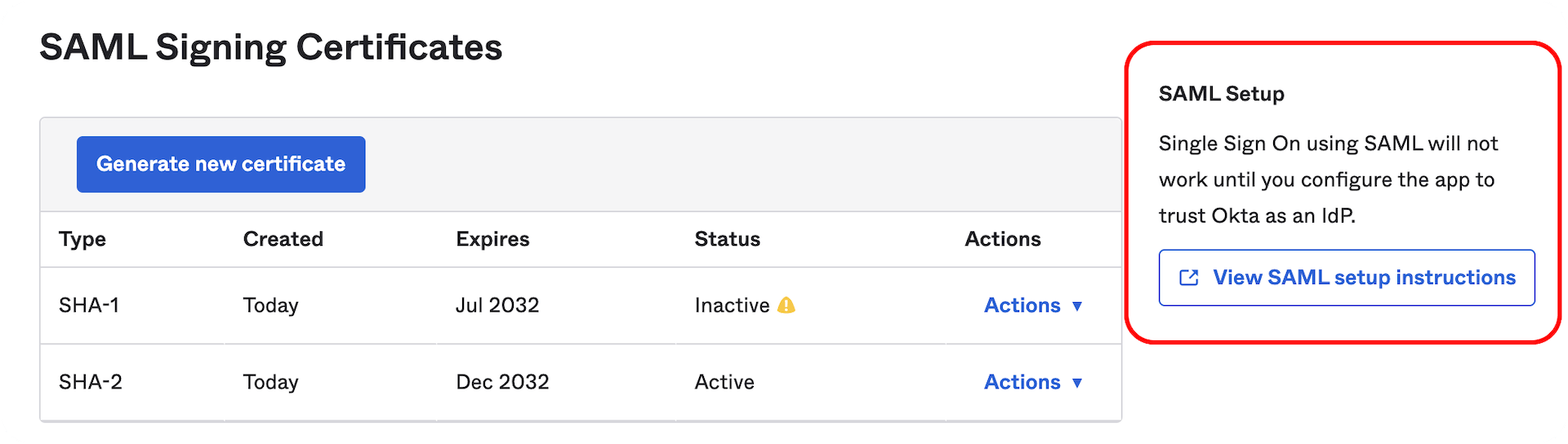
On the following page, find "SAML Setup" on the right and click "View SAML setup instructions." Keep this page open.
Taskade Setup
💡 Note: Read the requirements before completing these steps.
Visit https://taskade.com/settings and open the Organization tab
Enter the following information on the security screen: Domain: Enter your company's domain, for example company.com, without "https://" or "www."
- SSO URL: Paste the "Identity Provider Single Sign-On URL" from the Okta setup instructions page.
- IDP ISSUER: Paste the "Identity Provider Issuer" from the Okta setup instructions page.
- IDP PUBLIC SIGNING CERT: Paste the "X.509 Certificate" from the Okta setup instructions page.
Next, select one or more workspaces you want people to sign in to.
- Important: Select at least one workspace. Each selected workspace has to be on the Business plan or above. To add or remove a workspace from SSO, contact support@taskade.com.
Click "Configure" to finish.
After you configure SAML for your organization, open the Okta Dashboard. Assign Taskade to the individuals or groups in your directory.
Anyone with an email address in your business's domain can now go to https://taskade.com/login and choose "Sign In with Single Sign-On" to sign in.
Related guides
- SAML via Azure AD. SSO setup with Microsoft Entra and Azure AD.
- SAML via Google Workspace. SSO setup with Google Workspace.
- SCIM via Okta. Automated user provisioning.
- Two-Factor Authentication. Add a second sign-in step on top of SSO.
- Transfer Ownership. Hand off the SSO-enabled workspace.