
What Is SCIM?
SCIM (System for Cross-domain Identity Management) automates user provisioning and deprovisioning between Taskade and Okta. When you assign a new hire to the Taskade Okta app, Taskade creates that person in your Organization. When you deactivate an Okta user, Taskade revokes their access at once. No manual invites, no orphaned seats, no audit gaps.
TL;DR: Set up SAML via Okta first. In Taskade, create an Organization and copy your SCIM token. In Okta, open the Provisioning tab, choose Integration, and enter the base URL
https://www.taskade.com/scim/v2with your SCIM token as the Authorization Bearer value. Push Okta groups to map them onto Taskade workspaces. SCIM is included with Enterprise plans. Contact us to switch it on.
Configure SCIM in Taskade
SCIM provisioning is included with Enterprise plans, along with legacy Enterprise and team contracts. Contact us to turn it on for your organization. Taskade supports Okta and Azure AD as identity providers, and you can reach out about other providers.
Note: Before you start, configure SAML.
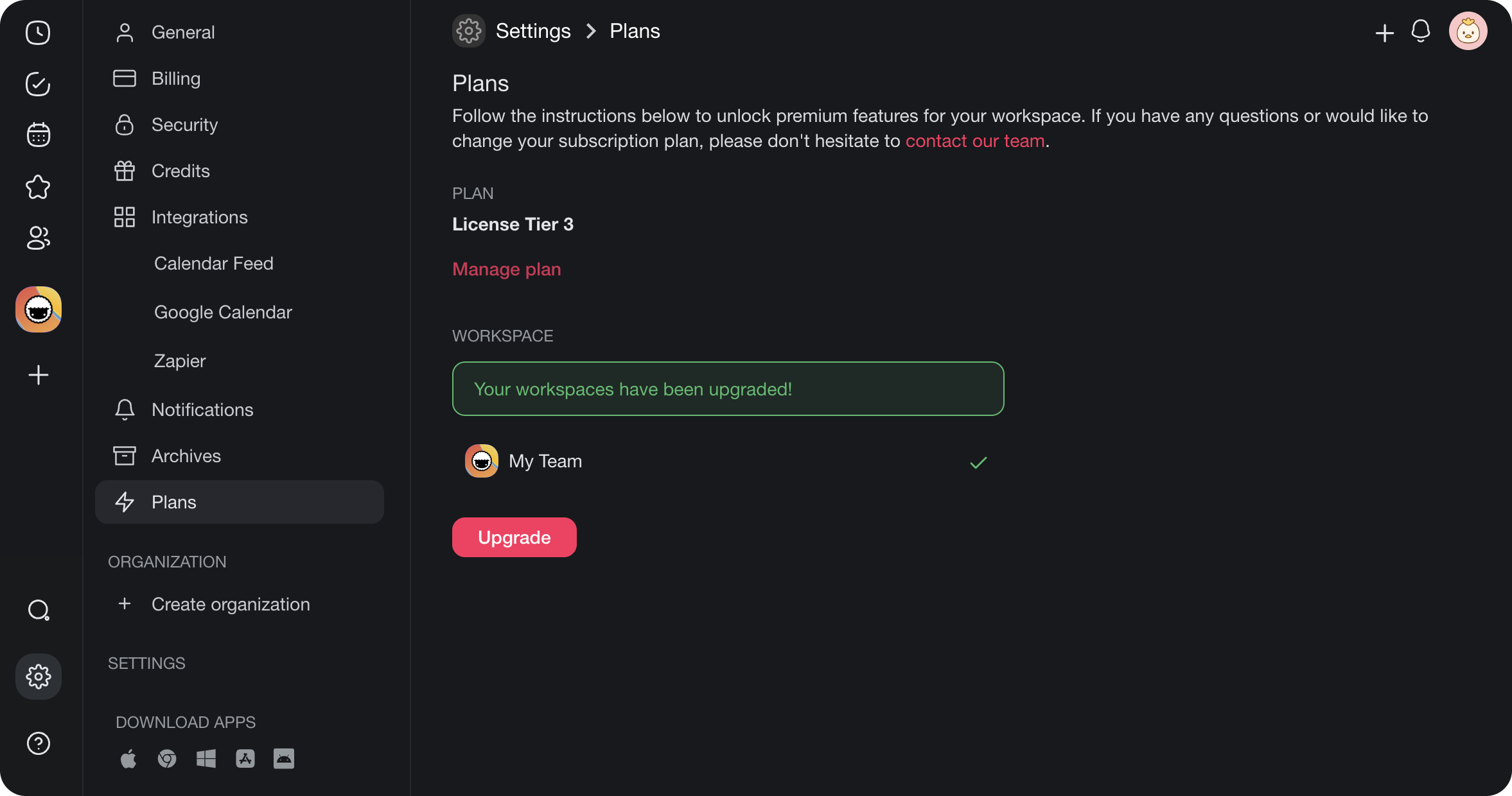
Check that the workspace is on Enterprise or a legacy Enterprise or team contract. If it is not, upgrade the workspace:
- Visit https://taskade.com/settings/plans.
- Select the workspace(s) you want to upgrade, and click Upgrade.
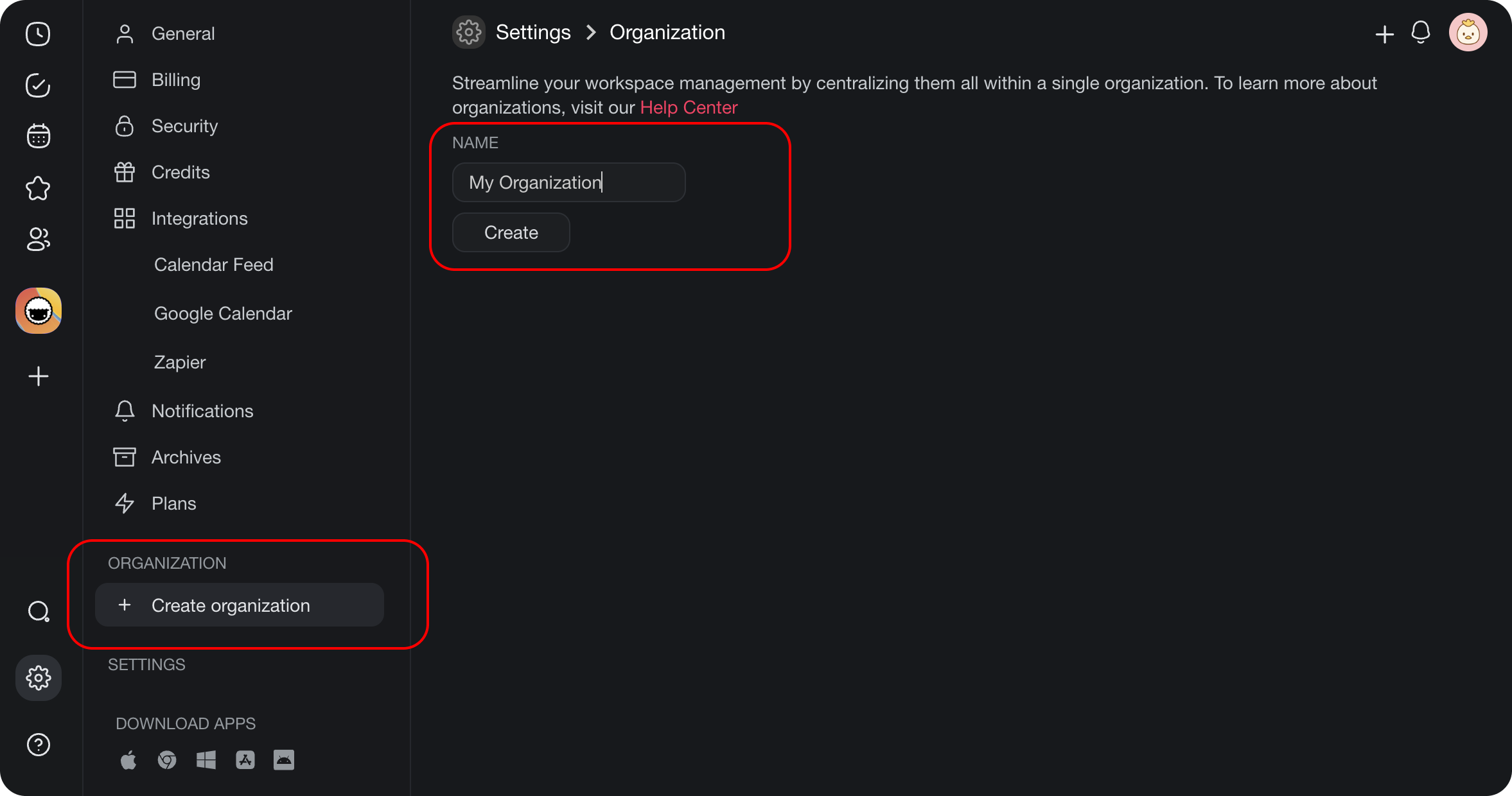
- Next, create an organization. An organization groups multiple workspaces together, and that makes group provisioning possible.
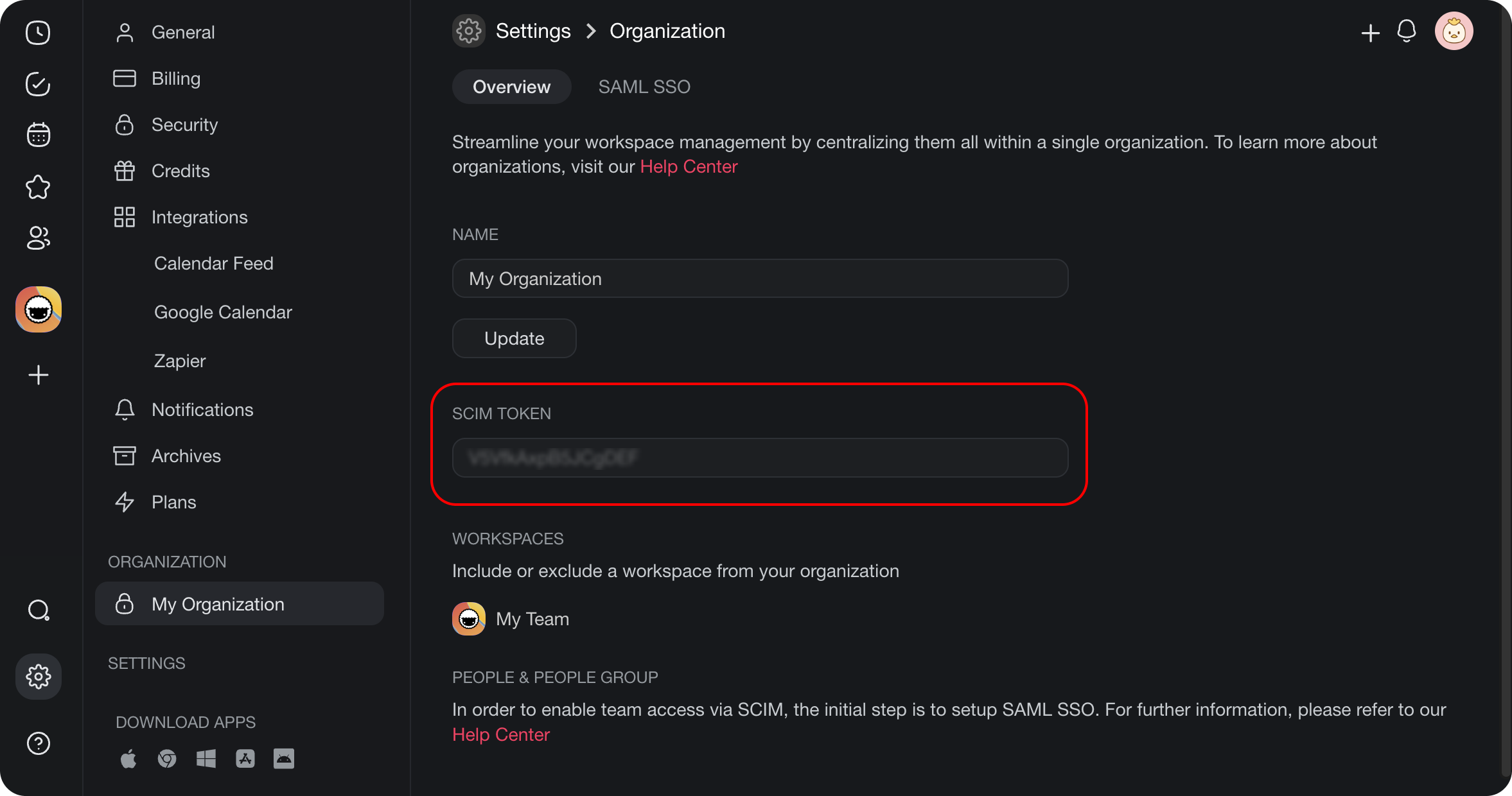
- After you name your organization, click the Create button under the NAME field to get the SCIM token. You use that token in a later step.
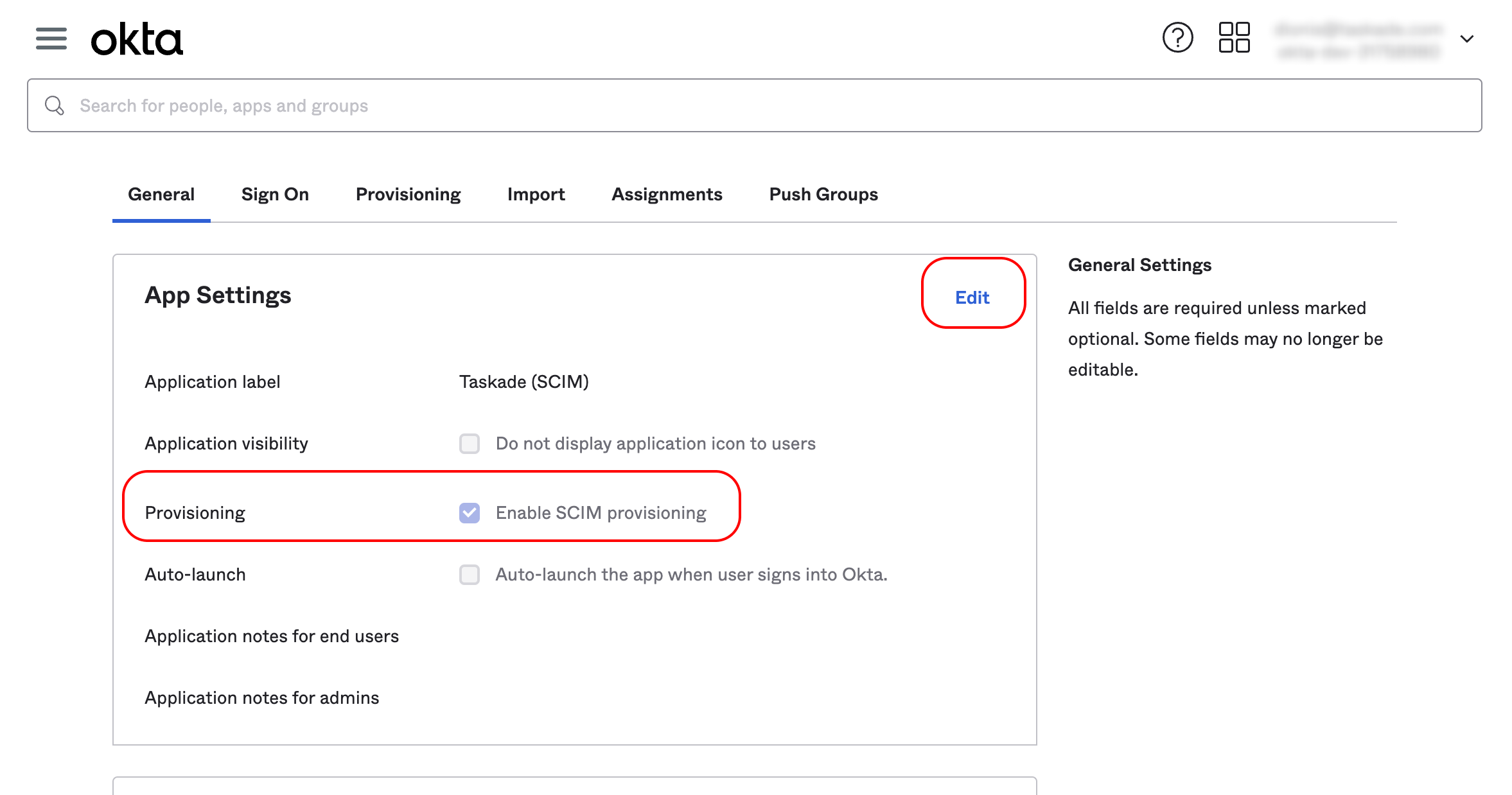
- With the organization created and the SCIM token copied, go to Okta. Open Taskade's General tab, click Edit, and check Enable SCIM provisioning.
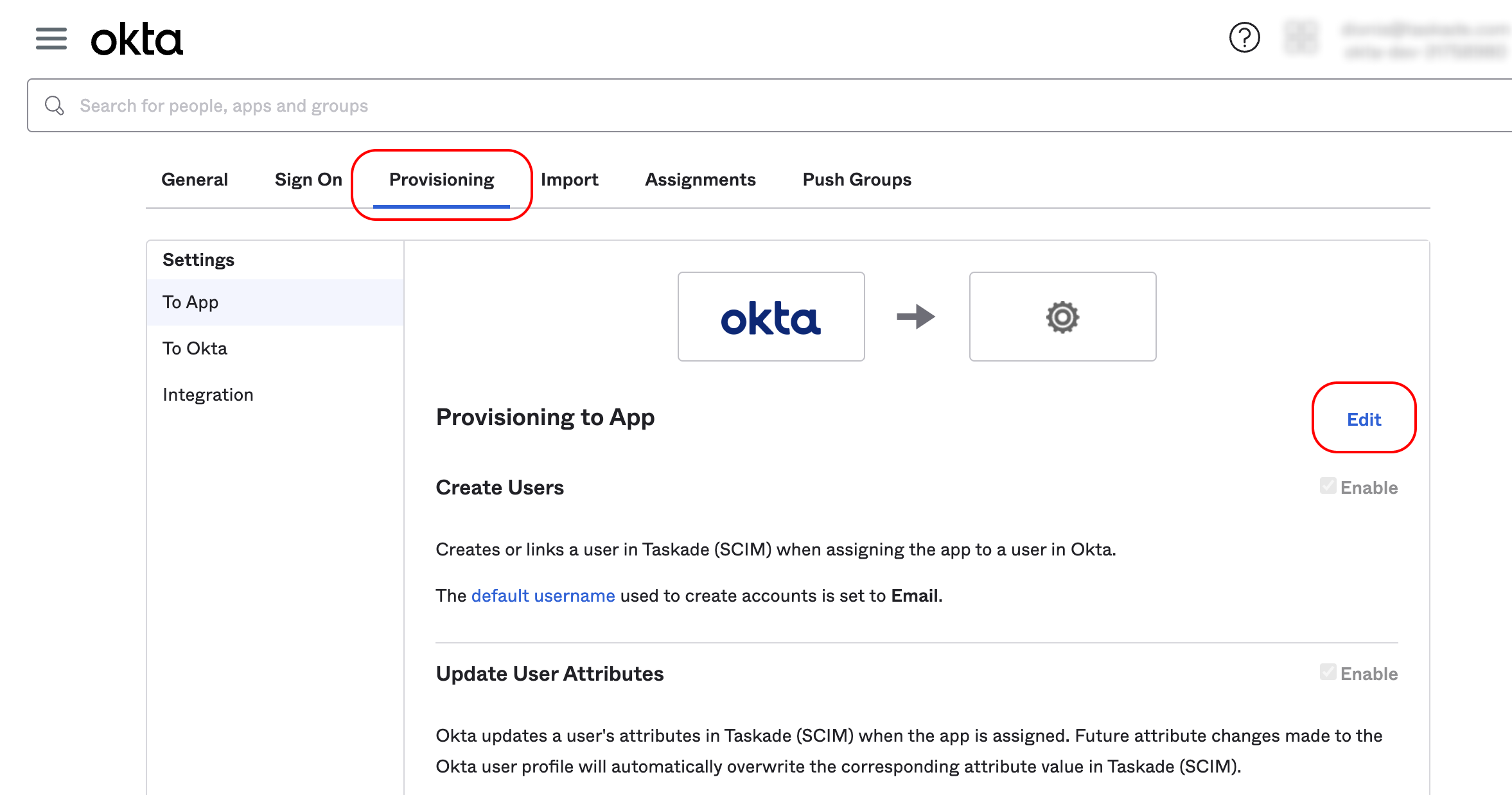
- Go to the Provisioning tab and click Edit.
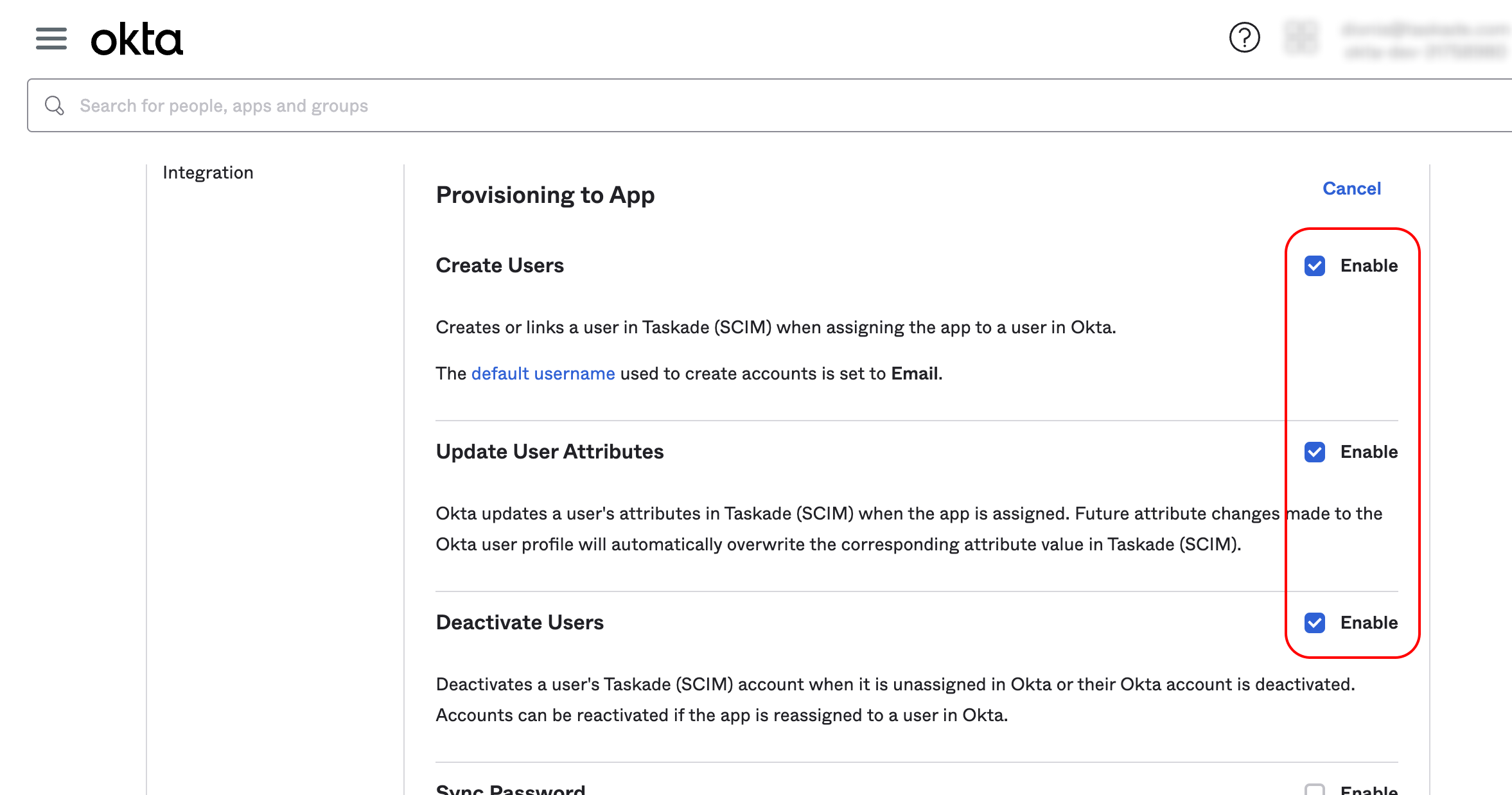
- Enable provisioning to Create Users, Update User Attributes, and Deactivate Users.
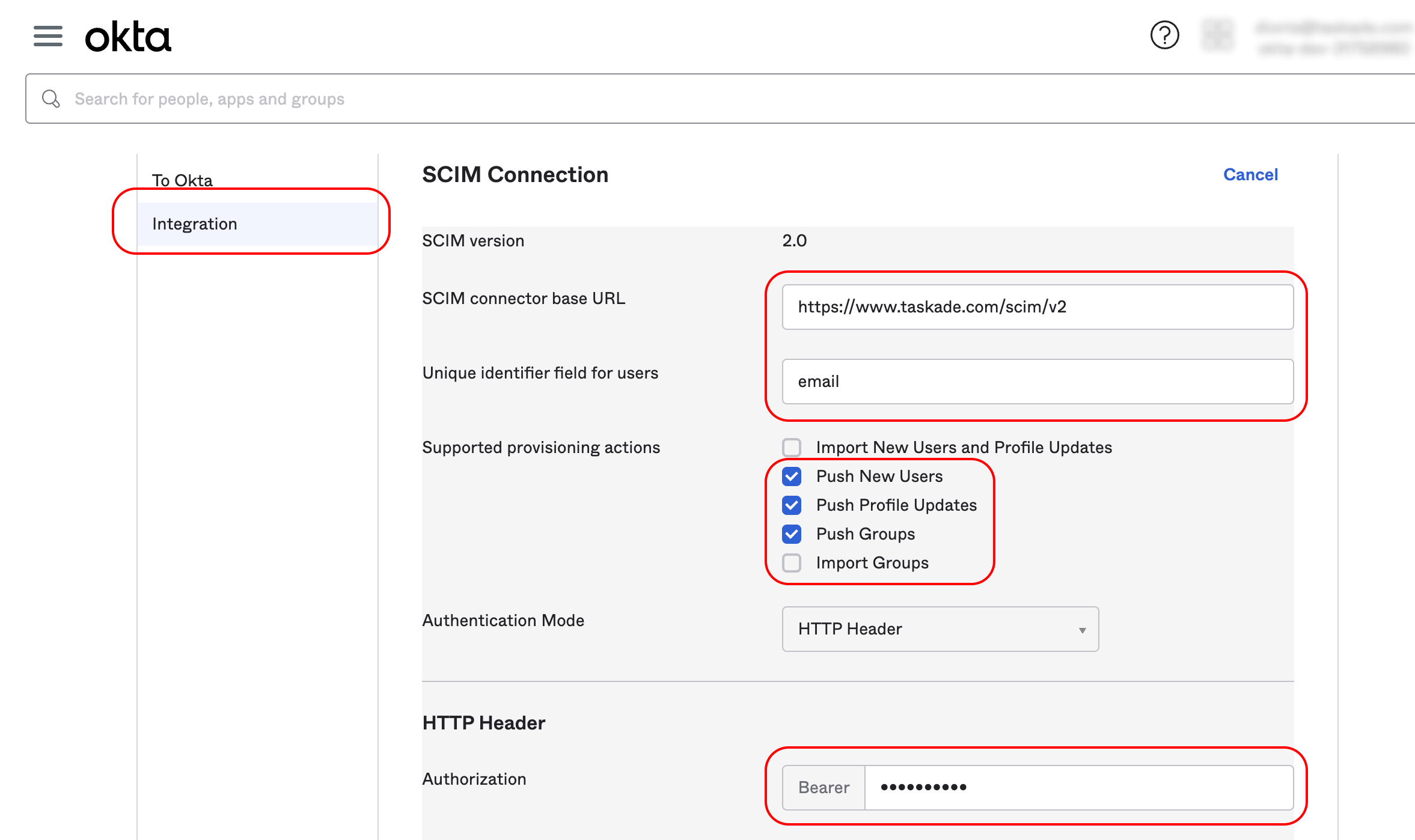
- Go to the Integration tab in the left sidebar and use the following settings:
| SCIM connector base URL | https://www.taskade.com/scim/v2 |
|---|---|
| Unique identifier field for users | |
| Supported provisioning actions | Enable Push New Users, Push Profile Updates, and Push Groups |
| Authentication Mode | HTTP Header |
| Authorization Bearer | Paste your SCIM token |
The screenshot shows the finished settings page. When you are done:
- Click Save at the bottom of the page.
- (optional) Select Test Connector Configuration to check for errors.
Now add a push group to your application:
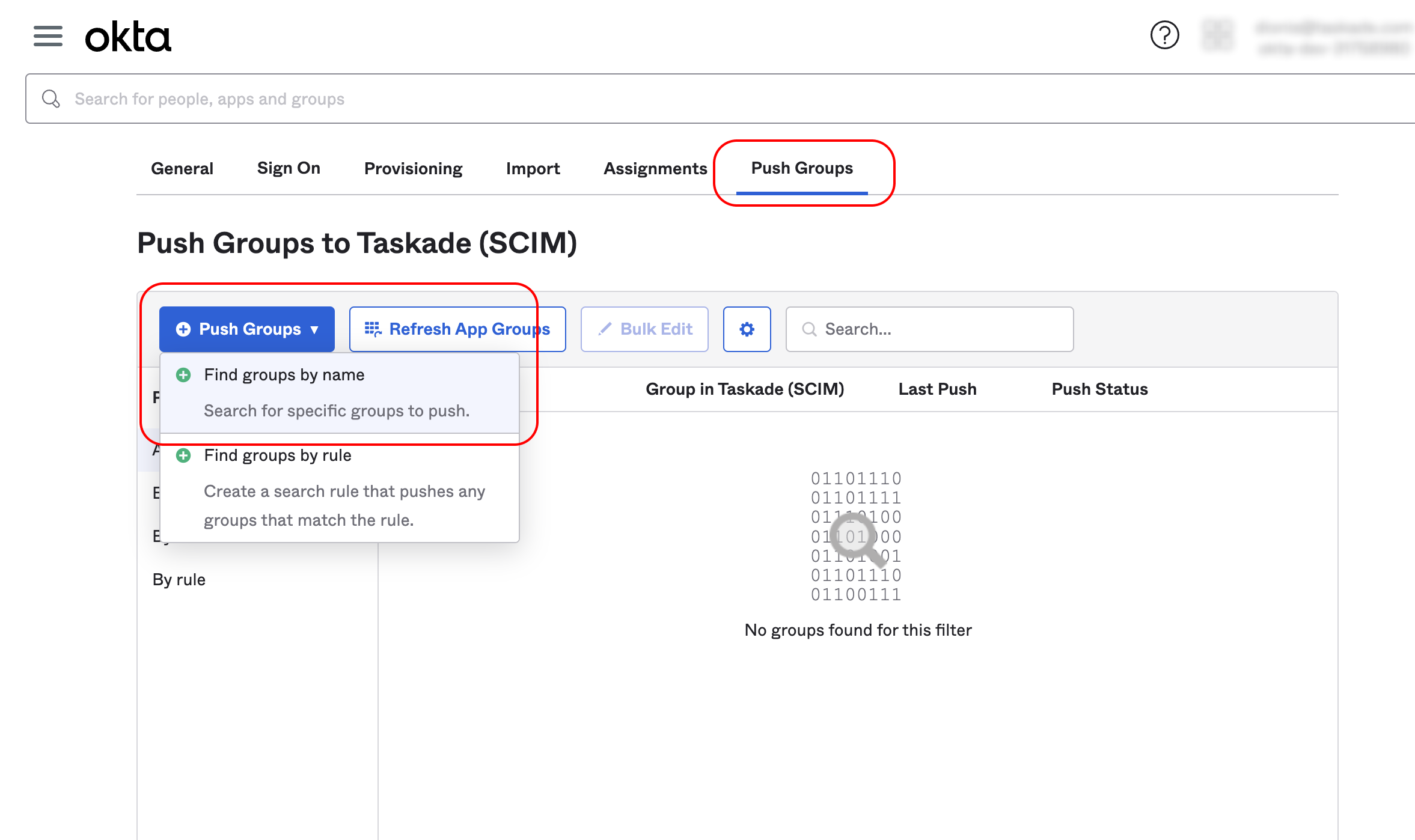
- Open the ➕ Push Groups tab.
- Click Push Groups.
- Choose Find groups by name from the drop-down list.
After you pick the group to push, enable Push groups memberships immediately. Set the match result and the push action to Create Group.
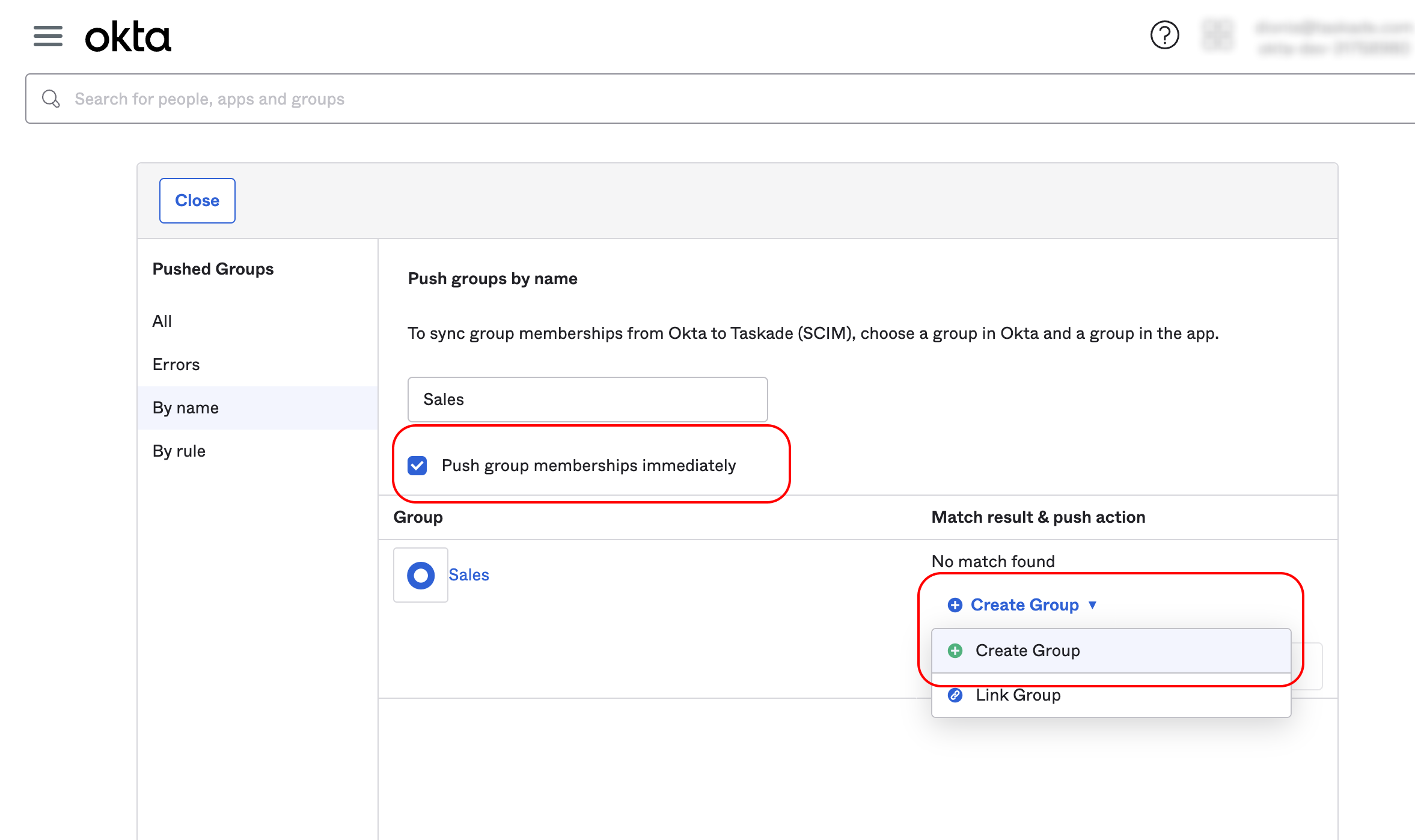
When you are done, scroll down and click Save. If you have other groups to add, click Save & Add Another. If the push succeeds, the new group's status reads Active.
💡 Note: Assign the application to the groups you created.
That completes the Okta side.

Everything is configured, so return to your Taskade dashboard. The groups appear at the bottom of the organization screen. Select all the workspaces you want to manage in your organization.
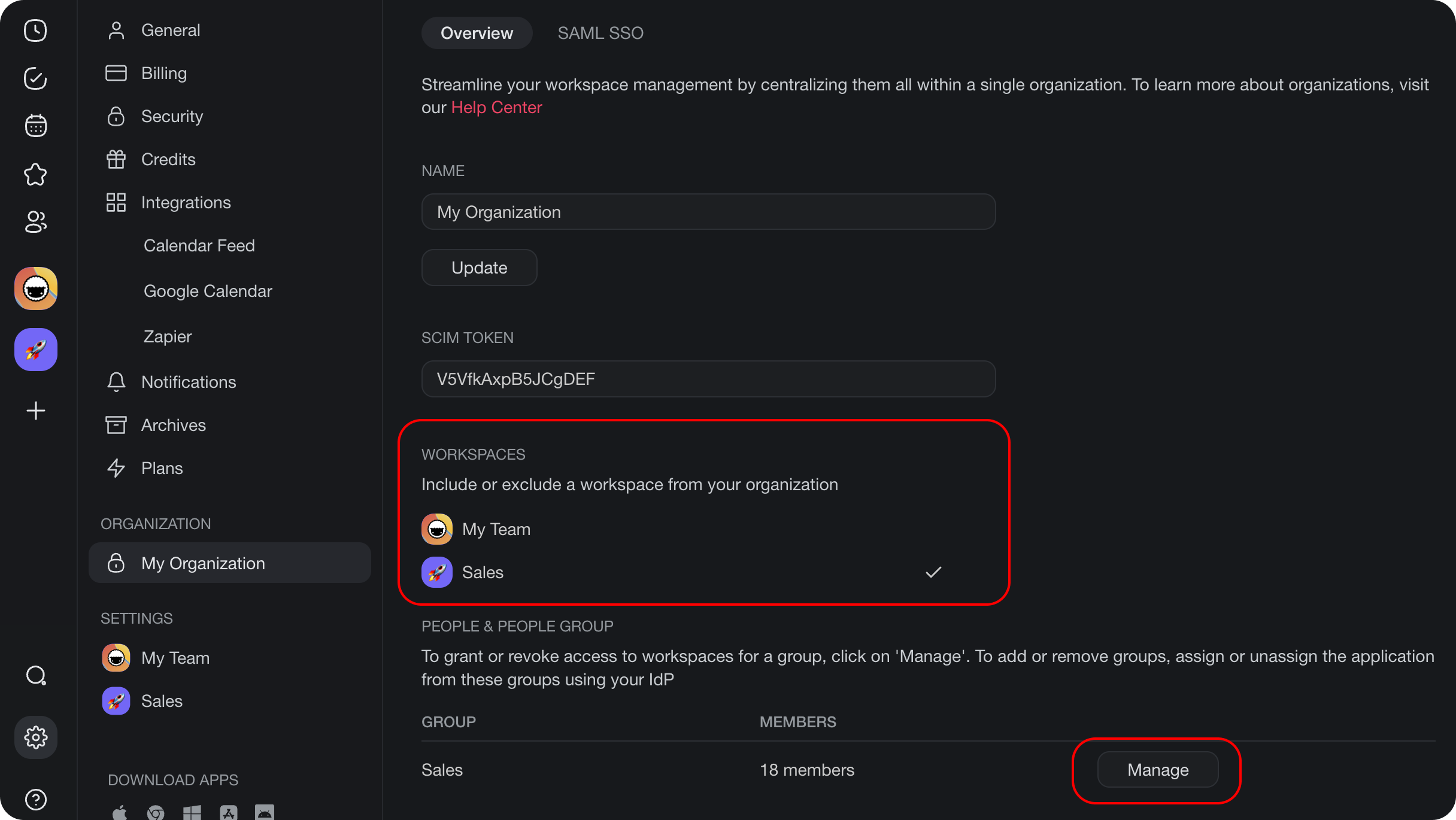
As an example, provision the Sales group and grant it access to the Sales workspace:
- Click Manage to open the group management modal.
- You can grant the group Edit, Check or View only access.
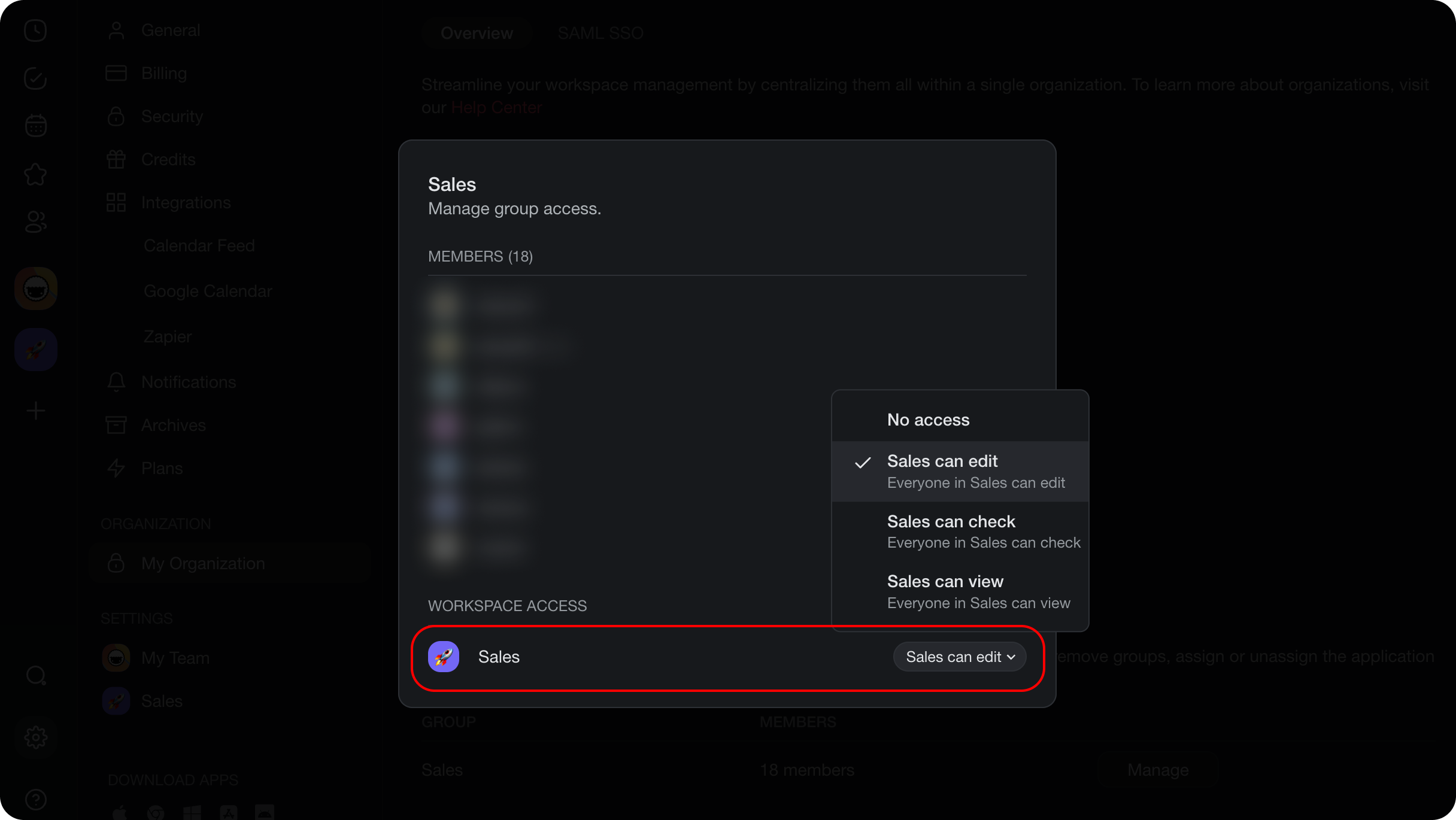
Group members can now sign in to Taskade through SSO and reach the Sales workspace. The first click lets a new group member join the workspace. From that point on, they are members.
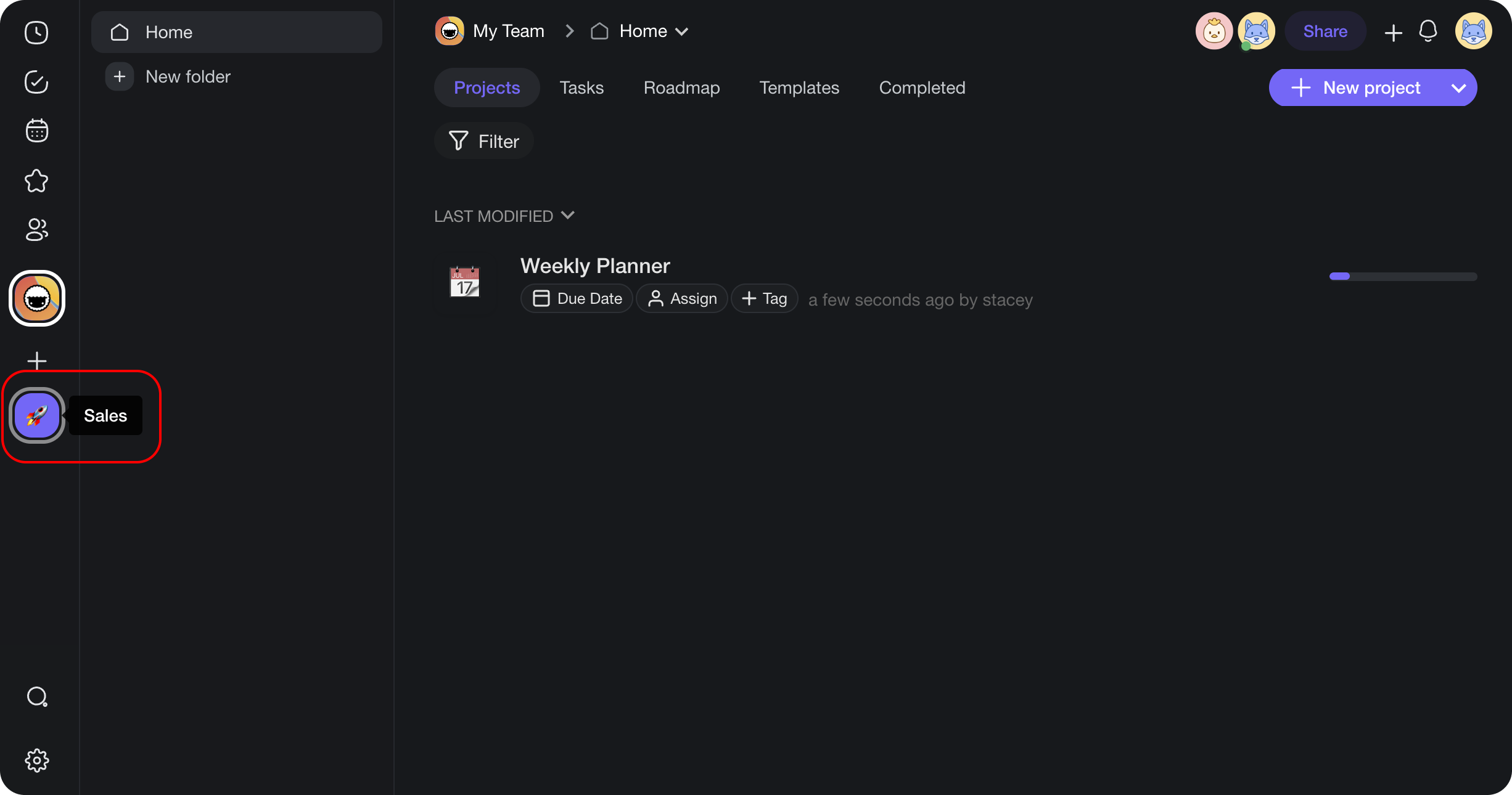
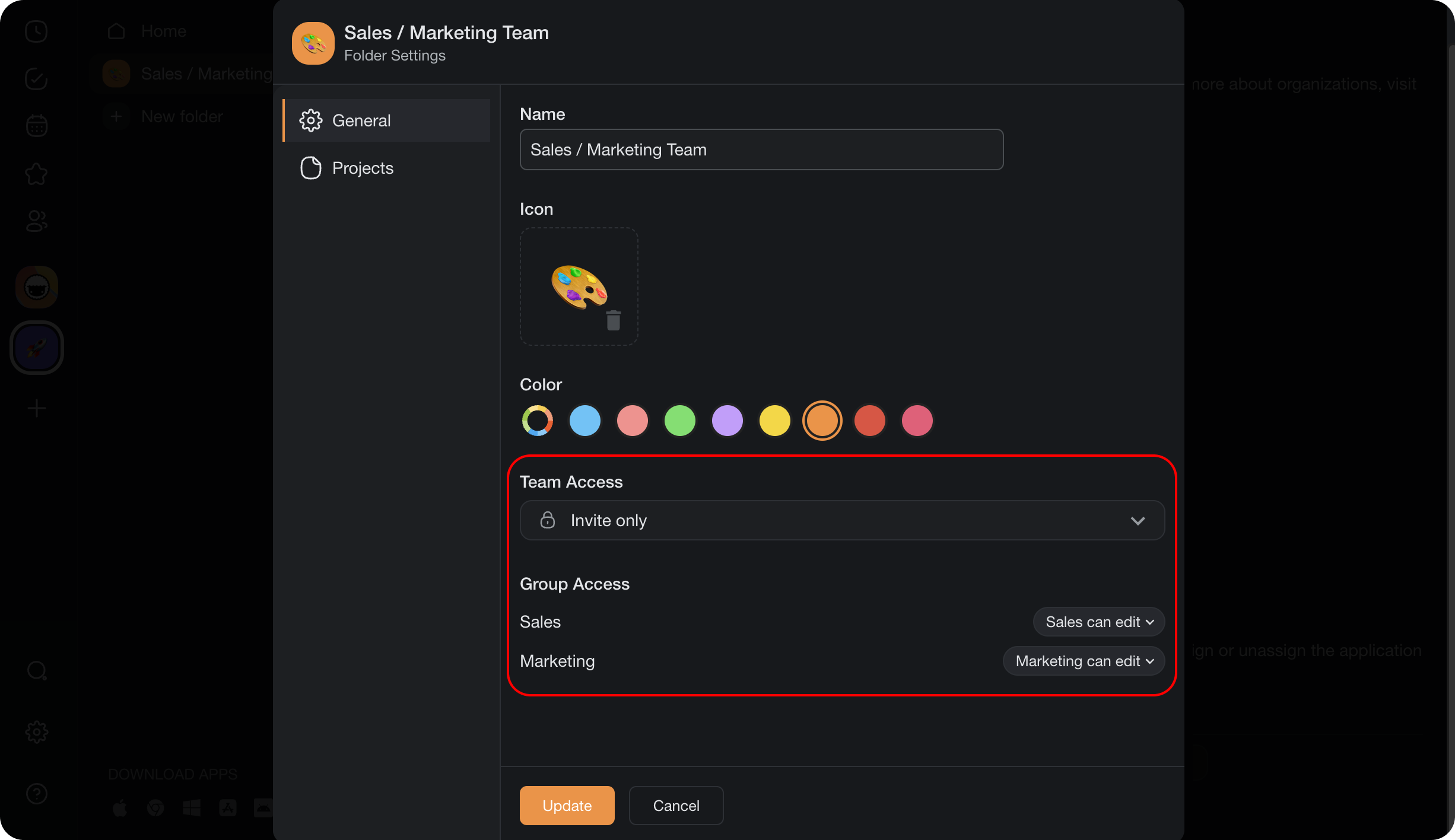
Organization owners can also provision folders. Here is how it works:
- Create a new folder in your workspace.
- Open the folder Edit modal.
- (optional) You can also manage groups from the folder Share modal.
💡 Note: To provision groups inside folders, set the folder team access to Invite only. You can mix and match groups as you see fit.
If you want help with your SCIM setup, email support@taskade.com.
Related guides
- SAML via Okta. Configure SSO before SCIM.
- SCIM via Azure AD. Same automation flow with Azure as your identity provider.
- Transfer Ownership. Hand off the workspace.
- Workspace Privacy. Folder and workspace access controls.