
Overview
Upgrade to a premium plan and run your whole team on one Taskade subscription. Premium unlocks higher AI credit allowances, more seats, advanced agents, automations, integrations, custom domains, and priority support. One subscription works across every Taskade platform: web, desktop, iOS, and Android. After upgrading, activate the paid plan on the workspaces you want it to cover.
For the quick upgrade steps, see Upgrade Plan. This guide goes deeper: activating each workspace, adding seats, and understanding who gets billed.
TL;DR: Click your avatar → Upgrade, pick a plan, enter payment. Then visit Settings → Activate to apply the paid plan to your workspace(s). Add more teammates from Settings → Billing → Add Seats. One subscription covers web, desktop, iOS, and Android. Compare tiers on the premium plans page first.
Note: To use Taskade on different platforms, you do not need extra plans. One subscription gives you access to all our apps.
How to Upgrade
- Open Taskade in a browser and click your profile picture in the top-right corner.
- Select ⚡️ Upgrade, then choose one of the available pricing plans.
- Select Buy, choose your billing cycle, and enter your credit card information.
💡 Note: When you move between plans, you pay only the prorated difference. Here is an example. You are on the annual Pro plan and you want Business. Taskade takes the daily rate of the Pro plan (the annual cost divided by 365) and deducts one day for each day you used. The remainder goes toward the Business plan.
Activate Workspaces (Desktop)
To use your paid plan in full, upgrade your workspaces.
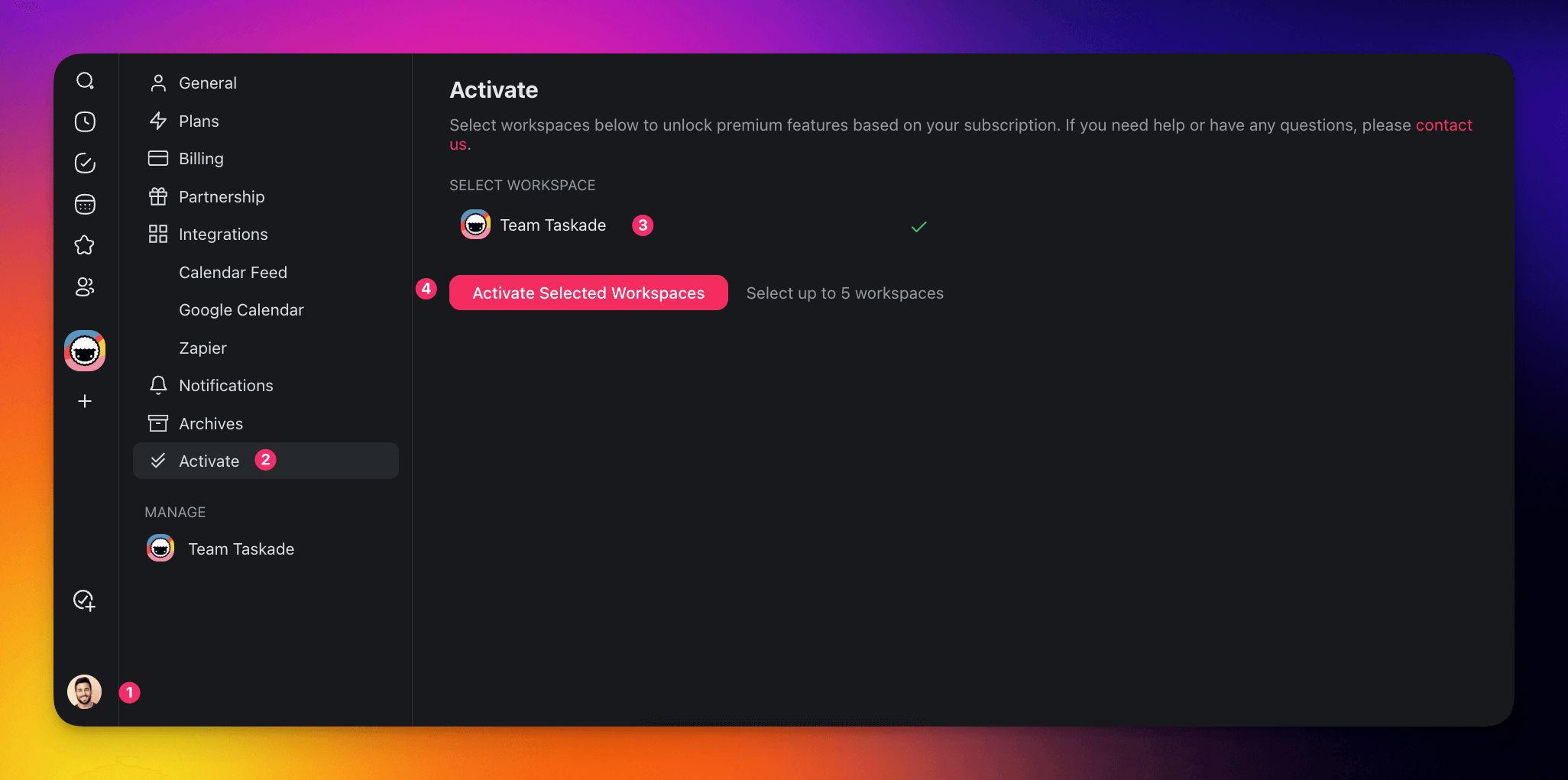
Open Taskade and click your avatar in the bottom-left corner.
Choose Settings and select the ✔️✔️ Activate tab from the list on the left.
- You can also visit https://www.taskade.com/settings/activate.
Select the workspace you want to upgrade.
Click Activate Selected Workspace.
Activate Workspaces (Mobile)
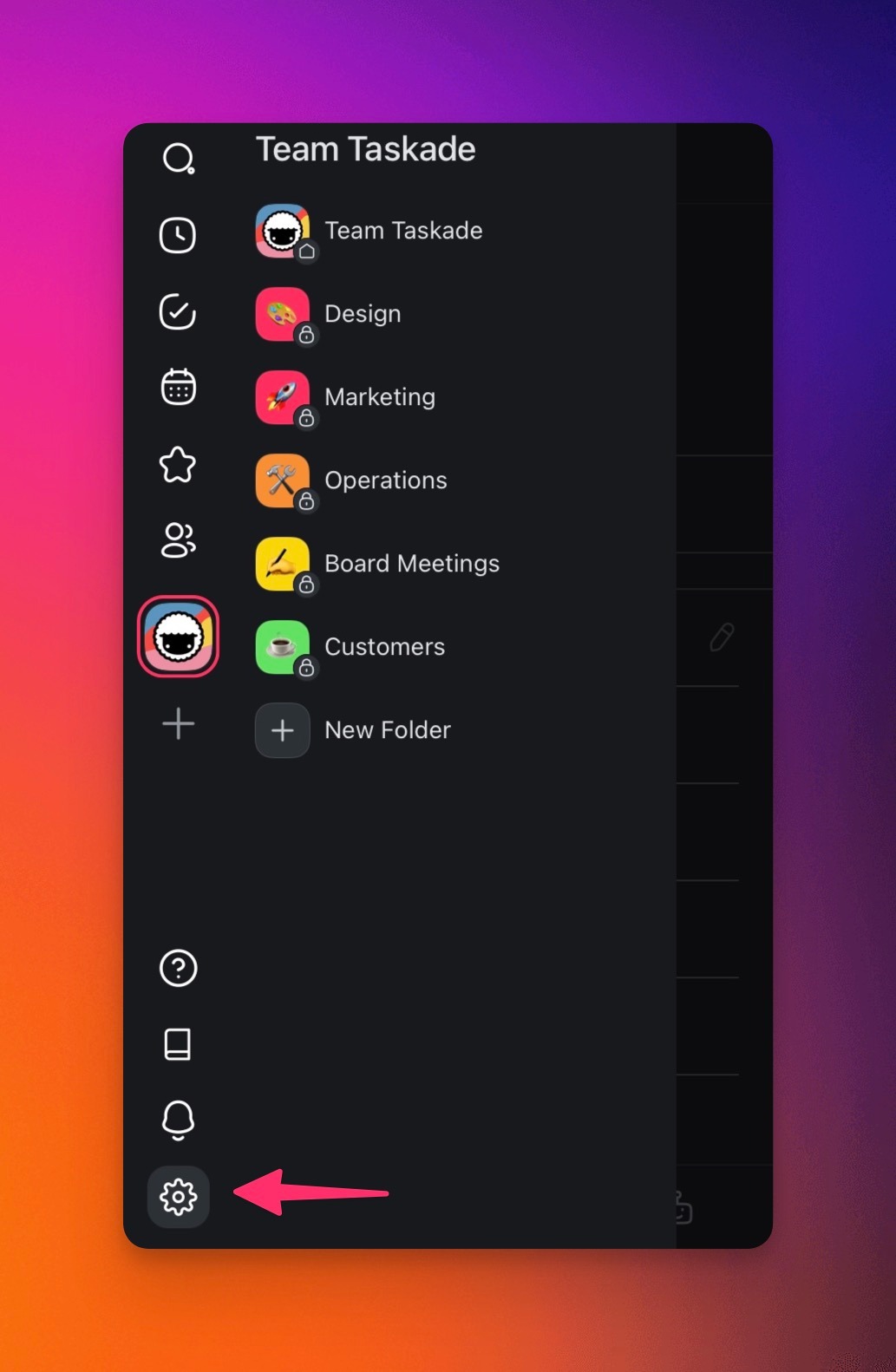
- Open Taskade and tap the gear button ⚙️ in the bottom-left corner.
- Choose Activate Workspaces from the list.
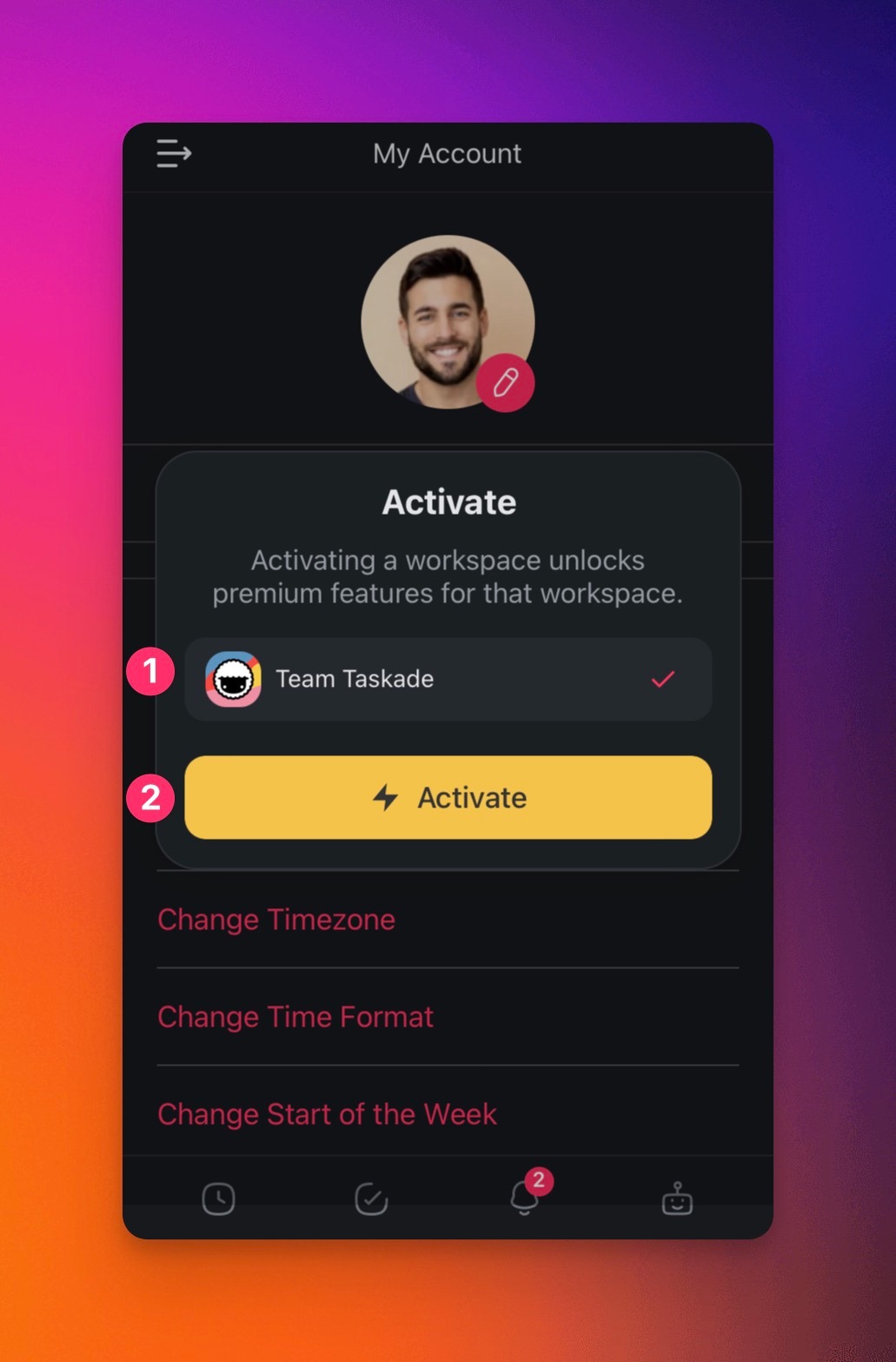
- Select the workspace you want to upgrade.
- Tap ⚡ Activate.
Add Seats / Members
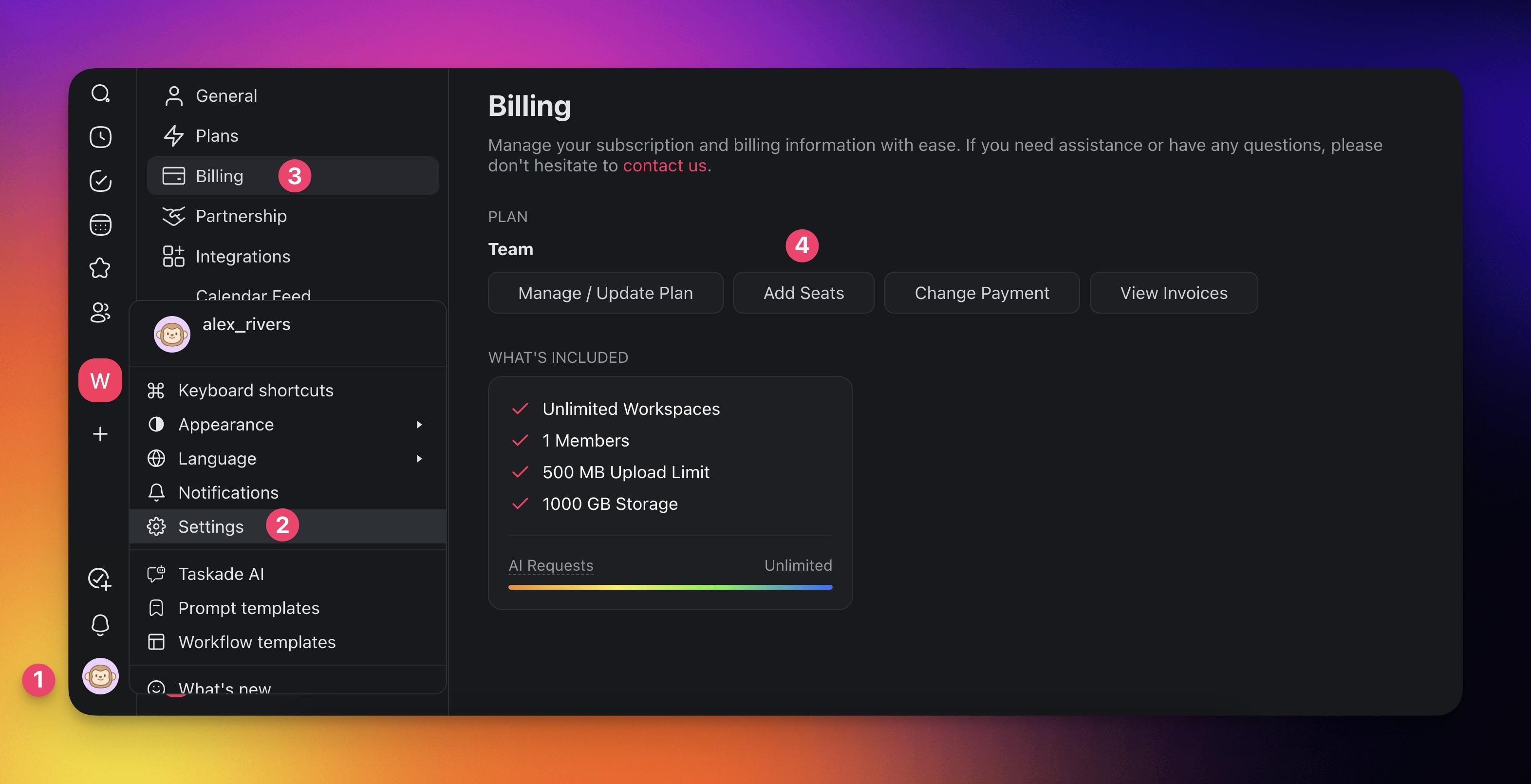
- Click your profile picture (bottom-left corner).
- Choose Settings from the list.
- Go to the Billing tab in the sidebar on the left.
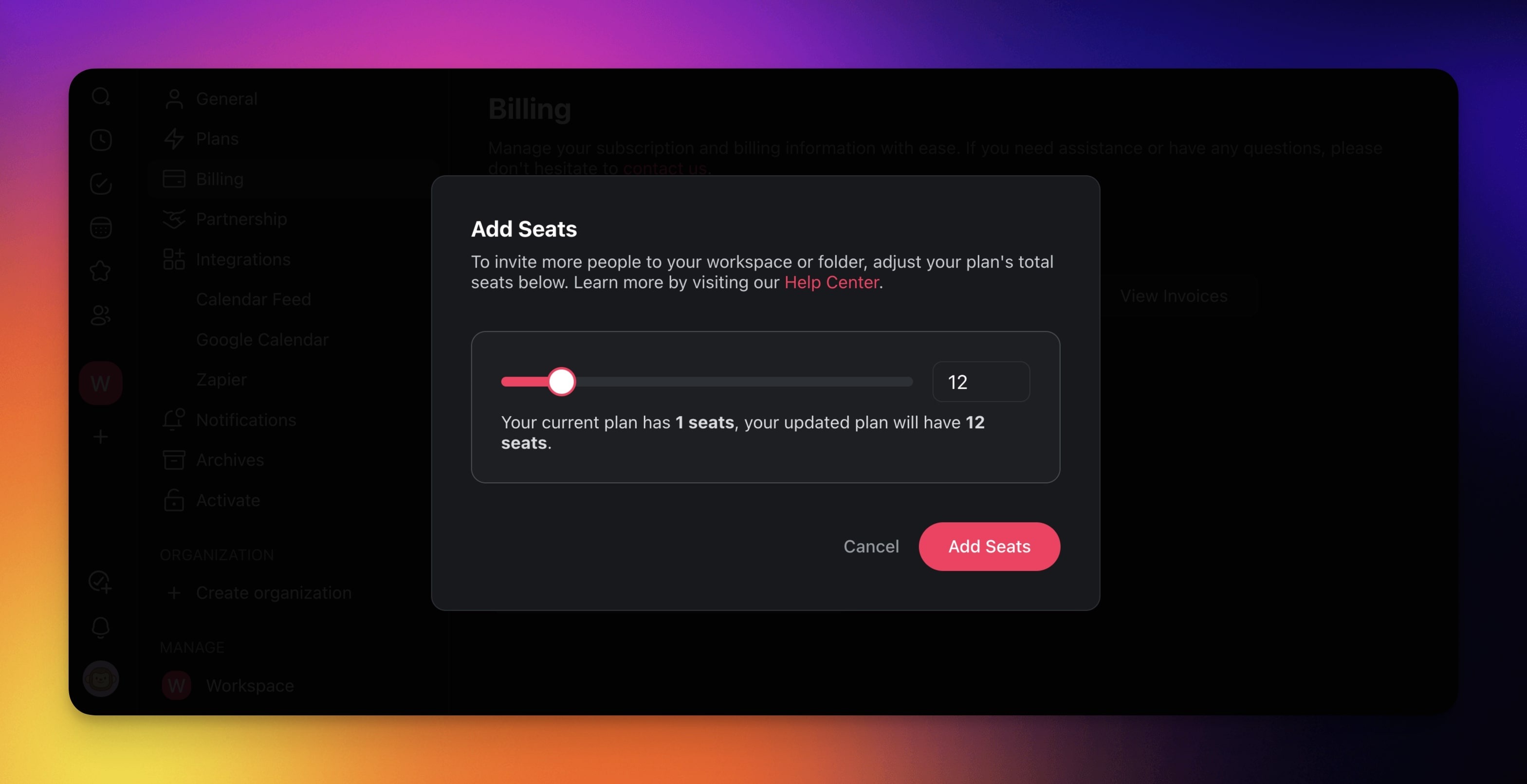
- Click Add Seats.
- Use the slider to adjust the number of seats.
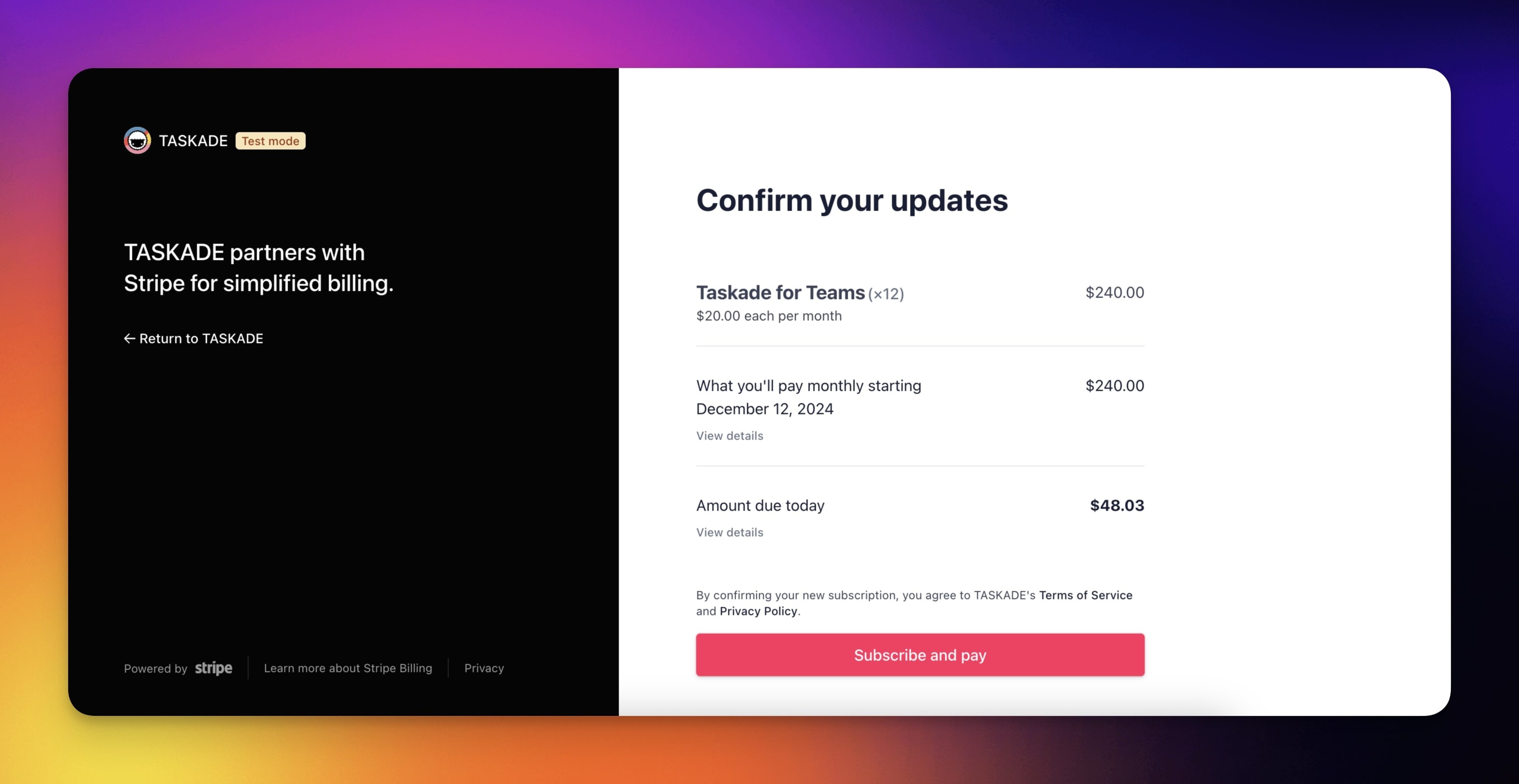
- Finalize the payment.
Definitions and Billing Rules
- Members: Members are people who belong to a workspace or to a specific folder in Taskade. The workspace owner or a maintainer granted them access, and they collaborate and contribute. Taskade bills members, because they use resources in a paid workspace.
- Guests: Guests can view or contribute to a project without full workspace membership. Taskade does not bill guests, because they are temporary contributors.
- Seats: A seat is a subscription slot for one member in the workspace. Each paid plan includes a set number of seats, and your members fill them. Taskade bills each seat as part of the workspace subscription.
- Users: A "user" is anyone with a Taskade account. Taskade bills a user only when they hold a seat as a member in a paid workspace. Guests are not billed.
| Role | Definition | Access Level | Billed? |
|---|---|---|---|
| Member | A person with full access to a workspace or folder and its projects. Members collaborate and contribute. | Varies | Yes |
| Guest | A user with limited access to specific projects for viewing or contributing without full membership. | Limited | No |
| User | Anyone who has created a Taskade account, which can include both members and guests. | Varies (member or guest) | Varies |
Related guides
- Premium Plans. Compare every paid tier.
- Upgrade Plan. Step-by-step upgrade instructions.
- Manage Subscription. Update payment, seats, and invoices.
- Billing FAQ. Pricing, AI credits, and refunds.
- Invite Members. Add teammates to fill new seats.