
A Taskade Genesis classroom runs on the four layers of Workspace DNA:
- Course materials live in Projects (Memory).
- Tutor and grading Agents (Intelligence) read those materials and answer students.
- Automations (Execution) send reminders and parent updates.
- The published App UI (Interface) is the portal that students log into.
The classroom gets smarter every week, and the teacher does no extra work.
TL;DR: Build a course portal, AI tutor, assignment tracker, and grading workflow in one Taskade Genesis prompt. Tutor agents read your course materials. Grading agents apply your rubric. Automations send parent emails and attendance reminders. More capacity comes with paid plans. Build a classroom app →
In education, staying organized and connected is essential. Taskade helps with exactly that. It brings task lists, collaboration, and communication into one platform.
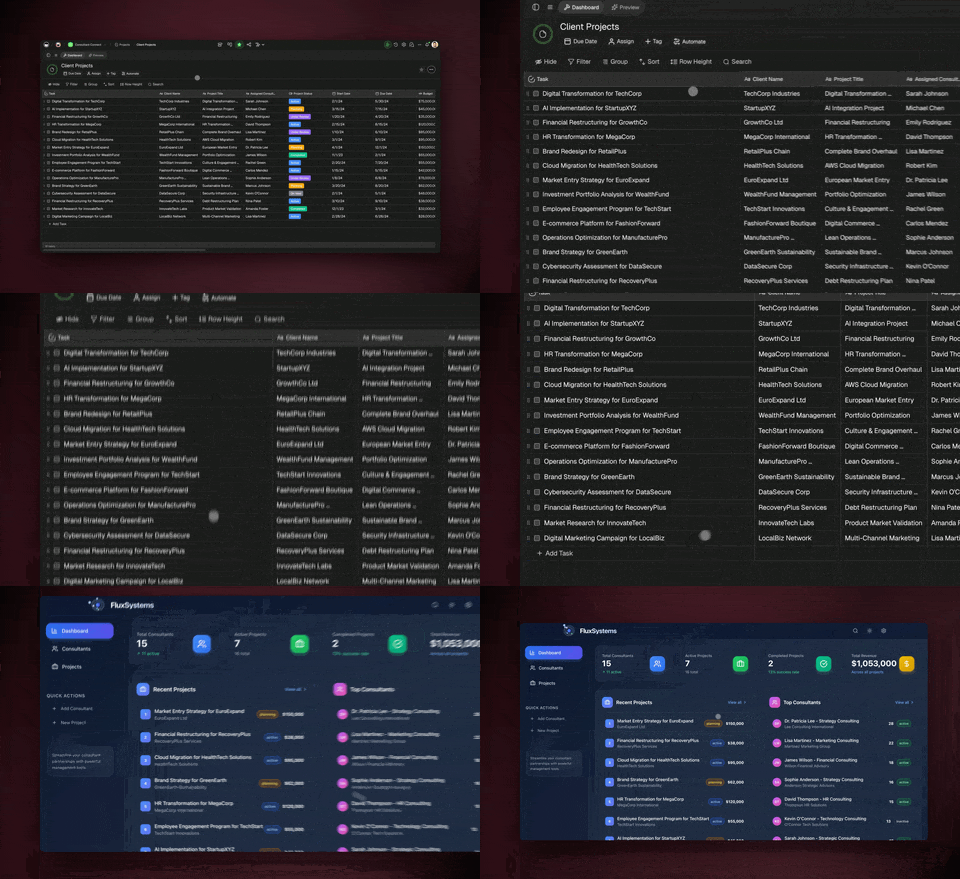
Educators use Taskade Genesis to ship four things from one prompt: a course portal students log into, an AI tutor trained on their own materials, an assignment tracker, and a grading workflow. Build it once with Taskade Genesis. Here is what the published portal looks like when students open it:
┌────────────────────────────────────────────┐
│  🎓 Grade 11 Biology            [ Sign in ] │
├───────────┬────────────────────────────────┤
│ Course    │  This week's reading      3    │
│ Homework  │  Due Friday               2  ⚠ │
│ AI Tutor  │  Graded & returned       18    │
│ Grades    │  Ask the tutor        [ Open ] │
└───────────┴────────────────────────────────┘
Students sign in at your own address, the AI tutor answers from your uploaded materials, and grades flow straight to the gradebook.
As a teacher, you can track lesson plans and assignments in one place. If you are a student, Taskade helps you manage group projects and keep up with your tasks. For administrators, it simplifies school activities and communication.
This guide shows how Taskade supports teachers, students, and administrators every day. 👇
Why Taskade Fits Education
- Custom AI Agents: Create AI agents tailored to your educational needs. Design agents for lesson planning, student progress tracking, administrative duties, and much more.
- Automations: Automate a wide range of tasks. Set up automations for reminders, event scheduling, assignment processing, and more. You can also connect Taskade with the other tools you use.
- Task lists and checklists: Organize lesson plans, grading schedules, and student assignments with task lists and checklists. Prioritize and track tasks, so teachers stay organized and students meet their deadlines.
- Shared projects: Create dedicated projects for classes, projects, or administrative functions. Teachers can collaborate on curriculum development, students can manage group projects, and administrative staff can coordinate events, all within a shared environment.
- Real-time collaboration: Enhance classroom activities and group assignments with real-time collaboration. Use live updates and integrated chat to improve coordination and communication among students, teachers, and staff.
- File and document sharing: Upload and share educational materials such as lesson plans, assignments, and reports. Integration with cloud storage services makes it simple for teachers and students to work on documents together.
- Integrated Calendars: Manage academic schedules, deadlines, and events with integrated calendars. Schedule classes, exams, and meetings, and sync them with personal calendars to prevent scheduling conflicts.
- Cross-platform access: Access your workspace from any device: desktop, tablet, or mobile. Teachers, students, and staff stay connected and productive in the classroom, at home, or on the go.
- And much more...
Now start with a basic setup.
Set Up Your Workspace
Your workspace is the central hub for your classes, staff, and tasks. Here’s how to set it up:
Step 1: Create a Workspace
- Create a new workspace:
- In your dashboard, click the plus icon on the left.
- Enter the name of your workspace.
- (optional) Choose a workspace logo.
- Invite team members to the workspace.
Note: Sharing a workspace does not automatically grant members access to all folders inside it. Grant folder access manually (see the next step).
Step 2: Add Folders
Folders help categorize different aspects of your operations.
- Create a new folder:
- In a workspace, click ➕ New folder in the left navigation pane.
- Enter the name for your folder and choose a color palette.
- Choose a logo from one of the available emojis or upload your own.
- Invite new members to the folder.
There are many ways to organize your organization using folders.
Check the hierarchies below for some ideas.
Scenario 1: Student Groups
Organize student groups based on grade levels to streamline access for teachers.
| 🗂️ Folder Name | 🔤 Description |
|---|---|
| Grade 10 | Store class materials, assignments, and resources specific to Grade 10 students. |
| Grade 11 | Organize lesson plans, assessments, and project guidelines for Grade 11 students. |
| Grade 12 | Keep track of college readiness resources, senior projects, and graduation preparations for Grade 12 students. |
Scenario 2: Administration
This administrative structure helps maintain essential records and facilitate communication within the educational institution.
| 🗂️ Folder Name | 🔤 Description |
|---|---|
| Student Records | Centralize records, grades, and attendance for all student groups. |
| Extracurricular Activities | Organize information about student clubs, sports teams, and participation. |
| Communication and Feedback | Manage newsletters, feedback forms, and communication with students and parents. |
Build Your Team of AI Agents
Teachers juggle lesson plans and grading. Administrators oversee everything from scheduling to communication. Taskade’s AI Teams lighten the load.
With AI Teams, you can create a squad of AI agents to handle many tasks:
📚 Curriculum planning
🧑🏫 Student engagement
🎓 School administration
📊 Data crunching
🗓️ Event planning
✨ And much more…
Go to the Agents tab at the top of your workspace/folder.
Click ➕ Create agent.
Click Generate in the Generate Agent tile.
Copy one of the prompts below into the prompt box and press Enter.
Repeat the steps to create more agents.
Lesson Planner Agent
"Create a 'Lesson Planner' agent that helps design lesson plans, suggests educational resources, and ensures alignment with curriculum standards."
Attendance Tracker Agent
"Create an 'Attendance Tracker' agent that monitors student attendance, identifies patterns, and sends reminders for frequent absences."
Curriculum Agent
"Create a 'Curriculum' agent that assists with designing curriculum outlines, aligning lesson plans with educational standards, and organizing teaching materials for different grade levels."
Communication Specialist Agent
"Create a 'Communication Specialist' agent that assists with drafting school newsletters, scheduling announcements, and monitoring communication channels between teachers, students, and parents."
- Use your AI team:
- Go to the AI Teams tab.
- Select your AI team from the list.
- Start a new chat with the AI team.
- Select the AI agents by clicking their names above the prompt field.
- Ask a question or define a task.
- Press Enter or click ➣ to submit your prompt to the selected agents.
A Living Classroom Loop
Course materials feed the tutor agents. The tutor agents answer student questions. Student submissions feed the grading automations. The results flow back to the course materials as new examples. That is a self-improving classroom:
Every quiz answered, every assignment submitted, every grade given is new data the tutor agent can read next class. The classroom gets smarter every week without the teacher doing extra work.
Related guides
- Custom AI Agents. Train tutor, grading, and admin agents.
- Multi-Agent Teams. Tutor, grader, and communications agents collaborating.
- Agent Knowledge & Memory. Upload course materials as agent knowledge.
- Form Triggers. Turn student submissions into an automation.
- Gmail Integration. Automated parent communication.
- Create Your First App. Ship the classroom as a Taskade Genesis app.