
Overview
Open a Project and click Table in the view switcher. Add columns for company, stage, owner, and next step. Each row is a contact or a deal your team updates in the grid. Open the Automations tab when a Google Form or Calendly event should create that row for you.
This page is the Taskade UI for a CRM. For the no-code method, see How to Build a CRM Without Code. Projects (Memory) hold accounts, contacts, and deals. AI agents (Intelligence) score leads and draft follow-ups. Automations (Execution) route hot leads and log activity.
TL;DR: Describe your CRM in one sentence and Taskade Genesis builds a working pipeline: a contacts table, AI lead scoring, automated follow-ups across Gmail, Slack, and Calendly, and a published dashboard. A solo realtor turns a contact form into an inbound pipeline. Every paid plan includes 100+ integrations. Build a CRM →
- 🔶 Track client interactions
- 🔶 Manage sales pipelines
- 🔶 Automate leads nurturing
Note: Read the Table View article to learn more.
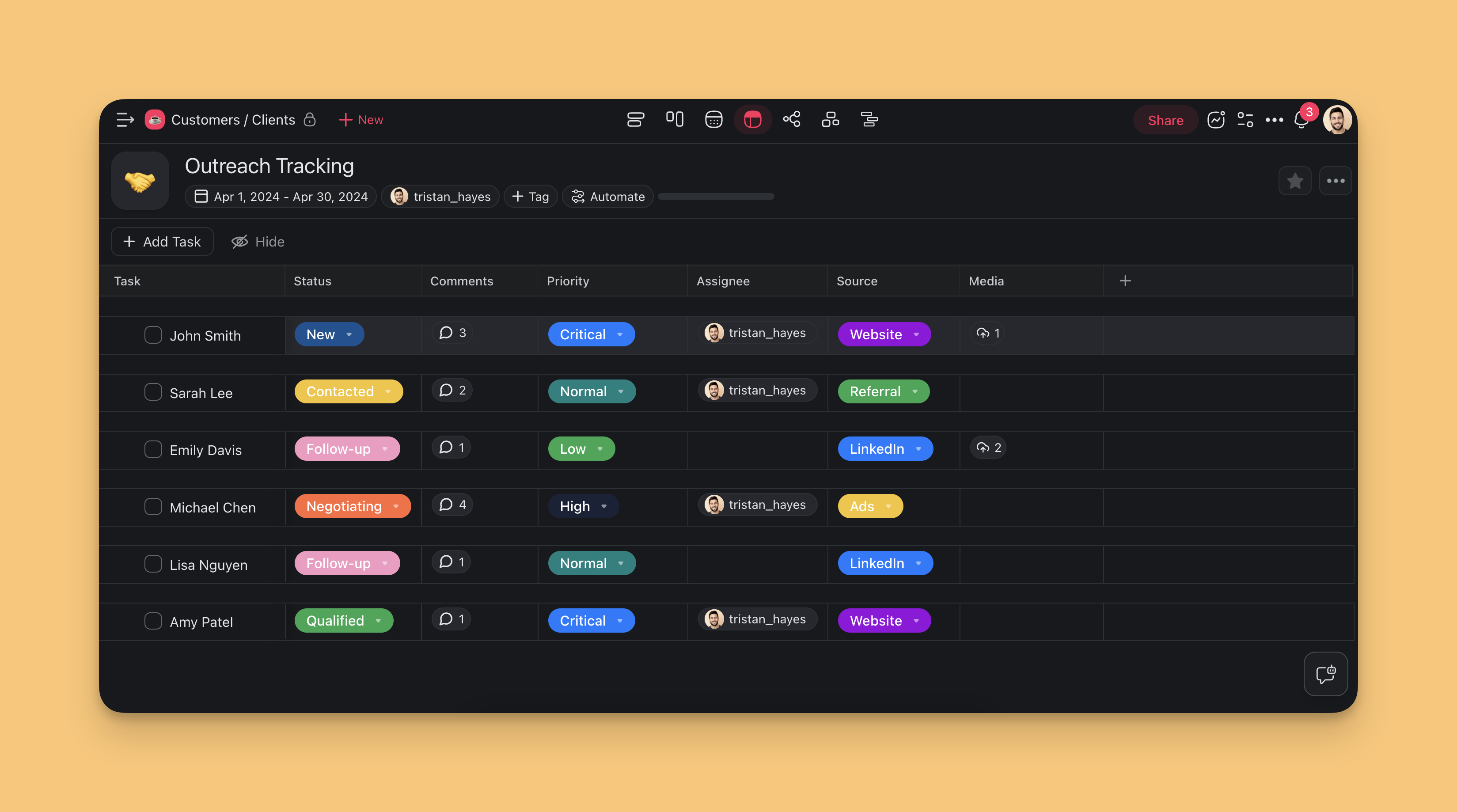
Here is what the built app looks like. This is a field-service dashboard: a left sidebar of tabs, and a Table view of customers with the columns a field team reads every morning.
┌───────────────────────────────────────────────────────────────────────────────┐
│ Field Ops    │ Customers                               + Add   ⌄ View         │
├───────────────────────────────────────────────────────────────────────────────┤
│ ▸ Customers  │ Name            Stage       Owner   Value     Next step        │
│ Jobs         │ ────────────────────────────────────────────────────────────── │
│ Invoices     │ Acme Roofing    Qualified   Priya   $12,400   Send quote       │
│ Team         │ Vera Plumbing   Proposal    Maria   $ 8,900   Book site visit  │
│              │ Hillside HVAC   New         Priya   $ 5,200   Score lead       │
│              │ Coastal Decks   Closed Won  Maria   $21,000   Send invoice     │
└───────────────────────────────────────────────────────────────────────────────┘
Each sidebar tab is its own Project. Customers, Jobs, Invoices, and Team all live in one app, and they share data. Connect Stripe or email through saved keys so invoices send themselves, then ship the whole thing on your own custom domain for your team to open every day.
Here is what each tab tracks.
| Project (sidebar tab) | What it tracks |
|---|---|
| Customers | Accounts, contacts, deal stage, owner, and the next step |
| Jobs | Each job linked to a customer, with status and scheduled date |
| Invoices | Amount, paid or unpaid status, and the Stripe link |
| Team | Who owns which accounts and who is assigned to each job |
Clone these live apps
Want a head start? These are real, working Taskade Genesis apps. Open the demo, see how the pipeline and dashboard fit together, then clone it into your own workspace and rename the fields. No setup required.
| App | What it does | Best for | Preview |
|---|---|---|---|
| Neon CRM Dashboard | A full sales pipeline with deal stages, contact records, and a live dashboard view. | A solo realtor running an inbound pipeline from a contact form. | Open demo → |
| Client Portal Dashboard | A shared client view that tracks customers, jobs, and status in one clean interface. | A field-service business tracking customers and jobs. | Open demo → |
Cloning copies the whole app: the table structure, the views, and the layout. You keep what fits and change the rest in plain English. Browse more in the Community Gallery.
How the CRM runs itself
A CRM is only useful when it updates without you. Here is the loop. A lead arrives, an AI agent qualifies it, an automation books the meeting and writes the record, and your dashboard refreshes on its own. This is the Workspace DNA loop in action: Memory feeds Intelligence, Intelligence triggers Execution, and Execution writes back to Memory.
Each outcome maps to one layer of Workspace DNA. Here is who does what.
| Outcome you want | Workspace DNA layer | What handles it |
|---|---|---|
| Keep every contact and deal in one place | Memory | A Project in Table view |
| Score leads and draft replies | Intelligence | An AI agent (Taskade EVE wires it up) |
| Route hot leads and book meetings | Execution | Automations across Gmail, Slack, Calendly |
| Give your team a screen they actually use | Interface | A published Taskade Genesis dashboard |
Build a CRM from scratch
Taskade Genesis builds a working CRM from a single prompt. You get a pipeline Table, AI lead scoring, automated follow-ups across Gmail, Slack, and Calendly, and a published dashboard your sales team uses every day. No code, no spreadsheets, no per-seat tax. The Project is the database. Taskade EVE writes the follow-ups. Automations move the deals.
To get started, open Taskade Genesis and paste a prompt like:
Build a sales CRM.
Pipeline stages: New, Qualified, Proposal, Closed Won, Closed Lost.
Fields per deal: company, contact, value, owner, next_step, last_touched.
Include AI lead scoring, an inbox for inbound leads from Gmail and Calendly,
auto-drafted follow-up emails after every meeting, and a dashboard showing
deals by stage, deals by owner, and revenue forecast.
Taskade Genesis ships a pipeline Project, a published dashboard, an inbound automation, and Taskade EVE wired to score leads and draft replies. Tune the stages, invite your team, and route the link to sales.
Getting Started with Table View
The Table view gives you adjustable columns for your project. You can resize, rearrange, and hide them for a personalized CRM. When you need a snapshot for accounting or a board update, export the table to CSV in one click.
Do this in Taskade
Step 1: Open Table view
Open your Project. Click Table in the view switcher at the top. Click Table again to set it as the default view.
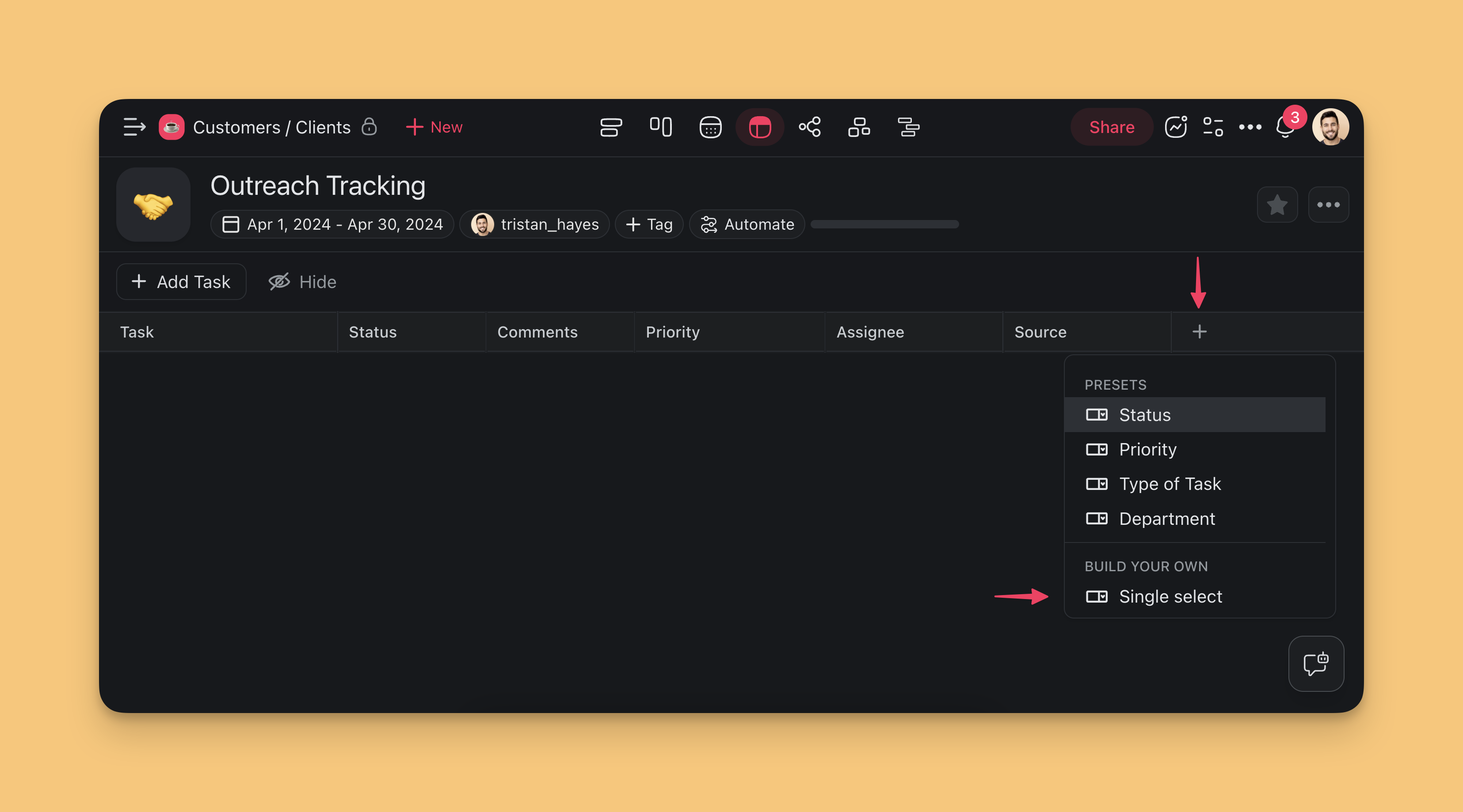
Step 2: Add CRM columns
Click the plus button next to the last column. Add company, stage, owner, and next step. Use a preset or Single select for a custom field.
Step 3: Open Automations
Open the Automations tab. Click Add automation, pick a trigger such as a new Google Form, and add an action that creates a row.
Enable the table view:
To build your CRM, start by switching to the Table view:
- Open your project.
- Click Table in the view switcher at the top.
- Click Table again to set it as the default view.

Note: Changing project views does not affect project contents.
Add CRM Columns
Next, add the columns that segment and sort your CRM information for your workflow.
Click the ➕ button next to the last column (scroll right if needed).
(method #1) Choose one of the available presets.
(method #2) Choose Single select to add a custom column.
Edit Columns / Fields
You can customize existing CRM fields at any time:
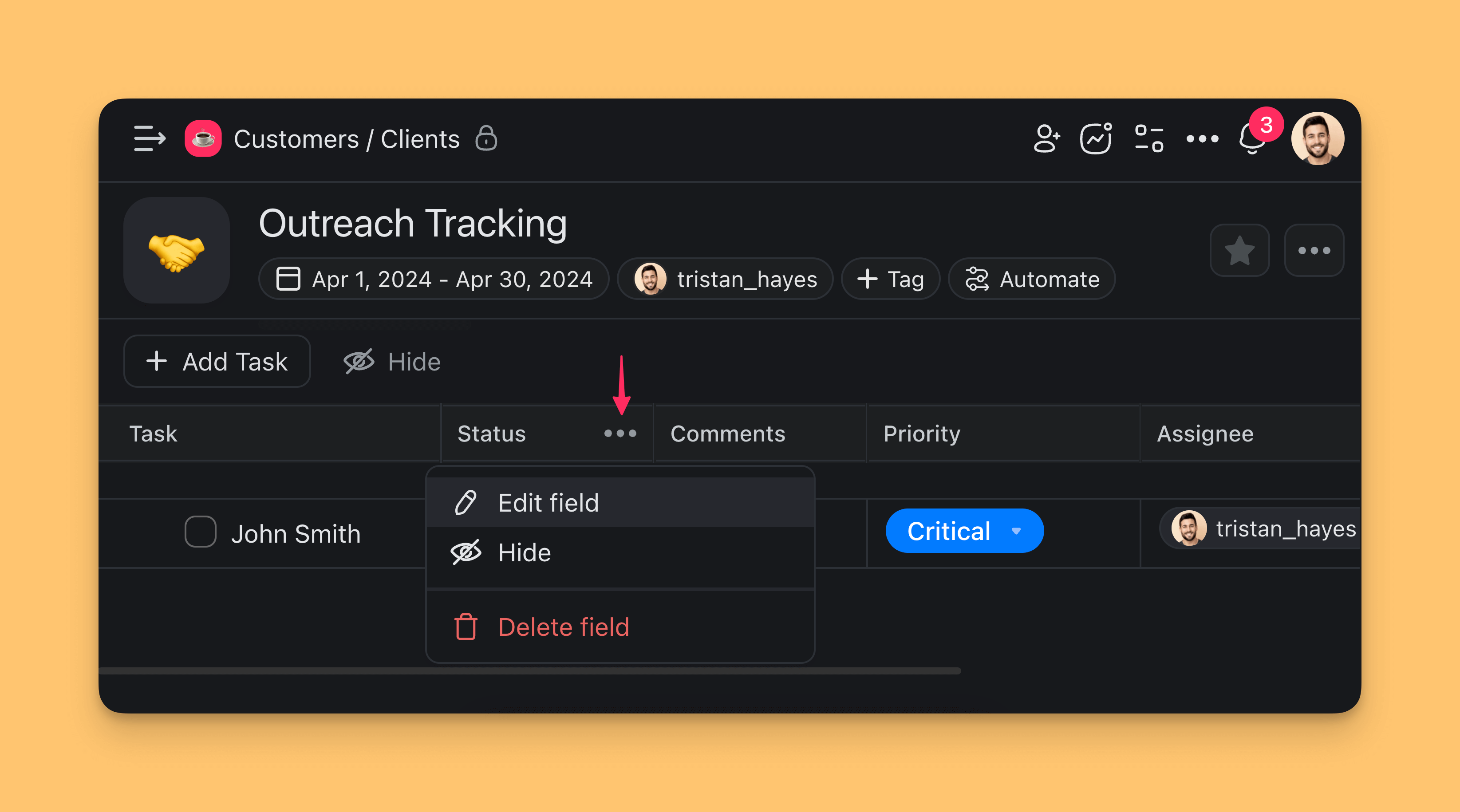
Edit field contents:
Click the ··· three dots next to a column name.
Choose ✏️ Edit Field from the list.
Edit the field name and available options.
Resize, reorder, or hide columns:
Resize: Click and hold a column divider and drag it to the left or right.
Reorder: Click and hold a column header and drag it to the left or right.
Hide: Click ··· next to a column header ➡ Hide column.
Show: Click the ➕ button at the end of a table to add columns again.
Scroll to the right to see the ➕ button.
Add CRM Entries
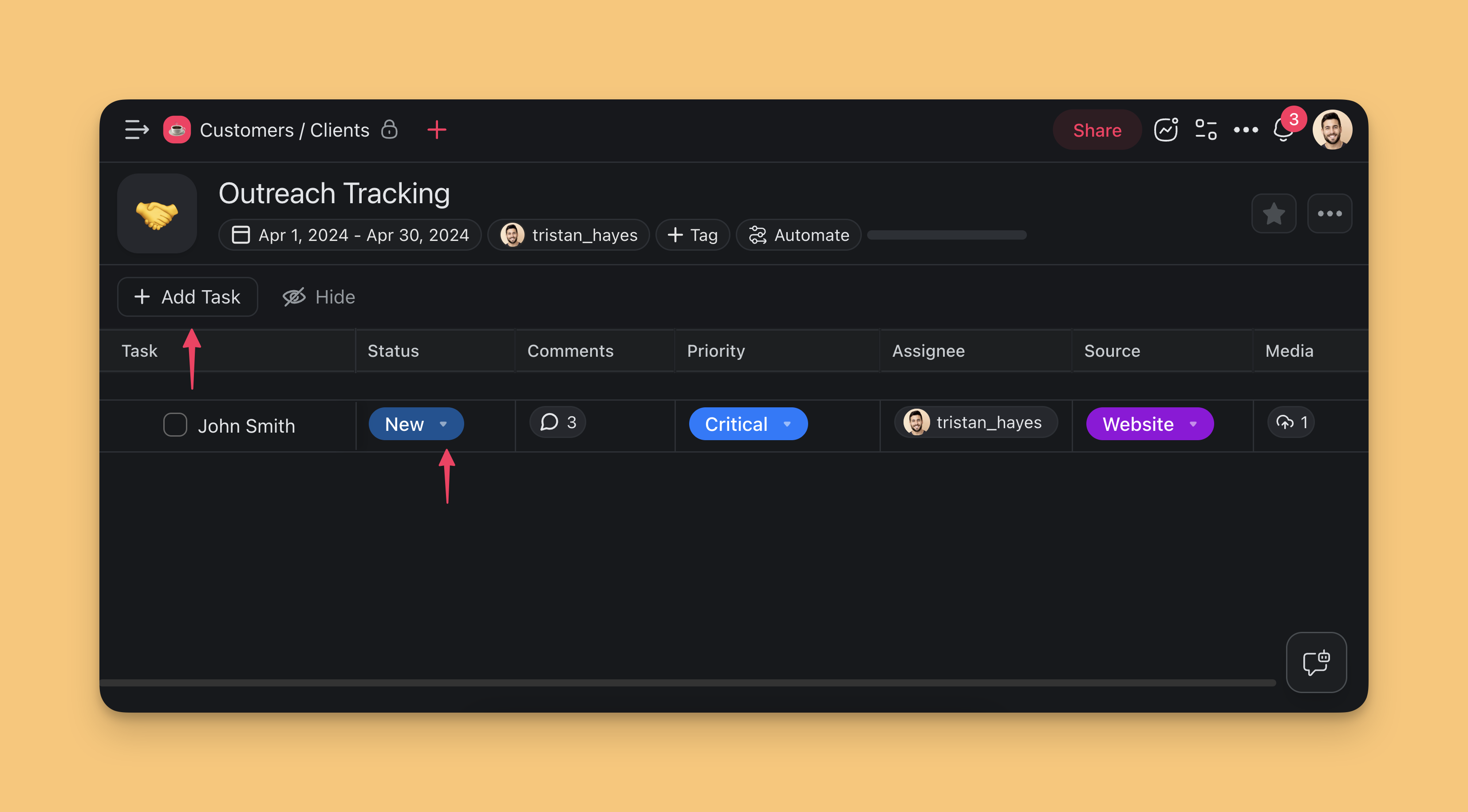
The columns are in place. Now add entries to bring your CRM to life. Each entry represents a valuable interaction, a client, or a lead that helps your business grow.
- Click the ➕ Add Task button at the top of the table.
- Type the name or title on the left.
- Use the column drop-downs to select item parameters.
Automate Your CRM
Taskade lets you connect to essential tools like Mailchimp, Google Sheets, Google Forms, or Gmail to automate your CRM workflow.
💡 Note: Visit Triggers and Actions for a full list of available connectors.
Go to the Automations tab in your workspace
Click ➕ Add automation.
Click ➕ Add Trigger to choose a trigger.
Click ➕ Add Action to define automation steps.
When you are done, click Save changes in the top-right corner.
Note: Watch this short video to get started! 👇
Automation Ideas
You can automate your CRM projects in many ways. Here are a few ideas to get you started.
Google Forms + Taskade AI + Gmail
| Google Forms | Trigger: New Form Submission |
|---|---|
| Taskade | Action: Add Task |
| Taskade AI | Action: Generate with AI |
| Gmail | Action: Send email |
🔄 Automation Scenario: A potential lead submits your Google Form. The automation adds the lead to the CRM project. Taskade AI generates a personalized message from the submitted information. Gmail then sends that message to the lead.
Calendly + Taskade AI + Slack
| Calendly | Trigger: Event Scheduled |
|---|---|
| Taskade | Action: Add Task |
| Taskade AI | Action: Generate with AI |
| Slack | Action: Send channel message |
🔄 Automation Scenario: Someone schedules a new event in Calendly. The automation adds the lead to the CRM project. Taskade AI generates a personalized message or reminder from the event details. The automation then sends that message to a Slack channel, so your team knows about the event.
The CRM Data Model
Behind every sales workflow is a simple data model. In Taskade, each entity is a Project, so you never set up tables by hand:
Accounts contain contacts. Contacts drive deals. Deals sit in stages. Every call, email, and note is an activity. AI agents and automations write activities right alongside your team. That is what makes a Taskade CRM live: your pipeline updates itself as real-world events happen.
Leaving per-seat CRMs
| Traditional CRM | Taskade Genesis CRM |
|---|---|
| Per-user/month pricing (Salesforce, HubSpot) | One flat plan, no per-seat tax |
| Fixed schema, rigid custom fields | Edit your CRM in natural language any time |
| Reports you configure yourself | Ask an agent in plain English |
| Integrations = paid add-ons | 100+ integrations included |
| Email/SMS outreach = separate tool | Built-in via Automations |
| Data lives in their cloud | Lives in your Taskade workspace alongside projects, docs, and agents |
Frequently asked questions
Can I run this CRM without creating a new account?
If you already have Taskade, open a Project and click Table. You do not need a second CRM login. Add columns, then open Automations to create rows from a form or a Calendly event. For the broader no-code method, see How to Build a CRM Without Code.
How do I use Taskade as a CRM on a Free plan?
Table view and automations work on Free. Paid plans add capacity and more automation runs. See pricing. This page is the Taskade UI. The generator card lives on the CRM use-case page.
Can a non-technical person build a CRM in Taskade Genesis?
Yes. You describe the CRM you want in one plain-English sentence and Taskade Genesis builds the pipeline table, the dashboard, and the automations for you. There is no code and no spreadsheet setup. A solo realtor or a field-service owner can ship a working CRM in minutes, then adjust fields and stages by typing what they want changed.
How does a solo realtor turn a contact form into a CRM?
Point your website contact form at Taskade through an automation. When someone submits the form, the lead lands in your pipeline as a new record. An AI agent scores it, and an automation drafts a same-day reply through Gmail. Your dashboard updates on its own, so you always see who is new, who is hot, and who needs a follow-up.
Can a field-service business track both customers and jobs here?
Yes. Keep a customer record in one Table view and link each job to the customer it belongs to. Automations send reminders before a job, mark it complete after, and log the activity. The Client Portal Dashboard above is a ready-made starting point you can clone and rename for your trade.
Do I need to set up a database or tables by hand?
No. Each Project is the database. When you ask for accounts, contacts, and deals, Taskade Genesis creates the structure automatically. You never write a schema or connect a separate database. See Projects & Databases for how the Memory layer stores your data.
What does a Taskade Genesis CRM cost?
Every Taskade paid plan includes 100+ integrations and AI agents, so outreach and automation are not separate add-ons. A traditional CRM like Salesforce or HubSpot charges per user per month, and most integrations cost extra. See current plans on the pricing page.
Can my team use the CRM without learning Taskade first?
Yes. Publish your CRM as a Taskade Genesis dashboard and share the link. Your team sees a clean screen built for the way they work, not a stack of menus. They can add deals, update stages, and read the dashboard without touching the builder.
Related guides
- Your First Taskade Genesis App. Build any app, including a CRM, from one prompt
- Workspace DNA Explained. How Memory, Intelligence, and Execution work together
- Publish a Taskade Genesis App. Ship your CRM dashboard as a link your team uses
- Custom AI Agents. Train a sales agent on your ideal customer and playbook
- Projects & Databases. The Memory layer your CRM sits on
- App Secrets. Save a Stripe or email key so your app can send invoices
- Build a CRM Without Code. The outcome hub: what you can build plus a real CRM you can clone
- Custom Domains. Ship your CRM on your own web address
- Agent Action. Trigger your sales agent from any event
- Outgoing Webhooks. Send a signed alert to another tool when a deal changes
- HubSpot Integration. Sync with an existing HubSpot CRM
- Apollo Integration. Pull prospect data into your CRM
- Gmail Integration. Log email activity automatically
- Calendly Integration. Auto-create deals when meetings are booked
- Workflow Generator. Describe your sales process in English