
Overview
You will build a help desk that takes tickets from a form and from email. AI sorts each ticket by category. An automation gives each ticket an owner and emails the requester. Every morning, your support lead gets a list of the tickets that are still open.
TL;DR: Build a help desk in Taskade Genesis in about 30 minutes. Staff submit tickets with a form or send them to a Mailhook email address. Categorize with AI sorts each ticket, an automation assigns an owner, and a daily schedule emails the list of open tickets to your lead.
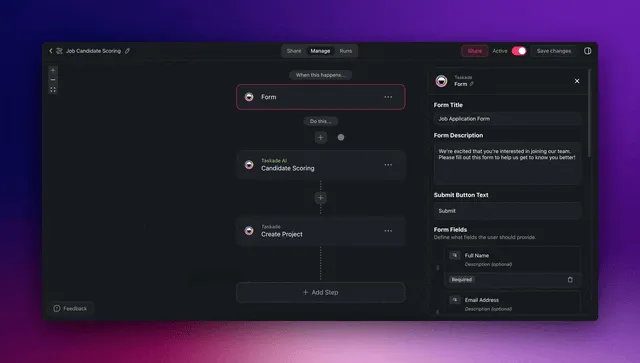
Use case: A small IT or operations team uses this setup to take staff tickets into one queue. AI sorts each ticket and an automation names the owner, so nobody sorts the inbox by hand each morning.
Before You Start
- What you need: A Taskade account and the email addresses of the people who answer tickets.
- Time: About 30 minutes.
- AI credits: The sorting step uses AI credits. Free starts with no AI credits. You earn credits with referrals and invites, or buy a credit pack on any plan. See AI Models and Credit Costs.
The Parts of a Help Desk
A small-team help desk needs five parts on day one. Add reports later.
| Part | Why it matters | How Taskade does it |
|---|---|---|
| Intake | No ticket gets lost in a personal inbox | A ticket form in your app, or a Mailhook email address |
| Ticket list | Everyone sees the same queue | One project with Status, Priority, Category and Owner fields |
| Sorting | The right person sees the ticket first | The Categorize with AI step |
| Owner | One name on every ticket | The Assign a task step |
| Morning digest | Open tickets come back to the lead | A Schedule trigger and the Find tasks step |
Step 1: Create the Help Desk App
Start from a live app, or describe the app to Taskade EVE.
- Open Support Workflow Manager. It is a published Taskade Genesis app with a Support Assistant agent.
- Click Clone app and pick your workspace.
- Rename the app and edit the sample tickets.
A clone counts as 1 of the 3 apps on the Free plan. On Free, you can clone an app that has no automations. To clone an app that includes automations, you need a paid plan.
To start from a prompt instead, open Taskade Genesis and paste this prompt:
Build an internal help desk. Employees submit a ticket with a form: name, email,
subject, description and urgency. Store every ticket in one project with the fields
Status (Open, In progress, Done), Priority, Category and Owner. Show a staff inbox
sorted by priority and a page of common fixes. Do not add sign-in or reports yet.
Why this works: The prompt names every field of the ticket, so the automations in Step 3 have a Category and an Owner to write to.
Try a different starting point
If your customers send tickets, and not your staff, start from this prompt:
Build a customer support desk. Customers submit a ticket with a form: name, email,
order number and question. Store each ticket with Status, Priority, Category and Owner.
Show a staff inbox sorted by priority. Do not add sign-in yet.
Step 2: Connect Where Tickets Come From
Tickets can come from the app form, from email, or from both.
- Open the published app and submit one test ticket with the form.
- Make sure that the ticket shows in the ticket project.
- To take tickets by email, open Automations and create an automation with the When an email arrives trigger.
- Click Copy Link to copy the Mailhook email address.
- Add the Add a task step. Pick the ticket project. Put the email subject in the title, the email body in the description and the sender address in the requester email field.
- Turn the automation on, and forward your support inbox to the Mailhook address. The Mailhook trigger is available on all plans.
If staff must sign in to the app, turn on App Users. Sign-in works on every plan, including Free. Sign-in confirms who a person is. It does not hide other tickets by itself. To show each employee only their own tickets, match each ticket to the email of the requester, and test it with a second account.
Step 3: Turn On Sorting, Owners and Replies
Build one automation that runs for each new ticket.
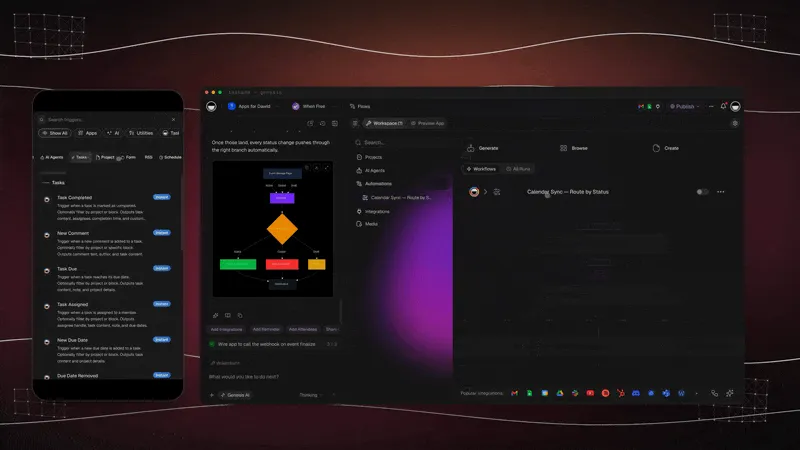
- Open Automations and create a new automation.
- Add the When a task is added trigger. Pick the ticket project. Each ticket from the form or from email lands there as a new task, so this one automation sorts every ticket once.
- Add the Categorize with AI step. Point it at the ticket description. Give it your categories, for example Hardware, Software, Access and Billing.
- Add the Update custom fields step. Write the result into the Category field.
- Add the Branch step. Add one path for each category, with the condition that the category result equals that label.
- In each path, add the Assign a task step. Pick the person who owns that category.
- In the Fallback path, assign the ticket to your support lead.
- Add the Send an email step. Tell the requester that the ticket has an owner.
- Turn the automation on.
Why this works: Categorize with AI returns one clean label, so each Branch path can match it and assign the right owner. One Branch step holds up to 7 paths.
Step 4: Send the Morning Digest
Build a second automation that runs on a clock.
- Create a new automation with the Schedule trigger. Pick Every Day, 8:00, and your time zone.
- Add the Find tasks step. Pick the ticket project.
- Set Tasks To Return to Return all matching tasks as array.
- Click New Filter. Set the Status field to Open.
- Add the Send an email step. Send the list to your support lead.
- Turn the automation on.
You Are Done When
You submit 3 test tickets (one urgent, one billing, one how-to), each ticket gets a category and an owner, each requester gets an email, and the next morning your lead gets the list of open tickets.
Plans and Limits
| Plan | What you get for a help desk |
|---|---|
| Free | 2 workspace members, 3 Taskade Genesis apps, 1 agent and 10 automation runs a month. It fits a trial. |
| Paid plans | More members, more automation runs, and connector steps such as Gmail and Slack. |
App sign-in works on every plan. A custom domain is Pro and above. Each new ticket uses at least one automation run. See pricing for current details.
Next Steps
- Read the step-by-step guide on the blog: See how to build a help desk without code.
- Add your fixes: Put common fixes in a project, and connect it to the agent as agent knowledge.
- Add an agent: Let the Support Assistant answer repeat questions before a person does.
- Add an automation: Send urgent tickets to a Slack channel with a paid-plan connector. See Automation Triggers.
- Publish: Share the app with your team. See Publish Your App.
Frequently Asked Questions
Can staff submit a ticket without a Taskade account?
Yes. The ticket form on a published app is open by default. If you want staff to sign in, turn on App Users. Sign-in works on every plan, including Free.
Does AI sorting work on the Free plan?
The Categorize with AI step runs on every plan, but it uses AI credits. Free starts with no AI credits. You earn credits with referrals and invites, or buy a credit pack on any plan.
Can I take tickets from my support email address?
Yes. Create an automation with the Mailhook trigger, copy its email address, and forward your support inbox to it. Each email starts the automation.
How do I show each employee only their own tickets?
Turn on sign-in, then match each ticket to the email of the requester. Sign-in confirms who a person is. It does not hide other rows by itself. Test it with a second account before you share the app.