
Overview
You will build an approval app for requests such as supplier payments, purchases or time off. Each request moves from stage to stage, and each stage goes to one approver. Every decision lands in a log. Every morning, a check lists the requests that still wait for a decision.
TL;DR: Build an approval workflow in Taskade Genesis in about 30 minutes. Staff submit a request with a form. A When a field changes automation assigns the next approver and sends an email. A second automation writes each decision to a log, and a daily Schedule lists the requests that still wait.
Use case: A finance team uses this setup for supplier payments that need more than one sign-off. Each approver gets the request at the right stage, and the decision log replaces the email thread that people search at audit time.
Before You Start
- What you need: A Taskade account, the list of your approval stages, and the email address of each approver.
- Time: About 30 minutes.
- AI credits: This build uses built-in Taskade steps only. It needs no AI credits and no connector.
The Parts of an Approval Workflow
Five parts make approvals run without a chase. Each part uses a built-in Taskade step.
| Part | Example | How Taskade does it |
|---|---|---|
| Request form | "Supplier payment, 4,200, due 30 Nov" | A form in your app that adds a row to a Requests project |
| Stages | Manager review, then Finance review, then CEO review | A Stage select field on each request |
| Hand-off | Manager approves, then Finance gets the request | The When a field changes trigger, then Assign a task and Send an email |
| Decision log | Who decided what, and when | The Add a task step writes one row to a Decision log project |
| Waiting list | Requests with no decision yet | A daily Schedule trigger, then Find tasks and Send an email |
Step 1: Create the Approval App
Open Taskade Genesis and paste this prompt:
Build an approval workflow app. Staff submit a request with a form: title, amount,
reason, due date and requester email. Store each request in a Requests project with
a Stage select field (Manager review, Finance review, CEO review, Approved, Rejected).
Show each approver a list of the requests at their stage, with Approve and Reject
buttons that change the Stage field. Add a Decision log project.
Do not add sign-in or email steps yet.
Why this works: The prompt makes the Stage field the single place where a decision lives, so one trigger type can drive every hand-off.
Try a different starting point
If amounts decide who approves, start from this prompt instead:
Build an approval workflow app. Requests up to 500 go to the manager only. Requests
above 500 go to the manager, then to finance. Requests above 10,000 also go to the CEO.
Store each request with a Stage field and show each approver the requests at their stage.
Do not add sign-in or email steps yet.
Step 2: Add Your Approvers and Sign-In
- Invite each approver to your workspace. See Invite Members.
- Open the published app and submit one test request with the form.
- Make sure that the request shows in the Requests project with the Stage set to Manager review.
- Before you share the app, turn on App Users. In Who can use this app?, pick Only people I add, and add each approver and requester by email.
- Ask Taskade EVE to show the Approve and Reject buttons only to the approver of the current stage, matched by the signed-in email.
- Ask Taskade EVE to write the signed-in email into a Decided by field each time an approver clicks Approve or Reject.
- Test it. A signed-out browser, a requester and an approver of another stage must not be able to approve or reject.
Sign-in works on every plan, including Free. Sign-in confirms who a person is. It does not limit what a person can do by itself. The email match in step 5 and the test in step 7 do that work.
Step 3: Turn On the Hand-Offs
Build one automation for each stage. This example covers the Finance stage.
- Open Automations and create a new automation.
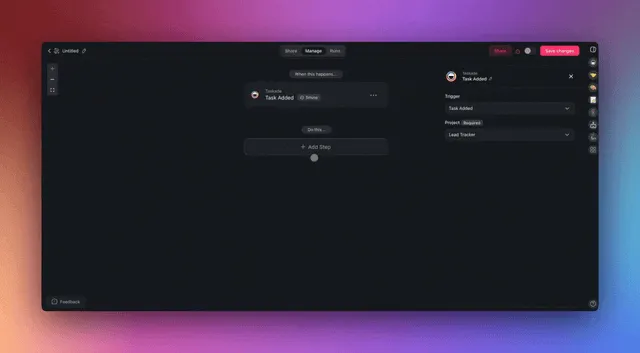
- Add the When a field changes trigger. Pick the Requests project and the Stage field.
- In Only when value becomes, pick Finance review. This option works on a select field.
- Add the Assign a task step. Pick the finance approver.
- Add the Send an email step. Tell the approver that a request waits for them.
- Turn the automation on.
- Repeat steps 1 to 6 for Manager review and CEO review.
Why this works: Only when value becomes starts the automation at one stage only, so each stage reaches one approver.
Step 4: Log Every Decision
- Create a new automation with the When a field changes trigger on the Stage field.
- Leave Only when value becomes empty, so every change starts the automation.
- Add the Add a task step. Pick the Decision log project.
- Write the request title, the new stage, the Decided by email and the date into the task. The Decided by email names the approver, and so the stage that the approver owns.
- Turn the automation on.
Step 5: List the Requests That Wait
- Create a new automation with the Schedule trigger. Pick Every Day, 8:00, and your time zone.
- Add the Find tasks step. Pick the Requests project.
- Set Tasks To Return to Return all matching tasks as array.
- Click New Filter. Set the Stage field to Manager review.
- Add the Send an email step. Send the list to the manager.
- Turn the automation on. Repeat for each stage.
You Are Done When
You submit one small and one large test request, each approver gets an email at their stage, every Stage change adds a row to the Decision log, and the next morning the waiting request shows in the email list.
Plans and Limits
| Plan | What you get for an approval workflow |
|---|---|
| Free | 2 workspace members, 3 Taskade Genesis apps, 1 agent and 10 automation runs a month. It fits a trial. |
| Paid plans | More members and more automation runs for a team with daily requests. |
Every step in this guide is a built-in Taskade step. Each request starts several automation runs: one for each hand-off and one for each logged decision. App sign-in works on every plan. A custom domain is Pro and above. See pricing for current details.
Next Steps
- Read the step-by-step guide on the blog: See how to build an approval workflow without code.
- Add data: Add an Amount field and sort the approver list by amount. See Custom Fields.
- Add an agent: Let a custom agent answer questions about your approval policy.
- Add an automation: Route by amount with a Branch step.
- Publish: Share the app with your team. See Publish Your App.
Frequently Asked Questions
Does an approval workflow need AI credits?
No. Every step in this guide is a built-in Taskade step: the field trigger, Assign a task, Send an email, Add a task, the schedule and Find tasks. None of them uses AI credits.
Can one request go through more than one approver?
Yes. Each stage is one value of the Stage field. When an approver moves the request to the next stage, the automation for that stage assigns the next approver and sends the email.
How do I keep a record of every decision?
Add an automation with the When a field changes trigger on the Stage field and an Add a task step that writes to a Decision log project. Each change adds one row.
Can approvers use the app without a Taskade workspace?
Yes. Turn on App Users and approvers sign in to the published app with their email. Sign-in works on every plan, including Free. Match each request to the email of the approver, and test it with a second account.