

Overview
Context is what turns a generic Taskade Genesis build into your business app. Upload your brand guidelines, sample data, screenshots, or past projects, and the app you get back already uses your colors, your fields, your tone, and your way of working. No starting from scratch, no developer needed.
A field-service operator who runs an operations dashboard can drop in last quarter's job spreadsheet and a logo file. The app comes back with the right columns (Customers, Jobs, Invoices, Team) and the right look. It does not come back as a blank template to redo by hand.
TL;DR: A blank prompt gives you a template. A prompt plus a brand PDF, a sample spreadsheet, and a reference screenshot gives you a tailored app that already knows your business. Drag files into the prompt box, and Taskade Genesis builds them in. Your files stay saved for every future build. Try a context-rich build →
The more context you provide, the less generic your app becomes. A blank prompt gives you a template. A prompt plus a brand PDF, a sample spreadsheet, and a past project gives you a tailored app that already knows your business. The files you add feed straight into Workspace DNA, the memory that every part of your app draws from.
💡 Note: Any files that you upload are added to Media Files.
What You Can Use as Context
Taskade Genesis works with various file types to understand your requirements. Upload documents, images, data files, and code samples to amplify your builds.
| Context you add | What Taskade Genesis does with it |
|---|---|
| Brand guidelines, logo, colors | Matches your visual identity in the build |
| Sample spreadsheet or records | Sets up the right fields and data structure |
| Screenshots of apps you like | Copies the layout and interaction patterns |
| Workflow docs and business rules | Wires your process into the app logic |
Brand and Design Files
Upload your visual identity materials so Taskade Genesis can match your brand perfectly.
- Brand guidelines (PDF): Color codes, typography, logo usage, design principles
- Logo files (PNG, JPG): Primary logos, variations, icons, and brand marks
- Color palettes and style guides: Hex codes, color combinations, visual hierarchy
- Website screenshots Current site design, layout patterns, UI elements
- Mockups or wireframes: App layouts, user interface designs, navigation flows
Data and Structure Files
Share examples of data and processes so Taskade Genesis builds around your real records. A solo realtor can upload a spreadsheet of past leads, and the app comes back with a working CRM that already has the right fields, ready for new inquiries.
- Existing forms (PDF): Contact forms, registration forms, surveys, applications
- Data examples: A sample spreadsheet, your current field names, a few real records
- Workflow documents: Process flows, standard procedures, business rules
- Code snippets: Validation rules, integration examples, custom functions
Reference Materials
Show Taskade Genesis examples of what you like or want to replicate from other sources.
- Screenshots of apps: UI inspiration, feature examples, interaction patterns
- Screenshots existing systems: Legacy applications, competitor tools
- Process documentation: Standard procedures, user manuals, training materials
- User requirements: Feature specifications, acceptance criteria, use cases
- Technical documentation: API specs, integration guides, configuration files
Provide App Context
You can give context to Taskade Genesis in two ways. The method depends on your stage in the build. Here is how to get started:
Initial Prompt
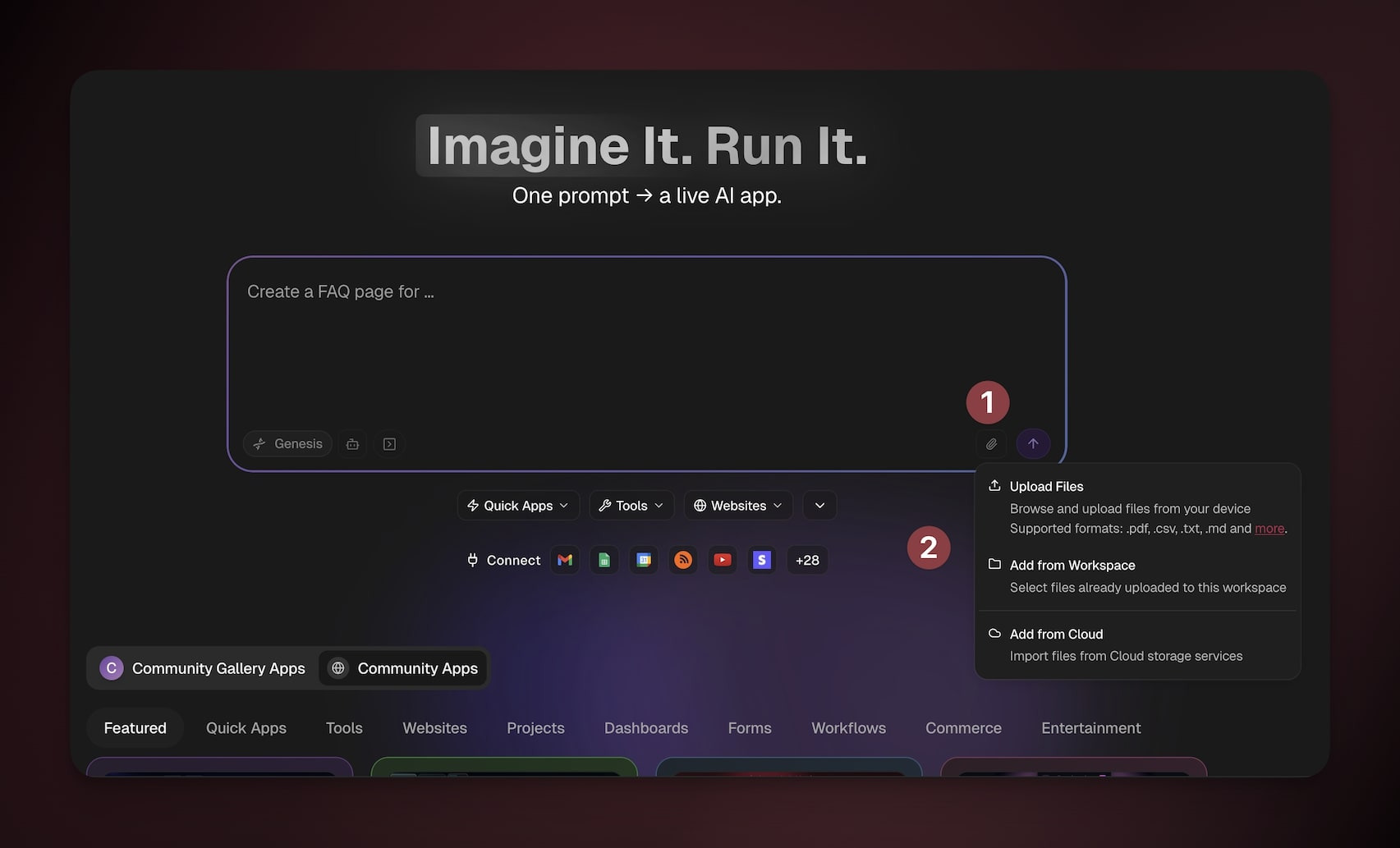
When you first prompt Taskade Genesis to build an app, you can provide context. You can also add relevant text information directly into your initial prompt.
Open Taskade Genesis and type your initial app prompt.
Drag & drop files into the prompt box, or
(1) Click the Attachment button (📎) and (2) choose:
Upload Files: Browse and upload files from your device.
Add from Workspace: Select files already uploaded to this workspace.
Add from Cloud: Import files from cloud storage.
Submit the prompt. Taskade Genesis creates the app with your text context.
Follow-Up Prompts
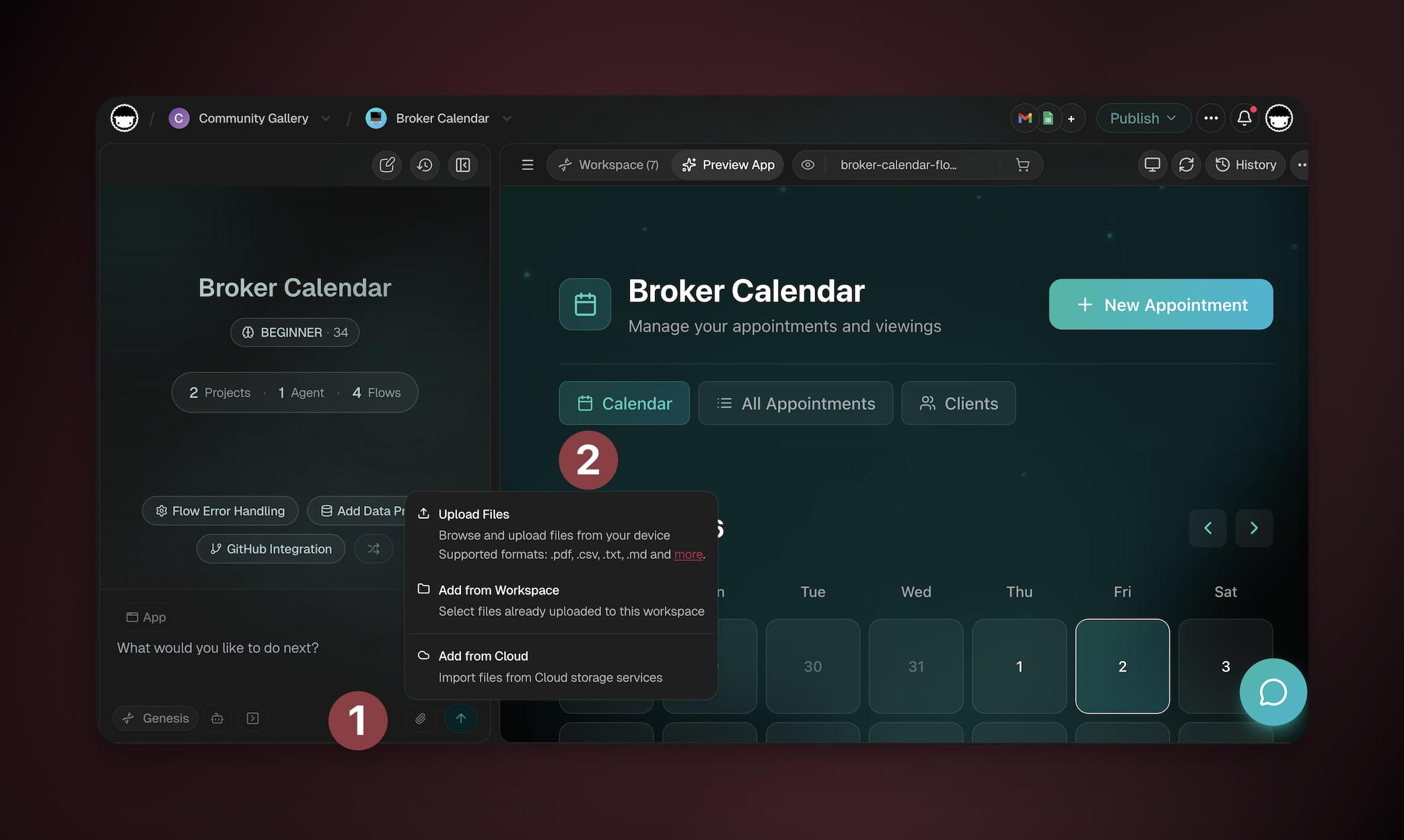
After Taskade Genesis creates your app, upload context files in follow-up prompts to refine it. Taskade adds each uploaded file to Media Files.
Open your Taskade Genesis app in Preview mode.
Upload context files:
(method 1) Drag & drop files into the chat box.
(method 2) Use the Attachment button (📎)
Ask Taskade Genesis to update the app using the new context.
- "Update this contact form to match our brand guidelines. Use the colors and fonts specified in the uploaded PDF."
Files Your App's Users Send You
Everything above is context you hand Taskade Genesis while you build. It teaches the builder your colors, your field names, and your way of working. Uploads run the other direction. A client attaches a signed agreement to your intake form, or a technician sends a photo of a paper work order from a job site. Those files arrive with the submission, land in the same Media Files as your context files, and an automation step can read what is inside them.
- File Uploads in Your App. Where a file goes after someone picks it in your published app.
- Read Scanned Documents. Scanned paperwork and phone photos of paper, read in the Convert File to Text step.
- Build a Document Intake App. A form that takes a document, an automation that reads it, and one row per file.
Frequently Asked Questions
What kinds of files can I use as context?
You can upload brand guidelines and logos (PDF, PNG, JPG), sample data and forms, workflow documents, code snippets, and reference screenshots of apps or systems. Taskade Genesis reads these to match your colors, fields, tone, and workflow.
How does context shape the app Taskade Genesis builds?
Taskade Genesis reads your files and builds them into the finished app. Your colors and layout go into the design. Your field names go into the data. Your tone goes into the agents. The result is a tailored app that already knows your business, not a generic template. All four layers of Workspace DNA come from your own materials.
Where do my uploaded files go after I add them?
Every file you upload is saved to Media Files, where it persists for future builds and follow-up prompts. You can reuse those files across new apps without uploading them again.
Can I add more context after the app is created?
Yes. Open your app in Preview mode, then drag files into the chat box or use the Attachment button in a follow-up prompt. Ask Taskade Genesis to update the app with the new context, such as matching the colors and fonts in an uploaded PDF.
How do I get started building with context?
Type your app idea in Taskade Genesis. Then drag and drop files into the prompt box. You can also click the Attachment button to upload from your device, workspace, or cloud storage. Submit the prompt, and the build uses your context right away.
Which plan can I use to build context-rich apps?
You can start building with Taskade Genesis on the Free plan. Paid plans add more capacity, users, and features. See pricing for the full plan lineup.
Related guides
- Your First Taskade Genesis Prompt. How to write the prompt before you add context
- Build Your First App. The full path from idea to live app
- Brand Voice. Train agents on your brand guidelines
- Agent Knowledge & Memory. How uploaded files become agent knowledge
- Media Files. Where uploaded files live and how to reuse them
- File Uploads in Your App. What happens to a file the people using your app send in
- Workspace DNA. The bigger picture of Memory feeding Intelligence