
TL;DR: Mind Map is one of Taskade's project views. Brainstorm visually, then ask Taskade Genesis to build your map into a shippable app. Every node becomes structured Memory. AI agents read the structure as Intelligence. Automations turn branches into actions. Visual thinking becomes living software in two prompts. Try mind mapping →
Overview
Mind Map is one of Taskade's project views. Brainstorm visually, then turn the same map into a shippable app. Every node becomes structured Memory. Agents read the structure as Intelligence, and automations turn branches into action. Mind mapping follows the way you think, from idea to idea. It is the fastest way to move a rough plan from your head into living software.
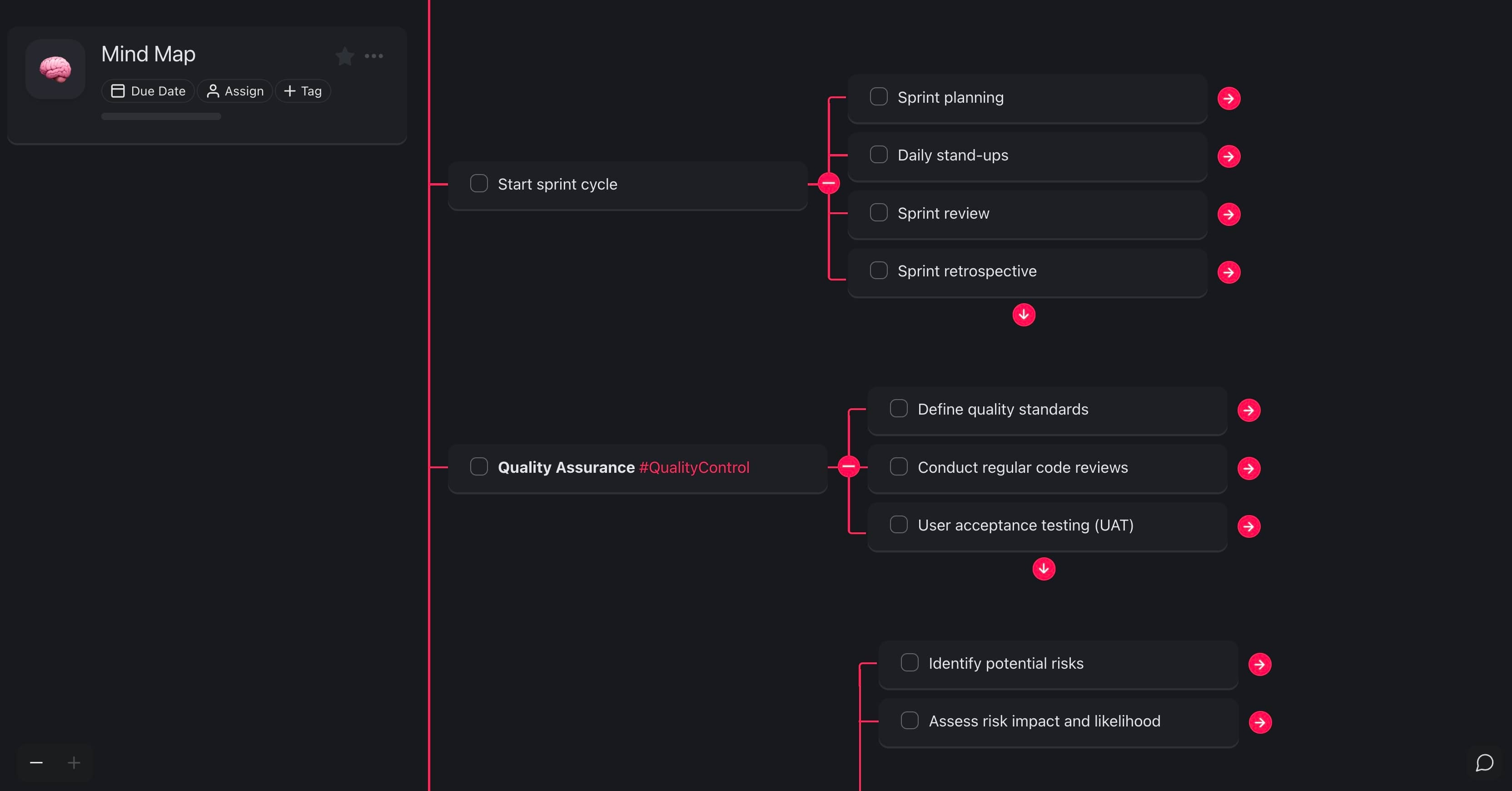
Mind Mapping Features
| 🛠️ Feature | 🔤 Description |
|---|---|
| AI Assistant | AI-powered suggestions to develop mind map nodes |
| Workflow Generator | Automated mind map creation based on prompts |
| Templates | Customizable templates tailored for mind mapping |
| Infinite Nesting | The ability to create sub-nodes to an unlimited depth |
| Drag-and-Drop | Easy manipulation and repositioning of nodes |
| #Hashtags | Tagging nodes for categorization and quick access |
| Real-Time Collaboration | Collaborate with team members on the same mind map |
Set Up Your Mind Map
Every project in Taskade is stored in a tree-shaped database. That means you can transform your notes and tasks in many different ways without losing context. To switch to the Mind Map view:
- Open your project.
- Use the View Switcher at the top (5th button from the left).
- (optional) Select the view again to set is as Default.

Add Content to Your Mind Map
- Start with the central idea:
- Open Taskade and create a new project.
Choose the Mind Map view.
Click on your central node and add your main ideas.
Add subtopics or tasks:
For each main topic, you can add subtopics or tasks.
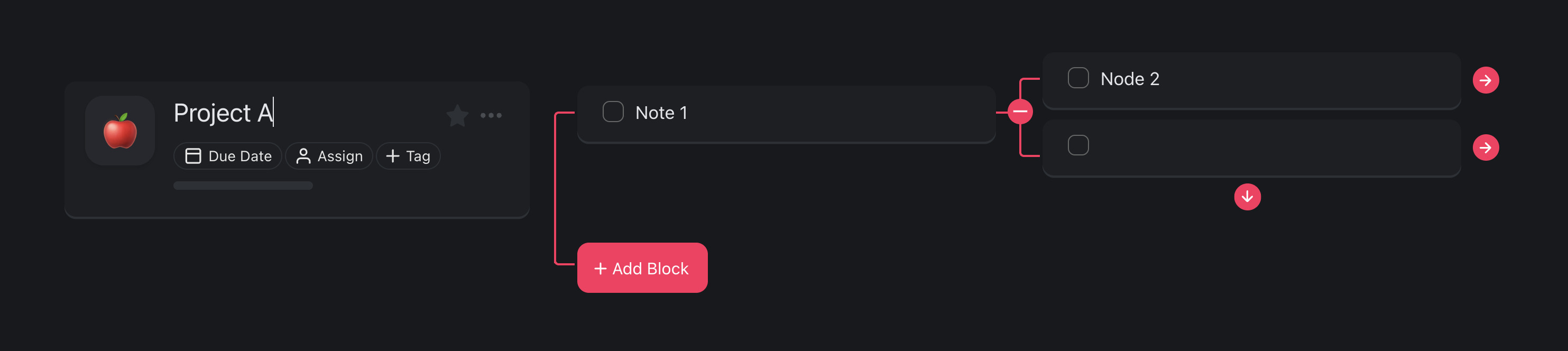
Click ➡ (right-facing arrow) and ➕ New Task to add a new child node.
Click ⬇ (dow-facing arrow) to add a new parent node.
Click ➕ Add Block to add a new branch.
Collaborate on Mind Maps
Collaborative mind mapping in Taskade captures and connects thoughts with your team in real time. It works for brainstorming, planning, and organizing ideas. Work together to move faster.
Follow the steps below to get started:
Invite team members:
In your Taskade workspace, select the mind map project.
Click the Share button in the top right-hand corner and select Invite to Project.
Enter an email address or copy the invite link and share it via email or text.
You can also specify the level of access for users who join.
Start a chat or video call:
Click the 📞 Start Call button at the top of the chat window (on the right).
Click Join meeting to start your video call!
Add and manage comments:
Select a node or task.
Click the three dots ( ···) on the right.
Choose 💬 Comment from the list or press C.
Click the 💬 chat balloon icon under a node to view and edit comments.
Organize and Refine Your Map
Mind maps in Taskade are flexible and fully customizable.
In a mind map, you can:
- Drag and drop elements to organize the map.
- Add #hashtags to filter nodes.
- Change the style of bullets and headings.
- Add notes.
- Upload images, documents, and other attachments.
Here are a few tips:
Drag-and-drop nodes:
Left-click and hold (⋮⋮) to the left of a node.
Drag the node anywhere you want.
Release the mouse button to place the node.
Add #hashtags and filter:
Select the node your want to add a #hashtag to.
Type # followed by the name of your hashtag and press ⌨️ Enter.
(method #1) Click the new #hashtag to filter similar nodes.
(method #2) Type the #hashtag in the Search Bar to filter.
Upload attachments:
Select a node or task.
Click the three dots ( ···) on the right.
Choose ☁️ Upload File from the list or press D.
Alternatively, drag & drop a file from your computer to the node.
Examples and Templates
Taskade includes thousands of customizable templates, and one full category holds mind mapping templates. Use them to brainstorm, organize, and solve problems from a ready structure.
💡 Note: Visit Mind Map Templates for more mind mapping ideas.
| 🎨 Template | 🔤 Description |
|---|---|
| Brainstorm New Ideas | Jumpstart your creativity with this template, perfect for generating fresh, innovative ideas. |
| Product Development Decision Tree | Make streamlined, informed decisions in your product development process with this intuitive mapping guide. |
| Product Release Strategy Meeting Agenda | Organize your product release strategy meetings efficiently with this focused template. |
| First Principles Mindmap | Unlock the potential of your mind by organizing your foundational thoughts and ideas clearly. |
| Budget Mind Map | Plan and track your finances with ease using this budget-focused mind map template. |
| Issue Tree Map | Systematically tackle problems by mapping out issues with this structured approach. |
Workspace DNA: Every Taskade workspace is powered by three interconnected pillars: Memory (Projects & Databases), Intelligence (Custom AI Agents), and Execution (Automations). Together they form a continuous feedback loop that makes your workspace smarter over time.
Start Building
Ready to get started? Create your first project and experience the power of AI-driven productivity.
Explore the Community
🌎
Browse templates, agents, and apps built by the Taskade community at taskade.com/apps.
Mind Map → Shippable App
Mind maps in Taskade are more than static drawings. Every branch is a real project node. It can become a task, a database entry, an agent input, or an automation step. Brainstorm, then ship.
The nodes you brainstorm with are the nodes you ship with. Switch the view from Mind Map to List, Board, Table, Calendar, Gantt, or Org Chart. Each view shows the same project through a different lens. Export any view to CSV when you need the data in a spreadsheet.
Related guides
- Mind Map View. Keyboard shortcuts and editor controls.
- Project Views. Switch Mind Map to any of the views without losing data.
- Note Taking. Linear note capture vs. branching mind maps.
- Second Brain. Mind maps as a thinking surface for your second brain.
- First App. Turn a mind map into a published Taskade Genesis app.