
Overview
You will build a compliance tracker for certificates, licenses, inspections and incidents. Each item has an owner and an expiry date. Your compliance lead gets an email when the date arrives. Crews attach photos from a phone, and anyone can file an incident report with a form.
TL;DR: Build a compliance tracker in Taskade Genesis in about 40 minutes. Keep every certificate in one register with an owner and an expiry date. A Task Due automation sends an email on the date. Crews upload photos from a phone, and an incident form assigns each report to your safety lead.
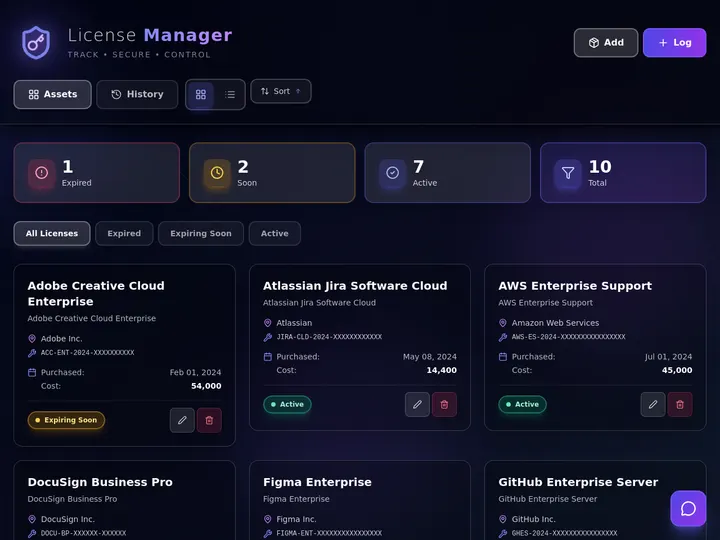
Use case: A safety or operations lead uses this setup to keep the certificates, licenses and inspections for several sites in one register. Crews add evidence from a phone, and the lead gets an email when each expiry date arrives.
Before You Start
- What you need: A Taskade account and your list of certificates, licenses and inspections, with expiry dates. A CSV file is the fastest way to load the list.
- Time: About 40 minutes.
- Files: Photo uploads work on every plan. Uploading a PDF or another document needs a paid plan.
The Parts of a Compliance Tracker
Five parts keep an audit calm.
| Part | Example | How Taskade does it |
|---|---|---|
| Register | Fire certificate, owner Ana, expires 2027-03-01 | One project with Owner, Expiry and Status fields, and a due date on each item |
| Deadline email | The lead hears about the date in time | The Task Due trigger, then Send an email |
| Inspection evidence | A photo of the extinguisher tag | An upload field in your app. See App Uploads |
| Incident report | Slip on the loading dock | A form that adds a row to an Incidents project |
| Answers from your manual | "What is the evacuation procedure?" | An agent with your manual as agent knowledge |
┌──────────────────────────────────────────────────┐
│  COMPLIANCE REGISTER                             │
├──────────────────────────────────────────────────┤
│  EXPIRED     Forklift license      owner: Sam    │
│  30 DAYS     Fire certificate      owner: Ana    │
│  90 DAYS     First-aid training    owner: Lee    │
│  OK          Insurance policy      owner: Ana    │
├──────────────────────────────────────────────────┤
│  [ Report an incident ]   [ Add inspection ]     │
└──────────────────────────────────────────────────┘
Step 1: Create the Tracker App
Start from a live app, or describe the app to Taskade EVE.
- Open License Manager Dashboard. It is a published Taskade Genesis app with a License Assistant agent.
- Click Clone app and pick your workspace.
- Rename the app and replace the sample licenses.
A clone counts as 1 of the 3 apps on the Free plan. On Free, you can clone an app that has no automations. To clone an app that includes automations, you need a paid plan.
To start from a prompt instead, open Taskade Genesis and paste this prompt:
Build a compliance tracker. Keep a register of certificates, licenses and inspections
with the fields Owner, Expiry date and Status, and set each expiry date as the due date.
Show the register in four bands: Expired, Due in 30 days, Due in 90 days and OK.
Add an inspection checklist with a photo upload, and an incident report form that adds
a row to an Incidents project. Do not add sign-in or email steps yet.
Why this works: The prompt sets each expiry date as the due date, so the Task Due trigger in Step 3 can watch it.
Step 2: Load Your Register and Your Manual
- Export your certificate list from a spreadsheet as a CSV file.
- Import the file. See Import a CSV File. Taskade opens the file as a new project in Table view, not inside the register.
- Copy the imported rows into the register project of your app, so the app and the Step 3 automation read one list.
- Make sure that each item in the register has an owner and a due date.
- Open the agent in your workspace and choose the Knowledge tab.
- Add your safety manual. See Agent Knowledge.
A PDF upload needs a paid plan. On Free, paste the text of the manual with Add Markdown/Text, or connect a project that holds the procedures.
Crews can attach photos from a phone. An iPhone photo works with no change on the phone. See App Uploads.
Step 3: Turn On Deadline Emails
- Open Automations and create a new automation.
- Add the When a task is due trigger. Pick the register project.
- Add the Send an email step. In To, enter the email address of your compliance lead.
- Insert the task content from the trigger into the message, so the email names the item.
- Turn the automation on.
To warn owners earlier, add a second item for each renewal with a due date 30 days before the expiry date. The same automation sends an email on that date too.
Step 4: Route Incident Reports
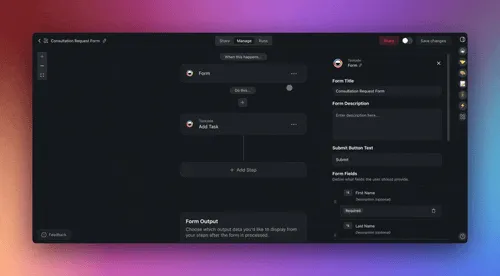
- Create a new automation with the When a task is added trigger. Pick the Incidents project. Each report from the form lands there as a new task.
- Add the Assign a task step. Pick your safety lead.
- Add the Send an email step. Send the report details to the safety lead.
- Turn the automation on.
- Submit one test incident from a phone.
You Are Done When
Every item in the register has an owner and a due date, a test item with today as its due date sends an email to your compliance lead, and a test incident from a phone lands with your safety lead.
Plans and Limits
| Plan | What you get for a compliance tracker |
|---|---|
| Free | 2 workspace members, 3 Taskade Genesis apps, 1 agent and 10 automation runs a month. Photo uploads work. |
| Paid plans | More members and automation runs, a larger upload size, and PDF and document uploads. |
The assistant uses AI credits when it answers. Free starts with no AI credits. You earn credits with referrals and invites, or buy a credit pack on any plan. App sign-in works on every plan. A custom domain is Pro and above. See pricing for current details.
Next Steps
- Read the step-by-step guide on the blog: See how to build a compliance tracker without code.
- Add data: Read text off a photo of a paper certificate. See Read Scanned Documents.
- Add an agent: Keep the manual current with knowledge updates.
- Add an automation: Email a weekly list of open incidents with the Schedule trigger and Find tasks.
- Publish: Give crews sign-in with App Users, then publish the app.
Frequently Asked Questions
Can crews use the tracker from a phone?
Yes. A published Taskade Genesis app opens in a phone browser. Crews can fill the incident form and attach a photo from the camera. An iPhone photo works with no change on the phone.
How does the tracker warn me before a certificate expires?
The When a task is due trigger starts an automation on the due date of each item. Add a second item with a due date 30 days earlier to get an early warning.
Can the assistant answer from my own safety manual?
Yes. Add the manual to the agent as agent knowledge. A PDF upload needs a paid plan. On Free, paste the text or connect a project that holds the procedures.
Who can see incident reports?
People in your workspace see them by role, from Owner to Viewer. Sign-in on the published app confirms who a person is. It does not hide rows by itself. Match each report to the email of the person who filed it, and test it with a second account.