

Overview
TL;DR: Start with the exact screen, action, and expected result. Taskade Genesis recovers interrupted builds and keeps failed turns visible after reload. Use Try again for temporary failures, Fix with AI for app errors, and App Revisions when repeated repair attempts do not clear the issue.
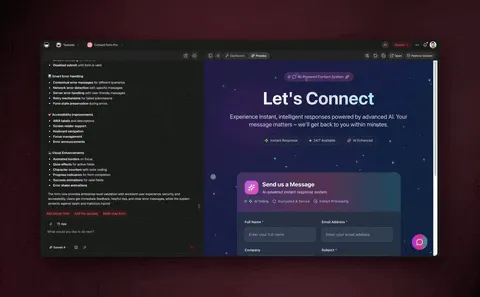
AI works like a conversation with a good friend. The friend wants to help, but sometimes needs clarification. Your first result does not have to be perfect. Treat troubleshooting as a way to teach Taskade Genesis about your business.
Why Things Go Sideways
Taskade Genesis can miss the mark for one main reason. People are not always precise about what they want.
Common culprits:
- ❌ We assume Taskade Genesis knows our industry context.
- ❌ We focus on features instead of explaining the actual problem.
- ❌ We forget to mention who will use the app and how.
- ❌ When we need to be specific, we use vague language instead.
Once you know what to look for, each of these issues has a clear fix.
Get Back on Track
This is the classic "I asked for a booking system and got... something else entirely" situation. It usually means Taskade Genesis needed more context.
Here is how to fix it:
Explain the real-world problem you want to solve.
Instead of "I need a booking system," write something like:
"I run a massage therapy practice where clients need to book 60 or 90-minute sessions with specific therapists. Clients should see available time slots, pay a deposit through Stripe, and get confirmation emails. We also need to block out lunch breaks and handle last-minute cancellations."
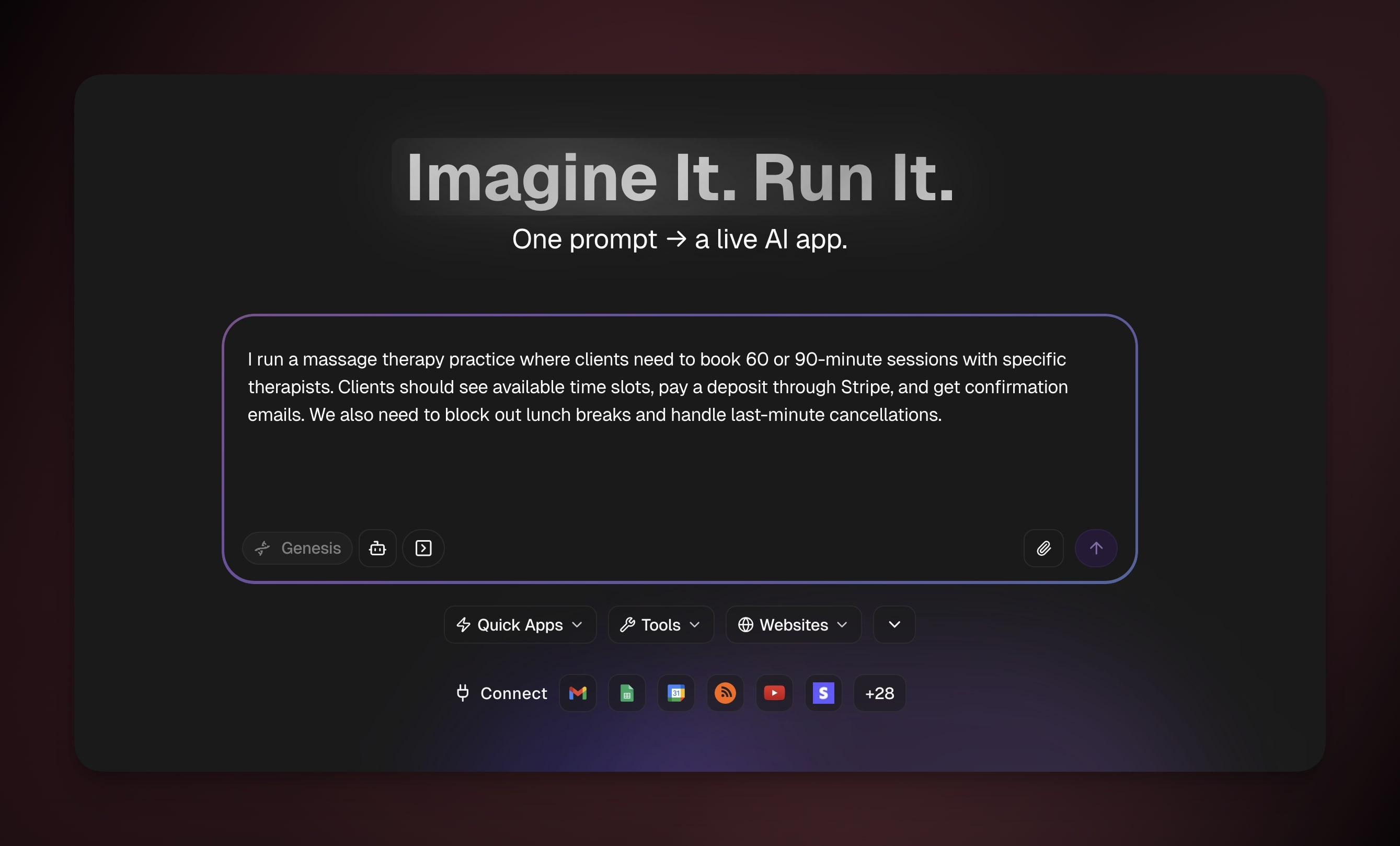
See the difference? The second prompt gives Taskade Genesis real business context.
💡 Note: Explain your business as if the reader never worked in your industry. That level of detail gives the AI all the context it needs.
Add Missing Features
Sometimes Taskade Genesis builds exactly what you asked for, and then you realize you forgot something. You focused on the main feature and missed the supporting processes.
Here is how to fix it:
Walk through the complete user journey from start to finish. What happens before someone uses your main feature? What happens afterward?
For example, if you built a contact form but forgot about file uploads:
"The contact form looks great, but I also need clients to upload project briefs and reference materials when they submit requests. Add a secure file upload section that accepts PDFs and images."
Taskade saves what a client picks in that field with their submission, so a later automation step can read it. Taskade reads the words off a scanned page or a phone photo, on files up to 20 MB. See File Uploads in Your App for where the file lands. See Read Scanned Documents for what it reads.
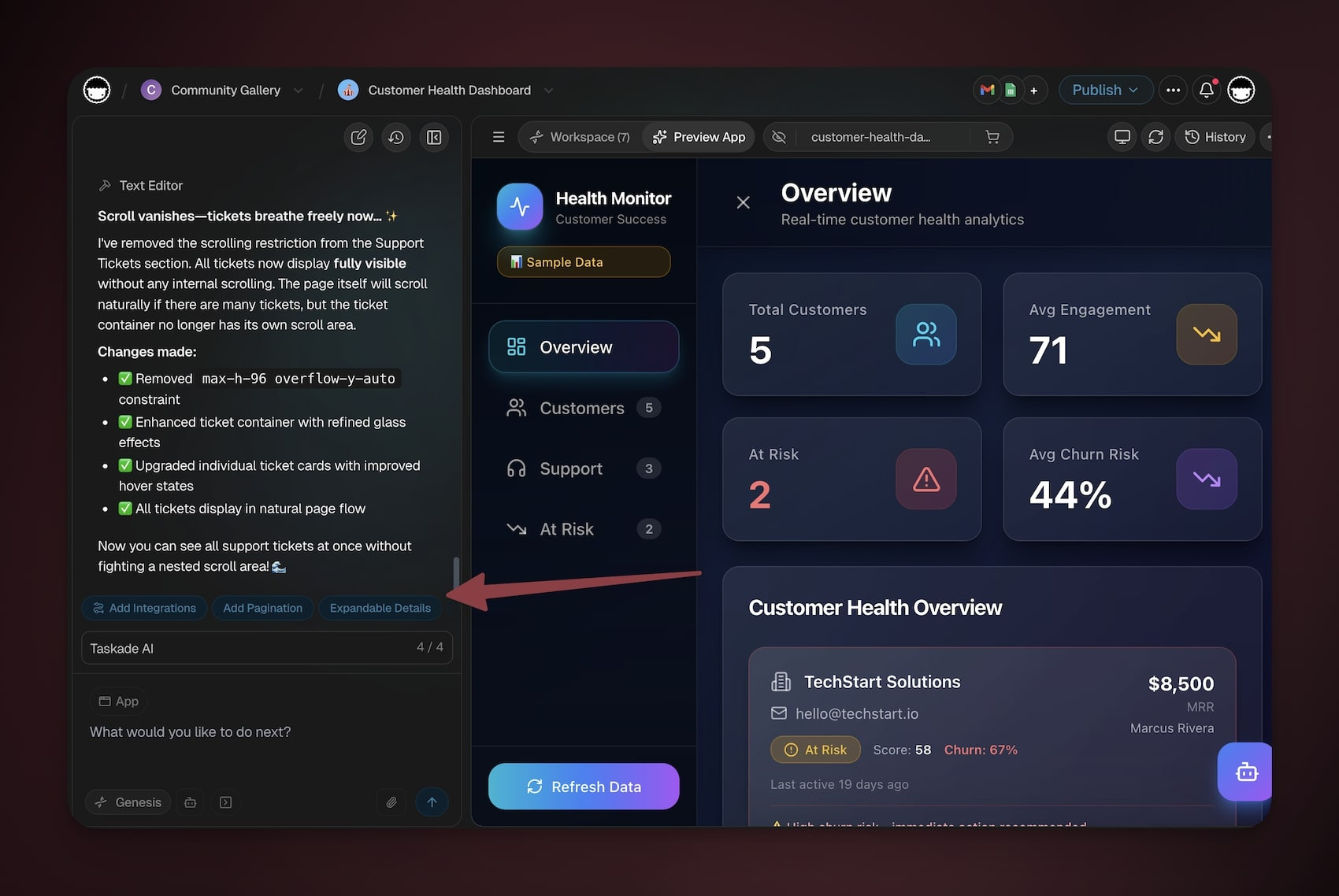
Note: Taskade Genesis shows pills with recommended edits after each iteration.
Build On Brand
Generic-looking apps do not inspire trust or excitement. If your app can belong to any business, add some personality.
Here is how to fix it:
Describe your business personality in simple terms:
- "We are a yoga studio, so make it feel calm and zen: soft colors like sage green and cream, rounded corners, and peaceful vibes"
- "We are a fitness gym, so make it energetic: bold colors like orange and black, strong typography, and buttons that motivate action"
- "We are a law firm, so keep it professional but approachable: navy blue and gray colors, clean lines, and trustworthy messaging"
Note: "Make it look professional" is not enough. Tell Taskade Genesis what professional means for your business and audience.
Connect Integrations
Integration problems usually start with unclear instructions about data flow. Taskade Genesis must know exactly what information goes where, and when.
Here is how to fix it:
Instead of limiting instructions to:
"Connect this to Slack"
Write prompts that are specific and logical:
"When someone submits the contact form, send a message to our #leads Slack channel with the person's name, email, and which service they're interested in. Include a link to their full submission."
💡 Note: Test with real workspaces and email addresses, not dummy accounts. Real accounts show sign-in and permission problems early.
Speed Things Up
Speed problems usually come from too much work at once: heavy images, too many items on screen, or complex processes.
Visual performance problems to watch for:
- Large images that take a long time to load.
- Too many items on one screen.
- Heavy animations or effects that make scrolling choppy.
- Complex layouts with lots of elements competing for attention.
Here is how to fix it:
- "Make this load faster by showing the booking calendar first, then loading the service descriptions and pricing in the background. Most people want to see available times right away."
- "The homepage is loading too slowly because of all those high-resolution photos. Compress the images and only show 3-4 key services upfront, with a 'See More' button for the rest."
- "Simplify the dashboard by showing only the essential metrics first: revenue, bookings, and alerts. Move the detailed charts and reports to a separate tab so the main view loads instantly."
Tip: Ask Taskade Genesis to make one measurable improvement at a time. For example, ask it to reduce the first screen's image size before changing the whole dashboard.
Start Fresh
Sometimes a rebuild is faster than more patching. Start over when:
- You made multiple major change requests and it still does not feel right.
- You learned something fundamental about your users that changes everything.
- The app became too complex during multiple fix attempts.
- You realized you need a completely different type of solution.
Here is how to fix it:
- Write down everything you learned from the first attempt.
- Create a much more detailed prompt from those insights.
- Include specific examples of what must happen and what must not happen.
- Reference other apps: "Like the booking flow on [website], but simpler"
A restart is not a failure. You use what you learned to build something better.
Recover an Interrupted Build
Let Taskade Genesis finish its recovery step before you send a second request. Releases v6.227.0 through v6.231.0 improved several failure paths:
- Failed Taskade EVE turns stay visible after reload with a stable Error ID.
- Temporary build service failures recover more reliably.
- An interrupted first build can return to a useful build state.
- Database timeouts can tell the app to retry, instead of showing an unknown failure.
- A stalled first build can continue without a misleading resume prompt.
These changes reduce dead ends, but they do not make every build infallible. If the same error returns, do not send the same prompt again. Open details, copy the Error ID, and use the matching recovery path that follows.
Common Issues and Errors
Do you run into errors while you build? Here is a list of common errors, why they happen, and how to resolve them.
Start With the Decision Tree
Find the symptom, then follow the arrow to the first thing to check. Most issues clear at the first stop.
┌──────────────────────────────────────────────────────────────────┐
│  What's wrong?                 →  Check this first               │
├──────────────────────────────────────────────────────────────────┤
│  App won't load / blank screen →  Check publish status           │
│  App opens but shows no data   →  Connect the app to its         │
│                                   Project                        │
│  A button does nothing         →  Re-run the action              │
│  App feels slow                →  Trim images and items          │
│  Publish is blocked            →  Remove a stray key             │
│  AI is off-tone or off-topic   →  Re-state the rule              │
└──────────────────────────────────────────────────────────────────┘
Match Symptom to Fix
Scan this table for what you see on screen, then jump to the matching section or guide.
| Symptom | Likely cause | Fix |
|---|---|---|
| App opens but the lists, cards, or numbers are empty | The app is not connected to its Project, so it has nowhere to read or save data | Open the app, pick the Project that holds your records, and re-publish. See App Context. |
| A button or form does nothing when clicked | The action behind it stalled or never finished | Re-run the action. If it keeps failing, click Fix with AI or describe the step to Taskade EVE. |
| App takes a long time to load | Heavy images or too many items on one screen | Show fewer items up front and compress images. See Speed Things Up. |
| Publish is blocked or warns about a key | A stray secret key is sitting in your app | Move it into App Secrets, then publish again. |
| Screen stuck on "Spinning up" or blank | A file or library reference broke after an edit | Click Fix with AI, or roll back with Version History. |
| AI answers off-topic or off-brand | The rule or context was not clear | Re-state the rule in plain words. See App Context. |
| A document came back with no text | Reading happens in the Convert File to Text step, and GIF and BMP sit outside what it reads | Point that step at the file field and run the automation. It reads scanned PDFs plus PNG, JPG, WebP, and HEIC photos, up to 20 MB. See Read Scanned Documents. |
| Cards or rows show a placeholder name instead of the record's real one | The card title does not point at the record's own name field | Ask Taskade Genesis to rebuild that view. Apps built or rebuilt from here show each record's real name on its card or row. |
Your App Shows No Data
This is the most common surprise. Your app looks finished, but every list, card, or number sits empty.
In Taskade Genesis, your app and your data live in two places. The app is the screen people see. The Project is the table of records behind it: your customers, jobs, invoices, or whatever you track. The app reads from and writes to its Project. If the app does not point at the right Project, it has nowhere to get data, so it shows nothing.
✅ How to fix it:
Open your app. Pick the Project that holds its records, then connect them. Re-publish the app. Once the app and Project are linked, your records appear, and new entries save back to the same place. See App Context for a full walkthrough.
Context Limit
If the error card says the request is too long, split the edit into smaller parts.
- Start a new chat.
- Name one page or feature.
- Ask for one clear change.
- Test it before asking for the next change.
Temporary Service Error
When the card says Taskade is taking longer than expected or temporarily unavailable, wait briefly. Click Try again once. If the error repeats, copy the Error ID and contact support.
Usage or Account Message
When the issue involves usage, account activation, billing status, or plan access, follow the action on the card. A wait does not resolve an account requirement.
A Blank Screen
When the preview stays blank or shows "Spinning up" longer than expected, open error details.
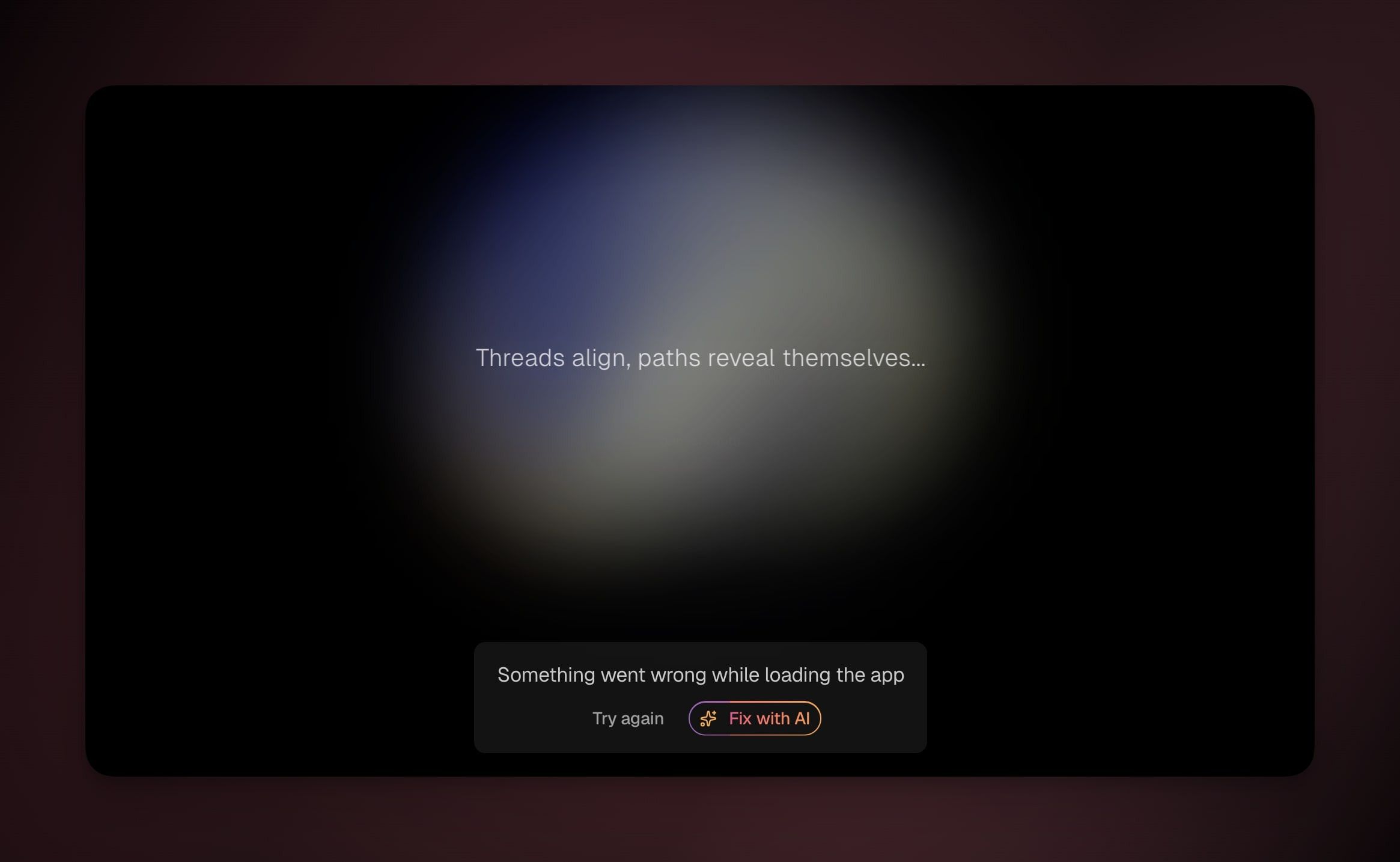
- Click Show error details.
- Click Try again for a temporary loading failure.
- Click Fix with AI for an app error.
- Test the preview after Taskade Genesis finishes.
- If the same error remains, restore a working revision.
Use App Revisions
If your app breaks after changes, you can restore a previous working version.
Choose When to Restore
Your app stopped working after recent changes
You made multiple changes and are not sure what broke it
You want to undo recent modifications quickly
The app still shows errors after fix attempts
Restore an App Revision
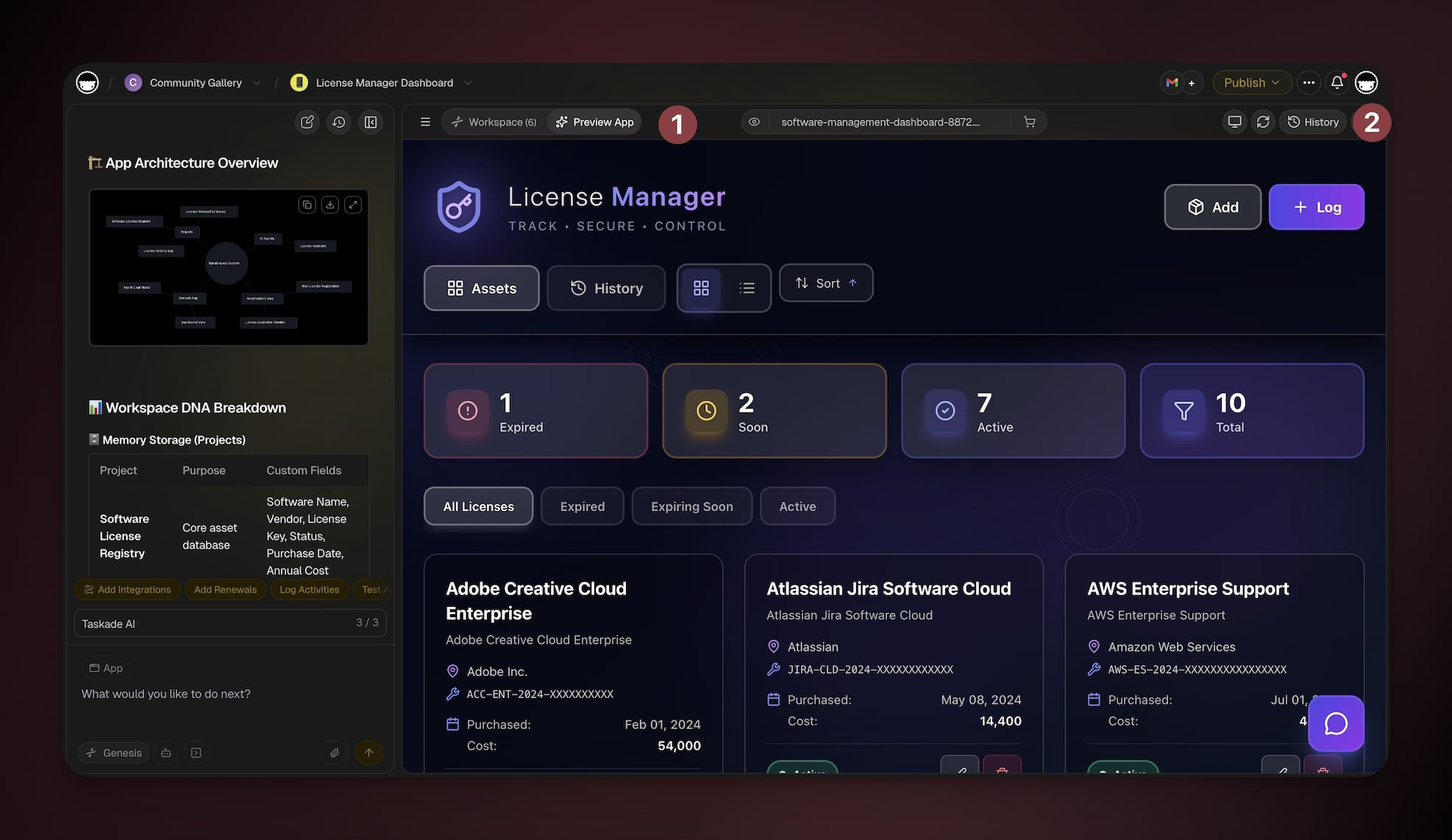
- Open your Taskade Genesis app and go to Preview.
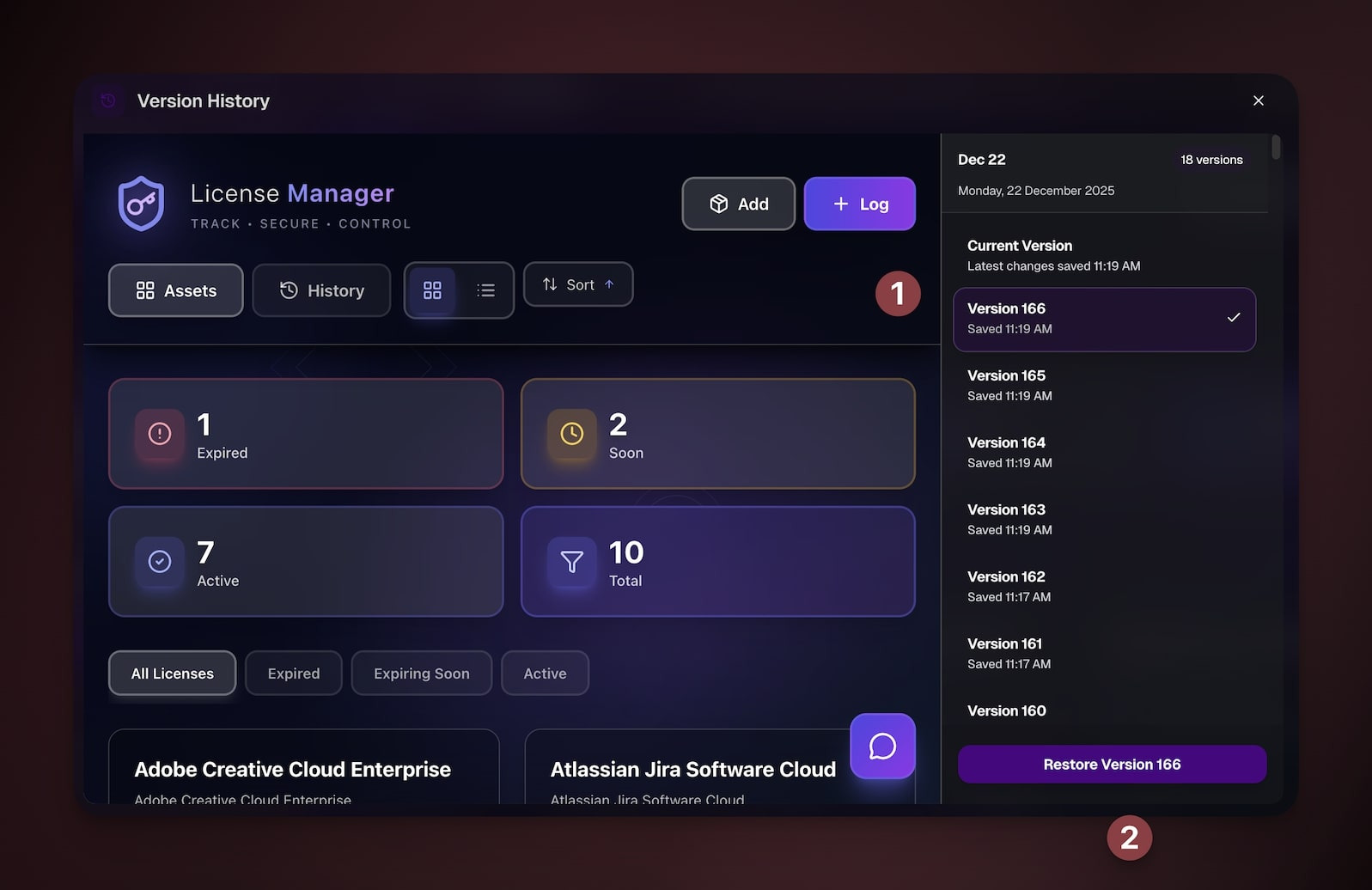
- Open App Revisions from the toolbar.
- Find the Live badge so you know what visitors currently see.
- Preview the revision you want to restore.
- Click Restore Version and test the app.
Diagnosis Decision Tree
When something is off, trace the symptom to the DNA pillar that misbehaves:
Use the four branches to narrow the next check. Some issues need more than one attempt. The branches map to the systems you can edit: projects, agents, automations, and styles.
Related guides
- AI Error Recovery. Retry, repair, or escalate app errors.
- A Maker's Guide to AI Prompts. Prompt patterns that prevent most issues.
- Version History. Roll back to a known-good state while you debug.
- Taskade EVE Assistant. The AI you talk to during troubleshooting.
- Workspace DNA. Understand the pillars you diagnose.