
TL;DR: Taskade note-taking runs on four Workspace DNA layers. Notes live as Projects (Memory). AI agents read them (Intelligence). Automations turn ideas into action (Execution). Taskade Genesis ships a published note app on your domain (Interface). Capture in multiple project views, then build a second brain in one prompt. Build a notes app →
Overview
Take notes in any of Taskade's project views, then let AI agents read them as Intelligence and automations turn ideas into action. Your notes stop being a static pile and become a living second brain. Capture in a way that feels natural, and when you are ready, Taskade Genesis can ship a published note app on your own domain.
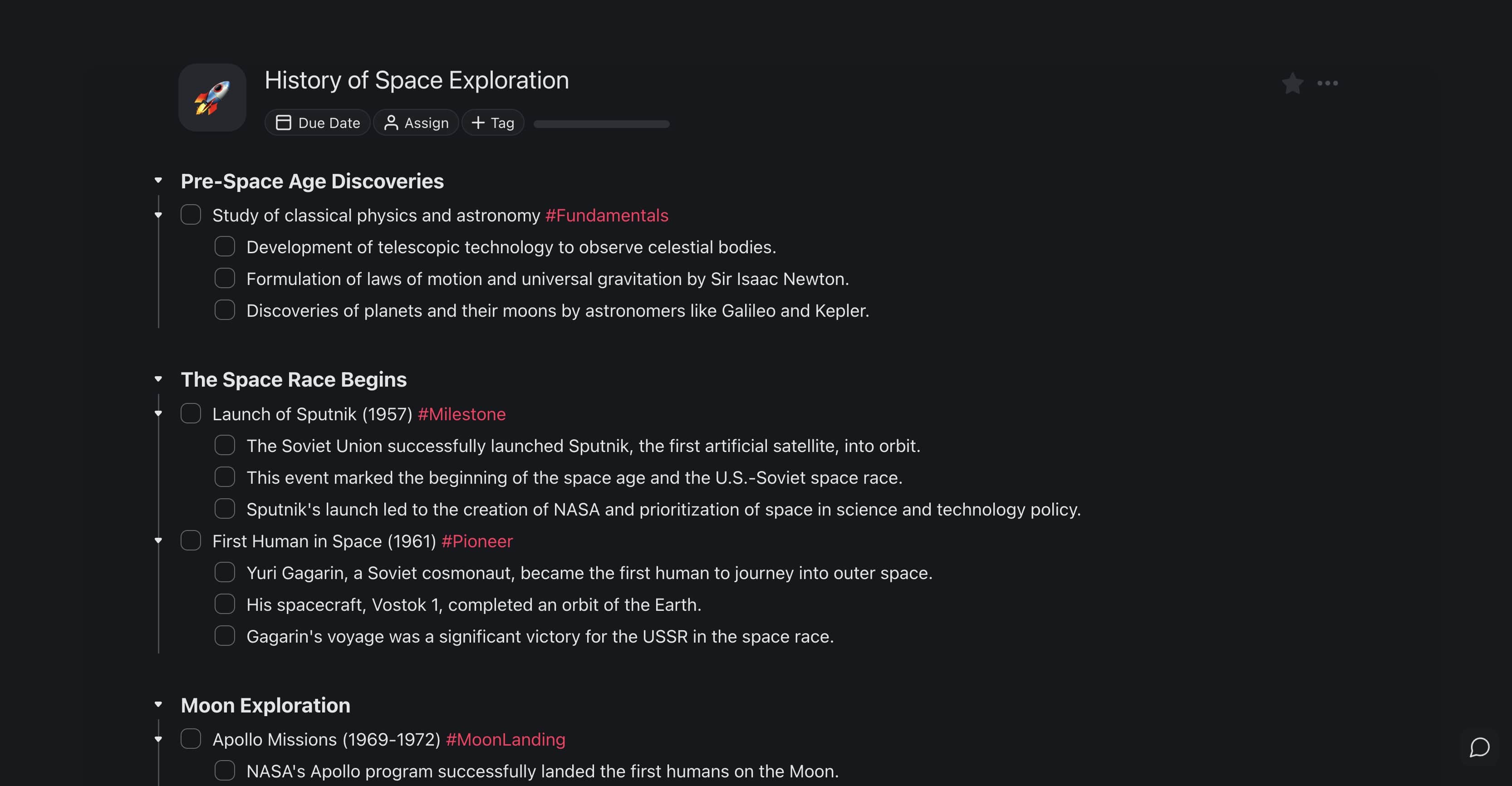
Note-Taking in Taskade
| Feature | Description |
|---|---|
| Mixed Formatting | Use different styles like bold, italics, and underlining within the same document for dynamic note-taking. |
| AI Writing Assistant | Get AI-powered writing assistance to refine and expand your notes. |
| Keyboard Shortcuts | Navigate and manage your notes quickly with a wide range of keyboard shortcuts. |
| File Attachments | Attach files, images, and other documents to your notes to keep all relevant information in one place. |
| Collaborative Editing | Work together with your team on the same document in real-time, with changes visible instantly. |
| Backlinks | Link notes across workspaces to easily reference related content. |
Create Your Digital Notebook
Workspaces and folders let you sort your projects like notebooks on a shelf. Each workspace can hold multiple folders. Each folder holds your individual projects – clusters of notes on different topics or areas of your life.
- In the main dashboard, click ➕ in the sidebar on the left.
Enter the name of your workspace and choose a color palette.
Choose an emoji or upload your own workspace logo.
(optional) Share the workspace with others.
Inside your workspace, click the ➕ New Folder button.
Enter the name of your folder and choose a color palette.
Choose an emoji or upload your own workspace logo.
(optional) Share the folder with others.
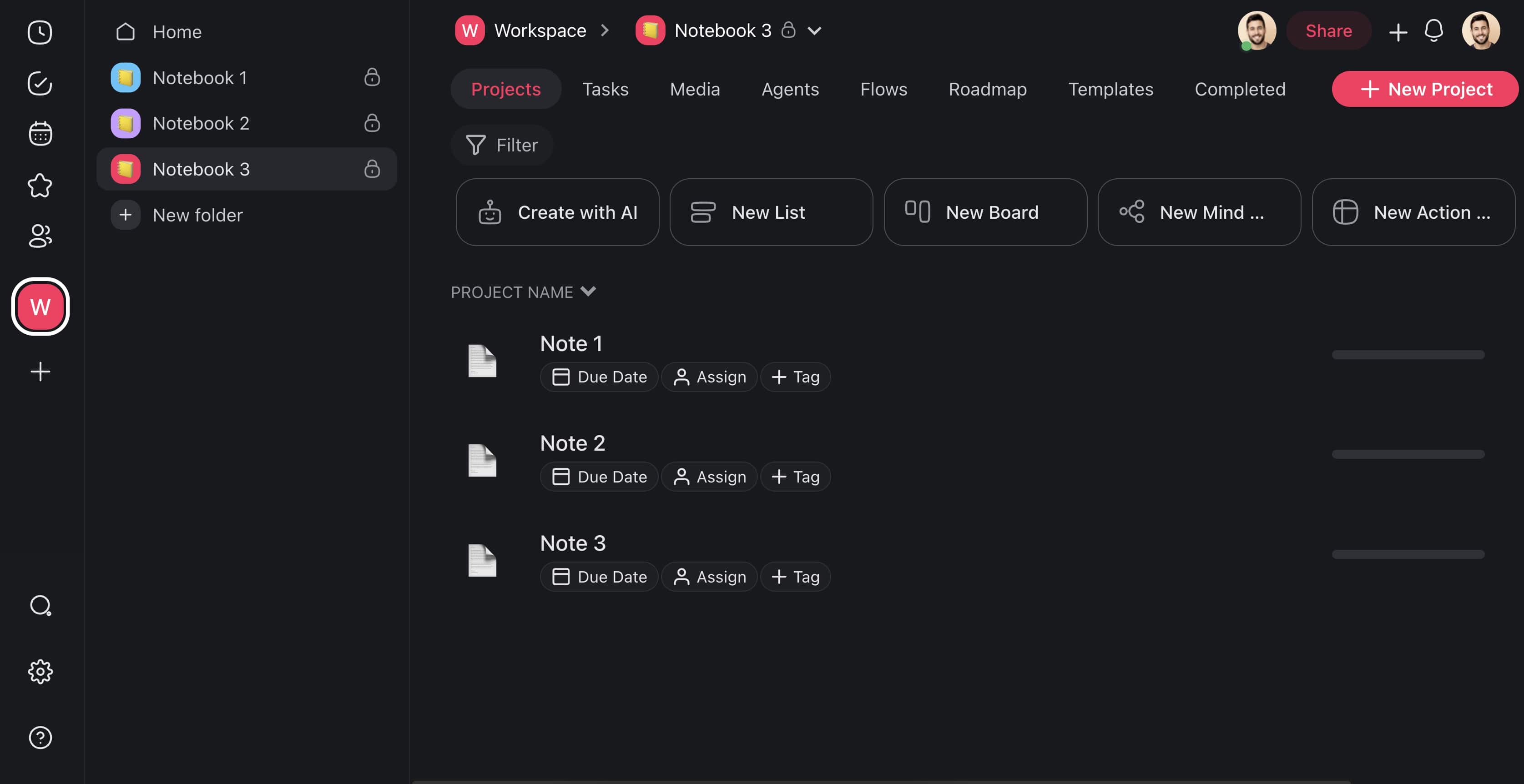
Create a Note
- Open your workspace/folder.
- Click ➕ New Project (top-right corner) to create a note.
- Open your new note and start typing!
Note: Taskade has six unique workflows that let you transform your notes without losing context. Getting started? Use the List view for a traditional note-taking experience or visit What Are Project Views? to explore other options.
Start with an Outline
Taskade is an outliner that keeps your notes tidy and organized. Type a quick list or plan something big. Taskade works your way.
- Start from scratch:
- Open your project and start typing your main points.
To indent an outline level, select a node and press the ⌨️ Tab key.
To outdent an outline level, use the ⌨️ Shift + Tab keyboard shortcut.
Continue until all your ideas are down and nested correctly.
Let the Workflow Generator guide you:
Click ➕ New Project (top-right corner) in your workspace/folder.
Describe the topic of your note or use one of the available templates.
Press ⌨️ Enter and watch the magic!
Use the AI Assistant:
Open your project and type the topic of your note/document.
Add whatever details you want included.
Type /outline and let the AI Assistant generate a structure for you.
Collaborate on Notes
Collaborative note-taking is fun. Invite your friends for group brainstorming, work on the draft of your bestselling novel with an editor, or compile collective research.
Here is how to start:
In your Taskade workspace, open the note you want to share.
Click the Share button in the top right-hand corner and select Invite to Project.
Enter an email address or copy the invite link and share it via email or text.
You can also specify the level of access for users who join.
Select a node or task.
Click the three dots ( ···) on the right.
Choose 💬 Comment from the list or press C.
Click the 💬 chat balloon icon under a node to view and edit comments.
Click the 📞 Start Call button at the top of the chat window (on the right).
Click Join meeting to start your video call!
Organize and Refine Your Notes
Notes in Taskade are flexible and fully customizable. You can drag and drop paragraphs and blocks, use #hashtags to filter key concepts, change the formatting, add comments, and attach images, files, and documents.
Here are a few quick tips:
Left-click and hold ( ⋮⋮) to the left of a node.
Drag the node anywhere you want.
Release the mouse button to place the node.
Select the paragraph or term you want to add a #hashtag to.
Type # followed by the name of your hashtag and press ⌨️ Enter.
(method #1) Click the new #hashtag to filter terms.
(method #2) Type the #hashtag in the Search Bar to filter.
Select a paragraph.
Click the ➕ Add-ons button on the right.
Choose ☁️ Upload File from the list or press D.
Alternatively, drag & drop a file from your computer to the node.
Examples and Templates
Need a starting point for your notes? Our gallery includes thousands of customizable templates that start you in seconds. Here are a few picks to check first.
💡 Note: Visit Personal Templates for more ideas.
| 🎨 Template | 🔤 Description |
|---|---|
| Digital Bullet Journal | A digital twist on the classic bullet journal, this template lets you organize your tasks, events, and notes in a customizable format. |
| Building a Second Brain (BASB) | This template is designed for knowledge management, helping you to capture, organize, and share your ideas and insights. |
| Meeting Notes | Keep track of all the important discussions, action items, and decisions from your meetings with this structured format. |
| Cornell Notes | This template facilitates a systematic format for condensing and organizing notes without laborious rewrites. |
| Travel Journal | Document your adventures or plan your trip with a template that captures places, experiences, and memories. |
| Effective Engineering Notes | Tailored for engineering professionals, this template helps in compiling detailed technical notes and project details. |
From Notes to Living App
A notepad is only Memory. Taskade adds Intelligence and Execution on top of any project. Your notes do not sit there. They work for you:
The loop is the point. Your meeting notes become action items. Those action items become new notes, and the agent reads them the next time you ask. You do nothing extra. You keep taking notes the way you always have.
Related guides
- Second Brain. Broader pattern for personal knowledge management.
- Mind Mapping. Visual note-taking with branching structure.
- AI Chat: Ask Project. Chat directly with any project's content.
- Custom AI Agents. Train agents on your notes.
- Knowledge Kit. A self-updating research notebook.
- Project Views. Switch notes between List, Board, Mind Map, Table, Calendar, Gantt, and Org Chart.