
The Model Context Protocol (MCP) is an open standard that lets AI tools talk to each other's data and capabilities. Taskade runs a hosted MCP server. External AI clients such as Claude Desktop, Cursor, Windsurf, and VS Code connect straight into your workspace. They then work with your projects, tasks, and agents.
TL;DR: MCP is "USB-C for AI." The hosted Taskade MCP server is on every paid plan: point Claude Desktop, Cursor, or VS Code at your workspace. The opposite direction runs through automations, where the MCP Client connector calls tools on any remote MCP server. Try MCP →
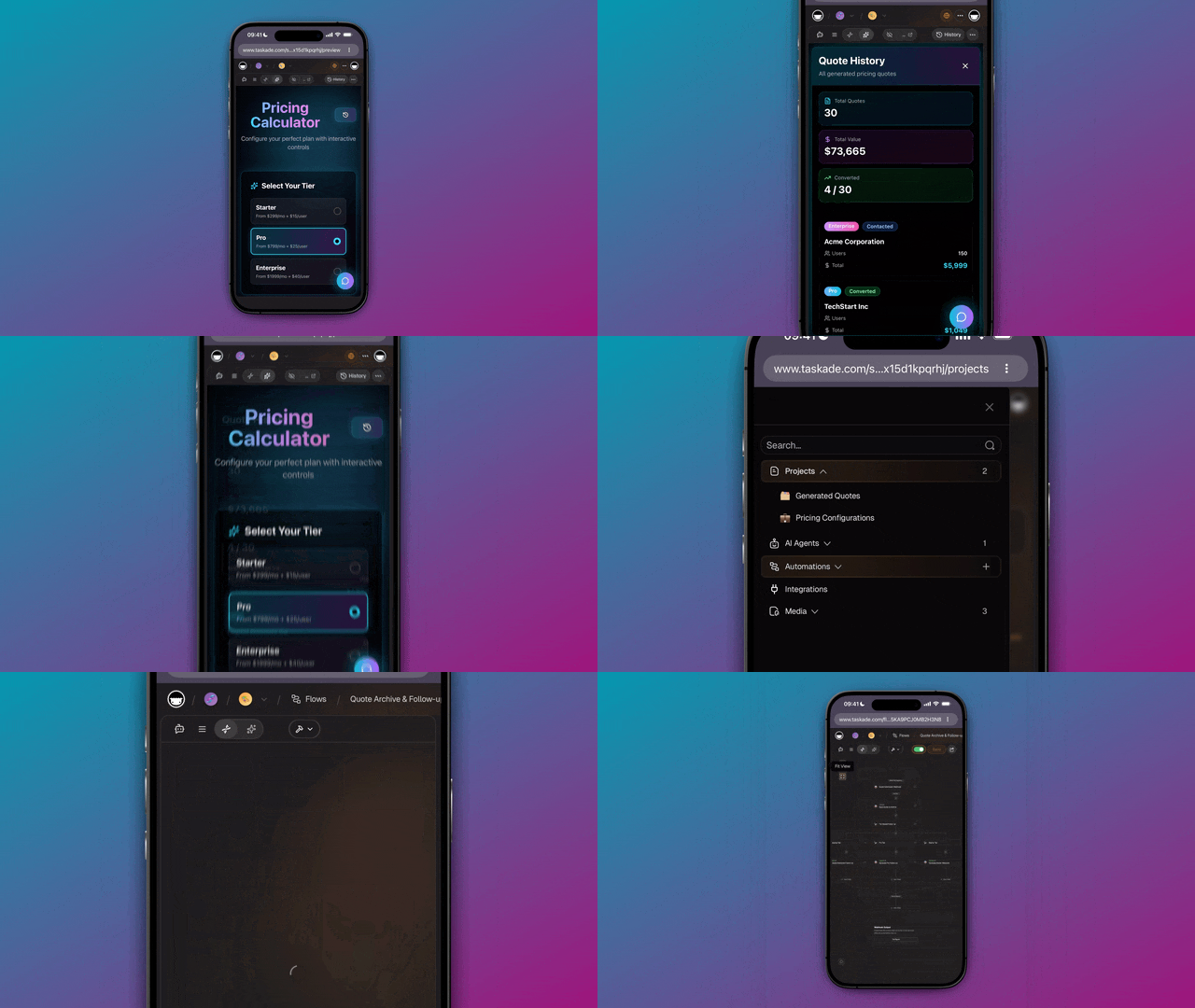
Keep the three MCP paths separate
Do not collapse these into one feature. Hosted inbound setup lives on Taskade MCP Server. This page is the map of directions.
| Path | What it does | Plan |
|---|---|---|
| Hosted inbound | A client calls https://www.taskade.com/mcp and works with workspaces, projects, tasks, and agents. It can inspect a Taskade Genesis app. write_file writes only under app/. |
Every paid plan |
| Local Workspace MCP | The open-source taskade/mcp server runs on your own computer with a Personal Access Token. |
Every plan, including Free |
| Automation outbound | An automation uses the MCP Client connector to call a remote MCP server. | Every plan, including Free |
| Agent outbound | An agent calls a remote MCP server on its own. | Off in production |
Do this in Taskade
Use this walkthrough when Taskade must call out to another MCP server.
Step 1: Open Automations
Open the Automations tab in your workspace.
Step 2: Add the MCP Client connector
Add a step and pick the MCP Client connector. Enter the remote server address.
Step 3: Save and run the automation
Save the automation. Run it so the step can list tools on that server and call the one you pick.
An agent cannot reach an outside MCP server in production. Let the agent decide, then hand the call to an automation.
The Four Layers of Workspace DNA
What is MCP?
The Model Context Protocol (MCP) is an open standard that gives AI models one consistent way to find and use outside tools and data. Think of it as a "USB-C for AI": one universal connector that works with everything.
Instead of building custom integrations for each service, MCP provides a single protocol that any tool can implement. This means:
- Universal connectivity: One protocol connects to any MCP-compatible service
- Standardized tool discovery: An AI client automatically discovers what tools a server offers and how to use them
- Works with any provider: The same connection holds across AI providers and tool ecosystems
- Growing ecosystem: Hundreds of MCP servers available for popular services
How MCP Works in Taskade
MCP describes a two-way street, and it helps to keep the two directions straight:
1. Taskade as an MCP server
This is the direction Taskade ships. Taskade runs a hosted MCP server, and any MCP-compatible client can connect to it:
- Available on every paid plan: no separate add-on
- Zero setup: Nothing to deploy or maintain on your side
- Secure sign-in: Approve access in the browser, or pass a Personal Access Token
- Works with any MCP client: Claude Desktop, Cursor, Windsurf, VS Code, and more
- Not app-code-only: Hosted MCP covers workspace, project, task, and agent work, plus app inspection.
write_filecan only write insideapp/
The setup steps further down this page walk through connecting your first client.
2. Taskade as an MCP client
The opposite direction runs through your automations. The MCP Client connector holds a remote MCP server's address, lists the tools that server publishes, and calls any of them as a step. It works on every plan, with your plan setting how many automation runs you get.
An AI agent cannot reach an outside MCP server on its own. Let it make the judgment call, then hand its answer to an automation step that carries the call. The same automations cover 100+ integrations for every service that does not speak MCP.
Edit App Files Over MCP
An MCP client can write the source files of a Taskade Genesis app. Only write_file is limited to app/. Hosted inbound MCP still reads projects, tasks, agents, and automations.
- Read a file with the inspect tool before you edit it. An edit against a stale view can fail.
- Create a file, replace a substring, insert at a line, or apply a patch.
- Delete a file when nothing imports it any more. Taskade refuses the delete while an import still points at it, so repoint those imports first.
- Recover a deleted file from the app's version history.
A successful write is committed, not staged. It redeploys, and an app on the default publish setting republishes on its own. You do not have to press Publish afterwards.
The Integrations Directory
Taskade's Integrations Directory provides 100+ ready-to-use integrations for the automation engine. Browse them at taskade.com/integrations.
Native Integrations
These are deeply integrated with Taskade's automation engine and provide the richest experience:
| Category | Integrations |
|---|---|
| Communication | Slack, Discord, Telegram Bot, Microsoft Teams, WhatsApp Business, Twilio |
| Gmail, MailChimp | |
| Google Workspace | Google Sheets, Google Drive, Google Calendar, Google Docs, Google Forms |
| CRM & Sales | HubSpot, Apollo |
| E-Commerce | Stripe |
| Social Media | LinkedIn, Twitter/X, Facebook Pages, Reddit, YouTube |
| Developer | GitHub, HTTP Request |
| Forms & CMS | Typeform, Webflow, WordPress |
| Scheduling | Calendly, Schedule |
| Content | RSS |
Two more connectors are built but not yet available: Shopify while its App Store listing is on hold, and Zoom in final testing.
The Wider MCP Ecosystem
The protocol is vendor-neutral and the ecosystem is growing fast, with servers published for database systems, cloud platforms, development tools, knowledge bases, payment platforms, and analytics tools. Because Taskade speaks the same standard on the server side, any client that can reach those servers can reach your Taskade workspace the same way.
Connect Taskade to Tools
Automations are how Taskade reads from and writes to other services today. The flow below shows a form submission enriching a record and landing in Slack, all through native integrations:
Open Connections
Click Connections in the left sidebar of your workspace. The area has two tabs, Connections and API.
Pick an Integration
- Browse the Integrations Directory
- Click the service you want to add
- Follow the sign-in or API key setup flow
- The integration is now available in the automation builder
Build the Flow
Add a trigger, then chain actions from the connected services. A typical flow looks like this:
- Trigger: New form submission
- Action 1: Look up the customer in your CRM
- Action 2: Enrich the record with an AI agent
- Action 3: Send a Slack notification
Built-in Tools with AI Agents
Your Custom AI Agents come with a large built-in toolkit, including web search, code execution, and file analysis. Agents choose the right tool on their own during a conversation, then fold the result into their answer. For anything outside that set, hand the work to an automation the agent can trigger.
Agent tools are part of Taskade's Tools for AI Agents system. All tool usage follows your agent's permissions and knowledge training.
For detailed API documentation, see the Taskade Developer API guide.
MCP FAQ
Quick answers on plans, credits, Taskade Genesis apps, and security. For more questions, see the Frequently Asked Questions accordion further down this page.
Which plans include MCP?
Hosted inbound MCP is every paid plan. The taskade/mcp server on your own computer works on every plan, including Free. Automation outbound MCP works on every plan, including Free. Agent outbound MCP is off in production. See pricing for current details.
Do MCP calls cost credits?
When an external client starts work in your workspace, that work uses your plan's AI credits, the same as if you had run it yourself in Taskade. There are no separate MCP fees.
Can AI tools reach my apps?
An MCP client connects to your workspace, so it can reach the projects, tasks, and agents behind your Taskade Genesis apps. The published app itself stays a normal web app for your visitors.
What can an MCP client do?
The Taskade MCP server exposes tools that browse your workspaces, inspect a space, and read a project. Others create projects and edit their tasks, list and prompt your agents, create or update an agent, attach a project to an agent as knowledge, list your automations, read past conversations, and write files in a Taskade Genesis app. Your client picks from that set the same way it picks any other MCP tool.
Is MCP secure?
Yes. Connections run over encrypted HTTPS and authenticate with your Taskade API key, so a client only ever reaches the workspaces that key can see. Revoke the key at any time to cut off access.
Ready to try it? Create a workspace, then point Claude Desktop or Cursor at it with the steps below.
Connect Claude or Cursor
Taskade works as an MCP server. External AI tools connect to your Taskade workspace and use its capabilities. That includes Claude Desktop, Cursor, Windsurf, VS Code, and any MCP-compatible assistant. This is available on every paid plan.
What external AI tools can do with your Taskade workspace:
- Manage projects, tasks, and databases
- Create and chat with AI agents
- Run automation workflows
- Access workspace data and media
Connect the Hosted Server
Use the hosted server for the broadest workspace and Taskade Genesis app access.
- Open Settings → API.
- Create or copy a Personal Access Token.
- Select Connect Cursor or Connect Claude.
- Replace
<paste-your-token-here>in the copied configuration. - Paste the configuration into your client. Then restart the client.
The hosted server can browse folders, media, templates, projects, fields, blocks, members, share links, tasks, agents, conversations, and agent knowledge. It can also inspect a Taskade Genesis app and edit files under app/.
Run the Open-Source Server Locally
Use the separate open-source @taskade/mcp-server package when you want to run the server yourself, or when you need a Free-plan option. Your AI tool starts it on your computer and talks to it directly, a setup developers call stdio. Run npx -y @taskade/mcp-server. Then set TASKADE_API_KEY to a Personal Access Token. This package reaches what the public Taskade API reaches, and it does not edit app files the way the hosted server does.
Open source: The Taskade MCP server is available at github.com/taskade/mcp. You can also use it to build MCP servers from any OpenAPI file, the standard description file a web service publishes.
Can I call an external MCP server without creating a new account?
Yes. Open Automations, add the MCP Client connector, and point it at the remote server. You use your existing Taskade workspace. This outbound path works on every plan, including Free. Hosted inbound setup is on Taskade MCP Server.
How do I use MCP connectors on a Free plan?
Automation outbound MCP works on Free. The taskade/mcp server on your own computer also works on Free. Hosted inbound MCP at https://www.taskade.com/mcp is paid only. Agent outbound MCP is off in production on every plan.
Frequently Asked Questions
What does the Taskade MCP server let my AI tool do?
It lets an MCP client like Claude Desktop or Cursor work with your Taskade workspace directly. From that client, you can:
- Browse your workspaces and inspect a space.
- Read a project and create new ones.
- Add and update the tasks in an existing project.
- List, create, update, and prompt your agents.
- Attach a project to an agent as knowledge, or take it away.
- List your automations and read past conversations.
- Create, edit, and delete the files in a Taskade Genesis app.
You stay in your editor or chat window, and your Taskade data comes to you.
Which plan do I need for the Taskade MCP server?
The hosted Taskade MCP server is available on every paid plan. That covers using Taskade from an external AI tool such as Claude Desktop, Cursor, Windsurf, or VS Code. Local taskade/mcp and automation outbound MCP work on every plan, including Free. Agent outbound MCP is off in production. See pricing for current details.
Can Taskade connect out to other MCP servers?
Yes, through automations. The MCP Client connector points an automation at any remote MCP server and calls its tools as steps, on every plan. An agent cannot reach a server on its own, so let it hand the work to an automation. For services that do not speak MCP, automations cover 100+ integrations including Slack, Google Drive, GitHub, HubSpot, and Stripe.
What is the difference between built-in agent tools and MCP?
Built-in tools are the large native toolkit that ships with every AI agent, like web search, code, and file analysis. They run inside Taskade. MCP is the open protocol that lets a separate AI client, such as Claude Desktop, reach into your Taskade workspace from the outside. The two solve different problems: built-in tools give your agents capabilities, while MCP gives your other AI tools access to your Taskade data.
How do I connect an AI tool to Taskade over MCP?
For hosted access:
- Open Settings → API.
- Create a Personal Access Token.
- Select Connect Cursor or Connect Claude.
- Replace the token placeholder in the copied configuration.
- Paste the configuration into your client.
- Restart the client.
On Free, use the local open-source package instead.
Can an AI tool reach my Taskade Genesis apps over MCP?
An MCP client connects to your workspace, so it can reach the projects, tasks, and agents that sit behind your Taskade Genesis apps. The published app itself stays a normal web app for your visitors. If you want a published app to talk to outside services, wire that up with automations.
Does MCP work with every AI model?
MCP is model-agnostic by design. Any client that speaks the protocol can connect to Taskade, whichever model that client happens to be running. Inside Taskade, your agents keep their choice of 15+ frontier models from OpenAI, Anthropic, and open-weight providers.
Related guides
- Tools for AI Agents. The built-in agent tools.
- Custom AI Agents. Build agents with their own instructions and knowledge.
- Automations. Connect Taskade to outside services today.
- Taskade API. Another way to call Taskade from external code.
- MCP Developer Docs. Client setup, advanced usage, and connector details.
- Integrations Directory. 100+ native integrations for automations.