
Overview
The Branch step lets you create different paths inside an automation, depending on certain conditions. It chooses the best route based on the situation. Pair Branch with an Ask Agent step before it and you get AI-classified routing:
TL;DR: Branch is a control-flow action you drop into an automation to split it into conditional paths. It routes each item down a different path based on its data. One Branch step holds up to 7 paths. A Fallback path keeps the run going when nothing matches. See Available Conditions.
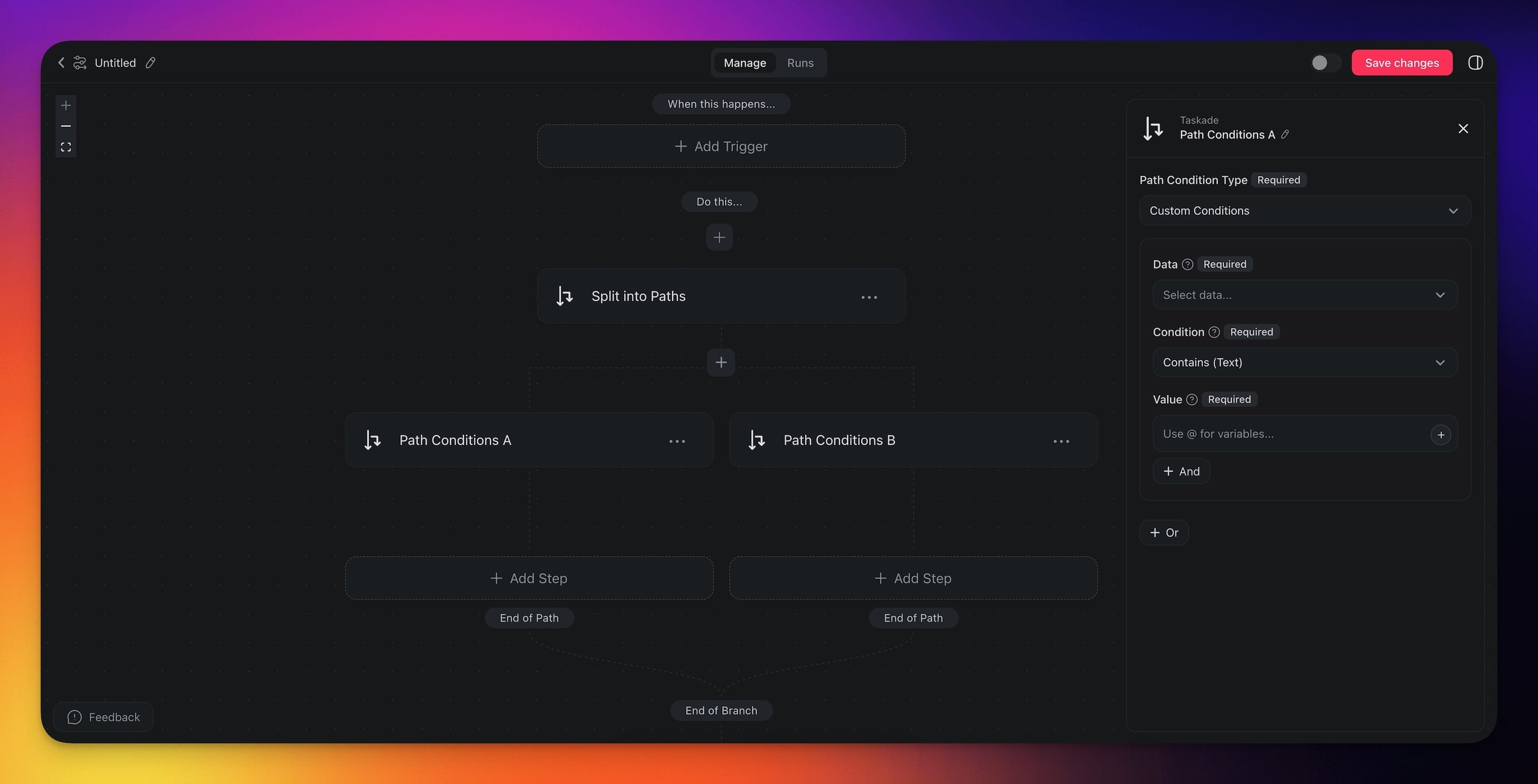
Create Branches
- Start by setting up a trigger for your automation.
- Add the Branch action to the automation flow.
- Define the conditions that will trigger each path.
- Within each path, click ➕ Add Step to specify what happens next.
- You can either finish the automation here or continue with additional actions.
Branching Settings
Add the step from the Logic & Flow Control tab of the step picker. It arrives titled Split
into Paths, with two paths named Path Conditions A and Path Conditions B. Configure each
path in the right sidebar:
| 🏷️ Field | 🔤 Description |
|---|---|
| Data | Choose the input data. |
| Condition | Specify the condition to test. |
| Value | Enter the value to compare against. |
💡 Note: Click ➕ Add to add more conditions that must all be true before the path is taken. Click ➕ Or to add an alternative condition. Either the first set of conditions or the new set can send the run down that path.
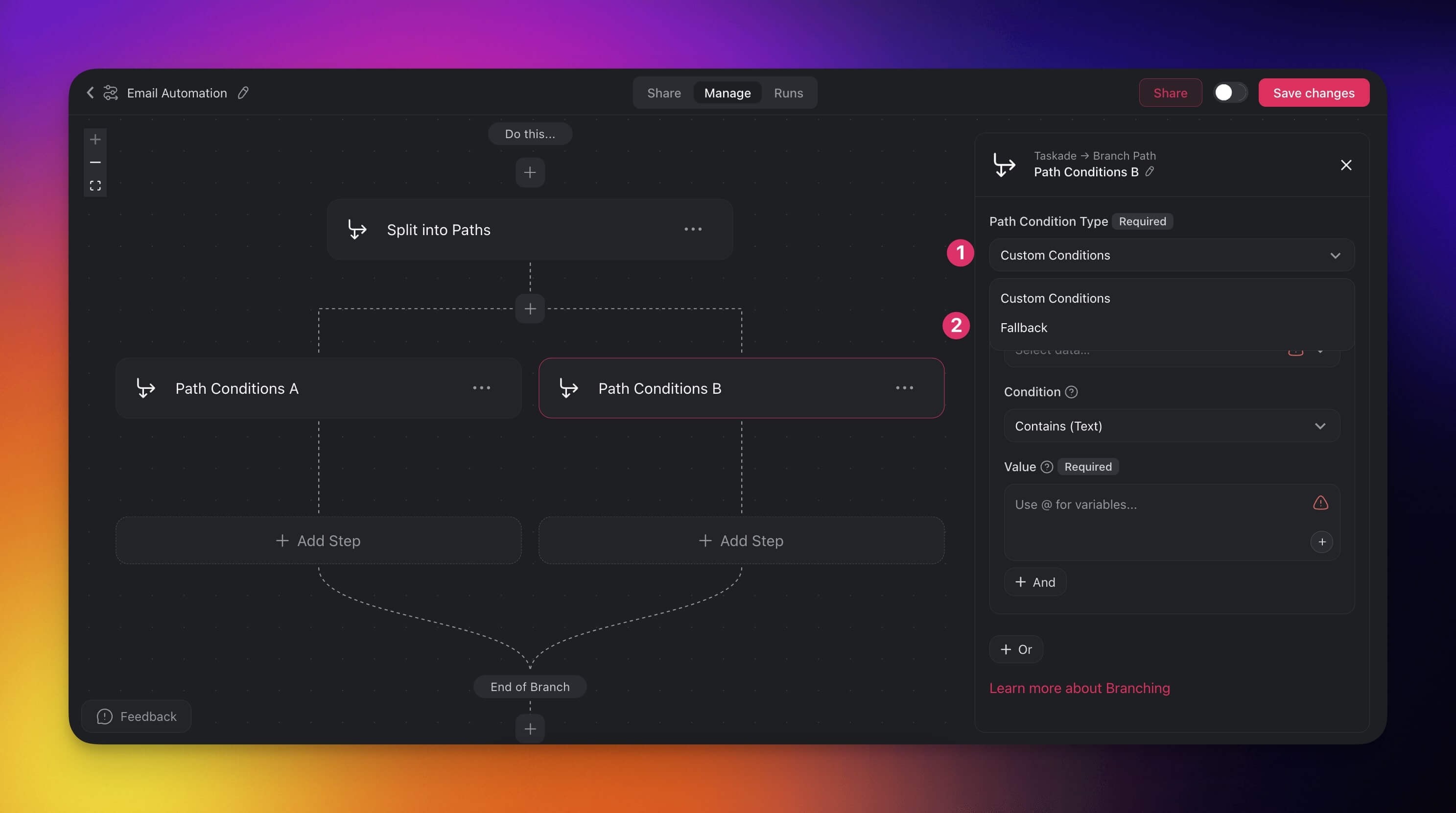
Fallback
The Fallback path keeps your automation running when no conditions match. If none of the defined
paths match, the run continues down the Fallback route.
If no path matches and no Fallback path exists, the run stops and is recorded as Failed. The
error names the paths it tried and asks you to add a Fallback path. Add one on any Branch step
whose conditions do not cover every case.
Set up a fallback path:
- Add the Branch action to your automation.
- Define conditions for each path.
- In the last branch, set the Path Condition Type to Fallback.
Use Cases
Not sure how to use the Branch action? Here are a few ideas:
| 🪄 Use Case | 🔤 Description |
|---|---|
| Task prioritization | Route tasks to different automations based on priority level, for example High Priority to the urgent queue and Low Priority to a regular queue. |
| Project status updates | Trigger different actions based on project status, for example "In Progress" or "Completed": notify stakeholders, or archive completed tasks. |
| Client communication | Direct client inquiries to different paths based on urgency or type, for example support requests to customer service and sales inquiries to the sales team. |
| Client onboarding | Customize onboarding for new clients by branching on client type, for example small business compared with enterprise. |
| Approval processes | Route tasks down different approval paths based on the task's nature, for example financial approvals compared with content approvals. |
Chain Branches for Logic
Each Branch action supports up to 7 paths. If you need more, add a second Branch action on a
path that needs further routing:
- Create your first Branch action with up to 7 paths.
- On any path that needs further routing, add another Branch action.
- This creates a decision tree, and each level can split into 7 more paths.
One automation holds at most 4 Branch actions. When you reach that number, the editor greys
out Branch in the step picker. If you need more routing than four Branch steps give you, split
the work across two automations. Or classify the data first with an
Ask Agent or Categorize with AI
step. Then one Branch can read a single label.
Example: Customer routing across many segments
| First Branch | Second Branch (on Path 1) |
|---|---|
| Path 1: Region contains "Americas" | Path 1a: Country matches "US" |
| Path 2: Region contains "Europe" | Path 1b: Country matches "Canada" |
| Path 3: Region contains "Asia" | Path 1c: Country matches "Brazil" |
| Fallback: Other regions | Fallback: Other Americas |
Tips for Effective Branching
- Order matters: Paths are evaluated top to bottom, so put the most common condition first for clarity.
- Always set a Fallback: The fallback path catches anything that does not match your conditions. It prevents automation dead-ends.
- Use "contains" for flexibility: "contains" is more forgiving than "matches". It catches partial matches, like "urgent" inside "this is urgent".
- Combine with AI agents: Use an Ask Agent action before Branch so the agent classifies or extracts data. Then branch on the agent's output.
- Test each path: Use the Preview feature to send test data through each branch. Make sure that the routing is correct.
Pro tip: Combine branching with AI Agent Automation for intelligent routing. Have an agent analyze incoming data and output a category, then branch on that category. This gives you AI-powered decision-making inside the automation.
Available Conditions
When setting up branch conditions, you can compare data using these operators:
Text Conditions
| Condition | What It Checks | Example |
|---|---|---|
| matches | Text is exactly equal | Subject matches "Sales Inquiry" |
| contains | Text includes a word or phrase | Message contains "urgent" |
| starts with | Text begins with a value | Email starts with "support@" |
| ends with | Text ends with a value | Domain ends with ".edu" |
| is empty | Field has no value | Phone number is empty → skip SMS |
| is not empty | Field has a value | Email is not empty → send follow-up |
Each condition also has a negative version: "does not match", "does not contain", "does not start with", "does not end with".
Pattern and Number Conditions
| Condition | What It Checks | Example |
|---|---|---|
| matches regex | Text matches a regular expression | Order ID matches ^INV-\d{6}$ |
| does not match regex | Text fails a regular expression | Email does not match an internal domain |
| equals | Number is exactly equal | Quantity equals 1 |
| does not equal | Number differs | Status code does not equal 200 |
| greater than | Number is above a value | Deal value greater than 10000 |
| less than | Number is below a value | Stock less than 5 |
Write a regular expression as plain text, or in /pattern/flags form. The i, m, and s flags
are supported.
Combining Conditions
- AND: all conditions must be true (for example, "Subject contains 'urgent' AND Priority is not empty")
- OR: any condition can be true (for example, "Source matches 'web' OR Source matches 'referral'")
Tip: Use the@ symbol in the Value field to reference data from the trigger or previous actions. For example, type@ to insert the task name from a trigger into your branch condition.
Route Tickets by Priority
Here is a practical example using branch conditions:
| Path | Condition | Action |
|---|---|---|
| Path 1 | Priority contains "urgent" | Send Slack alert to #critical channel |
| Path 2 | Priority matches "low" | Add to backlog project |
| Fallback | No conditions match | Assign to general inbox |
Related guides
- Loop Action. Iterate over each matched item.
- Filter Data. Drop items before they reach Branch.
- Agent Action. Classify with AI before branching.
- AI Categorize. Preset routing with AI classification.
- Structured Output. Typed agent output for branch conditions.
- Automation Triggers. What fires a branch.
- Automations: Overview. Full automation anatomy.