
Overview
The Add Task action lets you automatically create new tasks with multiple parameters and custom fields inside projects as part of your automations. It is the workhorse action of every Taskade automation: how a Webhook, Mailhook, Form, or Schedule trigger turns external events into structured work.
TL;DR: The Add Task action runs as a step inside an automation and writes new tasks, complete with content, due dates, and custom fields, straight into a project. It is how a trigger turns an incoming event into structured work your team can act on.
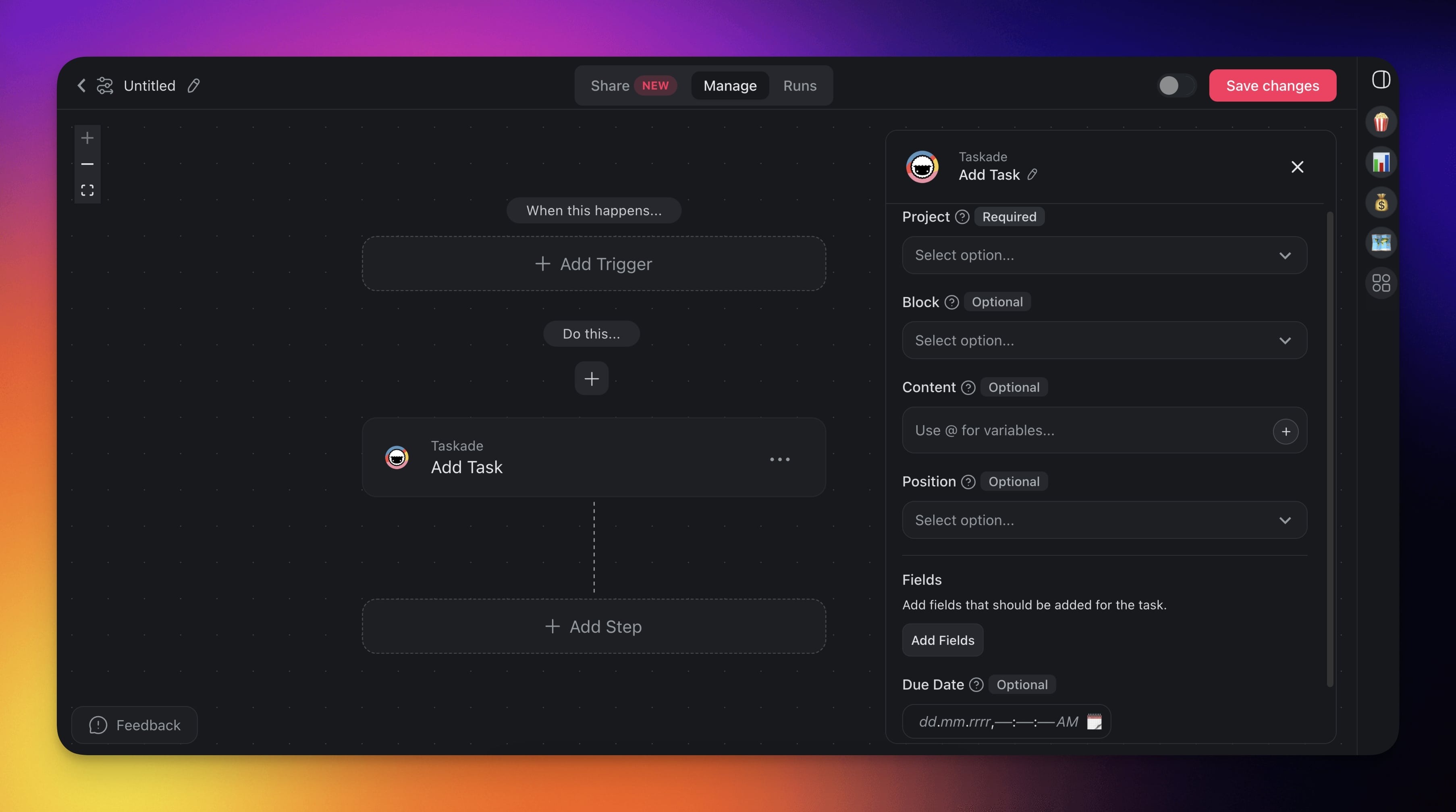
Add Task Actions
Here are the triggers & actions you can use in your automations:
| (ACTION) Add Task | Adds a task with additional parameters and custom fields to a specific project. |
|---|
Add Task Automation Settings
You can configure several fields of the Add Task action:
| Field | Description |
|---|---|
| PROJECT | The ID of the project where you want to add the new task. |
| BLOCK | The ID of the block where you want to add the task inside a project. |
| CONTENT | The content of the task. |
| POSITION | Position of the new task in a project. |
| FIELDS | Custom fields that will be added to a project together with the task. |
| DUE DATE | The due date for the task. |
| ASSIGNEE | The project member to assign the new task to. Leave it empty to add the task unassigned. |
Add Multiple Tasks
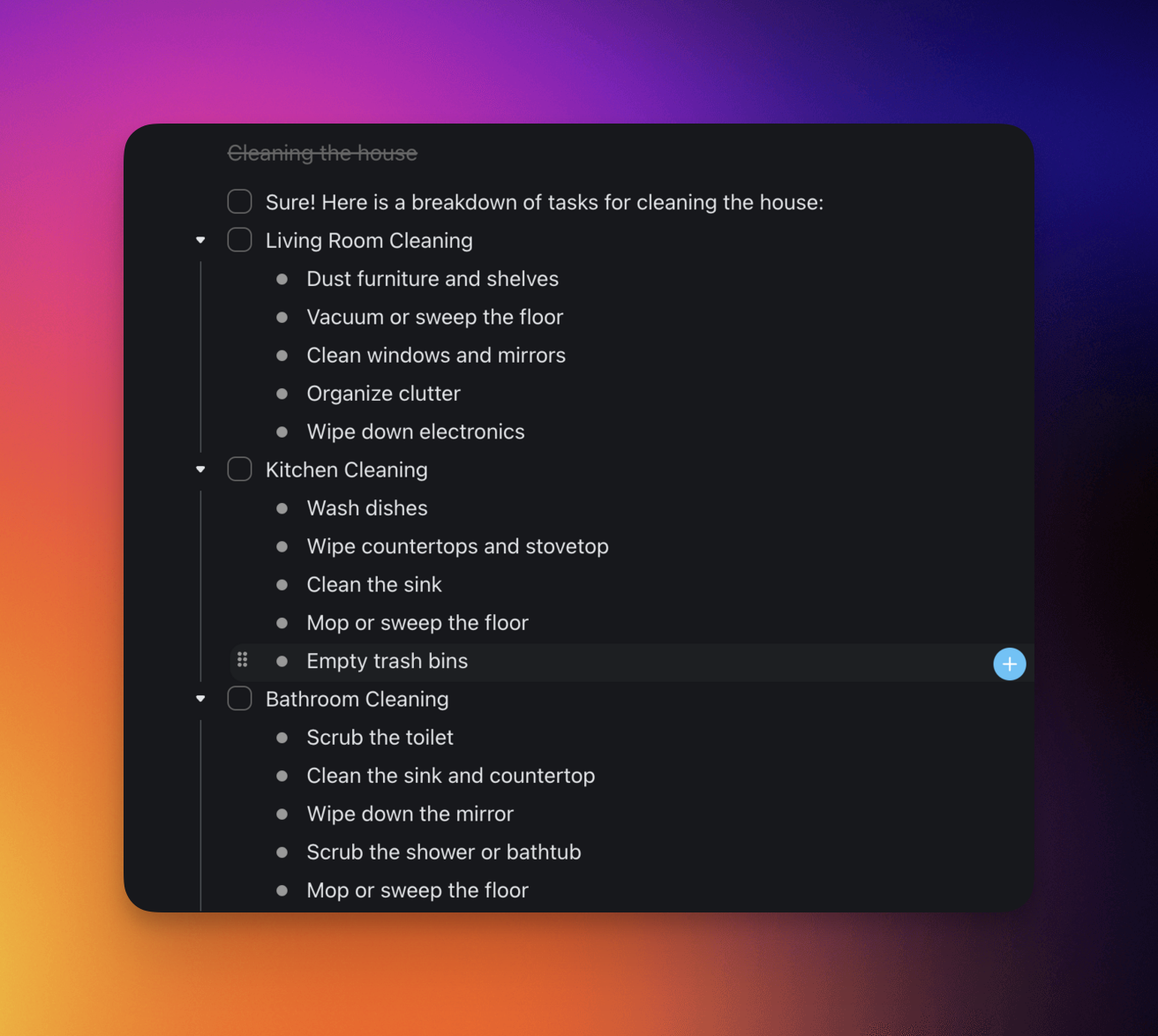
The Add Task action supports adding multiple tasks in a single action. To do this, the text must be formatted correctly. Use an Ask Agent action to help with the formatting. Try a prompt like this:
Your response should help break down the task into a format such as:## Title of Task- Subtask 1- Subtask 2Add a new line character for each new lineCheckboxes can be used with the following format:- [ ] Task A- [ ] Task B
One Add Task step turns that format into a task tree like this:
┌────────────────────────────────────┐
│ ▸ Title of Task                    │
│    • Subtask 1                     │
│    • Subtask 2                     │
│    ☐ Task A                        │
│    ☐ Task B                        │
└────────────────────────────────────┘
This creates multiple tasks in a single action:
Add Custom Fields
Custom fields let you categorize, prioritize, and track new tasks inside projects in a way that fits your team and project goals.
First, make sure that custom fields are enabled inside the target project:
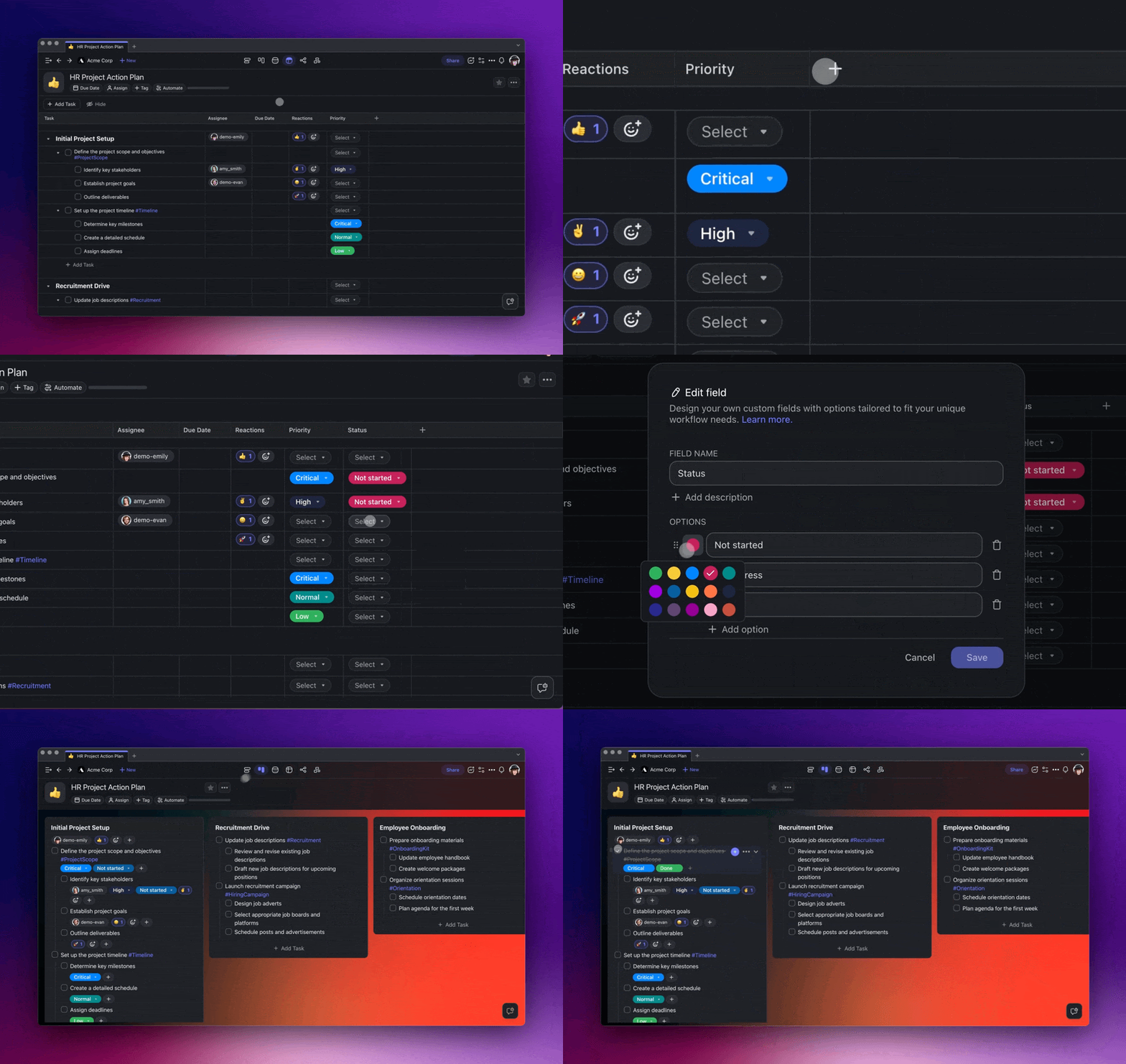
- Add Custom Fields (Table View):
- Click the ➕ button next to the last column (scroll right to see it).
- (method#1) Choose one of the available presets.
- (method #2) Choose Single select to add a custom column.
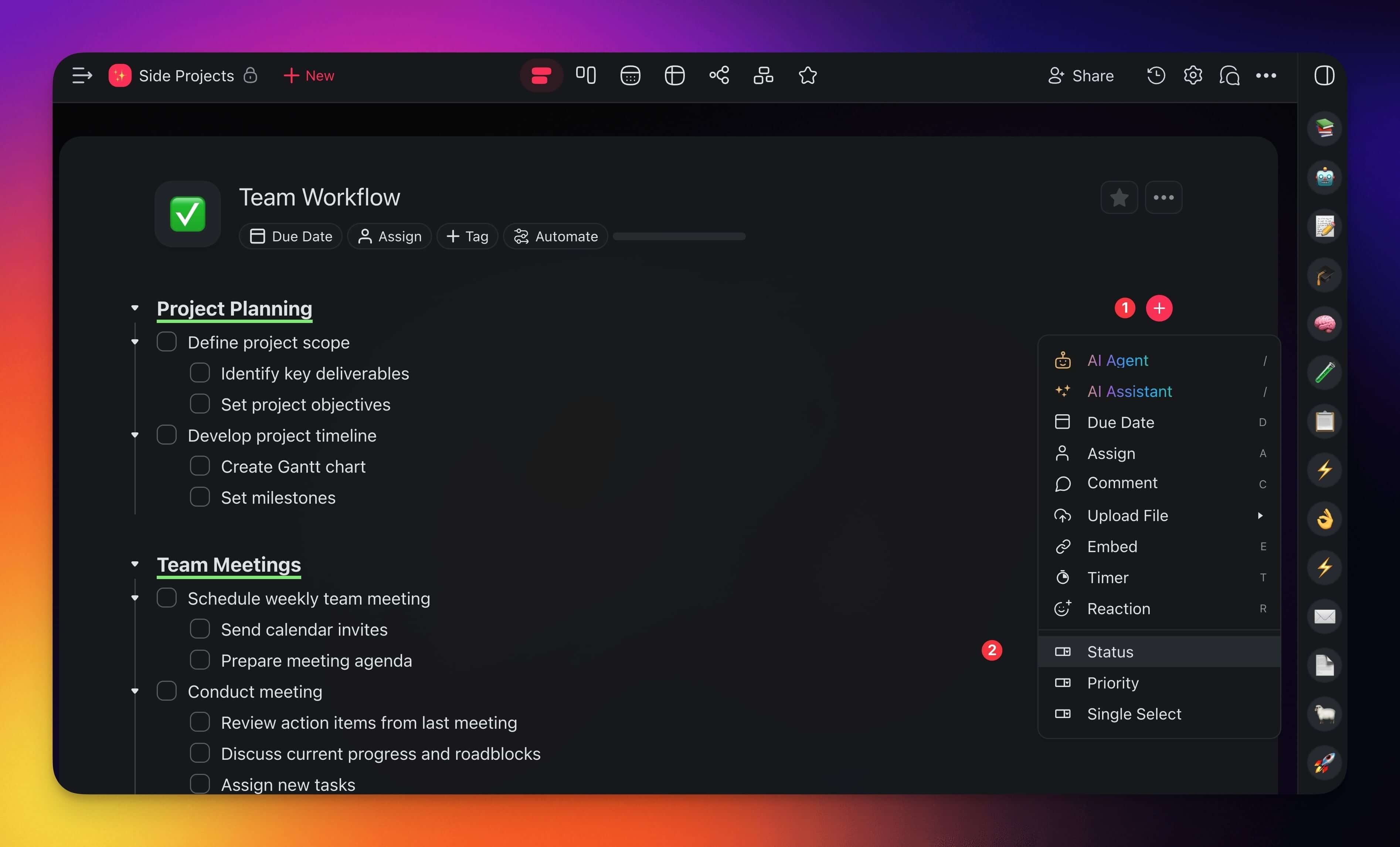
- Add Custom Fields (All Views):
- Open a project and click ➕ next to a task.
- Choose one of the custom field options at the bottom.
💡 Note: Want to learn more? Visit our guide to Custom Fields.
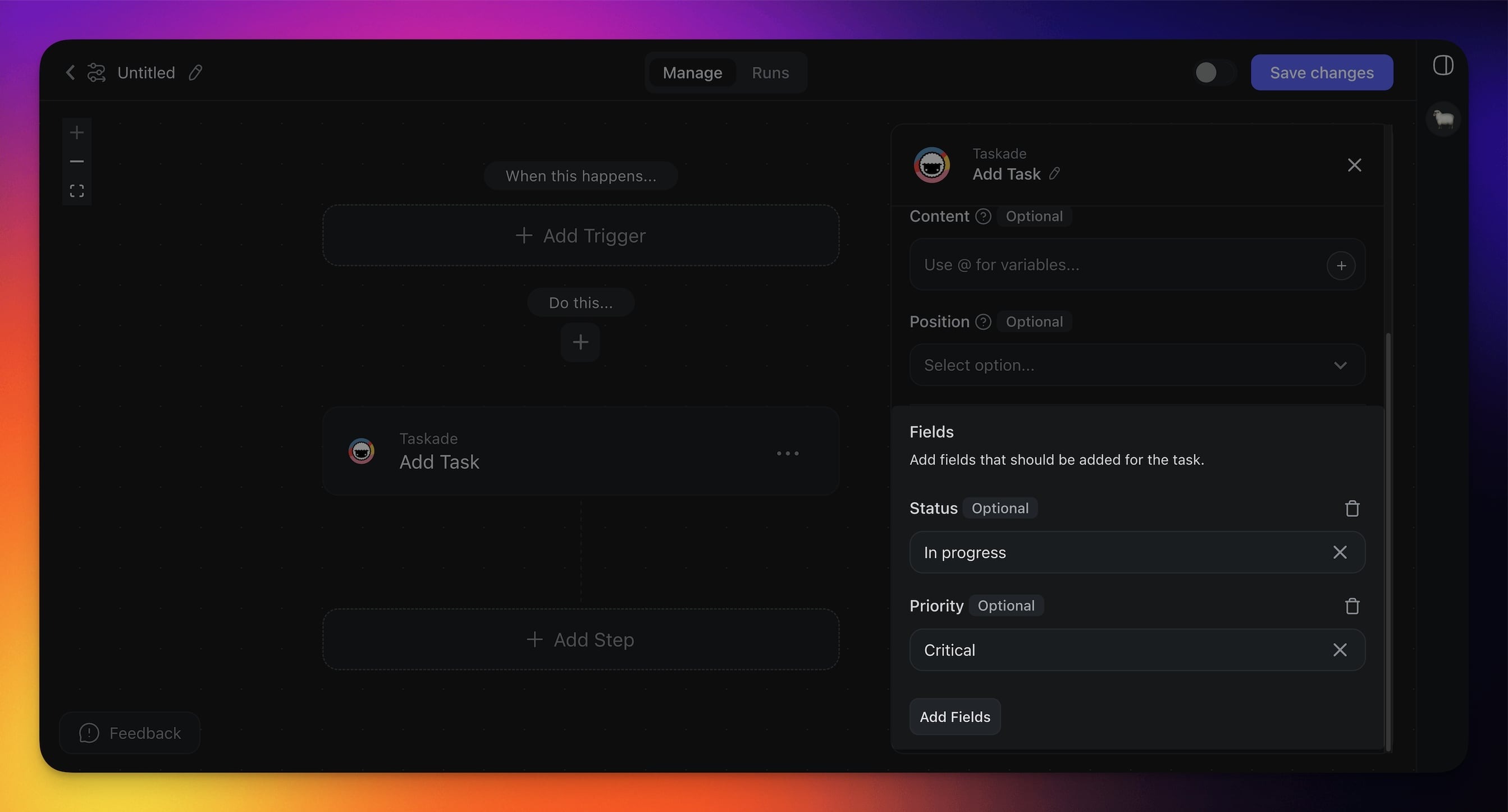
Once you have defined custom fields, you can add them directly from automation settings:
- Click ➕ Add Step ➡ Add Task.
- Under Fields, click Add fields.
- Set values for each field.
Related guides
- Custom Fields Action. Update task fields after creation
- Move Task. Reorganize tasks across projects
- Assign Task. Set owners automatically
- New Due Date Trigger. Schedule tasks from data
- Custom Fields in Projects. Set up the fields this action writes to