
Overview
With Assign Task you can allocate tasks to team members automatically. The action makes delegation simpler and helps you put any workflow on autopilot. Combine with an Ask Agent step that picks the best assignee from project context, or with Branch to escalate based on workload.
TL;DR: Assign Task is an action that runs as a step inside an automation. When an earlier trigger fires, it hands a task to the right team member automatically, so delegation happens without anyone touching the project. See Agent Action for AI-powered assignment decisions.
How to Use It
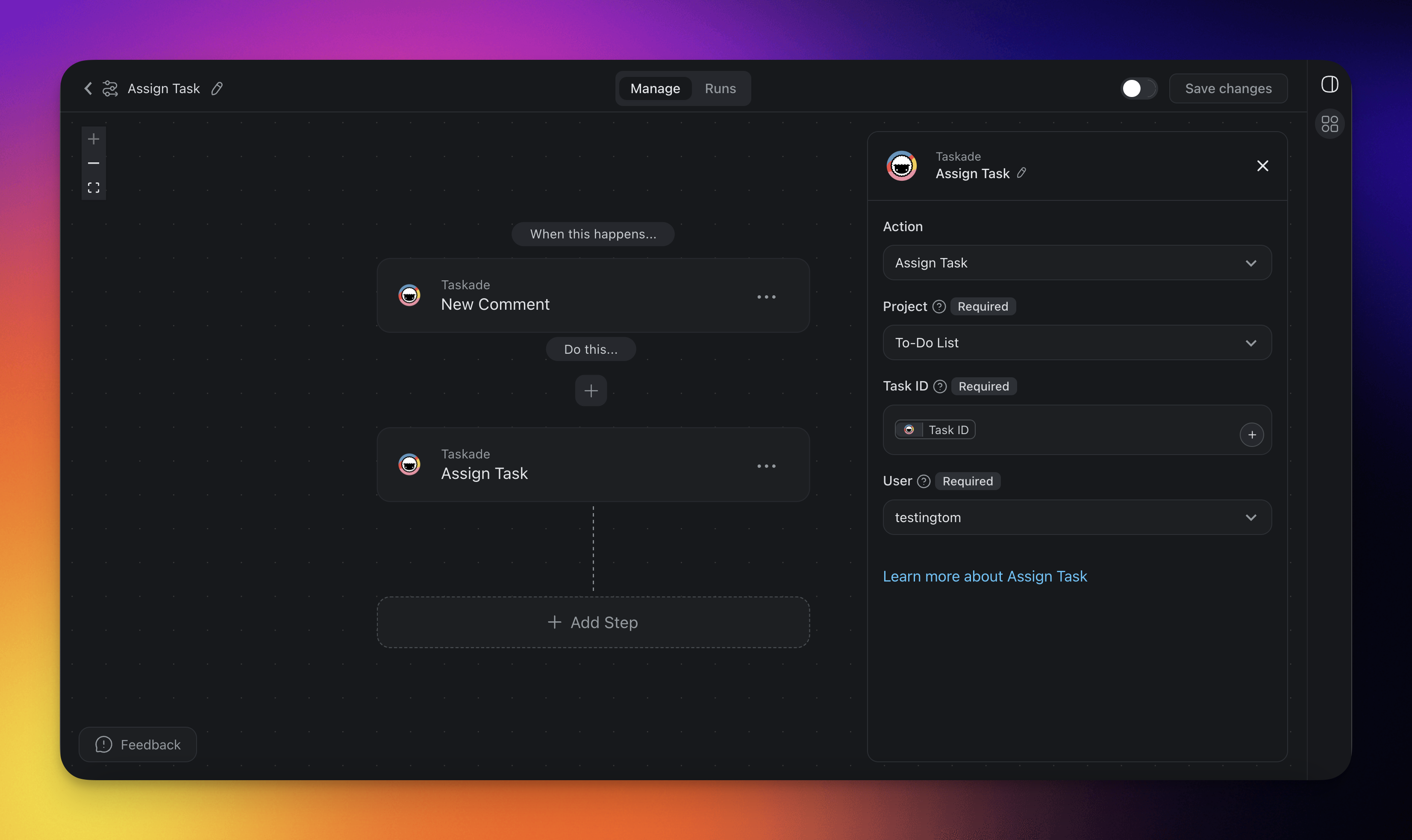
- Click ➕ Add Step and choose the Assign Task action.
- Select the project where the automation runs.
- Specify the Task ID that the automation moves. Reference it with the @ shortcut from a preceding Trigger or Action. In this example, the Task ID comes from the New Comment trigger.
- Select the User you want to assign the task to.
- Save and enable the automation or add more steps for further processing.
Assign Task (Settings)
Connector options give you full control over the Assign Task automation:
| 🏷️ Field | 🔤 Description |
|---|---|
| Project | Select the Project you want the automation to run in. |
| Task ID | Enter or reference a Task ID you want to assign a user to. Note that this Task ID must exist in the Project selected in the previous field. |
| User | Select the User you want the Task to be assigned to. Note only Users who are members of the Project will be available for selection. |
Assign Task Use Cases
Not sure how to use the Assign Task action? Here are a few ideas:
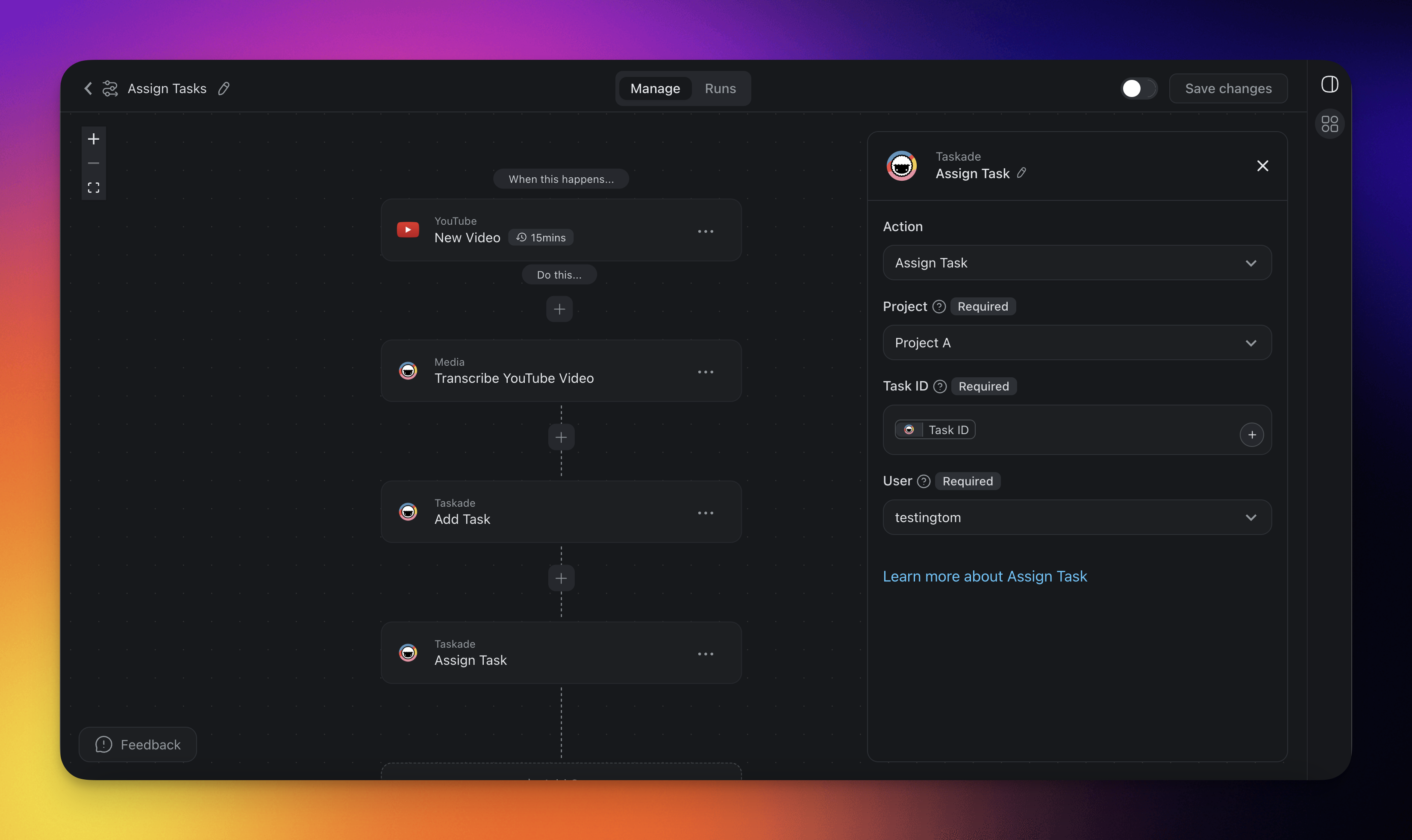
Assign a Task from YouTube
Keep track of updates from your favourite Youtube channel and assign the summaries to yourself to catch up later.
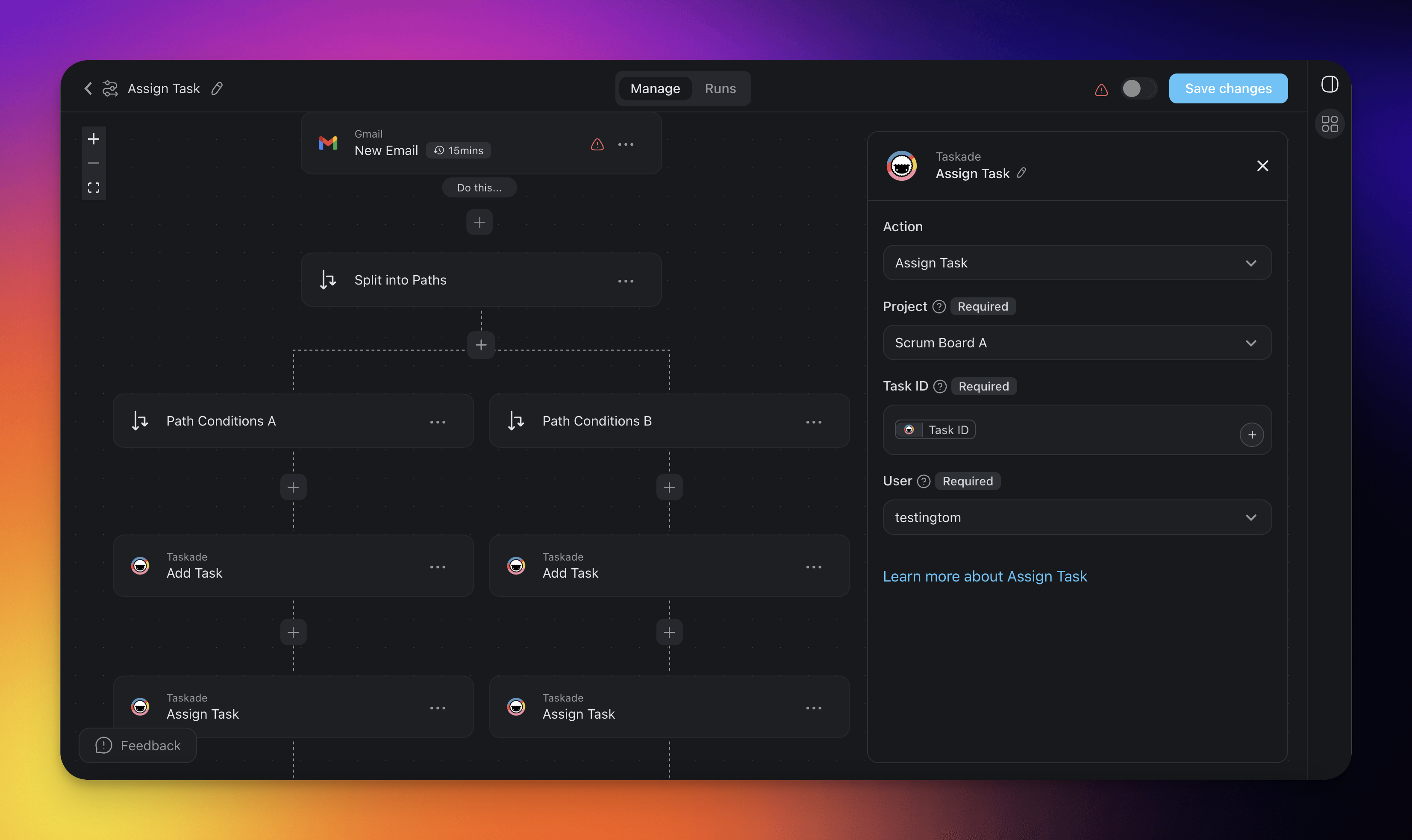
Assigning a Task from an Email
Use Assign Task to create and assign a task when a new email arrives. The subject of the email decides which team member handles it.
Related guides
- Add Task. Create the task before assigning it.
- Task Assigned Trigger. React when an assignment happens.
- Permissions. The role-based access, from Owner to Viewer, that assignments respect.
- Agent Action. AI-powered assignment decisions.