# Loop
> The Loop action allows your automation to repeat a set of steps for each item in a list. This makes it possible to create dynamic workflows that resp...
- Source: https://www.taskade.com/learn/automation/loop-action
- Section: Automation
- Updated: 2026-11-09
- Index of all pages: https://www.taskade.com/learn/llms.txt
## Overview
The Loop action allows your automation to repeat a set of steps for each item in a list. This makes it possible to build dynamic automations that respond to your data. It supports [filters](https://www.taskade.com/learn/automation/filter-data), [conditional branches](https://www.taskade.com/learn/automation/branch-action), and nested loops when you need them.
> **TL;DR:** The Loop action runs as a step inside an automation. It repeats a set of actions once for every item in a list. One trigger fans out into many personalized actions. Pair it with [Find Rows or Find Tasks](https://www.taskade.com/learn/automation/find-tasks) to turn a single event into hundreds of downstream steps.
> 💡 **Note**: Be sure to explore other automation [actions & triggers](https://www.taskade.com/learn/automation).
### The Loop Pattern
```mermaid
flowchart LR
T[Trigger
once] --> F[Find Rows / Tasks
→ array of items]:::data
F --> L{{Loop · for each}}:::loop
L -->|item 1| A1[Personalized email]:::act
L -->|item 2| A2[Update record]:::act
L -->|item N| A3[API call]:::act
A1 --> D[Done]:::done
A2 --> D
A3 --> D
classDef data fill:#0d1b2a,color:#7dd3fc,stroke:#38bdf8,stroke-width:1.5px
classDef loop fill:#1a140a,color:#ffb74d,stroke:#e65100,stroke-width:2px
classDef act fill:#0d1a0e,color:#86efac,stroke:#22c55e,stroke-width:1.5px
classDef done fill:#1e1e2e,color:#cdd6f4,stroke:#475569
```
One trigger fans out into **N personalized actions**, one per row, task, or item. Combine with [Find Rows](https://www.taskade.com/learn/automation/find-tasks), [Array Transform](https://www.taskade.com/learn/automation/array-transform), or an [Ask an agent](https://www.taskade.com/learn/automation/agent-action) step that returns a structured array, and you can turn a single event into hundreds of downstream actions.
---
## How to Use Loops
### Prepare the Data Array
To use a loop, you need an array of data. You can create arrays with these actions:
- [Find Rows](https://www.taskade.com/learn/connect/google-sheets) with Google Sheets
- [Find Task(s)](https://www.taskade.com/learn/automation/actions) with Taskade
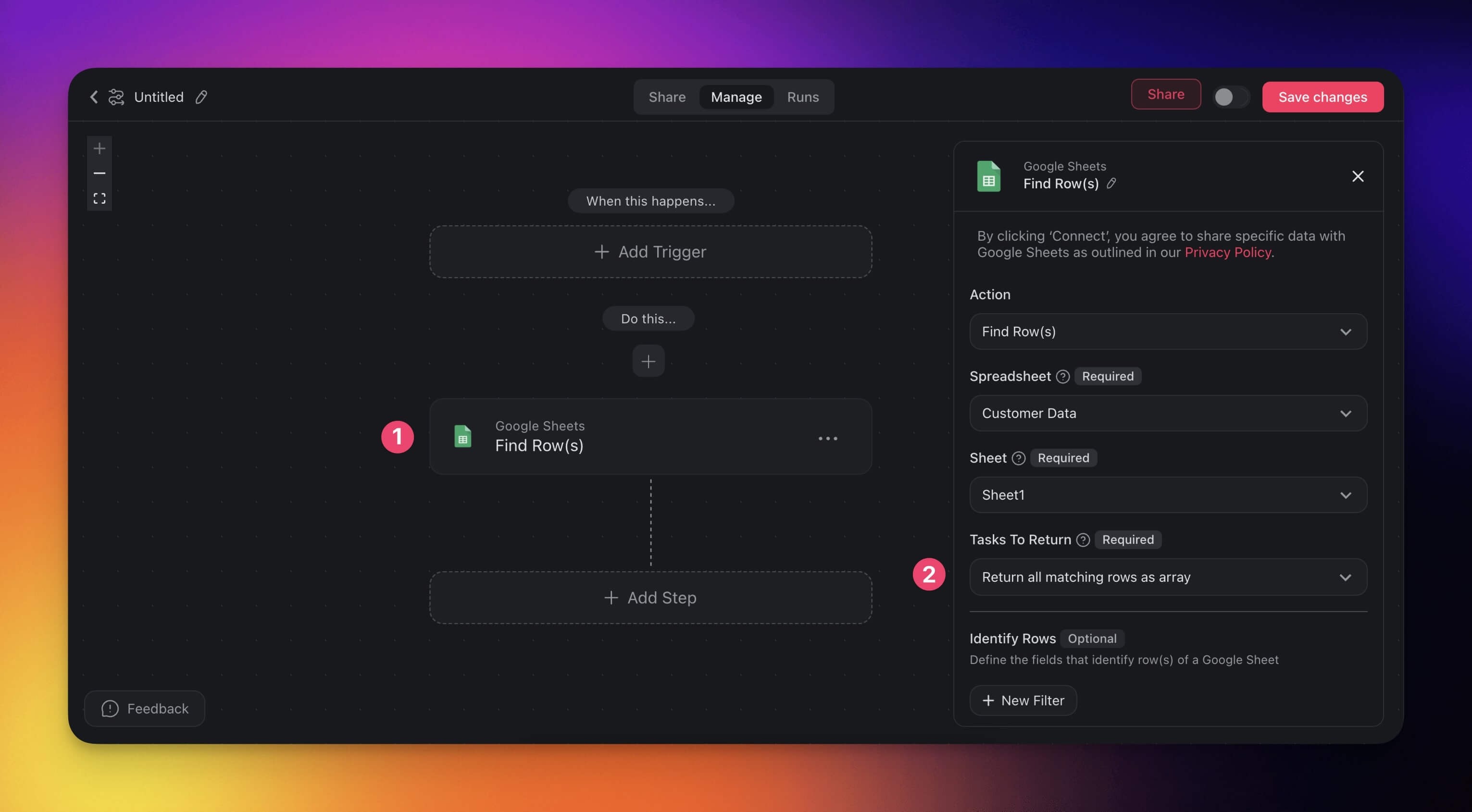
- **For Google Sheets:**
- Configure the **Find Rows** action.
- Specify filters under **Identify Rows** (for example, rows containing `@` to find emails).
- If **Identify Rows** has no filter, select **Return all matching rows as array** to return every row in the sheet.
Under **Tasks to Return,** choose **Return all matching rows as array.**
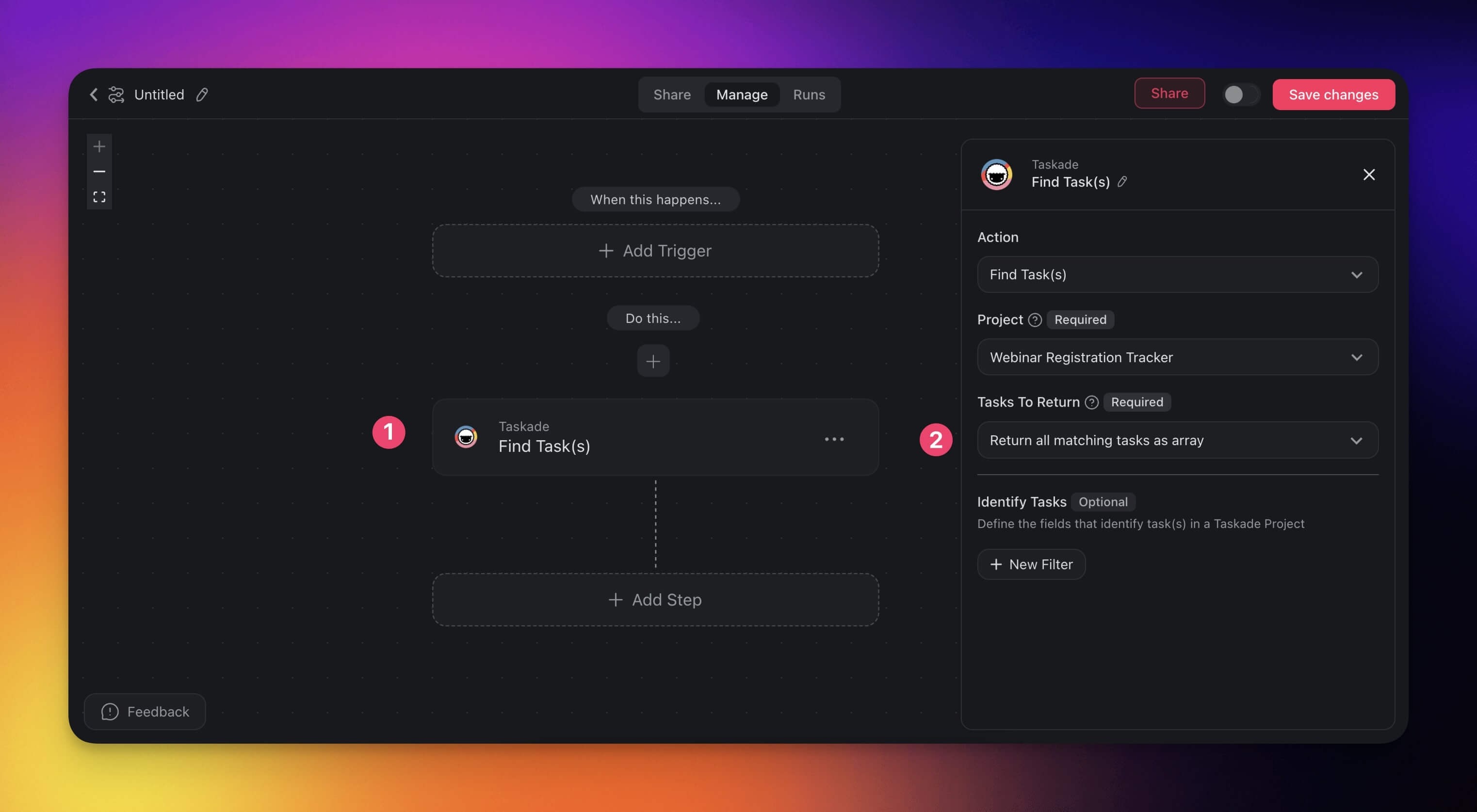
- **For Taskade:**
- Use the **Find Tasks** action to select a project.
- Specify filters under **Identify Tasks** (for example, tasks containing `@` to find emails).
- If **Identify Tasks** has no filter, select **Return all matching tasks as array** to return every task in the project.
Under **Tasks to Return,** choose **Return all matching tasks as array.**
When setup is completed, go to the next section.
---
### Add a Loop Action
- Add the **Loop** action from the **Control** category.
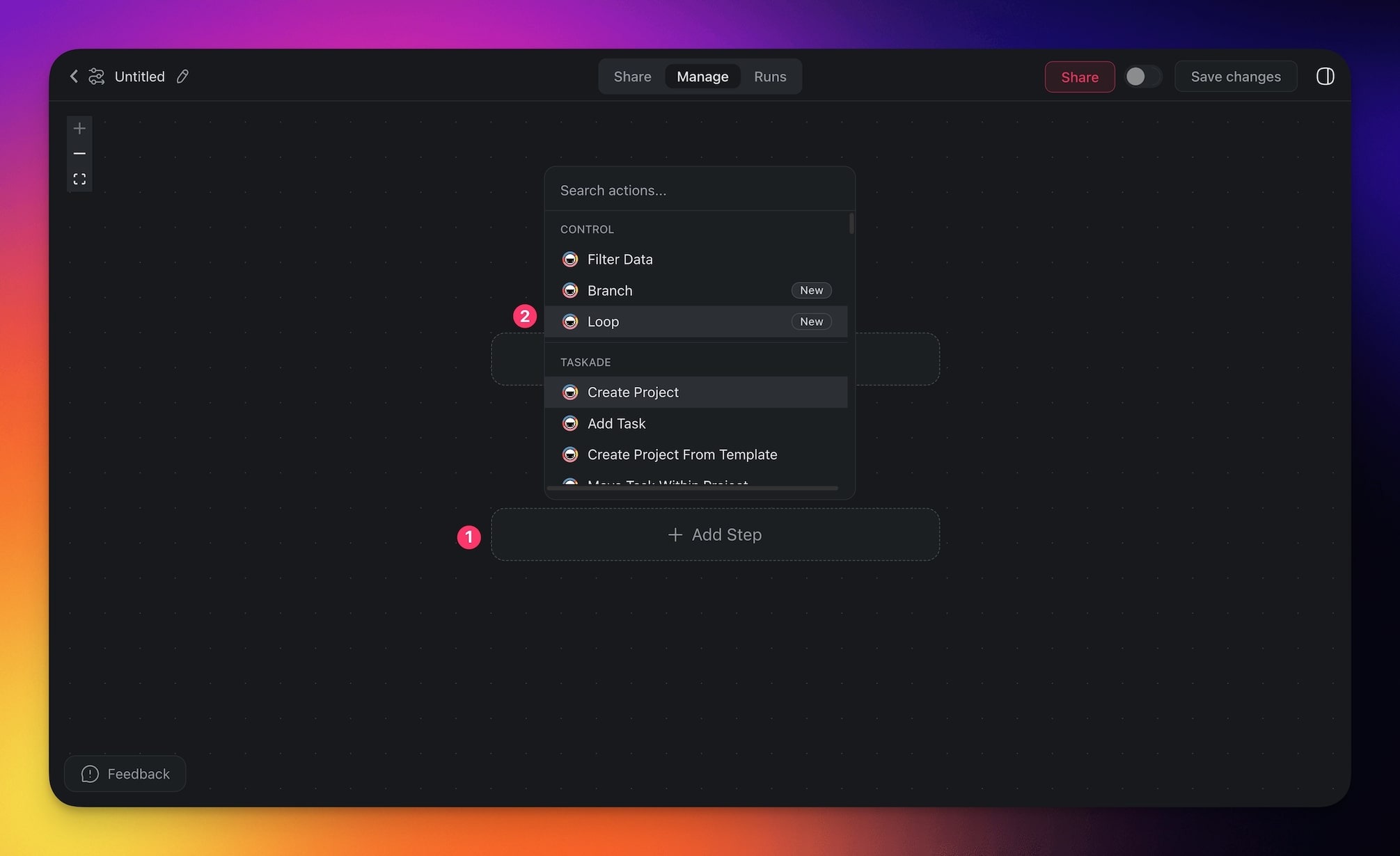
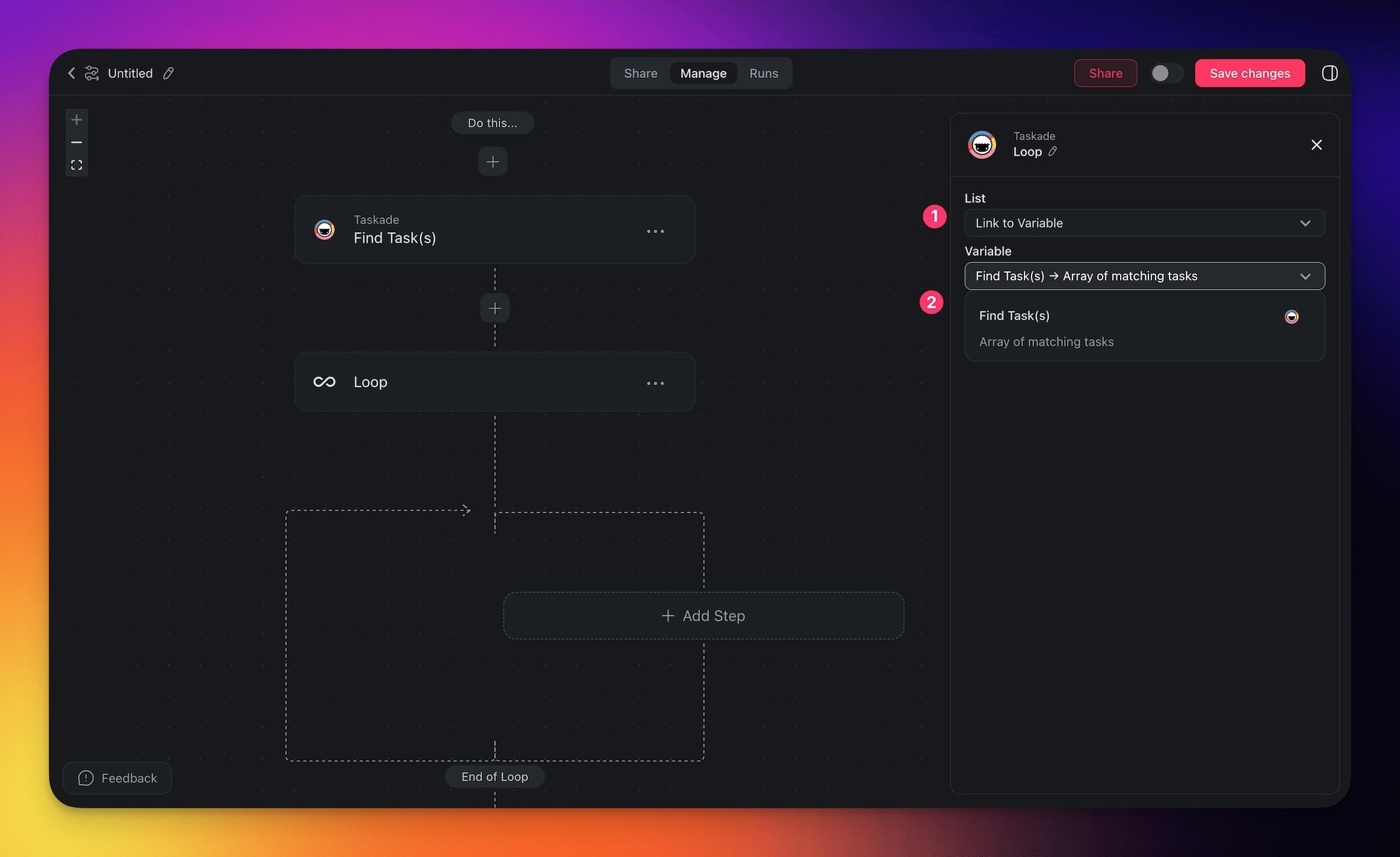
- Configure the action in the sidebar on the right.
- Under **Variable**, choose between:
- **Manual List:** Create a custom list of items.
- **Link to Variable:** Use the output of **Find Rows** or **Find Tasks**.
For this example, select **Link to Variable** to use the data from the previous action.
---
### Customize Your Loop
Inside the loop, set the actions to run on each item. For example:
- Add conditions to filter data further.
- Insert data from each iteration using the `@` symbol to access specific fields.
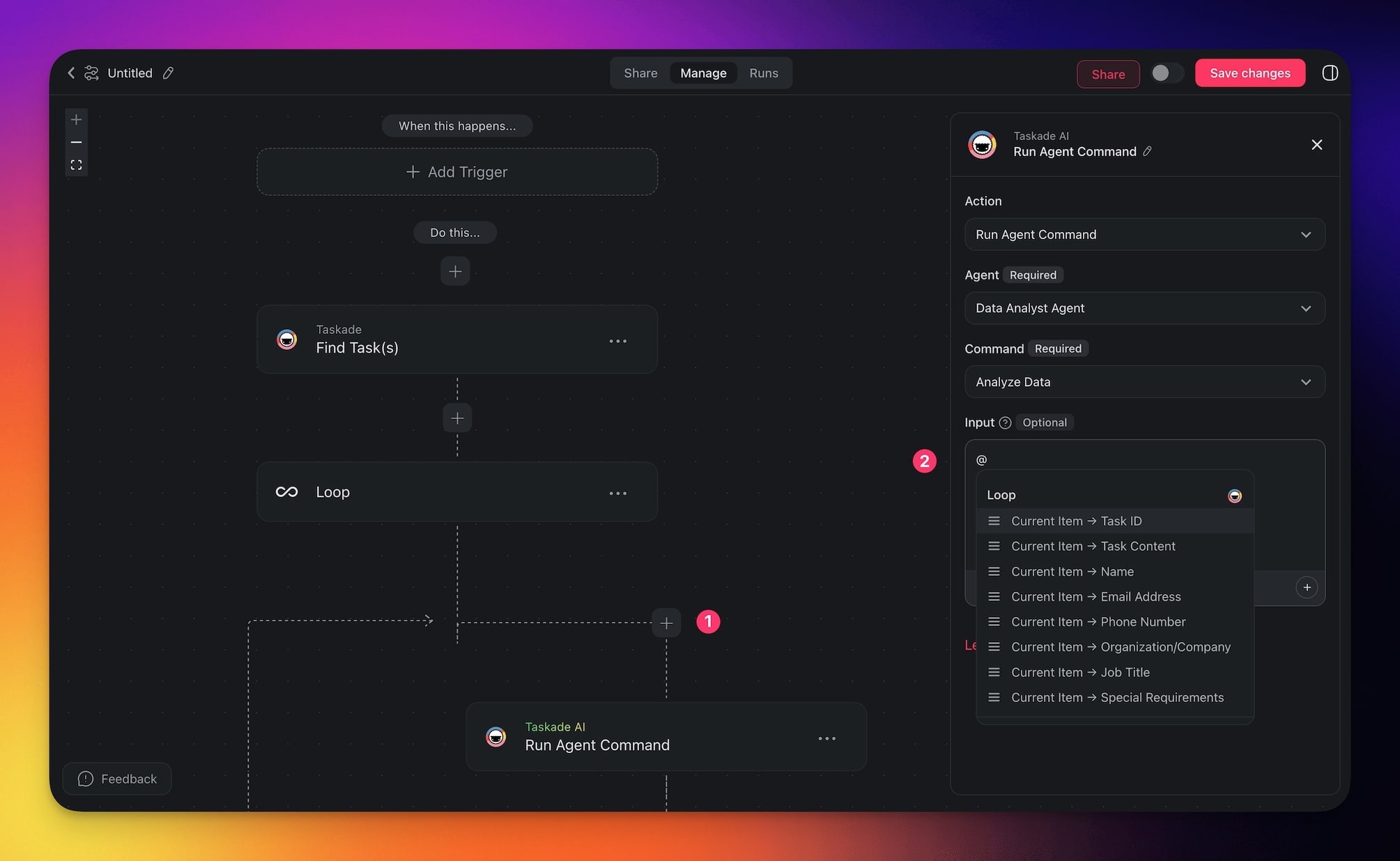
- Save the changes and run the automation to test things out.
- Add a [trigger](https://www.taskade.com/learn/automation/triggers) to the automation.
---
### Loop Settings
Connector options give you full control over the Loop action:
| 🏷️ Field | 🔤 Description |
| --- | --- |
| List | Choose this option to create a custom list of items by hand. Loop then processes each item in order. |
| Variable | Choose this setting to connect the loop to a variable from an earlier step, such as Find Rows or Find Tasks. The loop then iterates over that data automatically. |
---
### How a Loop Starts and Ends
A loop is a bounded for-each. It runs once for every item that already exists in the list, then
stops. It does not repeat until a goal is reached, and it has no exit condition of its own.
| What happens | Result |
| --- | --- |
| The list is empty | The loop runs zero times, and the automation continues after it. |
| **Link to Variable** points at something that is not a list | The loop fails with `The referenced variable in a loop must be an array.` Add an [Array Transform](https://www.taskade.com/learn/automation/array-transform) or a Find action that returns an array. |
| A [Filter Data](https://www.taskade.com/learn/automation/filter-data) step inside the loop does not match | That item stops there. The loop continues with the next item. |
| A step inside the loop fails | The loop stops at that item and the run is recorded as **Failed**. Earlier items keep the work they already did. |
| A failed step has **Continue if this step fails** checked, with **Stop here** | The loop moves to the next item. The failed step still shows in **Runs**. |
| A failed step has **Continue if this step fails** checked, with **Go to the next step** | The next step inside the loop runs for the same item and reads the results of the failed step as empty. The failed step still shows in **Runs**. |
To keep a loop going past one bad item, open the action step inside the loop and check **Continue if this step fails**. Then pick one of the two options under the box:
- **Stop here** ends the work on that item. In a loop, the loop moves to the next item. Outside a loop, the automation stops at that step, and the run is not marked as failed.
- **Go to the next step** runs the next step as if the failed step returned nothing. The run is not marked as failed.
Pick **Go to the next step** only when the next steps can work without the result of the failed step, for example a notification that still has to go out.
Use a Filter Data step inside the loop to skip items. Keep expensive steps, such as
[Ask an agent](https://www.taskade.com/learn/automation/agent-action), after the filter so they run only on the items that
matter.
---
## Use Cases
Not sure how to use the Loop action? Here are a few ideas:
| 🪄 Use Case | 💭 Scenario | ⏩ Action Flow |
| --- | --- | --- |
| Bulk email notifications | Send personalized emails to multiple team members. | Use Find Rows in Google Sheets to retrieve a list of team members and their email addresses. Add a Loop action to iterate through the list. For each iteration, send a customized email using the retrieved name and email address. |
| Social media management | Schedule multiple social media posts. | Use Find Rows to retrieve post content (text, images, and schedule times) from a Google Sheet. Add a Loop action to iterate through the rows. For each iteration, post the content to the specified platform (for example, Twitter, Instagram, X) and schedule it. |
| Automated task assignment | Assign tasks to team members based on a task list. | Use Find Tasks with Taskade to retrieve unassigned tasks. Add a Loop action to iterate through the task list. For each iteration, assign the task to a team member dynamically based on a predefined assignment rule. |
| Customer support ticket processing | Process a list of unresolved tickets. | Use Find Rows to retrieve unresolved ticket data (for example, ID, issue description) from a Google Sheet. Add a Loop action to iterate through the tickets. For each iteration, take actions such as sending a follow-up email, logging the ticket in a CRM, or notifying a support agent. |
| Bulk API calls for data synchronization | Sync products/records between two systems. | Use Find Rows to retrieve a list of products from a database or spreadsheet. Add a Loop action to iterate through the product list. For each product, call an API to update or create the product in the target system. |
| Dynamic content curation | Generate daily newsletters with curated content. | Use Find Tasks to retrieve saved articles or posts for the day. Add a Loop action to iterate through the articles. For each iteration, format the article content and append it to the newsletter template before sending it out. |
| Survey response processing | Analyze responses and take actions based on specific answers. | Use Find Rows to retrieve survey responses from Google Sheets. Add a Loop action to iterate through the responses. For each iteration, send a follow-up email, categorize the response, or log it into a database for analysis. |
## Related guides
- [Branch Action](https://www.taskade.com/learn/automation/branch-action). Conditional routing inside a loop
- [Filter Data](https://www.taskade.com/learn/automation/filter-data). Drop items before the loop runs
- [Find Tasks](https://www.taskade.com/learn/automation/find-tasks). Build the array Loop iterates over
- [Array Transform](https://www.taskade.com/learn/automation/array-transform). Reshape data between steps
- [Agent Action](https://www.taskade.com/learn/automation/agent-action). Call a custom agent per item
- [Structured Output](https://www.taskade.com/learn/automation/structured-output). Typed array from an agent
---