
Overview
Use the Mark Task As Completed action to automatically update a task's status in a project whenever you want to signal progress or coordinate dependent actions. This closes the loop with the Task Completed trigger. One automation completes a task. The completion event then starts any automation that uses that trigger, to update a CRM, archive the item, or run the next stage.
TL;DR: Mark Task As Completed is an action that runs as a step inside an automation. It checks off a task in your project automatically, so you can signal progress and coordinate the next steps in your automations. It closes the loop with the Task Completed trigger, which can update a CRM or archive the item next.
How to Use It
- In your automation, add a new ➕ Add Step.
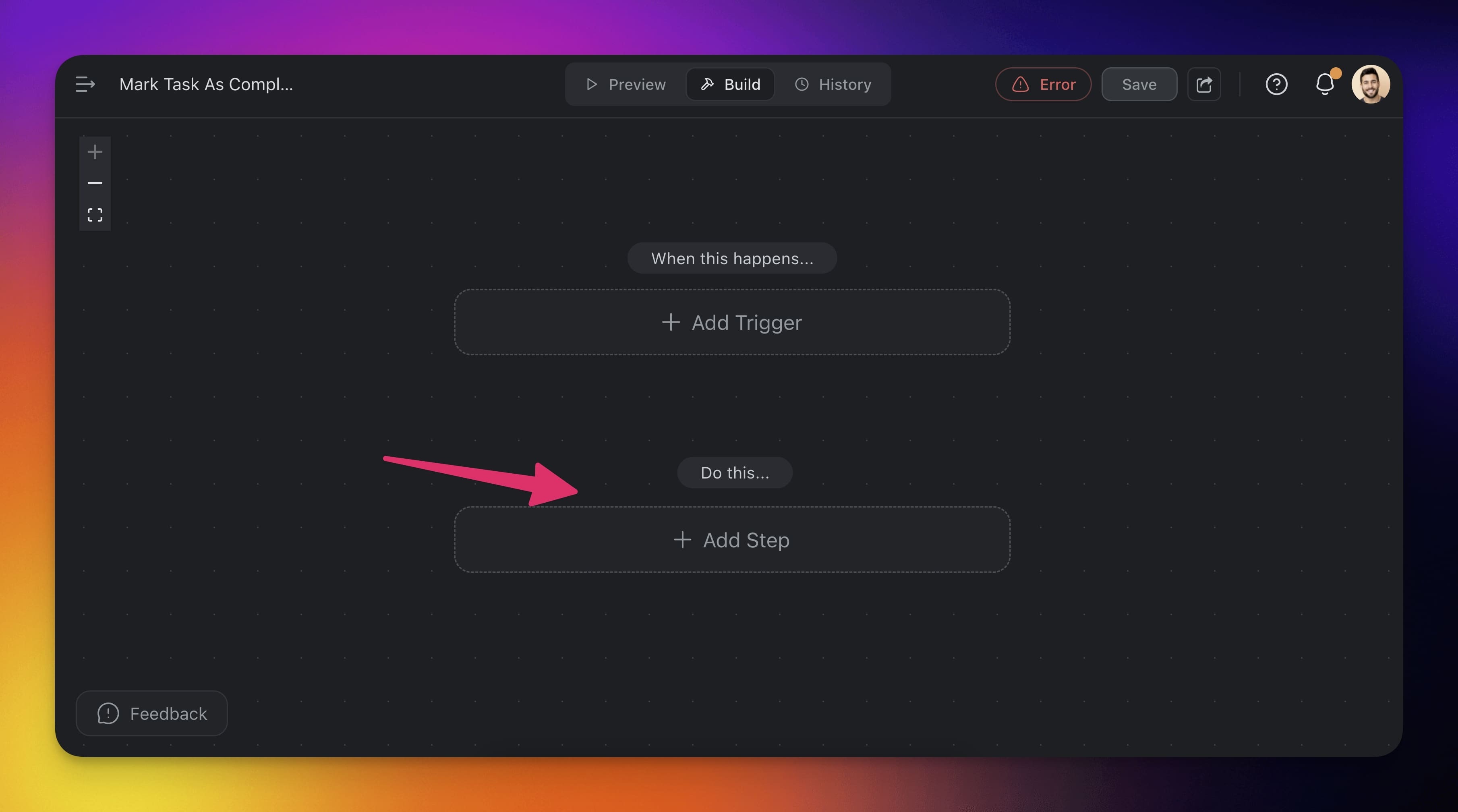
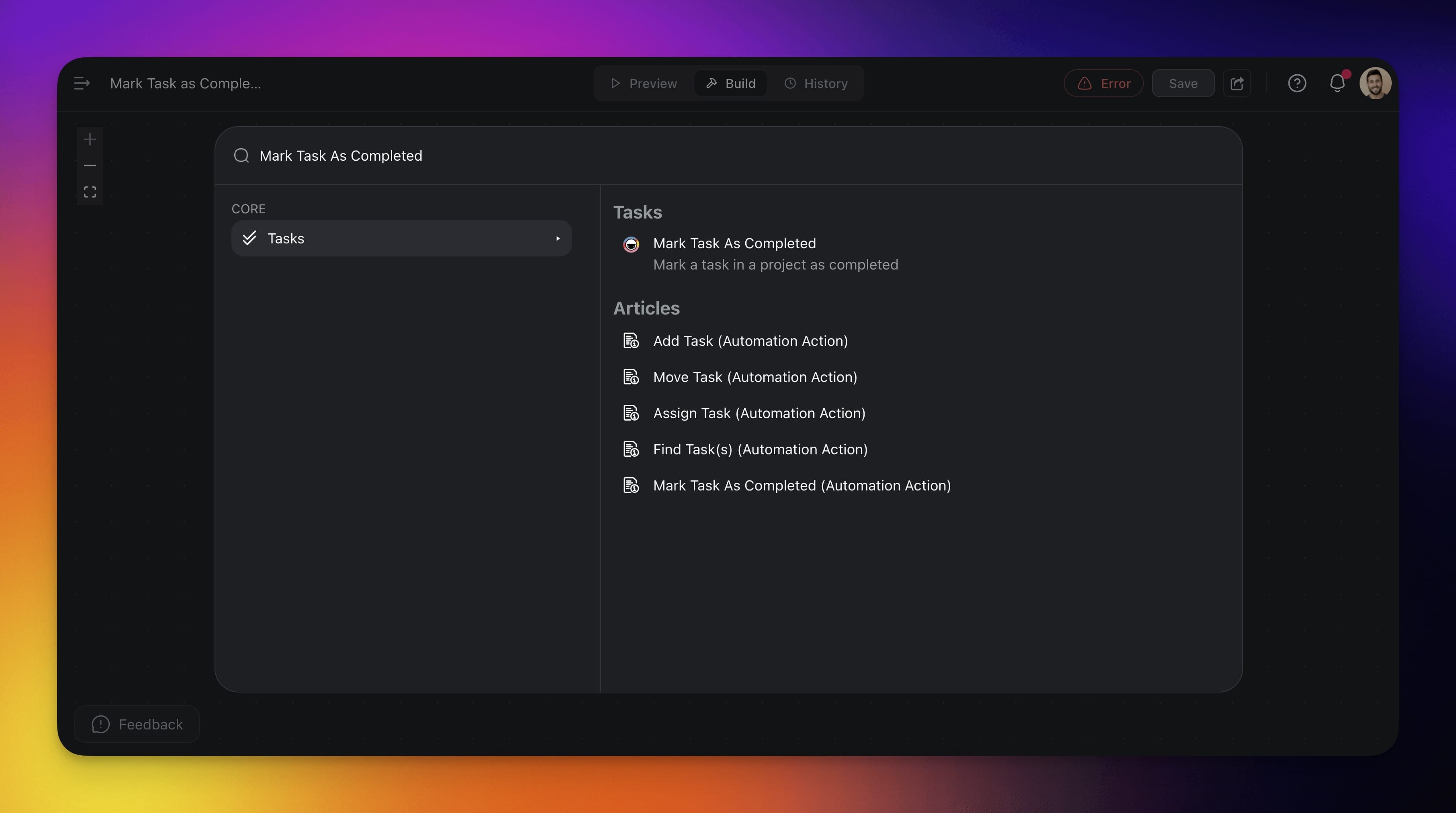
- Choose the Mark Task As Completed action.
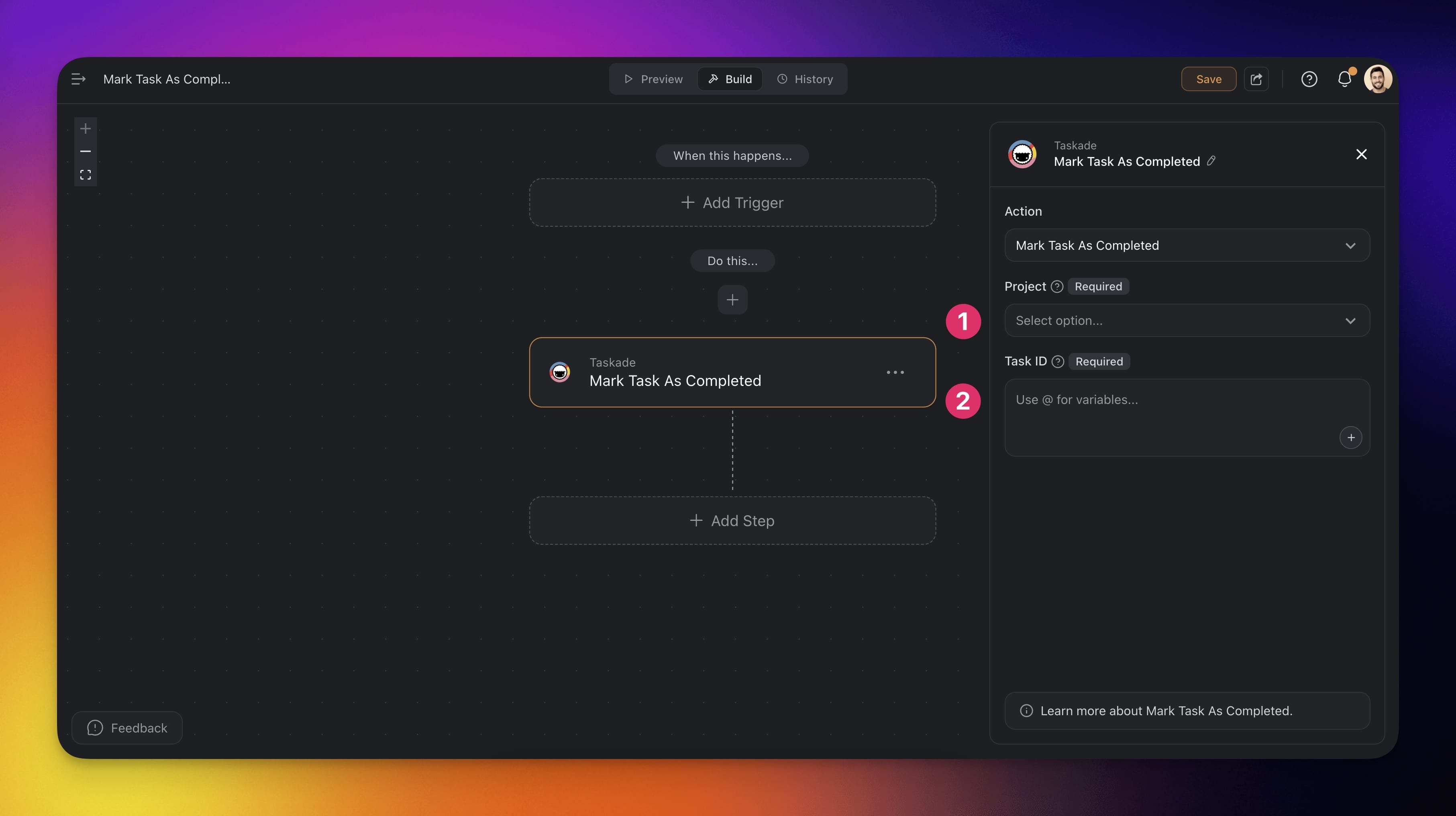
- Configure the action in the sidebar on the right.
- Select the Project containing the task you want to mark as done.
- Specify the Task ID. Use variables from previous steps if needed.
Action Settings
| 🏷️ Field | 🔤 Description |
|---|---|
| (required) Project | Select the project that contains the task you want to mark as completed. |
| (required) Task ID | Enter the task ID directly or use a variable from a previous step. Required. |
Use Cases
Not sure how to make the most of this action? Here are a few ideas:
| 🪄 Use Case | ⏩ Action Flow |
|---|---|
| Auto-complete tasks when HubSpot deals close | ✅ Trigger: Deal Stage Reached (HubSpot) ➡️ Action: Mark Task as Completed to update status ➡️ Action: Send Channel Message (Slack) to notify team |
| Mark tasks done when GitHub pull requests merge | ✅ Trigger: New Pull Request (GitHub) ➡️ Action: Mark Task as Completed for development tasks ➡️ Action: Create Event (GCal) to schedule code review |
| Complete tasks when form submissions arrive | ✅ Trigger: New Submission (Typeform) ➡️ Action: Add Task to create follow-up task ➡️ Action: Mark Task as Completed to close intake task |
| Complete tasks when files are uploaded | ✅ Trigger: New File (Google Drive) ➡️ Action: Filter Data to look for specific filenames ➡️ Action: Mark Task as Completed for deliverables ➡️ Action: Send Direct Message (Slack) to assignee |
Reverse It: Uncheck Task
Mark Task as Completed has a paired action, Uncheck Task (a.k.a. Uncomplete Task), that reopens a completed task. Use it to build review workflows, reset recurring routines, or roll back when an upstream check fails.
| 🏷️ Field | 🔤 Description |
|---|---|
| (required) Project | The project that contains the task to reopen. |
| (required) Task ID | The task ID to mark uncomplete. Same variable you'd pass to Mark as Completed. |
| 🪄 Pattern | ⏩ Action Flow |
|---|---|
| Review-required completion | ✅ Trigger: Task Completed ➡️ Action: Ask Agent, "Does this meet our quality bar?" (Boolean) ➡️ If false: Uncheck Task + Send Direct Message (Slack) with reason |
| Reset a daily routine at midnight | ✅ Trigger: Schedule (daily, 00:00) ➡️ Action: Find Tasks tagged daily-checklist➡️ Action: Loop → Uncheck Task for each |
| Reopen on upstream failure | ✅ Trigger: HTTP Webhook (CI failed) ➡️ Action: Find Tasks tagged with the build ID ➡️ Action: Uncheck Task + Add Comment with failure log |
💡 Tip: Pair the two actions inside a Branch to build "auto-complete unless an agent disagrees" reviewer bots.
Related guides
- Task Completed Trigger. Fires when a task is completed.
- Move Completed Tasks. Archive on completion.
- Custom Fields Action. Update fields alongside completion.
- Find Tasks. Look up tasks to complete.
- Branch Action. Decide between Mark Complete and Uncheck.