
TL;DR: The Project Completed trigger fires the moment every task in a project is checked off, perfect for retrospectives, handoffs, client notifications, and follow-up project creation. It is the macro-level partner to Task Completed and slots into the Execution layer of Workspace DNA. Available on every plan from Free through Enterprise.
Overview
The Project Completed trigger lets you kick off actions as soon as a project is marked done. It is the macro-level cousin of Task Completed. Task Completed fires per checkbox. Project Completed fires once an entire body of work is finished.
The moment the last task is checked, the trigger fires:
┌──────────────────────────────────────────┐
│  📁 Q3 Website Redesign      100% ✅       │
│  ▓▓▓▓▓▓▓▓▓▓▓▓▓▓▓▓▓▓▓▓▓▓▓▓  12/12 tasks     │
│  ⚡ Automation: notify client + archive    │
└──────────────────────────────────────────┘
How to Use
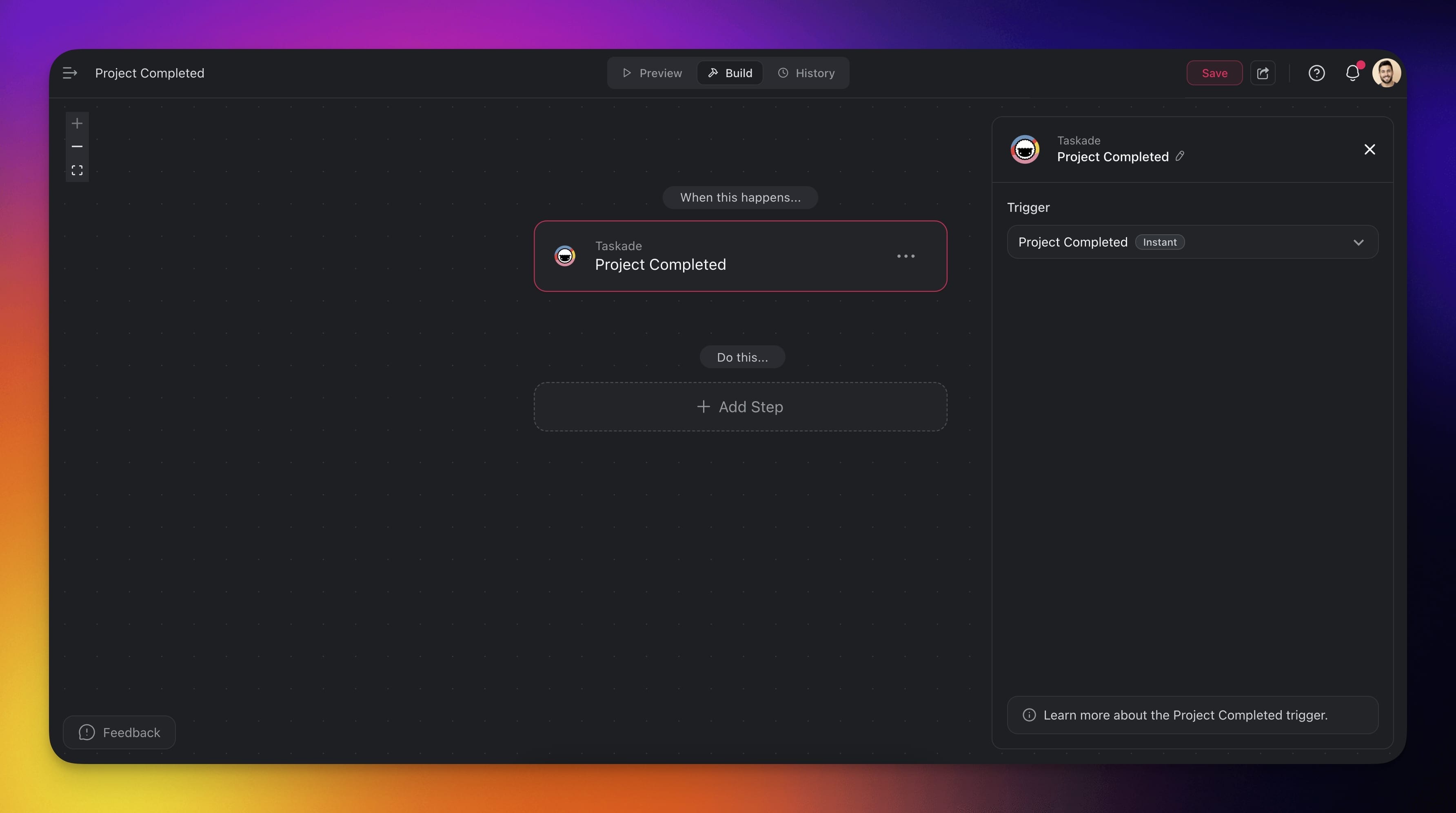
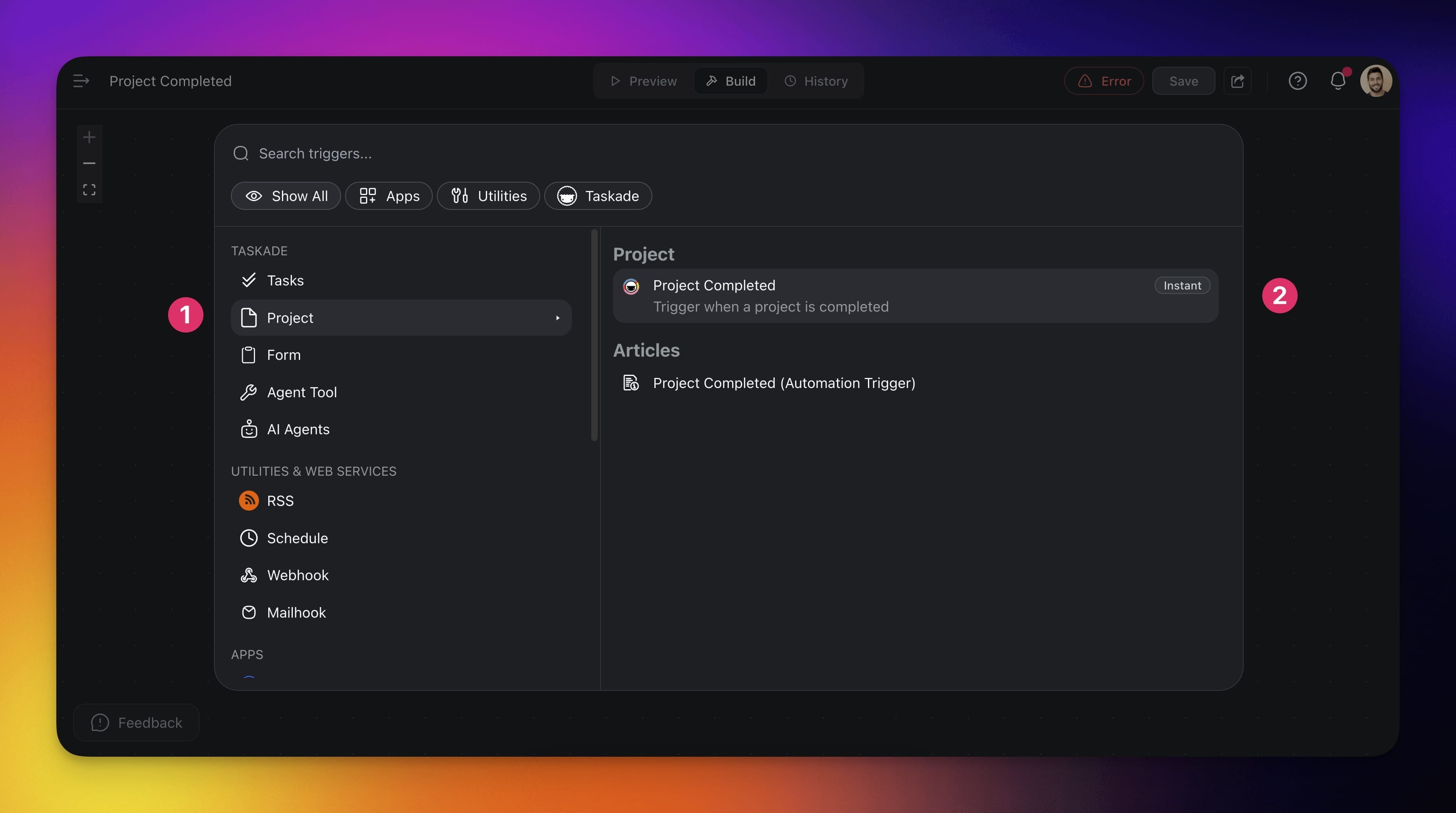
- Click ➕ Add Trigger and choose the Project Completed trigger.
- Add more steps for further processing.
Use Cases
Not sure how to use the trigger? Here are a few ideas:
| 🪄 Use case | 💭 Scenario | ⏩ Action Flow |
|---|---|---|
| Send a project summary | Let your team know what was completed and key takeaways. | Trigger: Project Completed → Generate with AI to create a summary → Send Email or Send Slack Channel Message to share it. |
| Create follow-up project | Start the next phase of work once one project wraps. | Trigger: Project Completed → Generate with AI to create a list of follow-up tasks → Add Task to add the tasks to a project → Assign Task to team members to begin the next steps. |
| Archive or organize work | Keep your workspace clean and structured. | Trigger: Project Completed → Move Task to an archive folder → (Optional) Send HTTP Request to update external system or backup tool (or use Google Drive actions) |
| Notify cross-functional teams | Keep other departments in the loop when something finishes. | Trigger: Project Completed → Send Slack Channel Message or Send Email to the relevant teams. |
| Update internal records | Track completed projects for analytics or reporting. | Trigger: Project Completed → Insert Row into a Google Sheet with project title, date, and outcome. |
| Announce externally | Share completed public-facing projects with your audience. | Trigger: Project Completed → Generate with AI to write a short blurb → Create Company Update on LinkedIn or Create Post on X/Twitter. |
| Send client notification | Let clients know their project is done and share any next steps. | Trigger: Project Completed → Send Email via Gmail with a message and any final documents attached or linked. |
FAQ
Does this trigger fire when only some tasks are done?
No. Project Completed fires only when every task in the project is checked off. For per-task firing use Task Completed.
Can I scope it to specific folders or projects?
Yes. Pick the project or folder when configuring the trigger, or follow it with a Filter Data step to gate by tag, owner, or custom field.
What happens if a task is reopened after the trigger fires?
The trigger only fires on the transition from incomplete → complete. Reopening a task does not retrigger the flow.
Related guides
- Task Completed Trigger. Fires per task instead of per project.
- Create Project Action. Start a follow-up project.
- Project Template Action. Spin up the next phase from a template.
- Agent Action. Auto-generate retrospectives.