
Overview
Move Task lets an automation relocate tasks inside a project. You can adjust task priorities, shift tasks between stages, and optimize workflows. Pair it with Field Updated triggers, Branch for status routing, and an Ask Agent call to decide where each task goes.
TL;DR: Move Task is an action that runs as a step inside an automation. It moves a task to a destination block within the same project. Priorities and stages update on their own. Reference a Task ID from an earlier trigger, pick where it lands, and the move is written back to your project automatically.
How to Use It
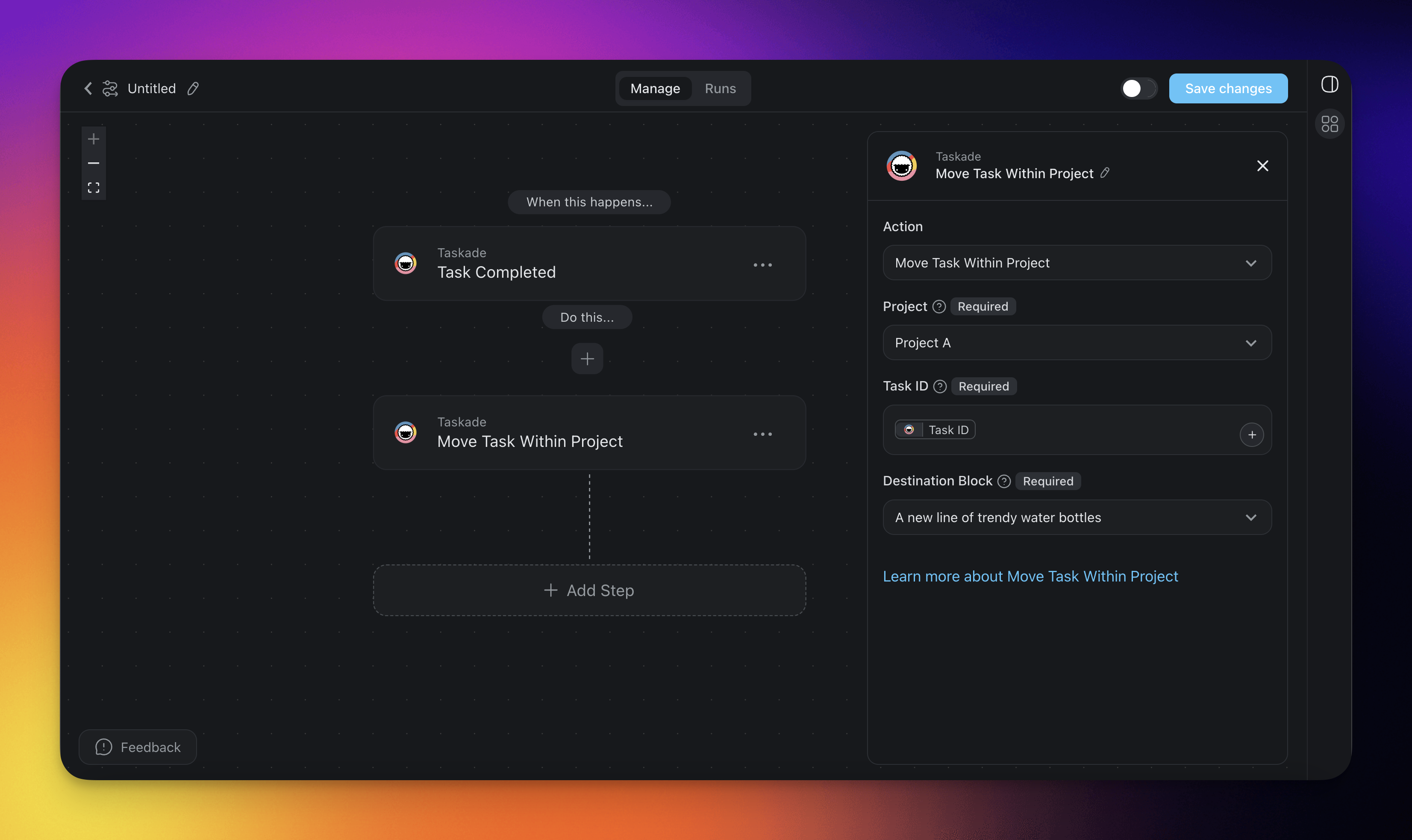
- Click ➕ Add Step and choose the Move Task Within Project action.
- Select the project where the automation runs.
- Specify the Task ID that the automation moves. Reference it with the @ shortcut from the preceding Trigger or Action. In this example, the Task ID comes from the Task Completed trigger.
- Select a Destination Block for the task to be moved to.
- Finish the automation or add more steps for further processing.
Here is what the move looks like on a Board view when the task lands:
┌─────────────┬─────────────┬─────────────┐
│ In Progress │  Review     │  Done ✅     │
├─────────────┼─────────────┼─────────────┤
│ Call vendor │  Draft memo │  Ship v2    │
│ Fix invoice │             │  ▸ Fix bug  │
└─────────────┴─────────────┴─────────────┘
   "Fix bug" auto-moves ▸ into the Done block
Move Task Settings
Connector options give you full control over the Move Task Within Project automation:
| 🏷️ Field | 🔤 Description |
|---|---|
| Project | Select the Project you want the automation to run in. |
| Task ID | Enter or reference a Task ID you want to be moved. Note that this Task ID must exist in the Project selected in the previous field. |
| Destination Block | Select which Block you want the Task to move to. Note only Blocks within the Project selected will be available for selection. |
Move Task Use Cases
Not sure how to use the action? Start with these ideas:
Task Progress Tracking
Track the progress of tasks within a project to keep them on schedule and aligned with the project goals.
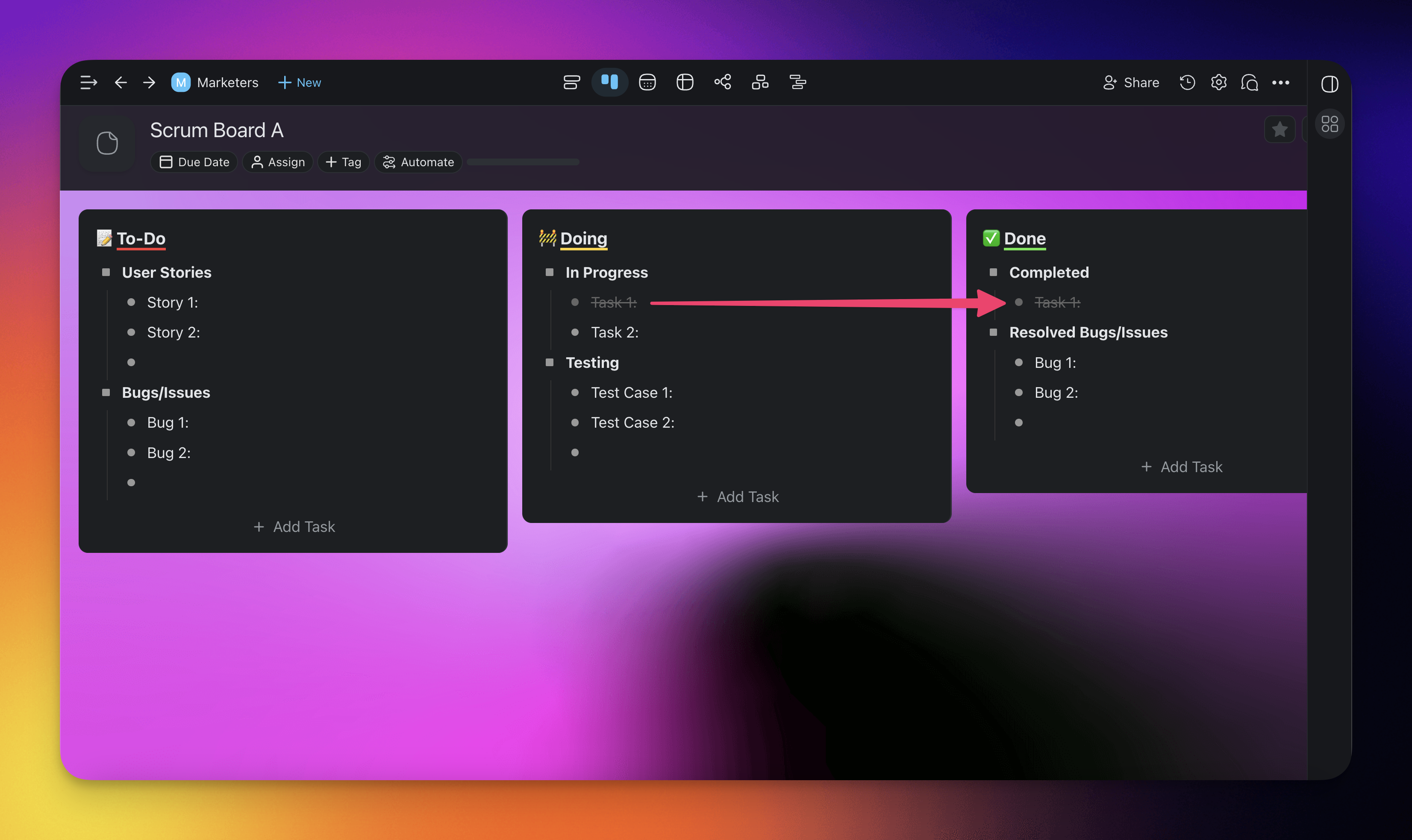
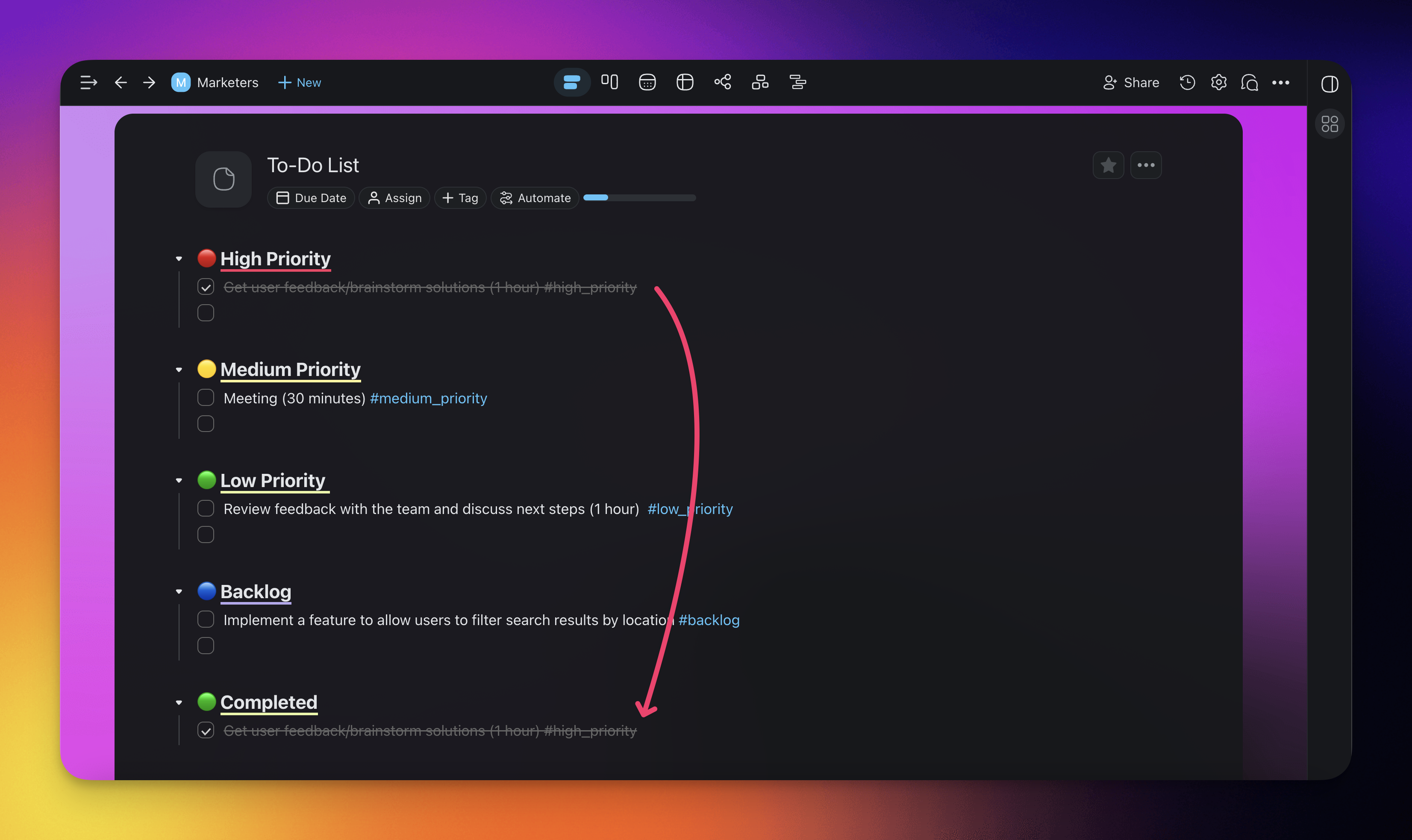
Organise Completed Tasks
Organize completed tasks within a project to keep a clear and structured workflow. Categorize finished tasks automatically. You can then review past work, track accomplishments, and keep your project clutter-free.
Related guides
- Move Completed Tasks. Bulk move on completion.
- Add Task. Create then move.
- Assign Task. Reassign during a move.
- Task Completed Trigger. Common trigger for moves.
- Board View. Visual target for Kanban-style moves.