
Overview
With the Scrape Webpage action you can extract data from websites and feed it into later automation steps. Use it to monitor competitor sites, gather market research, and track content changes, all without leaving Taskade.
TL;DR: Scrape Webpage runs as a step inside an automation. It fetches a target URL and returns the page content as structured text, which you can pass to AI actions like Categorize with AI or Agent for analysis. Use it to monitor competitor sites, gather market research, or track content changes.
When the action runs, it fetches the target URL and returns the page content as structured text. You can then pass that text to other actions such as Categorize with AI, Agent, or Search Web for further analysis.
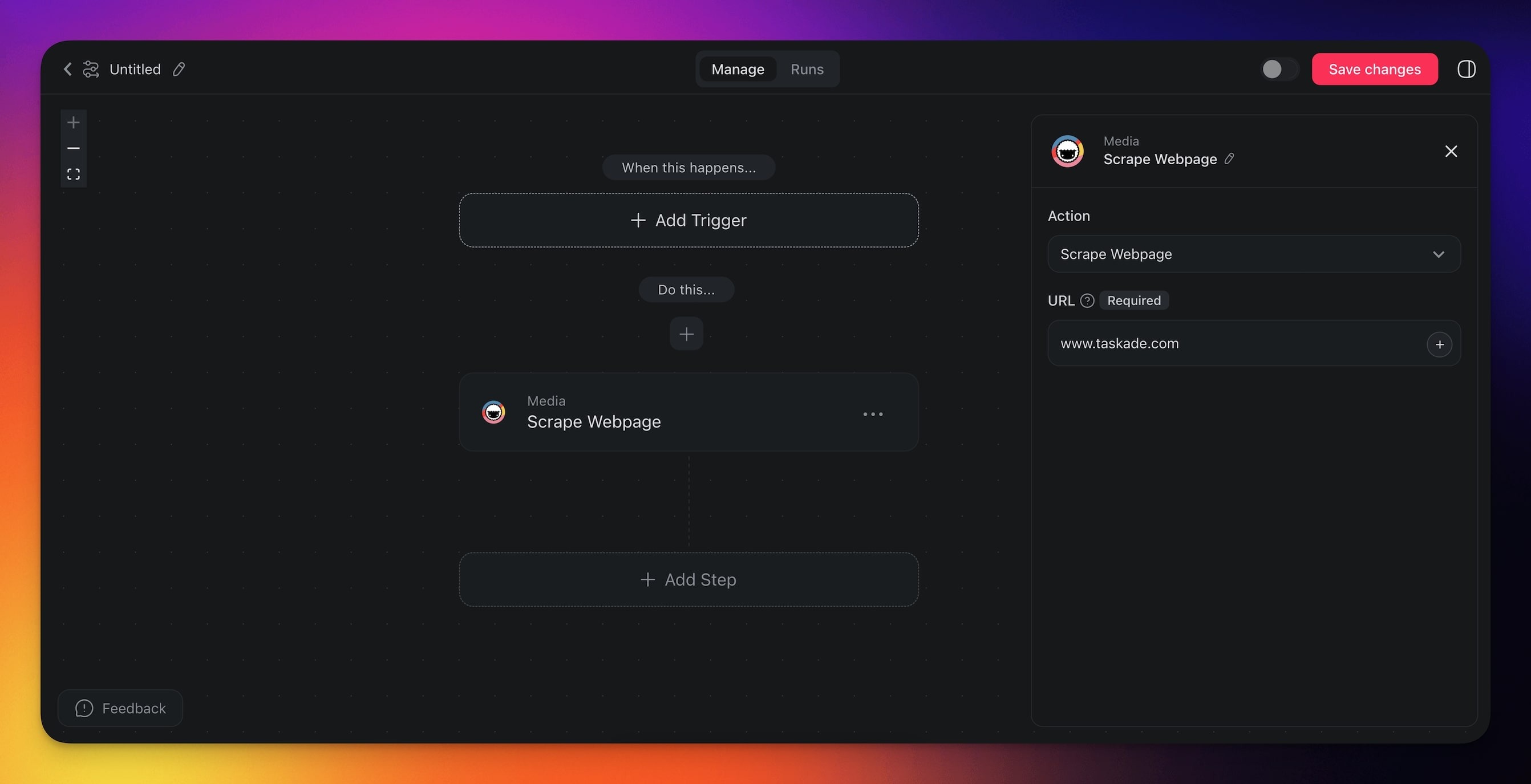
How to Use It
- Click ➕ Add Step and choose the Scrape Webpage action.
- Enter the full URL of the page you want to scrape.
- Finish the automation or add more steps to process the extracted text.
You can reference the URL dynamically from a previous trigger or action by typing @ in the URL field.
Scrape Webpage (Settings)
Connector settings give you full control over the Scrape Webpage automation:
| 🏷️ Field | 🔤 Description |
|---|---|
| URL | Provide the URL of the target webpage. |
Scrape Webpage Use Cases
Not sure how to use the Scrape Webpage connector? Here are a few ideas:
| 🪄 Use Case | 🔤 Description |
|---|---|
| Competitor analysis | Automatically extract pricing, product details, or promotional offers from competitor websites to stay informed on market trends. |
| Market research | Gather and compile data from multiple sources, such as product reviews or industry news, to analyze market conditions. |
| Lead generation | Extract contact information or business details from online directories or industry-specific websites to build lead lists. |
| Price monitoring | Track and compare prices of products across various e-commerce sites to adjust your pricing strategy or alert customers to deals. |
| Content change detection | Periodically scrape a page and compare it against previous results to detect updates such as policy changes or new product listings. |
Tips
- Chain with AI actions: Pipe the scraped text into the Categorize with AI action to automatically label or score the content.
- Run it on a schedule: Combine Scrape Webpage with the Schedule trigger to monitor pages at a regular interval.
- Dynamic URLs: Insert URLs from previous steps using the @ reference so the same automation can scrape different pages depending on input data.
Related guides
- Search Web. Find URLs to scrape.
- HTTP Request. Send and receive arbitrary API data.
- Agent Knowledge Action. Feed scraped content into agents.
- AI Categorize. Classify scraped content.
- Transcribe YouTube. Sibling action for video content.