
Overview
Use this trigger to run specific actions when a task is marked complete. Assign next steps and notify the right people to keep projects on track and work moving.
TL;DR: The Task Completed trigger starts an automation the moment a task is checked off. You can react to finished work: assign the next step, notify your team, log the result, or start a follow-up automation to keep projects on track and work moving.
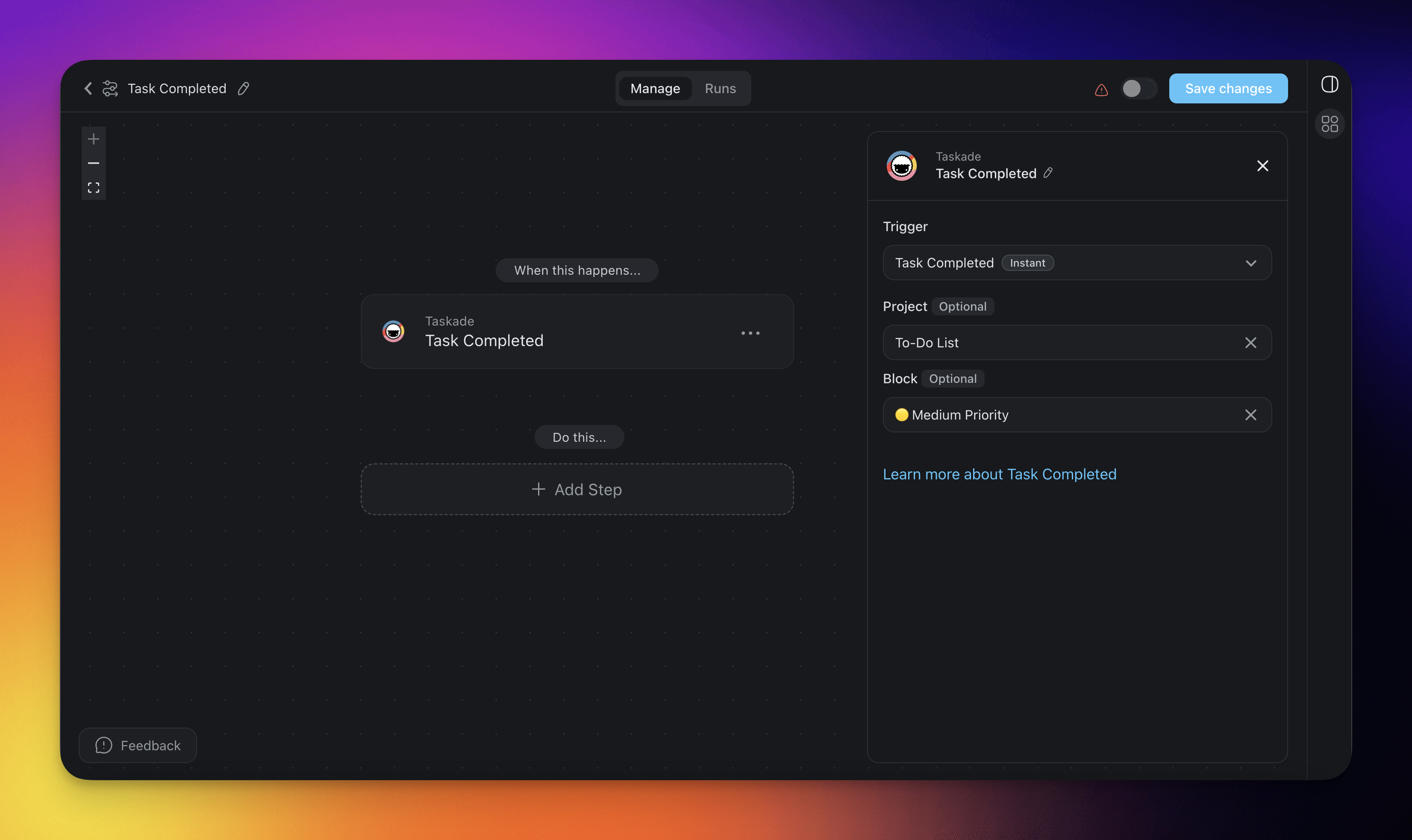
How to Use It
- Click ➕ Add Trigger and choose the Task Completed trigger.
- Select a Project for the automation to monitor.
💡 Note: If no project is selected, all projects are monitored by default.
- Optionally, select a specific Block within the Project to monitor for changes.
- Add more steps for further processing.
Task Completed (Settings)
Configure the trigger to match your project/use case:
| 🏷️ Field | 🔤 Description |
|---|---|
| Project (Optional) | Select the Project you want this trigger to watch. If you leave the project field blank, all projects are selected by default. |
| Block (Optional) | Select the Block you want this trigger to watch. If you leave the block field blank, all tasks in the project are monitored. Only Blocks inside the selected Project are available to pick. |
Task Completed Use Cases
Not sure how to use the trigger? Here are a few ideas:
Use Cases & Action Flows
| 🪄 Use case | 💭 Scenario | ⏩ Action Flow |
|---|---|---|
| Assign next steps | A task is done and a new task needs to begin. | Trigger: Task Completed → Add Task with a description of the next step → Assign Task to the next owner. |
| Notify your team | A task update needs to be shared with collaborators. | Trigger: Task Completed → Send Slack Channel Message or Send Email to notify the team. |
| Create follow-up project | A completed task wraps up one phase and starts a new project. | Trigger: Task Completed → Create Project From Template to kick off the next stage. |
| Log task completion | You want to track each completed task for reporting. | Trigger: Task Completed → Insert Row into a Google Sheet with task details and timestamp. |
| Organize finished tasks | Move completed tasks to a specific area or list. | Trigger: Task Completed → Move Task to an archive block or project section. |
| Generate summary or notes | A finished task needs a recap for future reference. | Trigger: Task Completed → Generate with AI → Append Text to a meeting doc or shared notes document. |
Related guides
- Mark Task as Completed Action. Complete a task from a flow.
- Project Complete Trigger. Fires when the whole project is done.
- Move Completed Tasks. Archive on completion.
- Task Added, Task Assigned, Task Due. Other lifecycle triggers.