
Overview
With the Task Manual Trigger you can start automations from inside projects. Manual triggers turn any task into a one-click button for an automation, perfect for ad-hoc runs that do not fit a schedule or webhook.
TL;DR: The Task Manual Trigger lets you start an automation on demand by selecting tasks and clicking Send to Automation, so you decide exactly when and which items enter the flow. Pair it with a downstream Agent Action to enrich tasks the moment you send them.
How It Works
- Navigate to the Automations tab in your workspace/folder.
- Click ➕ Create automation ➡ Start from scratch.
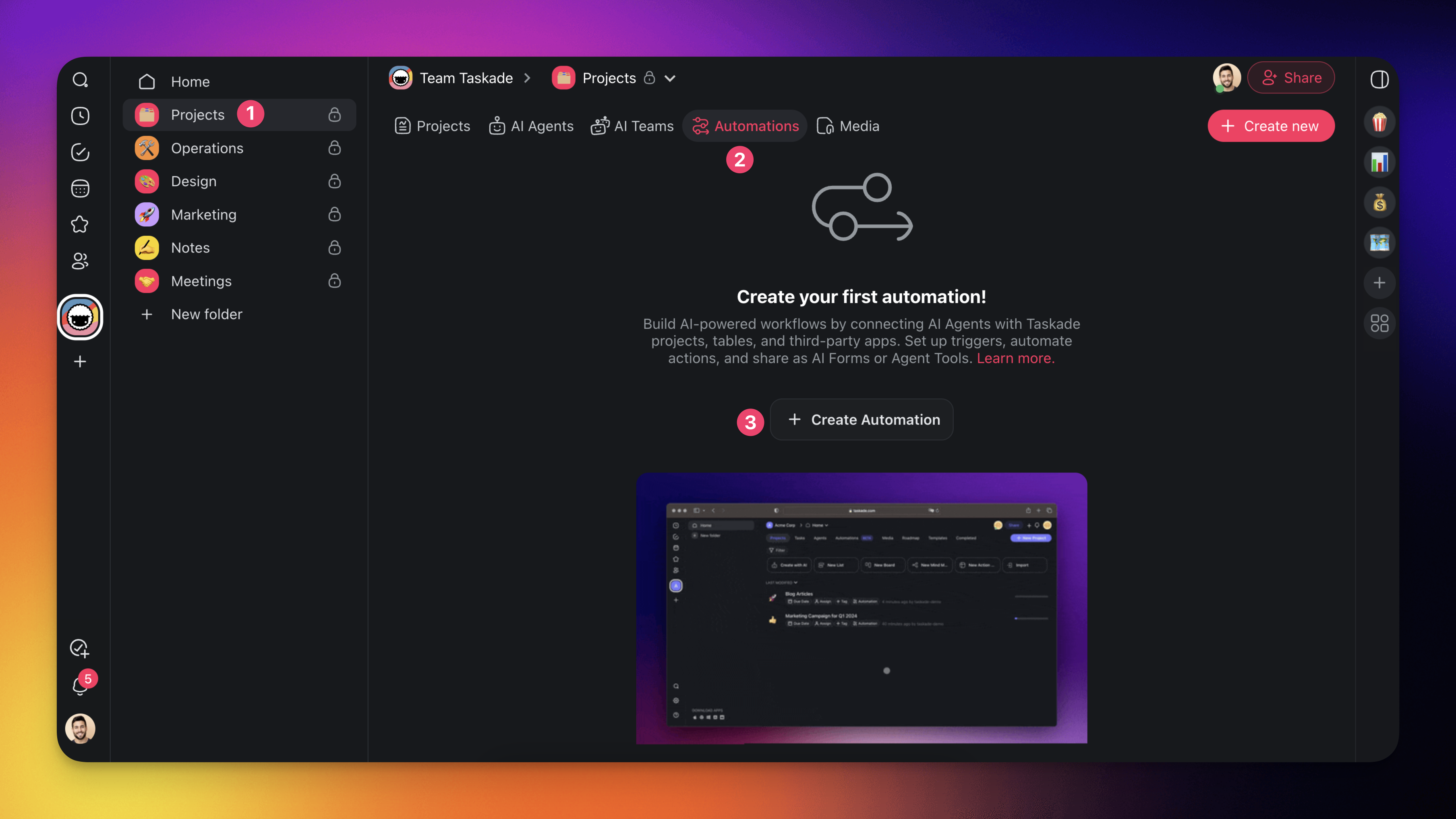
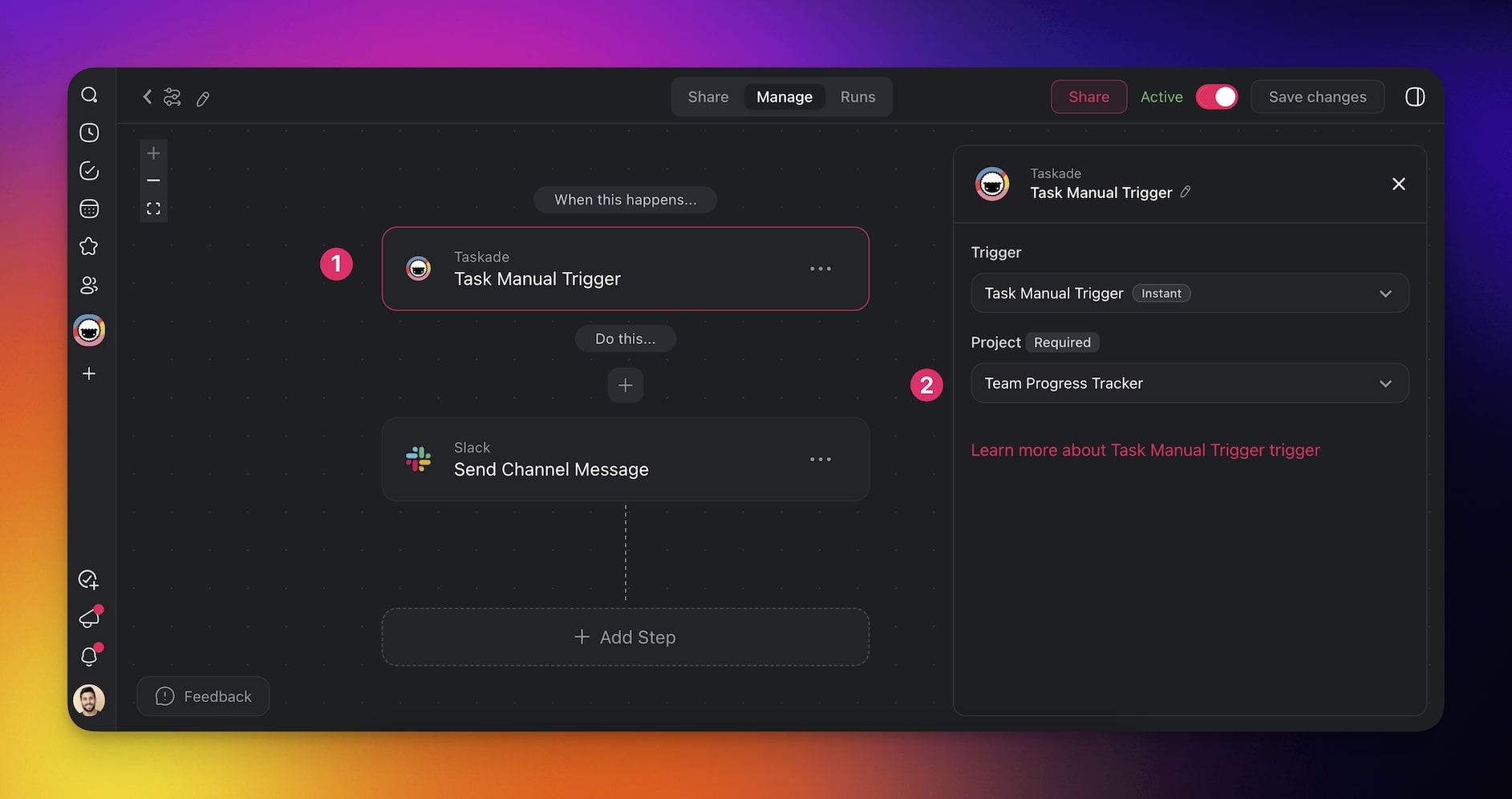
Click ➕ Add Trigger➡ Task Manual Trigger.
Choose the project you want to monitor.
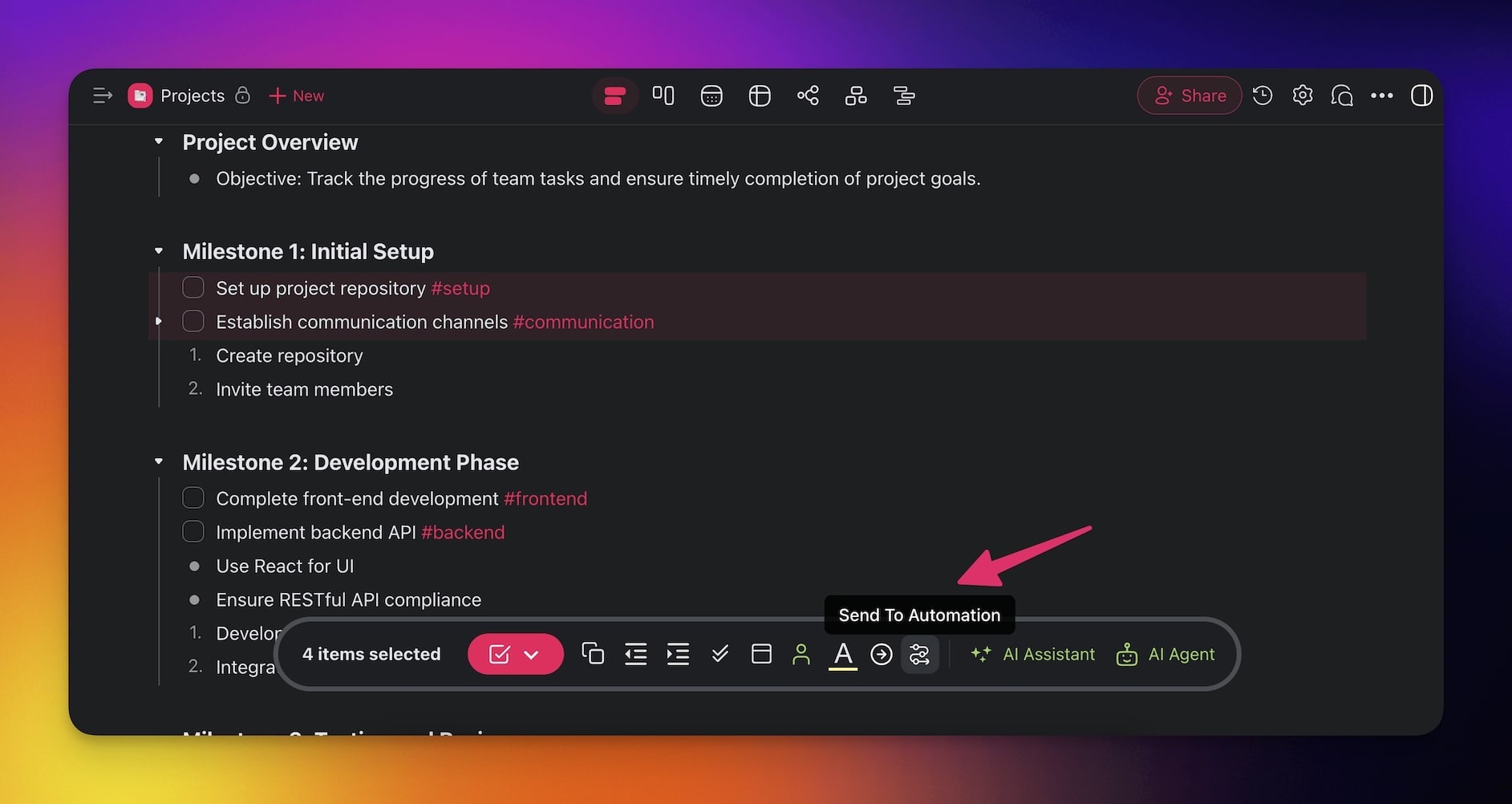
Open the connected project.
Select the tasks you want to use as triggers.
Click Send to Automation in the main toolbar.
- Choose the automation from the list.
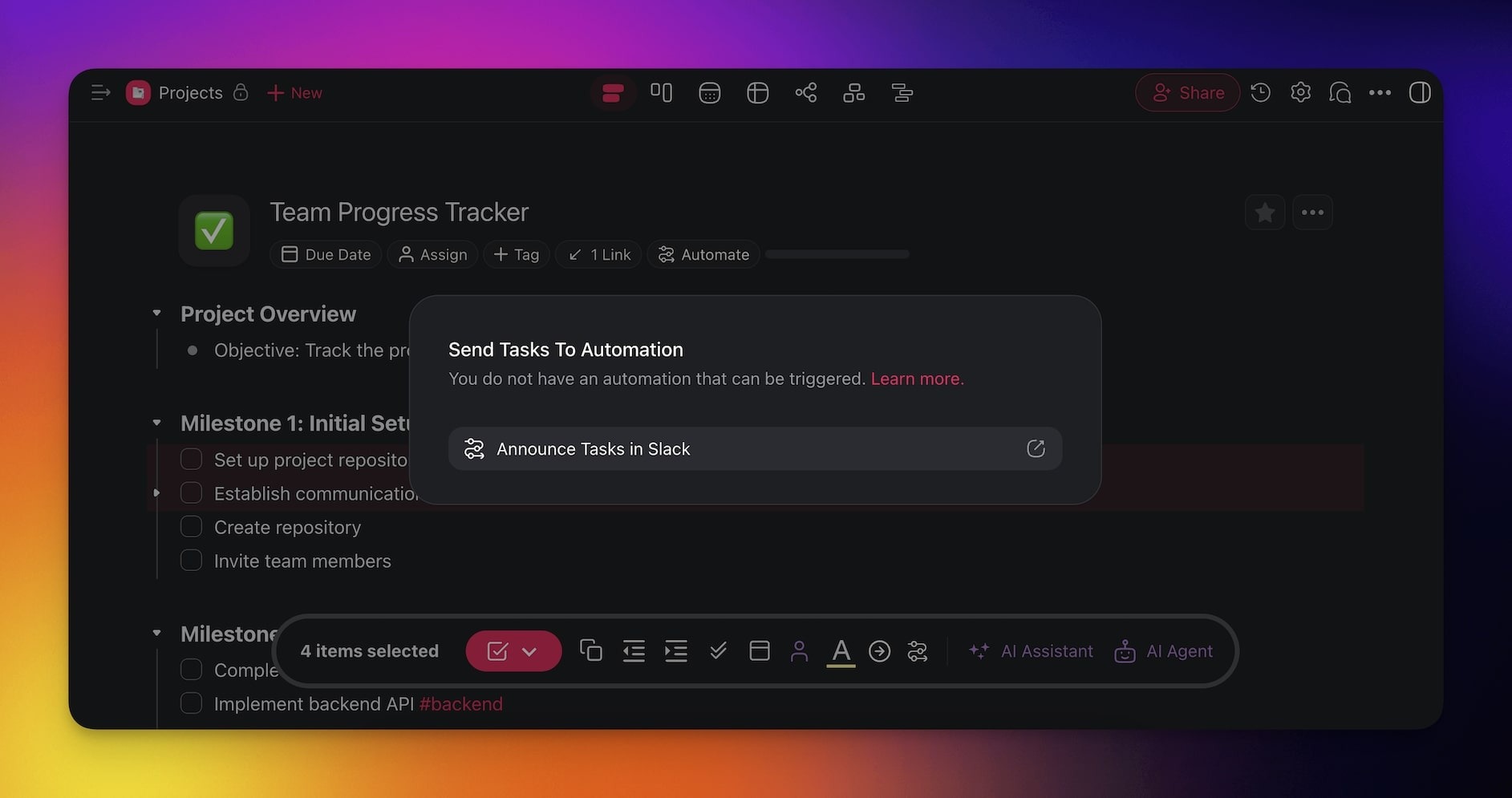
- The automation will process the submitted tasks.
Pick the Right Manual Start
Two triggers start an automation on demand. They start it from different places.
| Trigger | Who starts the run | Pick it when |
|---|---|---|
| Task Manual Trigger | You, from a project | You want to select tasks and click Send to Automation. |
| Agent Tool | An AI agent, mid-conversation | You want the agent to run the automation and pass its own parameters. |
An automation that uses the Agent Tool trigger appears in an agent's tool list once the automation
is enabled. By default the agent asks for your approval before it runs the tool.
Use Cases
Not sure how to use this trigger? Here are a few ideas:
| 🪄 Use Case | 🔤 Description |
|---|---|
| Client onboarding | Manually trigger an automation to send predefined onboarding emails and assign relevant tasks when a new client project is created. |
| Bug tracking & escalation | When a critical bug is identified, trigger an automation to notify the engineering team, create a priority issue, and update stakeholders. |
| Content publishing | Once an article draft is completed, trigger automation to schedule social media posts, notify the marketing team, and update the content calendar. |
| Invoice processing | Manually trigger automation to generate an invoice, send it to the finance team, and update the payment system. |
| Employee offboarding | When an employee resigns, trigger an automation to deactivate accounts, reassign tasks, and send exit checklists. |
Tips
- Selective processing. You can select one task or multiple tasks before clicking Send to Automation, so only the chosen items are processed.
- Reusable automations. Build the automation once and reuse it across different projects. The manual trigger lets you decide exactly when and which tasks enter the flow.
- Combine with AI. Pair the manual trigger with the Agent action to have an AI agent analyze, enrich, or summarize the submitted tasks on demand.
- Audit trail. Every manual trigger run is logged, so you can review which tasks were processed and when.
Related guides
- Schedule Trigger. Recurring automation
- Webhooks. External programmatic triggers
- Find Tasks. Query before running manual flows
- Agent Action. Common downstream step