
Overview
The HTTP Request action connects Taskade to any system that has no built-in integration. It sends an API call out to any web service as a step inside your automation. Read data from the apps across your stack, or push updates to them.
TL;DR: The HTTP Request action runs as a step inside an automation. It pushes an API call out to any web service. Use it to connect Taskade to apps that have no built-in integration. Pair it with Webhooks on the inbound side for a fully programmable backend.
With the HTTP Request action, you can:
- Access any API endpoint that is not covered by built-in integrations.
- Send and receive data in real-time between Taskade and external systems.
- Build enterprise-grade integrations with your existing tech stack.
HTTP Request is the universal escape hatch. When none of Taskade's 100+ native integrations fit, you can call any API in the world. Pair it with Webhooks on the inbound side and you have a fully programmable backend behind any Taskade Genesis app.
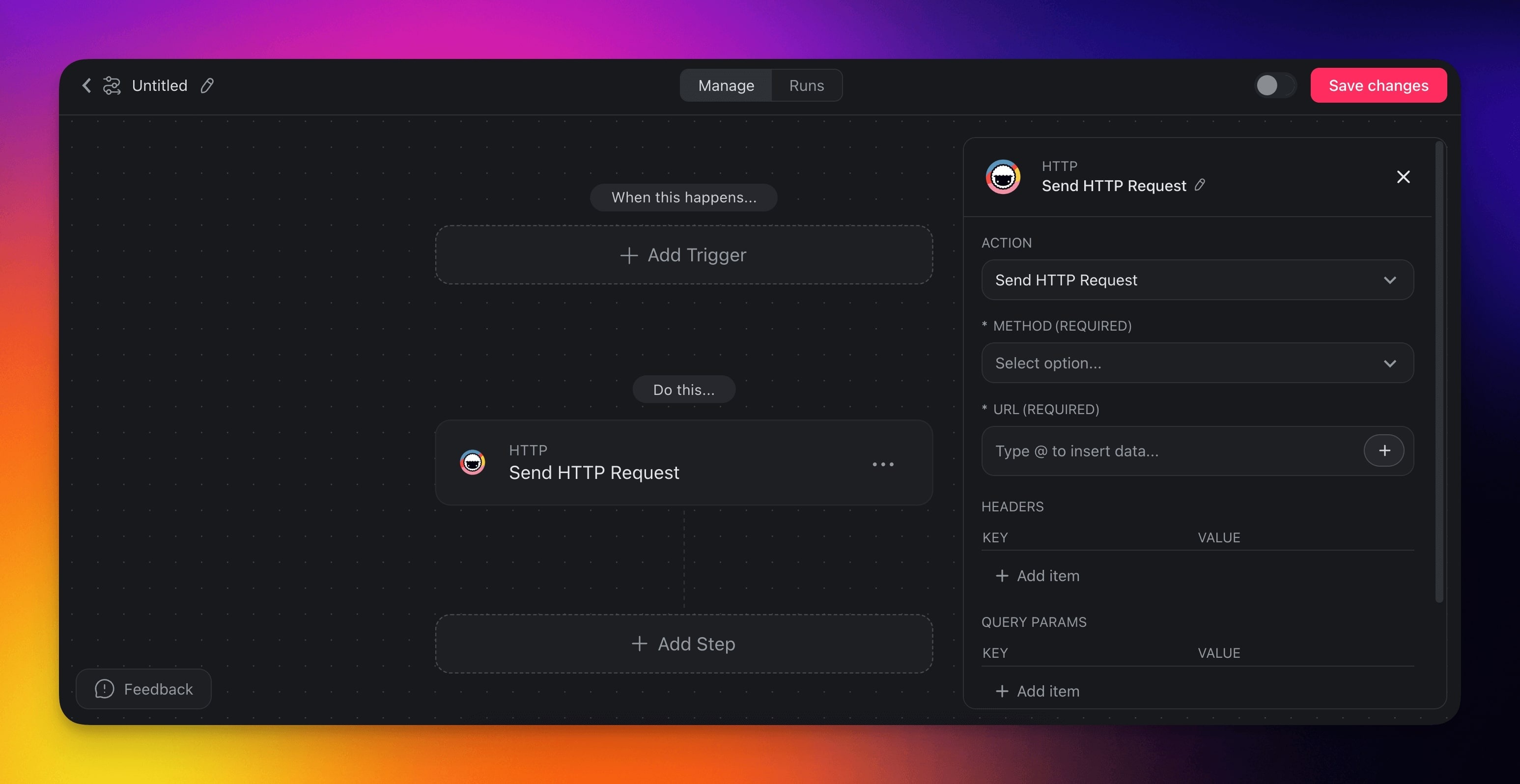
HTTP Request Actions
Here are the actions you can use in your automations:
| (ACTION) Send HTTP Request | Initiates the process of sending an HTTP request to a specified URL. |
|---|
HTTP Automation Settings
Connector options give you full control over the HTTP Request automation:
Trigger: Send HTTP Request
| Parameter | Description | Example |
|---|---|---|
| Method | Choose what you want the HTTP request to do: get information, create something new, update existing data, or delete something | GET (retrieve), POST (create), PUT (update), DELETE (remove), HEAD (check if exists), PATCH (update part) |
| URL | Enter the web address where you want to send your HTTP request | https://api.example.com/v1/users/123 |
| Headers | Add special instructions like passwords or API keys that the receiving system needs to process your request | Authorization: Bearer token123 |
| Query Params | Add extra options to your request URL to filter results or specify what you want back | ?limit=10&sort=date&status=active |
| Body Type | Tell the system how you want to package the data | JSON, Form Data, Raw, XML |
| Body Content | Write the actual information you want to request | {"name": "John", "email": "john@example.com"} |
| Response Body Type | Choose how you want to receive and process the information that comes back | JSON or None |
Sending a HTTP Request
There are many platforms compatible with HTTP requests. In the example below, we will show you how to set up a webhook using Make to receive an HTTP request:
Set Up Webhooks
- Sign in to your Make account.
- Click the Create a new scenario button on the top left corner of the screen.
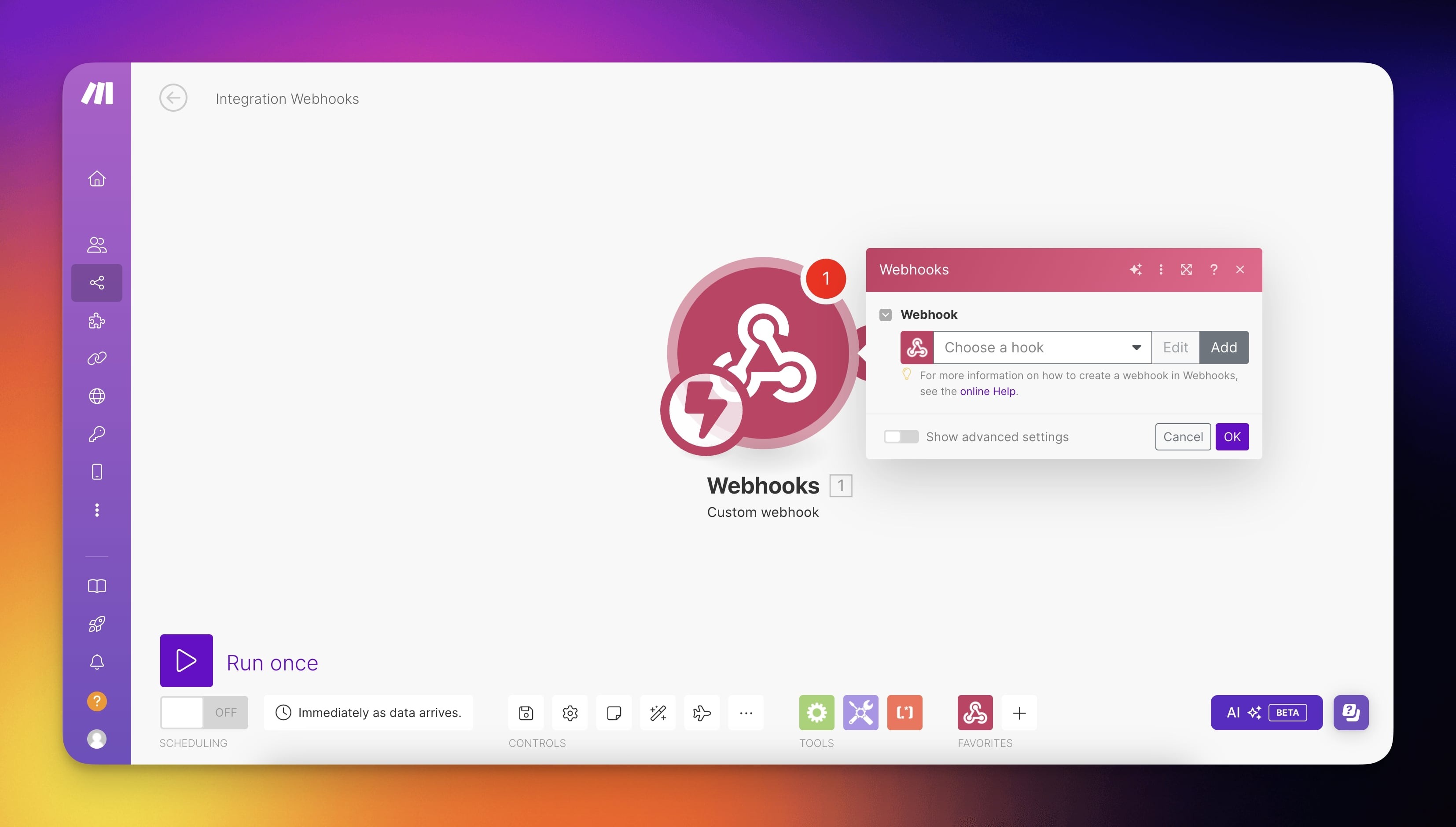
- Click the plus icon and choose Webhook from the available modules.
- Select Custom Webhook.
- Click Add to generate a new webhook.
- Assign a descriptive name to your webhook and Click Save.
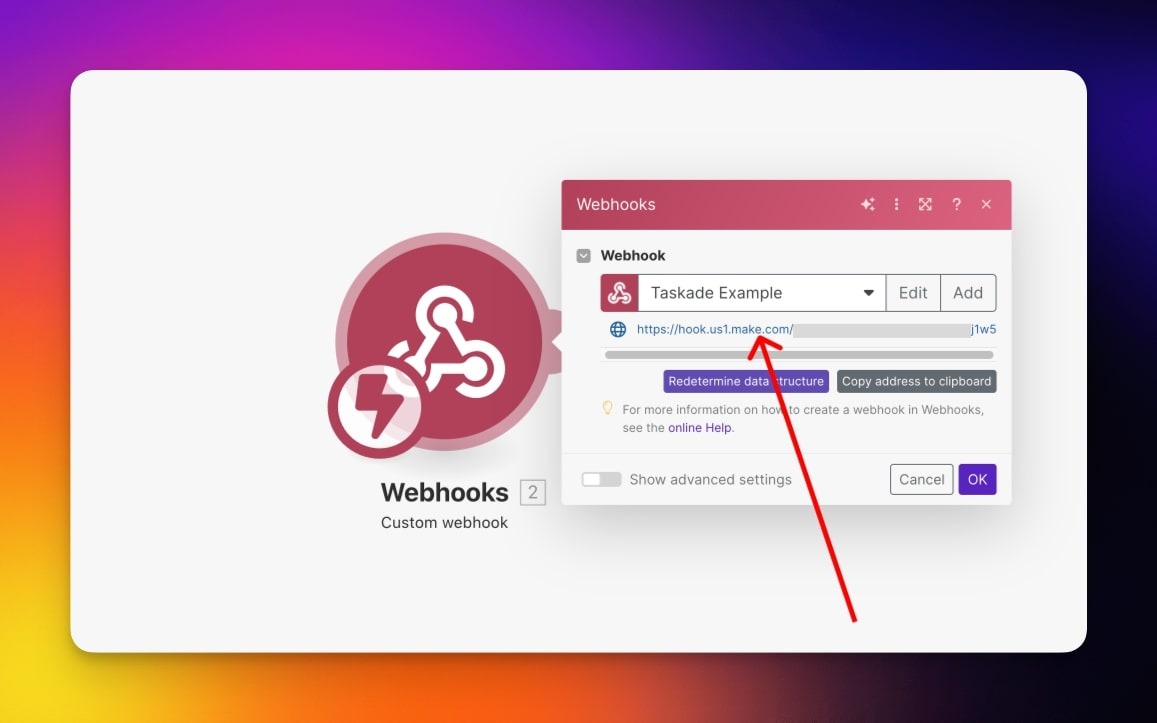
- Make will provide a unique URL for your webhook.
- Copy this URL to Taskade (see the next step).
Set Up HTTP Request
- Go to your Taskade workspace.
- Navigate to the Automations tab at the top.
- Click ➕ Add automation ➡ Start from scratch.
- Create any new Trigger.
- Create a Send HTTP Request Action.
- Configure the Send HTTP Request Action on Taskade to be a POST request.
- Place the provided URL by Make into the URL field of the Taskade action.
- Fill in the header as
content-typeandapplication/json. - Enter the desired content within the JSON body.
- Activate the automation by toggling it in the top right corner of the screen.
- Trigger your automation.
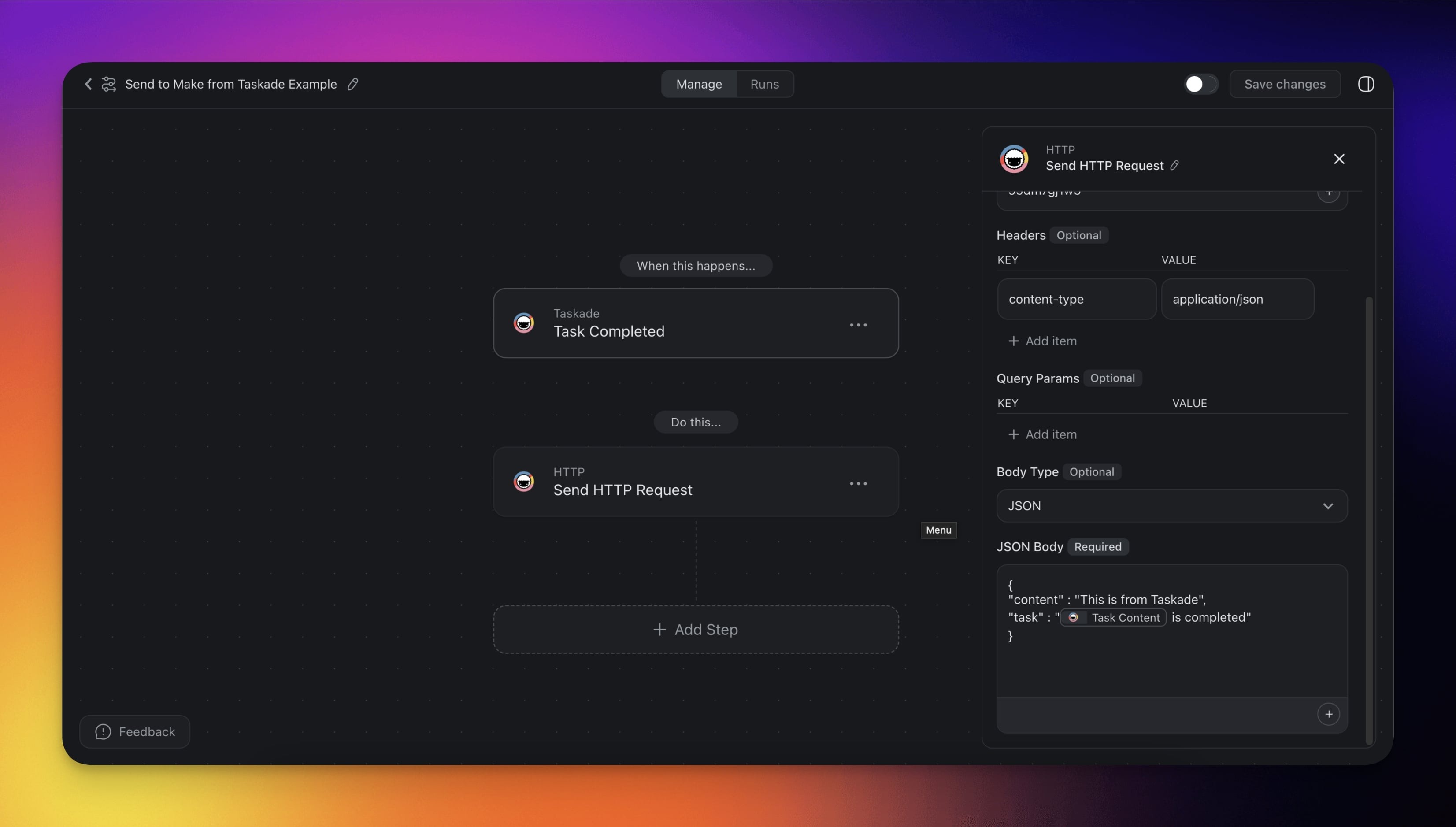
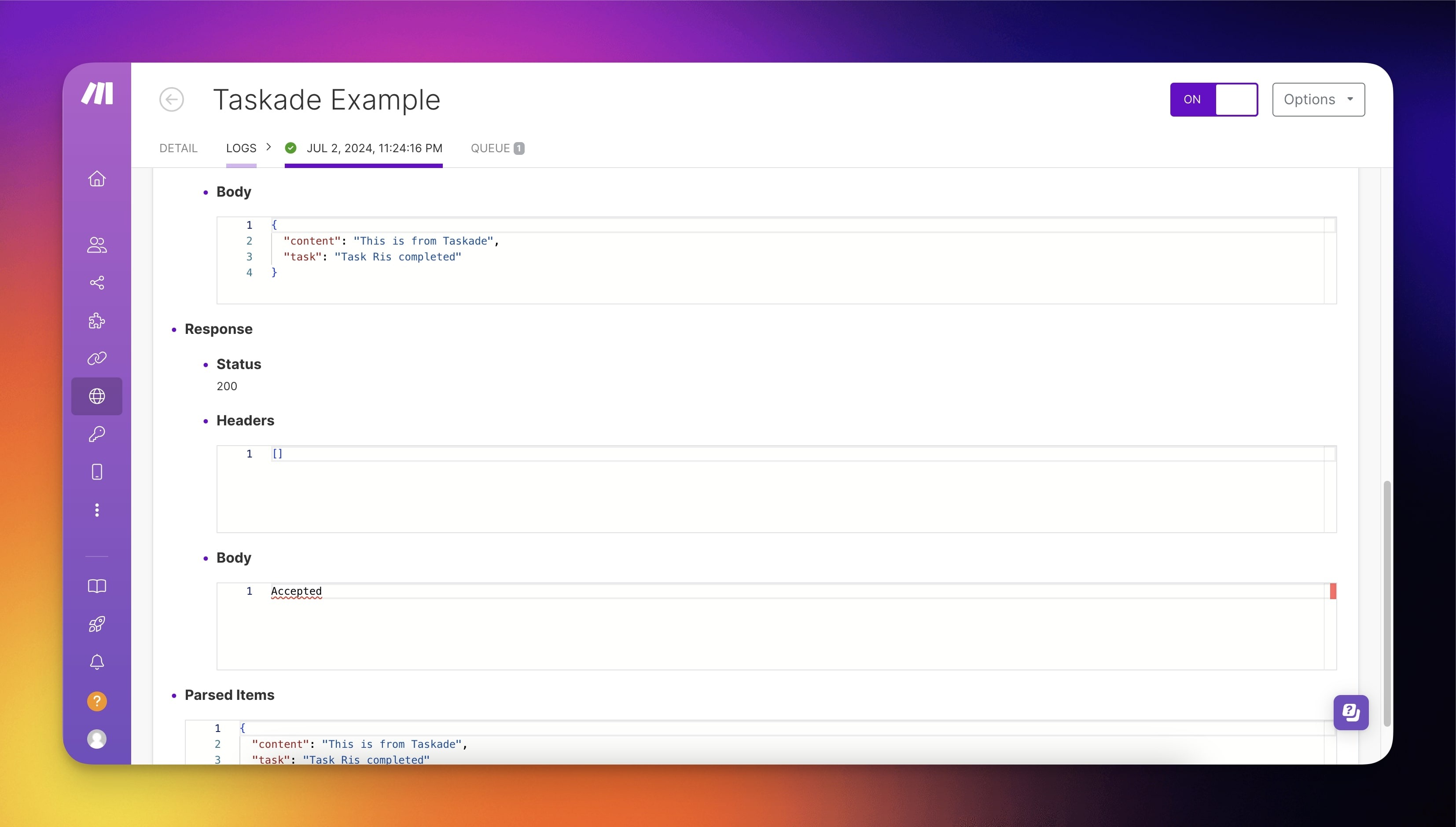
Make's Webhook logs show the received data. The output follows:
Generate a Response
You can configure your HTTP Request action and extract specific data using a custom schema. Follow these steps to set things up:
Set up your HTTP Request as usual.
Under the Response Body Schema section, select JSON.
This will display the Generate Automatically button.
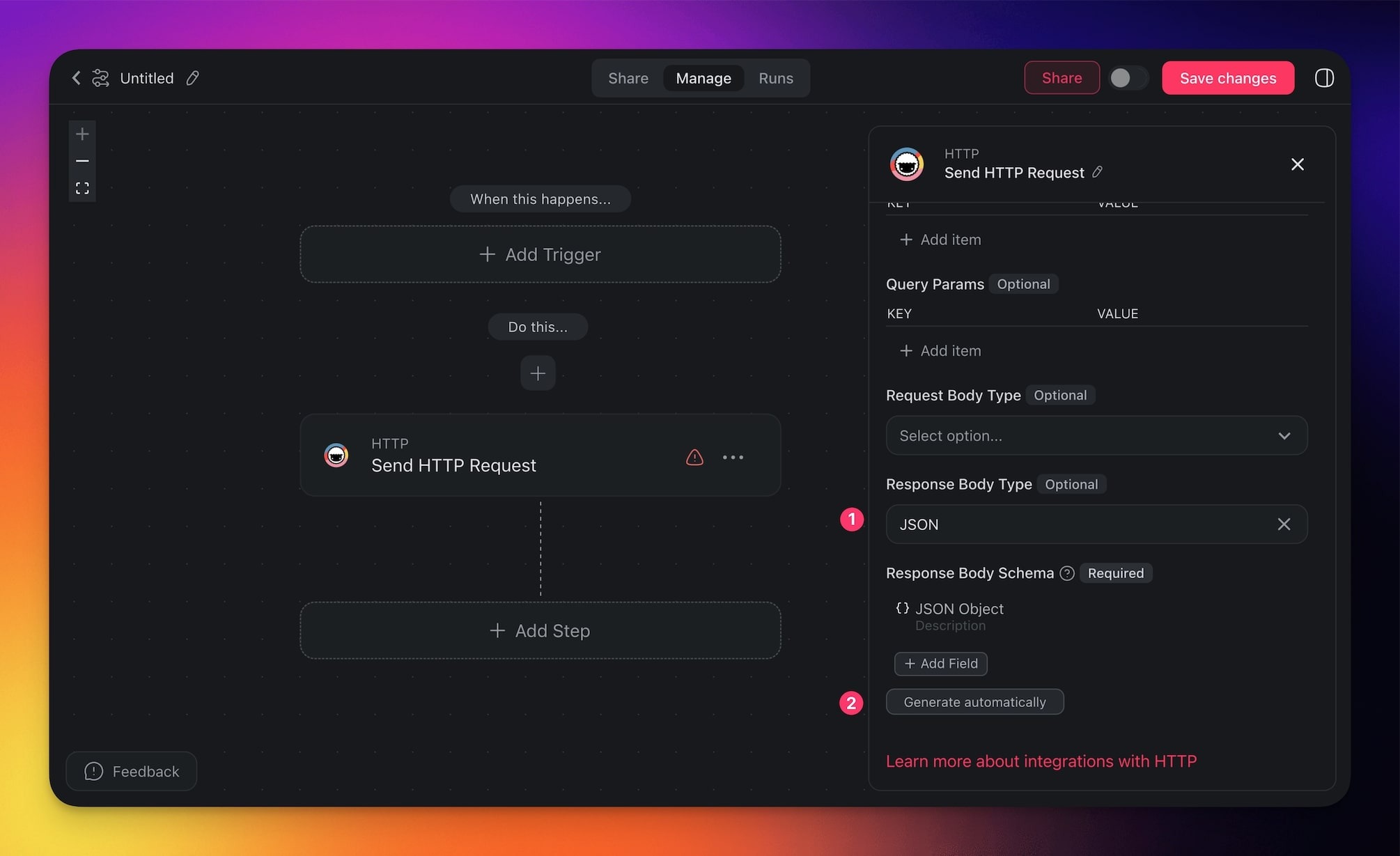
Click Generate Automatically to open a dialog where you can send a test request.
After sending, the system will extract available fields from the JSON response.
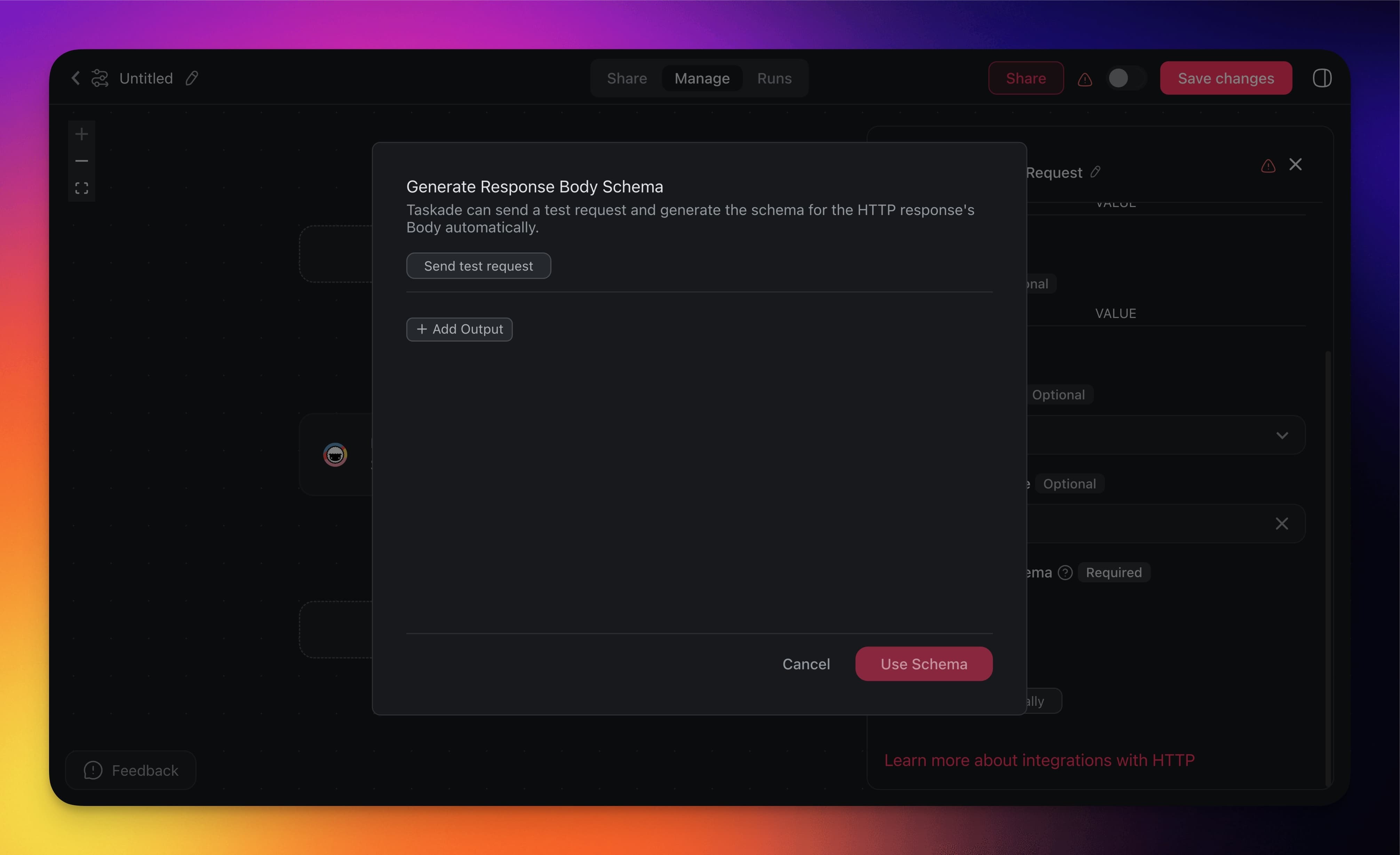
Review the extracted fields and select which ones you want to keep or remove.
Once done, click Use Schema to apply your custom schema.
The selected fields will now be included in subsequent actions.
You can use these fields in various ways:
- Insert them to other actions.
- Pass them to AI Agents.
- Use them in follow-up HTTP requests to chain multiple requests.
Use Cases
Not sure how to make the most of this action? Start with these automation flows:
| Use Case | Automation Flow |
|---|---|
| Get weather data for outdoor project scheduling | ✅ Trigger: Schedule (daily) ➡️ Action: Send HTTP Request to weather API ➡️ Action: Add Task with recommendations |
| Validate email addresses on contact creation | ✅ Trigger: Task Added (new contact) ➡️ Action: Send HTTP Request to email validation ➡️ Action: Update Custom Fields with status |
| Translate content for international teams | ✅ Trigger: Task Added (content task) ➡️ Action: Send HTTP Request to translation API ➡️ Action: Append Text (GDocs) with translation |
| Fetch stock prices for investment tracking | ✅ Trigger: Schedule (market open) ➡️ Action: Send HTTP Request to financial API ➡️ Action: Insert Row (Google Sheets) with data |
| Get public holidays for project planning | ✅ Trigger: Project Created ➡️ Action: Send HTTP Request to calendar API ➡️ Action: Create Event (Google Calendar) |
| Verify company information via business lookup | ✅ Trigger: Form Trigger (new contact) ➡️ Action: Send HTTP Request to CRM API ➡️ Action: Update Custom Fields with details |
Use this integration as an AI agent tool. See Tools for AI Agents.
Related guides
- Webhooks Trigger. Inbound counterpart (external into Taskade).
- Agent Tool Trigger. Expose an HTTP call as an agent tool.
- Structured Output. Parse API responses with a schema.
- MCP Connectors. How external AI clients like Claude Desktop or Cursor reach into your workspace over MCP.
- Taskade Public API. The API you can call FROM automations.