
Overview
The Create Project action lets you quickly generate new projects within automation runs. Pair with Project Template to keep them on-brand, and an Ask Agent step to populate the new project with AI-generated tasks.
TL;DR: Create Project runs as a step inside an automation and spins up a brand new project from a title, content, and optional view. Use it to write results back into your workspace automatically, like a fresh project for every new client, alert, or weekly meeting. Pair it with Project Template to keep every new project on-brand.
How to Use It
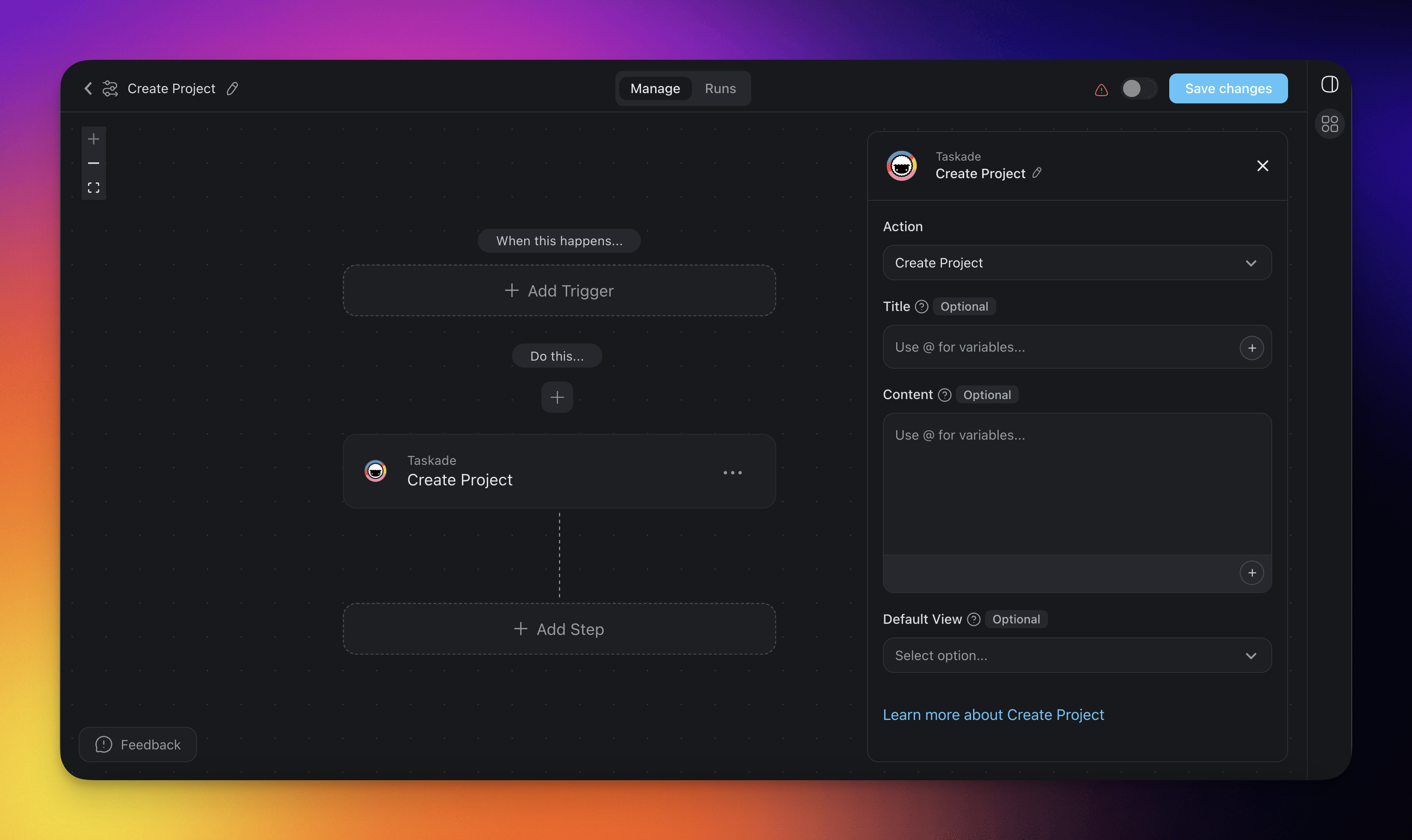
- Click ➕ Add Step and choose the Create Project action.
- Type in the desired Title of the project.
- Type in the desired Content within the new project.
- Choose a default view (optional) for the project. If it is left blank, it will be list view.
- Finish the automation or add more steps for further processing.
Create Project (Settings)
Connector options give you full control over the Create Project automation:
| 🏷️ Field | 🔤 Description |
|---|---|
| Title | Enter the Title you want the newly created project to have. |
| Content | Enter the Content you want the newly created project to contain. |
| Default View | Choose the default view you want the project to have. If you leave it blank, the project uses List view. |
| Emoji | One emoji used as the project icon. Leave it empty and Taskade picks a random one. |
| Tag | A workspace tag applied when the project is created. |
Create Project Use Cases
Not sure how to use the Create Project action? Here are a few ideas:
| 🪄 Use case | 🔤 Description |
|---|---|
| Client onboarding | Create a project every time a new client emails you. Track client information and ensure all necessary documentation is completed, reducing onboarding time. |
| Blog post creation | Use Create Project to automatically document an AI agent's generated blog post for further refinement by your editorial team. |
| Weekly meetings | Set up an interval to create a project for your team's weekly meetings automatically, pre-loaded with an agenda template. |
| Research compilation | After a Search Web or Scrape Webpage action, store the gathered data in a new project for team review. |
| Incident reports | When a monitoring alert fires, automatically create an incident project with the alert details, assignees, and a response checklist. |
Tips
- Dynamic titles: Use the @ reference to insert data from previous steps into the project title. For example, include a client name or date so each project is uniquely identifiable.
- Set a default view: Choose Board, Calendar, or any other project view your plan includes, matching the workflow the project is designed for. Gantt Chart, Actionsheet, and Org Chart need a paid plan.
- Name it on sight: Set an Emoji and a Tag so a project created by an automation is recognizable in the sidebar and filterable in a workspace view.
- Pair with templates: For more complex project structures, consider the Project Template action instead, which creates a project from a predefined template with tasks, assignees, and due dates already set up.
Related guides
- Project Template Action: Use a template with pre-filled tasks
- Add Task: Add tasks to the new project
- Agent Action: AI-populate project content
- Project Complete Trigger: React when projects finish