
Overview
With the Filter Data action you can set conditions inside your automations. The later actions run only when the data matches those conditions.
TL;DR: Filter Data is a gatekeeper step you place inside an automation, right after a noisy trigger. Set conditions, and the rest of the automation only runs for events that match, so downstream actions fire only on the data that matters. See Automation Triggers.
💡 Note: You can define multiple conditions for each action.
The Gate-Keeping Pattern
Filter Data is the automation gatekeeper. Place it after your trigger and the rest of the automation only runs for events that match:
Without Filter Data, a noisy trigger (like "new email" or "task updated") runs the full automation for every single event. With Filter Data, the rest of the automation runs only for the events that matter.
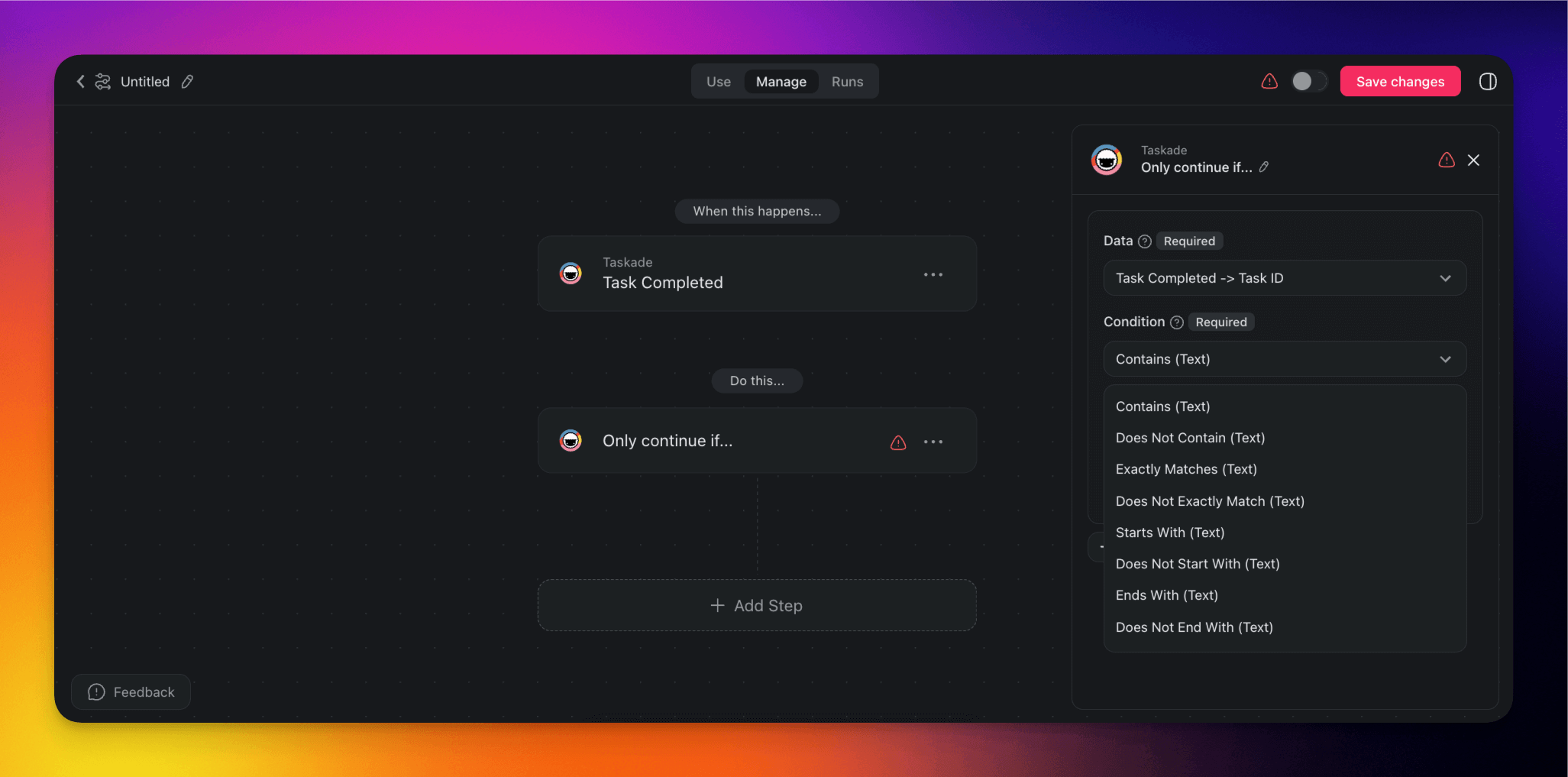
Action Settings
Add the step from the Logic & Flow Control tab of the step picker. It arrives on the canvas
titled Only continue if.... Configure it in the right sidebar:
| 🏷️ Field | 🔤 Description |
|---|---|
| Data | Choose the input data. |
| Condition | Specify conditions for the data filter. |
| Value | Enter the value to compare against. |
Click ➕ Add to require another condition. All conditions in a group must be true. Click
➕ Or to start an alternative group. Any one group can let the run continue.
Available Conditions
Filter Data and Branch share one condition list. Pick the
condition that matches the type of the data.
| Type | Conditions |
|---|---|
| Text | Contains, Does Not Contain, Exactly Matches, Does Not Exactly Match, Starts With, Does Not Start With, Ends With, Does Not End With, Is Empty, Is Not Empty |
| Pattern | Matches Regex, Does Not Match Regex |
| Number | Equals, Does Not Equal, Greater Than, Less Than |
Write a regular expression as plain text, or in /pattern/flags form. The i, m, and s flags
are supported.
Read the Result in the Runs Tab
A filter that does not match stops the run cleanly. It is not an error.
- The run is listed as Filtered in the Runs tab, next to Completed, Failed, and Running.
- The Filter step records the message
Filtered out!, and every step after it stays unrun. - Nothing downstream fires, so no message is sent and no record is written.
If a filter sits inside a Loop, a non-matching item stops only
that iteration. The loop continues with the next item.
Filter Custom Fields
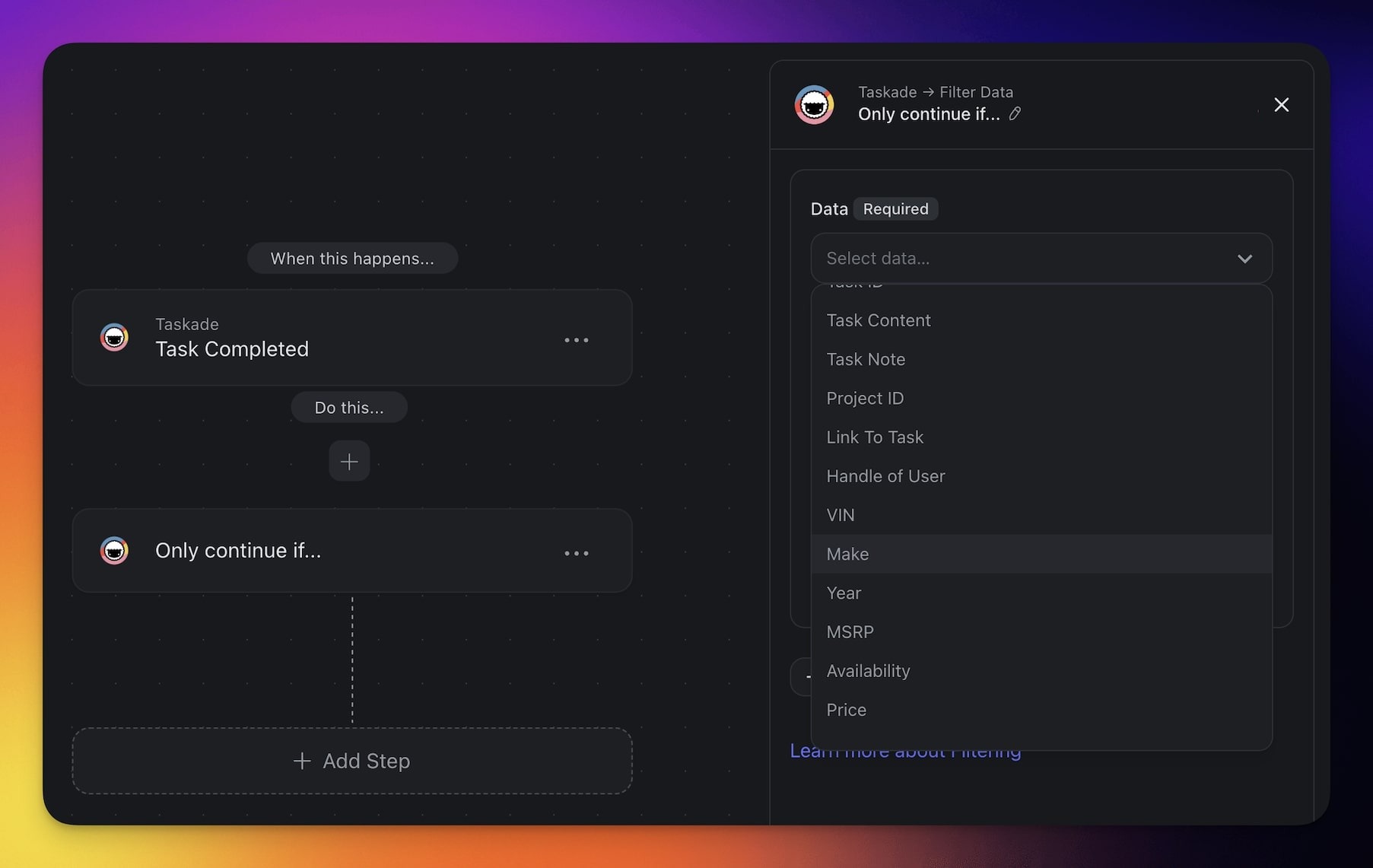
The Filter action automatically populates the Data filter with custom fields if any are present in a connected project. Here is how to set it up:
Use one of the available actions/triggers to provide the data to filter.
For example, you can precede the filter with the Task Completed trigger.
Choose one of the detected custom fields in the Data filter.
Use Cases
Not sure where to start? Explore this use case for the Filter Data action first:
| 🪄 Use Case | 💭 Scenario | ⏩ Action Flow |
|---|---|---|
| Support escalation | Escalate customer issues when urgent keywords are detected. | A customer sends an email or submits a support ticket. The system checks if it contains urgent keywords. If found, the issue is automatically escalated by notifying the support lead and reassigning the task to a higher priority team member. |
| Lead enrichment | Automatically enrich new form submissions with lead data. | When a new form submission is received, the system extracts the email address and fetches additional lead data from Apollo. The enriched data is then saved in a Google Sheet for future use. |
| Auto-response | Auto-respond to user questions using a trained AI agent. | When a user submits a query, the AI agent processes it, generates a structured response, and sends it back to the user automatically without manual intervention. |
| Intelligent task routing | Distribute incoming tasks based on keywords and custom fields. | New tasks are evaluated based on keywords or custom fields, and based on those criteria, the task is routed to the appropriate team member, with a notification sent to inform them. |
| Daily report generation with AI | Summarize and share daily progress across tasks. | Every day at 5 PM, the system collects the tasks completed during the day, generates a summary using AI, and sends it out to the team via Slack or email. |
Related guides
- Branch Action. Multi-path routing (vs. single-gate filter).
- Loop Action. Per-item filtering within arrays.
- Custom Fields. Filter by project custom fields.
- Automation Triggers. Noisy triggers that benefit from filters.
- Automations: Overview. Full automation anatomy.