
Overview
The Task Added trigger runs an automation after a new task appears in a selected Taskade project. The trigger waits for project edits to stop before it starts the run.
TL;DR: The Task Added trigger starts about five minutes after the last edit to the watched project. Each further edit restarts the wait. Use it to notify your team in Slack, log tasks to a sheet, or draft content with AI. See more automation actions & triggers.
Note: Be sure to explore other automation actions & triggers.
Task Added is the most-used trigger in Taskade, the spark for "if a new item enters this project, then..." workflows.
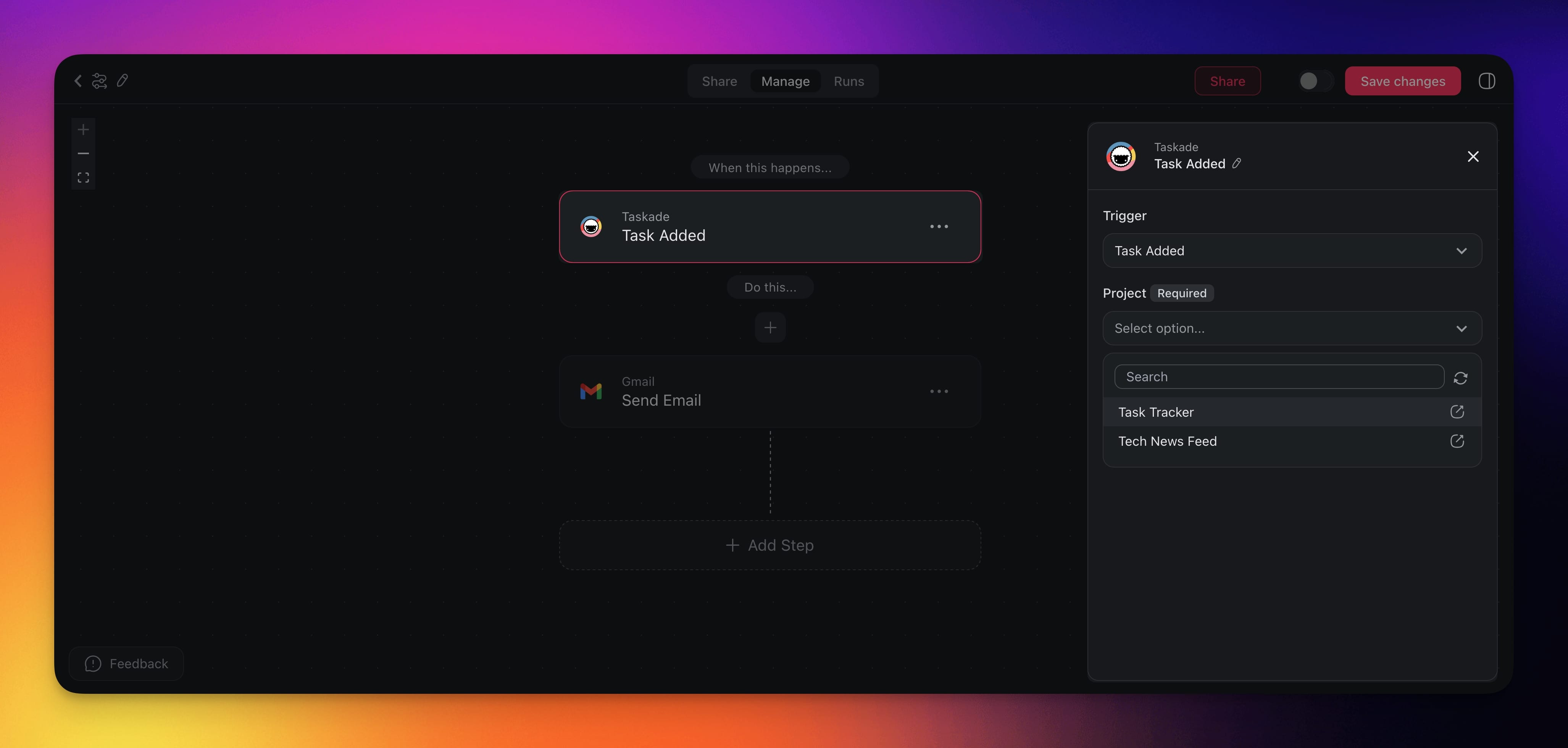
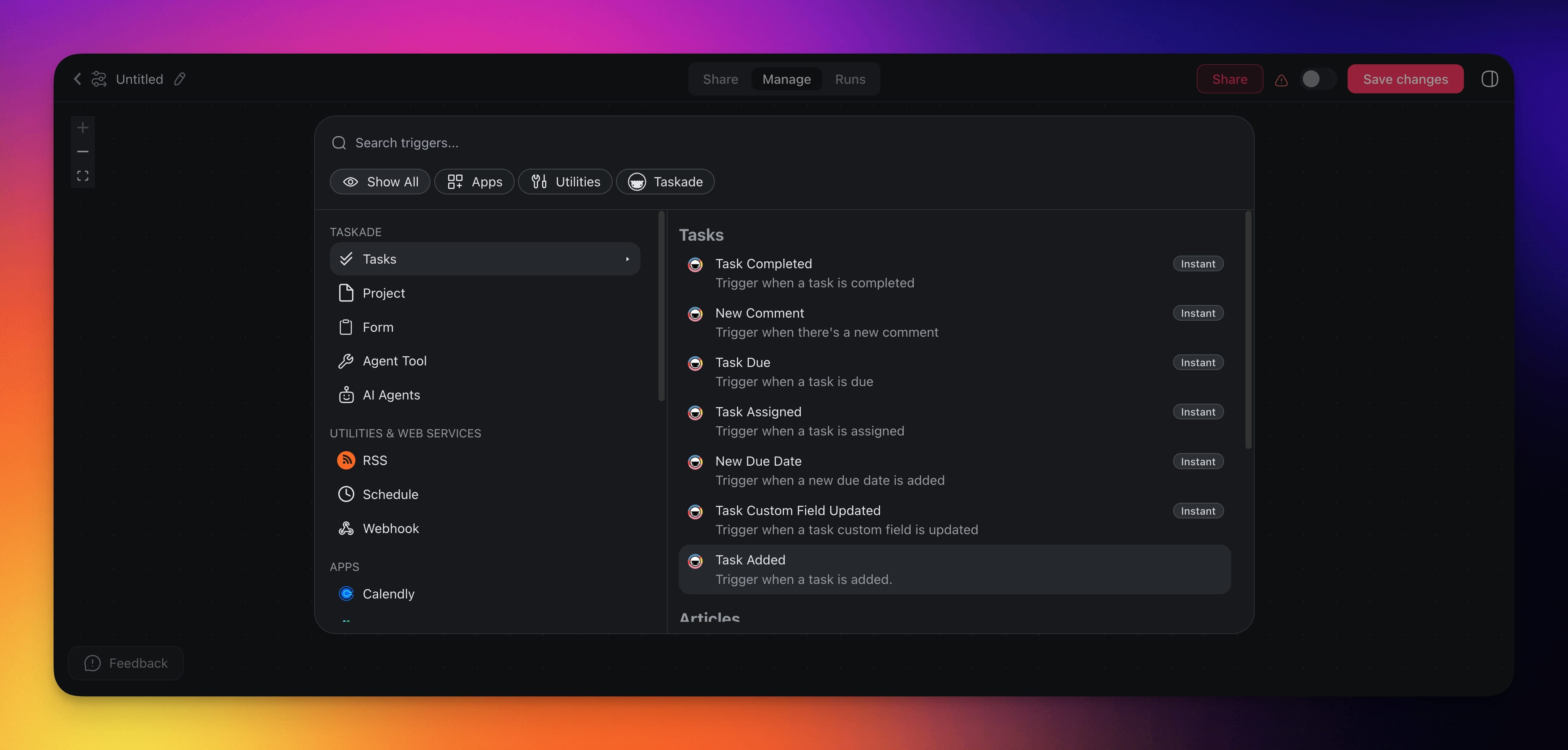
Use the Task Added Trigger
- Create a new automation or edit an existing flow.
- Click ➕ Add Trigger and select Task Added from the available options.
- Configure the trigger in the sidebar on the right.
Task Added (Settings)
Trigger settings let you define conditions for the Task Added trigger:
| 🏷️ Field | 🔤 Purpose |
|---|---|
| Project | Select the specific Taskade project to monitor for newly added tasks. |
This trigger is not instant. A run starts about five minutes after the last edit to the watched project. Each further edit restarts the wait.
Task Added Use Cases
Here is how the Task Added trigger flows from a new task to actions across your connected tools.
Not sure where to start? Here are a few ideas on how to use the Task Added trigger:
| ✨ Use Case | 💭 Scenario | ⏩ Flow Example |
|---|---|---|
| Notify team on new tasks | A team wants a Slack update after new tasks arrive. | 1. Trigger: Task Added 2. (Optional) Filter Data to filter incoming tasks based on their content 3. Send Channel Message (Slack) with task details |
| Track tasks in a sheet | A manager needs to log all newly created tasks in a Google Sheet for reports. | 1. Trigger: Task Added 2. Insert Row (Google Sheets) using task info such as ID and content 3. (Optional) Notify via email or Slack. |
| Create drafts from tasks | A content team wants a first-pass draft or summary for newly added writing tasks. | 1. Trigger: Task Added 2. Generate with AI OR Run Agent Command 3. Create Document to add the AI output to a Google Document for a review. |
Related guides
- Task Assigned, Task Completed, Task Due. Other triggers that watch a task.
- Comment Trigger. React to task comments.
- Field Updated. React to field changes.
- Filter Data. Narrow before the rest of the automation runs.
- AI Categorize. Classify incoming tasks.