
TL;DR: Build a custom AI agent in clear stages. Define its role. Add knowledge and memory. Enable the required tools. Test the agent with real work, then share or automate it. Use this playbook to move from an idea to a reliable teammate.

The Full Path, Before the Steps
Most people build an agent the wrong way: they open a chat box, type instructions, and hope. The agents that actually do work follow a path. Create the agent, train it on the knowledge it needs, give it the tools to act, add commands for the jobs it repeats, then put it to work where the work already happens.
The dots that matter: agents are the Intelligence layer of Workspace DNA. They read from your Projects (Memory), they trigger your Automations (Execution), and they get smarter as your workspace grows. Scope the agent to the workspace or app it needs to understand, and it stops feeling like a chatbot beside your work. It becomes the brain inside the system.
This guide is the journey. For the reference view of every setting, see Custom AI Agents: The Intelligence Pillar.
Part A: Create the Agent
Open the Agents tab in any workspace or Taskade Genesis app, then pick how you want to start. There are four ways in, and they all land in the same agent editor.
| # | Step |
|---|---|
| A1 | Open your workspace or Taskade Genesis app, then click the Agents tab |
| A2 | Click Create Agent, ask Taskade EVE, pick a template, or generate one with AI |
| A3 | Give the agent a clear role, description, tone, and instructions |
| A4 | Choose the model based on speed, reasoning, or deeper analysis |
| A5 | Save the agent so it becomes available across the workspace or app |
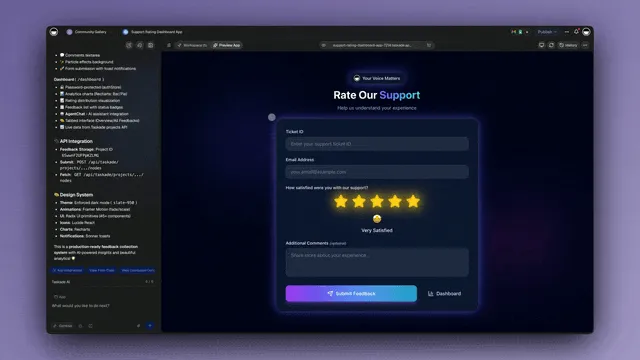
If you use the AI Agent Generator or Taskade EVE, describe the outcome, not only the role. Example: "Create a support agent that answers onboarding questions from our help docs, escalates billing issues, and suggests next steps in a friendly tone."
The instructions are where most of the quality lives. Tell the agent who it is, what it must do, what it must never do, and how it must sound. Write it as if you are briefing a new teammate on their first day.
Choosing a model: Leave it on TSK-Auto unless you have a reason not to. TSK-Auto chooses for you on each request. Switch to TSK-Instant for fast, high-volume chat. On a paid plan, use TSK-Standard for everyday work or TSK-Thinking for bigger jobs. Use TSK-Reasoning for complex work on Business or a higher plan. See Thinking Modes and AI Usage & Credits.
Part B: Train the Agent
Knowledge is what turns a generic assistant into one that knows your business. Add the sources the agent needs to do its job, and keep them close to that job.
| Source | When to use |
|---|---|
| Projects | Live workspace memory: CRM, tasks, docs, standard operating procedures |
| Files | PDFs, manuals, decks, policies |
| Links | Help centers, websites, blogs, public docs |
| YouTube | Tutorials, demos, transcripts |
| Cloud storage | Google Drive, Dropbox, Box, OneDrive, shared team assets |
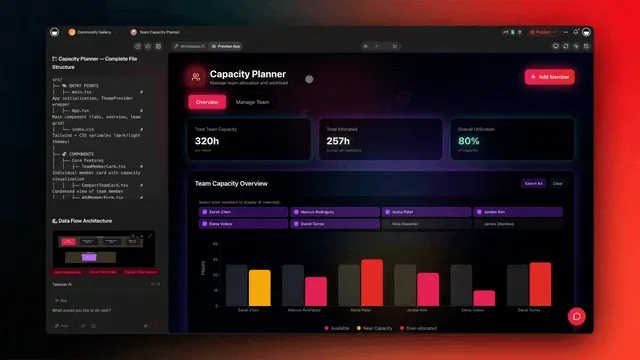
Keep the knowledge close to the work. A sales agent needs to know leads, pricing, objections, and follow-up rules. A support agent needs to know docs, escalation paths, refund rules, and known issues. The closer the knowledge maps to the job, the more the agent feels like it was built for that role, because it was.
Do not train one agent on everything unless it really needs everything. Focused agents are easier to trust, test, automate, and improve. When an agent feels too broad, split it into smaller role-based agents.
Unlike a one-time file upload, a connected project gives the agent persistent memory that stays current. When a project changes, the agent connected to it reads the new information in its next reply. The more your workspace grows, the smarter your agents get. See Agent Knowledge & Memory for the full setup.
Part C: Give the Agent Tools
Tools are what move an agent from answering to doing. Every Taskade agent ships with a large built-in toolkit, plus the full 100+ integration catalog on call. Turn on the ones the job needs.
| Tool type | What it unlocks |
|---|---|
| Web tools | Research, summarize, compare, monitor external info |
| Taskade tools | Create tasks, projects, updates, summaries, and workflows |
| App tools | Slack, Gmail, Google apps, Discord, Telegram, webhooks |
| Agent tools | Turn automations into callable actions inside chat |
| Custom tools | Define your own tool from an automation flow or a REST API |
| MCP server (inbound) | Let Claude, Cursor and other MCP clients work with your Taskade workspace |
The rule is simple. Without tools, the agent reasons. With tools, it can act. With automations, it can act repeatedly. Start small: turn on web search and one integration, confirm the agent uses them well, then add more. See the full Tools for AI Agents catalog for everything an agent can carry, and MCP Connectors for working on the same workspace from Claude, Cursor, or another MCP client.
Part D: Add Commands
Commands turn your best prompts into one-keystroke shortcuts. Type / anywhere the agent runs, and your commands appear. Use them when the same action happens often.
| Command | Best for |
|---|---|
/summarize |
Turn long context into a short brief |
/research |
Gather findings and cite sources |
/draft |
Create emails, posts, docs, proposals |
/triage |
Sort, score, prioritize, route |
/plan |
Break work into steps, owners, deadlines |
Use commands when the same action happens often. Use freeform chat when the work is exploratory. Use automations when the command needs to run from a trigger instead of a human prompt. See Custom AI Agents for how to create and save commands.
Part E: Put the Agent to Work
A saved agent is available everywhere in the workspace. The same agent shows up across six surfaces, so you meet it wherever the work already lives.
| Surface | How the agent works there |
|---|---|
| Agent Chat | Ask questions, test behavior, run commands |
| Projects | Use /commands directly inside tasks and docs |
| Add-ons | Select text or tasks, then run the agent on that context |
| Shared Chats | Collaborate with teammates in the same agent thread |
| Automations | Use Ask Agent or Run Agent Command inside workflows |
| Taskade Genesis apps | Embed the agent as the intelligence layer of the app |
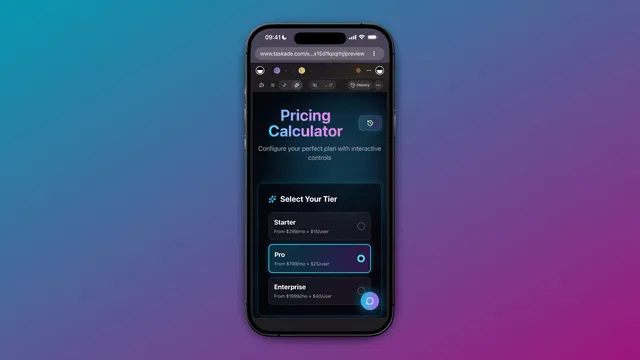
The last surface is the payoff. When an agent proves itself across chats and projects, embed it in a Taskade Genesis app as the brain end users actually talk to. See AI Agent Chat, Agent Automation, and Share & Embed Agents.
Part F: Verify the Setup
Test the agent before you scale it. Use this table to read the results and know exactly what to fix.
| Result | Meaning and next step |
|---|---|
| Answers are generic | Add better workspace memory and tighter instructions |
| Answers are wrong | Remove stale knowledge and sharpen the prompts |
| Agent refuses to act | Enable the right tool or automation action |
| Agent is too broad | Split it into smaller role-based agents |
| Agent works in chat only | Add commands or connect automations |
| Agent is useful repeatedly | Turn the workflow into a Taskade Genesis app |
Run the agent on three real examples from the job it was built for. If it handles all three like a good teammate, it is ready. If not, the table above tells you which dial to turn.
The Whole Flow, Connected
Because the agent sits inside the workspace or app, it can use memory, tools, commands, and automations together. That is the Taskade difference: not a chatbot beside your work, but the intelligence layer inside the system itself.
The dashed arrow is the part that compounds. Every automation run writes results back into your projects, which become new memory, which makes the agent's next decision smarter. Train it once, and every new project becomes free context.
Try a Working Agent First
The fastest way to learn the path is to clone a finished example in about a minute, look at how its agent is wired, then build your own.
- Client Portal: clients log in, see their projects, and get updates in one place
- Team Capacity Planner: agents balance workload across the team automatically
- Event Management Portal: RSVPs collected and events coordinated by a team of agents
Browse more in the Community Gallery, or build your own at taskade.com/create.
Common Questions
Do I need code to build agents?
No. Everything in this playbook is no-code. You describe the agent's role in plain English, click to add knowledge sources and tools, and save. If you prefer not to configure anything, ask Taskade EVE to build the agent for you from a single sentence.
How do I train an agent?
Open the agent's Knowledge tab and add your sources: projects, files (PDF, DOCX, slides), website links, YouTube videos, or files from Google Drive, Dropbox, and Box. The agent indexes them once and keeps them as persistent memory. A connected project syncs when it changes, so the agent reads the update in its next reply. See Agent Knowledge & Memory.
How is an agent unlike a bot?
A chatbot answers. An agent reasons, decides, and acts. In Taskade, an agent reads from your Projects, uses a large built-in toolkit and 100+ integrations, runs slash commands, and can trigger automations. It is the Intelligence layer of Workspace DNA, not a chat window bolted onto your work.
How many tools per agent?
Every agent ships with a large built-in toolkit plus the custom tools you define, while the automations an agent triggers carry the work into the full 100+ integration catalog. You enable only the ones the job needs. For a service with no built-in tool, add an HTTP Request action to an automation and turn that flow into a callable agent tool, with no custom code.
When do I need an agent team?
Use one agent for one job. Use a multi-agent team when the work needs different specialists in sequence, such as research, then writing, then review. Taskade agents share workspace memory, so one agent's output flows straight to the next.
Is building an AI agent free?
Yes. Custom agents are included on every Taskade plan, including Free. Free starts with no AI credits, so you earn credits or buy a credit pack. AI usage is metered in credits, not seats. See AI Usage & Credits for how credits and models price out.
Related guides
- Custom AI Agents: The Intelligence Pillar: the full reference for every agent setting
- AI Agent Generator: describe an agent and get it in seconds
- Agent Knowledge & Memory: train agents on your own data
- Tools for AI Agents: the full built-in tool catalog
- Guide to Writing Agent Prompts: instruction patterns that work
- Multi-Agent Teams: coordinate specialists on shared goals
- Agent Automation: trigger agents from workflows
- Workspace DNA: how Memory, Intelligence, and Execution connect