






Are you itching to use Taskade for your next big project but don't know where to start? Don't worry, we have your back! This pocket guide will help you learn everything you need to know
TL;DR: This 2022 beginner's guide walked new users through Workspaces, Folders, and Projects. Today, Taskade Genesis builds a working app from one sentence, the Learn Taskade help center holds 305 tutorials across 7 categories, and the Community Gallery hosts 150,000+ live apps to clone — onboarding without a walkthrough.
Then → Now: In 2022, getting started meant reading a guide. Today, Taskade Genesis builds the project for you, AI Agents handle the work, and the Learn Taskade help center covers everything else.
| Onboarding step | 2022 (this guide) | 2026 |
|---|---|---|
| Get started | Read a written quick-start | Learn Taskade help center + Community Gallery |
| First project | Pick a template by hand | Describe it in plain English to Genesis |
| Learn views | Switch List ↔ Board ↔ Mind Map manually | multiple views auto-generated, including Table and Gantt |
| Get help | Search the docs | Ask EVE directly inside the workspace |
(and where to click!) to get work done, alone or with your team.
The 60-second 2026 onboarding
   1. Open  taskade.com/create
   2. Type: "team CRM with weekly summary email"
   3. Genesis builds:
        ├─ Project + Table view
        ├─ Custom fields (name, stage, owner)
        ├─ Agent (qualifies leads)
        └─ Automation (cron Mon 09:00 → email summary)
   4. Click Publish → live app on your domain
   5. Invite team via roles
        Owner → Viewer
Hub & spoke
- Hubs: Taskade Genesis · AI Agents · Automations · Templates · Community Gallery · Pricing
- Spokes: Learn — create project · Learn — project views · Learn — workspace icon · Learn — Genesis FAQ · Learn — EVE assistant
- Related: 2021 year in review · V4 editor refresh
🐑 What Is Taskade?
Have you ever wished you could manage work more holistically? You know, just get work done and collaborate without having to shuffle note-taking tools, calendars, to-do apps, and video conferencing software. Well, now you can. 🥳
Taskade is a lovechild of Asana, Google Docs, and Trello ❤️. It's also the perfect digital toolbox you've always dreamed of, wrapped and packed into a beautiful unified platform. Think of it as a collaboration tool that remote teams can use to get work done.
With Taskade, you can:
Organize and plan projects
Manage tasks and track progress
Take notes and create outlines
Collaborate and chat in real-time
Build a knowledge base or a team wiki
And much more!
Taskade currently supports 14 languages and works on all leading operating systems, including Mac, Windows, Linux, Android, and iOS. You can also use it in a web browser with the same features and powerful browser extensions to match.
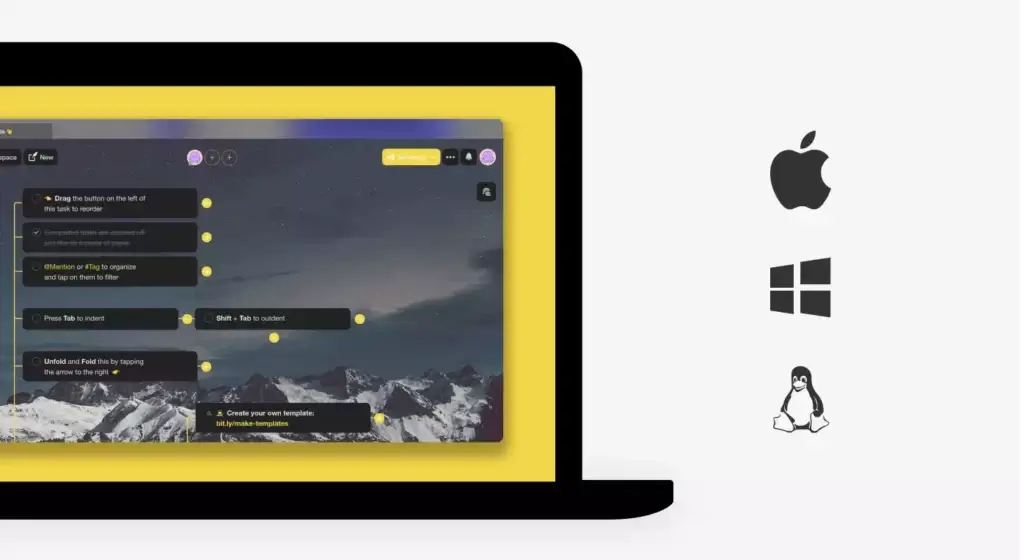
Oh, and did we mention that Taskade is also super-simple to use? You and your team can jump into action with minimal onboarding. Heck, you probably don’t even need to read this (awesome) crispy guide, but we decided to write one anyway.
So, why don’t we have some fun? 🥳
🛠️ Make Friends With the Workspace View
The Workspace View is your command center for all kinds of projects. It gives you a complete overview of everything that happens inside Taskade. You'll spend plenty of time around here so let’s learn how to make use of its full potential.
The Workspace View is the first thing you see when you open Taskade or log into your account in a web browser. It breaks down into several key elements:
| #1 Horizontal Navigation | #2 Vertical Navigation |
|---|---|
| 📑 Projects | 🕑 Recent |
| ✔️ Tasks | ✅ My Tasks |
| 🛣️ Roadmap | 📅 Calendar |
| 🎨 Templates | ⭐ Starred |
| 👍 Completed | 👥 Shared With Me |
| ➕ New Project | 🗄️ Workspaces |
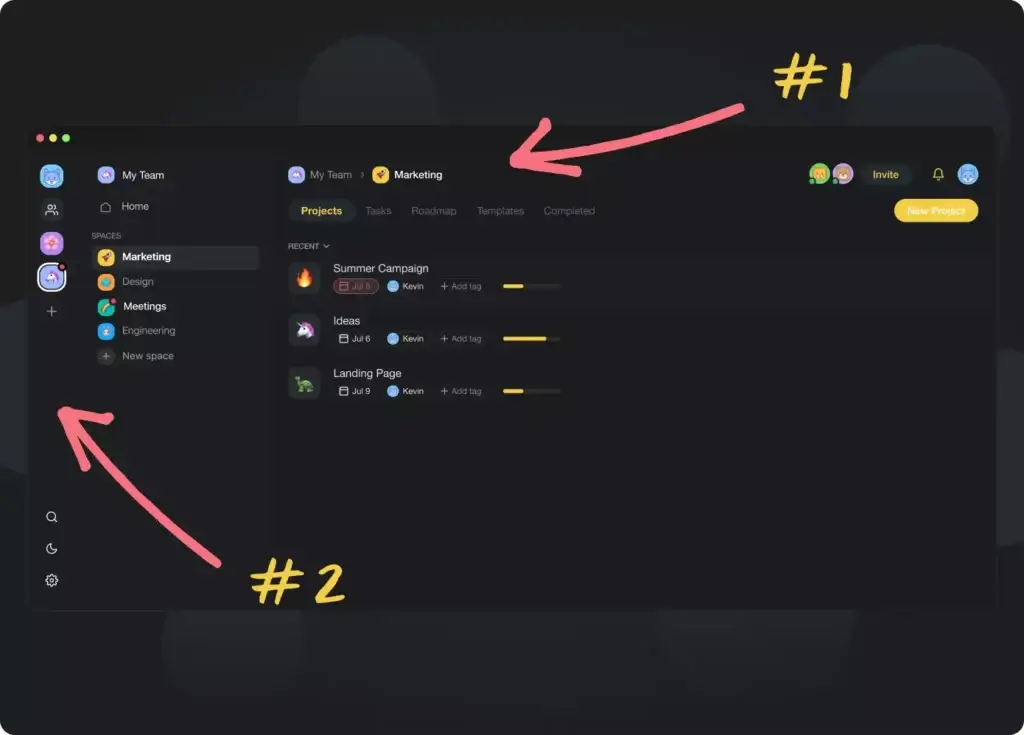
All key elements of the user interface are out in plain sight so you can tackle work without clicking through a ton of menus. Nobody likes that anyway.
Check these Help Center articles for a deep dive:
🧩 Basic Building Blocks in Taskade
Now that you know how to navigate the hood, let's take a look at the basic building blocks and explain the difference between Projects, Workspaces, and Folders.
📂 Projects
Taskade Projects are small but mighty. A single Project can be like a page in a notebook, full of assorted notes and to-dos, or a highly organized collaboration hub where you’ll chat and collaborate with your team in real-time.
A Project lets you take notes, create lists, and collaborate with your team in real-time.
Every project is like a digital canvas. You can create to-dos, drafts, outlines, or image/video galleries to documents, charts, meeting notes, and habit trackers. The only limit is your imagination.
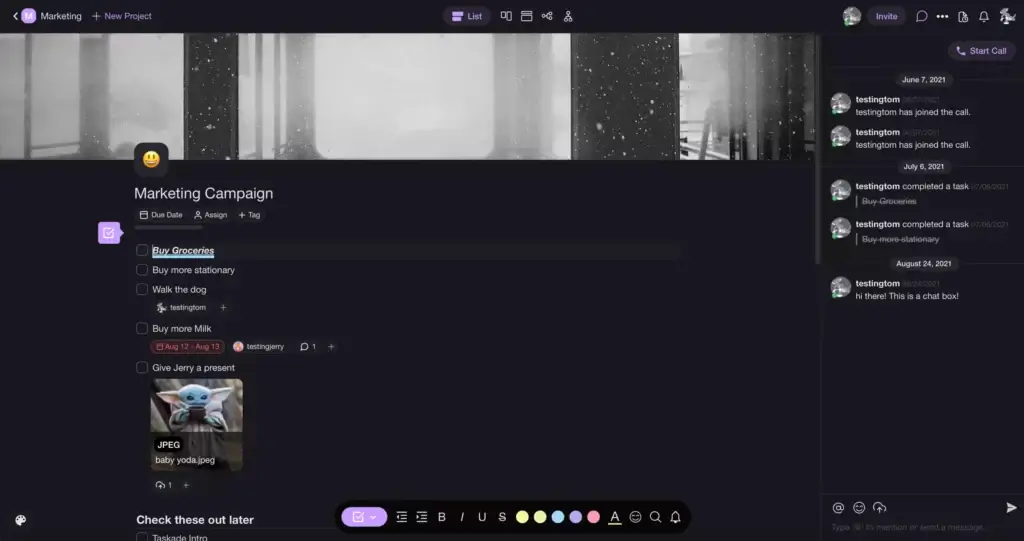
To create your first Project, click on the ➕New project button in the top navigation bar. You can also pick one of the default templates to get started quickly.
🌟 Pro Tip: Add-ons let you add due dates, comments, or upload files to individual content blocks. Select a content block, click ➕, and pick one of the options. It's that simple!
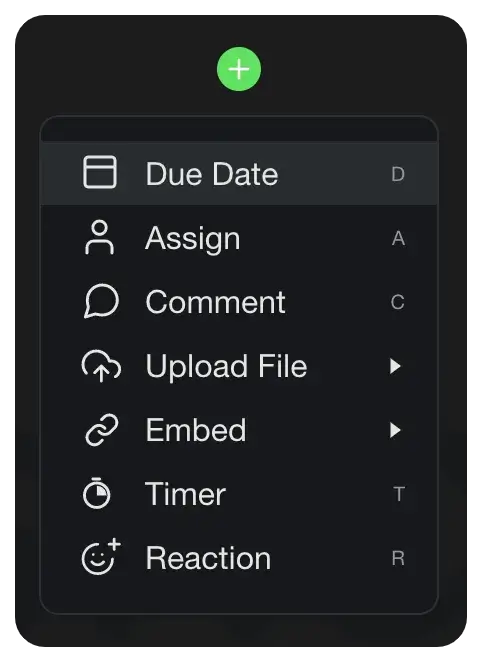
🗄️ Workspaces
Think of Taskade Workspaces as top-level “containers” that store all your Projects, tasks, and custom templates. A Workspace can hold an unlimited number of Projects and you’re free to invite as many team members as you like to collaborate.
A Workspace stores Projects, templates, and Folders. It's a digital team HQ.
Workspaces come with their own sets of permissions and editing privileges so you can easily create dedicated spaces for teams, departments, and individual clients.
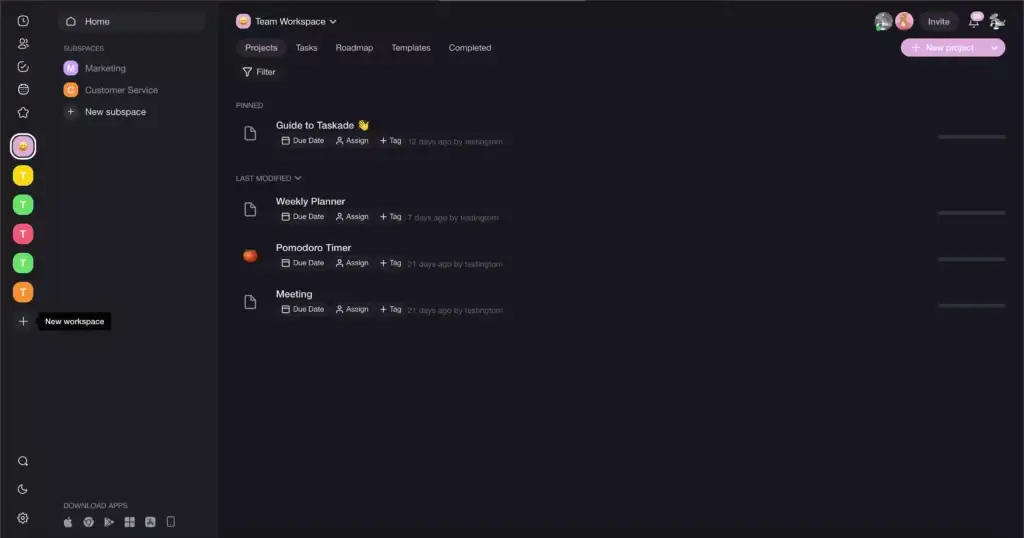
To create a new Workspace, click on the ➕ button in the left navigation pane. Pick a name, select the Workspace color theme, and pick or upload a cover image to proceed.
🌟 Pro Tip: Taskade packs a powerful search tool that’ll help you locate Projects and files across Workspaces and Folders. You’ll find the search button at the bottom of the left navigation menu. Visit the Help Center to learn more about Workspaces (click).
🗂 Folders
Every Workspace can be divided into smaller zones called Folders. Folders are much like the iconic IKEA KALLAX inserts. They are autonomous, with separate members and user roles/permissions. Folders will help you organize your work in a more granular way.
Folders "live" inside Workspaces but have separate members, Projects, and templates.
A single Workspace can contain many independent Folders. You can create as many Folders as you need, each with unique custom templates and #tags.
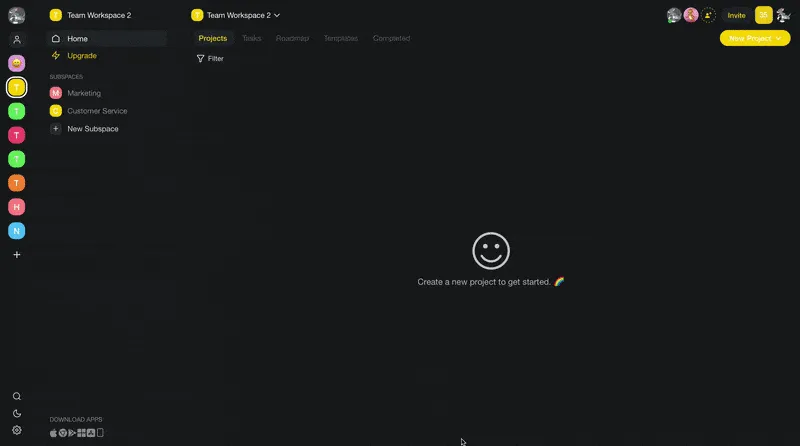
To create a new Folder, open your Workspace View and click the ➕ New Folder button at the bottom of the Folder tab. Name and customize it and you’re good to go!
🌟 Pro Tip: Every new Folder is private by default so nobody can see what you’re working on. Don’t forget to invite your team and define user roles if you want others to see Folder contents. You can learn more about Folders in our Help Center (click).
👁 A (Brief) Introduction to Project Views
Taskade Projects come in all shapes and sizes. While all start as regular lists, you can instantly transform whatever you’re working on into boards, charts, and tables.
📑 List View (Outline)
The List view is the default workflow in Taskade. It’s the most powerful and flexible view that’s great for creating outlines, tracking to-dos, and compiling reusable checklists.
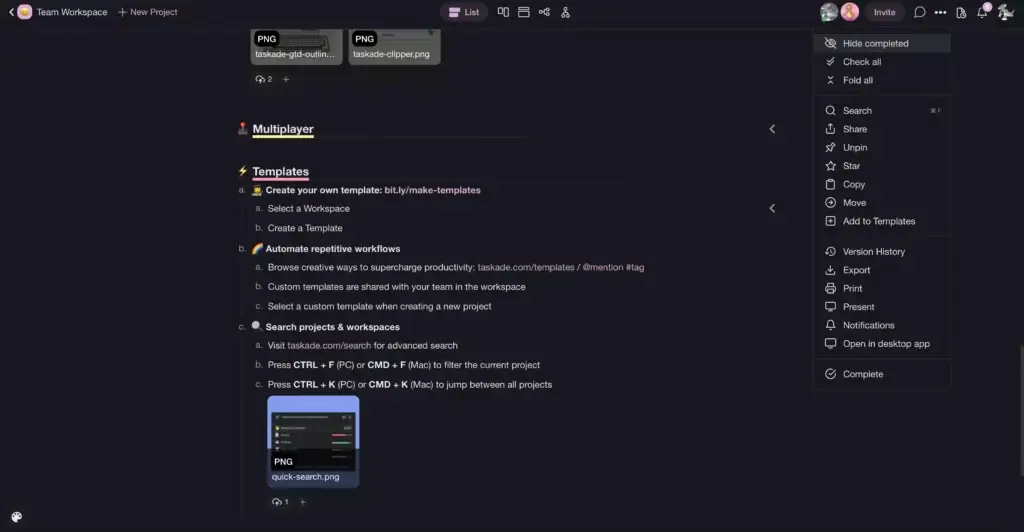
Use the List view to organize tasks and track progress (with reminders!), create step-by-step instructions, or inventory project assets and collateral. If you're creating a daily task list, this should be your go-to view.
🌟 Pro Tip: Boost the usefulness of a simple list by turning it into a high-level outline. Indent list elements with the ⌨️ Tab key to create a hierarchy and nest elements inside foldable lists. Press ⌨️ Shift + Tab to outdent.
📌 Board View (Kanban)
The Board view is a horizontal workflow that lets you visualize Project contents as boards and cards. Boards are the epitome of visual work management so you should feel right at home using this view, especially if you love the Kanban method to organize your plans.
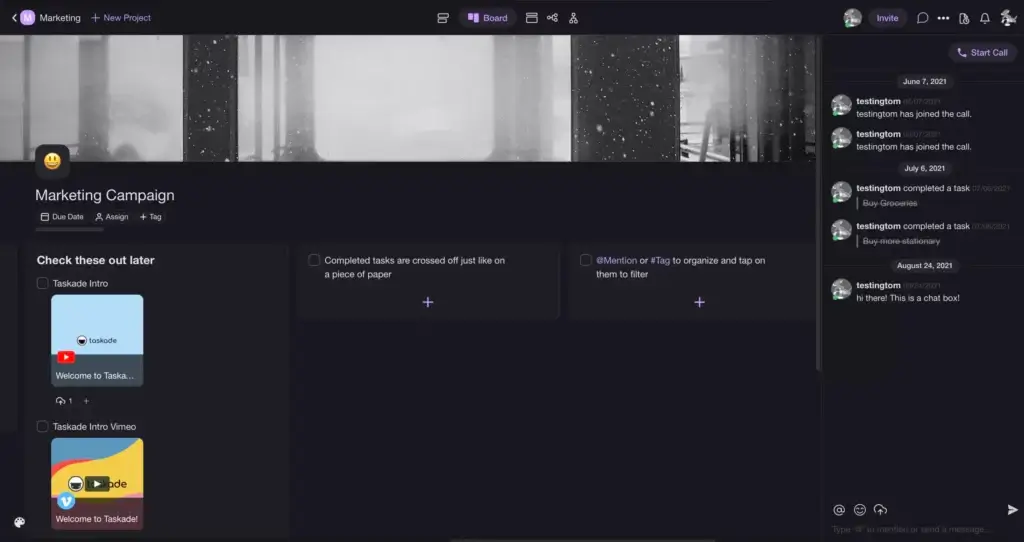
The Board view is perfect for managing product feature trackers, content calendars, sales pipelines, and Kanban workflows. It’ll help your team instantly see what needs to be done, how to prioritize work, and what tasks should end up on the back-burner.
🌟 Pro Tip: Every card in the Board view acts like a regular list. That means you can indent/outdent elements, apply sorting rules, and add reminders. You can even change bullet types, add images, and color things up to boost productivity.
⏰ Action View (Table)
Regular to-dos often lack specificity. The Action view is a great way to add context in a convenient, easy-to-follow table format, complete with deadlines and task owners.
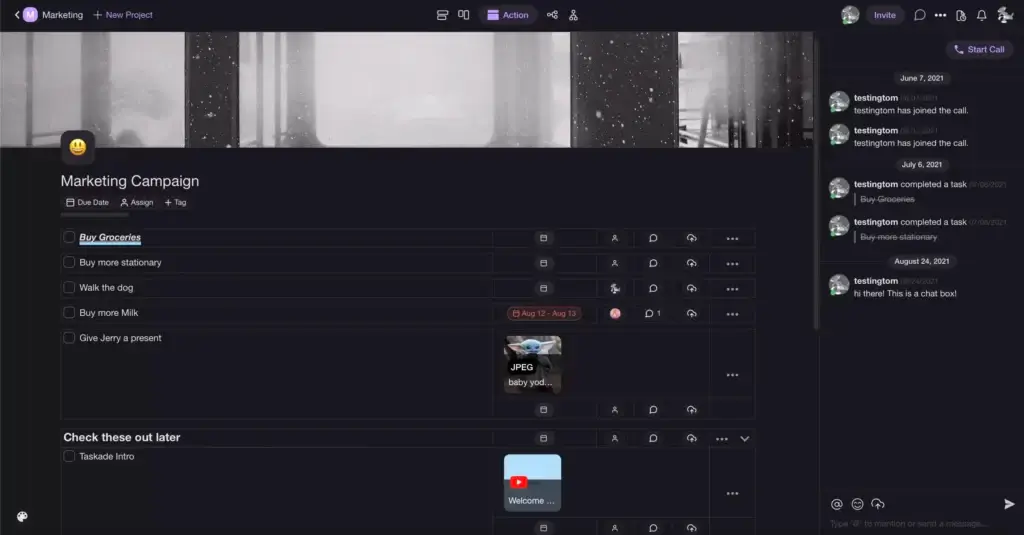
The Action view will help you convert meeting notes into action items and keep track of every task, big or small. Using action items instead of to-dos will also drive accountability and visibility across the team and every Project you create.
Use this view to be on top of your daily task list!
🌟 Pro Tip: Take your action items to the next level by adding comments or uploading files. You can attach documents directly from your Mac/PC or cloud storage, including Dropbox and Google Drive. Visit the Help Center to learn more (click).
🧠 Mindmap View
The Mindmap view is another visual-oriented workflow that allows you to organize information, brainstorm ideas, and solve problems in tree-shaped, horizontal diagrams.
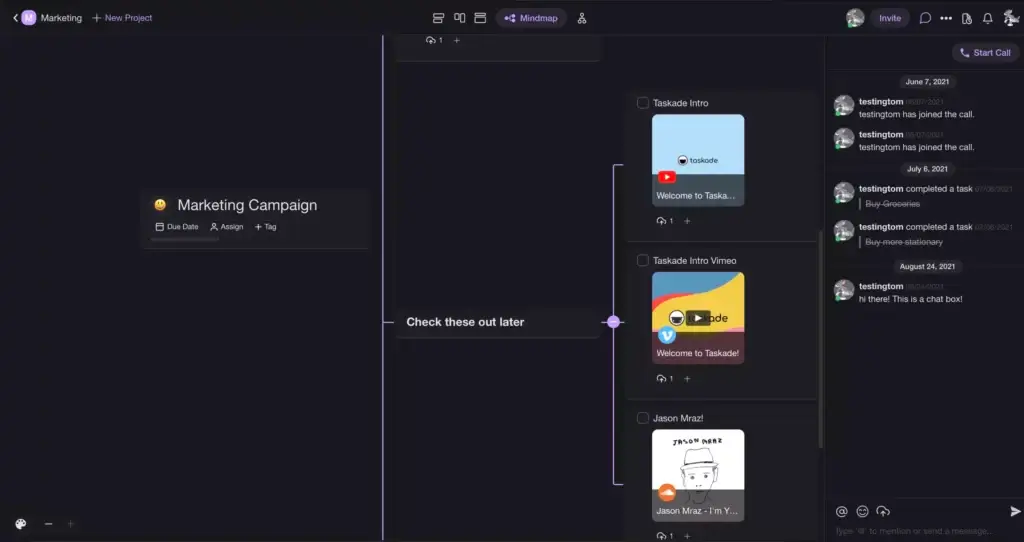
Mind maps boost ideation and problem-solving skills. They’re also excellent visual devices for all kinds of creative projects. There’s no better workflow to approach projects in a holistic and integrated way, especially if you need to think outside the box.
🌟 Pro Tip: Add context and boost project aesthetics by embedding videos, sounds, and other assets inside mind map nodes. Taskade currently supports nine embed sources, including YouTube, Vimeo, Wistia, Figma, InVision, and TypeForm.
🏢 Org Chart View
The Org Chart view is very similar to the Mindmap view, but it organizes project contents vertically. It’s a visual representation of hierarchical systems.
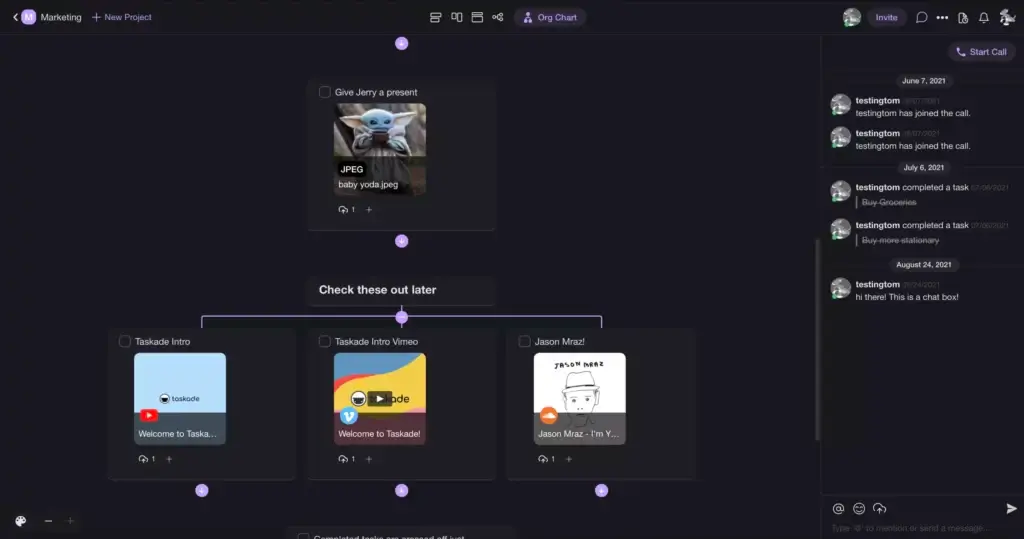
Organizational charts are useful for delineating organizational structures, with a clear division into departments, teams, and individual roles. You can also use the Org Chart view for visualizing sequential steps within a process or giving instructions.
🌟 Pro Tip: Press ⌨️ Shift + Enter to expand your org chart vertically and create a classic hierarchical structure. Press ⌨️ Enter to add horizontal nodes.
💬 Chat, Calls, and Video Conferencing
Taskade’s cherry on top is an integrated communication component. You can chat, video conference, and jump on calls with your team in the same app, in the same window. Working with remote teams? No problem.
Every Project you create is a self-contained workspace with an integrated (toggleable) chat window. All team members invited to that Project can join an existing video conference or start their own with the 📞 Start Call button at the top of the chat box.
The chat lets you engage in productive conversations, share files and documents, and keep track of important project updates. And when you don’t need it anymore, you can simply hide the chat box by clicking on the 💬 chat bubble icon at the top of the Project.
🌟 Pro Tip: Taskade chat supports basic Markdown syntax so you can easily \*\*bold\*\*, \_italic\_, or strikethrough messages Discord-style. Don’t forget to check other styling options here.
| Code block | 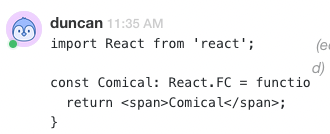 |
```code block``` |
|---|
👋 Parting Words
We hope this short guide will help you find your way around Taskade and get more productive with every project you complete. Don't have a Taskade account? Jump to our sign-up page to create one for free or check the live demo page and play with a test project first.
💡 Before you go… Be sure to dive into other similar guides on the official Taskade Blog for more tips and tricks. And as always, stay productive!
📄 Taskade for Writers: A Complete Writing Workflow in One App
📄 Visual Collaboration 101: Mind Maps, Kanban, Outlines, and Org Charts
Frequently Asked Questions About Taskade
What is Taskade used for?
Taskade is used for creating an AI workforce, team collaboration, project management, and task organization. It combines AI, chat, video conferencing, and task management in one platform, making it ideal for remote teams and productivity enthusiasts.
Is Taskade completely free?
Yes. Taskade offers both free and premium plans. The free plan includes a wide range of useful features, while the premium plans unlock advanced functionalities.
Is Notion better than Taskade?
No. Taskade offers superior AI features, real-time collaboration, better task management features, and integrated video conferencing, making it a more comprehensive choice compared to Notion.
How do I use Taskade on my phone?
You can use Taskade on your phone by downloading the Taskade app from the App Store or Google Play. Once installed, sign in to your account to access all features on the go.
Is Taskade safe to use?
Yes. Taskade is safe to use and employs industry-standard encryption and security measures to protect user data and ensure privacy.
Does Taskade have AI Agents?
Yes. Taskade incorporates AI Agents to assist with task management, meeting notes, and workflow automation to boost productivity and streamline processes.
🔗 Resources
[/learn)