
Overview
Keeping your Taskade account secure starts with a strong password. Taskade gives you clear options on both desktop and mobile. If you forget your password, or want to update it, use these options.
TL;DR: You control your Taskade password from anywhere. If you forgot it, use the forgot-password link to get a reset email. If you are already logged in, update it in seconds from the Password tab in Settings on desktop or mobile. Both paths work the same way.
Pick your path based on whether you can still log in.
| If you... | Use this method | Where |
|---|---|---|
| Forgot your password and can't log in | Reset by email link | taskade.com/forgot |
| Are logged in and want a fresh one | Change it in account settings | Settings ▸ Password tab |
Reset a Password
If you have forgotten your password and cannot log in, use this method.
- Go to https://www.taskade.com/forgot.
- Enter the email address associated with your account.
- Click Reset Password.
- You will receive an email with a link to reset your password.
- Click the link and enter your new password. Then click Reset Password.
Note: The link expires after 24 hours. To get a new password reset link, repeat steps 1 to 3.
Change Password (Desktop)
If you are already logged in and want to update your password, use this method.
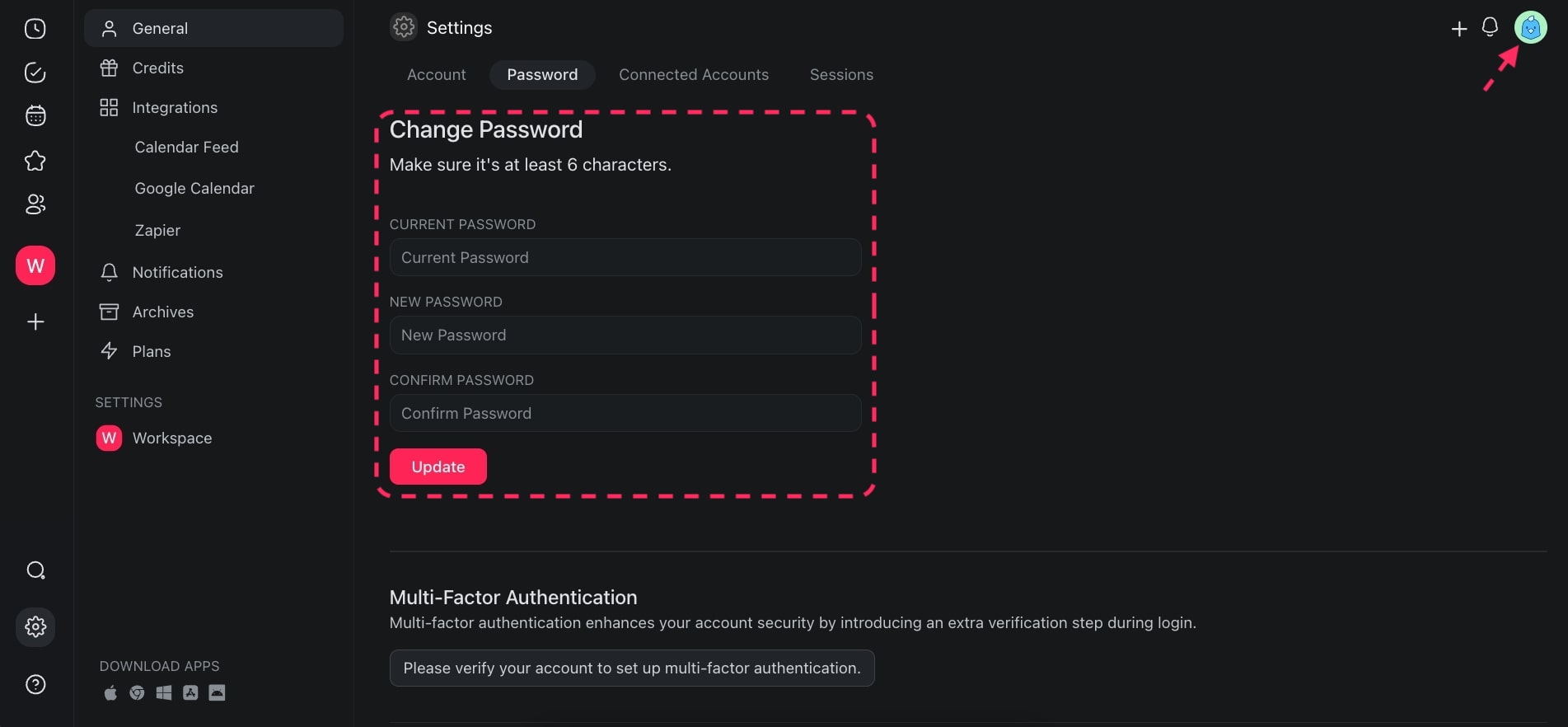
- Open Taskade and click your profile avatar (top-right).
- Choose ⚙️ Settings from the drop-down list.
- Select the Password tab at the top.
- Type your current password and your new password. Then click Update.
Change a Password (Mobile)
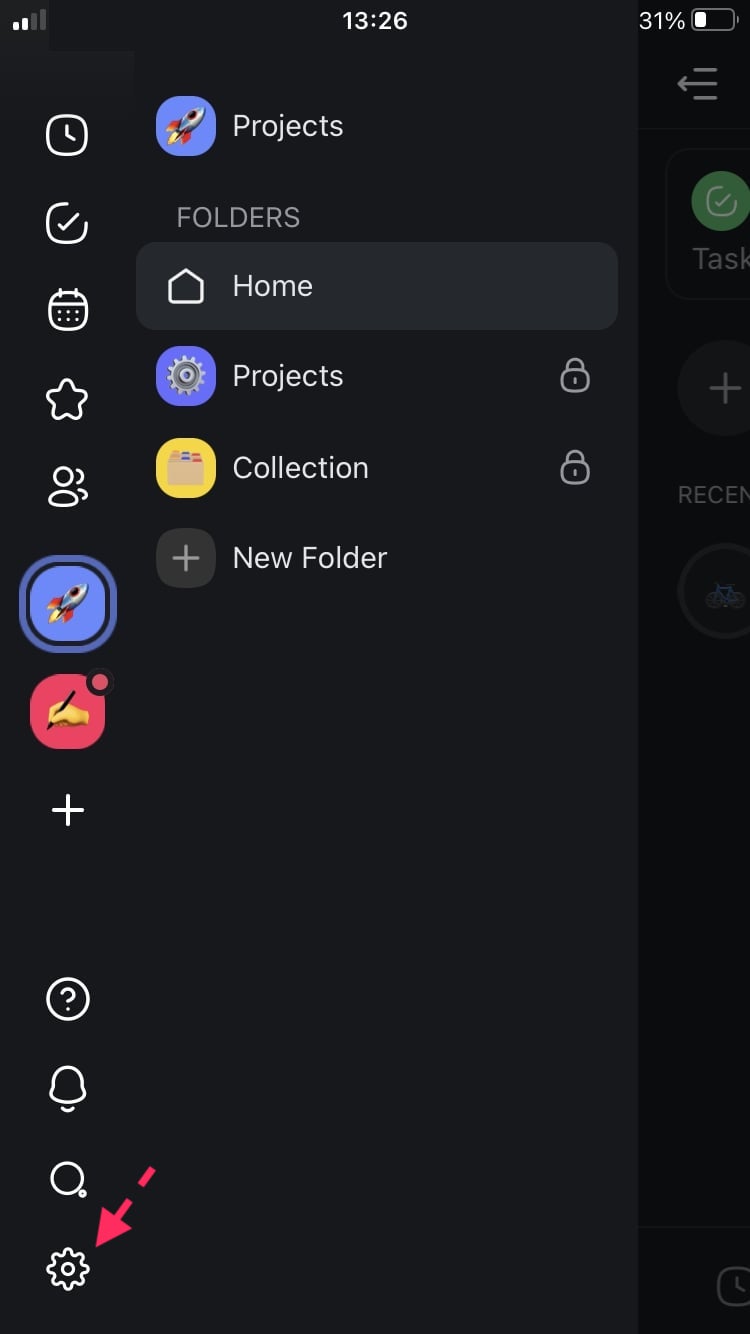
- Tap the gear icon ⚙️ in the bottom-left corner.
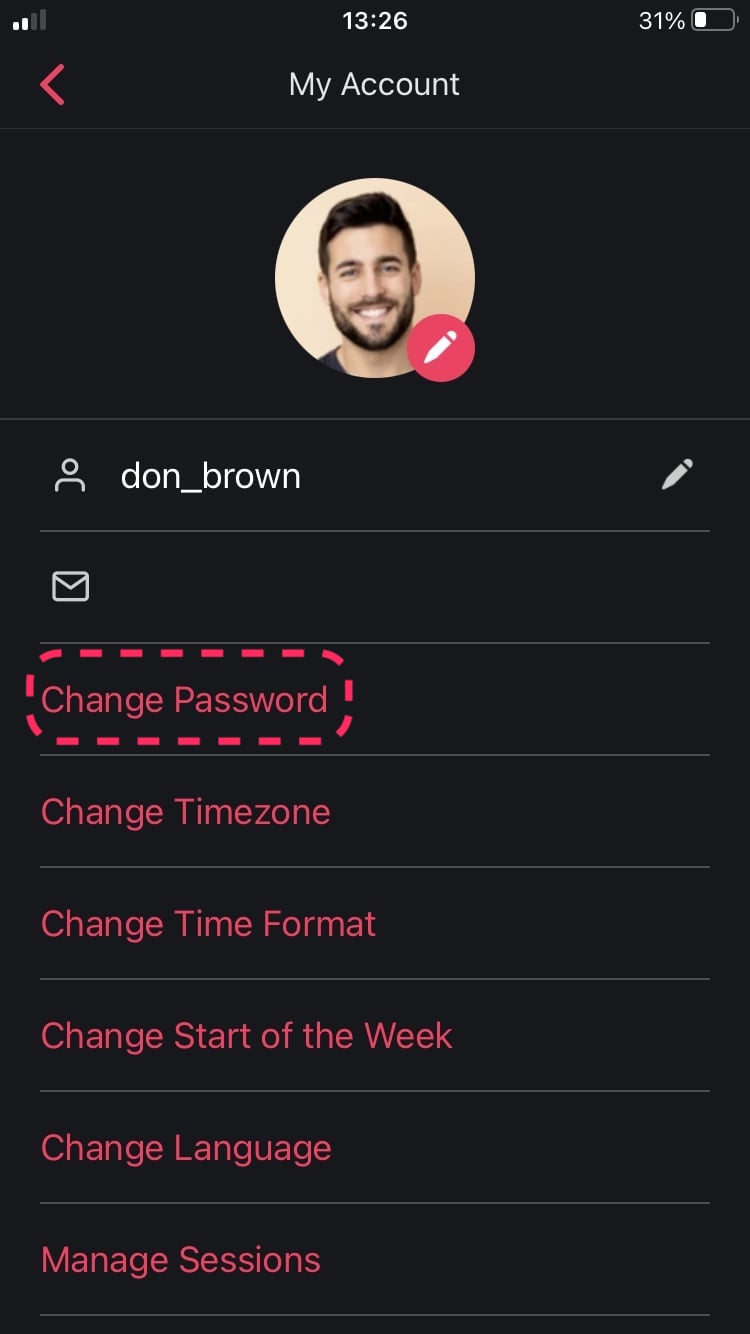
- In the My Account screen, tap Change Password.
- Enter your current and new password, and confirm.
- (optional) To reset your password instead, tap the question mark icon ❓ to receive a reset email.
Tips
- Use a strong password. Choose at least 12 characters with a mix of uppercase letters, lowercase letters, numbers, and symbols.
- Choose a fresh password. For your security, your new password must be different from your current one, and Taskade checks it against known leaked-password lists. If you see "Your new password must be different from your current password," pick a new one you have not used here before.
- Password manager recommended. Tools like 1Password, Bitwarden, or your browser's built-in manager generate and store strong, unique passwords for you.
- Turn on Two-Factor Authentication. For an extra layer of security, add a second sign-in step to your account. See Two-Factor Authentication for a step-by-step guide.
- SSO users: If you signed up with Google or Apple single sign-on, create a password through the reset flow first. You can then sign in with your email and password. See How do I change my email? for related steps.
- Check your spam folder. If the reset email does not arrive within a few minutes, look in your spam or junk folder. Add
no-reply@taskade.comto your contacts to prevent future filtering.
Related guides
- Two-Factor Authentication. Add a second layer of security
- How do I change my email?. Update your account email address
- How to Upgrade to a Higher Plan. Manage your subscription