# Change / Reset Taskade Password
> Reset a forgotten Taskade password with an email link, or change your password from Settings on desktop and mobile.
- Source: https://www.taskade.com/learn/account/reset-password
- Section: Help & Account
- Updated: 2026-10-26
- Index of all pages: https://www.taskade.com/learn/llms.txt
Reset a forgotten Taskade password with an email link, or change your password from **Settings → Password**. Both take about two minutes.
> **TL;DR:** If you cannot log in to Taskade, open [taskade.com/forgot](https://www.taskade.com/forgot), type your email, and click the link in the reset email. If you are logged in, open **Settings → Password**, type your current and new password, and click **Update**. A password needs at least 12 characters. See [Two-Factor Authentication](https://www.taskade.com/learn/account/mfa-setup) to add a second sign-in step.
In this guide, you will:
- Reset a password that you forgot
- Know what a reset signs out
- Change your password on desktop or mobile
- Pick a password that meets the rules
## Before You Start
Pick your path by whether you can still log in.
| If you... | Use this method | Where |
| --- | --- | --- |
| Forgot your password and cannot log in | Reset it with an email link | [taskade.com/forgot](https://www.taskade.com/forgot) |
| Are logged in and want a new password | Change it in Settings | **Settings → Password** |
You need access to the email inbox of your Taskade account. The task takes about 2 minutes.
```mermaid
graph TD
A[Need a new password] --> B{Can you log in?}
B -->|No| C[taskade.com/forgot,
then the reset email]
B -->|Yes| D[Settings, then
Password, then
Update]
C --> E[Log in with the
new password]
D --> E
style A fill:#0d1b2a,color:#7dd3fc,stroke:#38bdf8,stroke-width:1.5px
style B fill:#2a1225,color:#ff8fa3,stroke:#ff2d60,stroke-width:2px
style C fill:#0d1a0e,color:#86efac,stroke:#22c55e,stroke-width:1.5px
style D fill:#1a140a,color:#ffb74d,stroke:#e65100,stroke-width:1.5px
style E fill:#0d1a0e,color:#86efac,stroke:#22c55e,stroke-width:1.5px
```
## Reset a Forgotten Password
An email link lets you set a new password without the old one.
1. Go to [taskade.com/forgot](https://www.taskade.com/forgot).
2. Type the email address of your Taskade account.
3. Click **Reset Password**.
4. Open the email from **Taskade Team**.
5. Click the link in the email.
6. Type your new password. Wait until the meter under the field says **Looks good**.
7. Click **Reset Password**.
**What you will see:** Taskade saves your new password, and you can log in with it.
> **Note:** The link in the email works for 24 hours. If it expired, do steps 1 to 3 again to get a new link.
## Know What a Reset Signs Out
A reset with the email link signs out every session, token, and app that can act as you. This keeps a person who knew your old password out of your account.
| Item | After the reset |
| --- | --- |
| Your sessions on other devices, the mobile app included | Signed out. Log in again with the new password. |
| Personal access tokens | Turned off. Make a new token for each script or tool that used one. |
| Apps that you connected to your account, such as an AI tool on Taskade MCP | Access removed. Connect each app again. |
| Zapier and webhook subscriptions of your account | Removed. Connect Zapier again, then turn each Zap on again. |
If the reset turned off a token or a connected app, the email that confirms your new password also says so.
## Change Your Password on Desktop
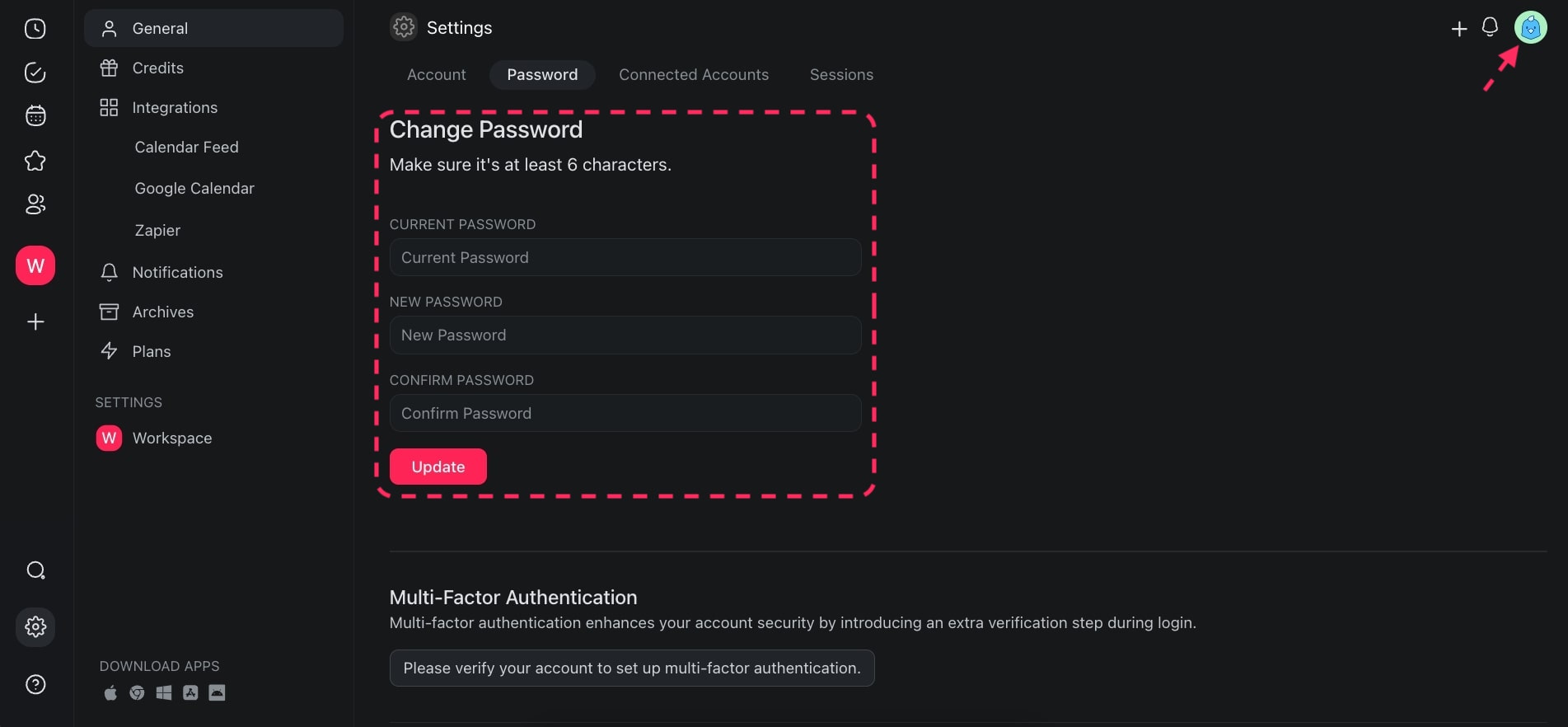
The **Password** page in Settings changes your password while you are logged in.
1. In the top-right corner, click your profile picture, then click **Settings**. You can also go to [taskade.com/settings](https://www.taskade.com/settings).
2. In the settings menu, click **Password**.
3. Type your **Current Password**.
4. Type your **New Password**. Wait until the meter under the field says **Looks good**.
5. Type the new password again in **Confirm Password**.
6. Click **Update**.
```text
┌──────────────────────────────────────────────────────┐
│ Change Password │
│ Current Password [ ] │
│ New Password [ ] │
│ ▓▓▓▓▓▓▓▓░░ 4 more characters │
│ Confirm Password [ ] │
│ [ Update ] │
└──────────────────────────────────────────────────────┘
```
## Change Your Password on Mobile
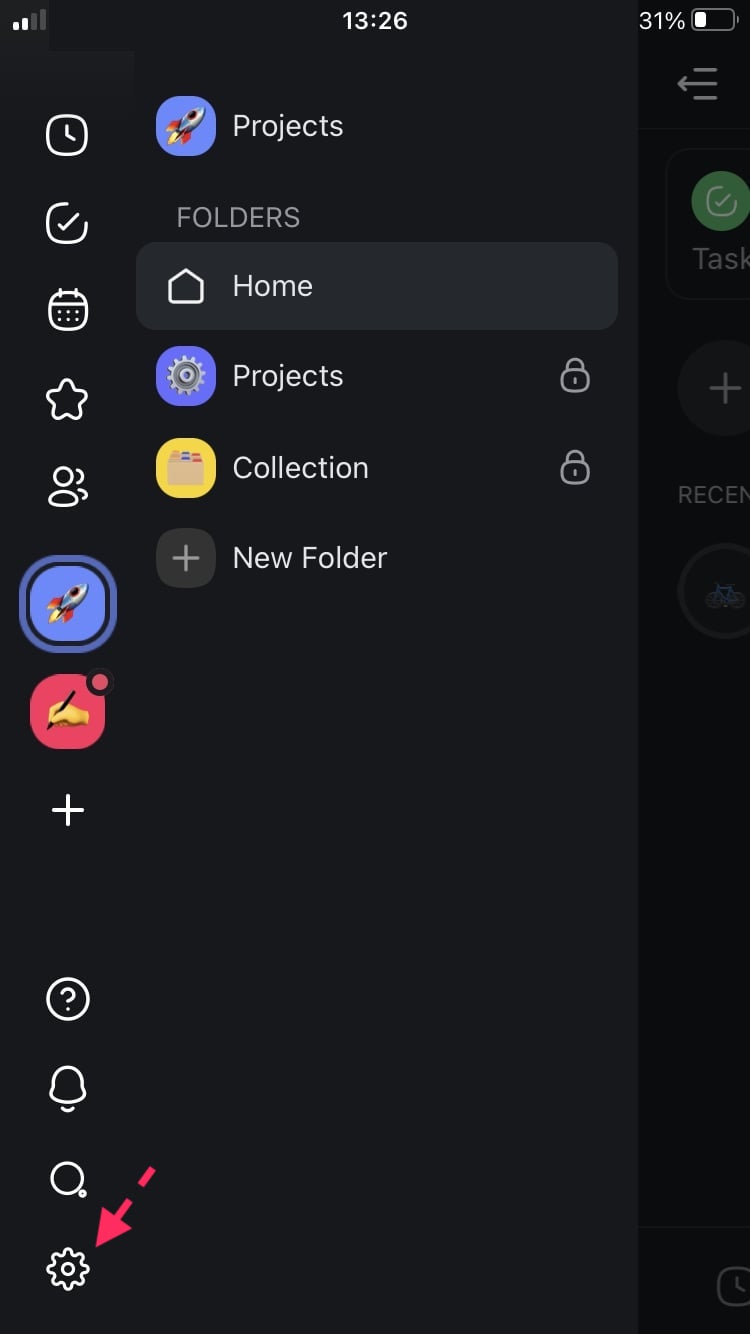
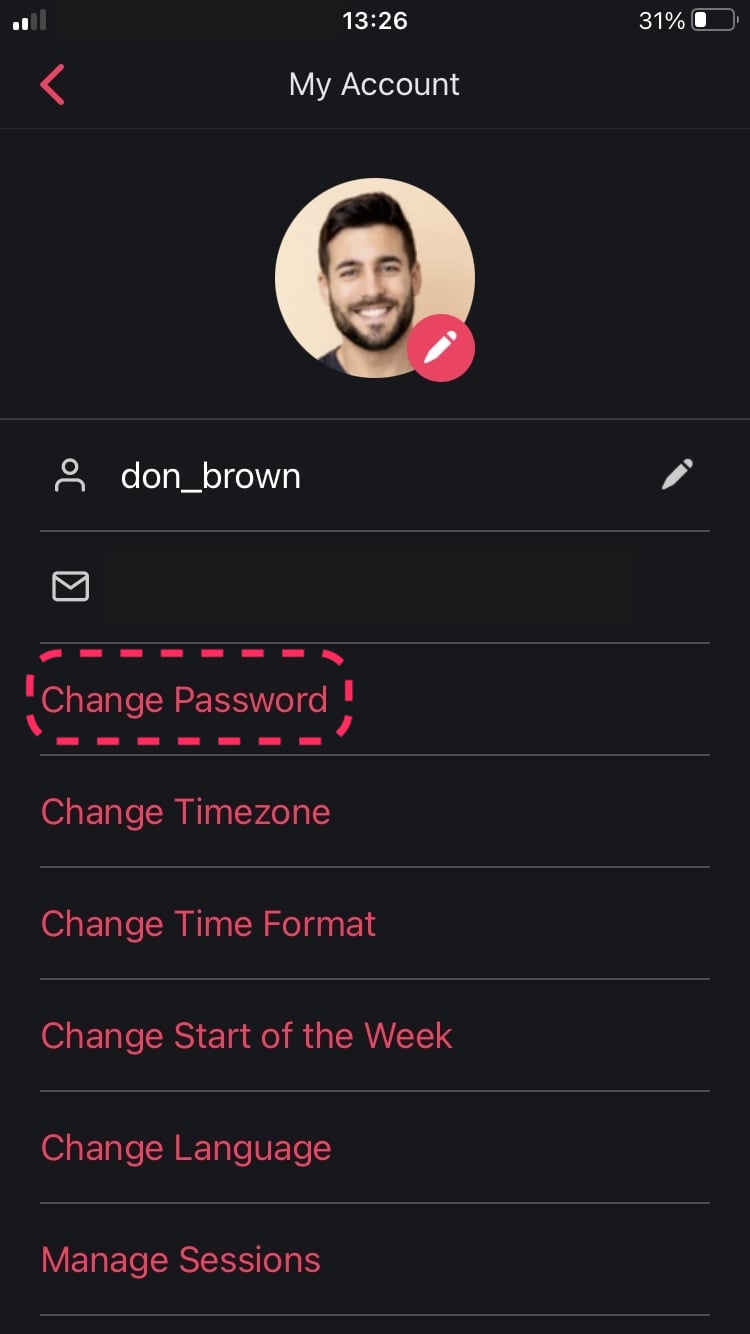
The mobile app changes your password from the **My Account** screen.
1. Tap the **gear icon** in the bottom-left corner.
2. On the **My Account** screen, tap **Change Password**.
3. Type your current password and your new password, then save the change.
4. If you forgot your current password, tap the **question mark icon** to get a reset email instead.
## You Are Done When
You log out, then log in again with your new password.
## Pick a Strong Password
A long password beats a complex one.
| Rule | What it means |
| --- | --- |
| **At least 12 characters** | Taskade does not ask for capital letters, numbers, or symbols. A passphrase of four or five ordinary words works well. |
| **A length meter** | The meter shows how many more characters you need, then says **Looks good**. The same meter shows at sign-up, at reset, and in **Settings → Password**. |
| **A new password** | It must differ from your current one. Otherwise you see "Your new password must be different from your current password." |
- **Use a password manager.** Tools such as 1Password, Bitwarden, or your browser make and save unique passwords for you.
- **Turn on Two-Factor Authentication.** Add a second sign-in step. See [Two-Factor Authentication](https://www.taskade.com/learn/account/mfa-setup).
## Troubleshooting
Find what you see in the left column, then do the fix.
| What you see | Why | Fix |
| --- | --- | --- |
| The reset email does not arrive | The email went to spam or junk | Look in your spam or junk folder. Add `updates@taskade.com` to your contacts. |
| The reset link does not work | The link is older than 24 hours | Request a new link from [taskade.com/forgot](https://www.taskade.com/forgot). |
| Taskade asks for a different password | The new password matches the current one, or it is on a list of leaked passwords | Type a new, longer password that you do not use on other sites. |
## Frequently Asked Questions
**What if the reset email does not arrive?**
Wait a few minutes, then look in your spam or junk folder. The email comes from **Taskade Team** at `updates@taskade.com`. Add that address to your contacts so that later emails reach your inbox.
**Can I add a password if I signed up with Google or Apple?**
Yes. Use the [forgot-password link](https://www.taskade.com/forgot) to set a password first. After that, you can log in with your email and password too. See [How do I change my email?](https://www.taskade.com/learn/account/change-email) for related steps.
**How long does the reset link work?**
The link in the reset email works for 24 hours. After that, request a new link from [taskade.com/forgot](https://www.taskade.com/forgot).
**What are the Taskade password rules?**
A password needs 12 to 128 characters, and any characters work. It must differ from your current password, and Taskade refuses passwords that appear on lists of leaked passwords.
## Next Steps
Secure your account, then keep your details current.
1. **Add a second sign-in step**: Turn on [Two-Factor Authentication](https://www.taskade.com/learn/account/mfa-setup).
2. **Review signed-in devices**: See [Review and Sign Out Active Sessions](https://www.taskade.com/learn/account/sessions).
3. **Update your email**: See [How do I change my email?](https://www.taskade.com/learn/account/change-email).
4. **Set up a new account**: See [Create Your Taskade Account](https://www.taskade.com/learn/account/create-account).
5. **Manage your plan**: See [How to Upgrade to a Higher Plan](https://www.taskade.com/learn/account/upgrade-plan).