
Overview
Get Taskade loading fast again on any device. If a Project or Workspace stalls, a quick connection check, an app restart, and a cache clear resolve almost every hiccup.
TL;DR: Keep Taskade fast and connected on any device. Check your internet, restart or update the app, and clear your browser cache to get back to your Projects and Workspaces in a few clicks. See Desktop Settings to fine-tune the desktop app.
A stability issue can stop Taskade from loading your Project or Workspace. When that happens, you see an error message like this one. If the app does not respond, follow the steps for your platform.
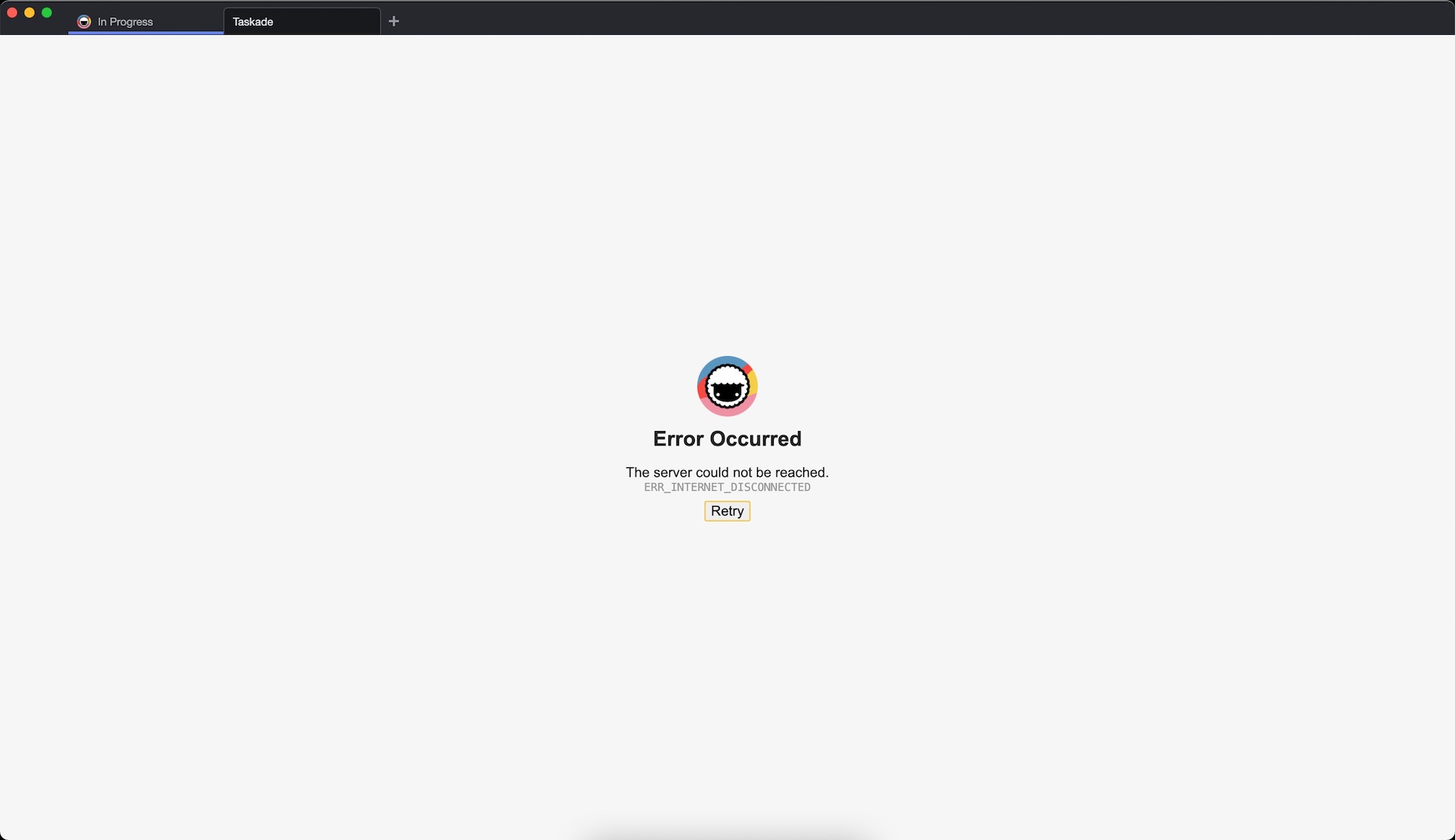
Start with the first fix for your platform. If the app still stalls, move to the second fix.
| Platform | First fix | If it persists |
|---|---|---|
| Desktop | Check your connection and click Retry | Quit, reopen, then reinstall the app |
| iOS | Close and reopen the app | Restart the device, then redownload |
| Android | Force stop the app | Clear cache and data, then reinstall |
| Web browser | Clear your browser cache | Try a different browser or network |
Desktop
Check your internet connection and click Retry.
Close and reopen the Taskade app.
- 🔴 macOS: Right-click the Taskade icon in the Dock and select Quit.
- 🔵 Windows: Click the Taskade window and press ⌨️ Alt + F4 to force quit.
If the problem persists, reinstall the app from your OS's app store.
Stay signed in on desktop
The desktop app signs you in by handing off from your browser after you log in at taskade.com. If it keeps returning you to the sign-in screen, get back in with these steps.
On the "Logged in!" page in your browser, click Launch Taskade. This reopens the desktop app with your session.
Fully quit and reopen the desktop app, then sign in again.
- 🔴 macOS: Right-click the Taskade icon in the Dock and select Quit.
- 🔵 Windows: Click the Taskade window and press ⌨️ Alt + F4 to force quit.
Clear your browser cache and cookies (see Web Browser), then sign in again to create a fresh session.
Keep working in the meantime at taskade.com or in the mobile apps.
If the sign-in screen still returns, reinstall the latest desktop app from the downloads page.
iOS
- Close and reopen the app.
- Restart your iOS device.
- If the problem persists, redownload Taskade from the App Store.
Android
Go to Settings ➡ Apps, select Taskade, and tap Force stop.
If the problem persists, clear cache and data:
- Open device Settings ➡ Apps ➡ App Manager.
- Select Taskade ➡ Storage ➡ Clear Cache and Clear Data.
- Restart your phone.
If the problem continues, reinstall Taskade from the Google Play Store.
Web Browser
- Clear your browser cache.
🦊 Firefox:
- Click the hamburger button (top-right corner) and select Options.
- Scroll to Privacy & Security from the left menu.
- Scroll down to the Cookies and Site Data section.
- Tick Cached Web Content and click Clear.
🤖 Chrome:
- Click ⋮ and select More tools.
- Choose Clear Browsing Data ➡ Basic.
- Tick Cached images and files and click Clear Data.
🌐 Edge:
- Click the three dots ··· (top right corner).
- Select Settings ➡ Privacy & services.
- Under Clear browsing data, select Choose what to clear.
- Tick Cached images and files and click Clear.
Still need help?
- Open the Help or profile menu and select Report a bug for a product problem.
- If you want to suggest an improvement, select Request a feature.
- Email support@taskade.com for account-specific help.
Related guides
- No Internet Connection. Resolve sync errors when offline.
- Taskade Blocked by ISP. Get back in when your internet service provider blocks Taskade.
- Restore Tab. Reset the New Tab extension.
- Desktop Settings. Reconfigure the desktop app.