
Overview
The "infinity mirror" effect is a visual feedback loop. It appears when the area you share includes the Taskade video call window itself. The result is a tunnel-like image that other participants cannot read. This is not a bug in Taskade. Any screen-sharing tool does this when it captures its own output.
TL;DR: Share a single tab or app window during a Taskade video call instead of your full screen, and pick one that is different from the call window. That keeps your screen share crisp and readable for everyone. See What is a Workspace? to organize your projects and calls.
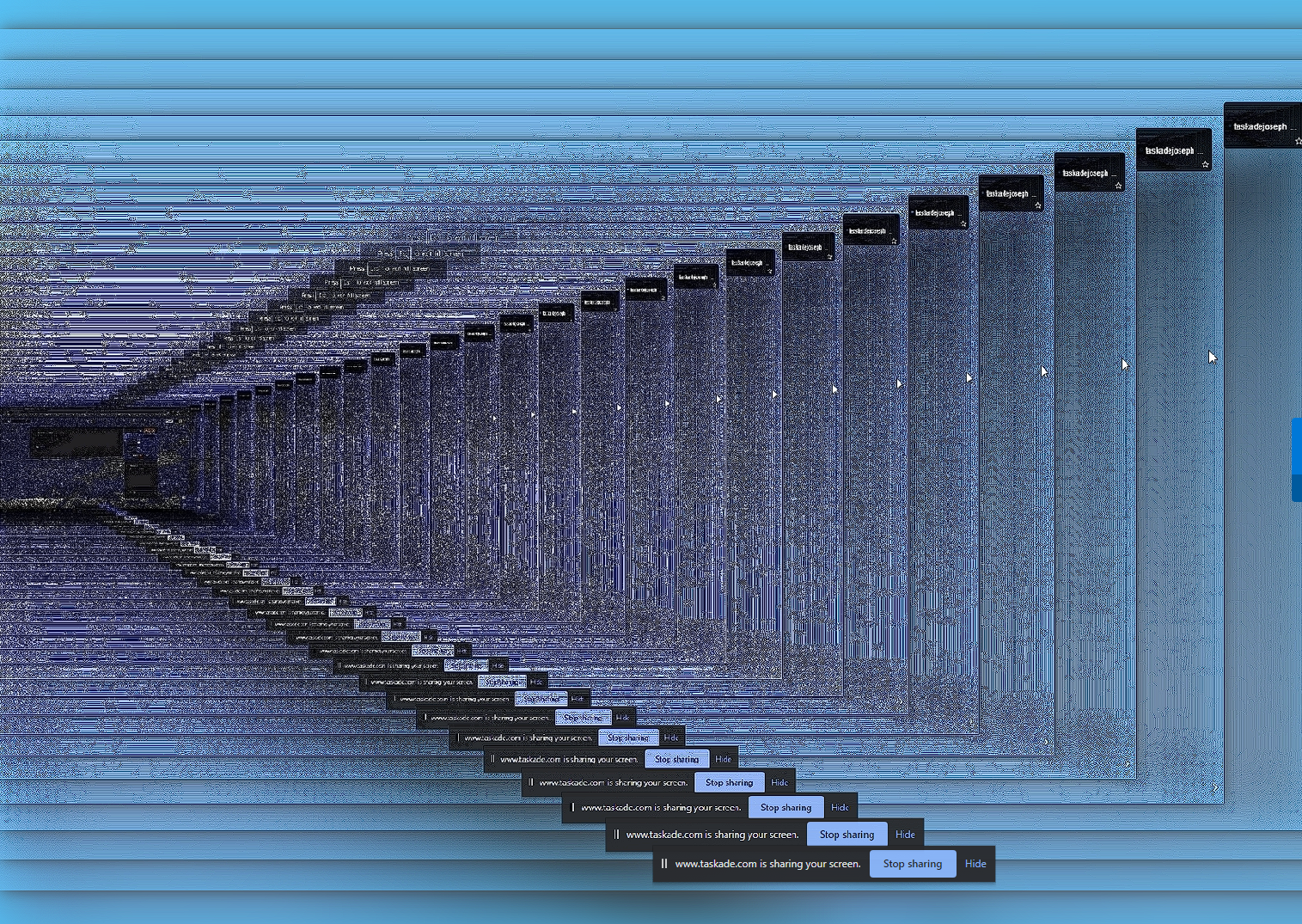
The two ways to share, side by side:
  ✅ Share a tab or window     ❌ Full screen w/ call
  ┌──────────────────┐        ┌──────────────────┐
  │  Your slides      │        │  Your slides      │
  │  clean, readable  │        │  ┌────┐ call in   │
  │                   │        │  │ ⤾ │ frame →   │
  │                   │        │  └────┘ mirror ∞  │
  └──────────────────┘        └──────────────────┘
How to Fix It
Web Browser
- When starting a screen share, choose Share a specific tab instead of your entire screen.
- Select a tab that is different from the one running your Taskade video call.
- If you have to share the same tab, minimize the video call overlay first. You can also move it to a separate window.
Taskade Desktop App
- Open a new Project or switch to a different workspace view before you share your screen.
- If your operating system supports it, use the Share a specific window option. Pick a window other than the video call.
General Tips for All Platforms
- Share an application window rather than your full desktop when you can. This keeps the video call window outside the captured area.
- On macOS, use the "Window" sharing option in the screen-share picker to select only the relevant app.
- On Windows, choose "Application Window" to prevent capturing the entire desktop.
- If you must share your full screen, drag the Taskade call window to a second monitor so it is not included in the shared display.
Tips
- Close any picture-in-picture overlays before you start a screen share. This prevents partial mirror effects.
- If the infinity mirror appears at the start of a share, switch to the correct tab or window. The effect usually goes away.
- For recurring meetings, set your default share option to specific tab or specific window so you do not accidentally share the full screen.
Related guides
- No Internet Connection: Troubleshoot connectivity issues during calls
- What is a Workspace?: Learn how workspaces organize your projects and calls
Still need help? Let us know at support@taskade.com!