
What Is SCIM?
SCIM (System for Cross-domain Identity Management) automates user provisioning and deprovisioning between Taskade and your identity provider. SCIM adds new hires to the right Taskade workspace. When HR offboards someone, Taskade revokes their access at once. No manual invites, no orphaned accounts, no audit gaps.
TL;DR: Configure SAML via Azure AD first. Then in Taskade create an Organization, copy the SCIM token, and paste it into Azure's Enterprise App Provisioning tab with tenant URL
https://taskade.com/scim/v2. Assign Azure groups to provision them as Taskade workspace members. Included with Enterprise plans. Contact us to turn SCIM on for your organization.
Configure SCIM in Taskade
SCIM provisioning is included with Enterprise plans, along with legacy Enterprise and team contracts. Contact us to turn it on for your organization.
Note: Before you start, configure SAML. Visit SAML via Azure AD to learn how.
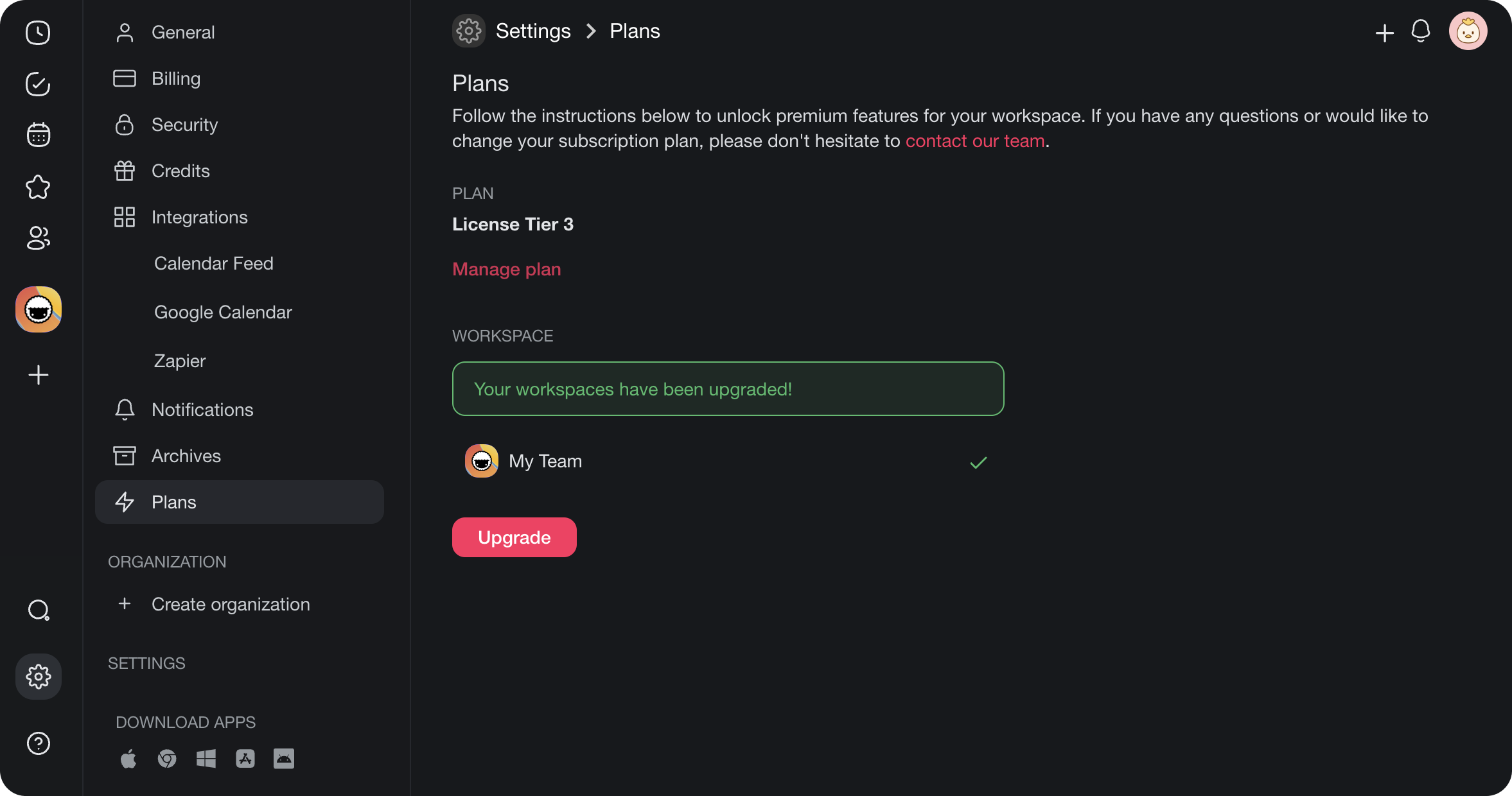
Check that the workspace is on Enterprise or a legacy Enterprise or team contract. If it is not, upgrade the workspace:
- Visit https://taskade.com/settings/plans.
- Select the workspace(s) you want to upgrade, and click Upgrade.
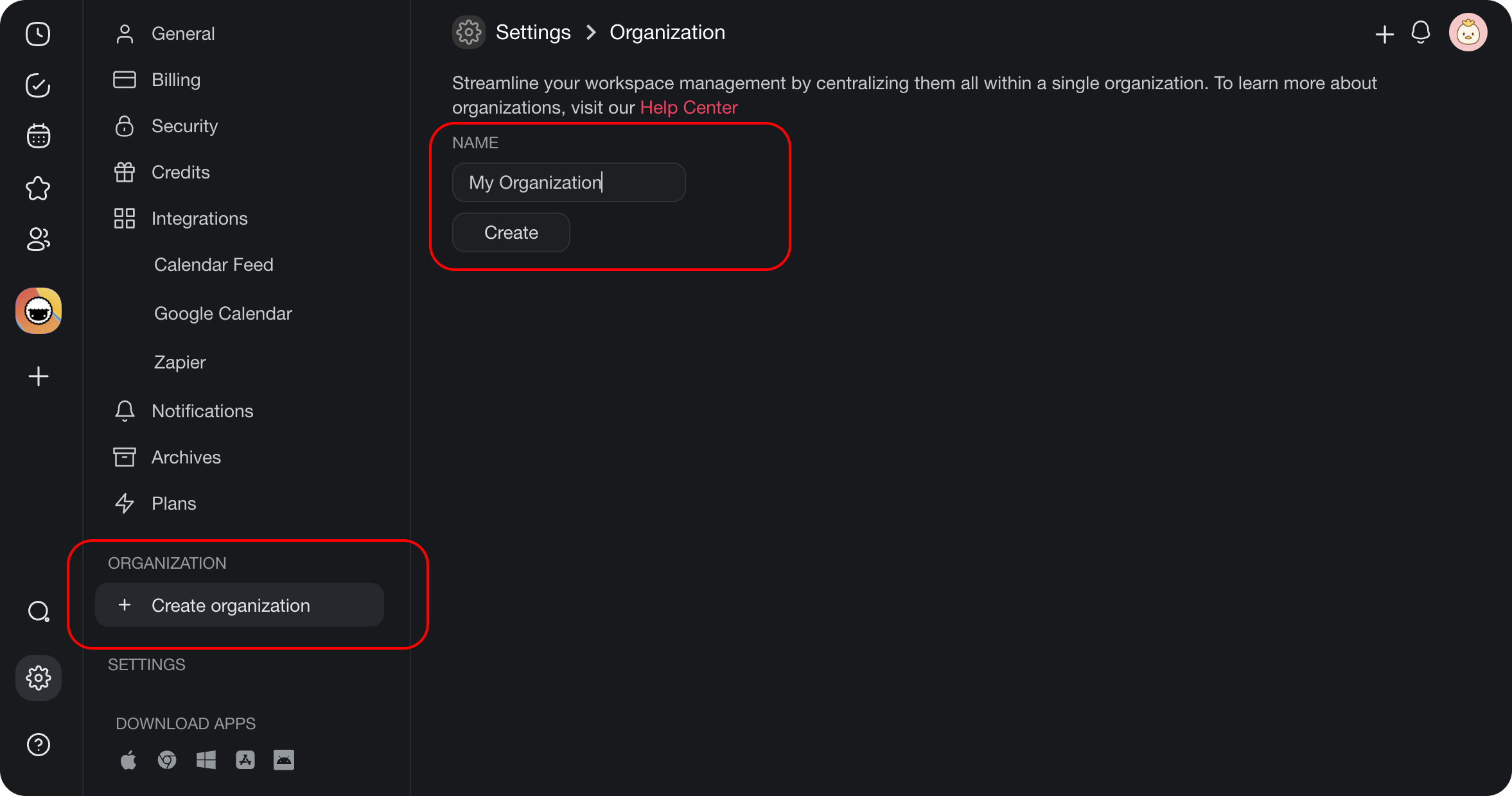
- Next, create an organization. An organization groups multiple workspaces together, and that makes group provisioning possible.
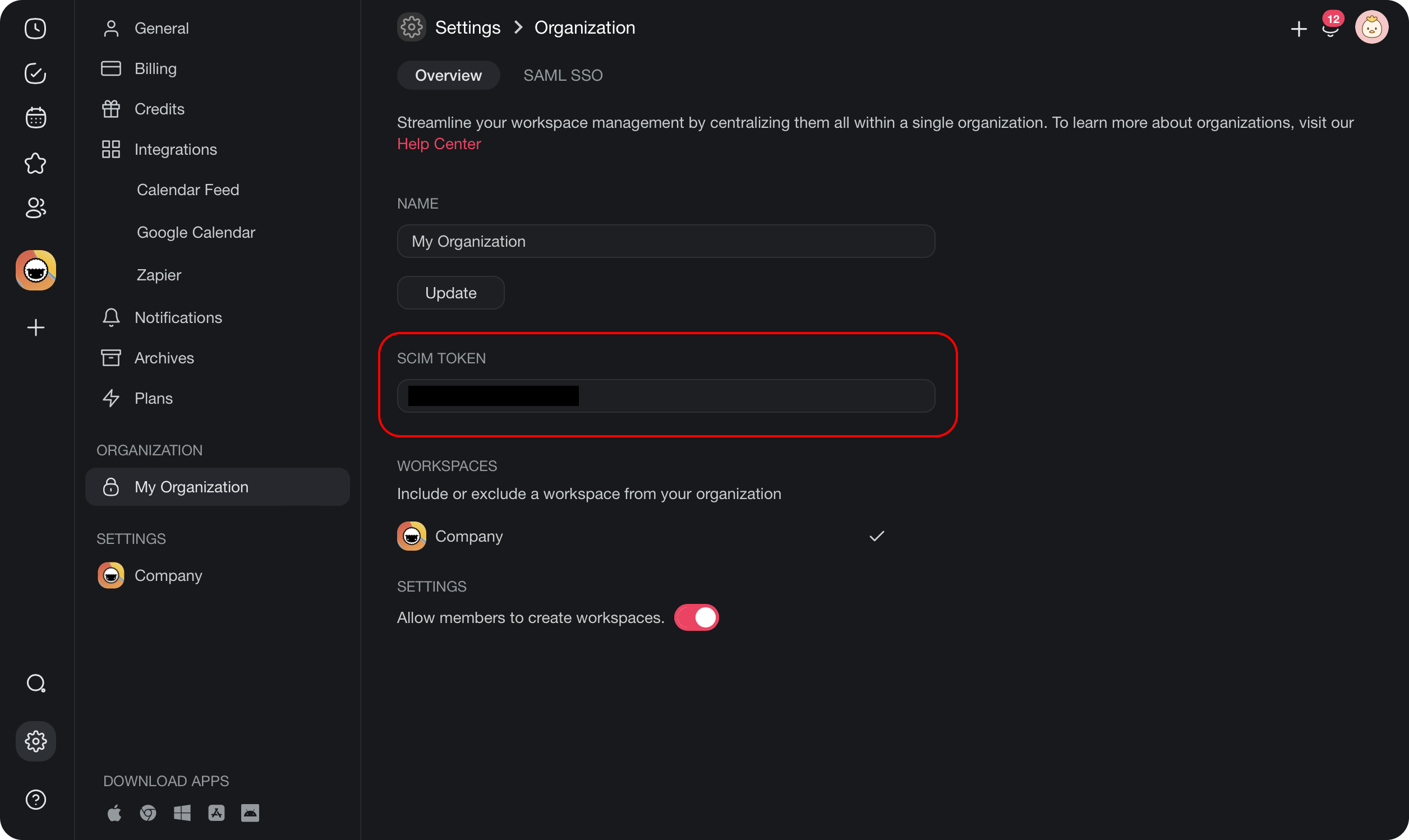
- After you create your organization, copy the SCIM token. You need it during the Azure setup.
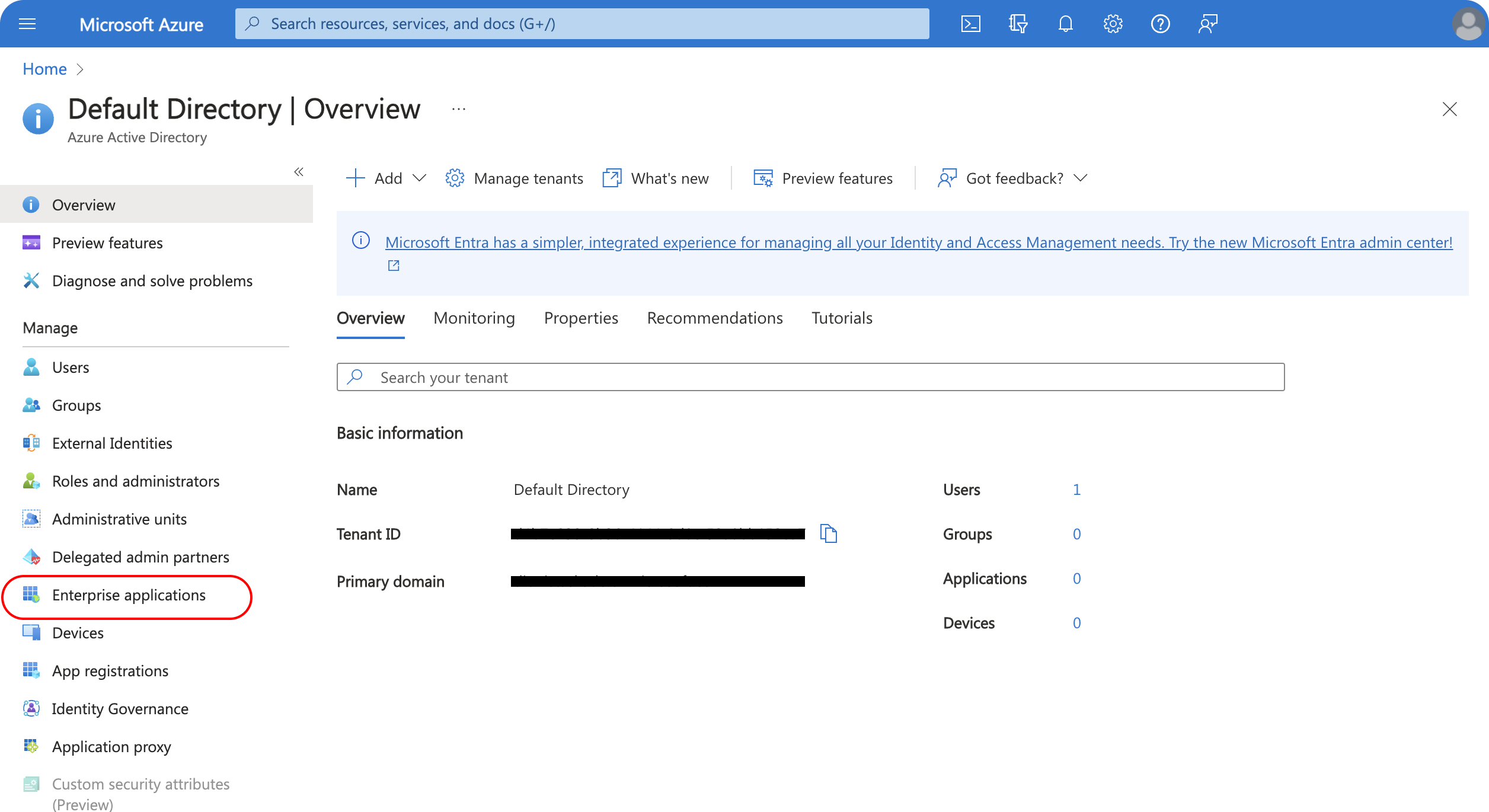
- Next, open the Azure portal and find Azure Active Directory in the side navigation panel.
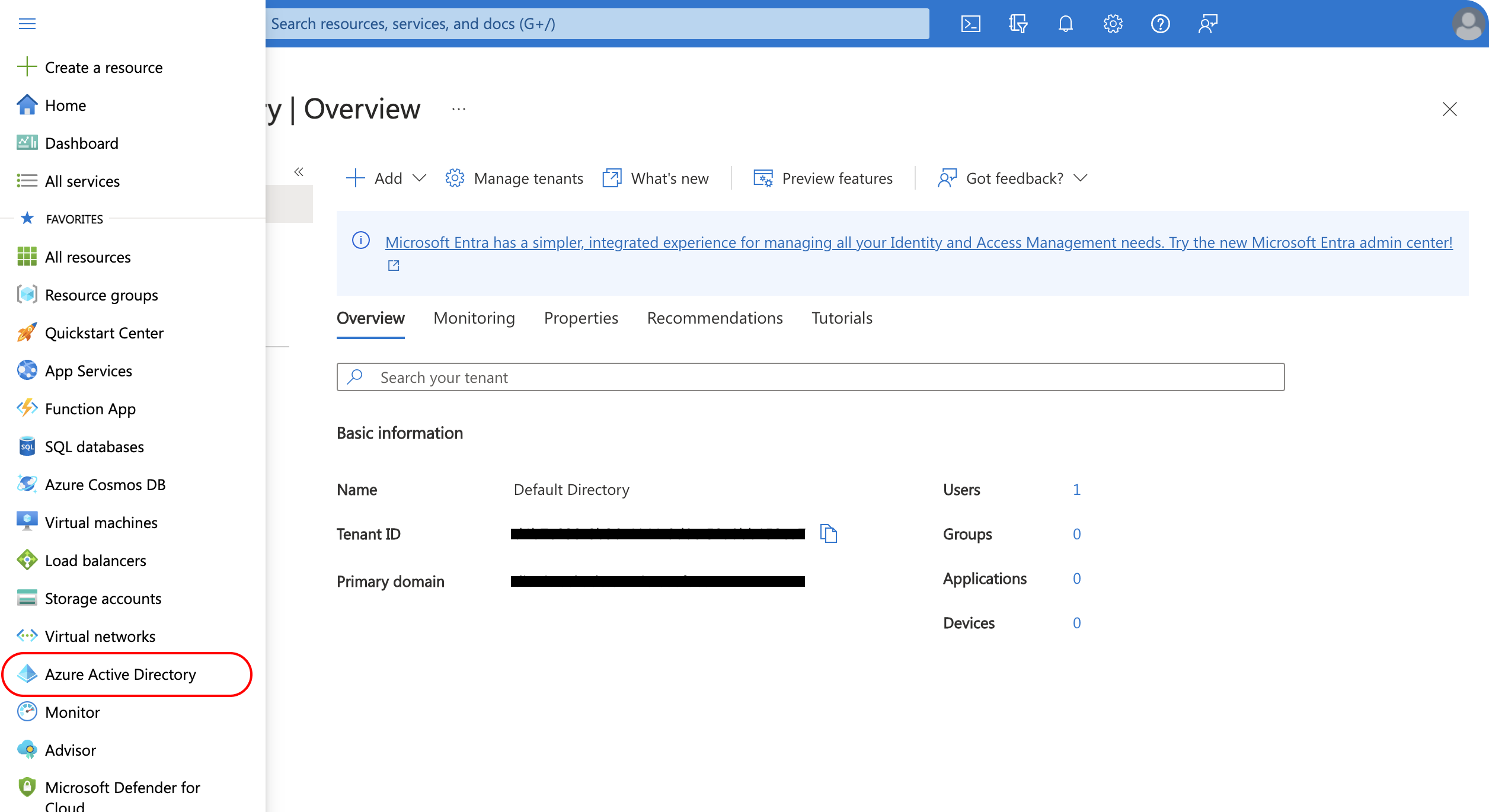
Select Enterprise Applications and find Taskade among the list of applications.
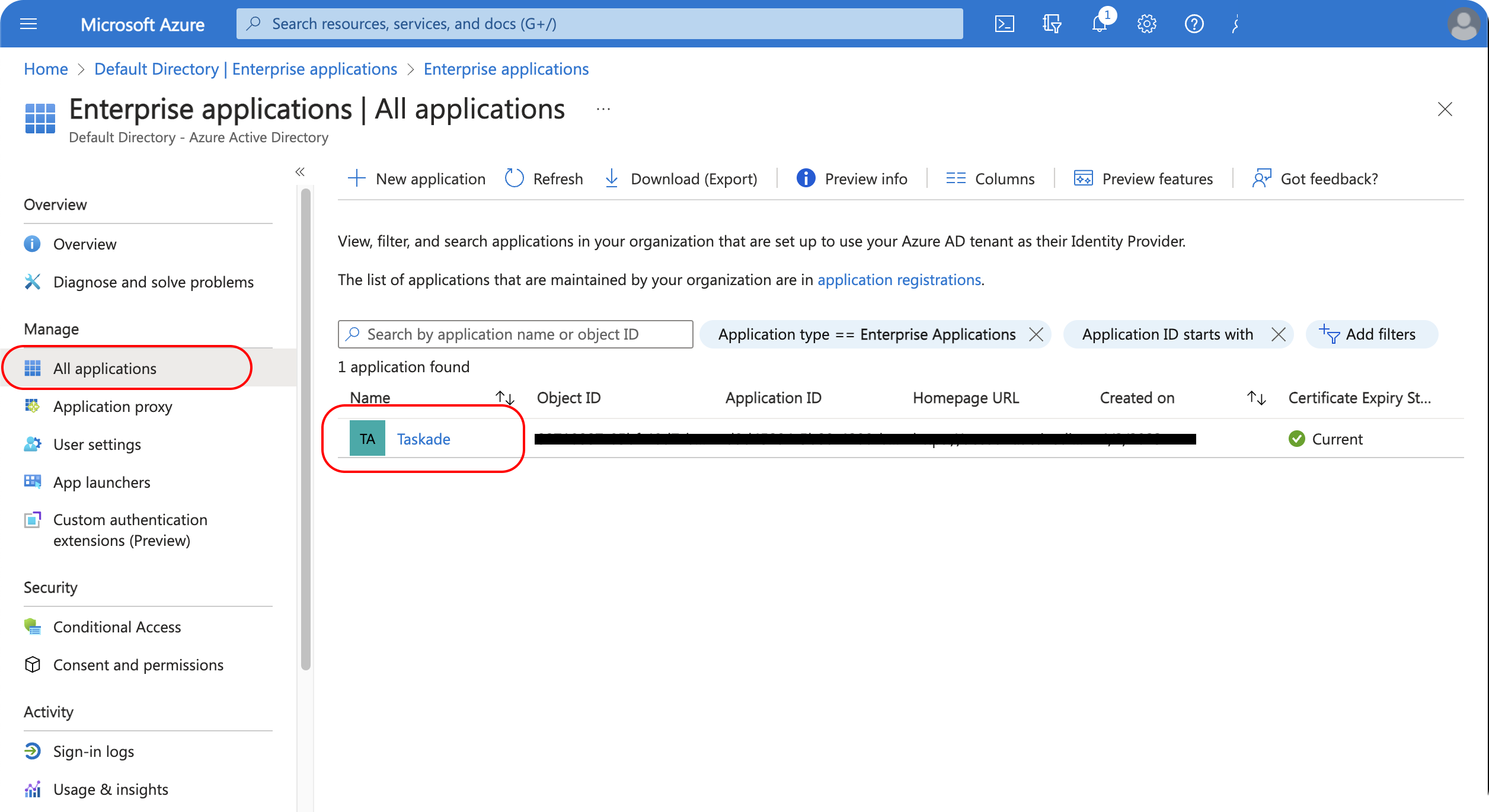
- Under the Manage section, click Provisioning.
- Choose Automatic for the provisioning mode and type "https://taskade.com/scim/v2" for the admin credentials tenant URL.
- Paste the SCIM token from your org's overview page into the Secret Token field.
Use these values on Azure's Provisioning screen:
| Azure setting | Value |
|---|---|
| Provisioning Mode | Automatic |
| Tenant URL | https://taskade.com/scim/v2 |
| Secret Token | Paste your Taskade SCIM token |
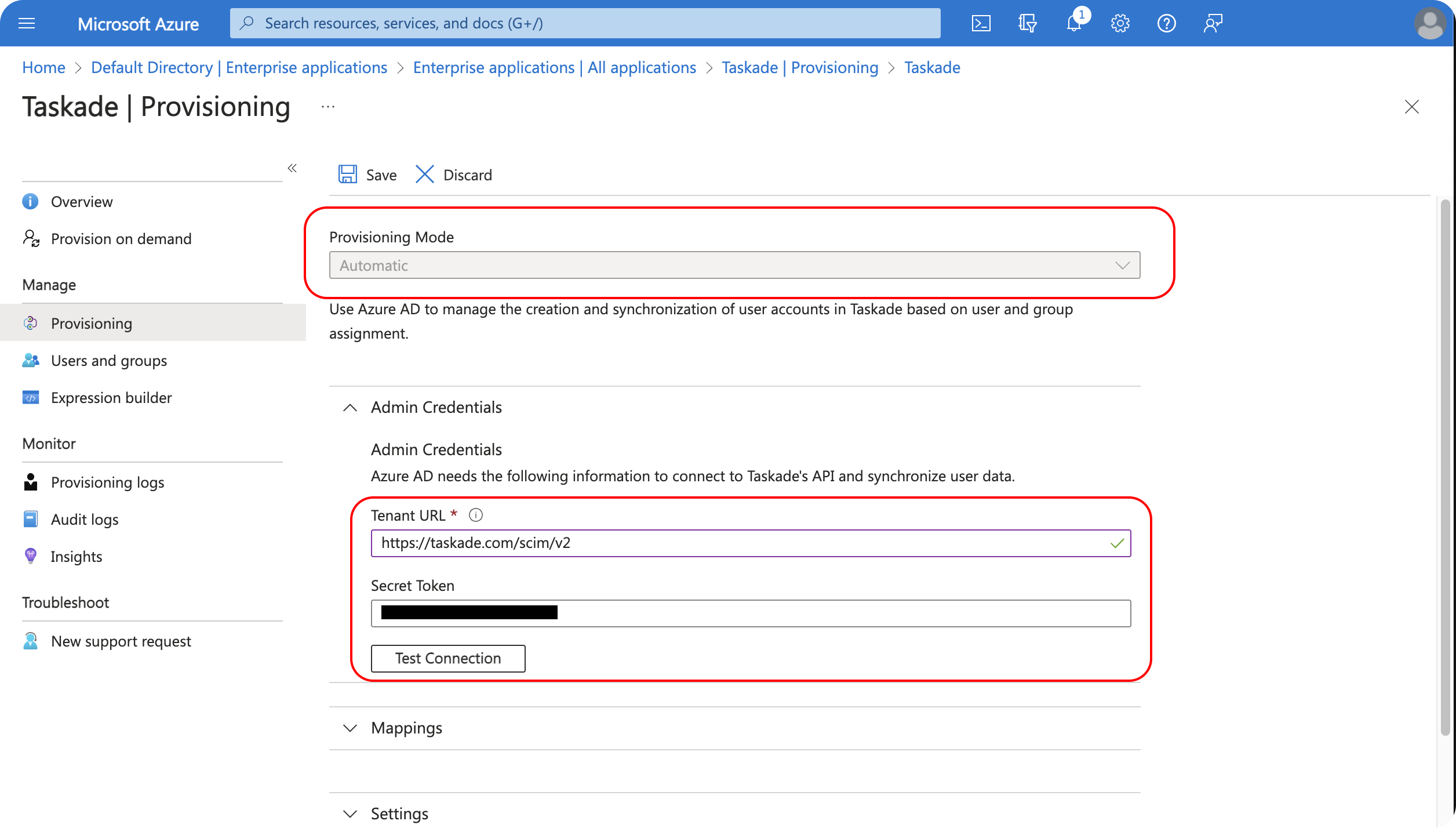
- Select Test Connection to check your configuration.
- If the connection works, click Save.
The next steps walk you through group provisioning.
- Go to the Manage section and select Users and Groups.
- Click on Add user/group.
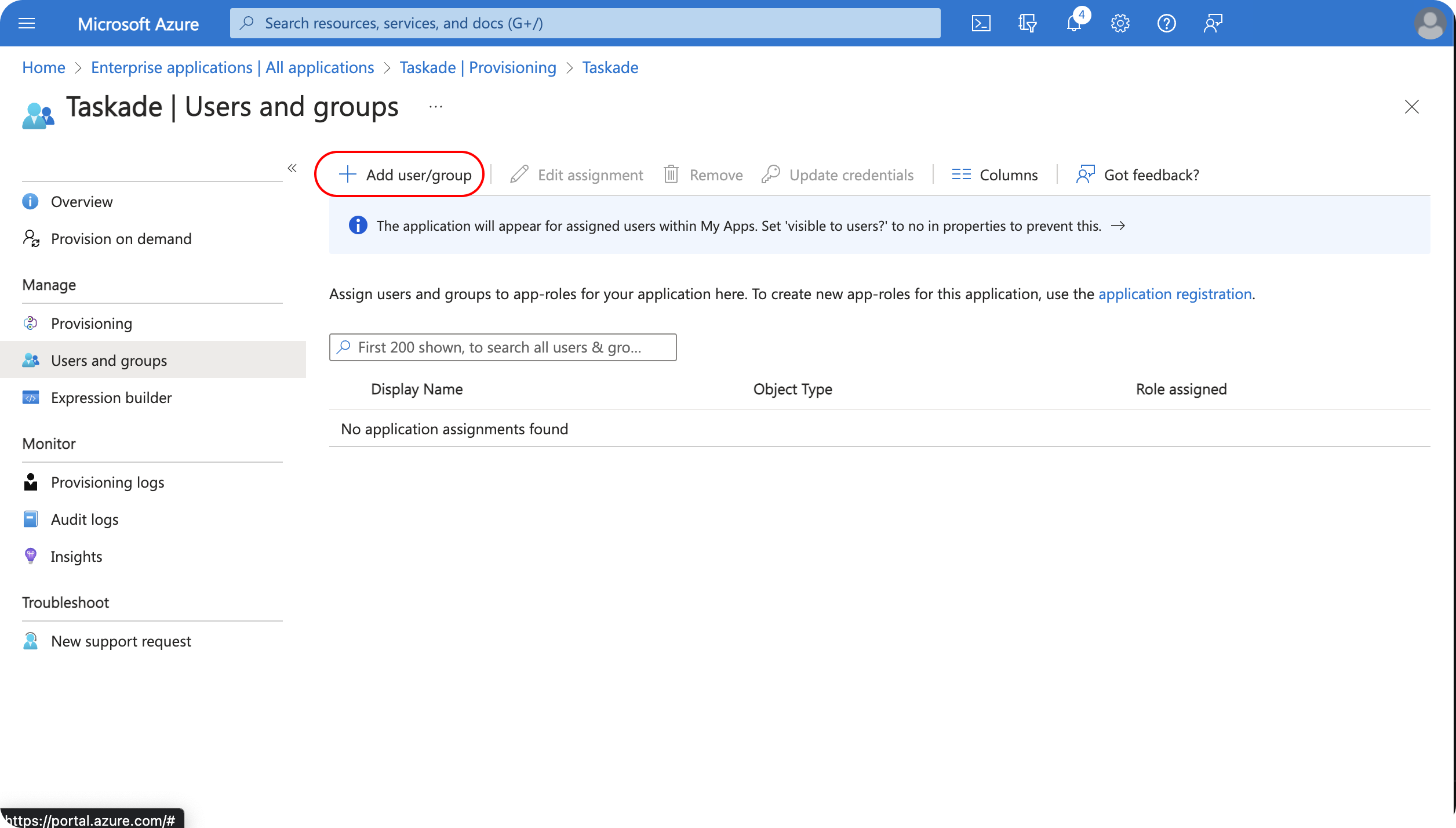
Add a group you want to sync with your Taskade organization, then click Assign.
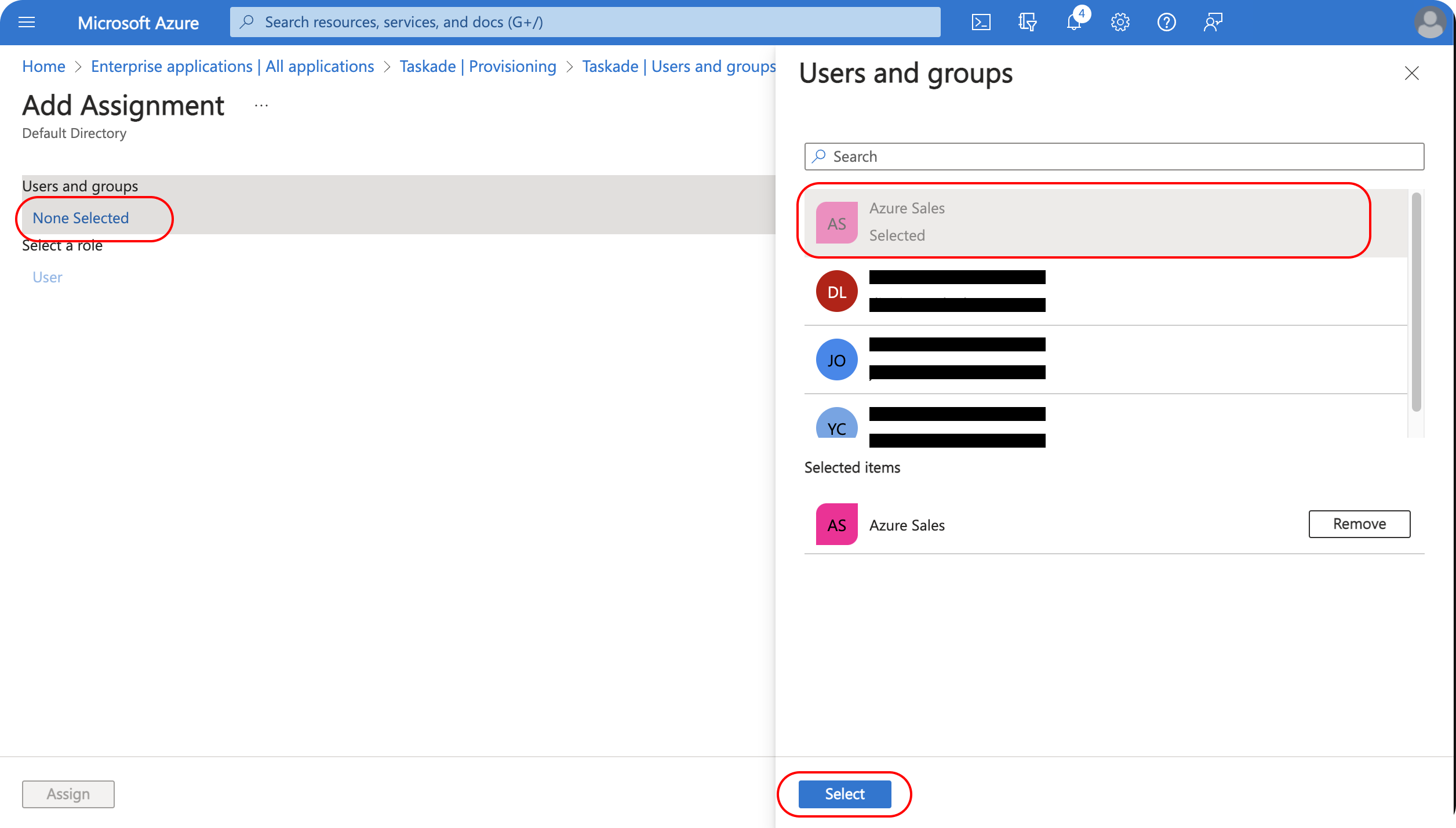
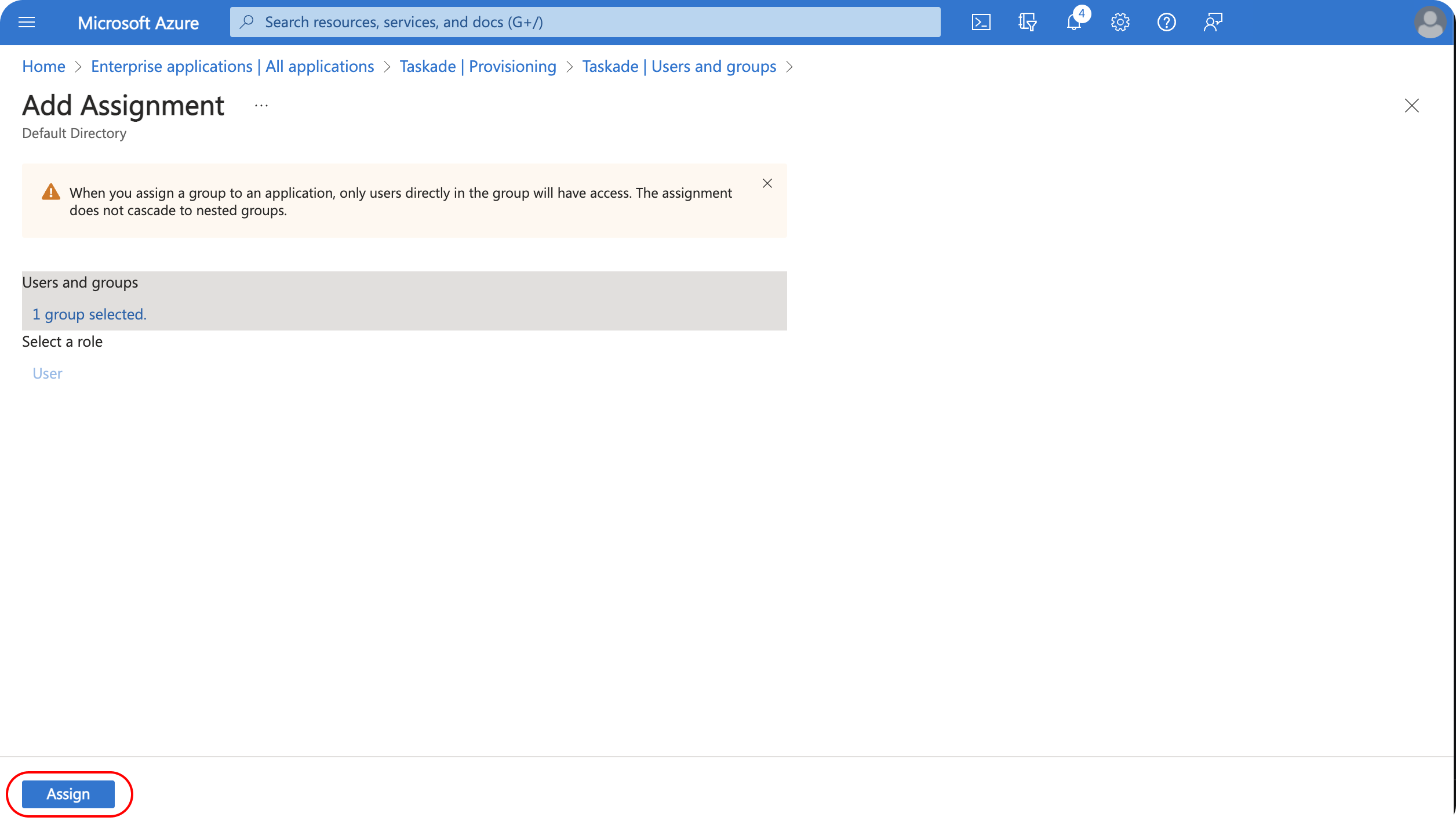
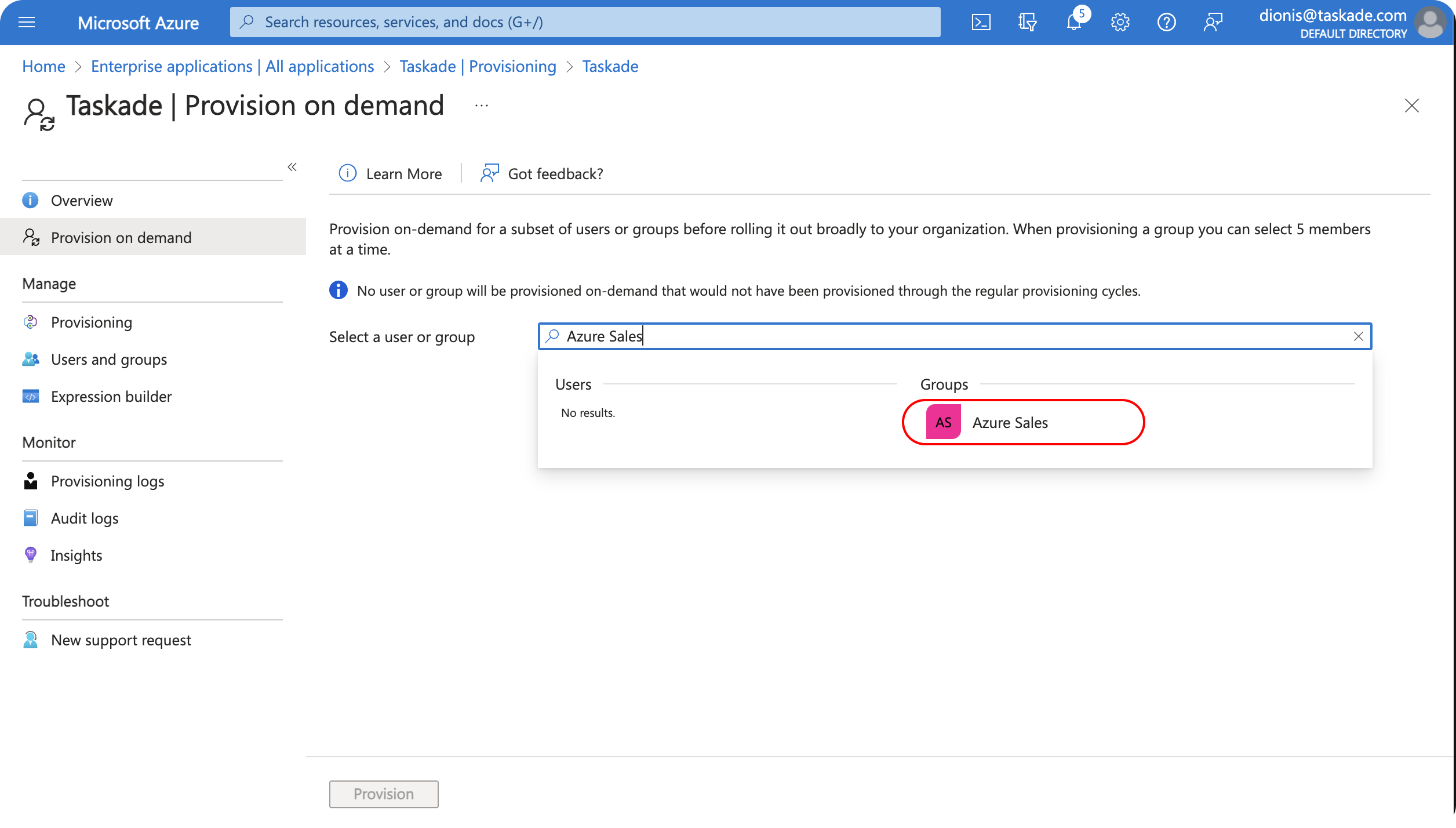
Select Provision on demand and choose the group you recently assigned.
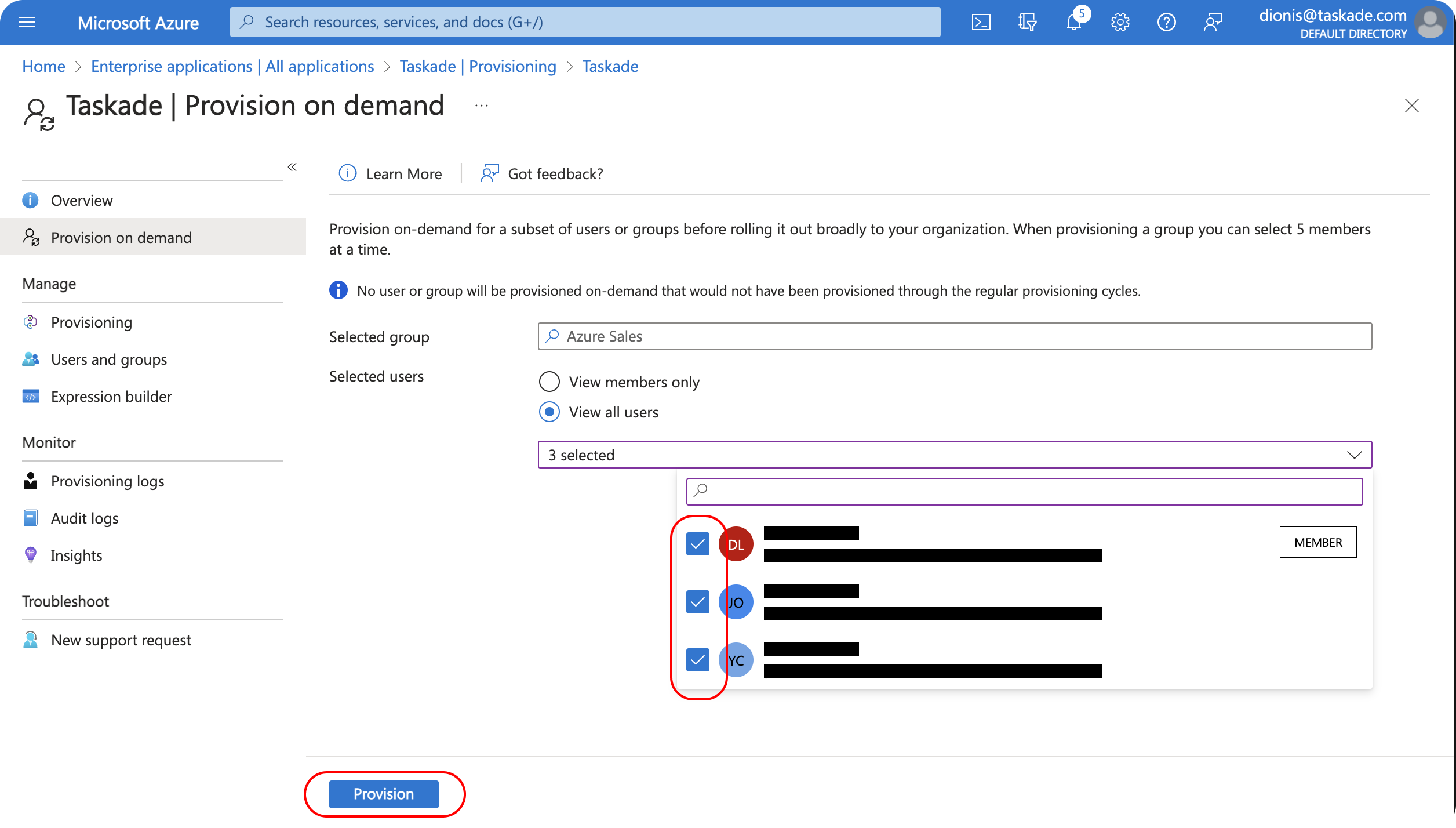
Choose all the group members, then click Provision.
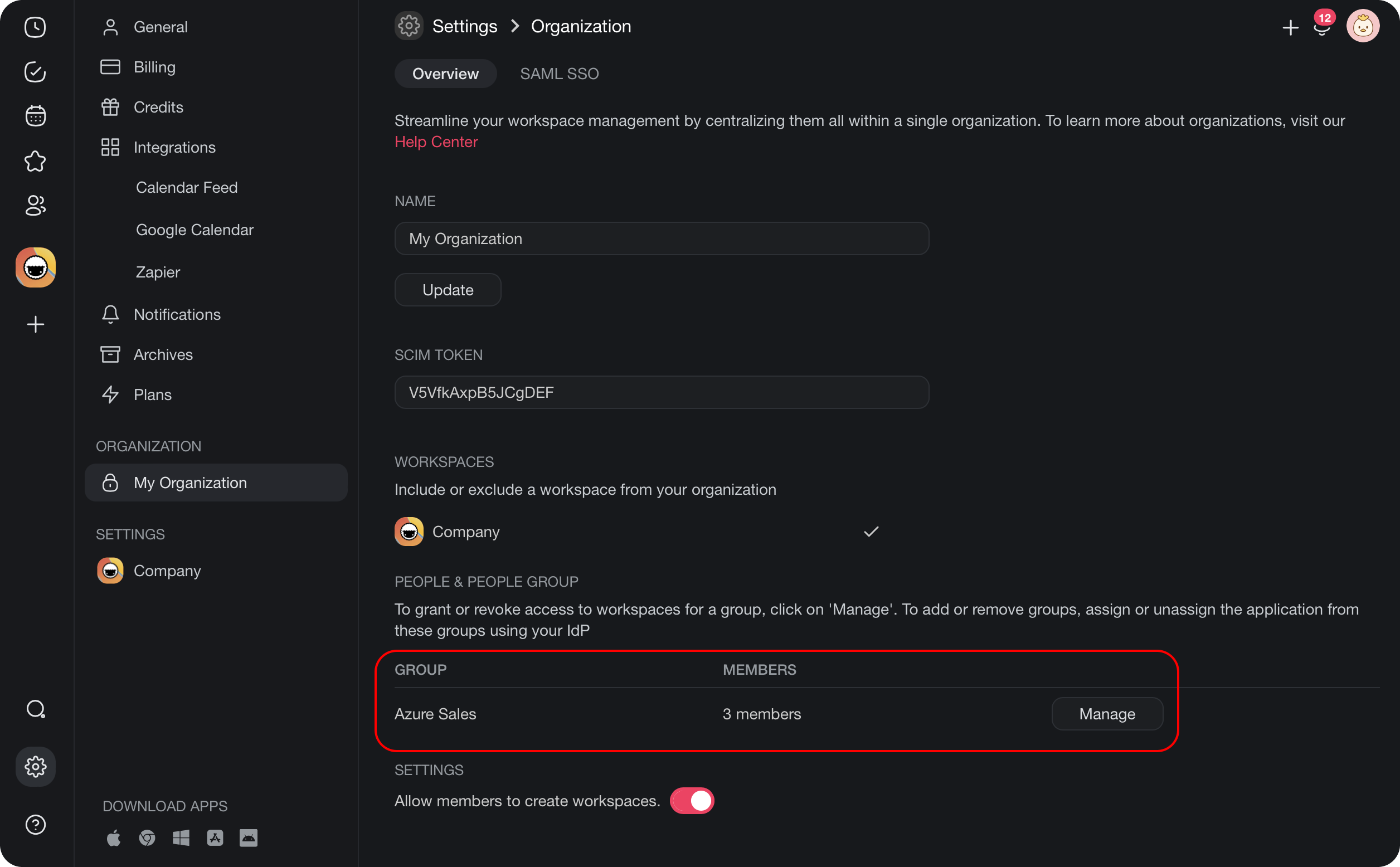
When you open Taskade, the group you provisioned appears in the Organization tab.
Provision Folders
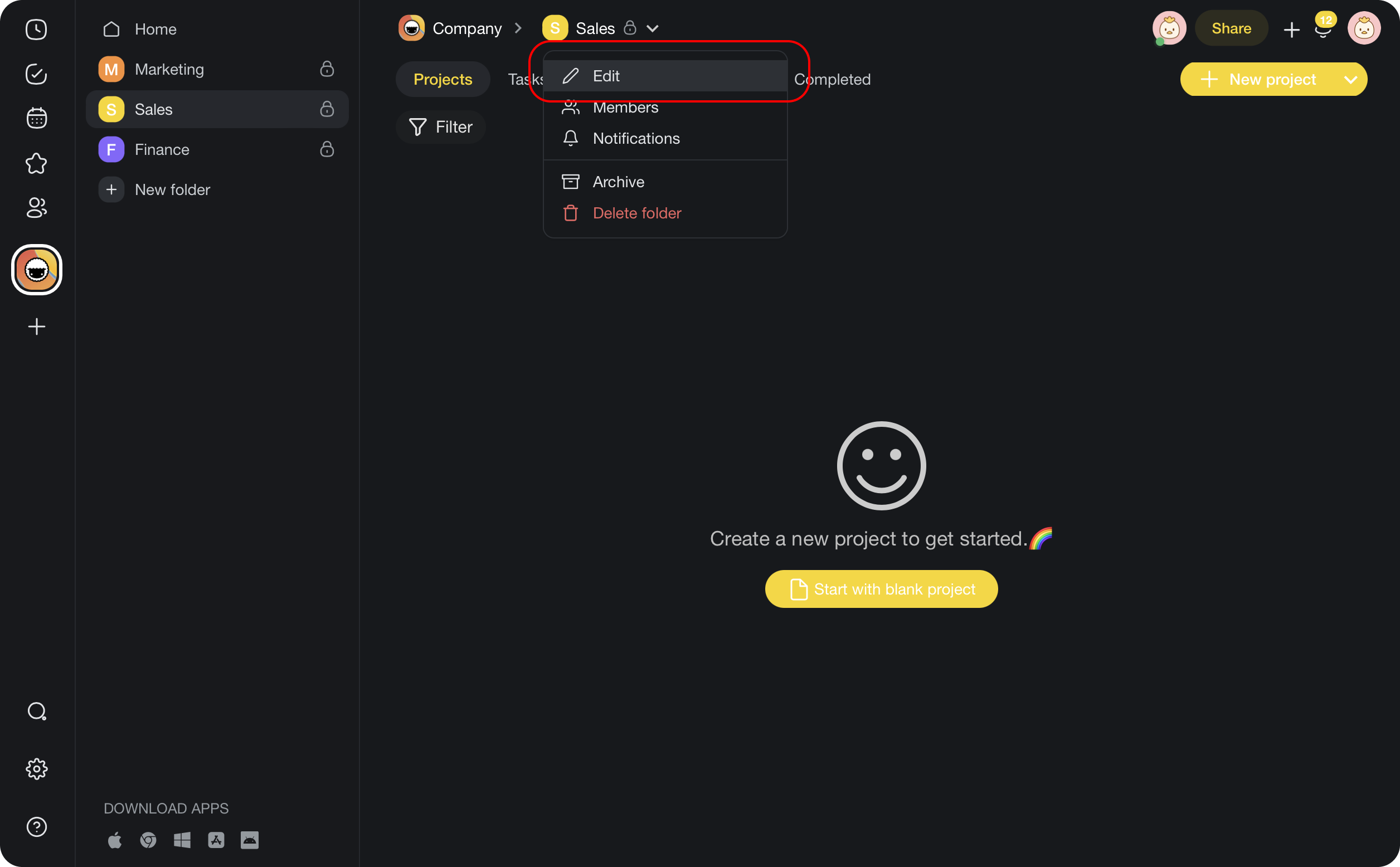
You can provision groups for both folders and workspaces. To start with folders, open any folder in a workspace that belongs to your organization. Click the folder name in the header, then choose Edit from the drop-down menu.
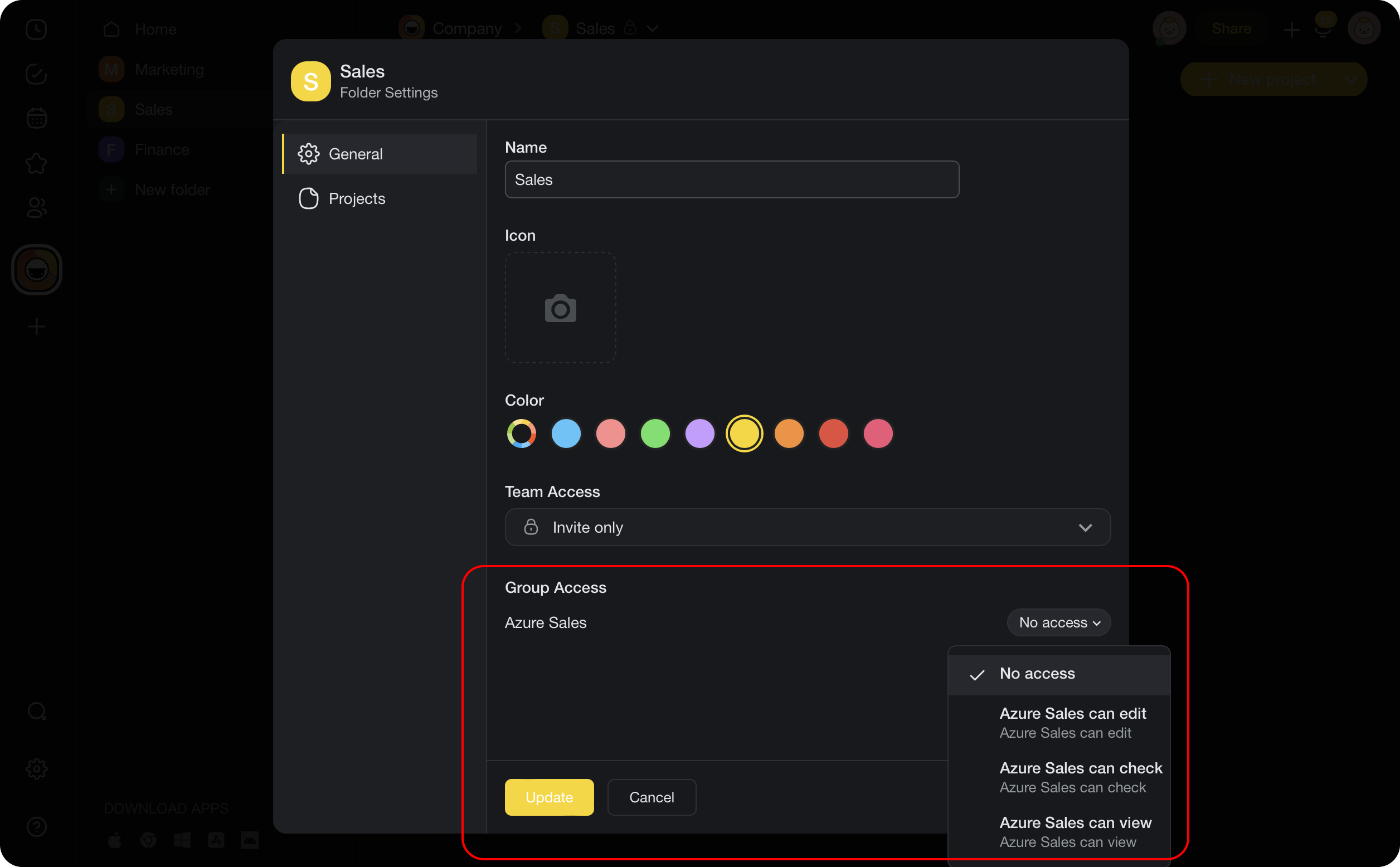
You can provision the Azure group from the Edit Folder menu. Pick the group access level, then confirm. See User Roles & Permissions for what each level can do.
Note: After you update the group access, group members reach that folder. One thing to remember: after a group member joins a folder, you have to remove them by hand.
Provision Workspaces
- To provision workspaces, return to your organization page.
- Your organization has to manage more than one workspace.
- Next, open the Groups section and manage one of the groups.
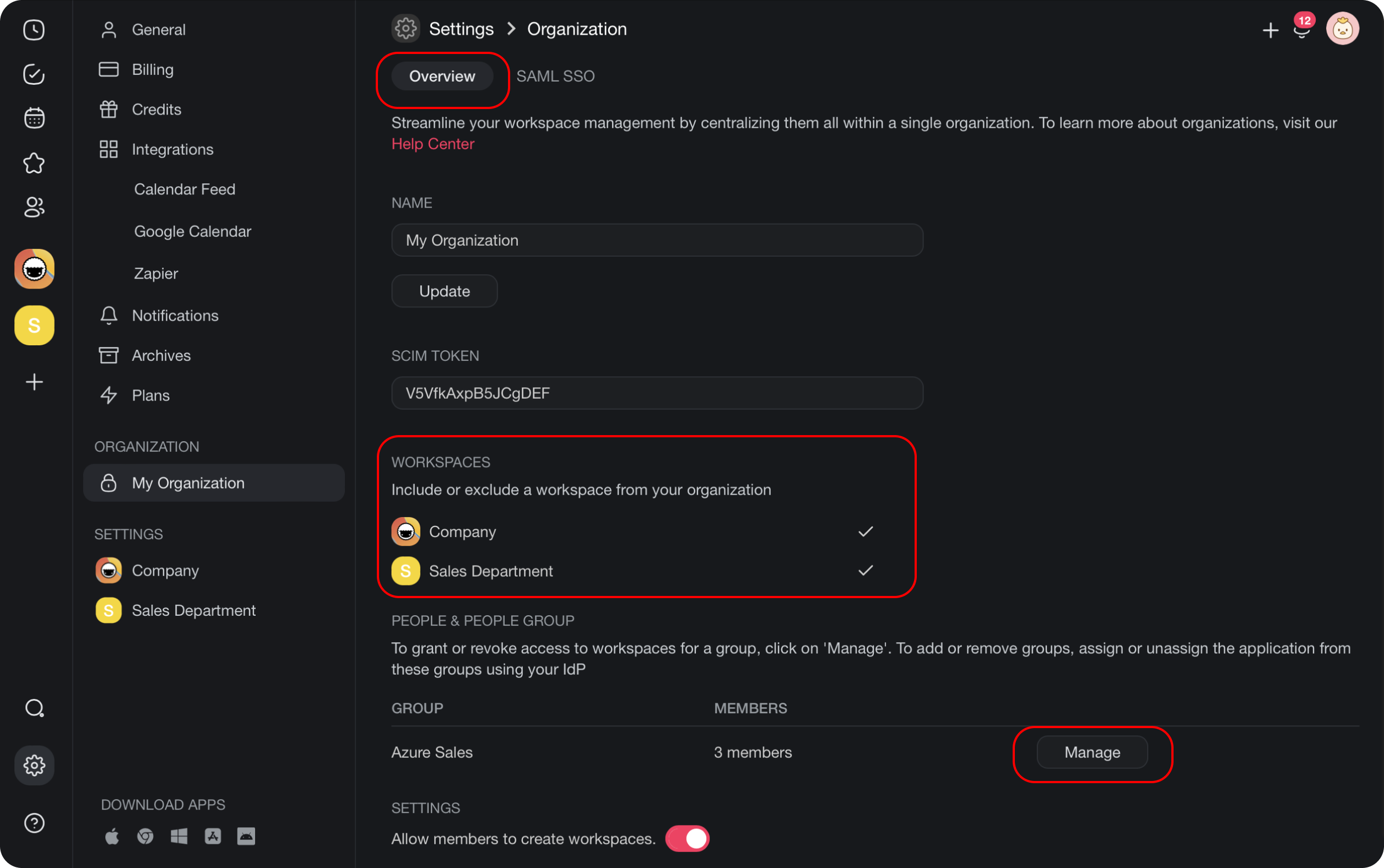
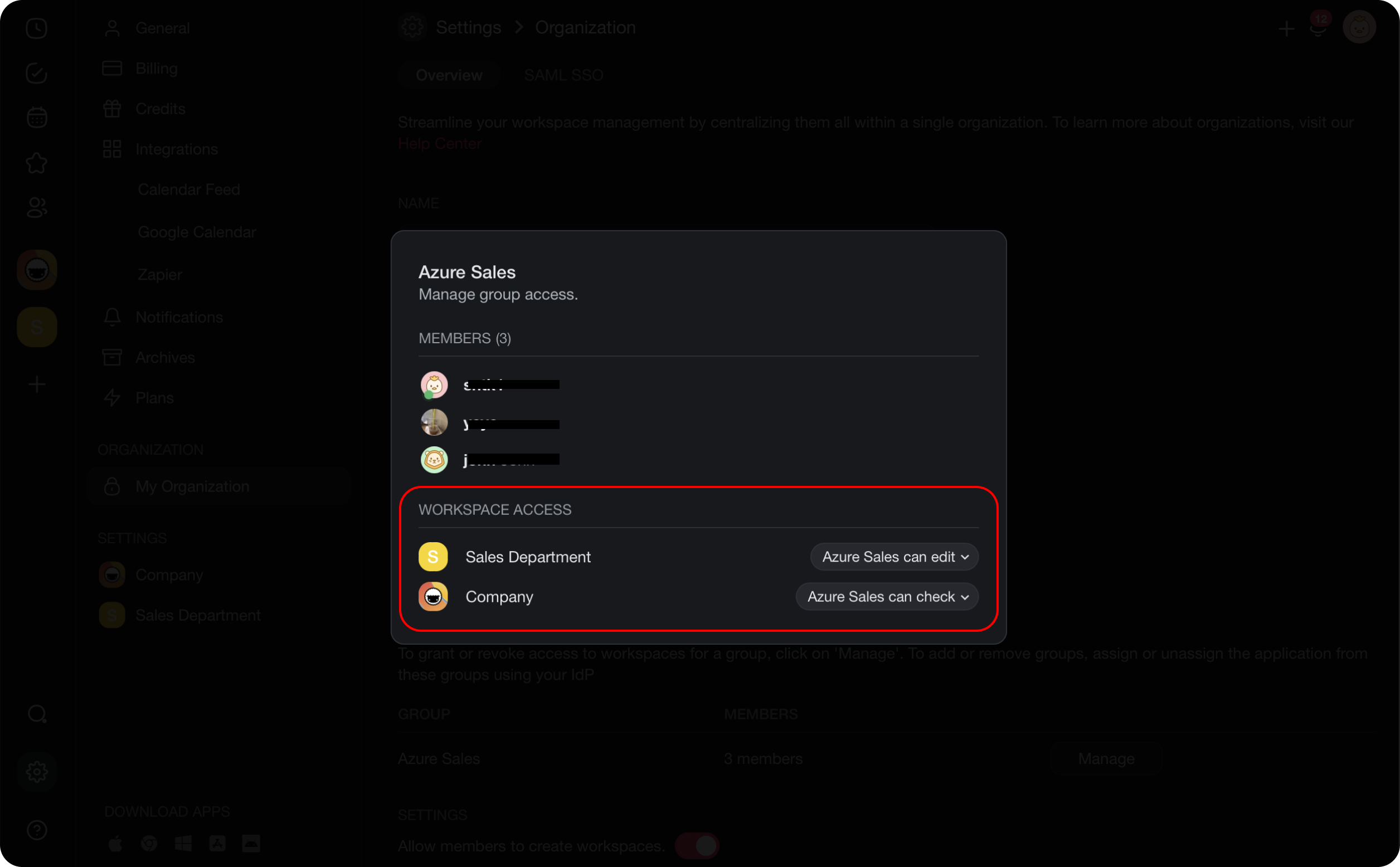
- Adjust the group access level for each workspace.
💡 Note: Any group with workspace access also reaches the home folder. You manage access to the other folders one by one inside the workspace.
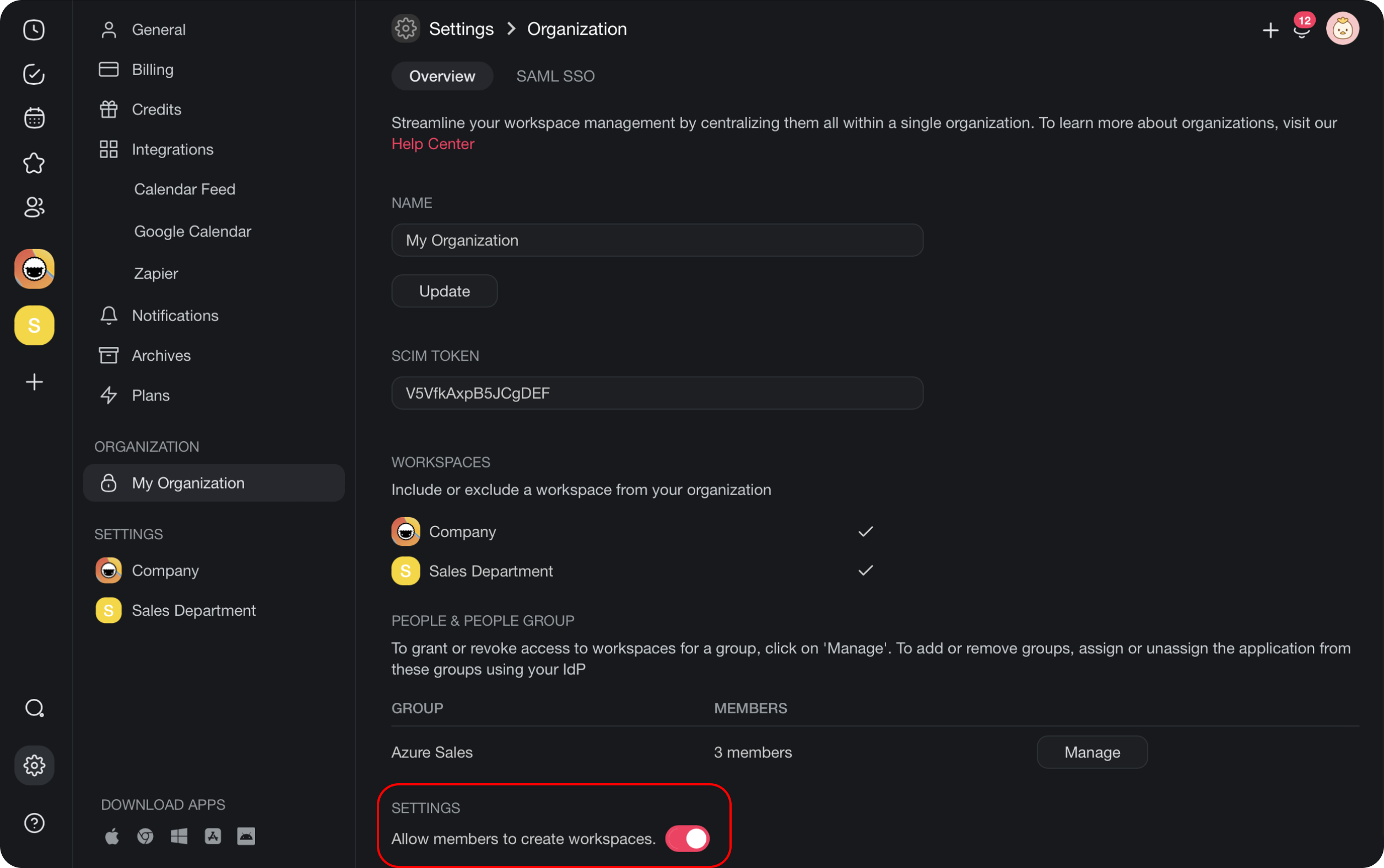
To stop organization members from creating their own workspaces, turn off the Allow members to create workspaces option in the organization settings.
If you want help with your SCIM setup, email support@taskade.com.
Related guides
- SAML via Azure AD. Configure SSO before SCIM.
- SCIM via Okta. Same automation flow with Okta as your identity provider.
- Transfer Ownership. Hand off the workspace.
- Workspace Privacy. Folder and workspace access controls.