
Overview
Monday.com is a work management platform with boards, timelines, and dashboards. Monday exports data as Excel files. Convert those files to CSV, then bring them into Taskade through the Import CSV tab. This guide covers exporting from Monday at the group, item, and account levels.
TL;DR: Bring your Monday.com boards into Taskade. Export a group, items, or your whole account to Excel, save the files as CSV, then import the CSV, mark the column that holds the task name, and set the type of every other column. Once imported, pick from Board, Table, Gantt, or Calendar views and add automations.
Export Data from Monday
- To export a group:
- Click ··· on the left.
Click Export to Excel.
To export individual items:
Select items and click Export in the toolbar at the bottom.
To export your entire account:
- Click your profile picture in the top-right corner.
- Choose Administration from the list.
- In the General settings go to the Account tab.
- Scroll down to Export account data and click Export.
Monday exports data in Excel (.xlsx) format. Convert these files to CSV before you import them into Taskade.
Convert Excel Files to CSV
Unzip the downloaded archive.
Open any of the Excel files in Excel or Google Sheets.
In Google Sheets:
- Click File ➡ Download ➡ Comma Separated Values (.csv).
In Microsoft Excel:
- Go to File ➡ Save As.
- Click Browse.
- Under Save as type box, select CSV (Comma delimited).
Save your converted CSV file.
Import to Taskade
- Click the ➕ New project button in your workspace / folder.
- Choose Import ➡ switch to the Import CSV tab.
- Drag & drop your CSV file into the pop-up menu or click to select files.
- Set your column types in the preview, then click Import.
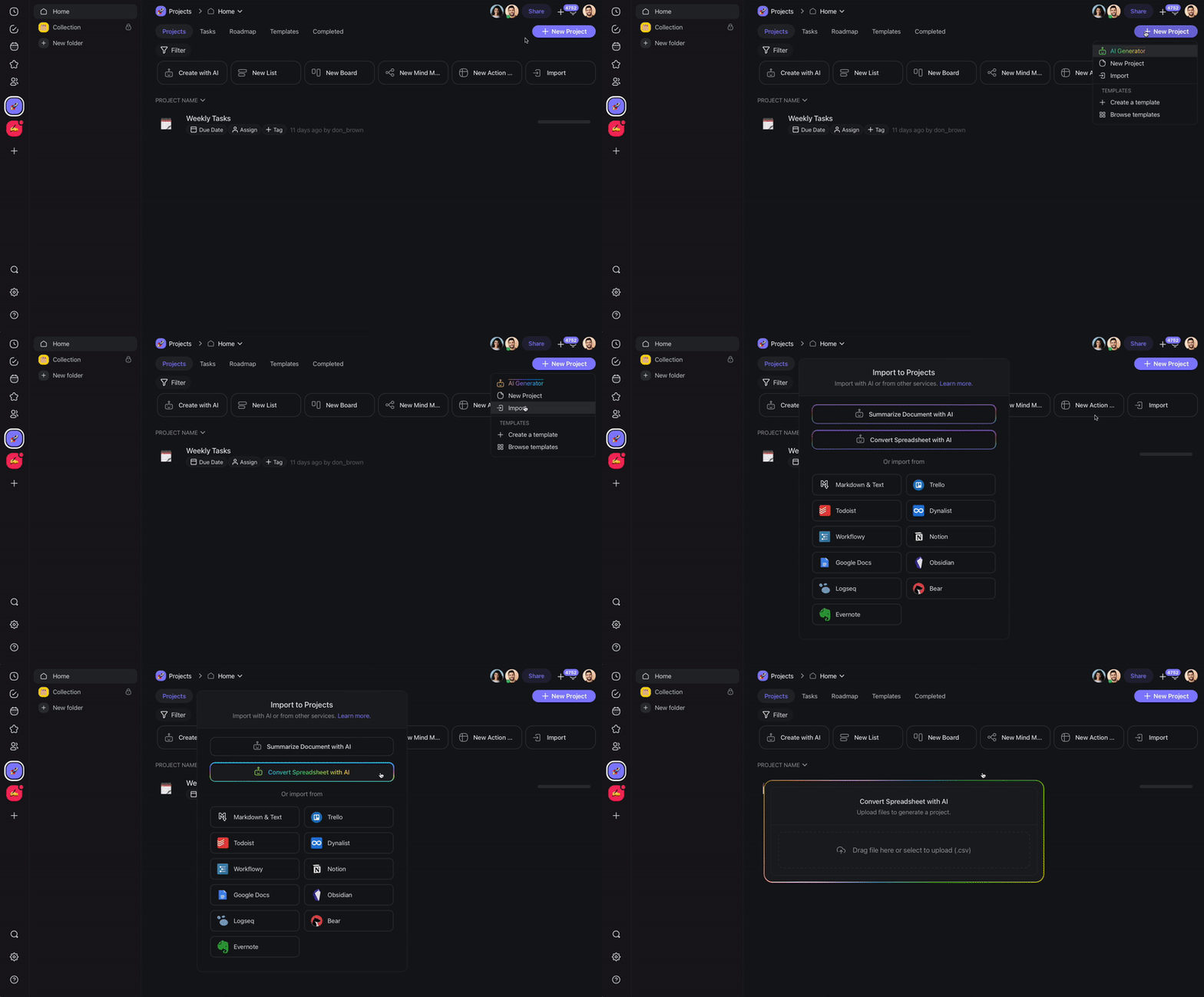
Taskade reads the first row as your column names and shows a preview. Mark the column that holds the task name as Primary, then set each other column to Text, Select, or Number. Click Import to build the project.
The Import CSV tab takes up to 300 rows and 5 MB per file. If your export is larger, split it and import the parts.
📋 Your Monday board lands as a Table you can sort, filter, and switch to any view:
┌────────────────┬──────────┬────────┬────────┐
│ Task           │ Status   │ Owner  │ Due    │
├────────────────┼──────────┼────────┼────────┤
│ Kickoff call   │ Done     │ Priya  │ Aug 2  │
│ Draft proposal │ Working  │ Sam    │ Aug 5  │
│ Client review  │ Stuck    │ Alex   │ Aug 9  │
└────────────────┴──────────┴────────┴────────┘
Status, owner, and date columns become native Taskade fields, so nothing gets flattened into plain text.
After Import
After your Monday.com data lands in Taskade, you can build out your process:
- Choose your view: Switch between Board, Table, Gantt (paid plans), Calendar, and other views to match how you worked in Monday.
- Set up automations: Create automations to handle status changes, notifications, and task assignments.
- Use AI agents: Ask Taskade AI to prioritize tasks, generate subtasks, or create project summaries from your imported data.
- Collaborate: Invite your team and work together with real-time collaboration.
Tips
- Convert each Monday board to a separate CSV file for cleaner imports.
- Use folders in Taskade to replicate your Monday workspace structure.
- If your Monday boards use complex column types (formulas, mirror columns), review the exported data. Check that the key information transferred correctly.
Monday Field Mapping
| Monday Column | Taskade Equivalent |
|---|---|
| Item | Task |
| Status | Custom field / Tag |
| Person | Assignee |
| Date | Due date |
| Numbers | Custom field |
See AI Personas & CSV-to-Project.
Bring It Into Taskade Genesis
Your imported board is now part of your Workspace DNA. Open the project's ··· menu and choose Add to Agent Knowledge so a custom agent answers questions from it. Start an automation from the project to act on status changes and new tasks. Then open Taskade Genesis and describe the app you want on top of that data, such as a client portal, a CRM, or a tracker. For a web page or a video you want to keep alongside it, save the link in the Media Files tab (see Import a Website URL).