
Overview
Bring your Dynalist outlines into Taskade and keep every level of nesting intact. Each bullet becomes a task node. You can assign it, give it a due date, and open it in any of Taskade's project views. A research outline or SOP turns into something your team can run together.
TL;DR: Bring Dynalist outlines into Taskade four ways: export as OPML and upload, or copy and paste your bullets straight into a project node. Nested levels become a project tree you can open in Mind Map view or enrich with AI. See Import from Workflowy for the same outline process.
How the Import Works
See Import Markdown, Sort & Add Notes.
Method 1 (OPML)
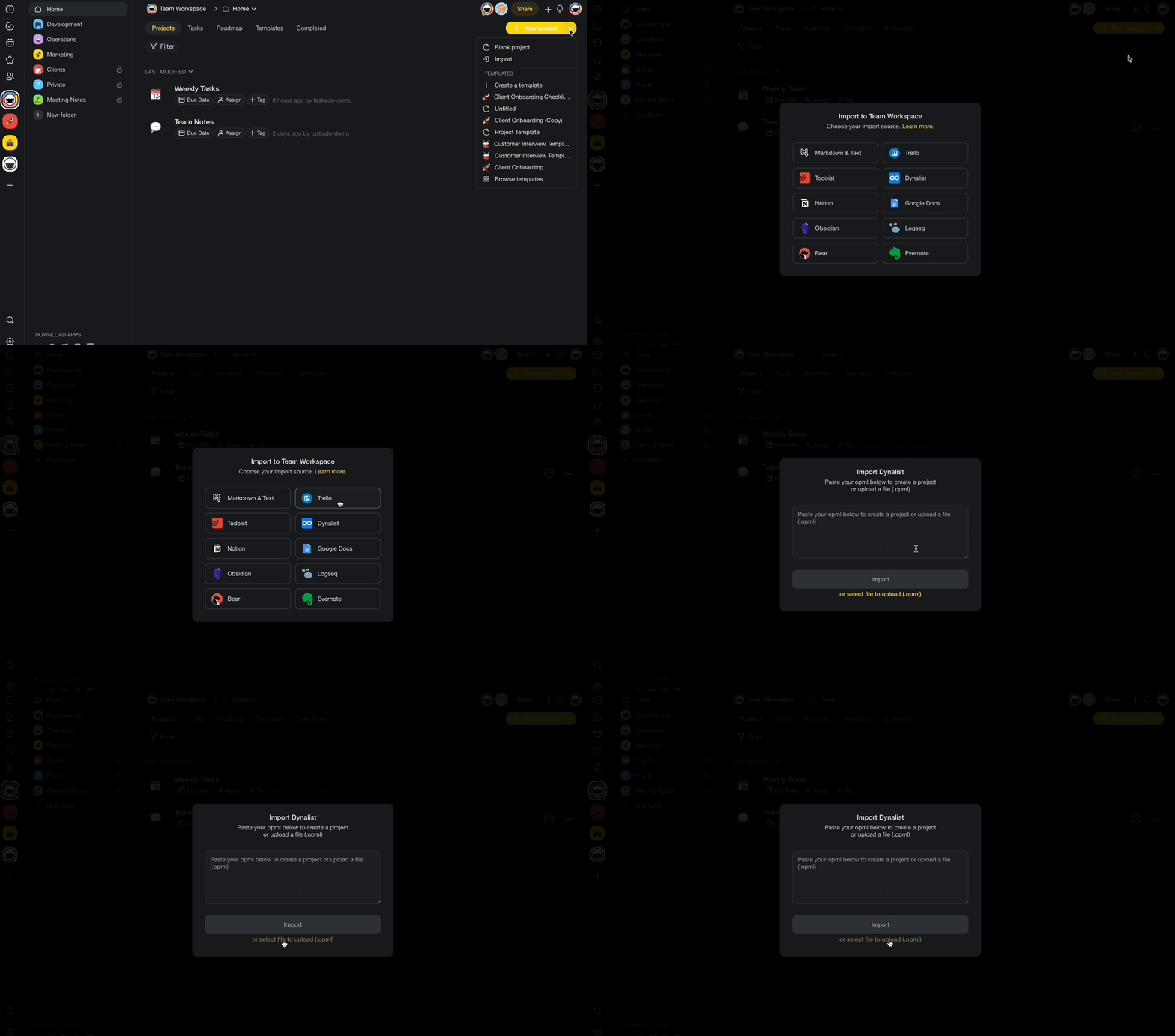
Open Dynalist and right-click your project title in the File pane on the left.
Select Export... from the drop-down menu.
Choose OPML ➡ Copy to clipboard.
- (optional) Click Download as file to download the project file.
Open your Taskade workspace/folder and click ➕ New project.
Select Import, choose Dynalist ➡ select file to upload.
Method 2 (Copy & Paste)
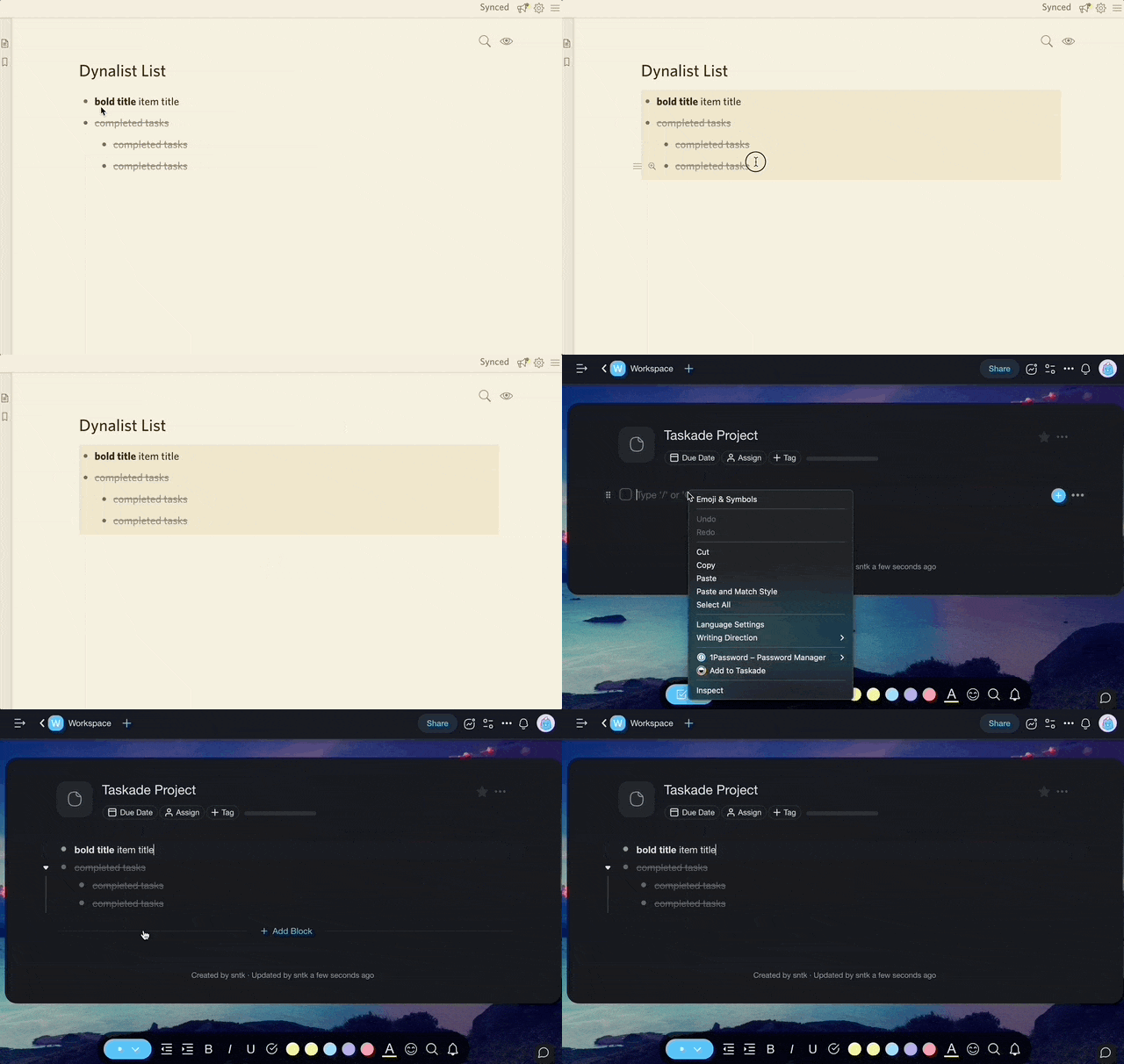
- Open a Dynalist project and highlight/select its contents (⌨️ ⌘/Ctrl + A).
- Press ⌨️ ⌘/Ctrl + C to copy the project contents to the clipboard.
- Open your Taskade project and select an empty node.
- Right-click and Paste the clipboard contents or press ⌨️⌘/ Ctrl + V.
Method 3 (File Pane)
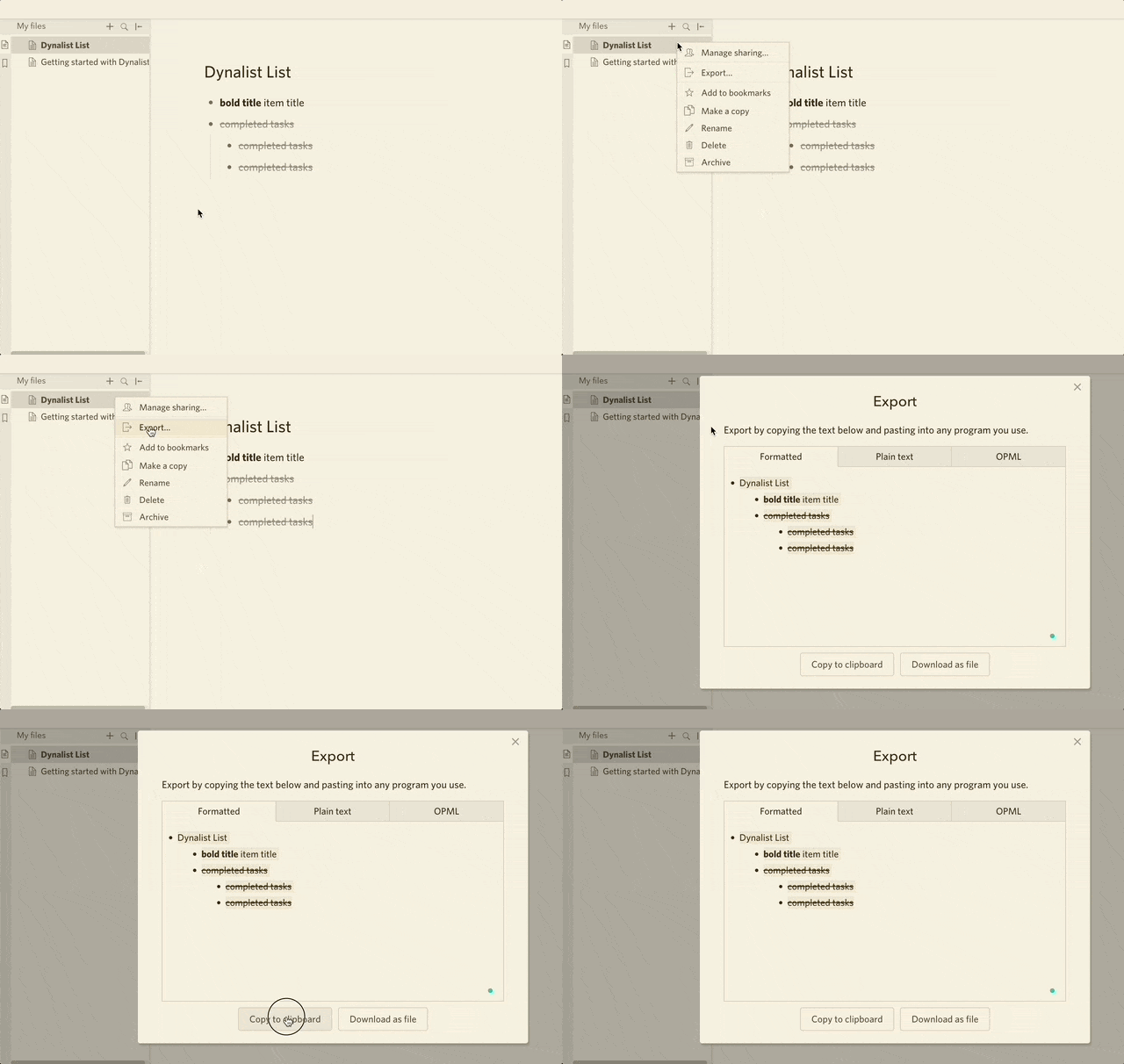
Open Dynalist and right-click your project title in the File pane on the left.
Select Export... from the drop-down menu.
Choose Formatted ➡ Copy to clipboard.
- (optional) Click Download as file to download the project file.
Open your Taskade project and select an empty node.
Right-click and Paste the clipboard contents or press ⌨️ ⌘/Ctrl + V.
Note: If you export your project as a file, open your Taskade workspace/folder. Click the arrow next to the ➕ New Project button. Select Import, then choose Markdown ➡ select file to upload.
Method 4 (Title Node Menu)
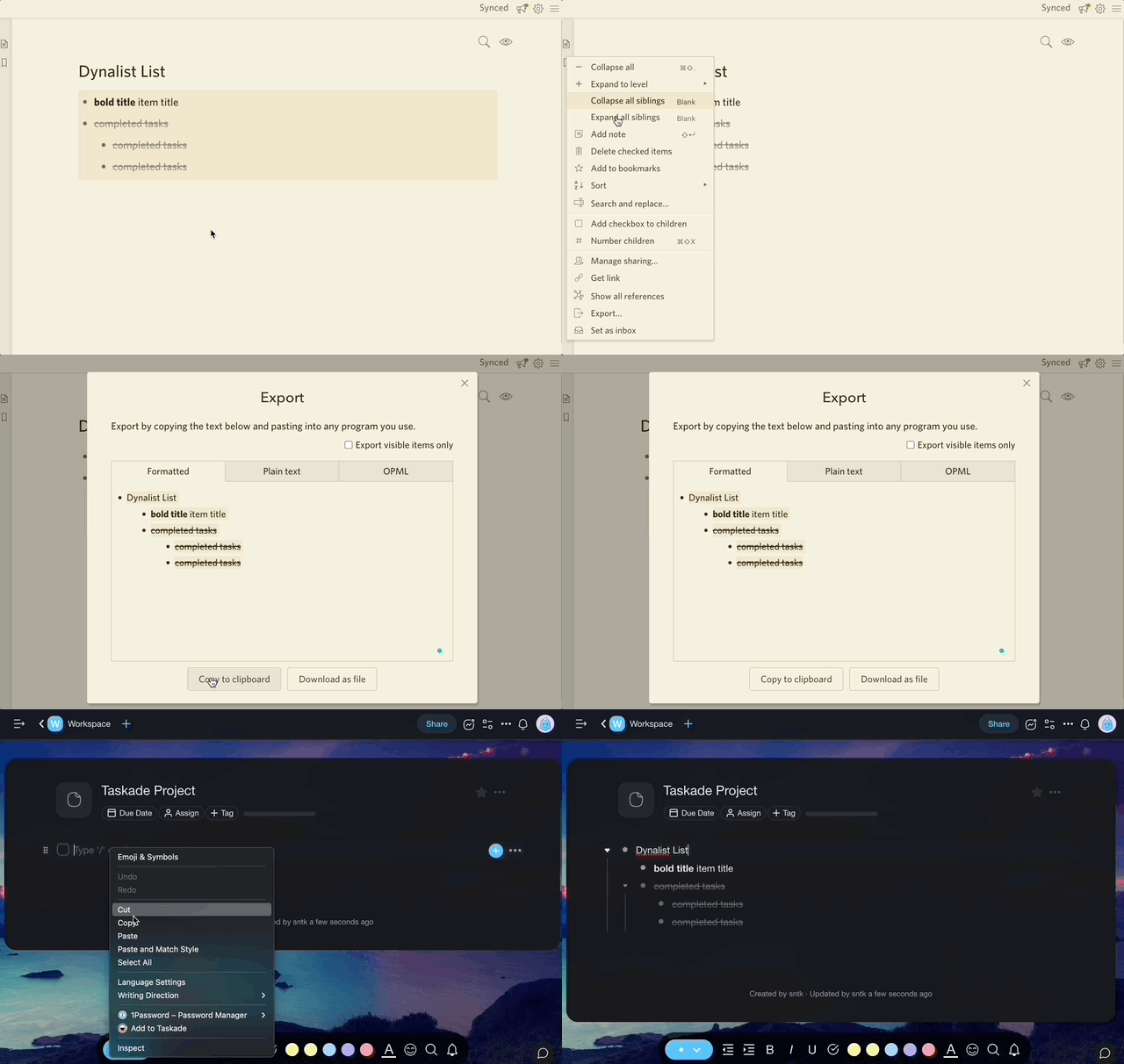
Open your Dynalist project and right-click the title node menu button.
Select Export... from the drop-down menu.
- (optional) Click Download as file to download the project file.
Open your Taskade project and select an empty node.
Right-click and Paste the clipboard contents or press ⌨️ ⌘/Ctrl + V.
💡 Tip: Imported content becomes part of your Workspace DNA. Your AI agents can learn from it, and your automations can act on it.
Dynalist Field Mapping
| Dynalist | Taskade Equivalent |
|---|---|
| Document | Project |
| Bullet | Task node |
| Nested bullet | Sub-task |
| Note | Task description |
| Tag (#) | Tag |
| Date | Due date |
Carries over vs needs cleanup
- Imports cleanly: Outline hierarchy, bullet text, nested levels, plain notes.
- Needs cleanup: Cross-document mirror references and custom highlights. Recreate these with project hierarchy and tags after import.
Bring It Into Taskade Genesis
Open the imported project's ... menu and choose Add to Agent Knowledge so a custom agent answers questions from your outline. Start an automation from the project to act on new or completed tasks. Then open Taskade Genesis and describe the app you want on top of it, such as an SOP checklist, a research tracker, or a client portal. For a web page or YouTube video, save the link in Media Files instead.