
Overview
Bring your documents, projects, and data from other tools into Taskade. This article covers all the available options so you can choose the best method for your needs.
TL;DR: Move documents, web pages, YouTube videos, and files from other tools into Taskade three ways. Convert them into structured projects, seed a new AI project, or add them as agent knowledge. Start fast at /create, or use the Import tool in any workspace.
Get Started in 3 Steps
You can bring your projects into Taskade in three steps:
Go to /create.
Choose one of the import options (scroll down for detailed instructions):
(1) Upload data as Agent Knowledge.
(2) Import data as a context for new project.
(3) Convert data into new projects.
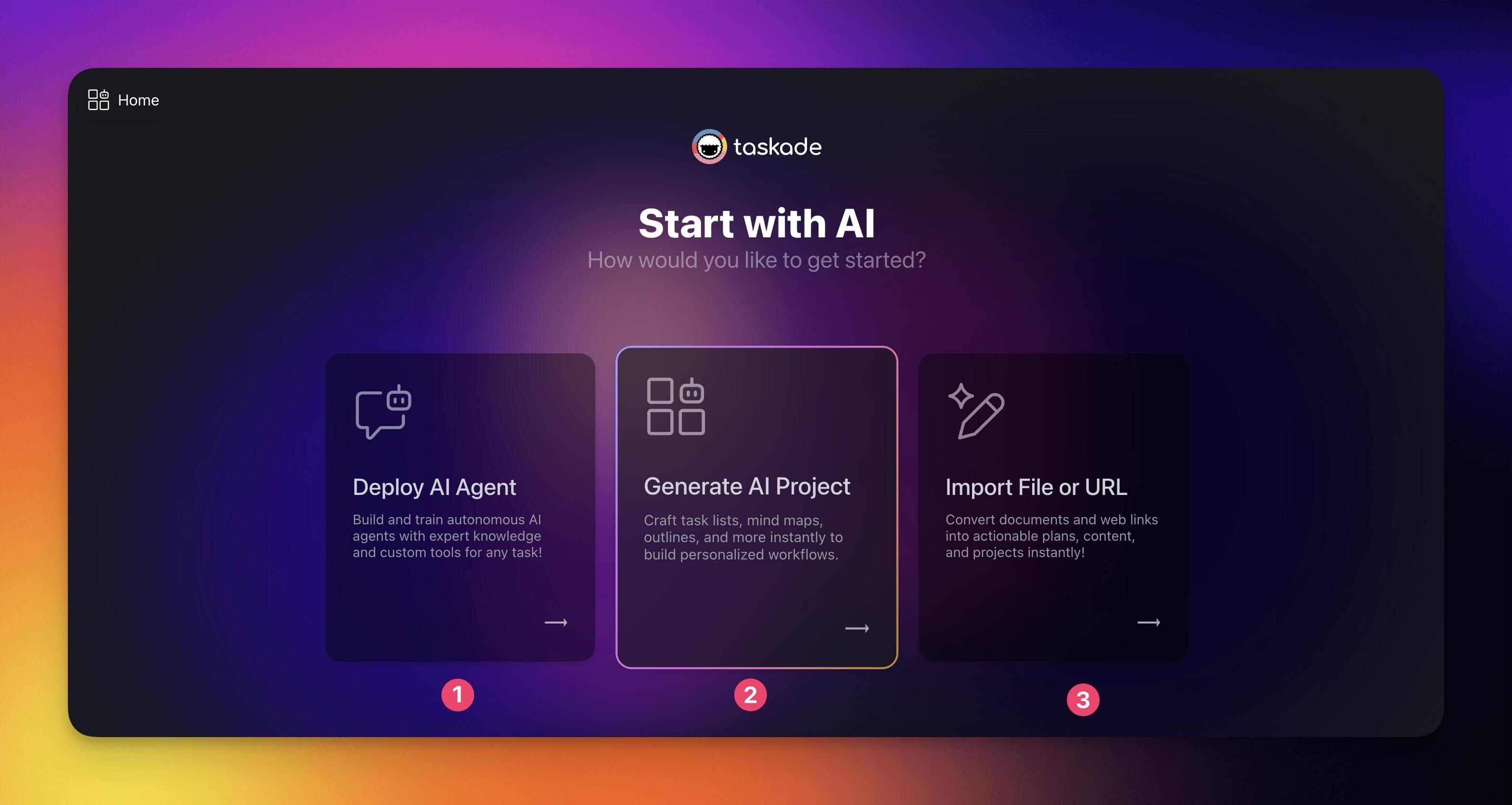
That covers the basics. The sections that follow describe every import option.
Use the Import Tool
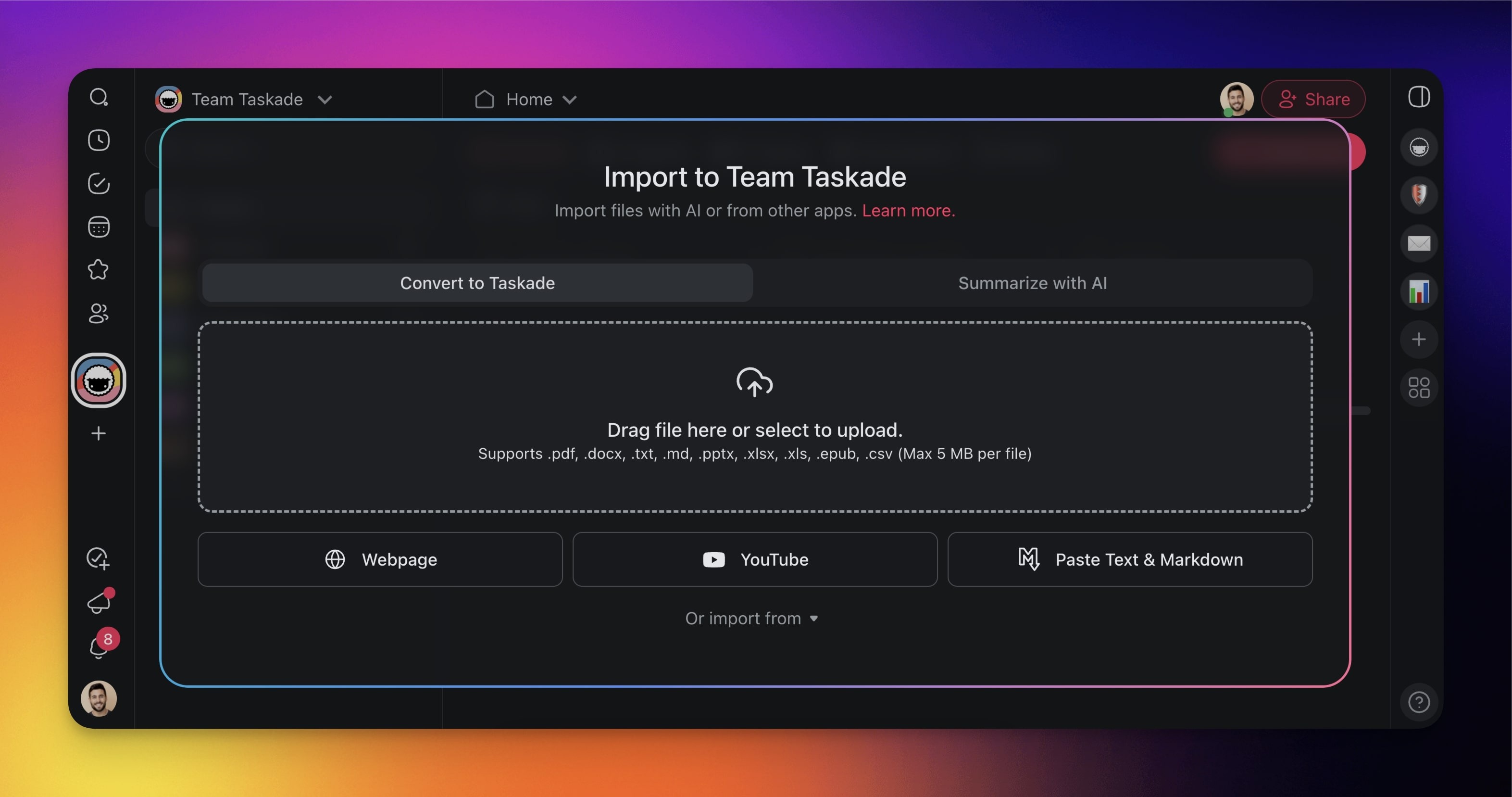
With the converter you can turn popular document formats (.pdf, .docx, .txt, .md, .pptx, .xlsx, .xls, .epub, .csv) and web resources into structured projects.
Note: Visit Import & Export to explore other import methods.
- (method 1): Visit /create to start (see the previous section)
- (method 2): Click ➕ Create new in your workspace / folder (top-right corner).
- Choose Import from the drop-down list.
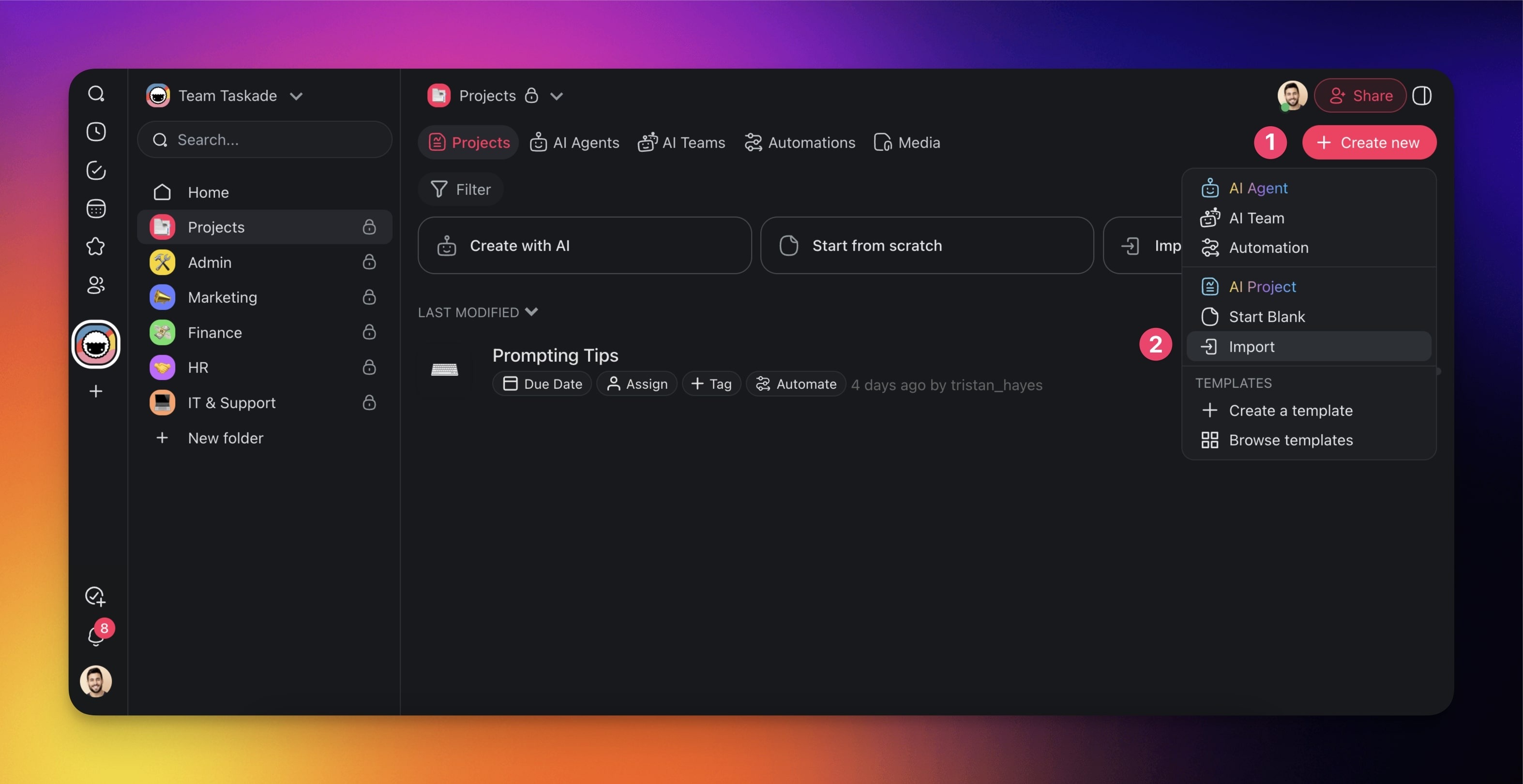
- Go to the Import with AI tab (or choose Summarize with AI or Import CSV).
- Choose one of the available options (scroll down for step-by-step instructions).
File Size Limits
The dropzone prints the file types it accepts and the largest file you can upload. Read that line before you drag a big document in.
- CSV files: 5 MB and 5,000 data rows. The same limits apply on every plan, including Free. See Import CSV Spreadsheets.
- Every other document: your workspace upload limit, shown in the dropzone. A paid plan raises it.
If a file is too large, Taskade names the limit and refuses the upload before it spends your credits. Split the document, or export a smaller section. Then upload it again.
Import Files & Docs
Import files and documents into Taskade. Upload your presentations, notes, and lists of tasks stored in .pdf, .docx, .txt, .md, .pptx, .xlsx, .xls, .epub, and .csv to get started. Uploading a PDF or other document is available on paid plans.
(method 1): Visit /create to start (see the first section)
(method 2): Click ➕ Create new in your workspace / folder (top-right corner).
Choose Import from the drop-down list.
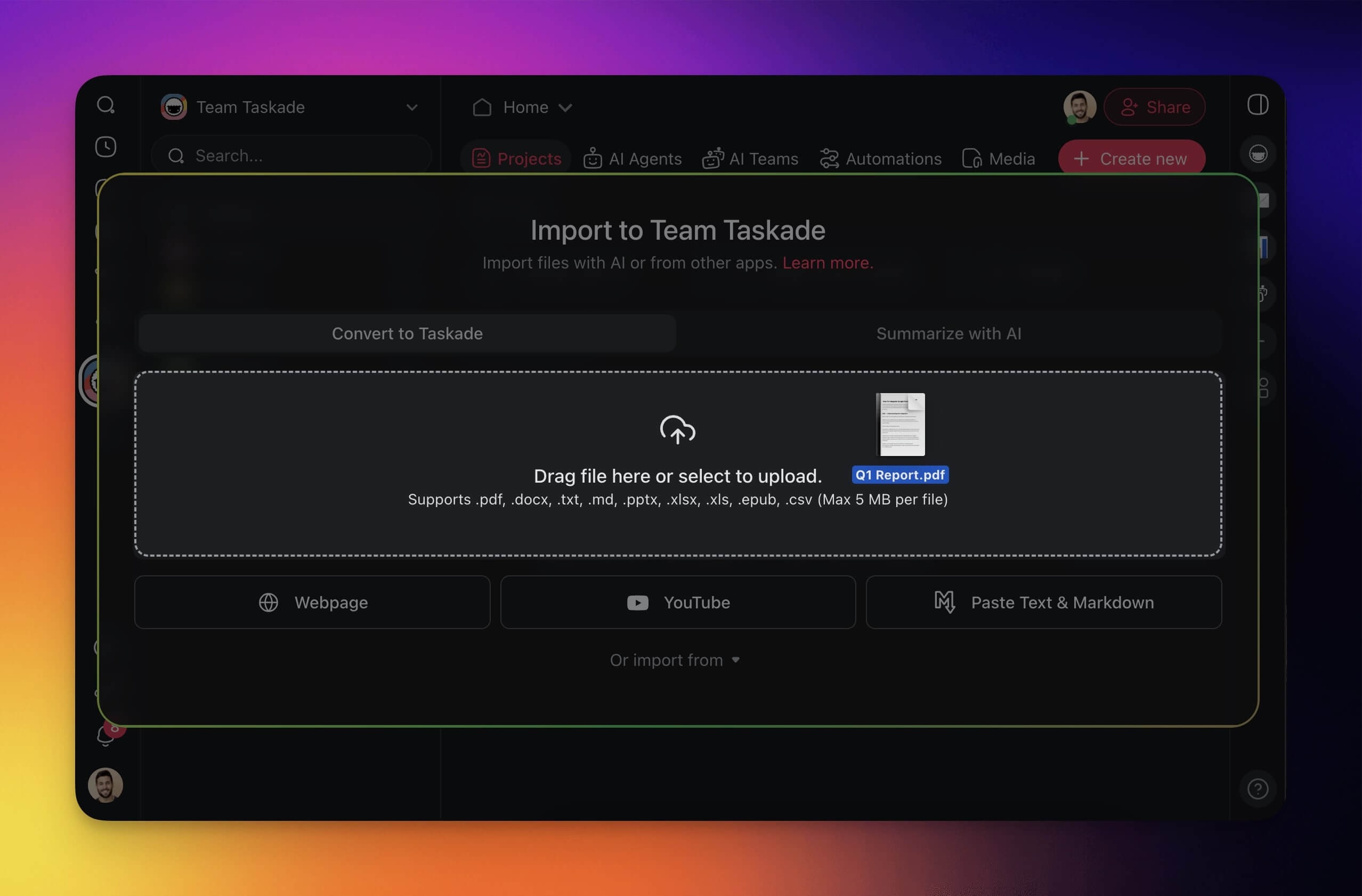
Drag & drop files into the pop-up or click to upload from your device.
Import Webpages
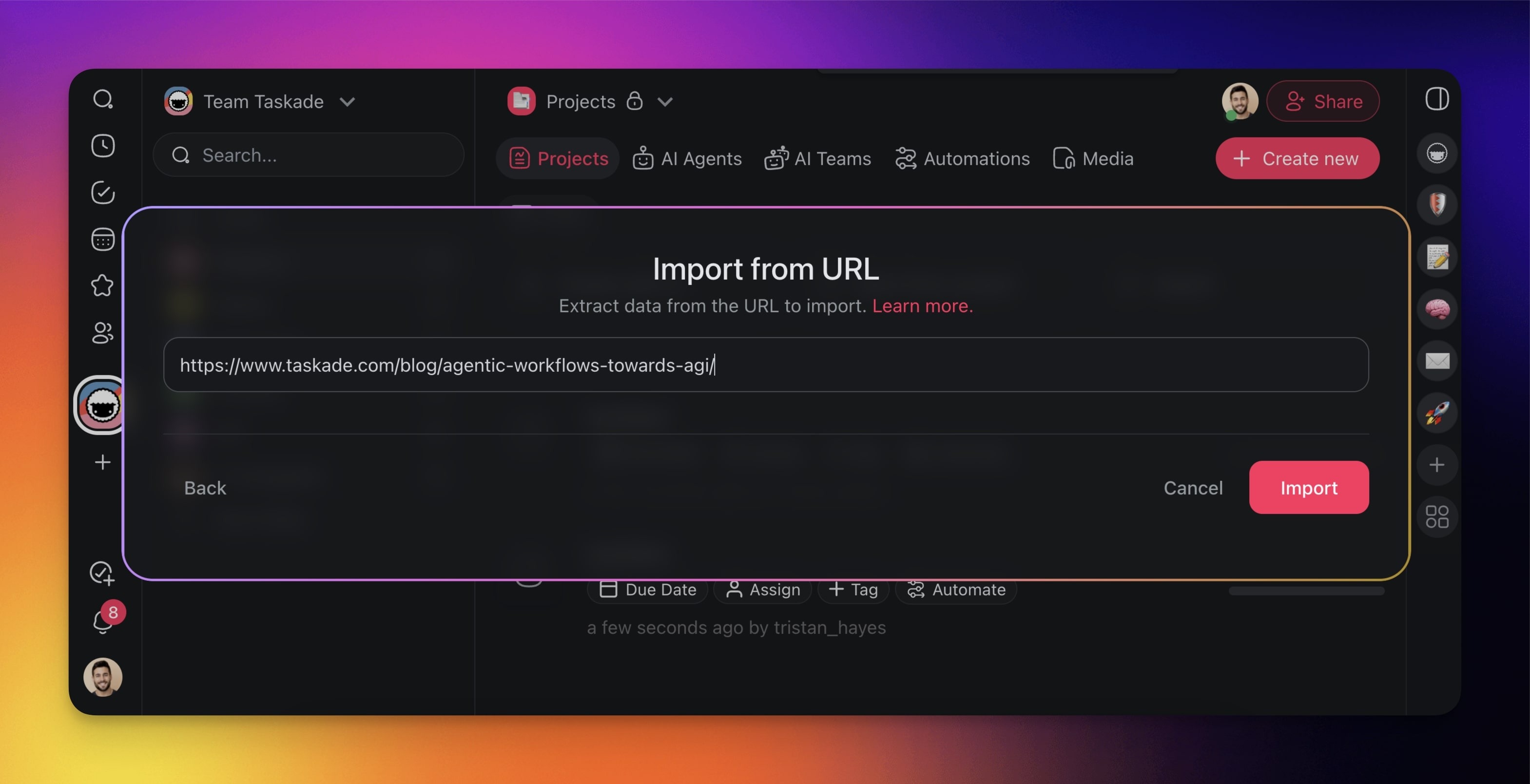
Import content from any webpage into Taskade. Capture articles, blog posts, and other web resources, then turn them into projects you can act on. To save a link in Media Files instead, see Import a Web Page or Video Link.
(method 1): Visit /create to start (see the first section)
(method 2): Click ➕ Create new in your workspace / folder (top-right corner).
Choose Import from the drop-down list.
Click Webpage and paste a URL.
Import from YouTube
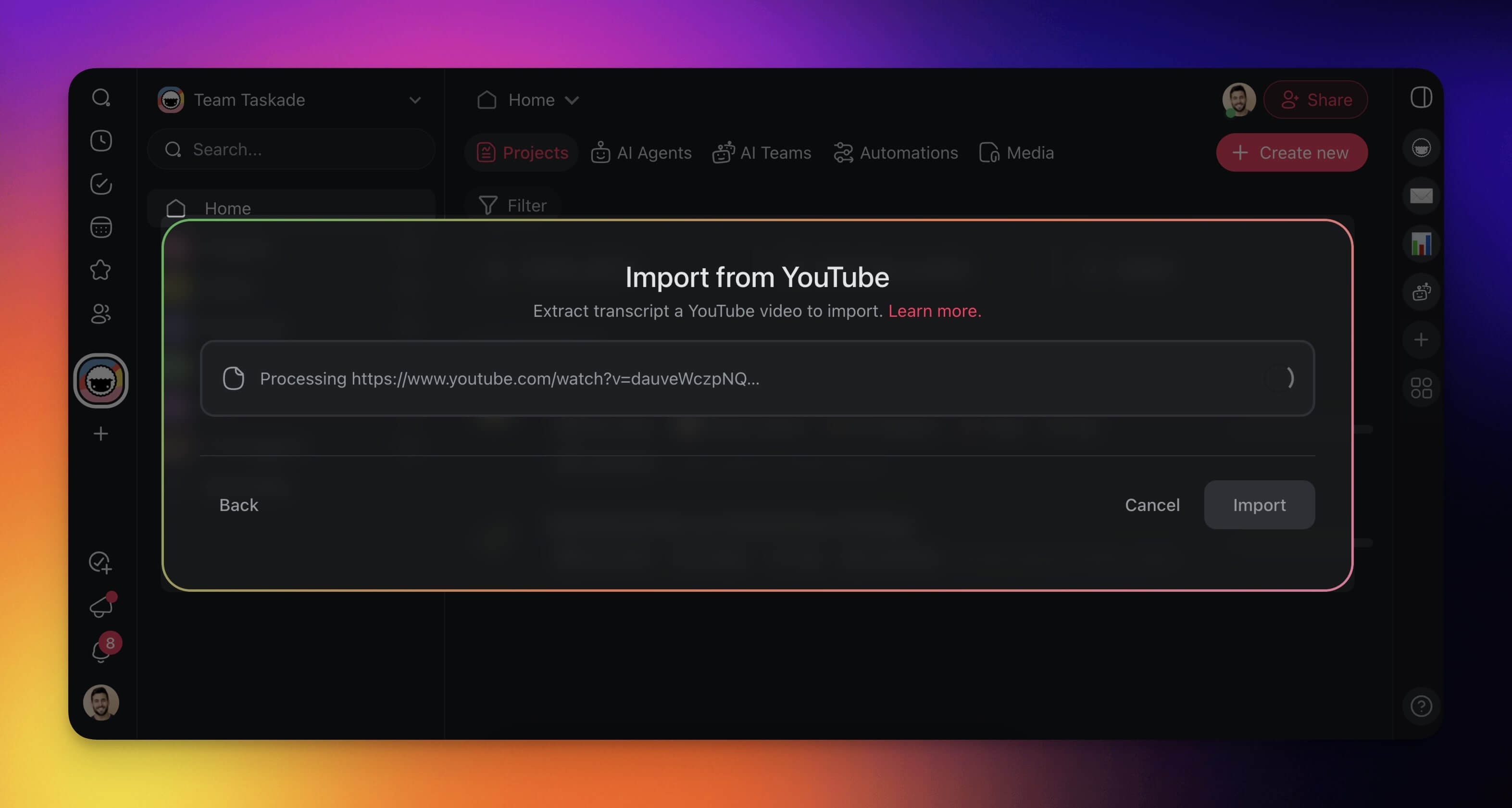
Turn YouTube videos into projects that hold the key points from tutorials and lectures. You can then work on the video content with your team.
(method 1): Visit /create to start (see the first section)
(method 2): Click ➕ Create new in your workspace / folder (top-right corner).
Choose Import from the drop-down list.
Click YouTube and paste the URL of the video you want to import.
Import Text & Markdown
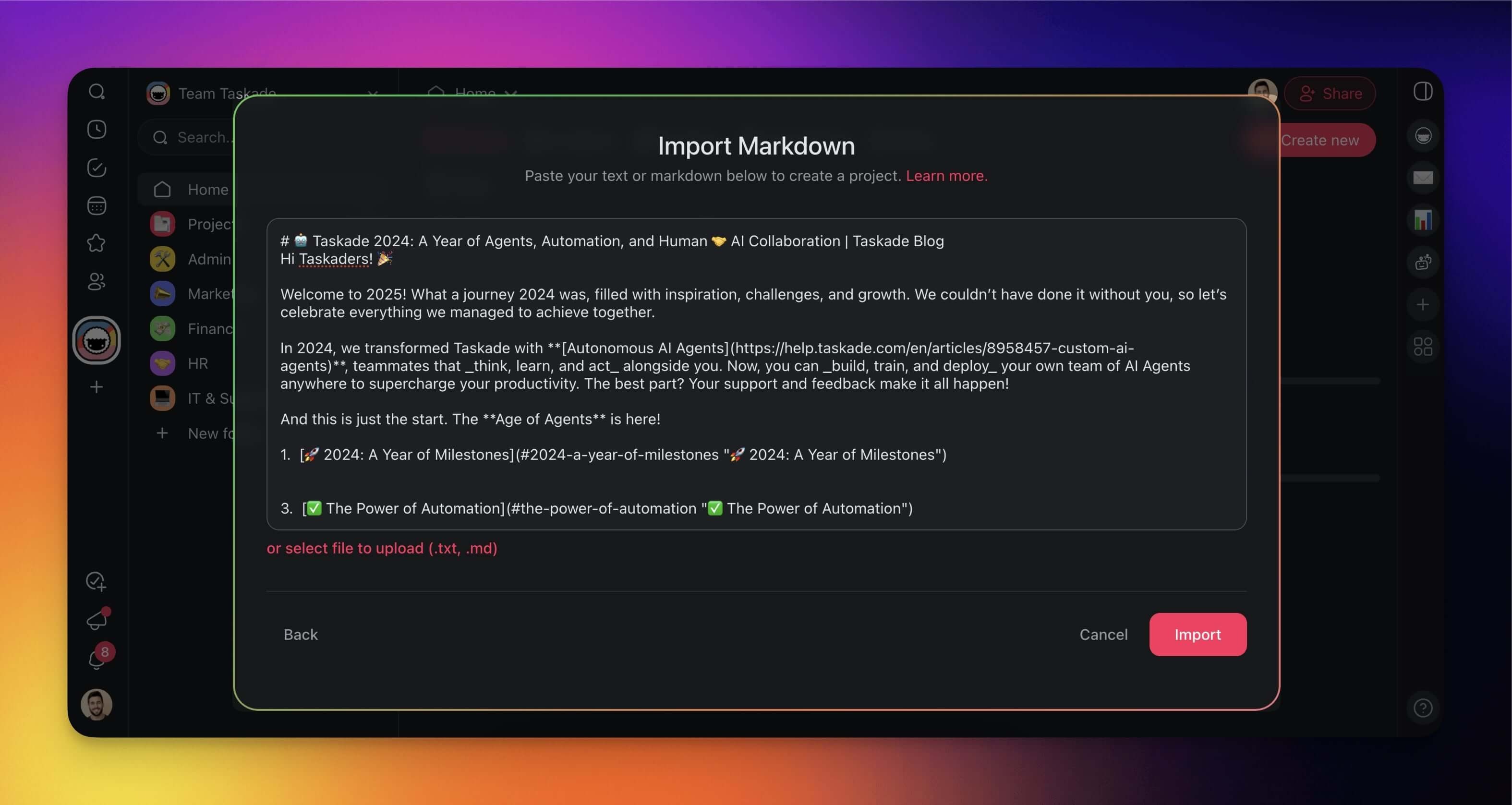
Paste text and Markdown documents into Taskade to turn them into collaborative resources. Your notes and ideas become structured projects.
Note: Read Markdown Support to learn more.
(method 1): Visit /create to start (see the first section)
(method 2): Click ➕ Create new in your workspace / folder (top-right corner).
Choose Import from the drop-down list.
Click Paste Text & Markdown and paste the contents of your document.
Import from Other Tools
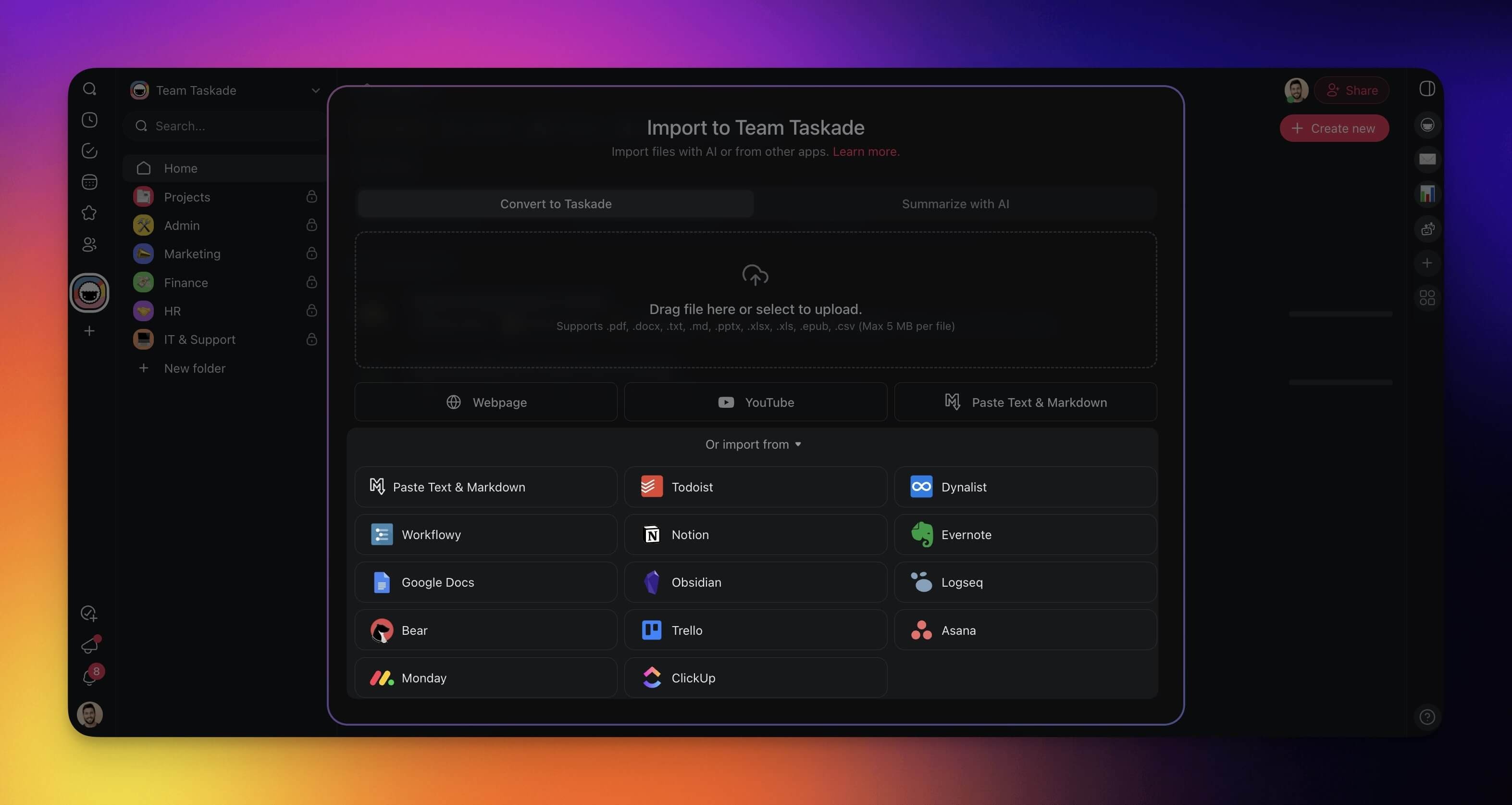
Transfer notes, tasks, and projects from platforms like Notion, Evernote, Asana, and Trello into Taskade. Keep all of your work in one place.
Note: Visit Import to explore compatible platforms.
(method 1): Visit /create to start (see the first section)
(method 2): Click ➕ Create new in your workspace / folder (top-right corner).
Choose Import from the drop-down list.
Click Or import from at the bottom of the Import Tool.
Choose a tool from the list and follow the instructions.
Import as Project Context
Use your existing knowledge as a seed in the Project Generator. Taskade combines new and existing data into the context for new projects.
Note: Visit AI Project Studio to learn more.
(method 1): Visit /create to start (see the first section)
(method 2): Click ➕ Create new in your workspace / folder (top-right corner).
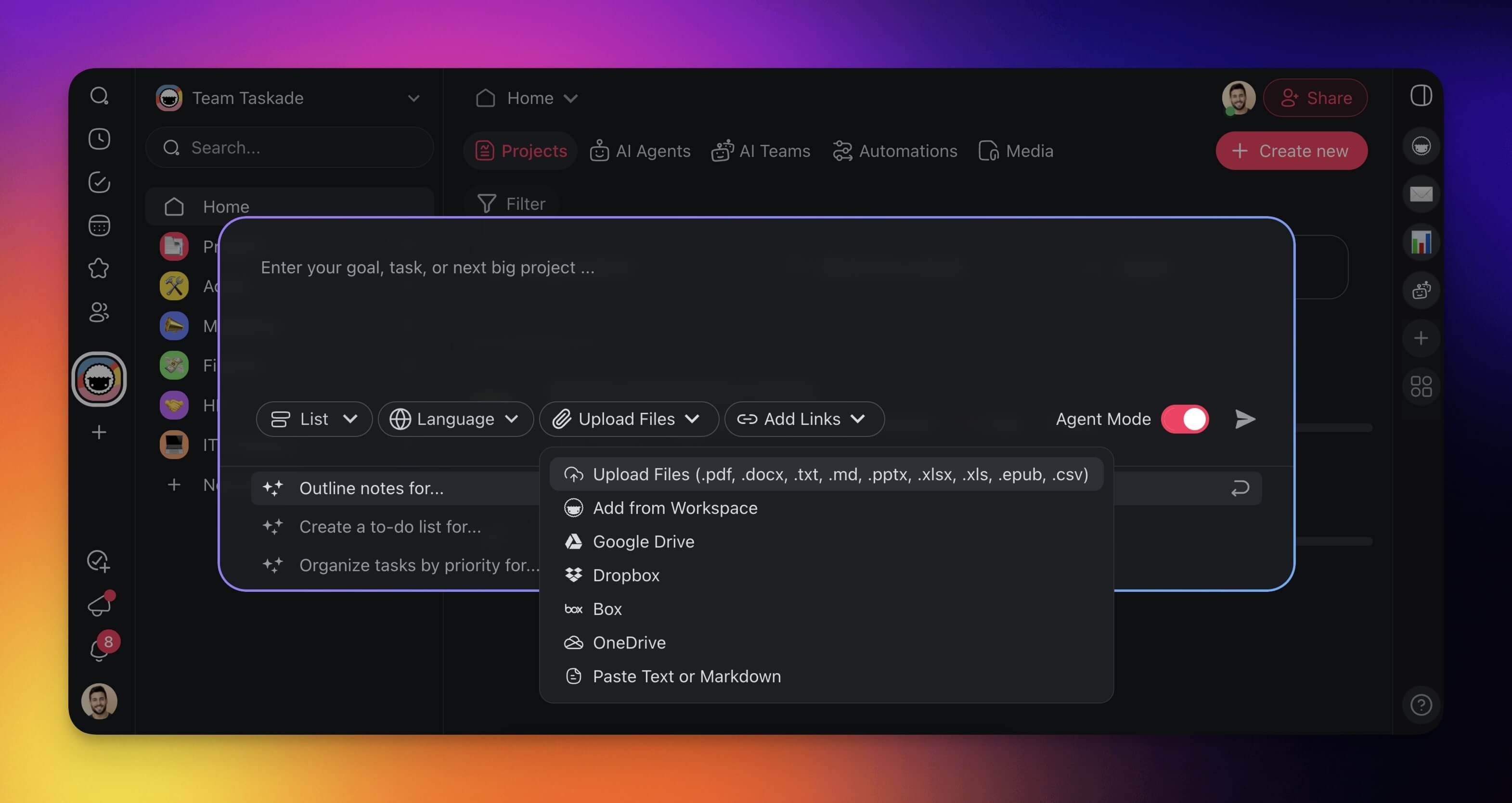
Choose AI Project from the drop-down list.
Use the Upload Files dropdown to import files and documents.
Import as Agent Knowledge
Use your imported resources to fine-tune your custom AI agents. Better knowledge gives you more accurate, context-aware answers.
Note: Visit Agent Knowledge & Data to learn more.
(method 1): Visit /create to start (see the first section)
(method 2): Go to the 🤖 AI Agents tab in your workspace / folder.
Choose an existing agent or create a new one.
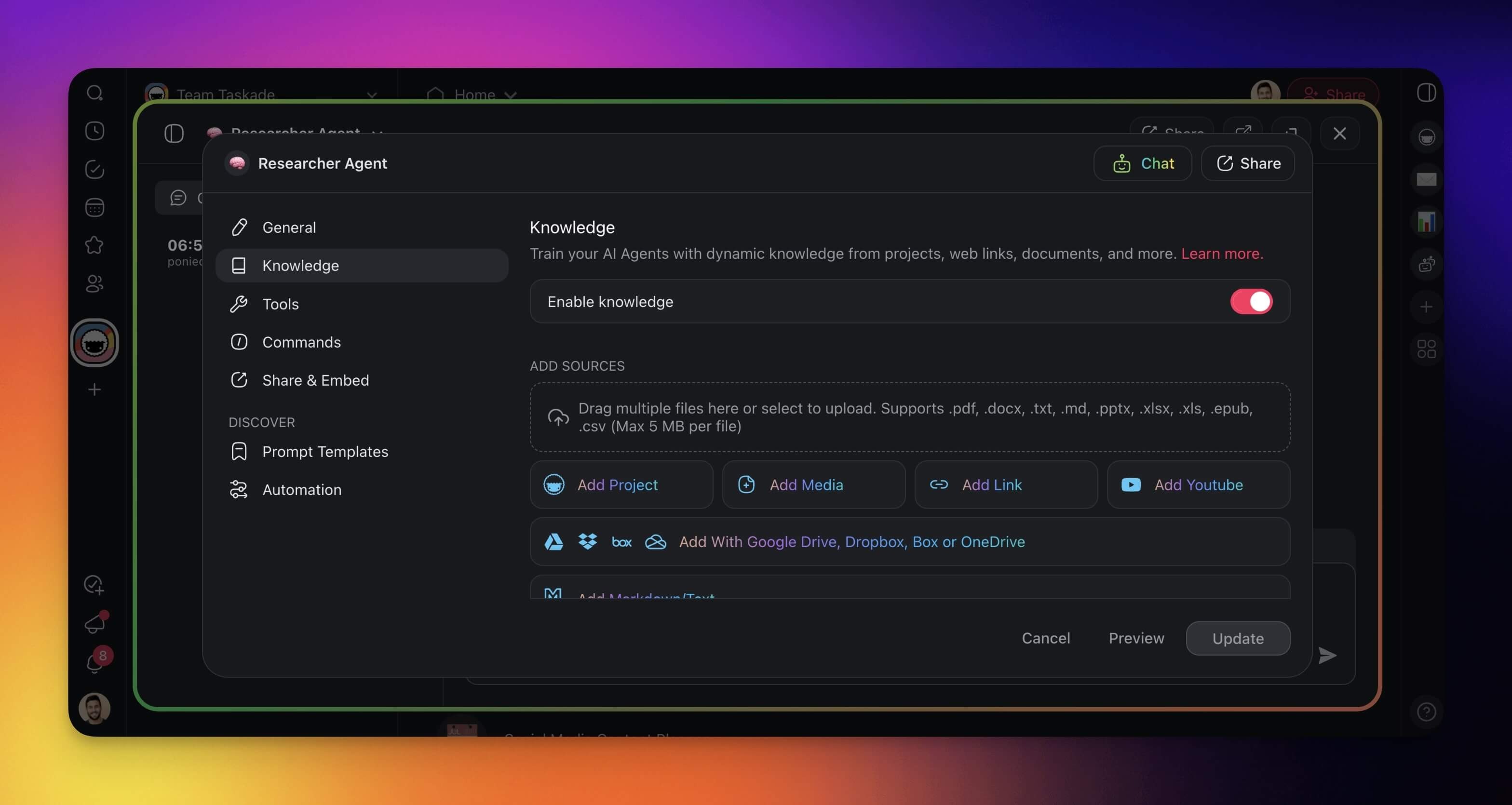
Go to the Knowledge tab.
Enable knowledge and import resources to fine-tune the agent.
Import Pipeline
For background on CSV-to-project imports, see AI Personas & CSV-to-Project and Import Markdown, Sort & Add Notes.
Use Cases
Start with these ideas for the Import Tool:
| ✨ Use Case | 💬 Description |
|---|---|
| Convert documents | Convert files (.pdf, .docx, .txt, .md, .pptx, .xlsx, .xls, .epub, .csv ) into structured and actionable projects. |
| Curate content | Import articles or web links (URLs) and structure insights for team reference. |
| Kick off projects | Convert meeting notes or project requirements (uploaded or pasted as regular files) into tasks. |
| Build a knowledge base | Turn research papers, articles, or videos (from YouTube or URLs) into knowledge inside your workspace or folder. |
Bring It Into Taskade Genesis
Every import is a first step toward an app. A saved page, video, or document in Media Files has a Create project option in its menu. A project has Add to Agent Knowledge in its menu, so an agent can answer from it. At /create, paste your website URL into the prompt and Taskade EVE uses the page as the brief for the app it builds.
💡 Tip: Imported content becomes part of your Workspace DNA. Your AI agents can learn from it, and your automations can act on it.