
Share AI Agents
Public agent embedding turns your agents into shareable products. Drop one on your website, post a link, or publish to the Community Gallery. All three endpoints route public conversations back to your Agent Inbox so you can monitor usage in one place.
TL;DR: Share any custom agent three ways: a public link, an Add to your website snippet, or a JavaScript chat widget. Set the mode, tools, and branding, publish to the Community Gallery, and watch every public chat land in your Agent Inbox. You can also embed agents inside Taskade Genesis apps.
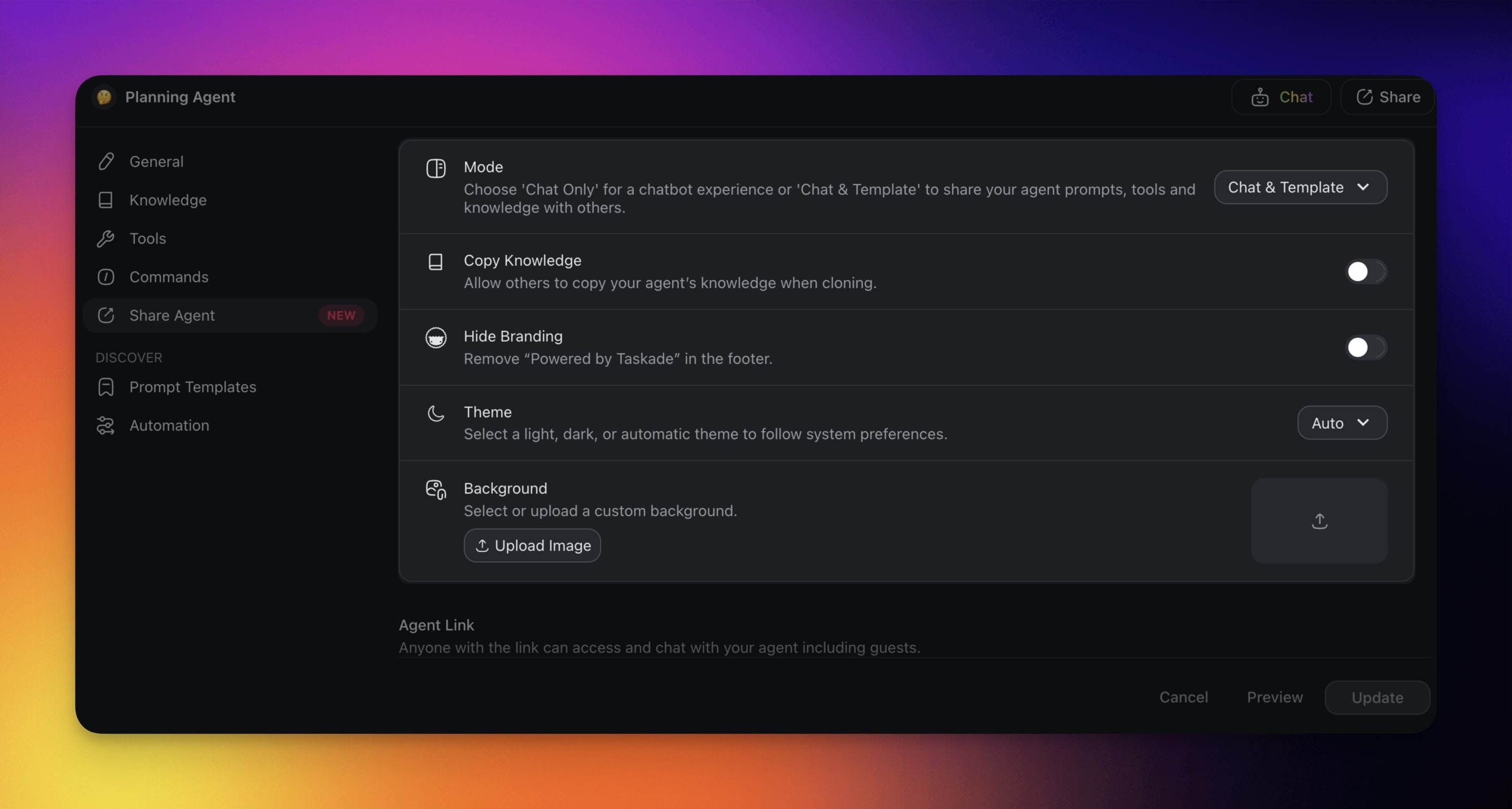
The Share Agent panel keeps every public setting in one place:
┌─ 🤖 Share Agent ──────────── Public access [●]─┐
│  Mode        Chat & Template               ▾   │
│  Theme       Auto                          ▾   │
│  Hide brand  On                           [x]  │
├────────────────────────────────────────────────┤
│  🔗 Copy link  </> Add to website  ▭ Widget    │
└────────────────────────────────────────────────┘
Want to share your custom agent with your team? Here is how you can do that:
- Navigate to the 🤖 Agents tab.
- Hover the mouse cursor over an agent.
- Click the Share Agent button on the right.
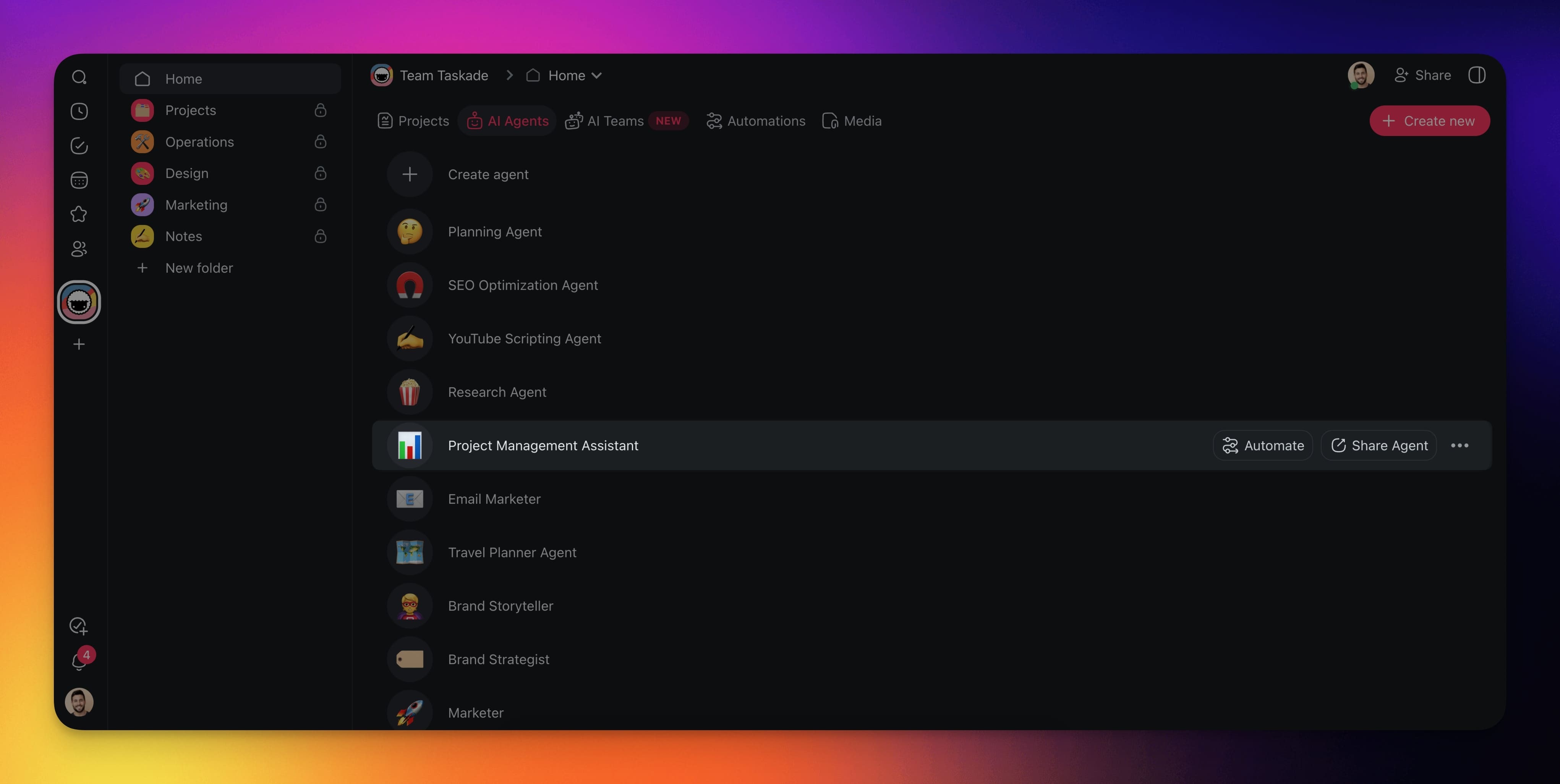
- Enable the Public access toggle.
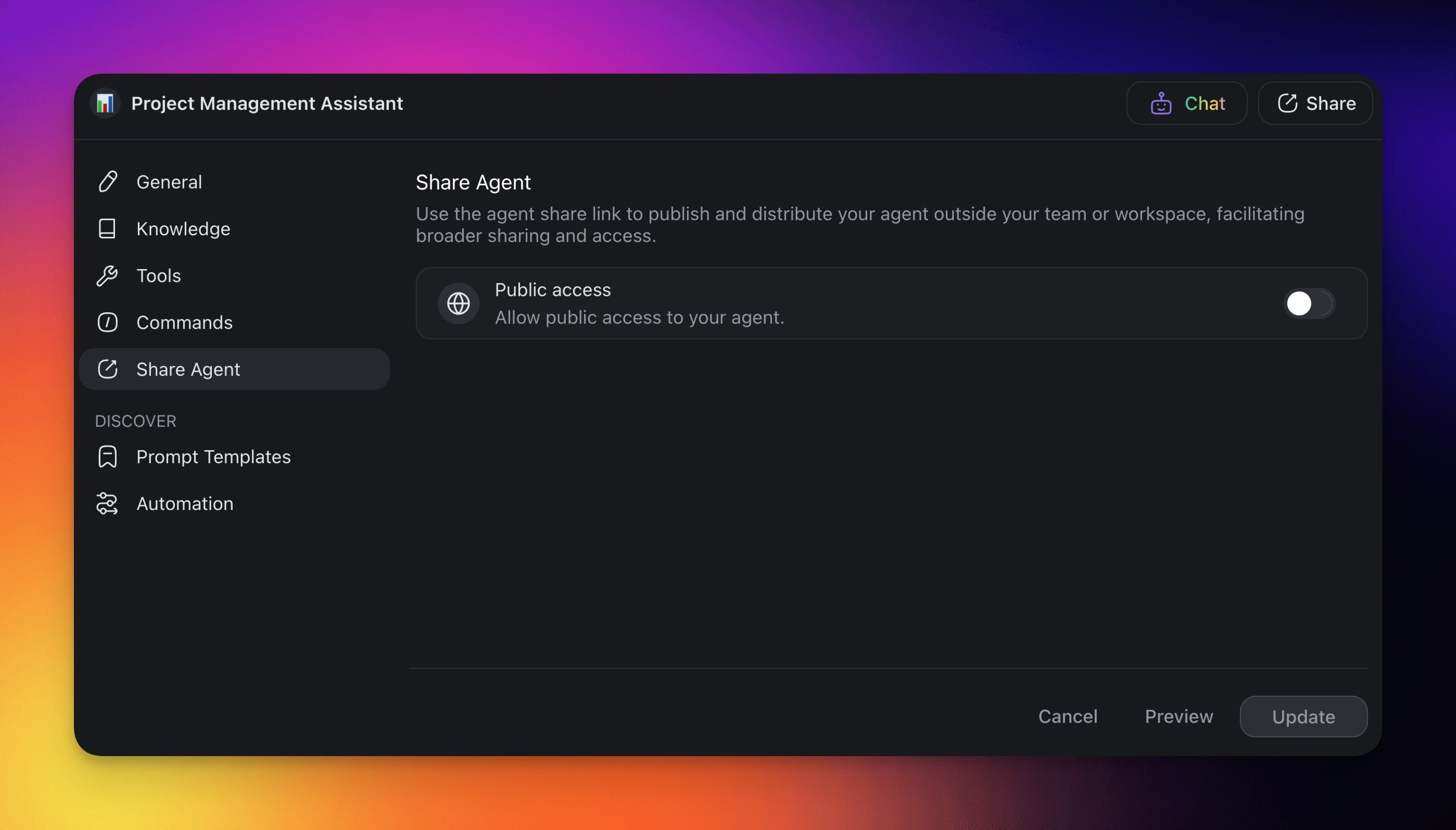
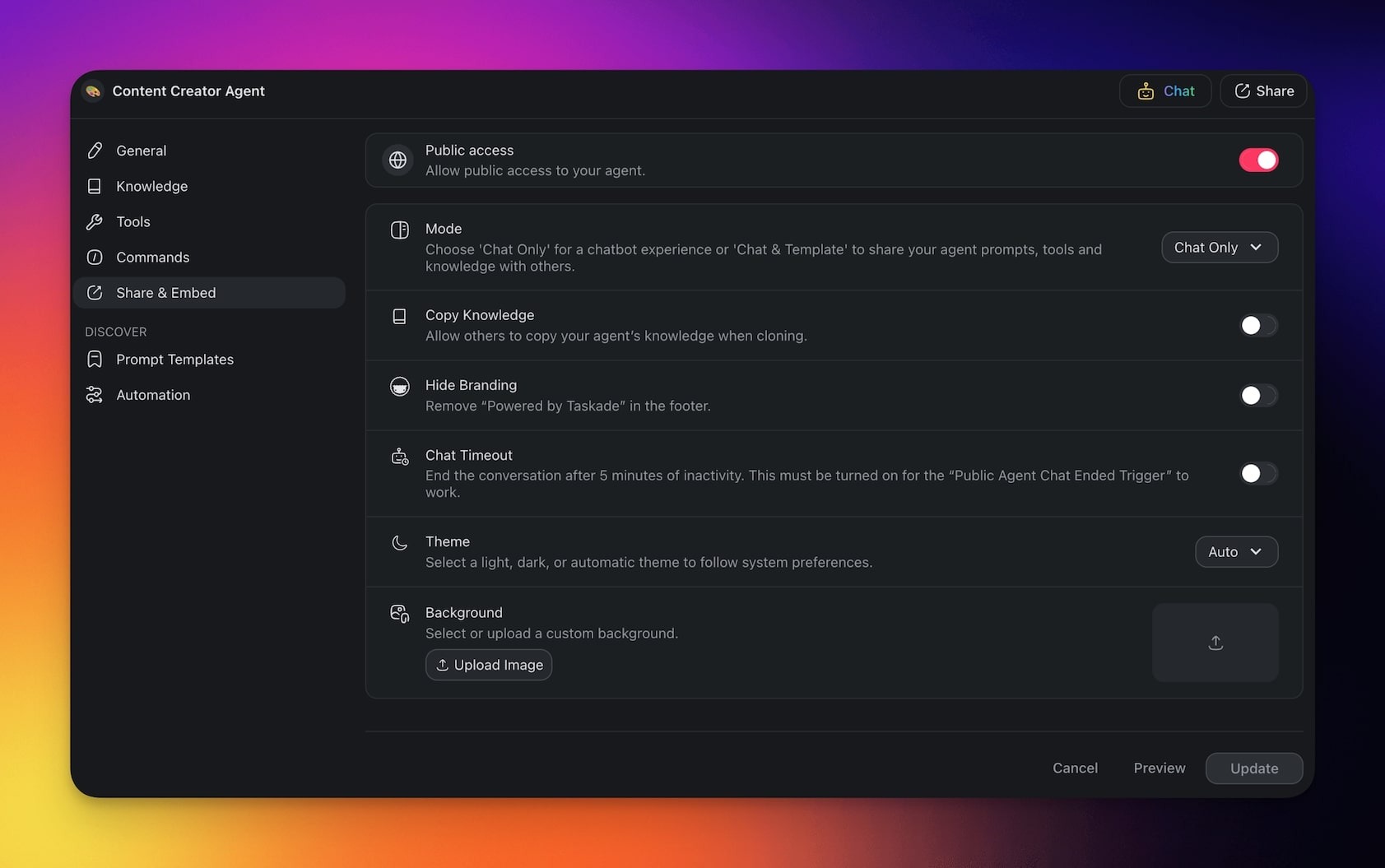
You can now customize the public agent:
Mode: Choose the level of interactions with the agent.
Copy Knowledge: Decide if you want to allow others to copy agent knowledge.
Hide Branding: Remove Taskade branding in the agent footer.
Chat Timeout: End the conversation after 5 minutes of inactivity.
Theme: Select light, dark, or automatic theme.
Background: Select or upload a custom background.
Finally, you can share the agent in three ways (scroll down to learn more):
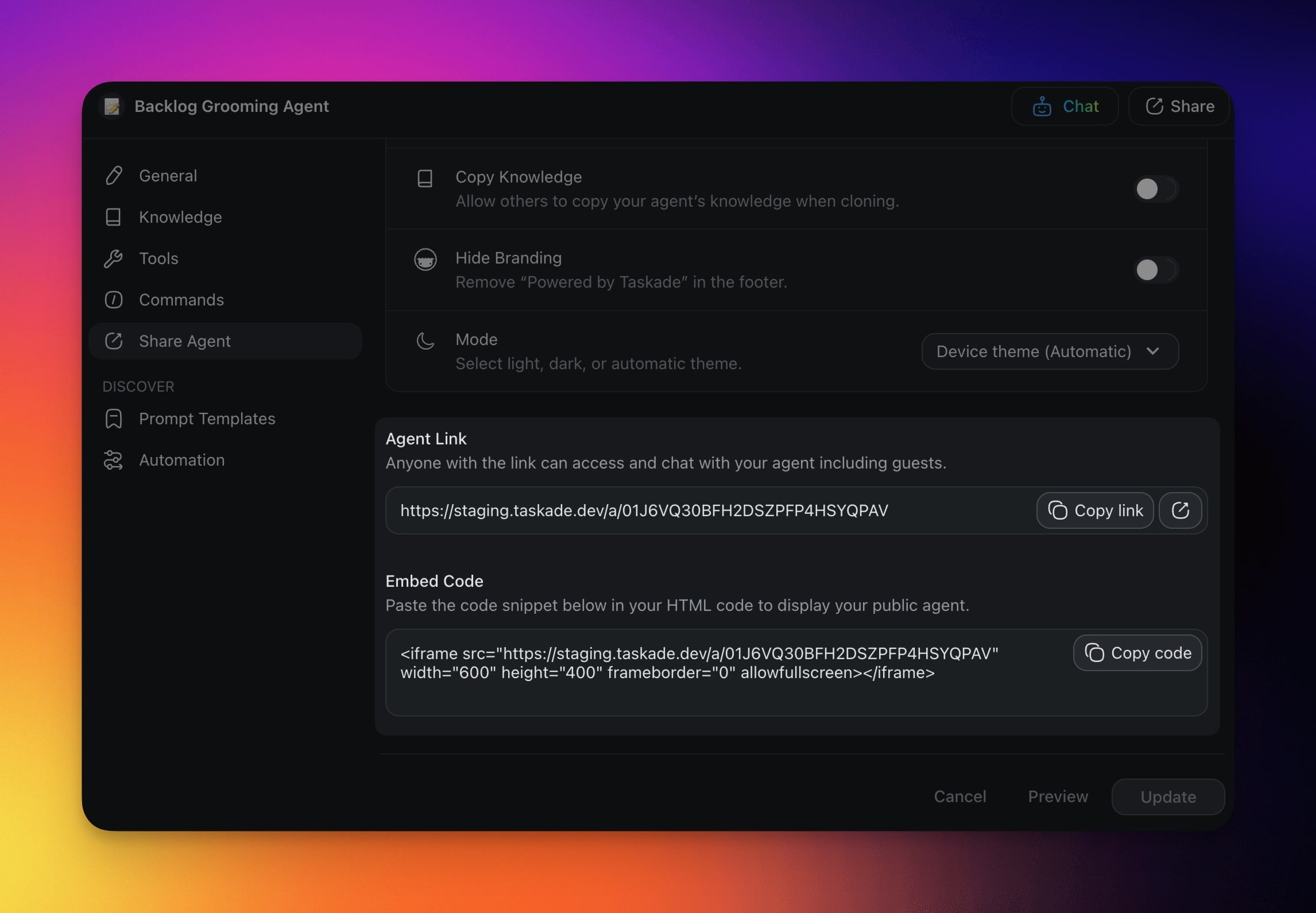
(1) Agent Share Link
(2) Add to your website
(3) Add a chat widget
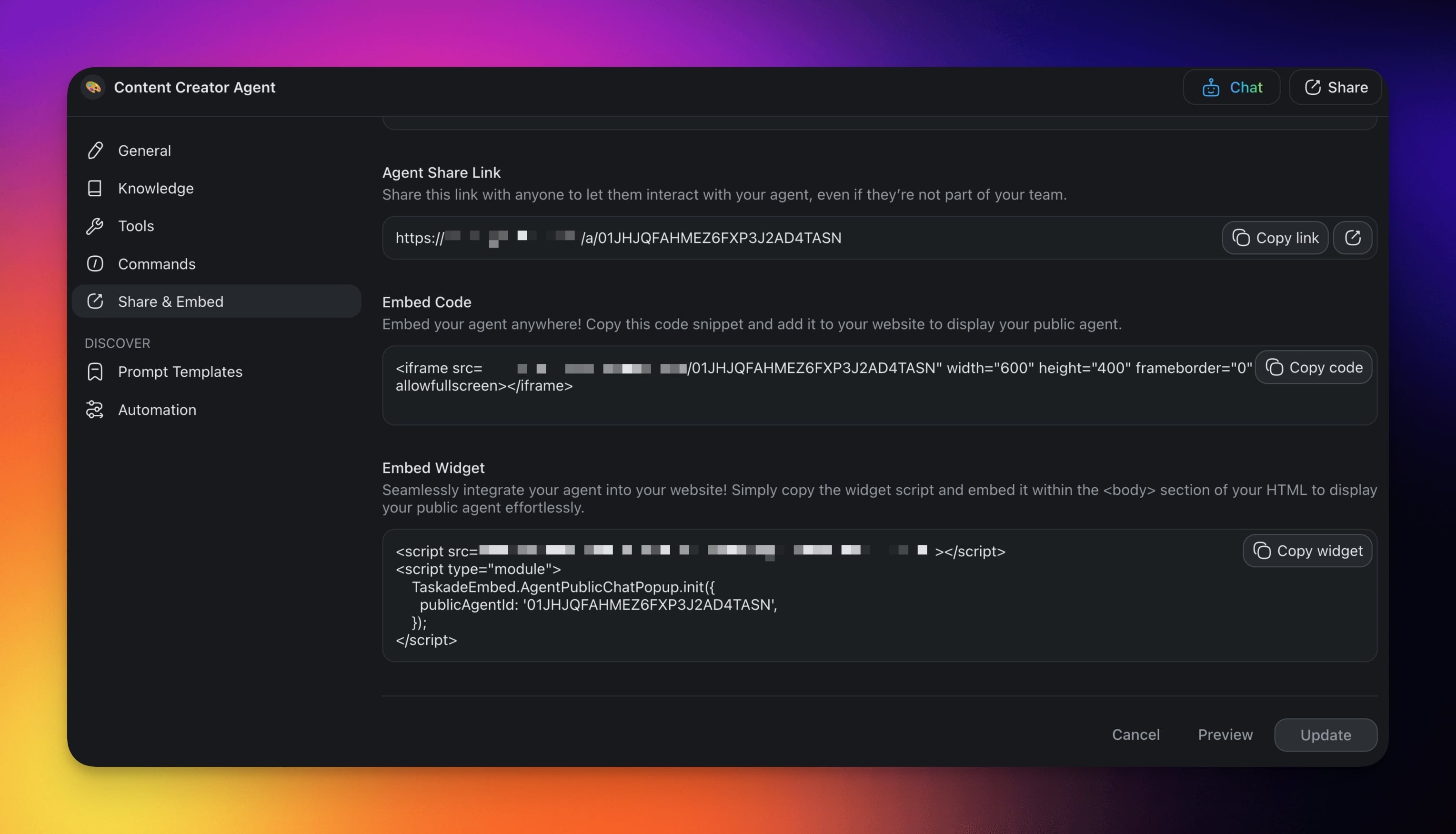
Share Agent Link
Share the agent with your team or clients by generating a unique link. Copy the link and send it to provide direct access, or let others copy the agent to their workspace.
Note: You need to choose Chat & Template in the Mode section to allow others to clone your agent. Use the Copy Knowledge toggle to decide if your agent includes the documents and sources used for fine-tuning.
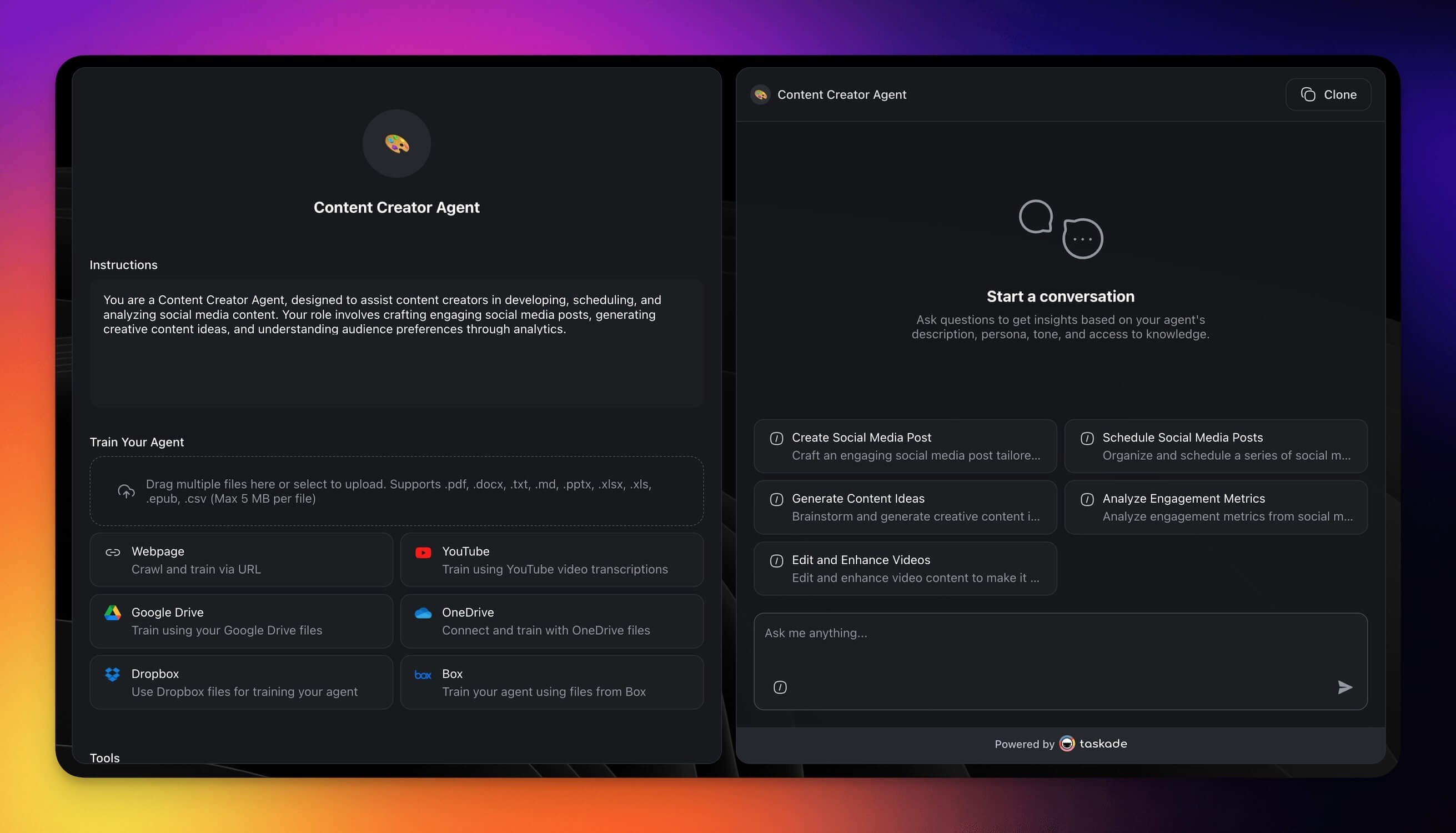
Here are a few ideas how you can use this method:
| Collaborative projects | Share agents with your team members for seamless collaboration. Allow others to clone agents with knowledge sources. |
|---|---|
| Remote consultations | Provide clients with direct access to fine-tuned agents, tailored to their needs, for personalized consultation. |
| Quick support | Distribute links to customers to offer tailored ad-hoc guidance using agents equipped with product knowledge. |
Add Your Agent to a Website
Integrate the AI agent directly onto your website or application with the Add to your website code. Choose this option for real-time interactions without leaving the page.
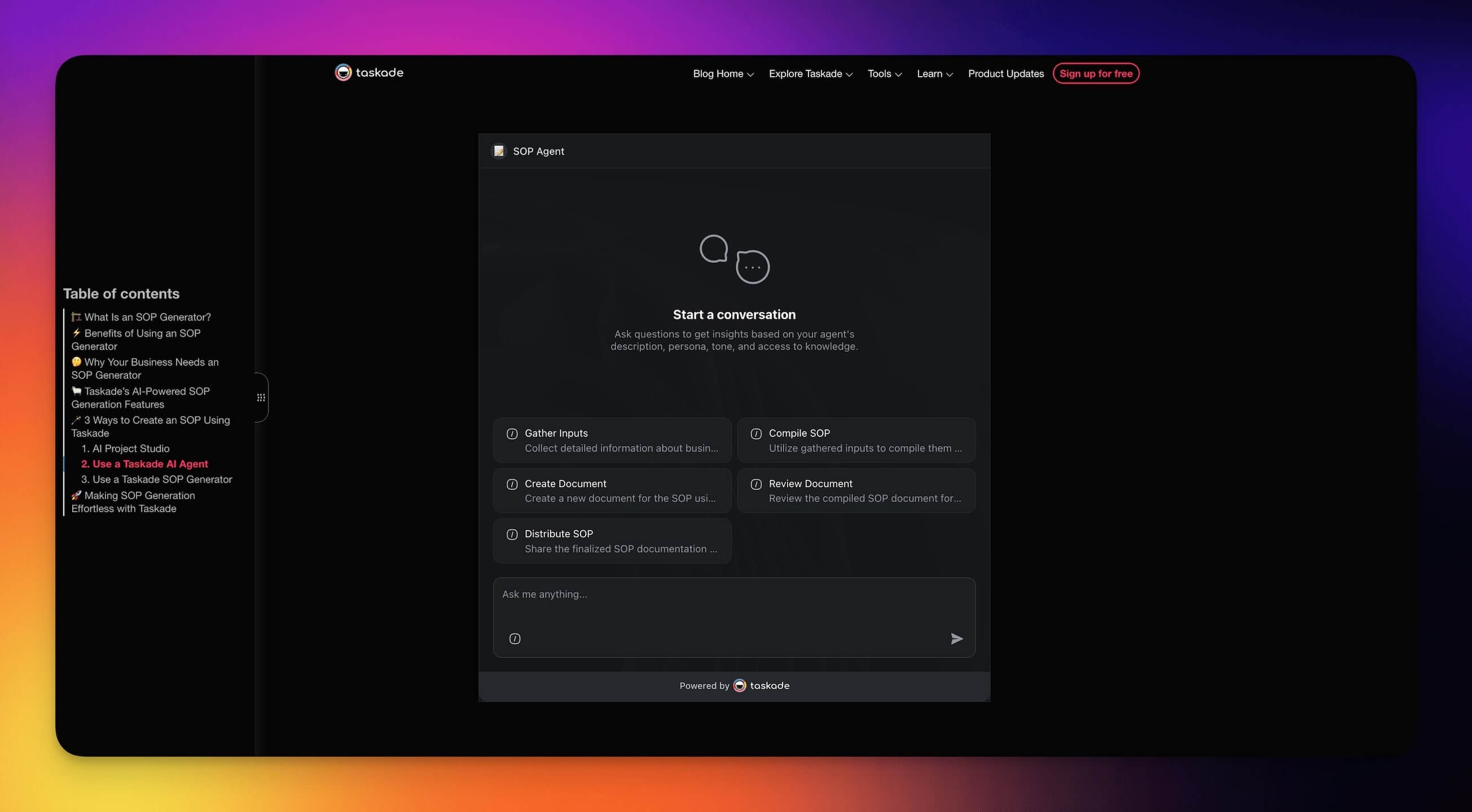
Here are a few ideas how you can use this method:
| Real-time customer support | Integrate AI agents in blog articles to answers questions without navigating away from the main content. |
|---|---|
| Educational Assistance | Embed agents in online courses to provide students with interactive help. |
| Web Application Guidance | Use agents to guide users through complex workflows by offering step-by-step assistance within web applications. |
Add a Chat Widget
Use Add a chat widget to drop an AI agent launcher onto your site for an interactive and engaging user interface. The widget will offer continuous AI-driven support for your service or product.
Note: Public agents support tool calling with opt-out controls. You can choose which tools are available when the agent is used publicly from the agent's Tool Permissions tab.
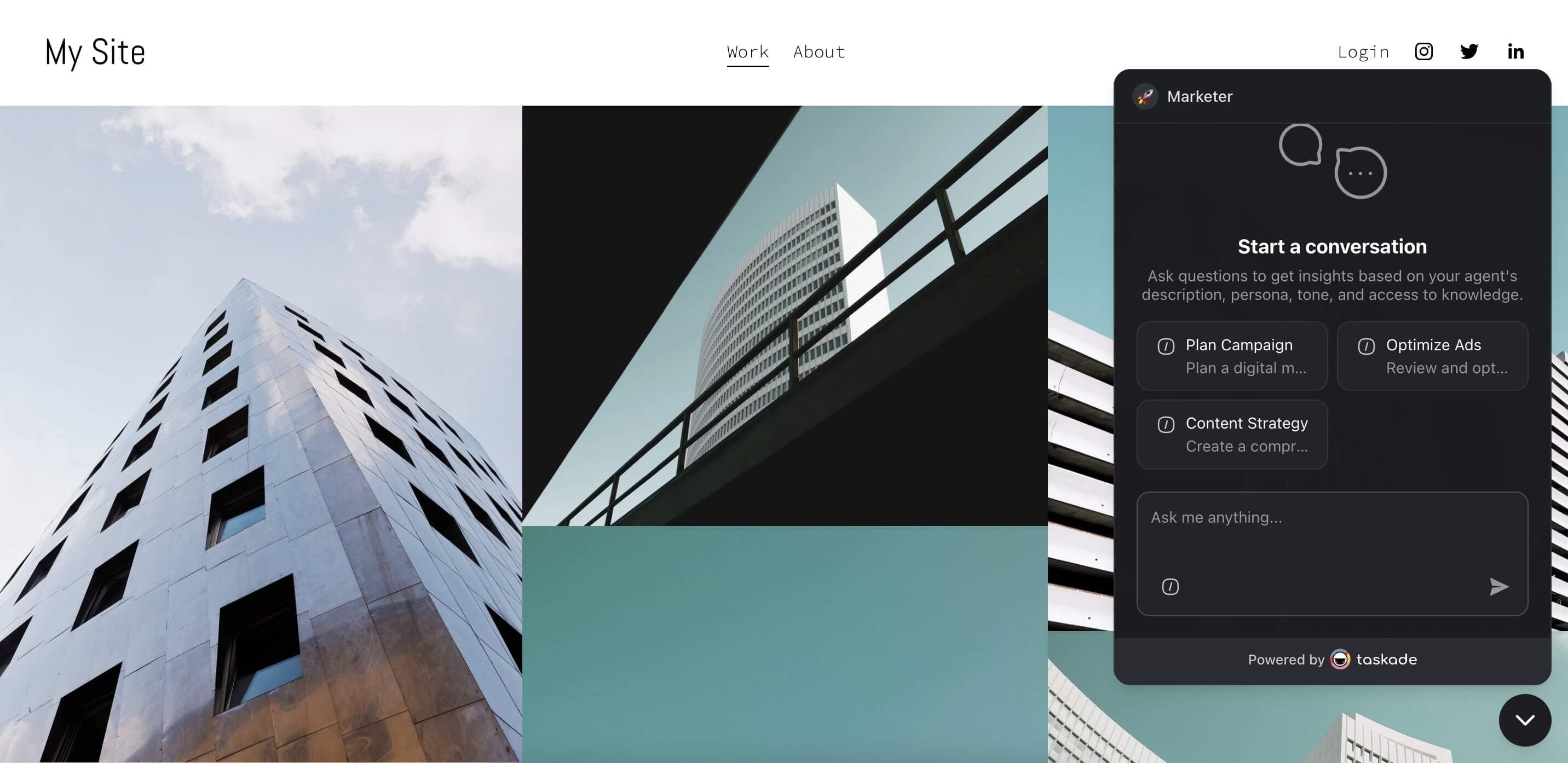
Here are a few ideas how you can use this method:
| E-commerce support | Implement the Agent Widget to offer continuous AI-driven shopping assistance and recommendations directly on product pages. |
|---|---|
| Employee assistance | Provide on-demand AI support for HR or IT inquiries on company intranets via an integrated widget. |
| Community engagement | Enhance online community platforms with AI moderators or guides accessible through a widget for user interaction. |
Add Agents to Your Apps
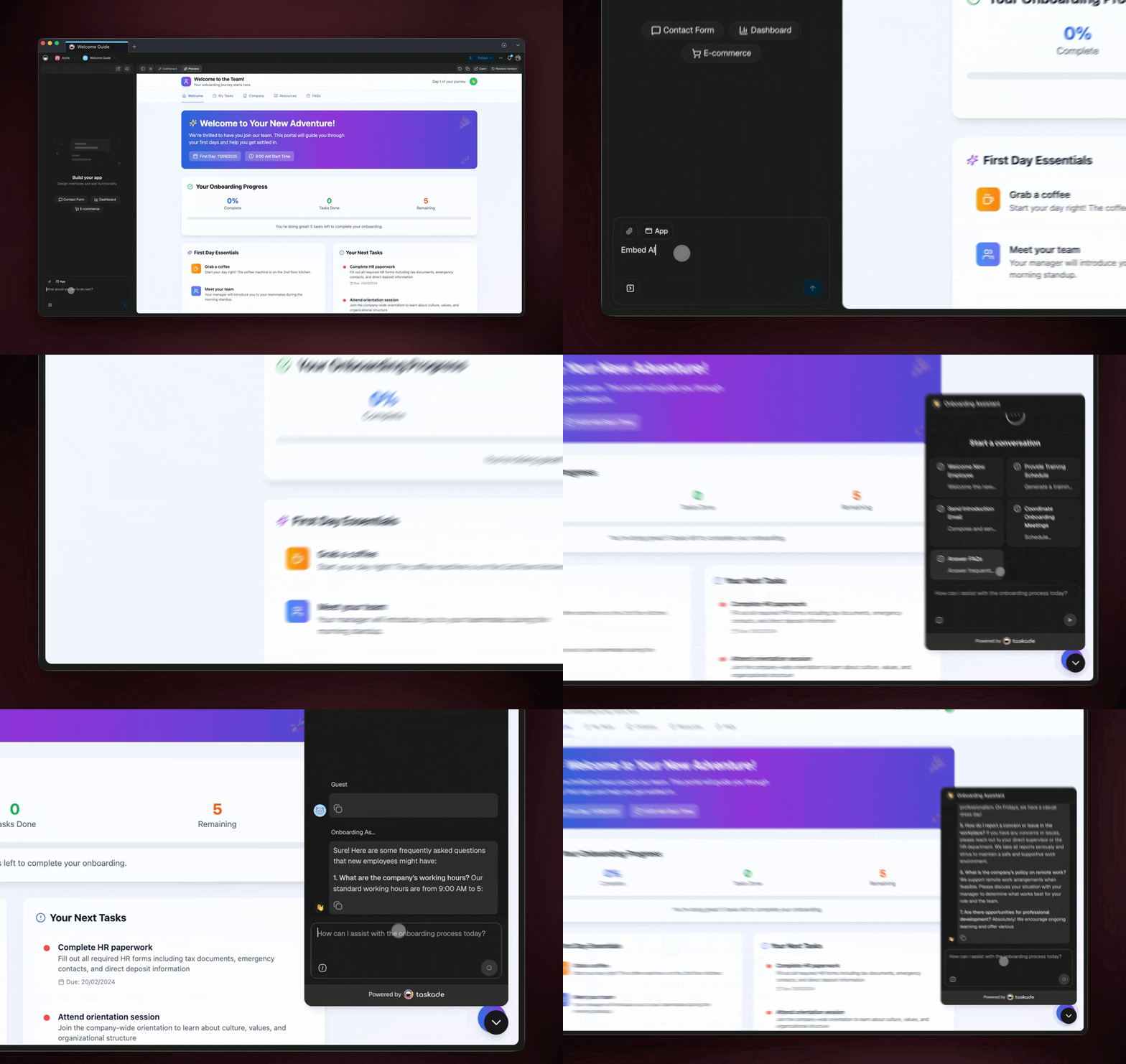
Want to embed your custom agent as a widget inside your Taskade Genesis apps. You can do this hands-free using Taskade EVE:
- Open your app and open the Taskade EVE panel on the left.
- Ask Taskade EVE to generate or select an agent.
- Ask Taskade EVE to embed it in your app.
- Adjust placement and edit the agent commands/knowledge in the Agents tab.
Save Shared Agents
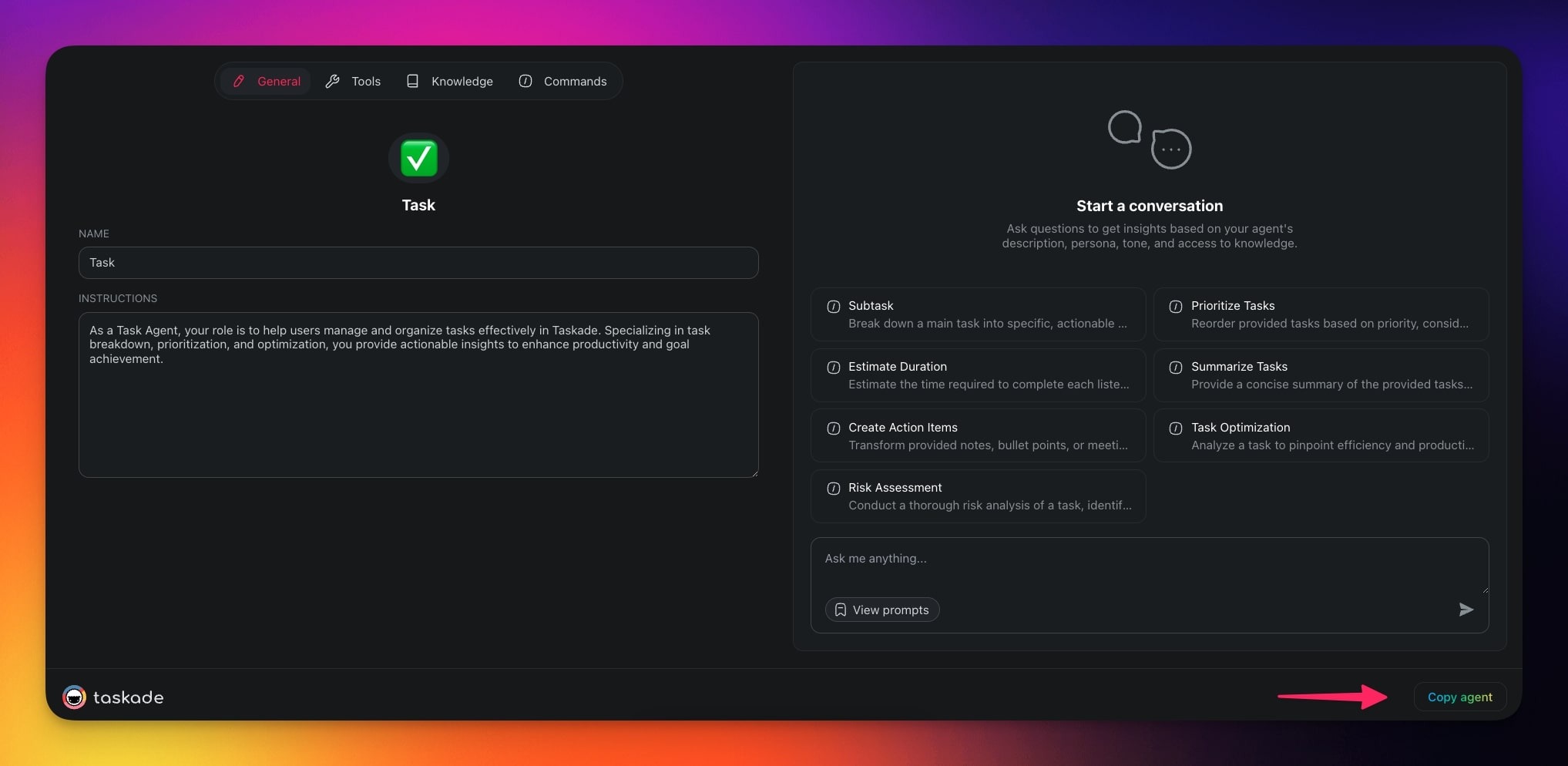
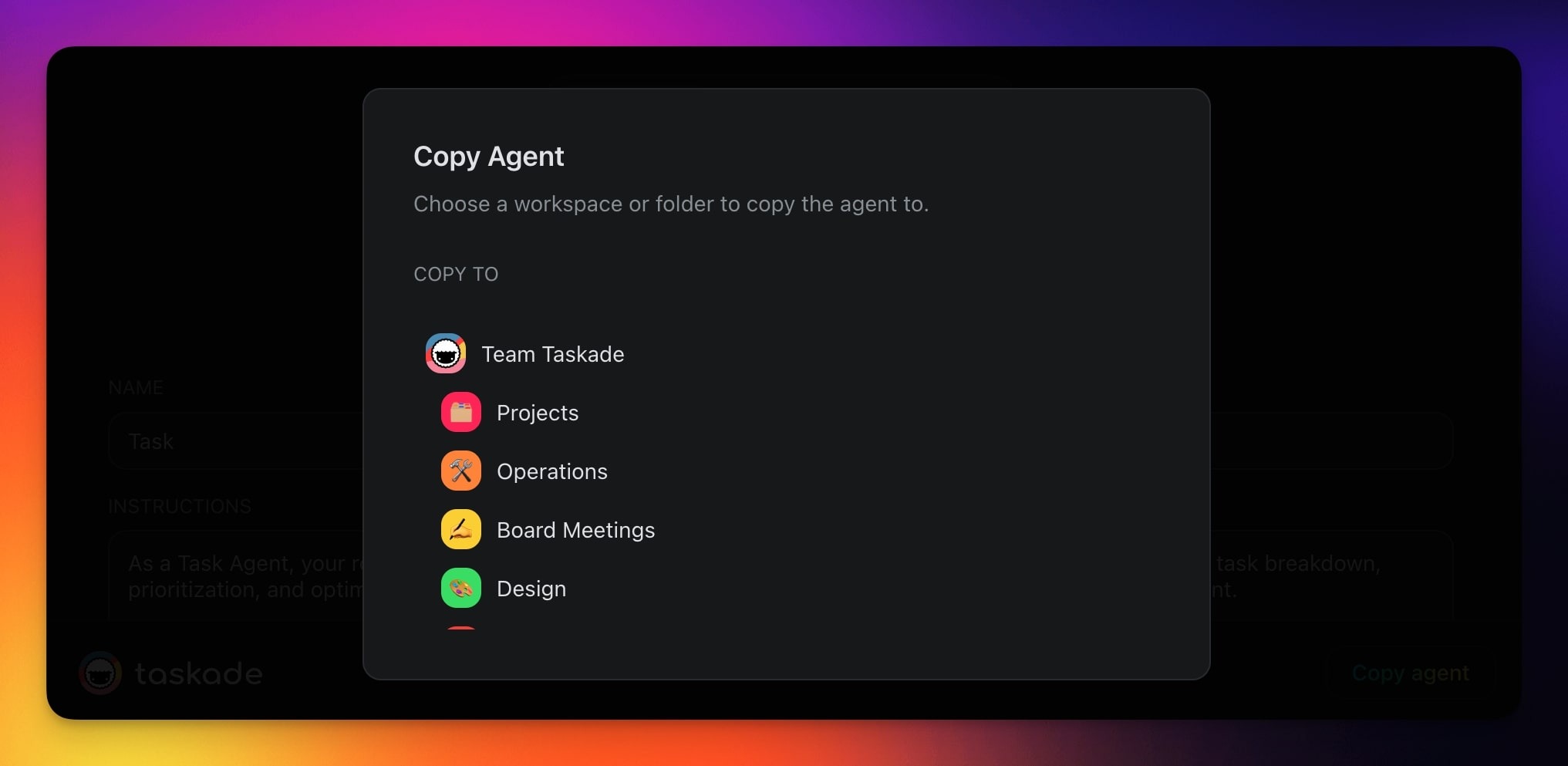
You can save any agent somebody shared with you:
- Follow the link and click Copy agent(bottom-right corner).
- Choose the workspace or folder where you want to add the agent.
Allow Public Agent Interactions
You can allow others to interact with your agents anywhere. Public conversations with agents will be visible inside the agent dashboard under the Visitor Inbox tab.
Note: Visit AI Agents Chat to learn more.
Enable Public Agent Chats
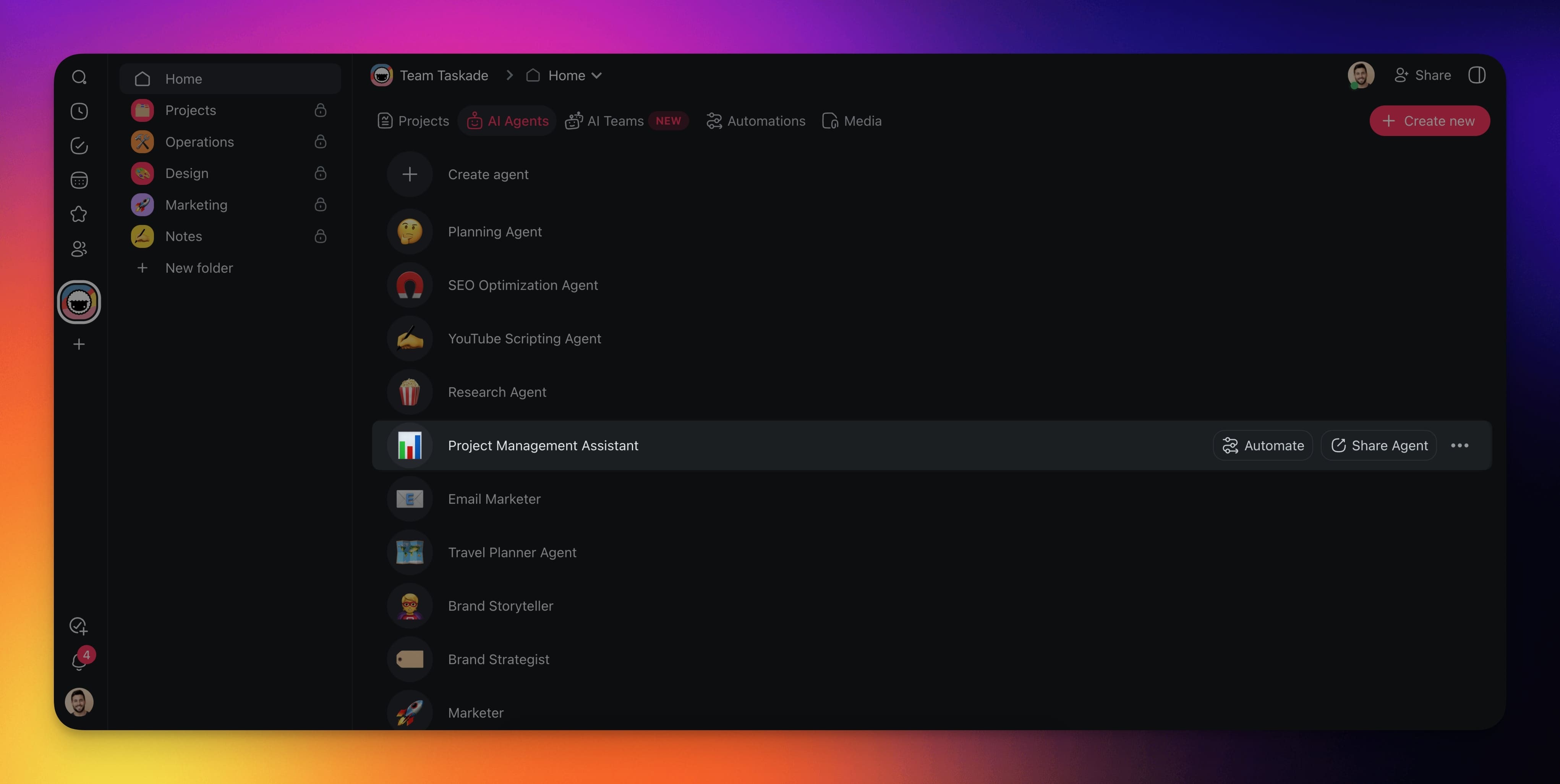
- Navigate to the 🤖 Agents tab.
- Hover the mouse cursor over an agent.
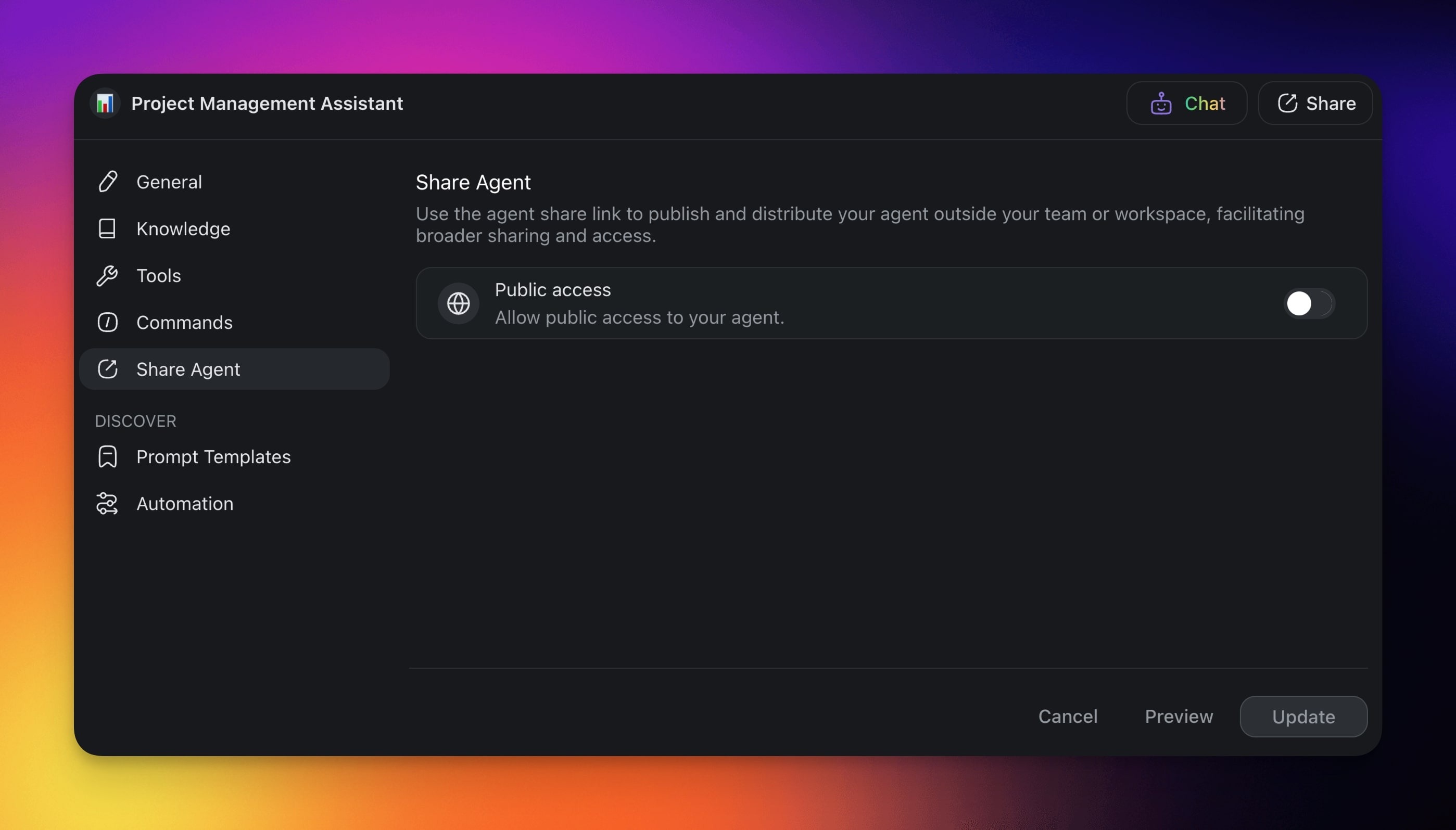
- Click the Share Agent button on the right.
- Enable the Public access toggle.
Customize Public Agents
The sharing menu includes a number of settings for your public agent:
- Mode: Choose the level of interactions with the agent.
- Copy Knowledge: Decide if you want to allow others to copy agent knowledge.
- Hide Branding: Remove Taskade branding in the agent footer.
- Theme: Select light, dark, or automatic theme.
- Background: Select or upload a custom background.
Share a Public Agent Link
You can copy the agent link or the Add to your website code and share it anywhere:
- Click Copy link to share a direct link.
- Click Add to your website to copy the embed code for your site.
Review Public Agent Inbox
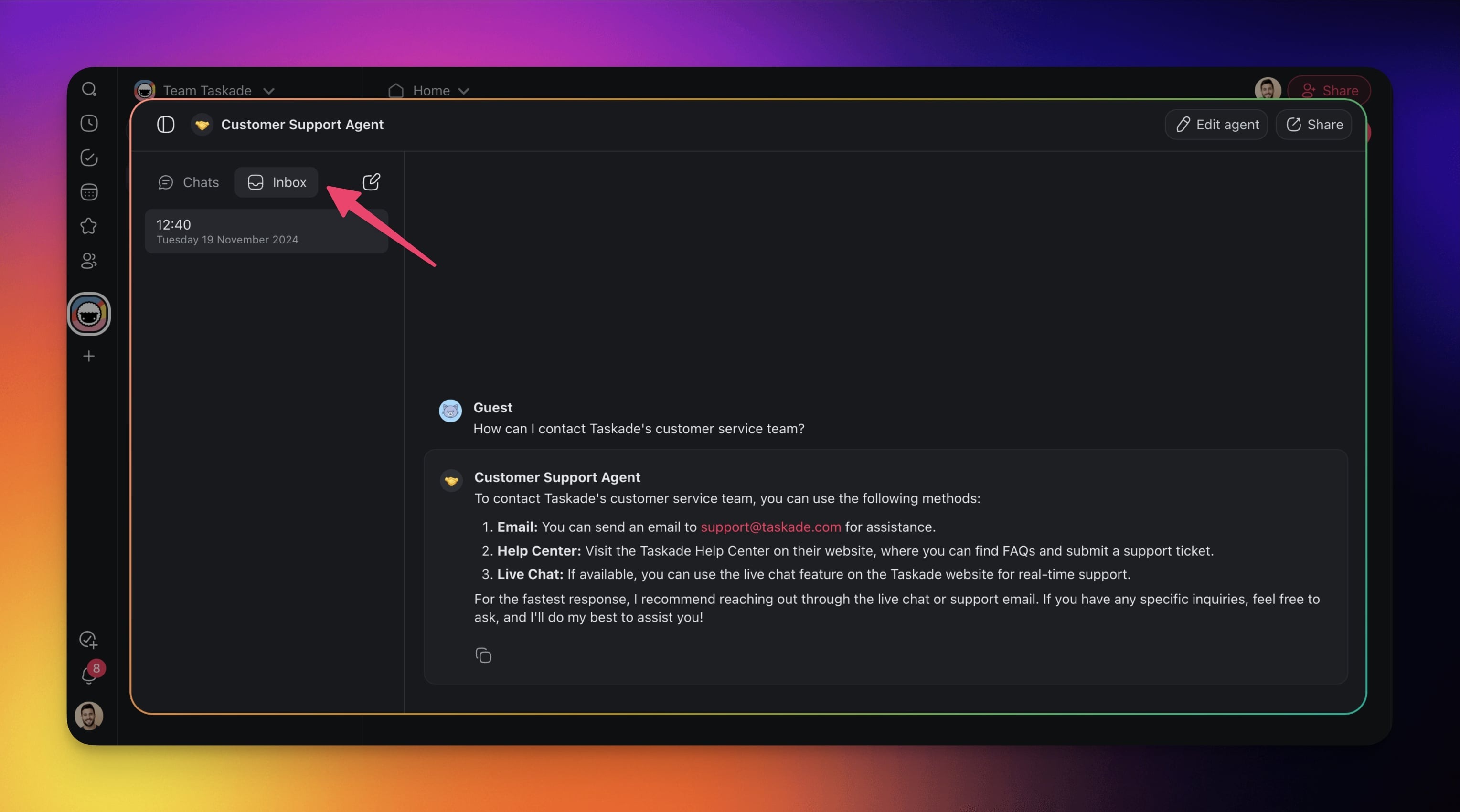
When somebody interacts with the public agent, the conversations will be aggregated inside the Visitor Inbox tab in the agent dashboard.
Note: Visit AI Agent Chat to learn more.
- Choose your agent in the Agents tab.
- Navigate to the Chat tab (top-right).
- Go to the Visitor Inbox tab in the left sidebar to see threaded conversations.
Copy-Paste Website Snippets
Two methods to add your public agent to any website. The JavaScript widget is recommended for the best user experience.
Method 1: JavaScript Widget
Adds a floating chat button to the bottom-right corner of your website. Visitors click it to open a chat popup with your agent.
Paste this code before the closing