
Overview
The Taskade app for iOS and Android shows the same AI Agents and AI Teams screens as the web, sized for a phone. Everything you build on one device is ready on the others.
TL;DR: Open the Taskade app, open your workspace, and tap AI Agents. From there you can create an agent, chat with it, change its knowledge, and share its public link, the same way as on the web. Add the Taskade Shortcuts widget to start a chat from your home screen. Build your first agent with Custom AI Agents.
Before You Start
- What you need: The Taskade app from the App Store or Google Play, and a Taskade account.
- Time: About 5 minutes.
- Plan: Free includes one custom agent. Paid plans raise the limit, and Pro and up have no agent limit.
| Task | On a phone | Full guide |
|---|---|---|
| Create an agent | Yes | AI Agent Generator |
| Chat with an agent | Yes | AI Agent Chat |
| Change knowledge, tools, and commands | Yes | Custom AI Agents |
| Publish and share an agent | Yes | Public Agent Link and Visitor Inbox |
| Use AI Teams | Yes, on Pro and up | AI Teams |
| Start a chat from the home screen | Yes, with a widget | Mobile Widgets |
Step 1: Open AI Agents
- Open the Taskade app and sign in.
- Open the workspace that holds your agents.
- Open the workspace menu and tap AI Agents.
┌────────────────────────────────┐
│ AI Agents        [ New agent ] │
├────────────────────────────────┤
│ Support Bot              ···   │
│ Researcher               ···   │
│ Marketer                 ···   │
├────────────────────────────────┤
│ New agent menu:                │
│   Generate with AI             │
│   Templates                    │
│   Blank agent                  │
└────────────────────────────────┘
Step 2: Create an Agent
On a phone, the create options sit in one menu. On a wide screen, such as an iPad in landscape, they show as Generate, Templates, and Create instead.
- Tap New agent.
- Tap Generate with AI, Templates, or Blank agent.
- If you picked Generate with AI, describe the agent and send the prompt.
A study helper for my biology class. It quizzes me on the chapter I
paste, explains wrong answers in two sentences, and keeps a list of
topics I miss. Do not give the answer before I try.
Why this works: It names the job, the reply length, and a boundary, so the first version fits a small screen.
Review the result, then tap Create & Launch Agent.
Make sure that the new agent shows in AI Agents.
Step 3: Chat With Your Agent
- Tap the agent in AI Agents.
- On Messages, tap + to start a new chat, or tap a chat under My Chats to continue it.
- Type your message in the box that says "Ask your agent".
- Tap + in the box to attach a file or a link. Type
/to run one of the agent's commands.
Each chat keeps its own history. A chat you start on your phone is in the same list on your computer.
Step 4: Change Knowledge and Tools
- Open the agent and tap the Knowledge tab.
- Change the Instructions, the AI Model, or the knowledge sources.
- Tap the Actions tab to change Commands, Tools, or Automation.
Changes save to the agent everywhere. See Agent Knowledge & Memory and Tools for AI Agents.
Step 5: Share Your Agent
- Open the agent and tap the Publish tab.
- Turn on the Publish Agent switch.
- On Share, tap Copy link next to Agent Share Link.
- Paste the link into a message, an email, or a social post.
Visitor chats appear on the agent's Messages tab under Visitor Inbox.
You are done when the share link opens your agent and the agent answers a test message.
Add Agents to Your Home Screen
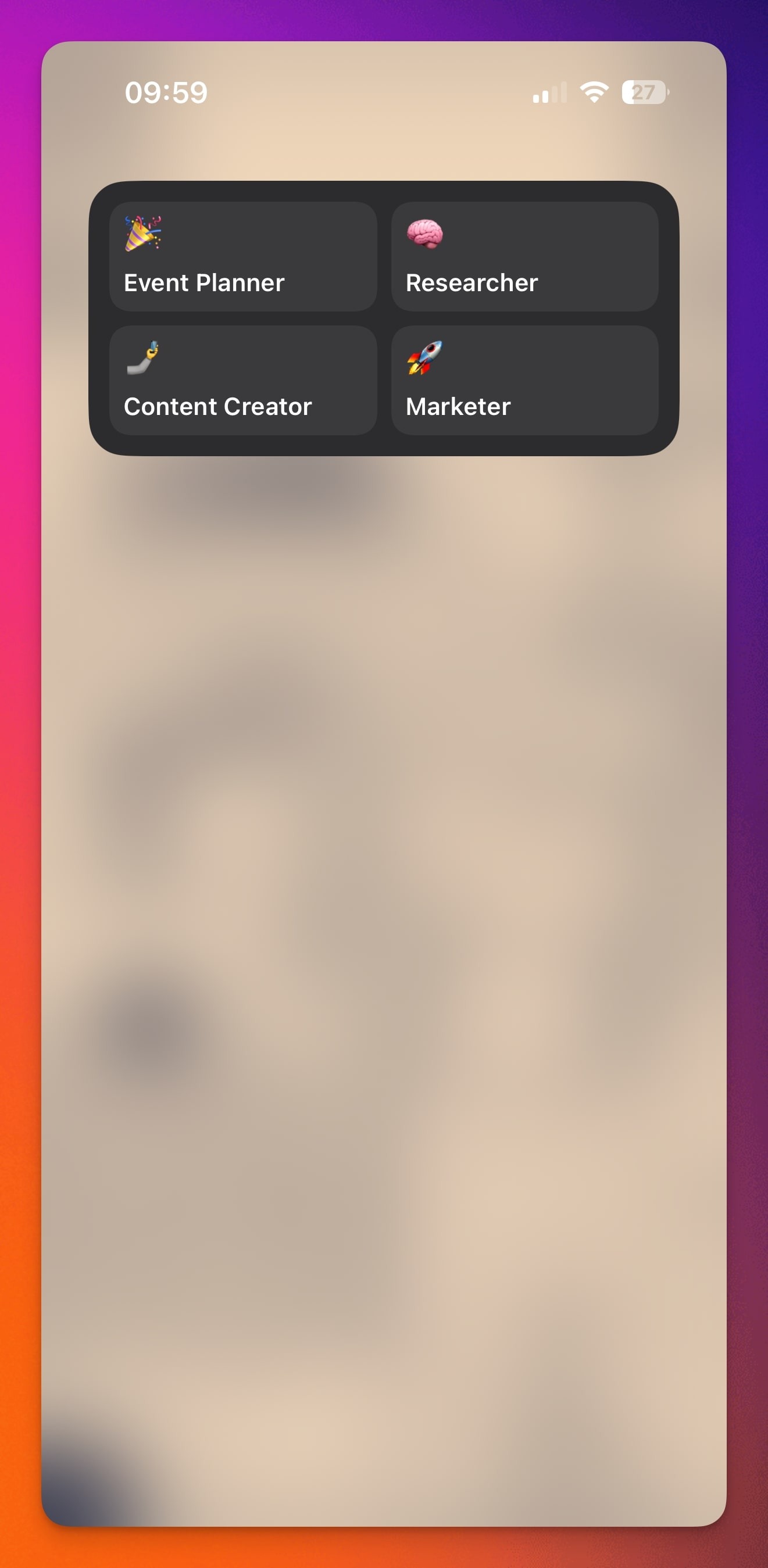
Put your favorite agents on your home screen with the Taskade Shortcuts widget. Tap an agent tile to open that agent in the app.
- iPhone and iPad: Touch and hold the home screen, tap Edit → Add Widget, and pick a Taskade Shortcuts widget. Then edit the widget and choose your agents. See Add Agent Widgets (iOS).
- Android: Touch and hold the home screen, open Widgets → Taskade, and add the Shortcuts widget. Then tap a tile and choose your agent. See Add Agent Widgets (Android).
Use AI Teams on Mobile
Open AI Teams in the workspace menu to chat with a team. Pick Auto, Everyone, Manual, or Orchestrate above the message box. AI Teams need Pro or a higher plan. See AI Teams.
Frequently Asked Questions
Can I create custom AI agents on my phone?
Yes. In the Taskade app, open AI Agents, tap New agent, and pick Generate with AI, Templates, or Blank agent. The agent is ready on the web and on your other devices at once.
Do my agents and chats sync between my phone and computer?
Yes. The app opens the same workspace as the web, so your agents, chats, knowledge, and settings are the same on every device.
Which plan do mobile agents use?
The same plan as your workspace. Free includes one custom agent. It starts with no AI credits, so you earn credits or buy a credit pack. Paid plans raise the agent limit, and AI Teams need Pro or a higher plan. See pricing.
Which AI models do agents use on mobile?
Taskade provides frontier AI models from top AI labs, including OpenAI GPT and open-weight models such as DeepSeek and Qwen. Users on paid plans can select their preferred model for AI agents and app generation. Claude runs on your own API key (BYOK) in custom agents on Pro and up, and in automations.
Related guides
- Custom AI Agents: Build and train an agent.
- AI Agent Chat: Every way to chat with an agent.
- AI Agent Generator: Create an agent from one prompt.
- AI Teams: Chat with several agents at once.
- Guide to Taskade Mobile: Everything else in the mobile app.
- Mobile Widgets: Put agents and projects on your home screen.