
Overview
Taskade lets you train an AI agent on your own documents and publish it as a chat widget your customers use directly on your site. Upload PDFs, links, and notes. The agent reads them, answers in your voice, and links back to the source. Ship the chat as a floating widget, a full-page chat, or a branded domain.
TL;DR: Build a chatbot trained on your documents in Taskade. Upload PDFs, web pages, and notes as the knowledge base, train a custom AI agent on top, then publish as a website widget or branded link. Replaces a stack of standalone chatbot SaaS subscriptions, and you can start free. See Taskade pricing when you scale.
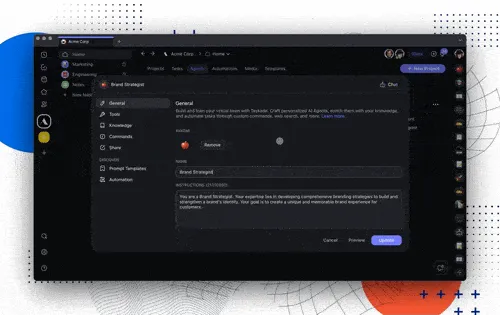
What You Will Build
- A Knowledge base holding your PDFs, web pages, notes, and FAQs.
- A Custom AI agent trained on that knowledge, in your brand voice.
- A Public chat widget customers use on your site.
- A Branded domain for a full-page chat experience.
- A Conversation log so you see what users are asking.
Step 1. Upload Your Knowledge
Open any workspace and click Agents. Pick New agent and add a name like Support Bot.
- Open the Knowledge tab on the agent.
- Click Add knowledge.
- Drop in PDFs, paste in web URLs, or pick existing Projects.
- Taskade reads and indexes each source. Most documents finish in under a minute.
Add anything a real customer rep reaches for: product docs, FAQs, pricing pages, help articles, refund policy. The agent searches every source on every question. See Agent Knowledge for the full list of supported sources.
Step 2. Train the Agent
Open the agent's Prompt tab. Taskade EVE drafts a starter prompt from your knowledge. Paste a tighter version like this so the agent stays on-brand and on-source:
You are Support Bot for {Brand}.

- Answer only from the knowledge base. If the answer is not there, say so plainly and offer to escalate.
- Quote the source title on every reply.
- Match the tone of {Brand}: warm, concise, never condescending.
- Refuse anything outside support scope (sales pricing, legal, refunds beyond policy).
- If the user is upset, acknowledge before answering.
Save the prompt. Test the agent in the chat panel before publishing.
- Tune the voice. Add a line like
Reply in a warm, confident tone. Cite the source on every answer. - Add fallback behavior.
If the knowledge base does not cover the question, say so and offer a human handoff. - Pick a frontier model. Most chatbots ship great answers on the default model.
Test in the chat preview. Ask three real customer questions. Tune the prompt until each reply quotes the right source and feels like your team wrote it.
Step 3. Publish the Widget
Open the Publish tab on the agent. Pick Website widget.
- Copy the embed snippet.
- Paste it into your site footer, right before
</body>. - Refresh your site. A floating chat bubble appears in the corner.
The widget remembers conversation across pages. It opens with a greeting you write. It closes if the user clicks away. Style the colors and avatar to match your brand from the same publish tab.
Step 4. Add a Branded Domain
For a full-page chat, point a branded domain at the agent.
- Open Publish. Pick Public chat page.
- Click Custom domain and add something like
ask.yourbrand.com. - Add the DNS record Taskade shows you. SSL turns on automatically.
Share the branded link in emails, social bios, and onboarding emails. Customers land on a full chat page with your logo, your colors, and the same trained agent. See Branded Links for the full DNS walk-through.
Step 5. Watch the Conversations
Every chat session lands in your workspace as a Project row.
- Open the agent's Conversations tab.
- Pick any session to read the full transcript.
- Tag patterns:
missing answer,pricing question,feature request.
Use the patterns to update the knowledge base. A weekly review of conversations is the fastest way to make the chatbot smarter. Add a missing PDF, edit a stale page, tune the prompt. The next user sees the better answer.
Common Chatbot Patterns
| Pattern | How Taskade handles it |
|---|---|
| Support deflection | Train on help center articles. Widget on every page. Handoff button when stuck. |
| Sales qualifier | Train on pricing and feature pages. Capture email at end of chat. Push to a CRM Project. |
| Internal IT help | Train on internal wiki. Publish to a private branded domain. Sign-in required. |
| Documentation assistant | Train on your developer docs. Embed in the docs site. Code blocks render natively. |
| Onboarding coach | Train on onboarding videos and PDFs. New hires chat through their first week. |
| FAQ replacement | Train on every existing FAQ. Retire the FAQ page. Replace with the chat. |
Publish Notes
The chat widget and branded domain serve the same agent. Update the knowledge once and both surfaces refresh. Publishing is reversible. Take a widget down by clicking Unpublish in the agent's publish tab.
Every conversation feeds back into the workspace. Your team sees questions the moment they happen. The chatbot gets sharper every week.
Related guides
- Custom AI Agents
- Agent Knowledge
- Public Agents
- Branded Links
- Agent Prompts
- Sharing
- Keep Your Agent's Knowledge Up to Date. Stop the chatbot answering from stale documents