# Public Agent Link and Visitor Inbox
> Get a public link for any Taskade AI agent, share or embed it, and read every visitor chat in the Visitor Inbox.
- Source: https://www.taskade.com/learn/agents/agent-inbox
- Section: AI Agents
- Updated: 2026-11-09
- Index of all pages: https://www.taskade.com/learn/llms.txt
## Overview
A public agent link lets anyone chat with your AI agent, with no Taskade account. Every visitor chat lands in the agent's **Visitor Inbox**, so you can read what people ask.
> **TL;DR:** Open your agent, click the Publish tab, and turn on the Publish Agent switch. Copy the Agent Share Link, or embed the agent on your website. Visitor chats appear under Messages → Visitor Inbox. Use the When an agent chat ends trigger to send each chat to Slack, email, or a CRM. [Build an agent first →](https://www.taskade.com/learn/agents/custom-agents)
```mermaid
flowchart LR
L[Public agent link]:::src --> A((Your agent)):::agent
E[Website embed]:::src --> A
W[Chat widget]:::src --> A
A --> I[Visitor Inbox
read · export · delete]:::you
A --> T[When an agent chat ends
automation trigger]:::exe
T --> O[Slack · email · CRM]:::exe
classDef src fill:#0d1b2a,color:#7dd3fc,stroke:#38bdf8,stroke-width:1.5px
classDef agent fill:#2a1225,color:#ff8fa3,stroke:#ff2d60,stroke-width:2px
classDef you fill:#1e1e2e,color:#cdd6f4,stroke:#475569
classDef exe fill:#0d1a0e,color:#86efac,stroke:#22c55e,stroke-width:1.5px
```
- **What you need**: A [custom AI agent](https://www.taskade.com/learn/agents/custom-agents) with instructions and knowledge.
- **Time**: About 5 minutes.
- **Plan**: Every plan can publish an agent. Some options need a paid plan, as marked below.
## Step 1: Turn On the Public Agent Link
1. In your workspace sidebar, open **AI Agents**.
2. Click the agent.
3. Click the **Publish** tab.
4. Turn on the **Publish Agent** switch.
```text
┌───────────────────────────────────────────────────────┐
│ Publish Agent [ On ● ] │
│ Share Embed Customize Tool Permissions │
├───────────────────────────────────────────────────────┤
│ Agent Share Link taskade.com/a/support-bot-01JK… │
│ [ Copy link ] View agent │
│ Require password [ Off ○ ] │
│ Link preview Page title · Short description · Image │
└───────────────────────────────────────────────────────┘
```
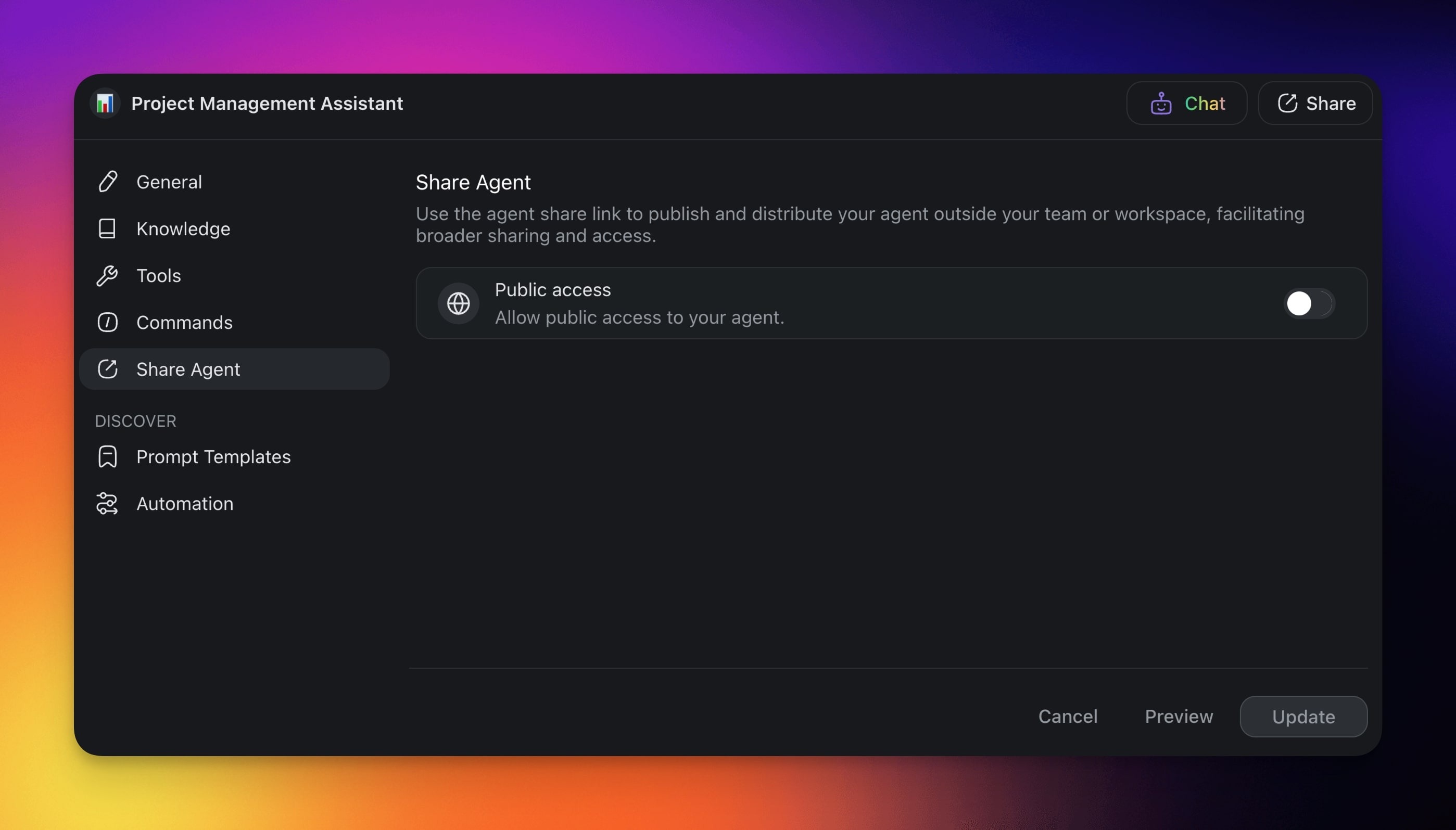
Make sure that the **Share** sub-tab shows the **Agent Share Link**.
**Screenshot of the earlier publish screen**
Earlier versions used a **Share Agent** tab with a **Public access** switch.
## Step 2: Copy and Share the Link
1. On the **Share** sub-tab, click **Copy link** next to **Agent Share Link**.
2. Click **View agent** to open the public page and test it.
3. Paste the link in an email, a chat, a social post, or a QR code.
| Option | What it does | Plan |
| --- | --- | --- |
| **Require password** | Visitors enter a password before they chat | Pro and up. On Free and Starter, the switch shows a **Pro** badge |
| **Get Custom Domain** | Serves the link from your own domain | Pro and up |
| **Public chat model** | Picks the model that answers visitors | Every plan, per model badge |
See [Branded Agent Domain Links](https://www.taskade.com/learn/agents/branded-links) to use your own domain.
## Step 3: Set the Link Preview
The link preview is what people see when the link appears in search results or in a chat app.
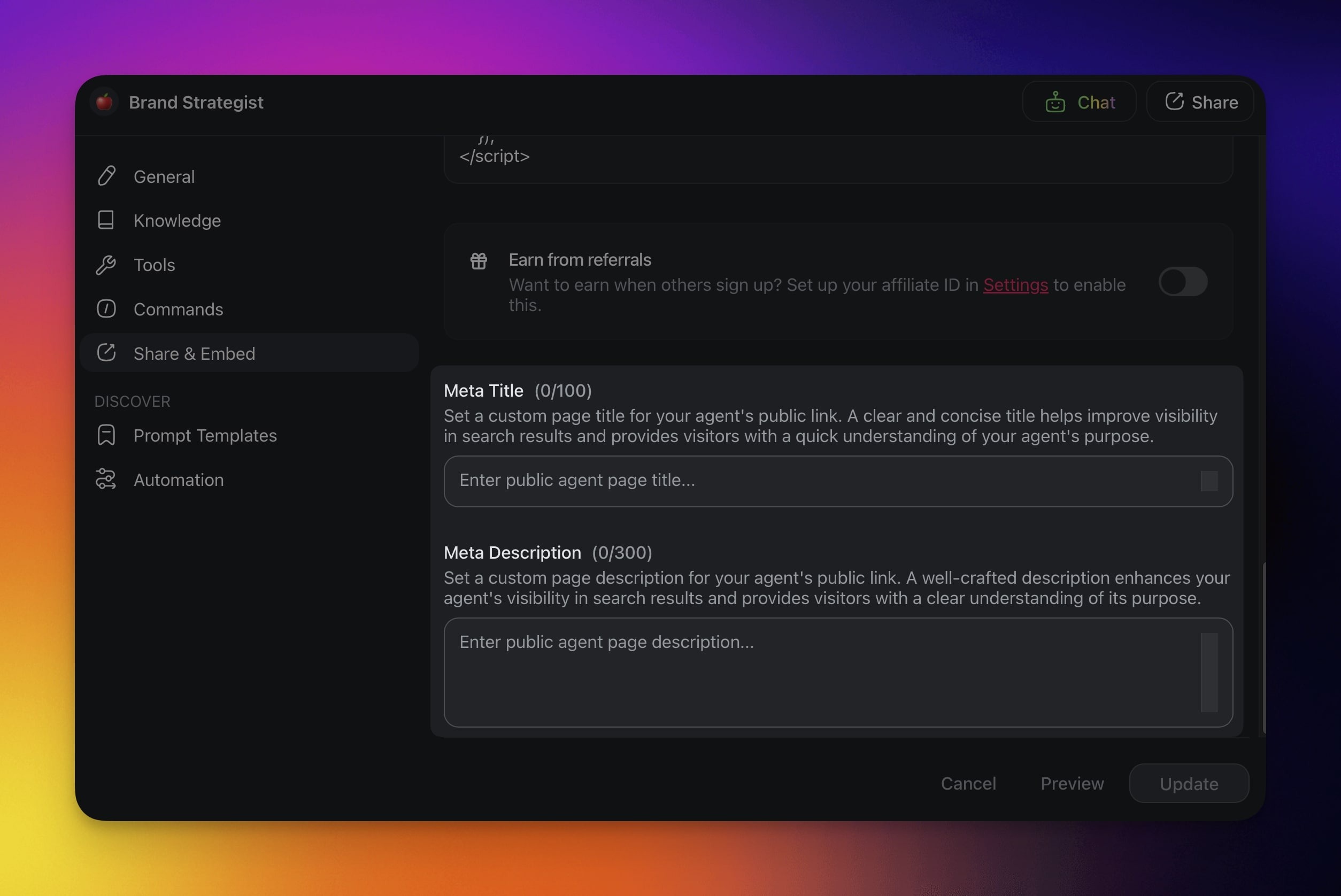
1. On the **Share** sub-tab, scroll to **Link preview**.
2. Type a **Page title**, up to 100 characters. For example: "AI Support Agent for Bakery Orders".
3. Type a **Short description**, up to 300 characters. Say what the agent does.
4. Add a **Preview image**. This needs Business or a higher plan.
**Screenshot of the earlier link preview fields**
## Step 4: Customize the Public Agent
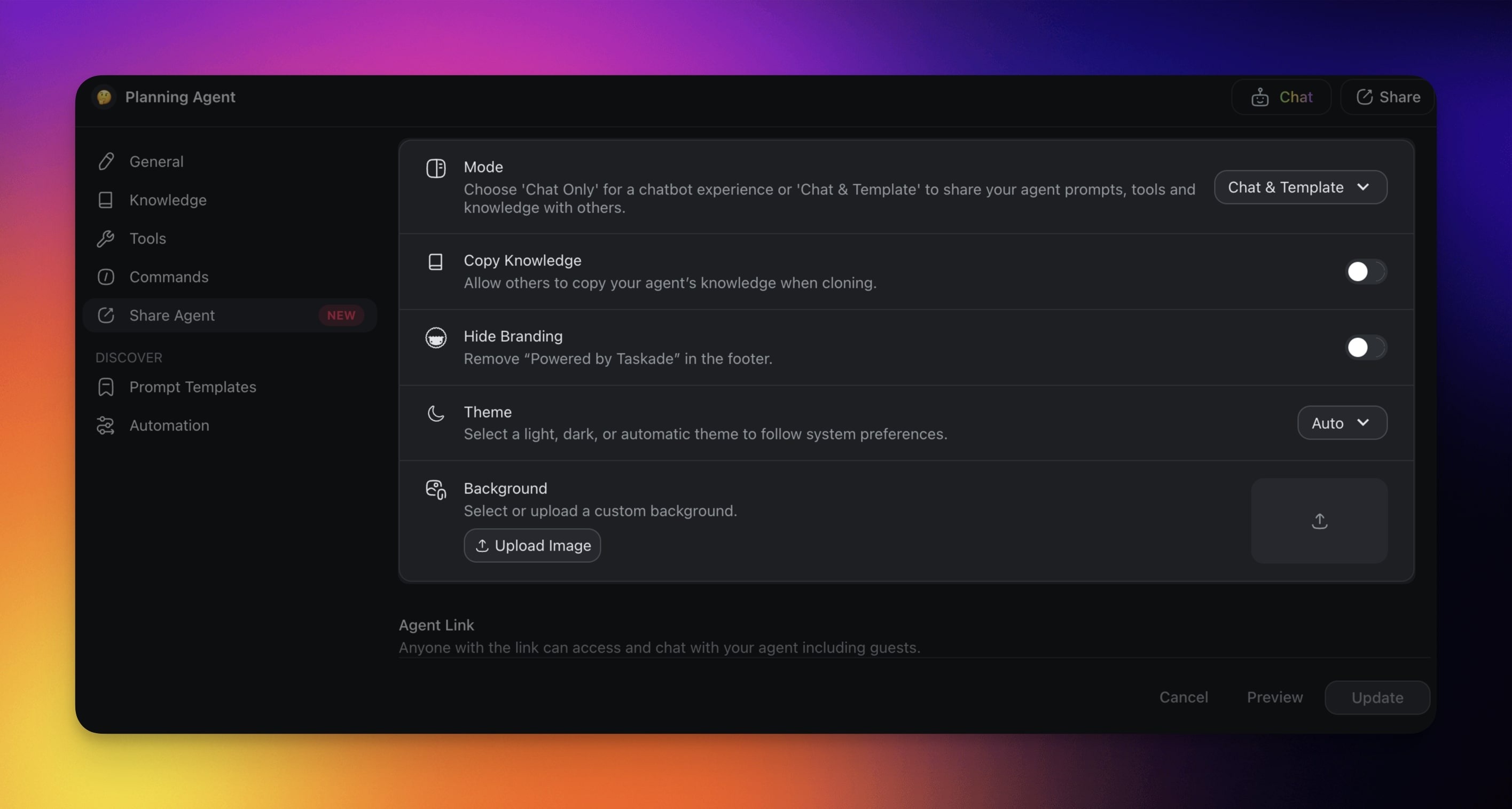
Open the **Customize** sub-tab. One set of settings controls the public page, the website widget, and the chat block in a Taskade Genesis app.
| Setting | What it does | Plan |
| --- | --- | --- |
| **Mode** | **Chat Only**, or **Chat & Template** so visitors can clone the agent | Every plan |
| **Theme** | Light theme, Dark theme, or Auto | Every plan |
| **Color**, **Header**, **Agent avatar**, **Chat button icon** | The brand look of the chat | Every plan |
| **Message Style**, **Show Suggestions**, **Notice**, **Footer** | The chat layout and the short lines around it | Every plan |
| **Chat Timeout** | Ends a chat after a time with no activity | Every plan |
| **Background** | An image behind the chat | Business and up |
| **Hide Branding** | Removes the Taskade mark | Business and up |
**Screenshot of the earlier customize options**
## Step 5: Embed It on Your Website
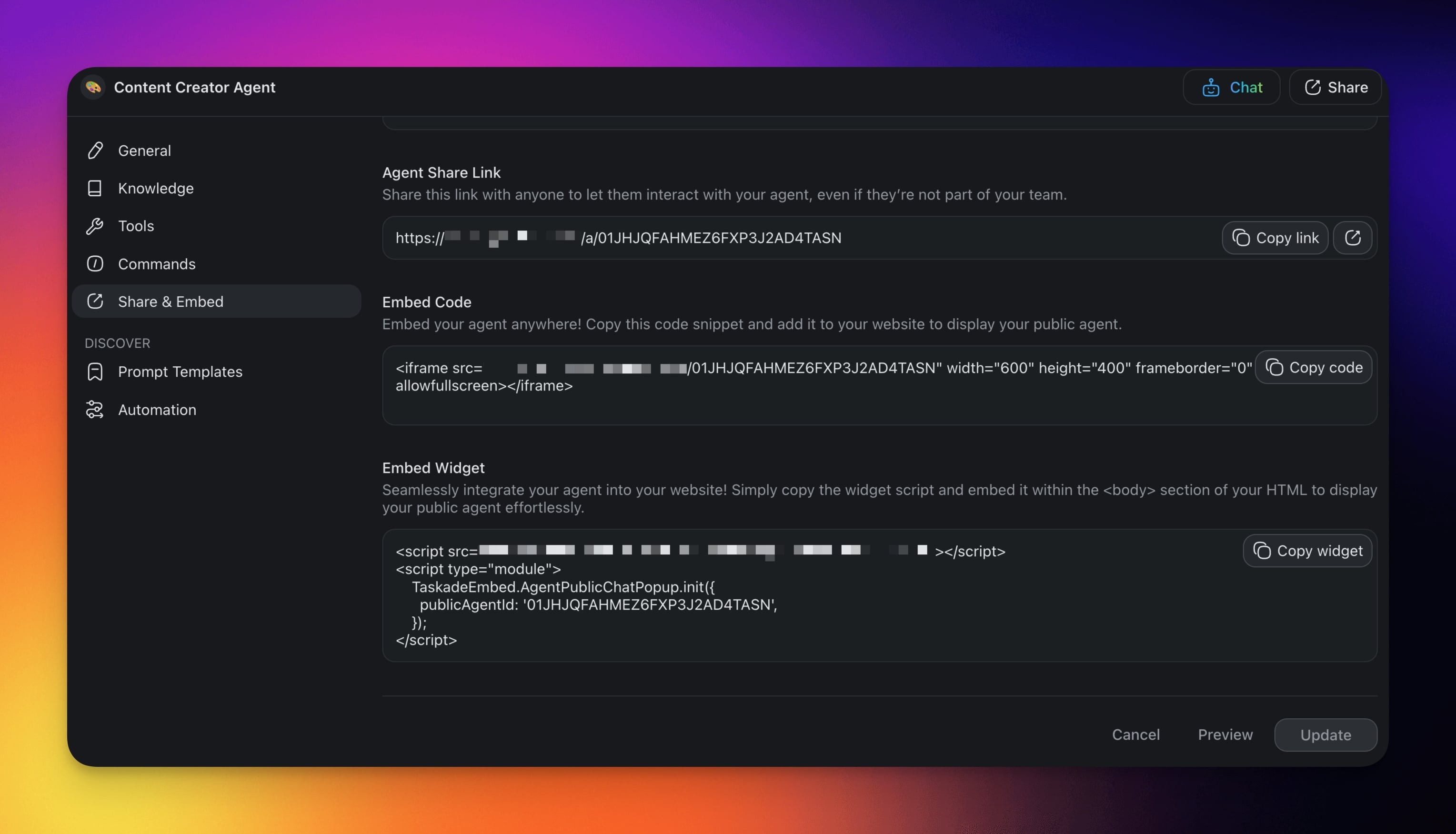
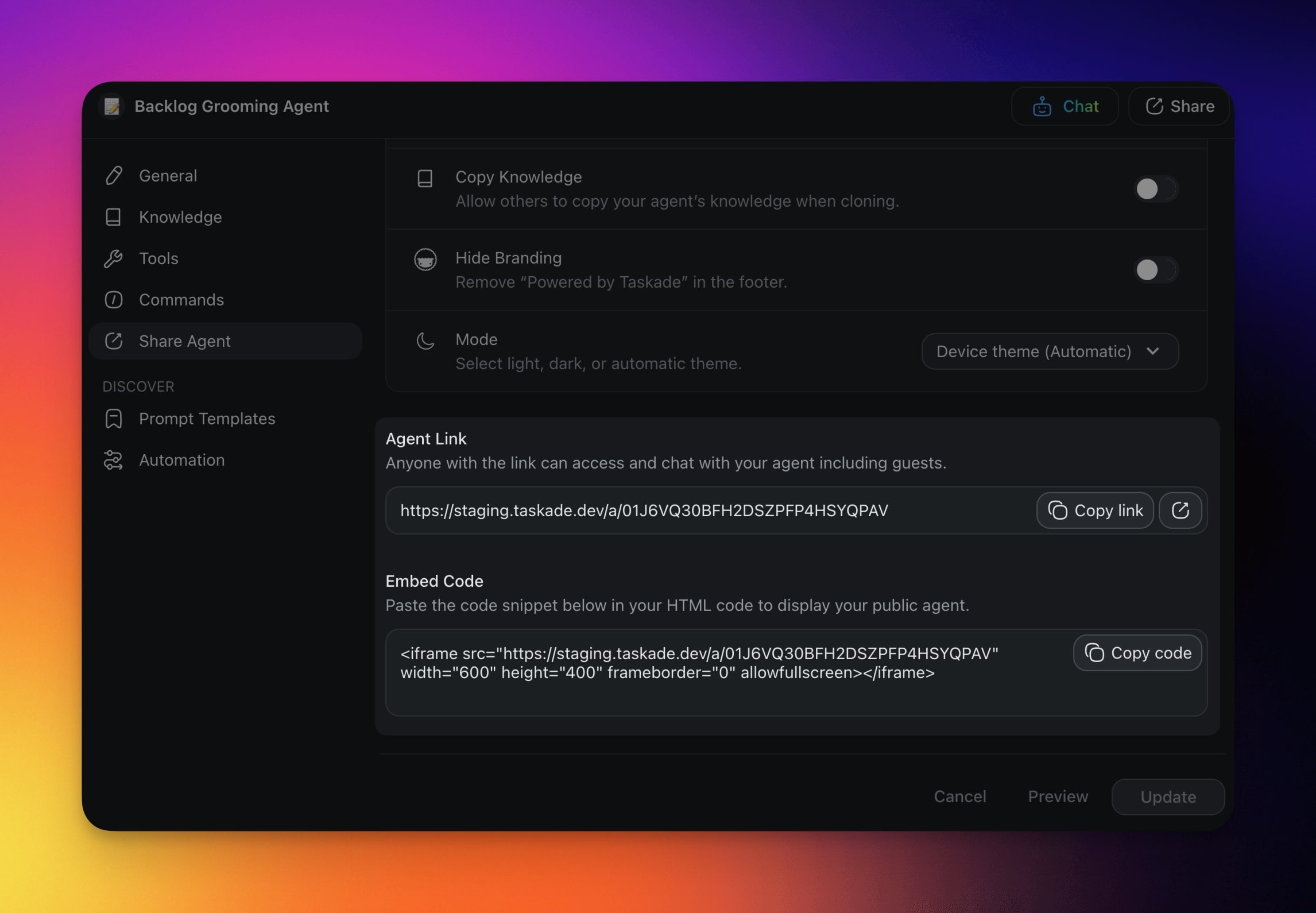
Open the **Embed** sub-tab. Pick one of two ways:
- **Add to your website** gives an embed code with a width and a height. Click **Copy embed code**.
- **Add a chat widget** gives a launcher button for every page. Pick a **Style**: Bubble, Modal, Sidebar, Ask AI, or Inline. Click **Copy widget code**.
Paste the widget code before the closing `` tag of your web page. Visitors click the launcher to chat with your agent.
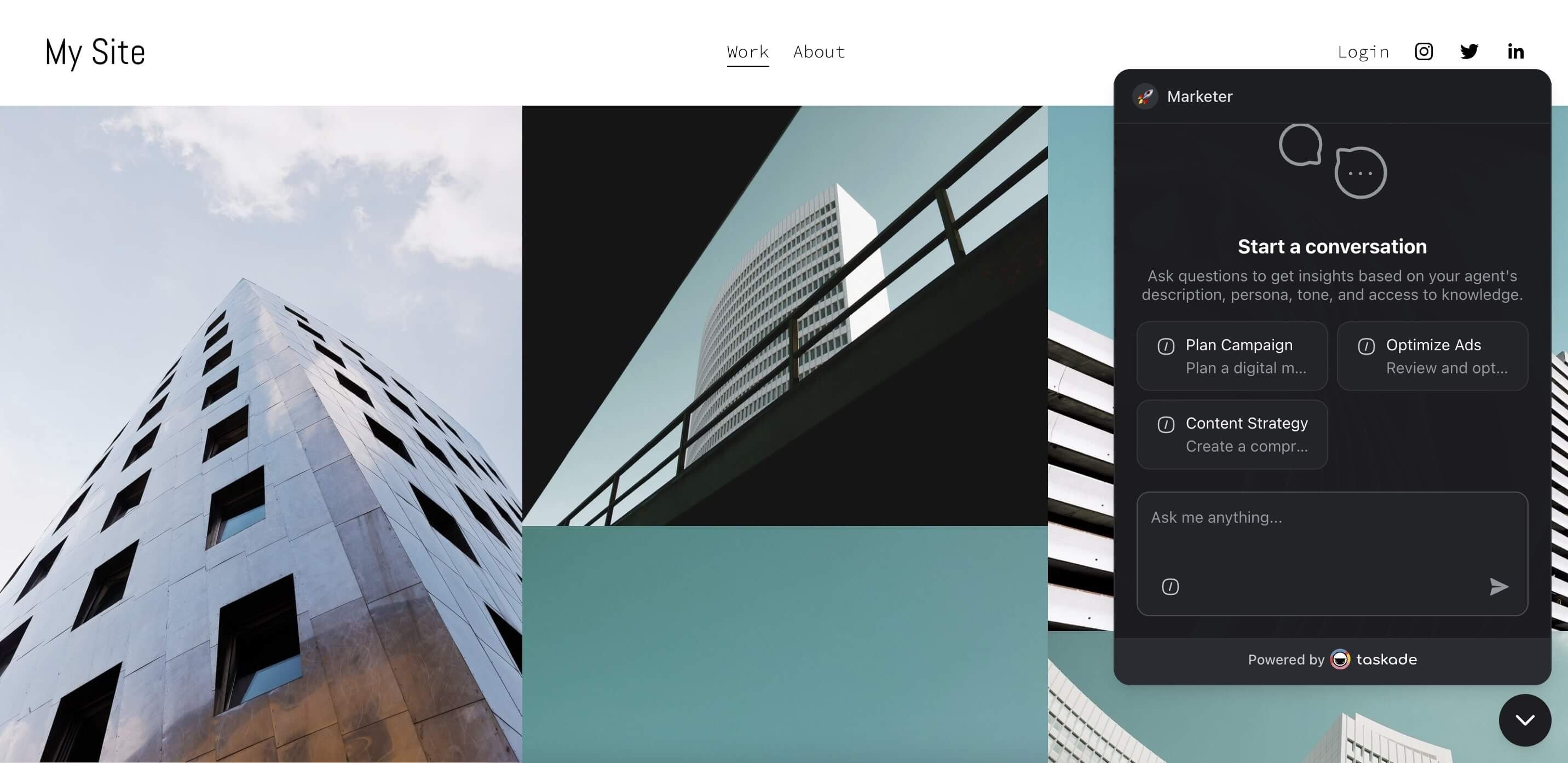
**Screenshots of the earlier embed options**
See [Embed AI Agents as Website Widgets](https://www.taskade.com/learn/agents/agent-widgets) for every widget setting.
You are done when your web page shows the agent and the agent answers a test message.
## Read Every Chat in the Visitor Inbox
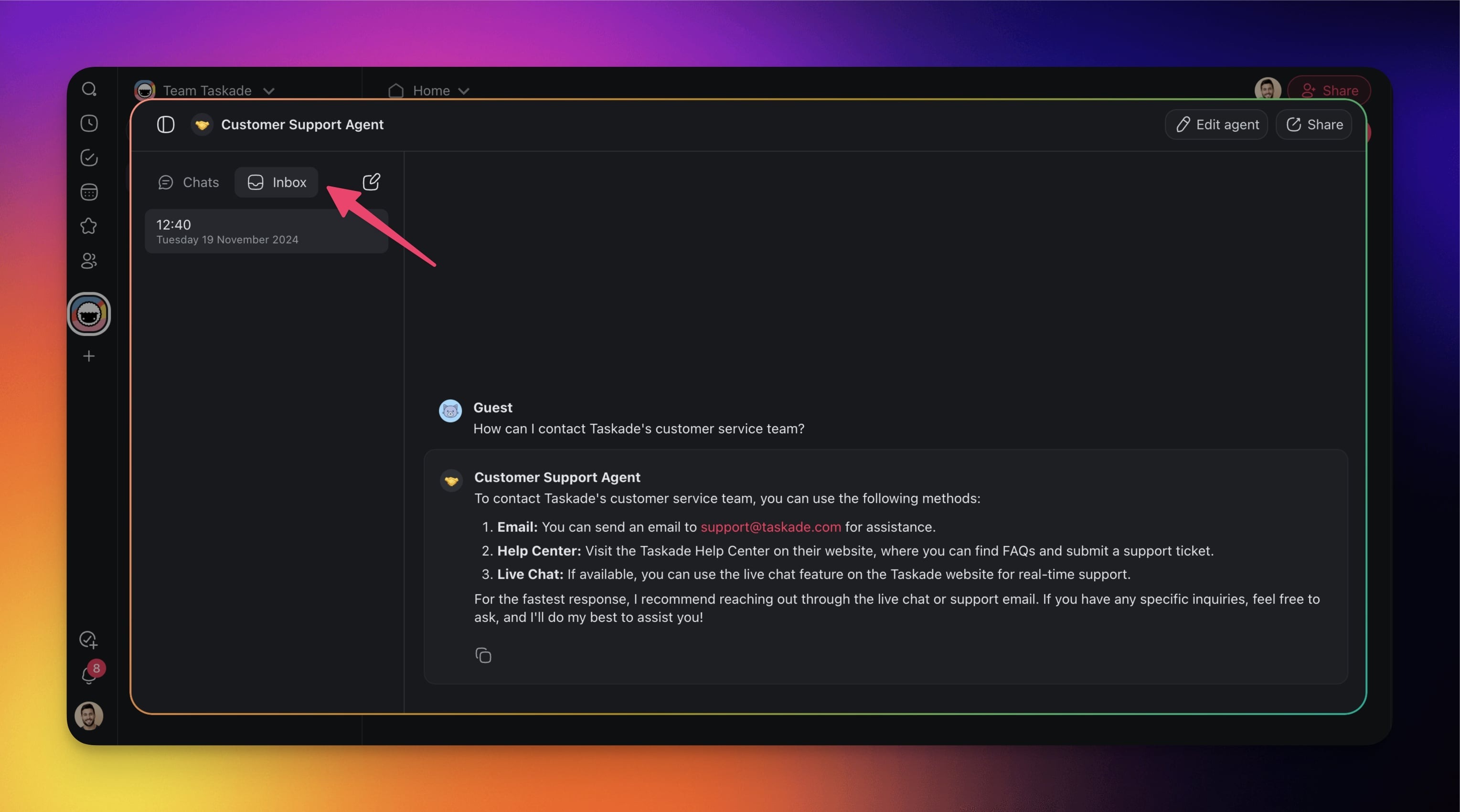
1. Open the agent from **AI Agents**.
2. Click the **Messages** tab.
3. Click **Visitor Inbox**, next to **My Chats**.
4. Click a chat to read the full thread.
```text
┌───────────────────────────────────────────────┐
│ Messages [+] │
│ My Chats [ Visitor Inbox ] │
├───────────────────────────────────────────────┤
│ Refund request #4821 ··· │
│ Can it read my PDF? ··· │
│ Pricing for 20 seats ··· │
├───────────────────────────────────────────────┤
│ ··· → Export · Delete │
└───────────────────────────────────────────────┘
```
- **Read only.** The Visitor Inbox is a record. You cannot reply inside a visitor's chat. It is a different inbox from the **Inbox** sub-tab of the agent's **Knowledge** tab, where you can answer questions to teach the agent.
- **Follow up.** To answer a visitor, collect contact details in the chat and send the reply with an automation.
- **Teach the agent.** A question that the agent did not answer, and a reply that a visitor rated down, also go to the **Inbox** sub-tab of the agent's **Knowledge** tab. Answer one there to save it as knowledge. See [Teach the Agent From Its Inbox](https://www.taskade.com/learn/agents/knowledge#teach-the-agent-from-its-inbox).
- **Empty inbox.** Before you publish, the inbox says "Publish to start getting messages". After you publish, it says "Waiting for your first visitor" until the first chat.
## Export Public Chats
Every plan can export a public chat.
1. Click **···** next to a chat in the **Visitor Inbox**.
2. Click **Export**.
3. Copy the transcript, or download it as a [Markdown](https://www.taskade.com/learn/projects/markdown-support) file.
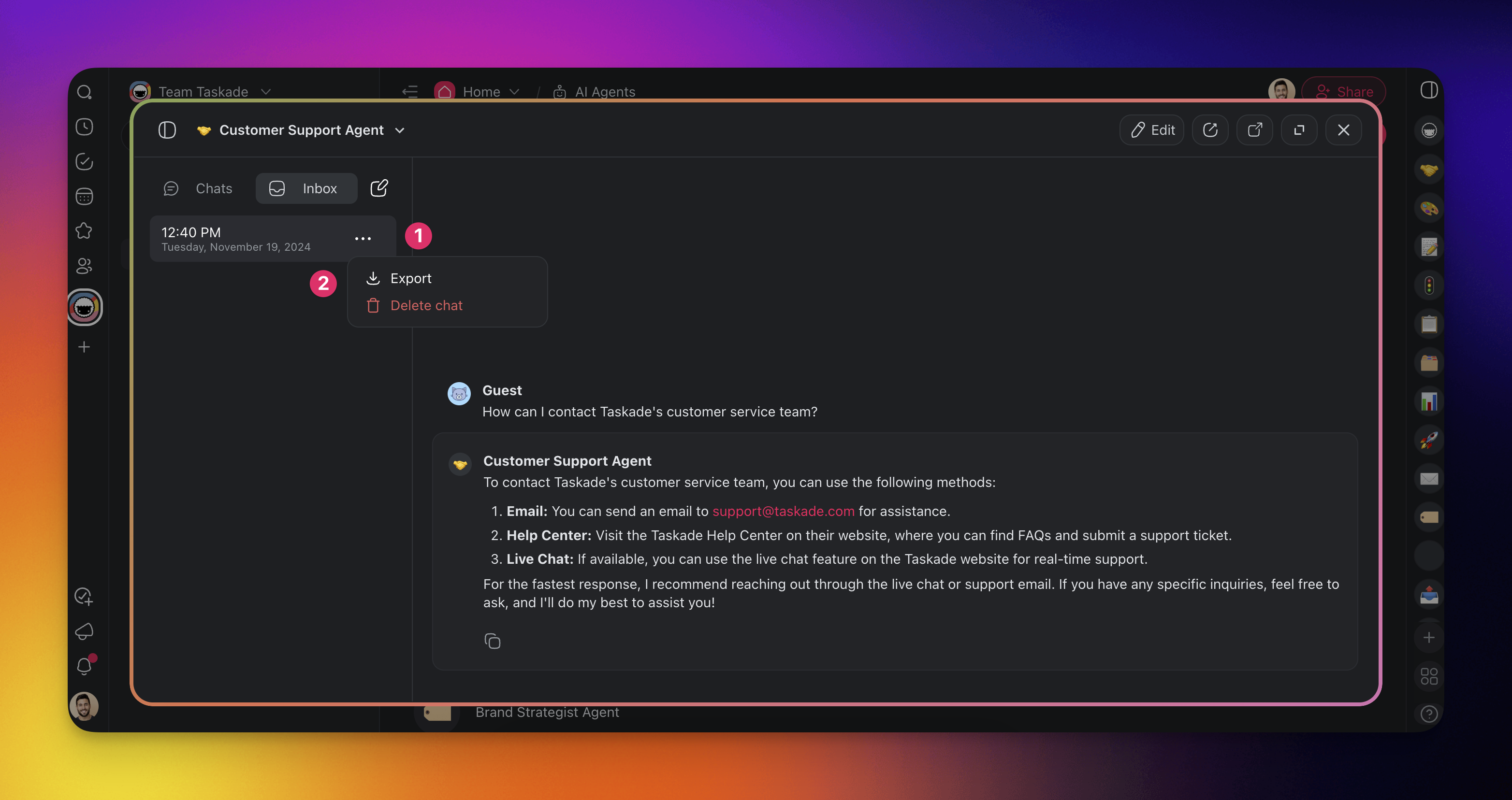
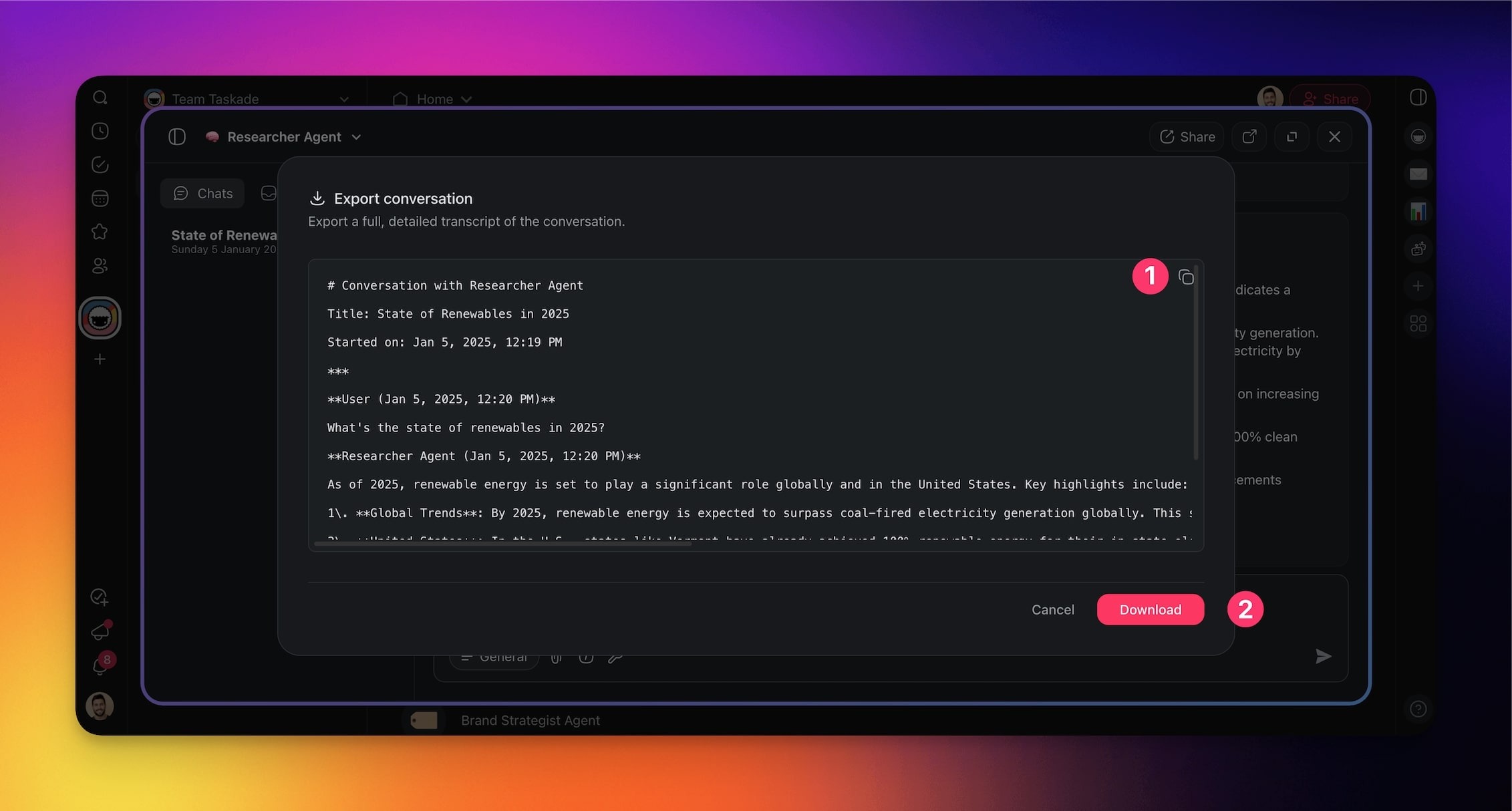
Click **Delete** in the same menu to remove a chat.
## Automate Public Chats
Send every finished visitor chat to the right place, with no manual copy.
1. On the agent's **Customize** sub-tab, turn on **Chat Timeout**. The trigger needs it.
2. Open **Automations** in your workspace and create an automation.
3. Add the trigger **When an agent chat ends**, and pick the agent.
4. Add the actions to run, for example post to Slack or create a CRM contact.
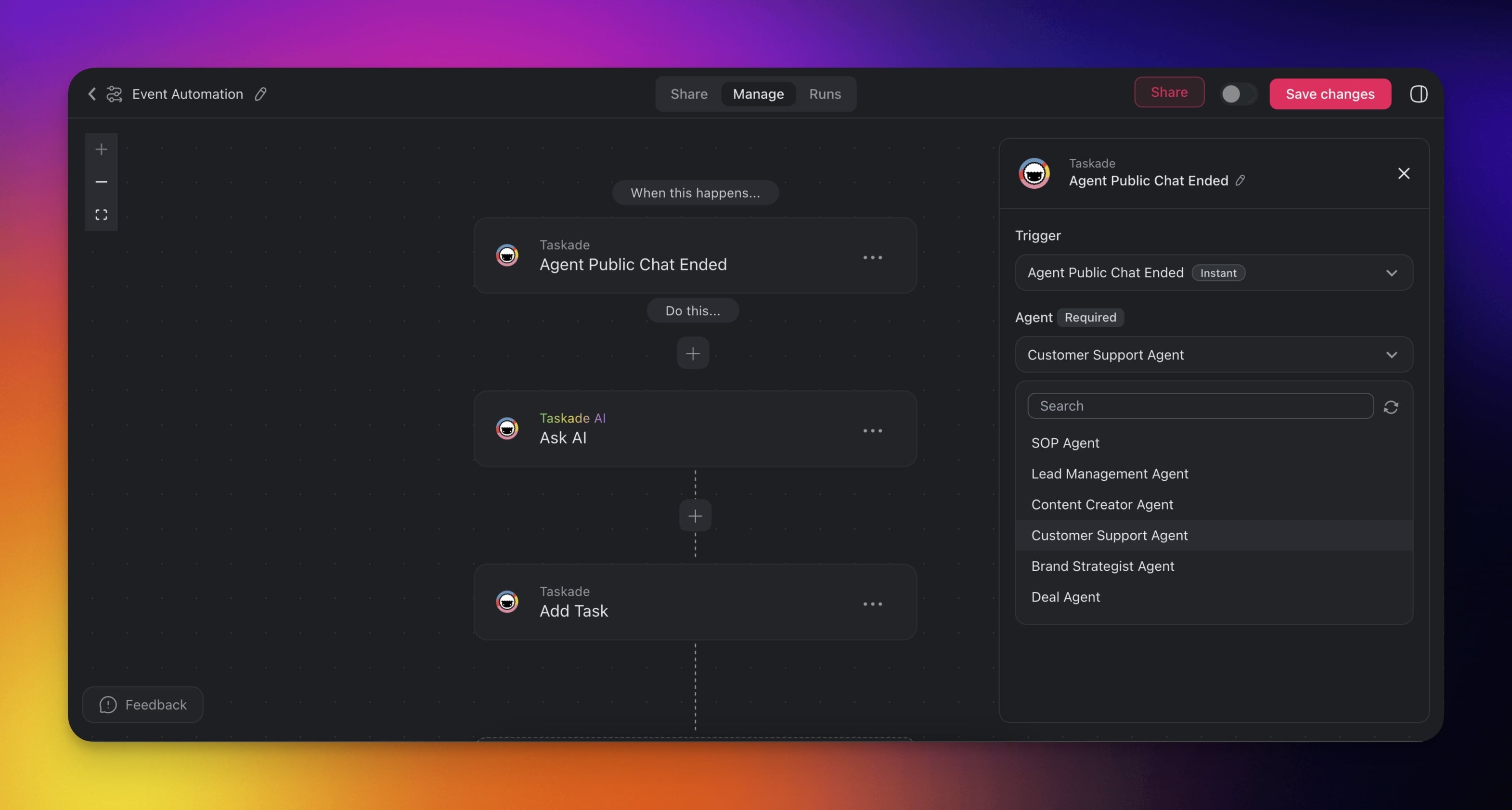
> 💡 **Note:** When a public chat ends, the trigger passes the chat history to the next step. See [Agent Public Chat Ended](https://www.taskade.com/learn/automation/chat-ended) for the trigger fields.
## The Inbox in Workspace DNA
The public link and the inbox are the public face of your Workspace DNA. Projects (Memory) feed the agent's knowledge. The agent (Intelligence) answers visitors. Automations (Execution) act on each finished chat. See [Workspace DNA](https://www.taskade.com/learn/genesis/workspace-dna).
## Use Cases
| Use case | What the agent does | Automation idea |
| --- | --- | --- |
| Knowledge and FAQs | Answers common questions from your docs | Log each question to a project |
| Customer support | Handles questions around the clock | Send unresolved chats to a teammate by email |
| Pre-sales | Explains plans, products, and demos | Create a CRM contact after each chat |
| Events and meetings | Shares agendas, times, and locations | Send a reminder after the chat |
| Web research | Searches the web and reads pages for the visitor. Turn on **Search the web** and **Read a web page**, and set the **Media** row on **Tool Permissions** to **Visitors can use this** | Save the findings to a project |
| Team help desk | Answers how-to questions from your process docs | Create a task when a process gap appears |
## Frequently Asked Questions
**How do I get a public link for my AI agent?**
Open the agent, click the Publish tab, and turn on the Publish Agent switch. The Share sub-tab then shows the Agent Share Link. Click Copy link and share it anywhere.
**Is a public agent link free?**
Yes. Every plan can publish an agent and share its link. Each visitor reply uses AI credits from your workspace. A password and a custom domain need Pro or a higher plan, and Hide Branding, a background image, and a preview image need Business or a higher plan. See [pricing](https://www.taskade.com/pricing).
**Can visitors see my workspace?**
No. Visitors see only the public chat page. The agent answers from the knowledge you attached to it, and the Tool Permissions sub-tab sets which tools visitors can use. Your projects, other agents, and members stay private.
**Can I reply to visitors in the Visitor Inbox?**
No. The Visitor Inbox is read only. To follow up, ask visitors for an email address in the chat. Then use the When an agent chat ends trigger to send the chat to your team or your CRM. The **Inbox** sub-tab of the agent's **Knowledge** tab is a different inbox: there you answer unanswered or rated-down questions to teach the agent. See [Teach the Agent From Its Inbox](https://www.taskade.com/learn/agents/knowledge#teach-the-agent-from-its-inbox).
**How do I take a public agent offline?**
Turn off the Publish Agent switch on the agent's Publish tab. The public page stops working. The agent's knowledge, tools, and chats stay in your workspace, so you can turn the link back on later.
## Related guides
- [Publish Agents Publicly](https://www.taskade.com/learn/agents/public-agents): Every publish control, plan rules, and knowledge scope.
- [Embed AI Agents as Website Widgets](https://www.taskade.com/learn/agents/agent-widgets): Put a chat launcher on any site.
- [Branded Agent Domain Links](https://www.taskade.com/learn/agents/branded-links): Serve the public agent link from your own domain.
- [Custom AI Agents](https://www.taskade.com/learn/agents/custom-agents): Build the agent before you make it public.
- [Tools for AI Agents](https://www.taskade.com/learn/agents/agent-tools): Give agents the tools they need.
- [Share & Embed AI Agents](https://www.taskade.com/learn/agents/sharing): More ways to share an agent.