



Taskadetaskade
PricingLoginSign up for free →Sign up for free →
Loved by 1M+ users·Hosting 100K+ apps·Deploying 500K+ AI agents·Running 1M+ automations·Backed by Y Combinator
TaskadeAboutPressPricingFeaturesIntegrationsChangelogContact us
GalleryReviewsHelp CenterDocsFAQ
VibeVibe AppsVibe AgentsVibe CodingVibe Workflows
Vibe MarketingVibe DashboardsVibe CRMVibe AutomationVibe PaymentsVibe DesignVibe SEOVibe Tracking
Community
FeaturedQuick AppsTools
DashboardsWebsitesWorkflowsProjectsFormsCreators
DownloadsAndroidiOSMac
WindowsChromeFirefoxEdge
Compare
vs Cursorvs Boltvs Lovable
vs V0vs Windsurfvs Replitvs Emergentvs Devinvs Claude Codevs ChatGPTvs Claudevs Perplexityvs GitHub Copilotvs Figma AIvs Notionvs ClickUpvs Asanavs Mondayvs Trellovs Jiravs Linearvs Todoistvs Evernotevs Obsidianvs Airtablevs Basecampvs Mirovs Slackvs Bubblevs Retoolvs Webflowvs Framervs Softrvs Glidevs FlutterFlowvs Base44vs Adalovs Durablevs Gammavs Squarespacevs WordPressvs UI Bakeryvs Zapiervs Makevs n8nvs Jaspervs Copy.aivs Writervs Rytrvs Manusvs Crewvs Lindyvs Relevance AIvs Wrikevs Smartsheetvs Monday Magicvs Codavs TickTickvs Any.dovs Thingsvs OmniFocusvs MeisterTaskvs Teamworkvs Workfrontvs Bitrix24vs Process Streetvs Toggl Planvs Motionvs Momentumvs Habiticavs Zenkitvs Google Docsvs Google Keepvs Google Tasksvs Microsoft Teamsvs Dropbox Papervs Quipvs Roam Researchvs Logseqvs Memvs WorkFlowyvs Dynalistvs XMindvs Whimsicalvs Zoomvs Remember The Milkvs Wunderlist
Genesis AIApp BuilderVibe CodingAgent Builder
Dashboard BuilderCRM BuilderWebsite BuilderForm BuilderWorkflow AutomationWorkflow BuilderBusiness-in-a-BoxAI for MarketingAI for Developers
AI Agents
FeaturedProject ManagementProductivity
MarketingTranslatorContentWorkflowResearchPersonalSalesSocial MediaTo-Do ListCRMTask AutomationCoachingCreativityTask ManagementBrandingFinanceLearning and DevelopmentBusinessCommunity ManagementMeetingsAnalyticsDigital AdvertisingContent CurationKnowledge ManagementProduct DevelopmentPublic RelationsProgrammingHuman ResourcesE-CommerceEducationLegalEmailSEODeveloperVideo ProductionDesignFlowchartDataPromptNonprofitAssistantsTeamsCustomer ServiceTrainingTravel PlanningAll Categories
Automations
FeaturedBusiness-in-a-BoxInvestor Operations
Education & LearningHealthcare & ClinicsStripeSalesContentMarketingEmailCustomer SupportHubSpotProject ManagementAgentic WorkflowsBooking & SchedulingCalendarReportsSlackWebsiteFormTaskWeb ScrapingWeb SearchChatGPTText to ActionYoutubeLinkedInTwitterGitHubDiscordMicrosoft TeamsWebflowRSS & Content FeedsGoogle WorkspaceManufacturing & OperationsAI Agent TeamsAll Categories
Wiki
GenesisAI AgentsAutomation
ProjectsLiving DNAPlatformIntegrationsProductivityMethodsProject ManagementAgileScrumAI ConceptsCommunityTerminologyFeatures
Templates
FeaturedChatGPTTable
PersonalProject ManagementSalesFlowchartTask ManagementEngineeringEducationDesignTo-Do ListMarketingMind MapGantt ChartOrganizationalPlanningMeetingsTeam ManagementStrategyGamingProductionProduct ManagementStartupRemote WorkY CombinatorRoadmapCustomer ServiceLegalEmailBudgetsContentConsultingE-CommerceStandard Operating Procedure (SOP)Human ResourcesProgrammingMaintenanceCoachingSocial MediaHow-TosResearchMusicTrip PlanningAll Categories
Generators
AI AppAI WebsiteAI Dashboard
AI FormAI AgentClient PortalAI WorkspaceAI ProductivityAI To-Do ListAI WorkflowsAI EducationAI Mind MapsAI FlowchartAI Scrum Project ManagementAI Agile Project ManagementAI MarketingAI Project ManagementAI Social Media ManagementAI BloggingAI Agency WorkflowsAI ContentAI Software DevelopmentAI MeetingAI PersonasAI OutlineAI SalesAI ProgrammingAI DesignAI FreelancingAI ResumeAI Human ResourceAI SOPAI E-CommerceAI EmailAI Public RelationsAI InfluencersAI Content CreatorsAI Customer ServiceAI BusinessAI PromptsAI Tool BuilderAI SEOAI Gantt ChartAI CalendarsAI BoardAI TableAI ResearchAI LegalAI ProposalAI Video ProductionAI Health and WellnessAI WritingAI PublishingAI NonprofitAI DataAI Event PlanningAI Game DevelopmentAI Project Management AgentAI Productivity AgentAI Marketing AgentAI Personal AgentAI Business and Work AgentAI Education and Learning AgentAI Task Management AgentAI Customer Relations AgentAI Programming AgentAI SchemaAll Categories
Converters
AI Featured ConvertersAI PDF ConvertersAI CSV Converters
AI Markdown ConvertersAI Prompt to App ConvertersAI Data to Dashboard ConvertersAI Workflow to App ConvertersAI Idea to App ConvertersAI Flowcharts ConvertersAI Mind Map ConvertersAI Text ConvertersAI Youtube ConvertersAI Knowledge ConvertersAI Spreadsheet ConvertersAI Email ConvertersAI Web Page ConvertersAI Video ConvertersAI Coding ConvertersAI Task ConvertersAI Kanban Board ConvertersAI Notes ConvertersAI Education ConvertersAI Language TranslatorsAI Business → Backend App ConvertersAI File → App ConvertersAI SOP → Workflow App ConvertersAI Portal → App ConvertersAI Form → App ConvertersAI Schedule → Booking App ConvertersAI Metrics → Dashboard ConvertersAI Game → Playable App ConvertersAI Catalog → Directory App ConvertersAI Creative → Studio App ConvertersAI Agent → Agent App ConvertersAI Image ConvertersAI Resume & Career ConvertersAI Presentation ConvertersAll Categories
Prompts
Blog WritingBrandingPersonal Finance
Human ResourcesPublic RelationsTeam CollaborationProduct ManagementSupportAgencyReal EstateMarketingCodingResearchSalesAdvertisingSocial MediaCopywritingContentProject ManagementWebsite CreationDesignStrategyE-commerceEngineeringSEOEducationEmail MarketingUX/UIProductivityInfluencer MarketingAnalyticsEntrepreneurshipLegalAll Categories
Blog
They Generate Code. We Generate Runtime — The Taskade Genesis Manifesto (2026)What Is Intelligence? From Neurons to AI Agents — A Complete Guide (2026)What Is Grokking in AI? When Models Suddenly Learn to Generalize (2026)Taskade vs Zoho: Can AI Workspaces Replace Enterprise SaaS? (2026)
What Is Mechanistic Interpretability? How We're Learning to Understand AI (2026)How Do Large Language Models Actually Work? Transformers Explained (2026)What Is an Agentic Workspace? The Complete Guide (2026)Vibe Apps Directory: The Complete Guide to No-Code AI App CategoriesWhat is FFmpeg? Complete History of the Open-Source Multimedia Framework (2026)What Is AI Safety? Complete Guide to AI Risks, Alignment & The Future (2026)What Are Micro Apps? The Trend Reshaping How Software Gets Built (2026)What Is Agentic Engineering? Complete History: From Turing to Karpathy, AutoGPT to Autoresearch & Beyond (2026)Will Vibe Coding Kill SaaS? The Garry Tan vs Zoho Debate Explained (2026)Build an AI Event Landing Page in MinutesVibe Learning Apps: Best AI LMS & Course Platforms Compared (2026)Vibe Utility Apps: 10 AI Converters & Dev Tools You Can CloneVibe Finance Apps: 10 AI Invoice Generators, Expense Trackers & Dashboards
AIAutomationProductivityProject ManagementRemote WorkStartupsKnowledge ManagementCollaborative WorkUpdates
Changelog
Mobile Agent Panel, Dark Mode Theming & White-Label 404 Pages (Mar 13, 2026)Linear & Monday Integrations, Agent Memory for All Models (Mar 12, 2026)App Kit Export & Import, Agent Memory & Custom Domain SSL (Mar 11, 2026)
Developer SDK, App Kit Sharing & Live Theming (Mar 10, 2026)Airtable Integration, Smarter Agent Models & Workspace File Management (Mar 9, 2026)Bulk Project Import & Real-Time Integration Triggers (Mar 7, 2026)Faster Project Files & Performance (Mar 5, 2026)
Wiki
GenesisAI AgentsAutomation
ProjectsLiving DNAPlatformIntegrationsProductivityMethodsProject ManagementAgileScrumAI ConceptsCommunityTerminologyFeatures
© 2026 Taskade.
PrivacyTermsSecurity
Made withTaskade AIforBuilders
Blog›Productivity›How to Create a Calendar in…

How to Create a Calendar in Excel

Excel is a powerful tool for crunching numbers. But it can also double as a fully-fledged calendar and planner, even if that means dumbing down its functionalit...

November 7, 2022·Updated July 29, 2025·9 min read·Dawid Bednarski·Productivity·#calendars
On this page (11)
🤔 What Is a Calendar in Excel?🏗️ How to Make a Calendar in Excel in 3 Steps1. Use a Template or Start from Scratch2. Format Your Excel Calendar3. Track Tasks and Events🐑 Create Easy to Use Calendars With Taskade1. The Calendar View2. Global Calendar3. Calendar Integrations💬 Frequently Asked Questions (FAQ)🐑 Conclusion

Excel is a powerful tool for crunching numbers. But it can also double as a fully-fledged calendar and planner, even if that means dumbing down its functionality a bit. In this article, you’ll learn how to make a calendar in Excel in three simple steps.

So, without further ado, let's dive in. 👇

🤔 What Is a Calendar in Excel?

A calendar in Excel lets you do pretty much what a regular calendar does:

  • 👩‍⚕️ Schedule meetings and appointments.

  • ✔️ Keep track of deadlines and important dates.

  • 🎯 Set daily, weekly, and monthly goals.

  • 🟢 Check your availability at a glance.

  • 🗓️ Plan ahead and prepare for upcoming events.

Of course, there are also a few other gimmicks that come with the spreadsheet pedigree.

You can customize each and every worksheet cell to your heart’s content. Tweak one of the dozens of formatting options or apply conditional formatting and watch cells change appearance based on their contents. We’re not saying that you should, but it’s possible.

The options are limitless, and for our taste, a bit overwhelming.

Confused equations meme.

Since we don't have the time (or patience) for all that, let's stick to the basics.

🏗️ How to Make a Calendar in Excel in 3 Steps

1. Use a Template or Start from Scratch

When you first open Excel, you have two choices. You can create a blank workbook and format the calendar yourself or pick one of the available templates to speed up the process. 

Choosing a ready-made framework is a no-brainer.

All you need to do is type “calendar” in the search bar in the top-right corner. There are dozens of pre-filled frameworks, each with unique styling and composition. 
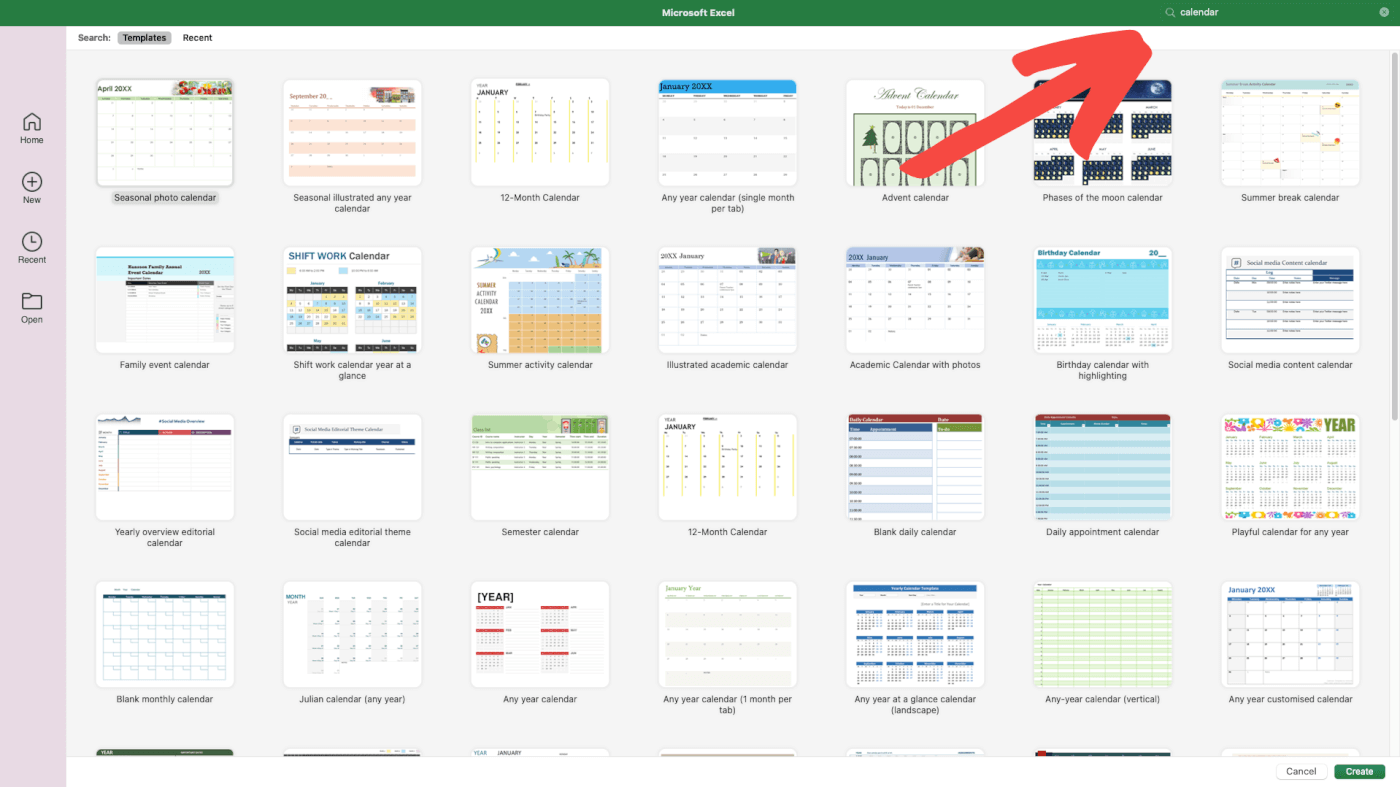
A calendar template in Excel.

Using templates is faster, but it leaves you with limited customization options.

Let's try a more hands-on approach. 💪

Pick the Blank Workbook option from the list at the top.
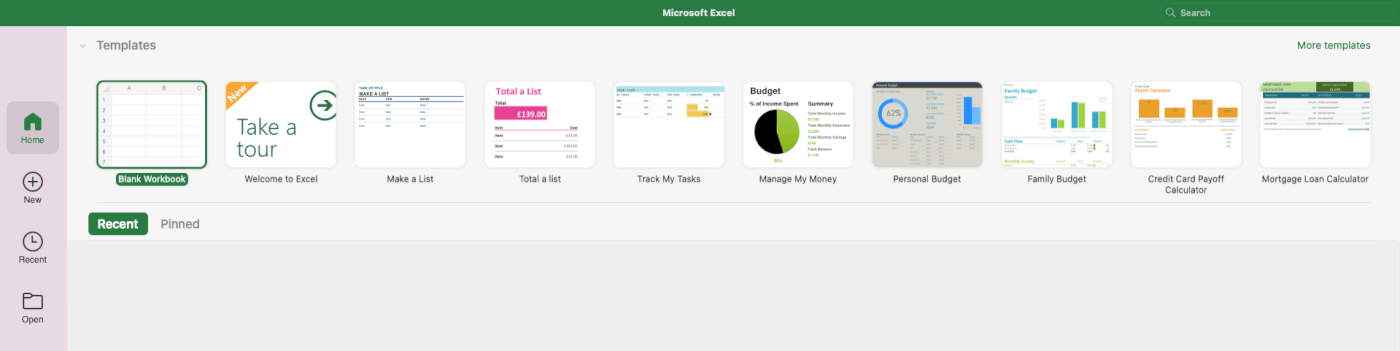
Excel workbook creation menu.

 [template]

Next, right-click “Sheet1” at the bottom, choose “Rename,” and type in the current month.
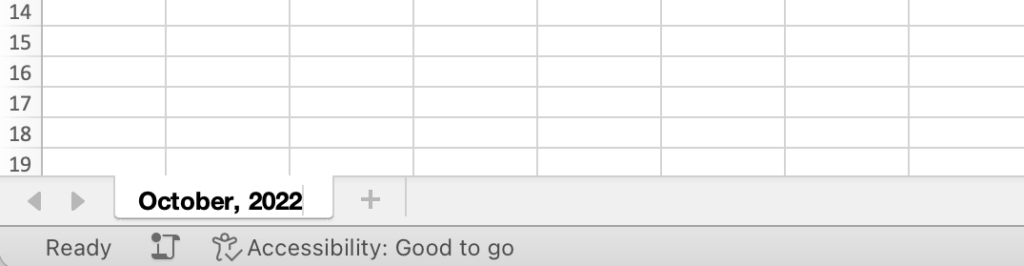
Renaming a sheet in Excel.

Great, moving on. 👉

2. Format Your Excel Calendar

Our spreadsheet is crisp and clear. But it doesn’t look anything like a monthly calendar.

Select seven columns at the top, from A to G and set Column Width to “20.” 
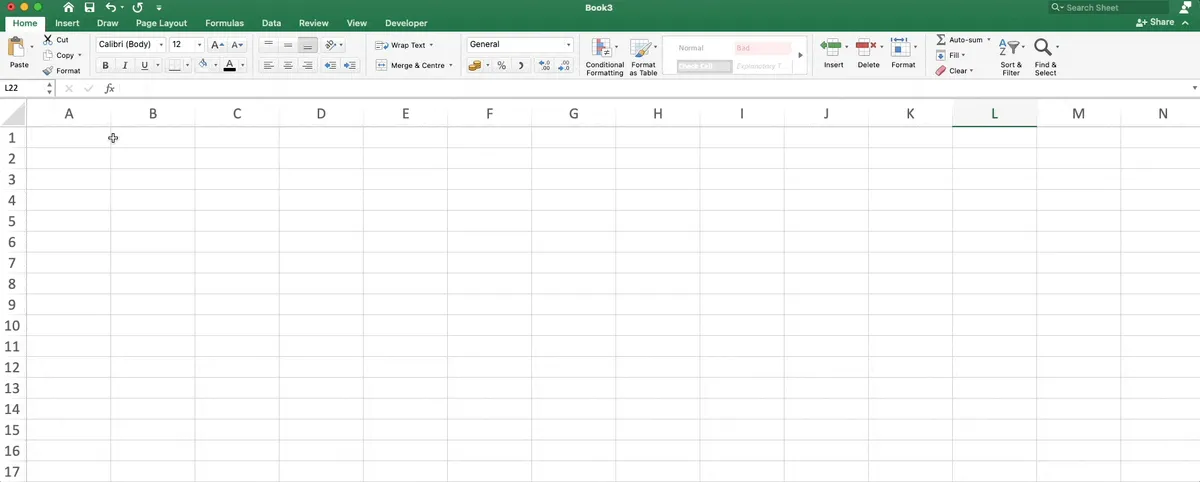
Resizing columns in an Excel spreadsheet.

Repeat the step for rows 1 to 7 and set Row Height to “70.”

Our calendar is taking shape. Let’s give it some visual upgrades to make it look the part.

Select cells A1:G8, click Format as Table in the Home tab, and choose one of the available styles. To remove the ugly filter buttons at the top, go to Table and deselect “Filter Button.”
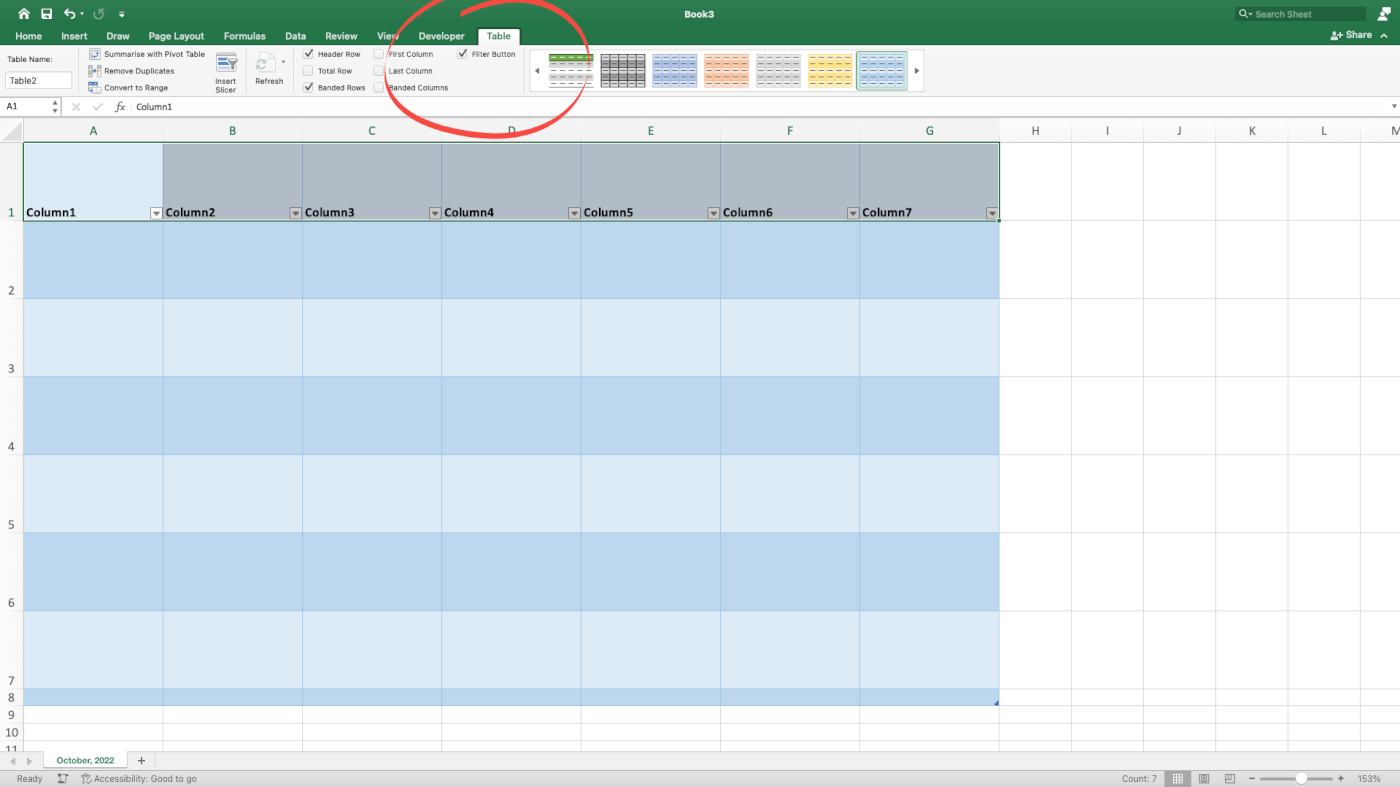
A blue table in an Excel spreadsheet.

Finally, apply Align to Middle and Center Text to the top row of your table (cells A1:G1).

Now, you can add days of the week at the top of each column. Make sure to format the text so it’s easily readable. You can change the font style, size, and color.
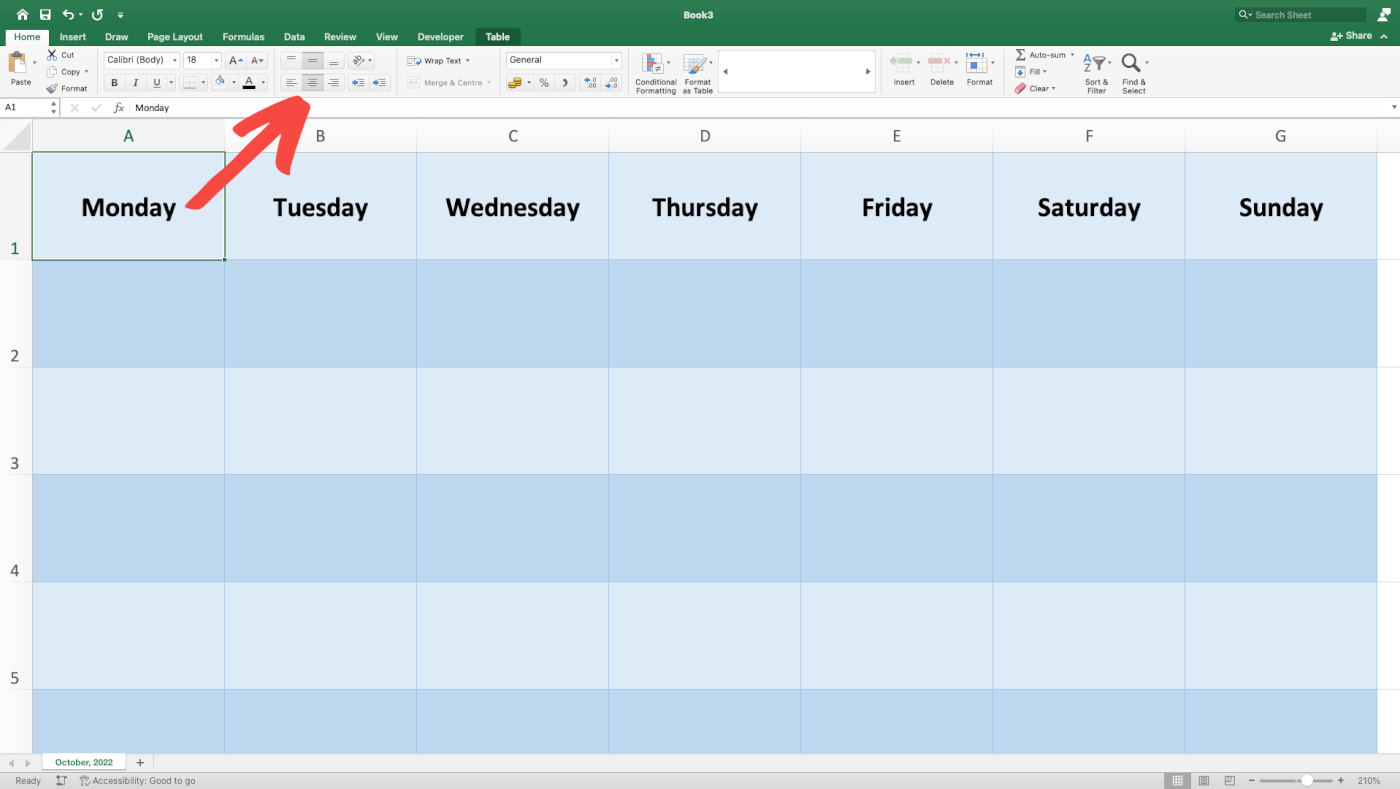
A calendar in Excel with days of the week at the top.

All that’s left is to number the days in our calendar. You can use a wall calendar (or the one on your phone) for reference. When done, select the cells and top-align/right-align the text.
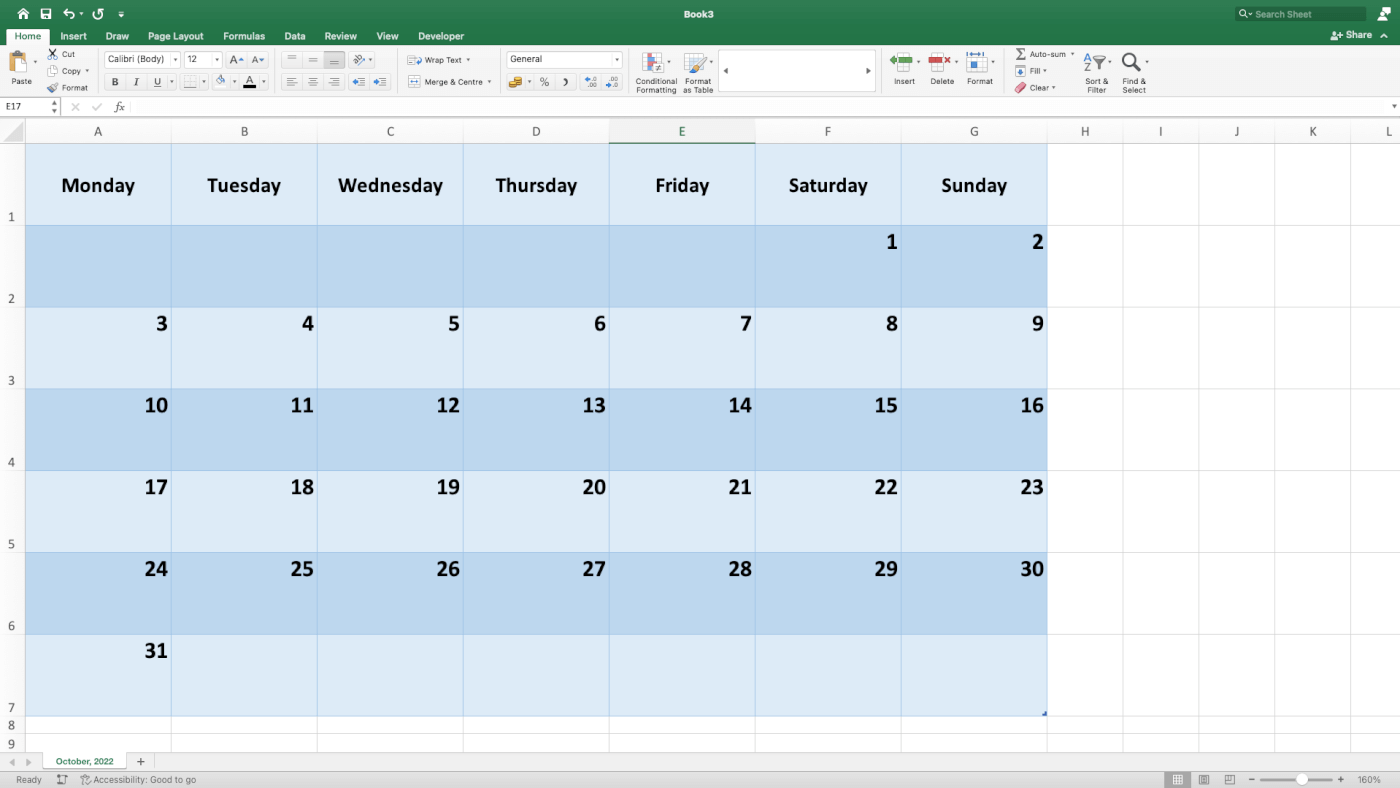
A calendar for October 2022 created in Excel.

Now that you have a calendar template in place, you can create a few new sheets, one for each month, or duplicate the template to create a quarterly calendar in the same sheet.

3. Track Tasks and Events

Let’s put our new calendar to good use and start tracking monthly tasks.

The simplest way to do that is the Comment feature.

Select the day when you want to schedule a task and click New Comment in the Insert tab at the top. Write down your tasks and events using bullets or square brackets. The second approach lets you mark each task as complete by adding an “X” inside the brackets.

⚡️ Pro Tip: Press ⌨️ Shift+F2 to quickly insert a comment.
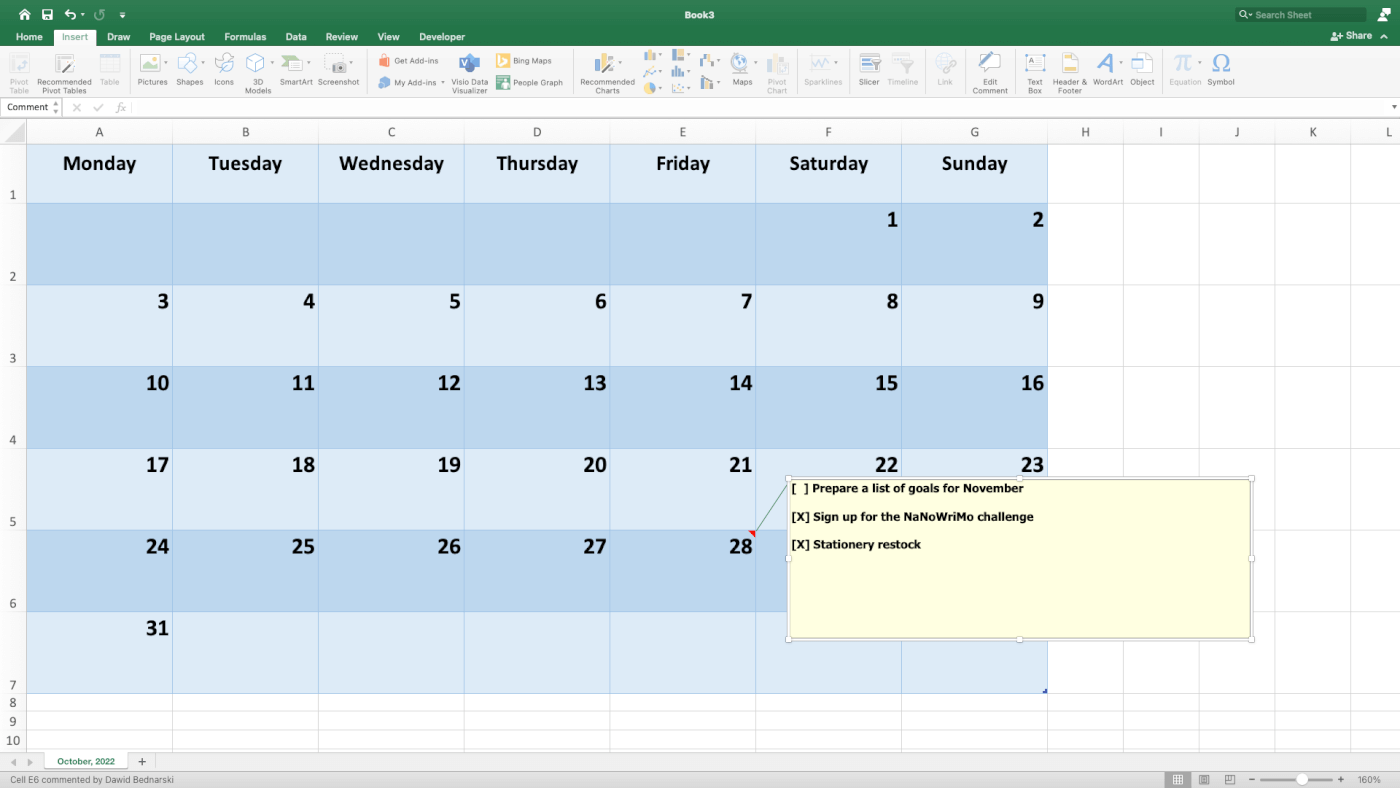
A new comment in an Excel calendar.

We can’t say this is the best calendar experience we’ve seen, but what can you do? 🤷‍♂️

Well, you can try Taskade! 🥳

🐑 Create Easy to Use Calendars With Taskade

Taskade is a powerful and user-friendly task management tool for teams and individuals.

With Taskade, you don’t have to spend hours putting together a flaky calendar. You can set up a project and start getting work done in seconds instead of hours.

All that thanks to powerful features like:

  • 🤏 Drag & drop workflow

  • 👀 Dynamic project views

  • 📱 Mobile and Desktop Apps

  • 🏷 Task sorting and #hashtags

  • 🔄 Recurring tasks

  • 🔔 Custom notifications

  • ⚡️ Real-time collaboration

And more!

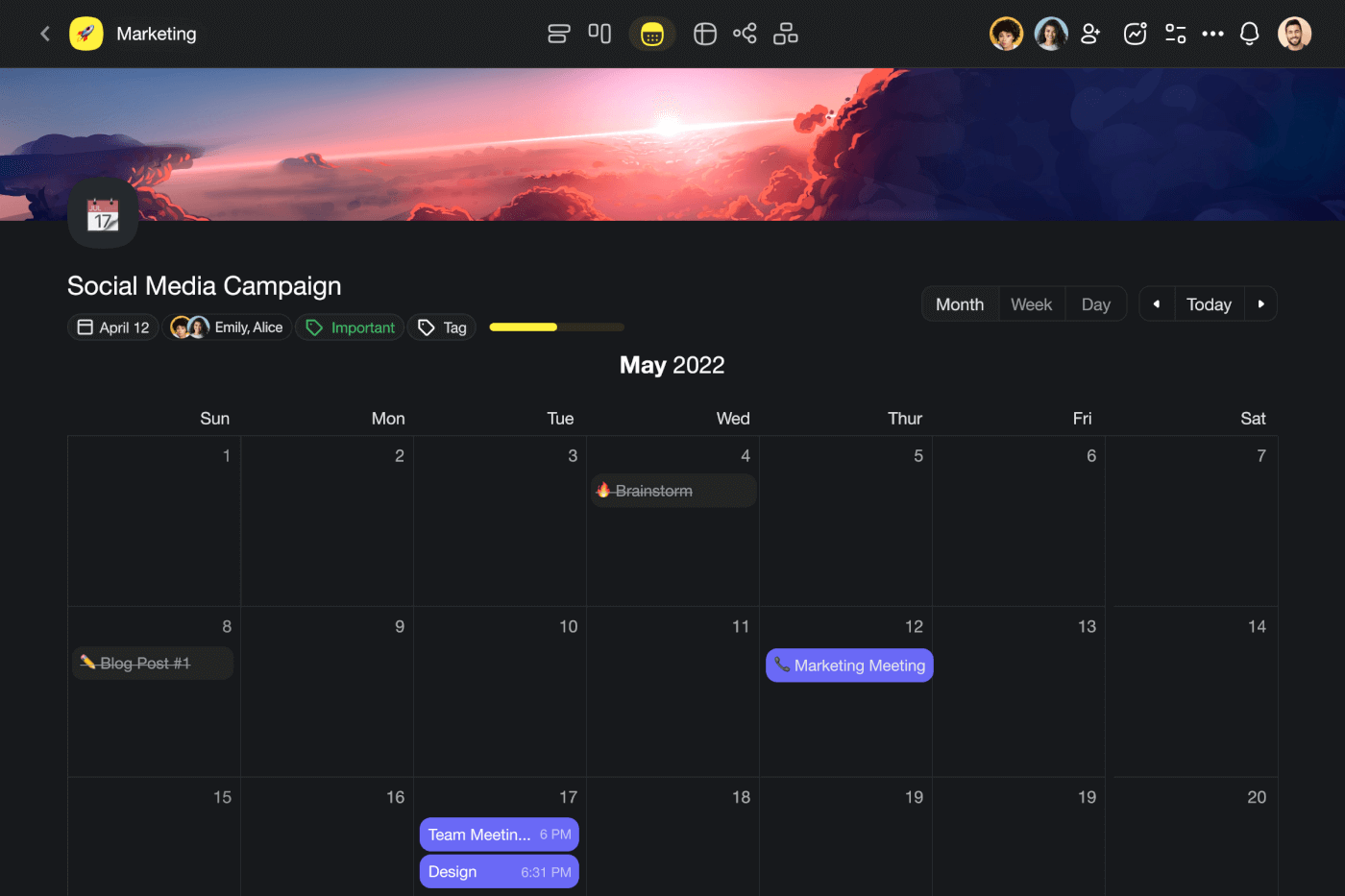
Taskade calendar user interface.

Taskade is simple, intuitive, and fun. And that’s hardly something you can say about Excel or any other member of the Office family (sorry, not sorry).

But let’s get down to business.

Taskade lets you create and manage tasks and calendar events in three ways. 🤹‍♂️

1. The Calendar View

Every project in Taskade is a self-contained workspace. This means you can plan your week, manage your work, and keep track of tasks without shuffling multiple apps.

To open the monthly calendar view, click new project button in the main dashboard. You can choose from one of the 300+ templates or create a blank project and customize everything.

All you have to do now is click the Calendar View button in the top navigation bar.

By default, the calendar shows the current month, but you can move forward or backward using the buttons in the top-right corner. You can also switch to the Weekly or Daily view.
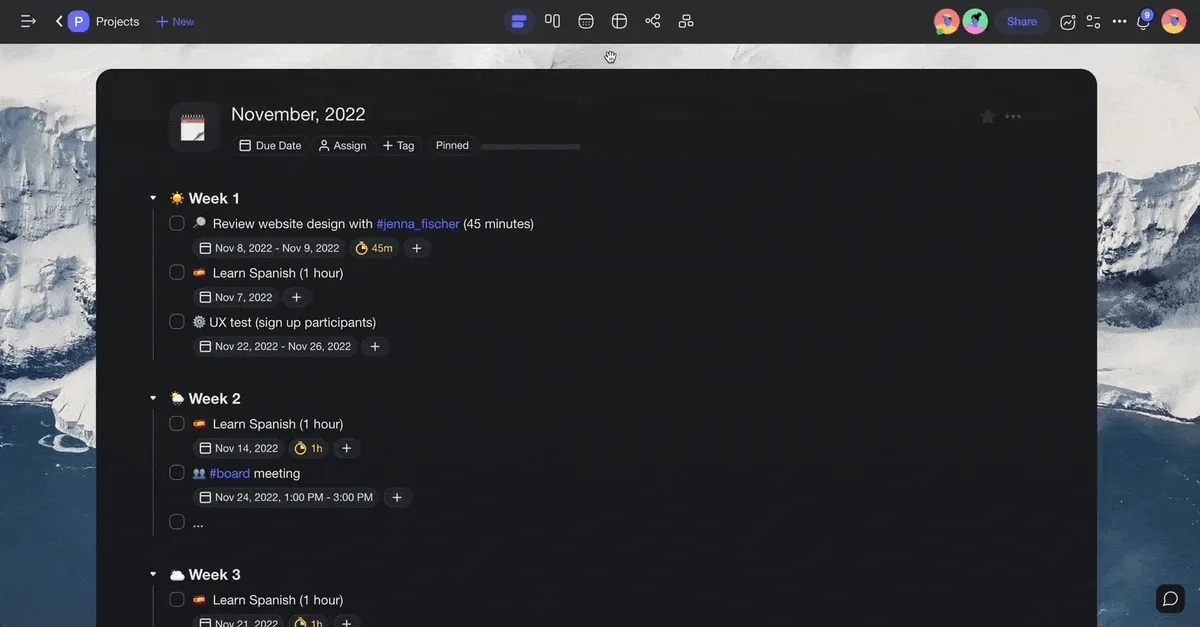
Taskade calendar view.

To schedule a new task or event, simply click a date and enter event details. Add event details, adjust time and date, and click taskade add task to save changes.

Adding a new task in Taskade's calendar view.

2. Global Calendar

Let’s say you’re managing multiple projects, with different teams, tasks, roadmaps, and deadlines all mixed together. This is where our Global Calendar comes into play.

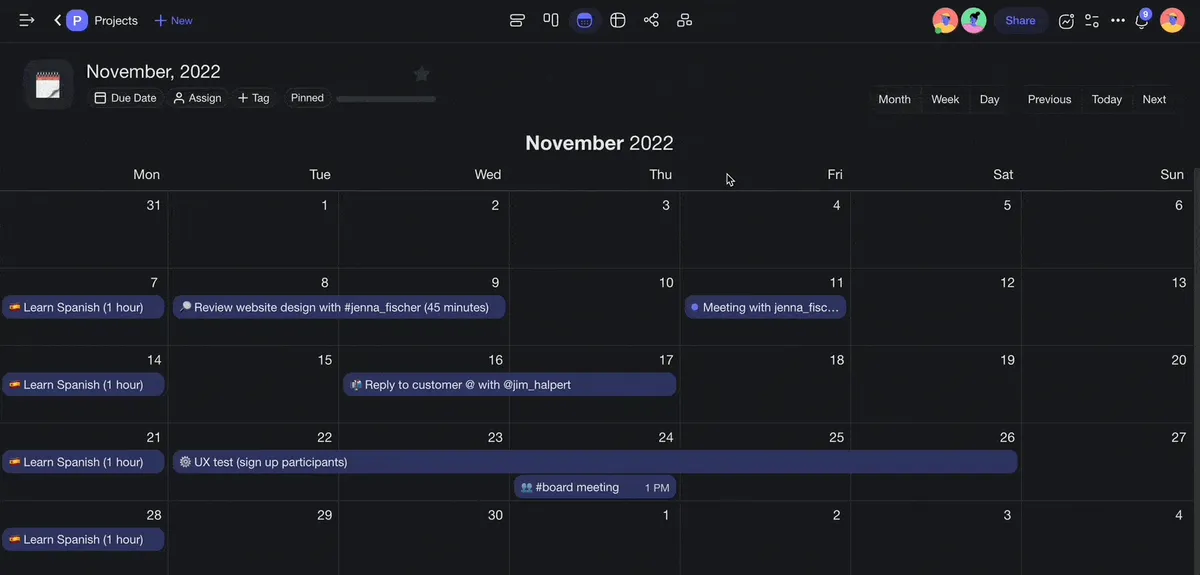
The Global Calendar shows you all tasks and events across all your projects within a Workspace or Folder. That means you can your finger on the pulse without shuffling multiple calendar apps.

Calnedar entries are color-coded, so you can easily distinguish between individual projects. Want to see the details of a task? Click the event and Taskade will instantly open the target project.

Finally, the Global Calendar lets you add tasks and notes to projects nested inside the parent Workspace or Folder. Simply choose a date, set the target, and enter the details of the task or note. The new entry will be instantly added to the target project.
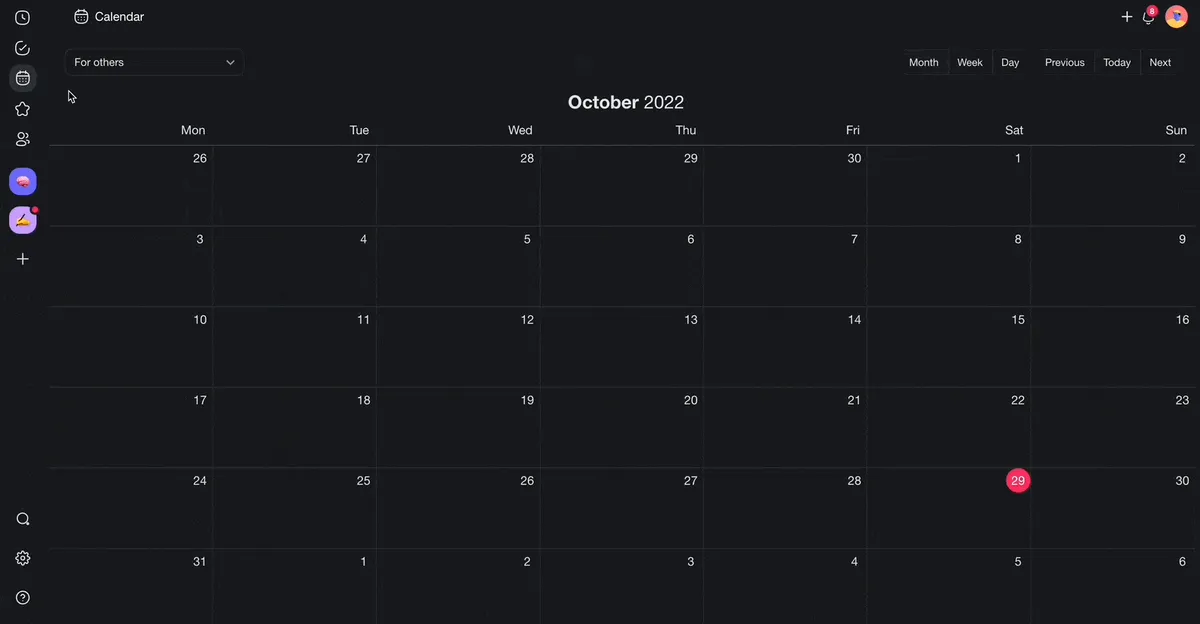
Taskade global calendar.

3. Calendar Integrations

There are many to-do list and calendar apps that can help you stay on top of things.

But you don’t have to juggle multiple tools to do that. 🤹‍♂️

Taskade lets you sync with Outlook, iCloud, and Google calendars and see all your tasks and events in your calendar of choice. You can even enable two-way synchronization with the Google Calendar; all events you create will appear in the Taskade calendar in an instant.

Be sure to visit our Help Center to learn more about two-way Google synchronization.
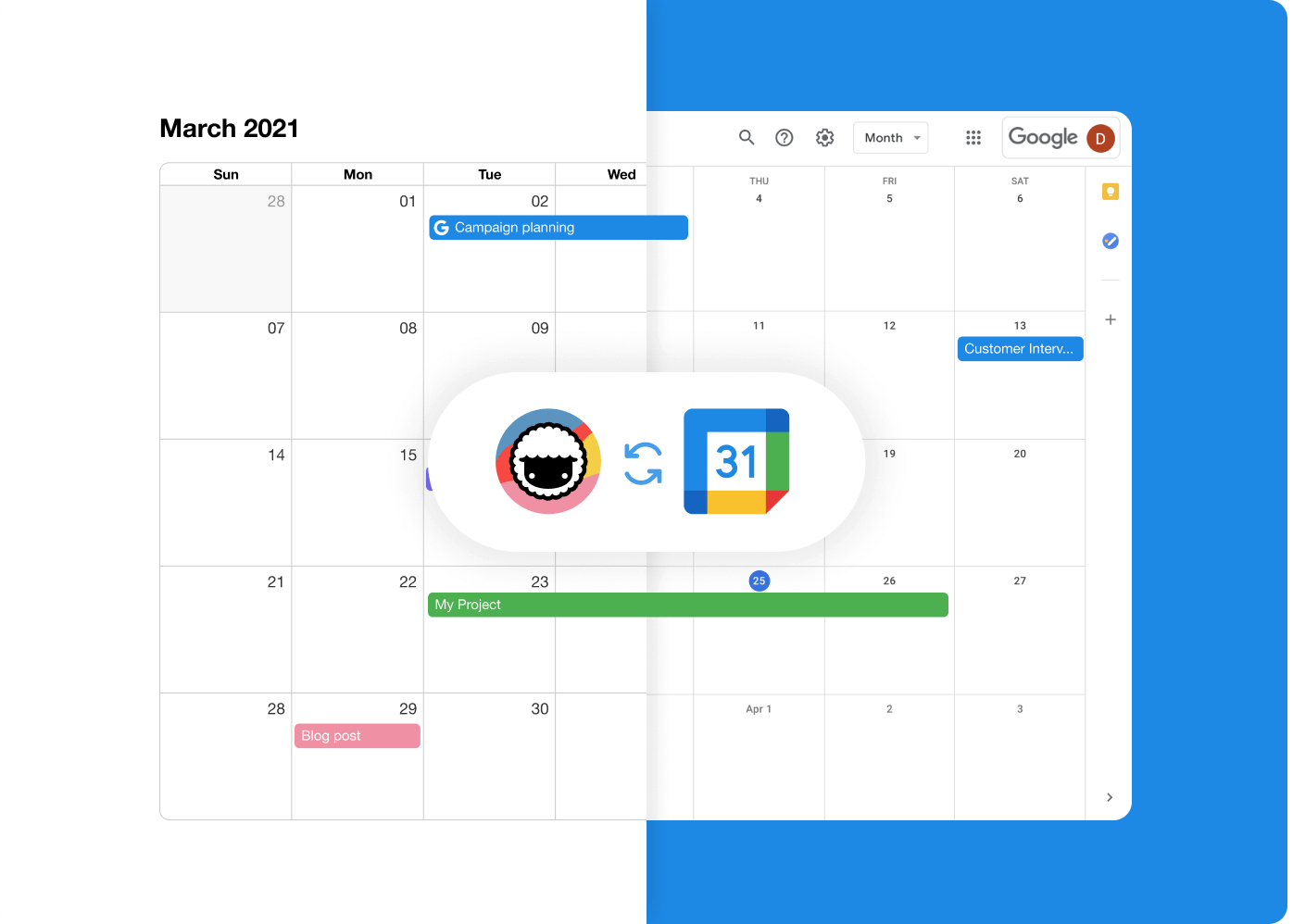
Taskade and Google Calendar two-way synchronization.

And that’s it! 🥳 

💬 Frequently Asked Questions (FAQ)

Is there a calendar template on Excel?

Yes. Excel features an online template catalog with several calendar workflows you can import directly into the app. Templates in Excel let you organize spreadsheets into individual months, apply different visual styles, and insert additional components like task trackers or vacation planners.

Is there a 2022 calendar template in Excel?

All of the templates available for Microsoft Excel can be easily customized. You can import one of the existing templates from the template catalog and edit the number of days in each month for 2022. Another method is to run a quick Google search for "2022 Excel calendar templates" and pick one of the free and paid alternatives from third-party content creators.

What is the formula for a calendar in Excel?

There’s no easy way to insert a calendar into an Excel spreadsheet. You can, however, use Microsoft’s Visual Basic Editor and a macro formula that will auto-generate a calendar for you. You can download the formula from the official Microsoft Learn page.

Can you convert a spreadsheet to a calendar?

You can convert any Excel spreadsheet to a calendar using Microsoft’s Visual Basic script.

1. Create a blank Workbook.
2. Select Visual Basic in the Developer ribbon.
3. Go to the Insert menu and select Module.
4. Paste the Visual Basic script from the Microsoft Learn page.
5. Navigate to the File menu and click Close.
6. Select the Sheet1 tab.
7. Go to the Developer ribbon again and click Macros.
8. Select CalendarMaker and click Run to create the calendar.

How do I add a calendar to my spreadsheet?

Follow the steps below to quickly add a calendar to your spreadsheet:

1. Open Microsoft Excel and click New in the left navigation pane.
2. Type “calendar” in the search bar in the top-right corner.
3. Choose one of the available templates to create a calendar.

You can also start with a blank workbook and follow the tips from our article. Keep in mind that you'll need to add dates and labels manually.

How do I create a recurring monthly schedule in Excel?

The bad news is that Excel doesn’t support recurring schedules out of the box. One workaround is to use a “=DATE” function to automatically generate consecutive days in the calendar based on the selected cells.

🐑 Conclusion

Excel is an impressive piece of software that can do much more than advertised.

But 9 times out of 10, the simplest solution is the best.

Taskade makes your life easier by simplifying planning and task management. You don’t have to spend hours building calendars from scratch. All the tools you need are just a click away!

So, what are you waiting for?

Make an appointment with Taskade (pun not intended) and sign up for a free account today. 👈

💡 Before you go... ... Enjoyed the article? Be sure to check our article on how to create a to-do list in Excel next. You can also visit our YouTube channel for more project management insights.

0%

On this page

🤔 What Is a Calendar in Excel?🏗️ How to Make a Calendar in Excel in 3 Steps1. Use a Template or Start from Scratch2. Format Your Excel Calendar3. Track Tasks and Events🐑 Create Easy to Use Calendars With Taskade1. The Calendar View2. Global Calendar3. Calendar Integrations💬 Frequently Asked Questions (FAQ)🐑 Conclusion

Related Articles

/static_images/AI event landing page built with Taskade Genesis
March 7, 2026Productivity

Build an AI Event Landing Page in Minutes

Step-by-step tutorial: build an event landing page with registration, scheduling, and attendee management — from a singl...

/static_images/AI utility app — color palette extractor built with Taskade Genesis
March 3, 2026Productivity

Vibe Utility Apps: 10 AI Converters & Dev Tools You Can Clone

10 AI-powered utility apps — QR generators, color extractors, translators, code tools, and more — ready to clone or buil...

/static_images/AI expense tracking and finance dashboard built with Taskade Genesis
February 28, 2026Productivity

Vibe Finance Apps: 10 AI Invoice Generators, Expense Trackers & Dashboards

10 AI-powered finance tools — invoice generators, expense trackers, budget dashboards, and ROI calculators — ready to cl...

/static_images/Invoice Generator app with payment tracking dashboard showing paid, pending, and overdue invoices
February 28, 2026Productivity

3 Finance Apps You Can Clone Today — Invoice, Meeting Costs & Licenses

Track payments, calculate meeting costs, manage licenses — three complete finance apps you can clone in minutes. AI-powe...

/static_images/AI appointment booking system built with Taskade Genesis
February 24, 2026Productivity

Vibe Booking Apps: Build an AI Appointment System in Minutes

Build AI-powered booking and scheduling systems without code. 5 working examples — appointment scheduling, class booking...

/static_images/AI pricing calculator dashboard built with Taskade Genesis
February 21, 2026Productivity

How to Build a Pricing Calculator (No Code, 5 Minutes)

Step-by-step tutorial: build a working pricing calculator with tiered plans, annual discounts, and feature comparisons —...

View All Articles
How to Create a Calendar in Excel | Taskade Blog