






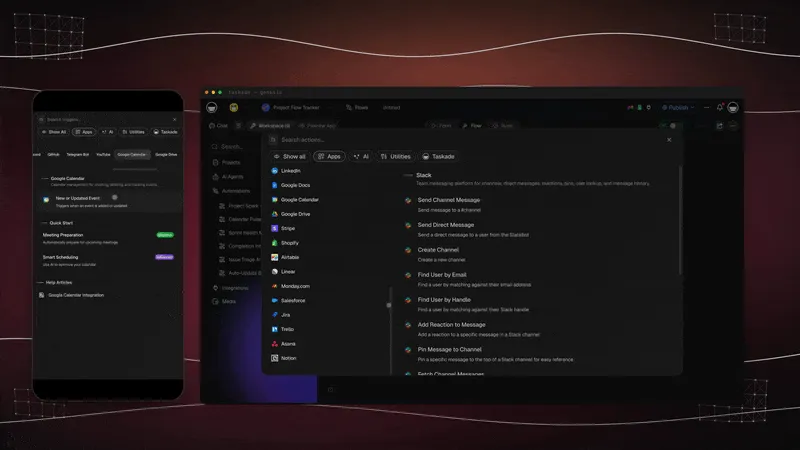
TL;DR: A weekly schedule you can follow lists fixed commitments first, then places priority work in the leftover blocks, then leaves buffer time for review. Describe that week in Taskade Genesis and an agent drafts the days across Calendar and Board. You edit the draft instead of building a blank grid from scratch.
┌────────────────────────────────────────────────────────────────┐
│  My Week  ›  Calendar view              ⚡ AI agent: on          │
├──────────┬──────────┬──────────┬──────────┬──────────┬──────────┤
│  Mon 16  │  Tue 17  │  Wed 18  │  Thu 19  │  Fri 20  │  Wknd     │
├──────────┼──────────┼──────────┼──────────┼──────────┼──────────┤
│ Launch A │ Client   │ Deep work│   OFF    │ Review   │  Rest     │
│ kickoff  │ call 2pm │ block AM │          │ + ship   │           │
│ Draft    │ QA Sprint│ Launch B │          │ Weekly   │           │
│ brief    │          │ prep     │          │ digest   │           │
├──────────┴──────────┴──────────┴──────────┴──────────┴──────────┤
│  Agent: "Thursday is clear. Want me to move Launch B prep to     │
│  Wednesday morning and protect a focus block?"   [ Yes ] [ Edit ]│
└────────────────────────────────────────────────────────────────┘
If you have ever opened a blank spreadsheet on a Sunday night and tried to sketch out your week, you know the problem. The spreadsheet stores the plan, but it does not make the plan. You still do the thinking, the sorting, the rescheduling, and the remembering.
An AI weekly planner flips that. You describe the week you want in plain English, and the planner builds the first draft for you: tasks broken out, sorted by priority, dropped onto the right days, and ready to track. You move from a blank page to a finished plan you can edit in minutes.
This guide shows how a non-technical operator builds one in Taskade Genesis without code, a spreadsheet, or an engineering team. Calendar shows the week across days. Board tracks status.
Quick answer
A weekly schedule lists fixed commitments first, then places priority work in the remaining blocks, then leaves buffer time so slips do not collapse the week. Write meetings, classes, and hard deadlines on a seven-day grid. Assign one focused block to each open morning or afternoon. The UNC Learning Center planner guide documents this method.
What is an AI weekly planner, in plain English?
An AI weekly planner reads a description of your week and returns a scheduled, prioritized plan you can act on, instead of an empty grid you fill cell by cell. You name the outcomes, the fixed commitments, and the days that must stay clear. The planner breaks those into tasks, places them on days, and keeps Calendar and Board in sync while you edit. You remain the decision-maker. The tool does the sorting.
The difference is altitude. A to-do app waits for you to type every task. A spreadsheet waits for you to enter every cell. An AI weekly planner starts from the outcome you describe and works backward into the tasks, days, and order for you.
In Taskade Genesis, three things make this work together:
- One-prompt apps. You describe your week and a live Project app is generated, already populated and laid out (150,000+ apps have been built this way).
- An AI agent. A built-in helper suggests what to schedule, reprioritizes when plans change, and adds new tasks into the right day from a chat message. Each agent has built-in tools and persistent memory, so it learns how your weeks tend to go.
- Multiple project views. The same tasks appear as a Calendar, a Board, a List, a Table, a Mind Map, a Gantt, or an Org Chart. For weekly planning you mostly live in Calendar and Board.
How to make a weekly schedule
A weekly schedule you can follow is a seven-day grid that names fixed commitments first, then priority work, then buffer time. Write every meeting, class, and hard deadline before you add optional work. Give each leftover morning or afternoon one focused block. Leave unscheduled time so a slip does not erase Friday. Review the grid once a week and move unfinished work before you add more.
Step 1: List your fixed commitments
Open a blank week and write every meeting, class, shift, appointment, and hard deadline on the day it already owns. Do not schedule deep work until those blocks are visible. A plan that ignores fixed time is a wish list. The UNC Learning Center planner guide starts from the same inventory.
Step 2: Allocate priority work to open blocks
Pick the two or three outcomes that must move this week. Place one focused block in each open morning or afternoon and attach a finish line, not a vague task name. If two outcomes compete for the same block, choose one and park the other. Priority is a sequence, not a longer list.
Step 3: Add buffers and a weekly review
Leave at least one unscheduled hour on each weekday and a longer overflow block on one day. Schedule a Sunday review that asks what slipped, what finished, and what must move. Without that review the next week inherits yesterday's pile. Buffer time is part of the plan.
Do this in Taskade
Taskade Genesis shortens the same method by drafting the week from one prompt, then letting you edit Calendar and Board instead of rebuilding a spreadsheet. The walkthrough below keeps the planner method and adds the agent and reminder layer.
| Step | What you do | What Taskade does |
|---|---|---|
| 1. Describe the week | Type your week as a prompt | Generates a Project with tasks already sorted |
| 2. Open Calendar view | Click the Calendar tab | Lays your tasks across Mon to Sun |
| 3. Open Board view | Click the Board tab | Groups the same tasks into status columns |
| 4. Add the AI agent | Turn on the planner agent | Suggests priorities and reschedules on request |
| 5. Talk to your plan | Chat: "move deep work to mornings" | Rearranges tasks across days for you |
| 6. Automate reminders | Set a weekly digest automation | Emails your plan every Monday, on its own |
Step 4: Describe your week in one prompt
Start at the create screen and write the week the way you would explain it to an assistant. Name the outcomes, the fixed commitments, and any day that must stay clear. For example:
"Plan my week as an IT program manager. I have two client launches (Launch A Monday, Launch B Wednesday), a QA sprint Tuesday, Thursday off, and I want a focus block every morning."
Taskade Genesis reads that and builds a Project with the tasks broken out, grouped, and ready to schedule. This is the same one-prompt app flow that has produced 150,000+ live apps on the platform.
Step 5: See the week in Calendar and Board
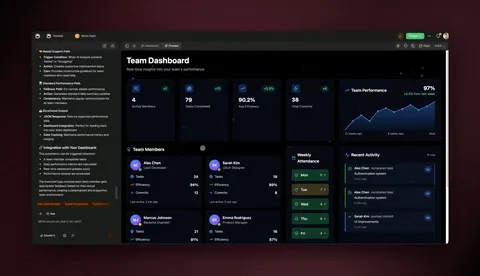
Switch to Calendar view and your tasks spread across the days of the week. This is where the planner stops being a list and starts being a schedule. Drag any task to a different day, or ask the agent to place it. Calendar is the week-at-a-glance layout. Timeline lives inside Gantt, not as a separate view.
Then click Board view. The same tasks appear as cards in columns like To Do, In Progress, and Done. As the week runs, you drag a card from one column to the next, and Calendar stays in sync.
┌──────────────────────────────────────────────────────────────┐
│  My Week  ›  Board view                       ⚡ AI agent: on  │
├──────────────────┬──────────────────┬───────────────────────┤
│  To Do (4)       │  In Progress (2) │  Done (3)             │
├──────────────────┼──────────────────┼───────────────────────┤
│ • Launch B prep  │ • Launch A       │ • Draft brief         │
│ • Weekly digest  │   kickoff        │ • QA sprint plan      │
│ • Review + ship  │ • Client call    │ • Focus block (Mon)   │
│ • Protect focus  │                  │                       │
├──────────────────┴──────────────────┴───────────────────────┤
│  [ + Add task ]   Agent: enrich + schedule on drop            │
└──────────────────────────────────────────────────────────────┘
Calendar answers "when," Board answers "where it stands." Using both is what makes the planner feel like a real operating system for your week instead of a static list. Taskade gives every project multiple views of the same data, and weekly planners lean on these:
| View | What it shows | Best for |
|---|---|---|
| Calendar | Tasks across the days | Seeing and scheduling the week |
| Board | Status columns (To Do, Doing, Done) | Tracking progress |
| List | A clean checklist | Quick capture and triage |
| Table | Rows with custom fields | Priorities, owners, effort |
| Gantt | Timeline of overlapping work | Multi-day launches (Timeline lives here) |
You switch views with one click, and every edit stays in sync across all of them.
Step 6: Add the AI agent that does the scheduling
Open the agent panel and turn on your planner agent. This is the part a spreadsheet can never do. The agent reads your tasks, suggests an order, and reschedules on request.
┌──────────────────────────────────────────────────────────────┐
│  Agent Settings  ›  Weekly Planner Agent                     │
├──────────────────────────────────────────────────────────────┤
│  Role        Plan, prioritize, and reschedule my week         │
│  Memory      ● On: learns my recurring patterns               │
│  Tools       built-in (schedule, search, email, branch...)    │
│  Model       Auto-route · 15+ frontier models                 │
│  Project     My Week  (Calendar + Board)                      │
├──────────────────────────────────────────────────────────────┤
│  > "Protect mornings for deep work, push meetings to PM."     │
│    Agent: Done. Moved 3 tasks. Thursday left clear.   ✓       │
└──────────────────────────────────────────────────────────────┘
Step 7: Talk to your plan in plain language
Once the agent is on, you stop dragging cards by hand and start asking. The agent has access to your project and reschedules for you:
- "Move all deep work to mornings and meetings to afternoons."
- "Thursday is off now, spread its tasks across Wednesday and Friday."
- "Add 'review vendor contract' and put it before the Launch B prep."
The agent categorizes new tasks into the right place automatically and confirms what it changed. You stay the decision-maker; it does the busywork.
Step 8: Automate the reminders so the week runs itself
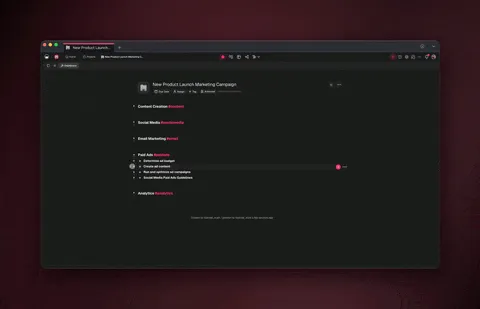
The last step is the one most planners skip: making it recurring. Set a reliable automation workflow that waits until Monday morning and emails you the week ahead, or one that sends a Friday wrap-up of everything still open. Automations can branch, loop, filter, wait minutes to days, and resume from failure, so the digest goes out whether or not you remember it.
See it live, then clone it for your own week
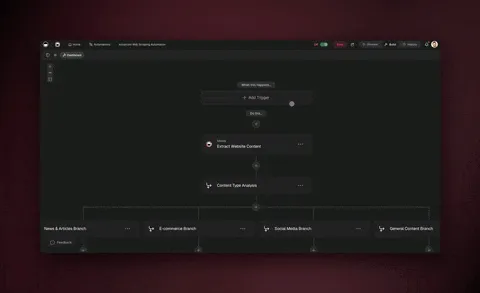
The fastest way to understand an AI weekly planner is to open a live, cloneable planner and watch Calendar and Board fill with dated tasks. Taskade's Community Gallery already has those apps wired with an agent. Clone one, change the prompt to your commitments and priority work, and edit the draft instead of drawing a new grid. Related reading is not a second signup prompt.
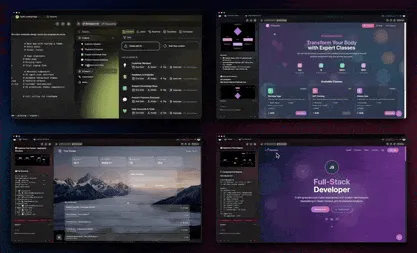
Because every Taskade Genesis app has a live, shareable URL, you can also invite your team into the same planner or save your structure as a template and clone a fresh copy each week. Your repeatable layout stays; the AI agent fills in the new week's tasks.
Why this beats a spreadsheet, a to-do app, or paper
A spreadsheet stores a week and never plans it. A to-do app captures tasks and waits for you to sort them. Paper cannot reschedule itself when Thursday slips. An AI weekly planner drafts the first grid from your commitments, then keeps Calendar and Board in sync while you move work. The comparison below is about who does the sorting, not about prettier cells.
| Capability | Spreadsheet | To-do app | Paper planner | Taskade AI weekly planner |
|---|---|---|---|---|
| Plans the week for you | No | No | No | Yes, from a prompt |
| Reschedules when plans slip | Manual | Manual | Rewrite | AI agent, on request |
| Calendar + status in sync | No | Partial | No | Yes, multiple views |
| Learns your patterns | No | No | No | Persistent memory |
| Sends reminders on its own | No | Some | No | Durable automations |
| Shareable + cloneable | Clunky | Limited | No | Live URL, one-click clone |
A spreadsheet is a great container and a terrible planner. A to-do app captures tasks but waits for you to organize them. An AI weekly planner does the organizing, the scheduling, and the reminding, and keeps every view in sync while you work.
Take it further: agents, integrations, and a real app
The same weekly planner can grow into a shared workspace: agents that draft the next week, automations that mail a Monday digest, and live apps teammates can clone. Start from the planner you already run. Add one agent or one reminder before you add a stack of tools. Related destinations below are reading links, not extra signup buttons.
- Explore AI agents purpose-built for planning, focus, and task triage.
- Set up automations that connect 100+ bidirectional integrations so triggers pull events in and actions push reminders out (native Shopify and Stripe included).
- Browse the Community Gallery for planners, dashboards, and trackers you can clone in one click.
- Read the Taskade Genesis Projects guide to go deeper on the views and how data stays in sync.
- Daily schedule generator if you need hour-by-hour blocks after the week is set.
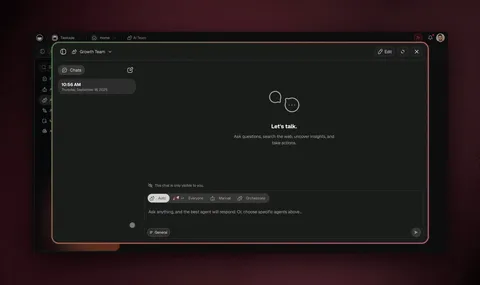
For multi-agent setups where one agent drafts the week, another pulls deadlines from your projects, and a third writes your Monday digest, Taskade supports multi-agent collaboration and orchestration mode, with each agent carrying built-in tools and routing across 15+ frontier models from OpenAI, Anthropic, and open-weight providers.
Frequently Asked Questions
How do I make a weekly schedule that I can actually follow?
Write every fixed commitment on a seven-day grid first, then place one priority work block in each open morning or afternoon, then leave buffer time so a slip does not collapse the week. Review the grid every Sunday and move unfinished work before you add new tasks. Taskade Genesis can draft that grid from one prompt. You still confirm the tradeoffs.
How much unscheduled time should a weekly plan leave?
Leave at least one unscheduled hour on each weekday, plus a longer block on one day for overflow. That buffer absorbs meetings that run long and work that was underestimated. A packed grid looks complete and fails on Tuesday. The UNC Learning Center planner guides treat leftover time as part of the plan, not leftover waste.
How long does it take to build an AI weekly planner?
Minutes. You type one prompt describing your week, and Taskade Genesis generates a Project app with tasks already sorted across Calendar and Board views. The longest part is editing the agent's first draft to your taste, and even that is a conversation, not manual setup.
Do I need any technical skills?
No. The whole flow is no-code and plain English. The audience this is built for includes operators with zero engineering background, the kind of person who ships a working dashboard without a dev team. If you can describe your week out loud, you can build the planner.
Can the AI reschedule my week when something changes?
Yes. Tell the agent what changed ("Thursday is off now" or "the launch moved to Friday") and it redistributes tasks across the remaining days, updating both Calendar and Board views at once. You confirm; it does the dragging.
Will it remember how I like to plan?
Yes. Persistent memory and Workspace DNA mean the agent learns your recurring patterns, such as deep work in the mornings or a Friday review block, so each week's plan starts smarter than the last.
Can I use it with my team?
Yes. Every planner has a live, shareable URL. Invite teammates into the same Project, assign tasks, and track progress together across the same multiple views. Roles range from Owner down to Viewer so the right people get the right access.
Does it send reminders automatically?
Yes. Set a durable automation workflow that waits until your chosen time and emails a Monday digest or a Friday wrap-up. Automations can branch, loop, filter, wait minutes to days, and resume from failure, so reminders go out reliably.
Is it really free to start?
Yes. You can build and run a weekly planner on the free plan. Paid plans add more AI usage, automation runs, and seats: Pro $10 (the popular plan), Business $25, Max $100, and Enterprise $250 per month on annual billing.
Can I reuse the same planner every week?
Yes. Save your planner's structure as a template or clone a fresh copy from the Community Gallery each week. Your repeatable layout stays intact while the AI agent fills in the new week's tasks.
A weekly plan should not start from a blank page. Describe the week you want, let the AI agent draft it, and spend your time deciding instead of dragging. That is the whole point of an AI weekly planner: the thinking stays yours, the busywork goes away.
This is Workspace DNA in practice, the self-reinforcing loop that powers every Taskade Genesis app:
▲ Memory remembers how your weeks tend to go. ■ Intelligence drafts and reprioritizes the plan. ● Execution schedules, reminds, and keeps every view in sync.
▲ ■ ● Ready to plan your week from a single prompt? Start free with Taskade Genesis or clone a live planner and make it yours.