17 Best AI YouTube Description Generators 2026 (Free Tiers)
17 AI YouTube description generators sorted by what you feed them: a topic, a transcript, or the video itself. Free plans, prices, and chapter rules checked.
The best AI YouTube description generator is the one that reads your video, not just your title. Tools that start from a topic, such as vidIQ, Ahrefs and Hootsuite, write a clean first draft in seconds, but they cannot write real chapters because they never see the timestamps. Tools that read the transcript or the video file, such as Descript, quso.ai, Claude and Taskade, can. We sorted 17 tools by that one difference and checked every free plan on November 7, 2026.
TL;DR: We sorted 17 AI YouTube description generators by what you feed them: a topic (vidIQ, Ahrefs, Hootsuite, VEED), a transcript (ChatGPT, Claude, Taskade), or the video file (Descript, quso.ai, Riverside). Only tools that read the transcript can write real chapters. Free plans checked November 7, 2026. Draft one now with the free AI video description generator.
Cover photo: YouTube's first office sat on the second floor of this San Mateo building until October 2006. Photo: Coolcaesar via Wikimedia Commons, CC BY-SA 3.0.
On April 23, 2005, YouTube co-founder Jawed Karim uploaded the site's first video, "Me at the zoo". It runs 19 seconds. More than twenty years later, its description box still changes. When we opened it on November 7, 2026, it held links to two talks about microplastics and three chapters: 00:00 Intro, 00:05 The cool thing, 00:17 End.
By YouTube's own rule, a chapter must run at least 10 seconds, so two of those three are too short to count. That small detail is the whole story of this guide. A description is the one part of a video you can still change after you publish, and the rules for what YouTube does with it are precise. A generator that does not know those rules writes text that looks right and quietly fails.
Quick Answer: The Best AI YouTube Description Generator by What You Have
The best tool depends on what you can hand it: a topic, a transcript, or the video file. Topic tools are fastest and mostly free. Transcript and video tools are the only ones that can write chapters with real times.
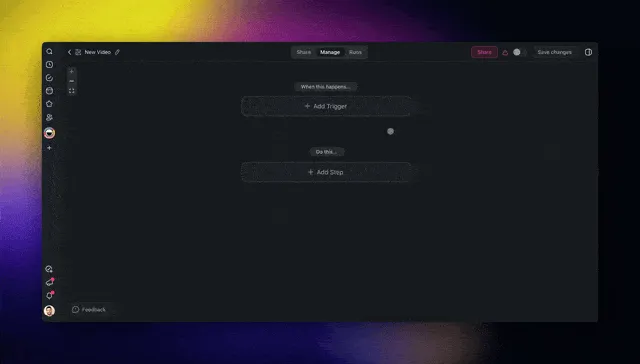
A transcript-to-draft automation, an agent that knows your channel, and one review queue
What Is an AI Video Description Generator?
An AI video description generator is a tool that writes the text under a video: a hook, a summary, chapters, links and hashtags. On YouTube, that text box holds up to 5,000 characters. The phrase is ambiguous, though, and search results mix three different jobs under it.
What people mean
Output
Who it is for
Covered here?
YouTube description (metadata)
The text box under the video, up to 5,000 characters
Creators, marketers
Yes, the whole guide
Audio description (accessibility)
A narration track that describes what happens on screen
Blind and low-vision viewers
One paragraph, below
Video understanding
A summary of what happens in a clip
Researchers, editors, students
One paragraph, below
Audio description is a different product. YouTube Help describes it as a narration track that describes what happens on screen during natural pauses, and creators upload it under Languages in YouTube Studio as a "Descriptive audio" track (Add audio descriptions). Help says the feature is currently available to creators with access to advanced features. A metadata generator does not make that track.
Video understanding is the viewer side of the same transcript. A student who wants to turn a YouTube video into notes uses the transcript to learn. A creator uses the same transcript to write the description. The input is identical, and only the output changes.
For the YouTube description itself, the input decides everything:
WHAT YOU FEED IT          EXAMPLE TOOLS                     REAL CHAPTERS?
───────────────────────   ───────────────────────────────   ──────────────────
A title or topic          vidIQ, Ahrefs, Hootsuite, VEED    No, invented names
A transcript              ChatGPT, Claude, Taskade          Yes
The video file            Descript, quso.ai, Riverside      Yes
Your upload (native)      YouTube Studio auto chapters      Yes, chapters only
What YouTube Actually Asks For in a Description
YouTube allows 5,000 characters in a description and shows the first few lines first, so the opening lines carry the click. Every rule below comes from YouTube Help, read on November 7, 2026. No roundup we read in the current top results quotes these pages, which is why so many generated descriptions break them.
YouTube Help tells creators to use "the first few lines of your description to describe your video because it's what viewers will see first." Put the hook and one of your two main words in the first sentence. Help also says that "search terms are matched with the video and the text in the description", so the opening is both the pitch and the keyword signal.
Write once, reuse the bottom half
The default description field fills in basic channel information on every upload. Put the subscribe line, your social links, your gear list and any standing disclosure there, and let the generator write only the top half. The YouTube SEO description generator writes the top half with the main words in place.
Stuffing hurts, it does not help
Help gives one more number that generators ignore: tags "play a minimal role in your video's discovery." The title, thumbnail and description matter more, and excessive tags in the description break the spam policy. A long tail of keywords at the bottom of a description is a risk, not a ranking trick.
YouTube Chapters: The Rules a Generator Has to Pass
YouTube shows chapters only when the first timestamp is 00:00, the list has at least three timestamps in ascending order, and each chapter runs 10 seconds or longer. Those rules come from YouTube Help's video chapters page, read on November 7, 2026.
Three more facts from the same page matter for anyone who generates chapters:
Automatic chapters are on by default. The "Allow automatic chapters" box "will be checked for all new uploads." Help adds that not all videos are eligible, and not all eligible videos get automatic chapters.
Manual chapters win. Timestamps you add to the description "override automatic video chapters."
Some videos cannot have chapters. Chapters are unavailable if the channel has an active strike, or if the content may be inappropriate for some viewers.
This is where the input decides the quality. A topic-only generator has no timestamps. It can only invent chapter names and guess at times, which fails the moment a viewer clicks one. Real chapters need a transcript with times, or the video itself. The YouTube chapter markers converter and the chapter timestamps automation both start from the transcript for that reason.
What each input can and cannot produce:
You feed it
Hook and summary
Real chapters
Keywords
Voice between videos
A topic
Yes, generic
No, it never sees timestamps
Yes, if you add them
No
A transcript
Yes, accurate
Yes
Yes
Only if the tool keeps memory
The video file
Yes, accurate
Yes
Yes
Only if the tool keeps memory
An automation plus an agent
Yes, accurate
Yes
Yes
Yes, the agent keeps the brief
A format tip: Help writes the first stamp as 00:00. Many creators write 0:00, and chapter tools such as Bannerbear write m:ss, or h:mm:ss past one hour.
Is the Free Plan Actually Free?
Most description generators are free to try, but only the topic tools stay free without a cap you can see. The tools that read your video meter the work in minutes, credits or exports, because transcribing a video costs them real compute.
Facts checked on 2026-11-07, on each vendor's own page:
Tool
Free plan
What runs out first
vidIQ
150 AI credits every month
Credits, and "a set number of daily runs" with no number published
Ahrefs
Free with an Ahrefs Free account
No limit published
Hootsuite
Free web tool
No limit published, signup not stated
VEED
Free tool, "No credit card required"
No limit published
Canva Magic Write
"Up to 25 uses in total" on Canva Free
A lifetime cap, not a monthly one
Descript
60 media minutes a month, 100 AI credits one-time
Credits, and descriptions and chapters are "Limited"
quso.ai
75 credits a month, 1 credit about 1 minute of video
Minutes, plus a watermark and 7-day retention
Opus Clip
One clip a day, 3-day export limit
The description writer is not on Free
Bannerbear chapters
Free, no account, "no limit on the number of videos"
Your browser's memory on long videos
ChatGPT
"Limited messages with uploads"
Uploads, and about 12 pages of text per input
Claude
"Limited usage every 5 hours and every week"
The 5-hour window
Jasper
No free plan, a 7-day trial
The trial
Taskade
3 Taskade Genesis apps, 1 AI agent, 10 automation runs a billing period
AI credits: Free starts with 0
The honest pattern: free general assistants are the most generous way to work from a transcript you already have. The paid video editors earn their price when you want the transcript, the edit and the description in one place.
Annual billing lowers several of these: vidIQ Boost is $199 a year, Claude Pro $17 a month, Taskade Pro $10 a month, Descript Hobbyist $16 a month and Jasper Pro $59 a seat a month. quso.ai charges 12 times the monthly price for a year, so it has no annual discount.
How We Compared These Tools
We are a vendor too, so here is exactly how this comparison was built:
Every price and free plan was checked on the vendor's own page on November 7, 2026. TubeBuddy, VEED, Riverside and ChatGPT prices were re-checked on November 12, 2026. Where a page did not render a price or publish a limit, we say so instead of quoting a third-party number.
Tools are grouped by input, not ranked on one scale. A chapter tool and a topic writer are not competitors.
We compared, we did not run a bake-off. We did not run one transcript through every tool, because several gate the description step behind accounts, credits or paid plans. We describe what each vendor says the tool produces.
YouTube's rules come from YouTube Help, not from a blog post.
Taskade appears last, in the workflow group, because that is where it fits.
Every entry names at least two real strengths.
Each tool was checked against the same five questions:
Question
What counts as a yes
Where we looked
What do you feed it?
A topic, a transcript, or the video file
Tool page
Can you draft on $0?
A description you can keep, with no card
Pricing page
Does it write chapters from real timestamps?
It reads the transcript or the video
Tool page and docs
Does it keep your channel voice between videos?
Saved brand voice, memory, or an agent
Tool page
What does the entry paid plan cost?
A published price
Pricing page
Topic-In Generators: Fast First Drafts
These tools take a title, a topic or a few keywords. They are the fastest way to a first draft, and the weakest way to chapters.
vidIQ is a YouTube growth suite, and its description generator is one of many tools that share one credit pool.
Input: a video title or a short topic prompt. You can connect your channel "for tailored descriptions."
Key features: a keyword-rich draft "scored for SEO, clarity, and engagement"; copy-ready text; a matching script, title or tags in one click.
Free plan (checked Nov 7, 2026): the pricing page lists "150 AI Credits every month." The tool page says free users get "a set number of daily runs" and gives no number. No credit card is needed.
Pros:
The SEO score gives a quick check before you paste
One suite covers titles, tags, ideas and descriptions
Cons:
It never sees the video, so chapters are guesses
The daily run cap is not published
Pricing: Boost $19/month or $199/year, MAX $49/month or $468/year (one-channel US list prices).
Bottom line: the best free start if you already use vidIQ for keyword research.
2. TubeBuddy: Best Inside YouTube Studio via the Browser Extension
TubeBuddy is a browser extension that adds tools to the YouTube Studio pages you already use. It has no standalone description generator. Its description help is spread across features.
Input: your existing video, title and tags, inside Studio.
Key features: AI agents in TubeBuddy, where the SEO agent suggests keywords and "an optimized description you can use"; A/B tests on descriptions; bulk processing that appends a new link to every description at once.
Free plan (checked Nov 7, 2026): a free plan exists, and the pricing page names no free features. TubeBuddy's own blog says free users can try the title generator for five titles, and full use needs the Legend plan.
Pros:
Works where you upload, with no copy-paste between tabs
Bulk edits fix a whole back catalog in one pass
Cons:
No single "write my description" button
The pricing page says Pro, Star and Legend are for individual creators only
Pricing: Pro is $12 a month billed yearly ($144 a year), and Legend is $26.39 a month billed yearly ($316.68 a year). Enterprise has custom pricing (checked 2026-11-12).
Bottom line: the right fit if you live in Studio and want to test and bulk-edit descriptions you already have.
3. Ahrefs: Best Free Generator for Multiple Variants
Ahrefs is an SEO platform with a set of free writing tools, and its YouTube description writer is one of them.
Input: a "Describe this video..." box with a 2,048-character limit.
Key features: a writing tone menu; a language menu; "3 variants" per run; an "Add hashtags" option.
Free plan (checked Nov 7, 2026): "Try it for free with an Ahrefs Free account." The page publishes no usage limit.
Pros:
Three variants per run make it easy to mix the best lines
2,048 characters is room for a short outline, not just a title
Cons:
Needs an Ahrefs account
An outline is not a transcript, so chapter times stay guesses
Pricing: free tool. Paid Ahrefs plans are for its SEO suite and were not part of this check.
Bottom line: the best free option when you want options to choose from, not one draft.
4. Hootsuite: Best Free Generator With a Built-In CTA Field
Hootsuite is a social media management suite, and its free YouTube description generator is a single web form.
Input: language, category, call to action, topic, keywords and viewer benefit.
Key features: five languages, "English, French, German, Italian, or Spanish"; a call to action field built into the form; the page says it is "Powered by the latest version of ChatGPT."
Free plan (checked Nov 7, 2026): a free web tool. The page states no usage cap and no signup rule. It warns that the tool "may display inaccurate or offensive material."
Pros:
The CTA field makes every draft end with an ask
The viewer benefit field pushes the hook toward the viewer
Cons:
No transcript input, so no real chapters
Paid Hootsuite plans are a social suite, priced well above a writing tool
Pricing: free tool. Hootsuite's plans page says paid plans start at $99 for Standard (checked Nov 7, 2026).
Bottom line: the best free form if you want the call to action written for you.
VEED is an online video editor, and its description generator sits beside its script and subtitle tools.
Input: two fields, "Video Topic" and "Keywords."
Key features: "a set of YouTube descriptions" per run that you can combine into one; copy to clipboard; content filters on unsafe prompts.
Free plan (checked Nov 7, 2026): "Our free tool," with "No credit card required." The page publishes no usage cap.
Pros:
Several drafts per run, easy to blend
The same account edits the video and adds subtitles
Cons:
Topic only, so no real chapters
Paid plans are priced per user
Pricing: Creator is $12 and Pro is $22 per user a month, billed yearly. Enterprise has custom pricing (checked 2026-11-12).
Bottom line: a good free brainstorm when you want a few angles before you write.
6. Canva Magic Write: Best When the Same Tool Makes Your Thumbnail
Canva is a design platform, and Magic Write is its general AI text generator, "powered by OpenAI."
Input: a prompt you write, inside any Canva doc or design.
Key features: drafts copy, outlines and lists; sits next to the thumbnail, channel art and end screens you already design in Canva.
Free plan (checked Nov 7, 2026): the Magic Write page says Canva Free users get "up to 25 uses in total." The pricing page now describes a shared monthly AI allowance on Free with no number.
Pros:
Thumbnail, channel art and description text in one tool
Pro is one of the cheapest paid plans on this list
Cons:
A general text tool, not built for YouTube rules
The Free cap is lifetime, not monthly
Pricing: Canva Pro US$144/year for one person. Pro, Teams and nonprofit plans get "up to 250 queries per month."
Bottom line: the convenient pick when the thumbnail and the description come from one session.
Transcript-In and Video-In Generators: Accurate Chapters
These tools read the transcript or the video file. They are slower and usually metered, and they are the only ones that can place a chapter at the right second.
7. Descript: Best All-in-One Editor That Writes the Description
Descript is a video and podcast editor that works from the transcript, and Underlord is its AI co-editor.
Input: a recording or an uploaded file. You add the topic, the audience and "1-3 target keywords."
Key features: the tool page promises "a description draft with a summary, CTAs, hashtags, and timestamped chapters you can edit"; text-based editing; show notes and summaries from the same transcript.
Free plan (checked Nov 7, 2026): 60 media minutes a month, 100 AI credits "(one-time)", 720p export with a watermark. Publish (show notes and video descriptions) and Add chapters are marked "Limited." The tool page says 100 AI credits a month, so the two pages disagree. We quote the pricing page.
Pros:
Chapters come from the real transcript
The edit and the description live in one project
Cons:
The Free plan limits the description and chapter features
Free exports carry a watermark
Pricing: Hobbyist $16/month billed annually or $24 monthly; Creator $24 or $35; Business $50 or $65.
Bottom line: the best paid pick if you already edit in Descript.
8. Riverside: Best for Podcasts and Interviews You Also Post to YouTube
Riverside is a remote recording studio with an editor and an AI clip tool. For a video podcast, its show notes become the YouTube description.
Input: a Riverside recording.
Key features: separate-track recording; Magic Clips; "Magic clips & show notes" and "Unlimited transcriptions" on Pro.
Free plan (checked Nov 7, 2026): 2 hours of multi-track recording one-off, 720p, a Riverside watermark and Magic Clips. Show notes and transcriptions are listed from Pro.
Pros:
Separate-track recording for guests in different places
Show notes from the same transcript save a second step
Cons:
No plan names a "YouTube description" or chapters output
Show notes need a paid plan
Pricing: Pro is $24 a month billed annually ($288 a year), and Grow is $34 ($408 a year). The pricing page FAQ gives monthly prices of $29 and $39, but a plan card showed $35 and $45 to our checker on 2026-11-12, so confirm the monthly price at checkout.
Bottom line: the natural pick for interview shows that publish full episodes on YouTube.
9. quso.ai: Best for Chapters and Shorts From One Long Video
quso.ai is a repurposing tool that turns long videos into clips, captions and chapters.
Input: a video file or link.
Key features: "Chapters & short videos" from one pass; captions and edits; a credit meter where "One credit ≈ one minute of processed video."
Free plan (checked Nov 7, 2026): 75 credits a month, 720p "with a quso.ai watermark", chapters and short videos included, and "7 days data retention."
Pros:
Chapters are on the Free plan
One upload feeds both the long video and the Shorts
Cons:
Free files disappear after 7 days
The pricing page does not name a description output
Pricing: Lite $29/month, Essential $39, Growth $49. A year costs 12 times the monthly price, so there is no annual discount.
Bottom line: the best value if chapters and Shorts matter more than a written summary.
10. Opus Clip: Best for Short-Form Clip Descriptions
Opus Clip cuts long videos into short clips for YouTube Shorts and other short-form feeds. It writes a title, a description and hashtags for each clip, not for the long video.
Input: a long video, by upload or link.
Key features: AI clipping; caption templates; a "Clip title & description & hashtag generator."
Free plan (checked Nov 7, 2026): "Post one clip every day for free", with a 3-day export limit and watermarked caption templates. The description generator is not on Free.
Pros:
Each clip ships with its own short description
One long upload becomes many Shorts
Cons:
Not a long-form description writer
The description writer starts on a paid plan
Pricing: Starter $15/month, Pro $29/month, Business on custom pricing.
Bottom line: keep it for Shorts, and use another tool for the long video's description.
11. YouTube Studio: Best Free Source of Automatic Chapters
YouTube Studio is where every description ends up, and it already does part of the job for free.
Input: your upload.
Key features: automatic chapters, on by default for new uploads; manual chapters that override them; Ask Studio, an AI assistant that brainstorms ideas and gives feedback on scripts you paste in.
Free plan (checked Nov 7, 2026): free. Help says Ask Studio runs only in a web browser on a computer, although TechCrunch reported an iOS and Android expansion on September 23, 2026. It is not available to Official Artist Channels, Made for Kids channels, or creators under 18.
Pros:
Chapters with no extra tool and no copy-paste
Ask Studio gives feedback on a script before you upload
Cons:
No YouTube Help page describes a feature that writes the description
Not every video gets automatic chapters
Pricing: free.
Bottom line: turn on automatic chapters, then write the description somewhere else.
Bannerbear is an image and video automation company, and its free YouTube chapter generator runs entirely in your browser.
Input: a video file on your computer.
Key features: local processing with WebAssembly and WebGPU, where "Nothing is uploaded to our servers"; about one chapter per minute and a quarter of speech, from 3 to 20 chapters; each chapter opens a trim tool to save it as a clip.
Free plan (checked Nov 7, 2026): free, no account, "no limit on the number of videos." Files go up to 5 GB and 1 hour, and the page says it works best up to about 20 minutes.
Pros:
Private: the video never leaves your machine
No signup and no cap on videos
Cons:
Chapters only, no summary or hook
The first run downloads three AI models, so it is slow
Pricing: free. An alternative, ScreenApp, takes a YouTube link, includes 2 transcriptions to try and recordings up to 45 minutes on Free, and costs $19/month billed annually or $30 monthly for Pro.
Bottom line: the cleanest free way to get real chapter times.
General AI Assistants: Free and Flexible
These assistants are not built for YouTube, which is their strength. Paste a transcript, state the rules, and they write exactly the format you ask for.
13. ChatGPT: Best Free Assistant for a Pasted Transcript
ChatGPT is OpenAI's assistant. For descriptions, it is a blank page that follows instructions.
Input: a transcript you paste or upload, plus your prompt.
Key features: any format you describe; rewrites on request; projects and memory to keep context between chats.
Free plan (checked Nov 7, 2026): "Unlimited text chats subject to abuse guardrails" and "Limited messages with uploads." The pricing page puts the free input maximum at about 12 pages of text.
Pros:
Free and fast for short and medium transcripts
Follows a strict format, chapter rules included
Cons:
A long transcript can exceed the free input size
No YouTube rules unless your prompt brings them
Pricing: Go is $8 a month, Plus $20 and Pro from $100 in the US (checked 2026-11-12).
Bottom line: the most flexible free option if you already have the transcript.
14. Claude: Best Free Assistant for Long Transcripts and Channel Voice
Claude is Anthropic's assistant. Its free plan meters use in a rolling window rather than per upload.
Input: a pasted or uploaded transcript, plus your prompt and a sample of past descriptions.
Key features: long inputs; a written style guide you paste once per chat; drafts you can refine line by line.
Free plan (checked Nov 7, 2026): "Limited usage every 5 hours and every week." The page says the limit depends on the model, the chat length and file size.
Pros:
Two or three past descriptions in the prompt give it your channel voice to copy
Published prices for both monthly and annual billing
Cons:
Heavy use hits the 5-hour window
No YouTube rules unless your prompt brings them
Pricing: Pro $20 monthly or $17/month billed annually ($200 up front); Max from $100/month.
Bottom line: the free assistant to use when voice matters and the transcript is long.
15. Gemini: Best Free Assistant That Reads a Public YouTube URL
Gemini is Google's own assistant app. Its YouTube feature works from a link, not a paste.
Input: a public YouTube URL.
Key features: Gemini Apps Help says it "uses public information from YouTube" to understand a video's content (Find & ask about YouTube content).
Free plan (checked Nov 7, 2026): Help states no plan rule. It requires that you sign in and keep Keep Activity on, and the feature is not available in Live chats.
Pros:
No transcript step for a public video
Works on someone else's public video, which helps research
Cons:
Help says it uses public YouTube information, so a private draft is out of reach
Help does not say whether it reads exact timestamps
Pricing: free to start; paid Google AI plans not checked here.
Bottom line: useful after you publish, less useful before.
Writing Suites With a YouTube Template
16. Jasper: Best for Marketing Teams With a Brand Voice
Jasper is an AI writing platform for marketing teams, with brand voice settings shared across a team.
Input: a brief, plus your saved brand voice.
Key features: brand voice and style guides; templates for marketing copy; team workspaces.
Free plan (checked Nov 7, 2026): no free plan. "Most people get started with a 7-day free trial on the Pro plan."
Pros:
One brand voice across YouTube, blog and email copy
Built for teams with review steps
Cons:
No free plan
Topic in, so no real chapters
Pricing: Pro $59/seat/month billed yearly or $69 monthly; Business on custom pricing with a 12-month commitment.
Bottom line: worth it only if a team already writes all its marketing in Jasper.
A correction for older lists: several roundups still describe a free Copy.ai plan with free words. On November 7, 2026, the Copy.ai pricing page listed no free plan. Its self-serve Chat plan is $29 monthly or $24/month billed annually.
Workflow Tools: From Upload to Draft Without Copy-Paste
17. Taskade: Best for a Channel That Uploads Every Week
Input: a transcript, a title, or a YouTube URL. The built-in "Transcribe a YouTube video" step returns the transcript with timestamps.
Key features: an agent that keeps your channel brief; a YouTube "New Video" trigger; one review table for every draft; free generators for video titles and hashtags.
Free plan (checked Nov 7, 2026): 3 Taskade Genesis apps, 1 AI agent, 10 automation runs a billing period, and 2 workspace members. Free starts with 0 AI credits. On Free, you earn free AI credits with referrals and invites, and you can upgrade any time.
Pros:
One draft queue for the whole channel
The agent keeps the same voice from video to video
Cons:
The YouTube trigger needs a paid plan, and you paste the final text into Studio
AI steps use credits
Pricing: Pro $10/month billed annually, or $20 monthly.
Bottom line: the best fit when the description is a weekly job, not a one-off.
Master Comparison: All 17 Tools
Facts checked on 2026-11-07. TubeBuddy, VEED, Riverside and ChatGPT prices checked on 2026-11-12.
Tool
You feed it
Free plan
Entry paid price
Best for
vidIQ
Title or topic
150 AI credits a month
Boost $19/mo or $199/yr
SEO-scored drafts
TubeBuddy
Your video in Studio
Yes, features not listed
Pro $12/mo yearly ($144/yr)
Working inside Studio
Ahrefs
Topic, up to 2,048 chars
Free account, no cap published
Free tool
Three variants per run
Hootsuite
Topic, keywords, CTA
Free tool
Free tool, suite from $99
CTA and 5 languages
VEED
Topic, keywords
Free, no card
Creator $12/user/mo yearly
Idea variants
Canva Magic Write
Prompt
25 uses in total
Pro US$144/yr
Thumbnail and text together
Descript
Video file
60 min/mo, 100 AI credits one-time
Hobbyist $16/mo annual, $24 monthly
Edit plus description
Riverside
Recording
2 hours one-off, watermark
Pro $24/mo annual, monthly price varies on the page
Podcasts on YouTube
quso.ai
Video file
75 credits/mo, watermark
Lite $29/mo
Chapters plus Shorts
Opus Clip
Long video
1 clip a day, no description writer
Starter $15/mo
Shorts captions
YouTube Studio
Your upload
Free
Free
Native chapters
Bannerbear
Video file
Free, no account
Free
Chapters only
ChatGPT
Pasted transcript
Limited uploads
Go $8/mo
Flexible prompts
Claude
Pasted transcript
Limited per 5 hours and week
Pro $17/mo annual, $20 monthly
Long transcripts
Gemini
Public YouTube URL
Plan rule not stated
Not checked
Reading a public video
Jasper
Brief, brand voice
No, 7-day trial
Pro $59/seat/mo yearly, $69 monthly
Brand-voice teams
Taskade
Transcript, URL or trigger
3 apps, 1 agent, 10 runs, 0 AI credits to start
Pro $10/mo annual, $20 monthly
Weekly channel workflow
Worked Example: A Description From a Real Taskade Upload
Here is a full description audit on one real upload from the Taskade channel, youtube.com/@taskade. The video is "How Taskade Works: Projects, Agents, Automations and Apps in One Loop", published November 5, 2026, and 5 minutes 26 seconds long. Its description is about 1,300 characters, about a quarter of the cap.
How Taskade Works: Projects, Agents, Automations and Apps in One Loop
Step 1: Get the transcript
Download the subtitles from YouTube Studio, or use the YouTube to transcript converter. Keep the timestamps. Every chapter below comes from them.
Step 2: Draft the top half
Give the transcript, the main words and the call to action to the AI video description generator, or to an agent that already knows your channel. Ask for a two-line hook, a short summary, chapters and three hashtags.
Step 3: Check the chapters against the rules
The published description, annotated with the rule each block passes:
BLOCK                     WHAT THE PUBLISHED DESCRIPTION SAYS                  RULE IT PASSES
───────────────────────   ──────────────────────────────────────────────────   ─────────────────────────
Line 1 (the hook)         Projects remember. Agents reason. Automations run.   First lines show first
                          Apps show it.
Line 2 (main words)       This video walks through the four parts of a         1-2 main words in title
                          Taskade workspace, and how each one feeds the next.  and description
Call to action            Start yours: taskade.com/create (with UTM tags)      Real, tracked link
Chapters                  0:00 Hook                                            Starts at 0:00
                          0:20 Projects                                        7 stamps, ascending
                          1:03 Agents                                          Shortest chapter 18 s
                          1:56 Automations
                          3:06 Apps
                          4:08 The loop
                          5:08 Start
What you see              One line per chapter, in plain words                 Unique per video
Good to know              Plan facts, stated once                              Honest claims
Credits                   Music credit                                         Credit collaborators
Hashtags (last line)      #taskade #aiapps #nocode                             Up to 3 shown by title
Check
Result
Rule source
First timestamp is 0:00
Pass
Video chapters Help page
At least three timestamps, ascending
Pass, seven
Same page
Every chapter 10 seconds or longer
Pass, shortest is 18 seconds
Same page
Hook in the first lines
Pass
Tips for video descriptions
Main words in title and description
Pass: projects, agents, automations, apps
Same page
Under 5,000 characters
Pass, about 1,300
Edit video settings
Three hashtags or fewer
Pass, three
Hashtags Help page
Two other uploads on the same channel show what the rules catch. "From Tasks to Systems", a 46-second trailer, lists nine chapters, several 3 to 4 seconds long. By the 10-second rule, those are too short to qualify, so the timestamps work as a list, not as chapters. The App Factory trailer's description runs to the 5,000-character cap, and its last sentence stops mid-line. A generator that counts characters and checks chapter lengths prevents both.
Step 4: Paste into Studio and preview
Paste the approved text into YouTube Studio, then check how it looks in search, on the watch page and on a phone, which is the final check YouTube Help recommends.
Automate Descriptions for Every Upload
A description automation watches your channel, transcribes each new video, and hands the transcript to an AI agent that writes a draft for review. The creator approves the draft and pastes it into Studio. Nobody starts from a blank box again.
In Taskade, the two paths differ only in the trigger:
Paid plan path: the YouTube "New Video" trigger, then the built-in "Transcribe a YouTube video" step, then an agent step that drafts the description, then a new row in a Videos project. YouTube is a premium integration, so this trigger needs a paid plan (YouTube integration guide).
Free path: the RSS "New Item In Feed" trigger on your channel feed, https://www.youtube.com/feeds/videos.xml?channel_id= plus your channel ID, then the same transcribe and agent steps (RSS integration guide). The Taskade channel feed returned 200 with its latest uploads on November 7, 2026. Free includes 10 automation runs a billing period, and the agent step needs AI credits.
One YouTube trigger can watch several channels at once.
Build Your Own Description App With Taskade Genesis
Taskade Genesis builds a description studio from one prompt: a videos table, an agent that drafts, and an automation that starts each draft. Paste this prompt into the AI app builder, or use the "Build your description studio" link at the end of this article, which opens Taskade Genesis with the prompt filled in:
Build a YouTube description studio: a Videos table with title, URL, transcript, target keyword, status and final description. Add an AI agent that writes a two-line hook, timestamped chapters that start at 0:00, a links block and three hashtags from each transcript. Add an automation that transcribes each new video URL added to the table and asks the agent for a draft to review.
A prompt build uses AI credits, and Free starts with 0. On Free, you earn free AI credits with referrals and invites, and you can upgrade any time. On Free, the app counts as one of your 3 Taskade Genesis apps, and its agent is your 1 agent. Ask Taskade EVE to change a field, a prompt or a step after it builds.
Or clone a ready-made kit from the Taskade App Factory, checked live on November 7, 2026:
Each of these kits holds automations, and a Free workspace cannot import a kit with automations. Cloning any of them needs a paid plan. On Free, build your own with the prompt above once you have earned AI credits.
Copy-Paste Prompts for YouTube Descriptions
A good description prompt names the main word, the call to action and the chapter rules, and gives the transcript. Each prompt below works in any assistant or agent. Replace the bracketed parts.
Tutorial video:
Write a YouTube description from the transcript below. Main words: [main word 1], [main word 2]. Put a two-line hook first, with main word 1 in the first sentence. Then a 3-line summary of what the viewer can do after watching. Then chapters from the transcript times: start at 00:00, at least 3, ascending, each 10 seconds or longer. Then my links, then 3 hashtags. Stay under 5,000 characters. Transcript: [paste]
Product launch:
Write a YouTube description for a product launch video. Lead with what the viewer can now do, not with the company name. Include one link with UTM tags: [link]. Add chapters from the transcript times (start at 00:00, at least 3, ascending, 10 seconds or longer each). End with 3 hashtags that match the video. Transcript: [paste]
Podcast episode:
Turn this episode transcript into a YouTube description and show notes. First line: the single most useful idea from the guest. Then 2 lines on who the guest is. Then chapters at each topic change (start at 00:00, ascending, each 10 seconds or longer). Then the links the guest mentioned, then credits. Transcript: [paste]
YouTube Short:
Write a description for a YouTube Short under 60 seconds. One sentence that says what happens, with the main word [main word]. One call to action. 3 hashtags that relate directly to the video. No chapters. Script: [paste]
Channel description:
Write a YouTube channel description. First sentence: who the channel is for and what they get. Then the upload schedule and the 3 main topics. Then one call to action to subscribe. Plain words, no keyword lists. Past video titles: [paste]
Most AI description errors come from the input, not the writing. Each mistake below has a one-line fix.
Invented chapters
A topic tool writes chapter names with made-up times. Give the tool a transcript with timestamps, or delete the chapters and let YouTube's automatic chapters handle it.
The same description on every video
YouTube Help asks for "a unique description" on each video. Keep the shared lines in the default description field, and let the generator write only the unique top half.
Keyword and hashtag stuffing
A long keyword list at the bottom breaks YouTube's spam policy, and more than 60 hashtags makes YouTube ignore every one. Use one or two main words and three hashtags.
A sponsor disclosure only in the description
The FTC's Disclosures 101 for Social Media Influencers says a video disclosure belongs in the video itself, "not just in the description," and that a disclosure after a MORE click is likely to be missed. Put "ad" or "sponsored" in the first lines, and say it on camera.
Descriptions that run past the cap
A generator that appends links, credits and plan notes can hit 5,000 characters. YouTube keeps the first 5,000, so the last line is the one you lose. Ask for a character count with every draft.
What Changed for YouTube Descriptions in 2026
YouTube moved its AI help toward ideas, thumbnails and titles in 2026, and left the description to the creator. Here is what changed, with the source for each line.
Date
Change
Source
August 2026
YouTube starts to gradually deprecate the Inspiration tab, and points creators to Ask Studio for ideas
The gap is clear. YouTube now helps with the title and the thumbnail from the video's content, but no Help page describes a feature that writes the description. That job still belongs to the creator and the tools above.
Why We Built the Description Workflow Differently
A generator writes one description, and a channel needs a system. The description, the title, the chapters, the Shorts and the blog post all come from the same transcript. So the transcript belongs in a workspace where an agent can reuse it, not in a browser tab you close.
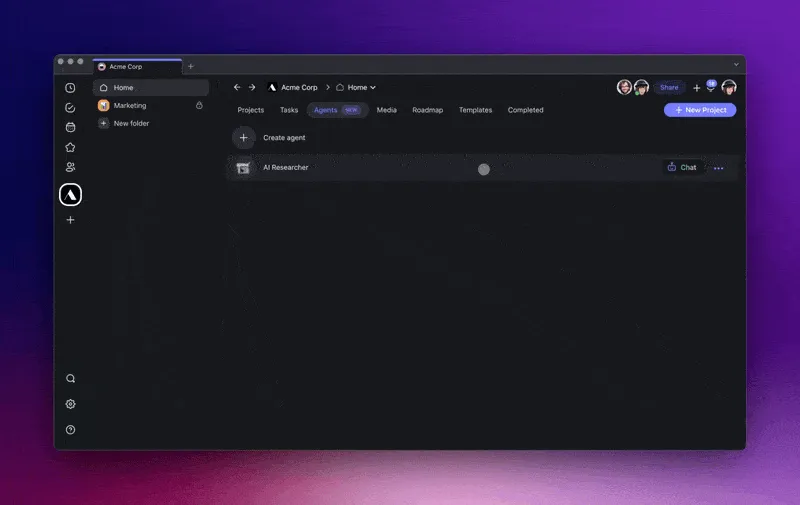
That is the design choice behind Taskade's approach. A transcript lands in a project. An agent that holds your channel brief reads it and drafts the description. The same transcript feeds the Shorts repurposing automation and a blog draft. One upload becomes several assets, and every draft waits in one review queue. The content repurposing tools roundup covers the wider version of the same idea.
An agent can take a YouTube video as a knowledge source and answer from it.
AI YouTube Description Generator FAQ
What is the best AI YouTube description generator in 2026?
It depends on what you can give it. For a free draft from a title, vidIQ, Ahrefs and Hootsuite are the fastest. For accurate chapters, use a tool that reads the transcript or the video, such as Descript, Claude or ChatGPT. For a channel that uploads every week, Taskade drafts each description from the transcript with an automation and an AI agent, and you approve it before it goes live.
What is the best free YouTube description generator?
vidIQ, Ahrefs, Hootsuite and VEED all write a description for free from a topic. vidIQ's free plan includes 150 AI credits a month, and Ahrefs returns three variants per run with a free Ahrefs account. For free chapters, YouTube Studio turns on automatic chapters for new uploads by default, and Bannerbear builds a chapter list in your browser with no account. Free plans were checked on November 7, 2026.
What is an AI video description generator?
An AI video description generator writes the text under a video: a hook, a short summary, chapters, links and hashtags. On YouTube that text can run up to 5,000 characters, and viewers see the first few lines before they click more. The same phrase can also mean audio description, an accessibility narration track that describes what happens on screen.
Can AI write YouTube chapters and timestamps?
Yes, if it reads the transcript or the video. YouTube shows chapters when the first timestamp is 00:00, the list has at least three timestamps in ascending order, and each chapter runs 10 seconds or longer. A tool that only sees your title cannot know where the topic changes, so it can only guess chapter names.
How long should a YouTube description be?
YouTube allows up to 5,000 characters. The first few lines matter most, because viewers see them before they click more. Put the hook and one or two main words first, then the summary, chapters, links and hashtags. Many tutorial descriptions land between 200 and 500 words, which is editorial advice, not a YouTube rule.
Does a YouTube description help SEO?
Yes. YouTube Help says search terms are matched with the video and the text in the description. It recommends a unique description for every video and one or two main words that appear in both the title and the description. It also says excessive tags in the description are against its spam policies.
How many hashtags should a YouTube description have?
Three is the practical number. YouTube shows up to three hashtags next to the video title, picked from the ones in your description. If a video has more than 60 hashtags, YouTube ignores all of them. Every hashtag must relate directly to the video.
Can I use ChatGPT or Claude to write YouTube descriptions?
Yes. Paste the transcript, name the main keyword and the call to action, and list the chapter rules in the prompt. Both have free plans with usage limits, and ChatGPT's free plan caps a single input at about 12 pages of text. The draft is only as accurate as the transcript, so check chapter times against the video before you publish.
Can I automate YouTube descriptions for every upload?
Yes. In Taskade, an automation starts when a new video goes live, transcribes it with a built-in step, and asks an AI agent to draft the description into a review table. The YouTube New Video trigger needs a paid plan, and a channel RSS feed works as the trigger on Free. The agent step uses AI credits. You paste the approved text into YouTube Studio yourself.
Does Taskade have a free YouTube description generator?
Yes. The free AI video description generator on Taskade drafts a hook, chapters, a call to action, links and hashtags from a title, outline or transcript, and saves the draft to a project you can edit. Each draft uses AI credits, and Free starts with 0. The Free plan includes 3 Taskade Genesis apps, 1 AI agent and 10 automation runs a billing period. On Free, you earn free AI credits with referrals and invites, and you can upgrade any time.
Can I build my own YouTube description app?
Yes. Taskade Genesis builds a working app from one prompt, for example a videos table, an AI agent that drafts descriptions from each transcript, and an automation that starts a draft for every new video. You can also clone the YouTube Description Generator kit from the Taskade App Factory. That kit holds automations, so cloning it needs a paid plan.
The Verdict
For a free first draft from a title, vidIQ, Ahrefs or Hootsuite. For real chapters, a transcript tool: Descript if you edit there, Claude or ChatGPT if you paste, Bannerbear if you want chapters only. For Shorts, Opus Clip or quso.ai.
For a channel that uploads every week, stop writing from a blank box. Let an automation transcribe each upload and an agent draft the description for your review. Draft your next description free →
▲ ■ ● A description is the one part of a video you can still change after you hit publish. Write it from the transcript, keep the voice in an agent, and let an automation start the next one. Memory feeds Intelligence, Intelligence triggers Execution. Build your description studio →