




Hi Taskaders 👋
Happy new year! We just wanted to say a huge thank you for your trust and support. And thanks for being a part of the Taskade community.
We spent the last 12 months working hard to make Taskade better for you and your team and here are a few new exciting updates to kick off 2023. 🎉
TL;DR: Backlinks, Team Folders, and the My Tasks filter shipped in January 2023 marked the start of Taskade's "second brain" era. Today Taskade spans 7 project views, 15+ frontier AI models from OpenAI, Anthropic, and Google, and 100+ integrations — and Taskade Genesis turns any prompt into a living app, while the Agent Inbox routes work across teams.
Then → Now: Backlinks + Team Folders + My Tasks filter (2023) → today's knowledge graph and Agent Inbox, team Automations, and thousands of starter templates.
| Navigation | 2023 H1 | Today (2026) |
|---|---|---|
| Linking | @-mention backlinks | Knowledge graph + Agent Inbox |
| Folders | Team folders + 3 visibility levels | 7-tier RBAC + team folders |
| My Tasks | Workspace/folder filter | My Tasks across all 7 views |
| Templates | Free AI Templates | Thousands of starter templates + Genesis kits |
   Backlinks: how a "second brain" forms in 2023   ┌──────────────────┐    @mentions    ┌──────────────────┐
   │ Project: Q1 OKRs │ ──────────────► │ Project: Roadmap │
   └────────┬─────────┘                 └─────────┬────────┘
            │                                     │
            │ @mentions                @mentions  │
            ▼                                     ▼
   ┌──────────────────┐    @mentions    ┌──────────────────┐
   │ Project: Hiring  │ ◄────────────── │ Project: Eng Hub │
   └──────────────────┘                 └──────────────────┘
            ▲                                     ▲
            └──────────  Backlinks panel ─────────┘
                  shows every incoming link
Today the same graph powers the Agent Inbox, knowledge sources, and Taskade Genesis — your linked projects become memory for AI Agents v2 and Automations. Browse community apps to see what teams build with it.
🧠 Backlinks
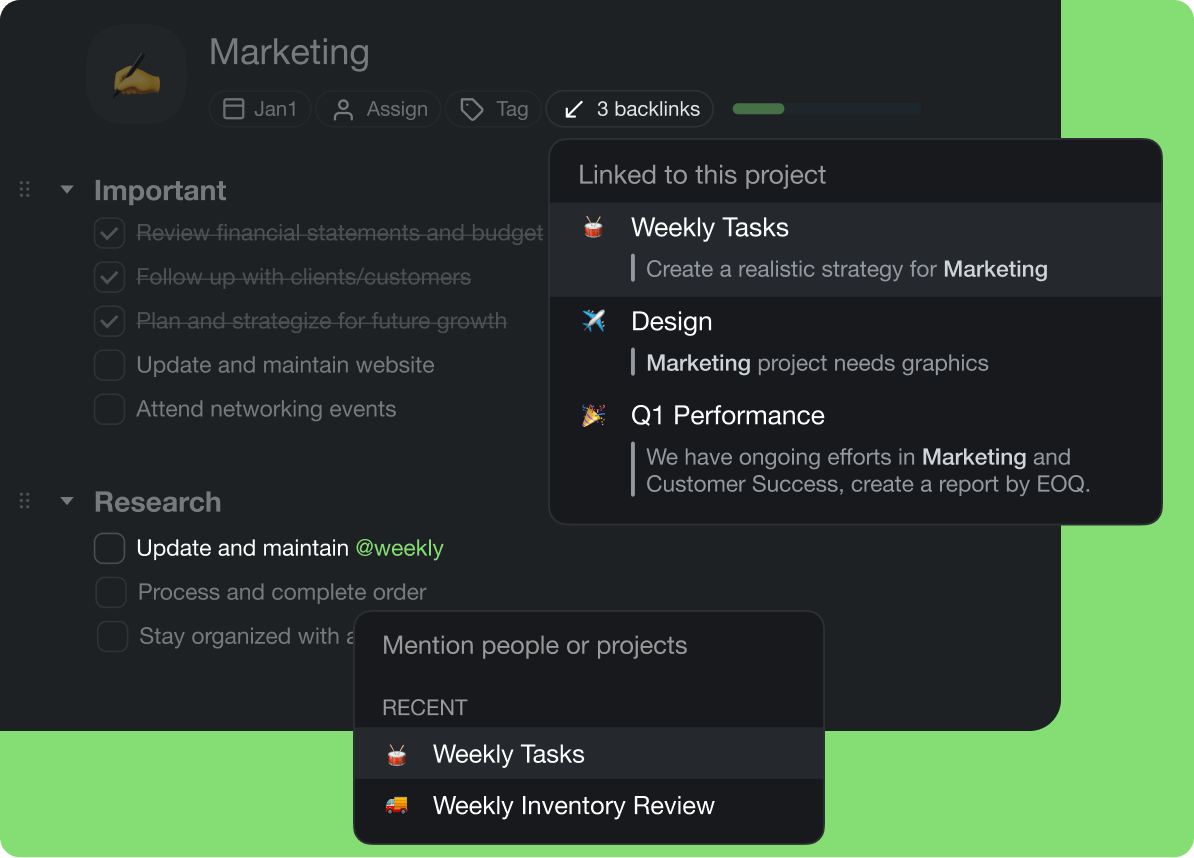
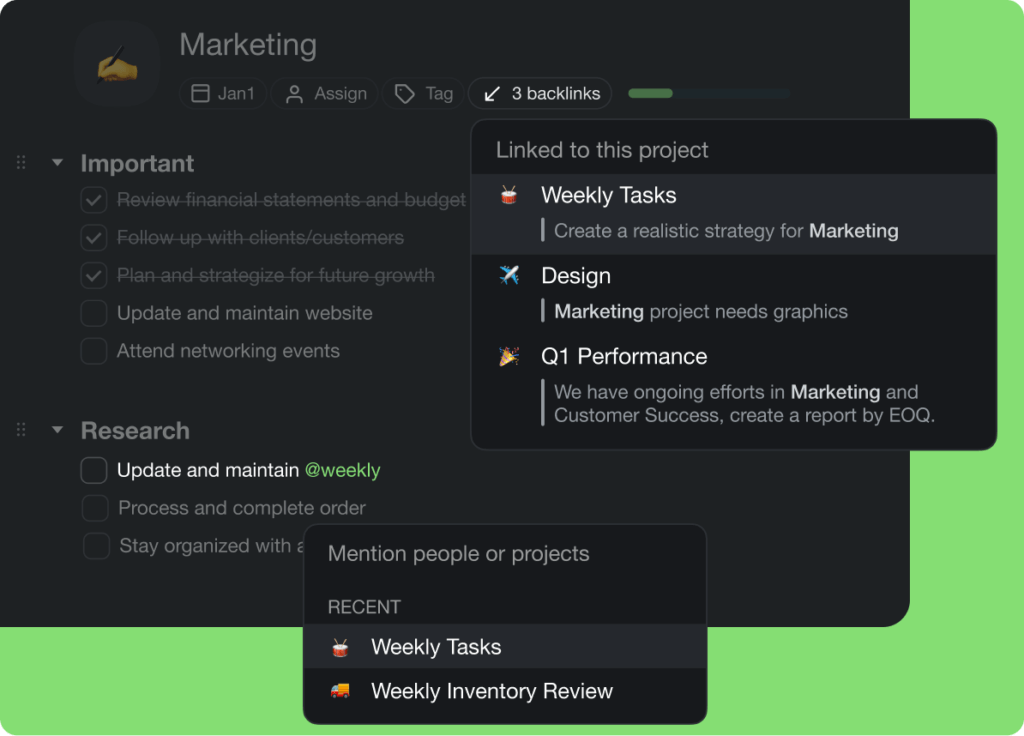
The new 🔗 Backlinks Menu lets you build your own second brain in a few clicks! Create a network of interconnected tasks, thoughts, and projects.
Here's how it works:
Type @ + project title to link projects together. You can also "Copy Link" for a task or project in the 📝 Share Menu and paste the hyperlink manually.
Click the "Backlinks" button at the top of the project you're editing. Taskade will show you all @mentions (backlinks) leading to the project.
Finally, select an existing backlink to quickly jump to the connected task and project. And that's it! Learn more
taskade backlinks 1
👩💻 Team Folders
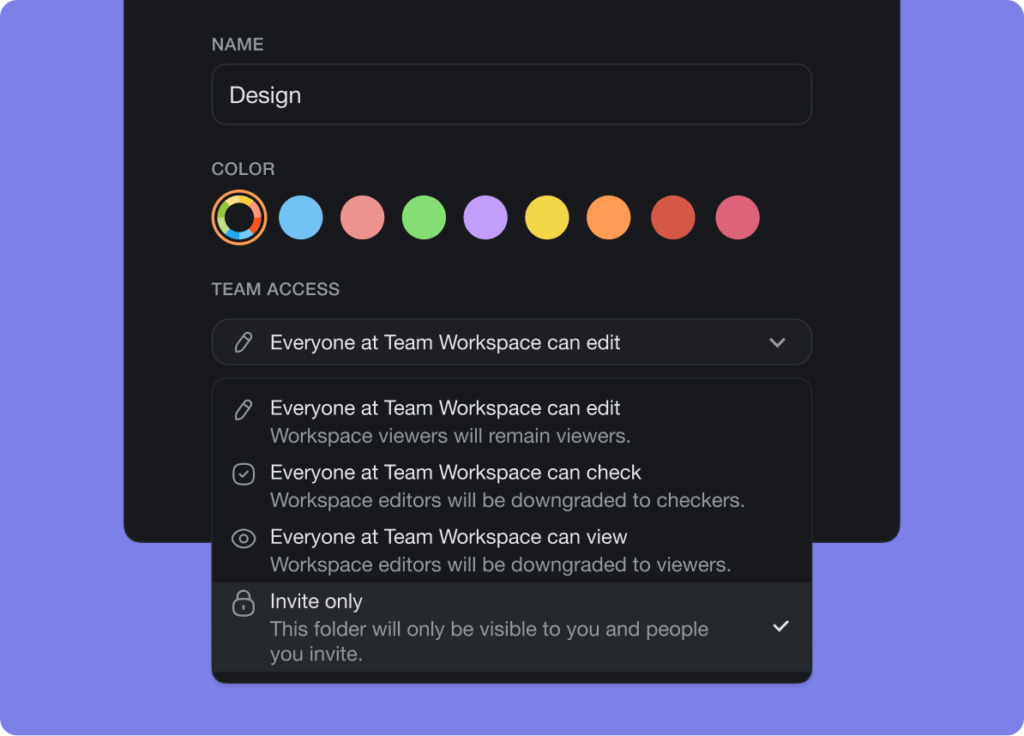
You can now give workspace members access to team folders instantly. Set a folder to public or private with the new permissions system so they can be editable by all workspace members, viewable, or invite only. Learn more
taskade folder permissions
✅ My Tasks Filter
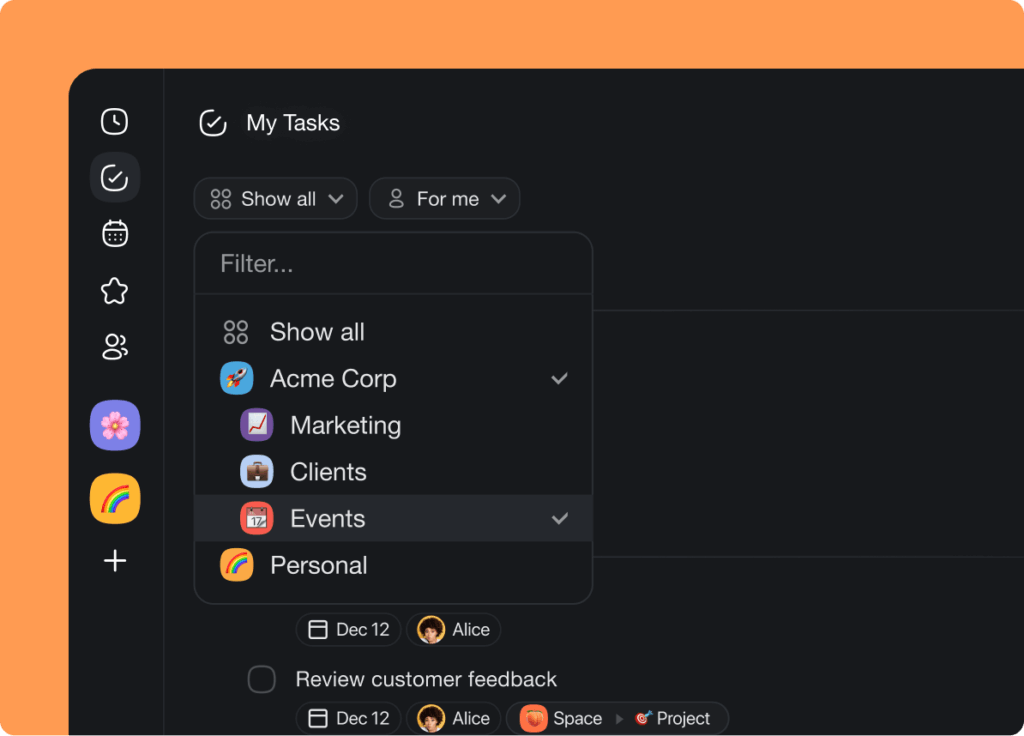
You can now filter My Tasks by workspace and folder similar to the global Calendar. In addition, My Tasks now displays tasks from external projects shared with you, perfect for working with consultants and external teams. Learn more
taskade my tasks filter
🎉 Other Improvements
New: Taskade AI now displays a loading indicator when fetching results
New: Taskade AI Templates are now available and free for everyone to try
New: Taskade Wall of Love page is now live with thousands of customer reviews
New: My Tasks now displays tasks from external shared with me projects
New: Invite to Workspace and Project now displays pending invites
New: Share and invite UI with option to disable and re-enable links
New: Onboarding, getting started, and personalized templates
New: Google People API support for future invite improvements
New: Added "Check all" support in the ⠟ drag icon menu
Fix: Improved CTRL / CMD + K and addressed UI bugs
Fix: Improved error handling for Private Folders
Fix: Various improvements for SAML and SSO support
Fix: Improve embedding of projects via iframe
Fix: Removed mobile web app install banner
Various performance improvements and bug fixes
And we’re just getting warmed up for 2023! 🎉
Have any questions? Visit our Help Center or let us know. 😊
— Team Taskade 🐑
P.S. For a more detailed look at 2022, check out our full 2022 recap here.
Frequently Asked Questions
What are Backlinks in Taskade?
Backlinks let you build a network of interconnected projects by typing @ followed by a project title. Click the Backlinks button at the top of any project to see all incoming references, then jump to connected tasks and projects instantly — creating a second brain within your workspace.
How do Team Folder permissions work in Taskade?
Workspace members can be granted access to team folders with three visibility levels: public (editable by all workspace members), viewable (read-only for members), or invite-only (restricted to specific invitees). Set permissions in the folder settings menu.
Can I filter My Tasks by workspace in Taskade?
Yes. My Tasks supports filtering by workspace and folder, similar to the global Calendar view. It also displays tasks from external projects shared with you, making it easy to track assignments across your own workspaces and collaborative projects.
Are Taskade AI Templates free to use?
Yes. Taskade AI Templates are free for everyone. Browse the template library to find pre-built project structures for various use cases, then customize them with your own content and AI-generated enhancements.