

Turning a 300-page textbook into a structured online course used to take weeks of manual work. Taskade's AI PDF to Course Converter reads your PDF with 15+ frontier AI models, identifies chapters, topics, and learning objectives, and transforms the content into organized course modules with lessons, key concepts, and action items.
How to Convert PDF to Course With Taskade
After importing your PDF file into Taskade, our AI Assistant will break down the content into logical course modules with lessons and learning objectives.
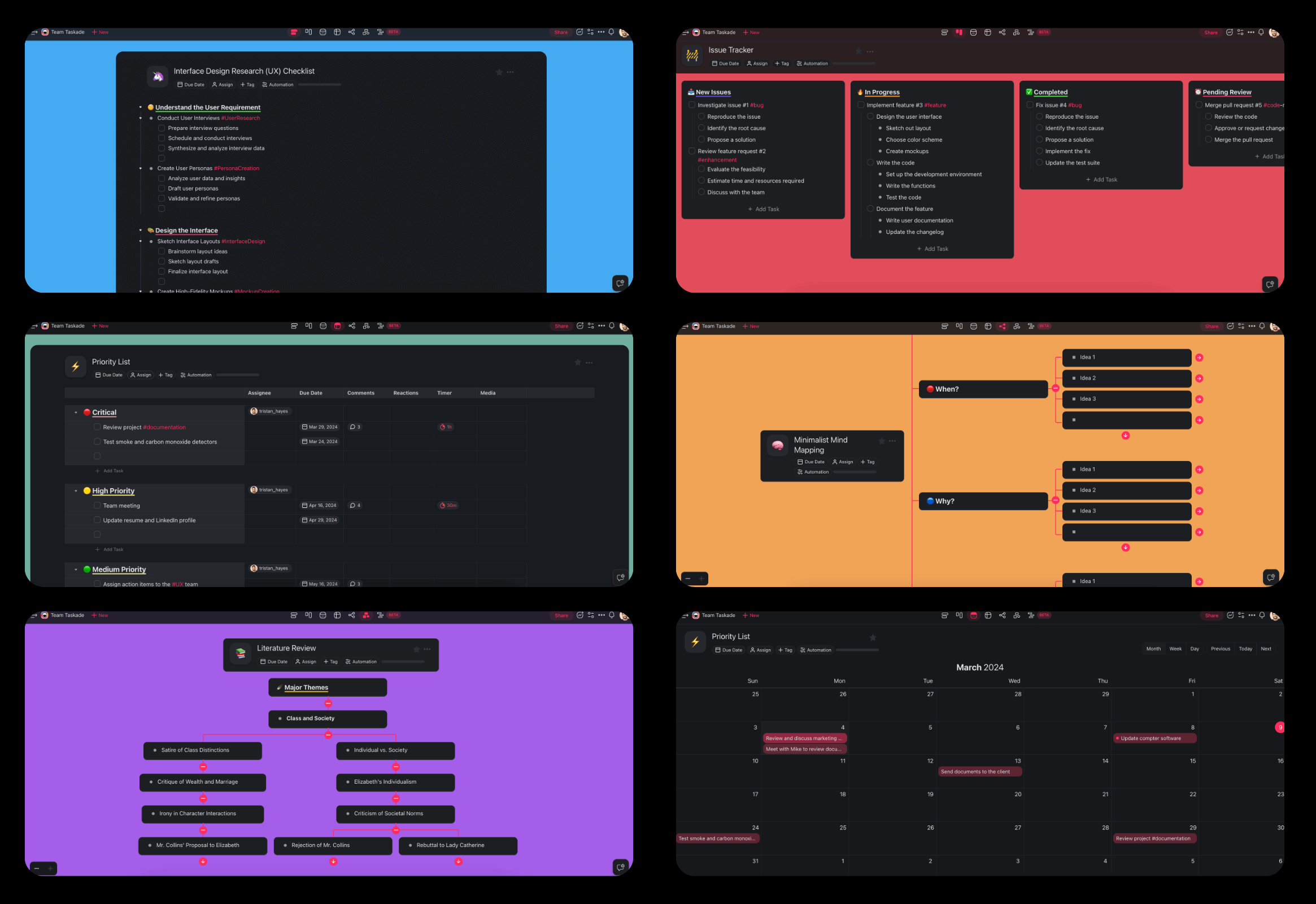
Visualize your course structure with multiple project views. Use Mind Map to see topic relationships, Board to track lesson progress, or List for a traditional course outline. Build AI Agents to generate quizzes and discussion questions from your course content.
Try Taskade for free today and start converting your PDFs to courses.
Use Cases for Converting PDF to Course With AI
Teacher Lesson Planning
Transform textbooks and curriculum guides into ready-to-teach course structures.
Convert PDF textbooks into week-by-week lesson plans with objectives and activities.
Transform curriculum standards documents into aligned course module outlines.
Extract chapter exercises from PDF materials into graded assignment sequences.
Corporate Training Programs
Build employee training courses from existing PDF manuals and policy documents.
Convert PDF employee handbooks into onboarding course modules.
Transform PDF compliance manuals into mandatory training courses with completion tracking.
Extract best practices from PDF operational guides into skill-building course sequences.
Self-Paced Learning
Create personal learning paths from PDF reference materials and guides.
Convert PDF programming books into self-paced coding courses with project milestones.
Transform PDF study guides into structured exam preparation courses.
Extract key concepts from PDF reference materials into progressive learning modules.
Tutoring and Coaching
Structure tutoring sessions from PDF academic materials.
Convert PDF subject materials into tutoring session plans with practice problems.
Transform PDF test prep books into targeted coaching course outlines.
Extract worked examples from PDF textbooks into guided practice sequences.
Also see our PDF to Flashcards and PDF to Quiz converters for complementary study tools.
Frequently Asked Questions
Can I convert a PDF to a course for free?
Yes. Taskade's free tier includes AI-powered PDF to course conversion. Upload your PDF, click "Convert now," and receive a structured course outline instantly. No credit card required.
How does the AI structure the course?
Taskade's 15+ frontier AI models from OpenAI, Anthropic, and Google analyze the PDF's table of contents, headings, and content flow. The AI identifies natural topic boundaries, extracts key concepts per section, and organizes them into a hierarchical course structure with modules, lessons, and learning objectives.
Can I customize the course after conversion?
Yes. Every element is fully editable. Rearrange modules, add supplementary materials, insert discussion questions, and use AI Agents with built-in tools and custom slash commands to generate quizzes, flashcards, or additional explanations for any topic.
Can students track their progress through the course?
Yes. Share the course with students using role-based permissions. Each lesson item can be checked off as completed. Switch to Board view for kanban-style progress tracking or Gantt view for timeline-based pacing.